
在 Java 中管理簡報背景
簡介
純色、漸層和圖像常用於投影片背景。您可以為 普通投影片(單一投影片)或 母片投影片(一次套用至多張投影片)設定背景。
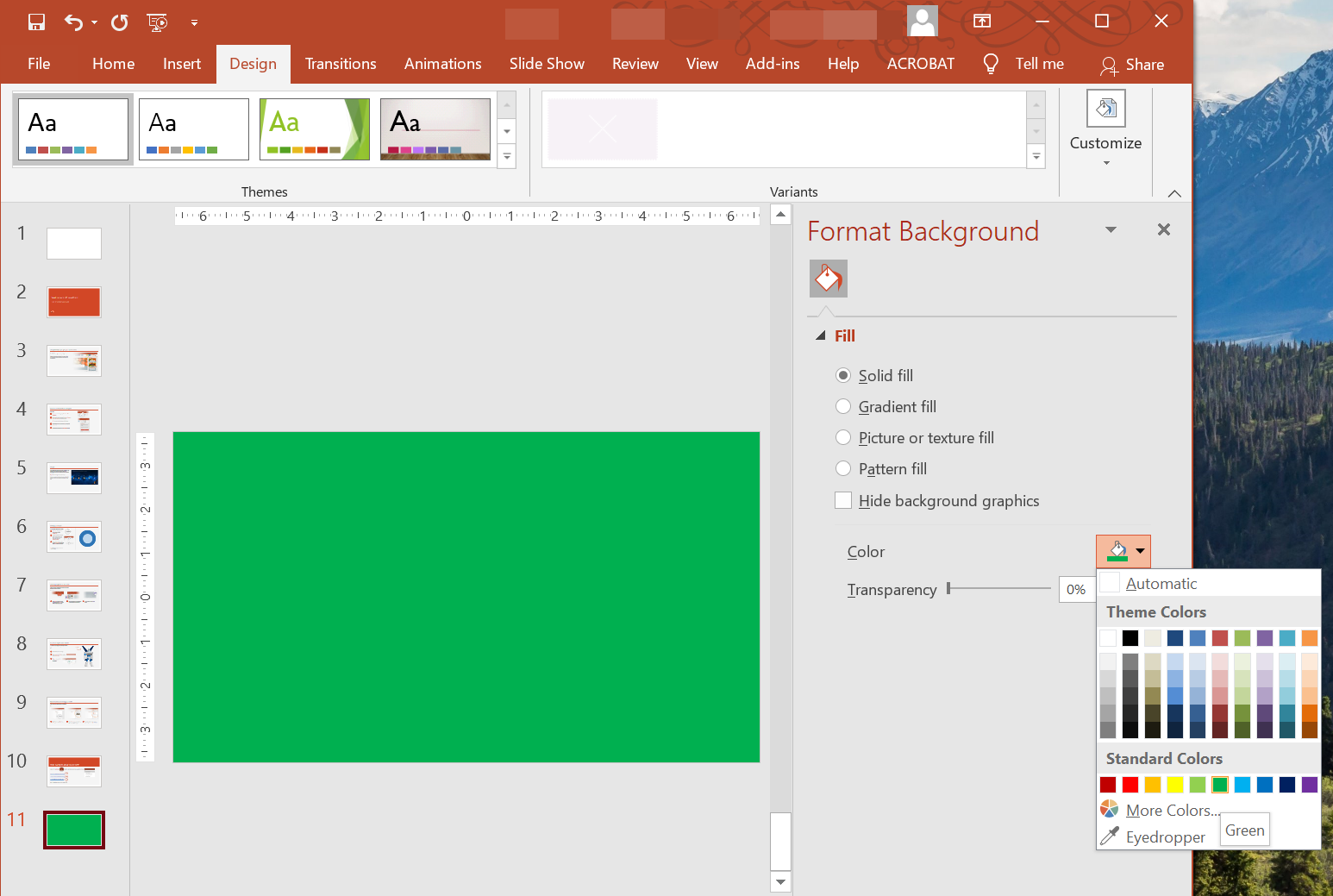
為普通投影片設定純色背景
Aspose.Slides 允許您為簡報中特定的投影片設定純色背景,即使該簡報使用母片。此變更僅套用於所選投影片。
- 建立 Presentation 類別的實例。
- 將投影片的 BackgroundType 設為
OwnBackground。 - 將投影片背景的 FillType 設為
Solid。 - 使用 FillFormat 上的 getSolidFillColor 方法指定純色背景顏色。
- 儲存已修改的簡報。
以下 Java 範例說明如何將藍色純色設定為普通投影片的背景:
// 建立 Presentation 類別的實例。
Presentation presentation = new Presentation();
try {
    ISlide slide = presentation.getSlides().get_Item(0);

    // 將投影片的背景顏色設為藍色。
    slide.getBackground().setType(BackgroundType.OwnBackground);
    slide.getBackground().getFillFormat().setFillType(FillType.Solid);
    slide.getBackground().getFillFormat().getSolidFillColor().setColor(Color.BLUE);

    // 將簡報儲存至磁碟。
    presentation.save("SolidColorBackground.pptx", SaveFormat.Pptx);
} finally {
    presentation.dispose();
}
為母片投影片設定純色背景
Aspose.Slides 允許您為簡報的母片投影片設定純色背景。母片投影片作為模板,控制所有投影片的格式,因此為母片投影片的背景選擇純色時,會套用至每張投影片。
- 建立 Presentation 類別的實例。
- 將母片投影片的 BackgroundType(透過
getMasters)設定為OwnBackground。 - 將母片投影片背景的 FillType 設為
Solid。 - 使用 getSolidFillColor 方法指定純色背景顏色。
- 儲存已修改的簡報。
以下 Java 範例說明如何將綠色純色設定為母片投影片的背景:
// 建立 Presentation 類別的實例。
Presentation presentation = new Presentation();
try {
    IMasterSlide masterSlide = presentation.getMasters().get_Item(0);

    // 將母片投影片的背景顏色設為森林綠。
    masterSlide.getBackground().setType(BackgroundType.OwnBackground);
    masterSlide.getBackground().getFillFormat().setFillType(FillType.Solid);
    masterSlide.getBackground().getFillFormat().getSolidFillColor().setColor(Color.GREEN);

    // 將簡報儲存至磁碟。
    presentation.save("MasterSlideBackground.pptx", SaveFormat.Pptx);
} finally {
    presentation.dispose();
}
為投影片設定漸層背景
漸層是透過顏色逐漸變化產生的圖形效果。作為投影片背景時,漸層能讓簡報更具藝術感與專業感。Aspose.Slides 允許您將漸層顏色設定為投影片的背景。
- 建立 Presentation 類別的實例。
- 將投影片的 BackgroundType 設為
OwnBackground。 - 將投影片背景的 FillType 設為
Gradient。 - 使用 FillFormat 上的 getGradientFormat 方法配置您偏好的漸層設定。
- 儲存已修改的簡報。
以下 Java 範例說明如何將漸層顏色設定為投影片的背景:
// 建立 Presentation 類別的實例。
Presentation presentation = new Presentation();
try {
    ISlide slide = presentation.getSlides().get_Item(0);

    // 套用漸層效果至背景。
    slide.getBackground().setType(BackgroundType.OwnBackground);
    slide.getBackground().getFillFormat().setFillType(FillType.Gradient);
    slide.getBackground().getFillFormat().getGradientFormat().setTileFlip(TileFlip.FlipBoth);

    // 將簡報儲存至磁碟。
    presentation.save("GradientBackground.pptx", SaveFormat.Pptx);
} finally {
    presentation.dispose();
}
將圖像設定為投影片背景
除了純色與漸層填充外,Aspose.Slides 也允許您使用圖像作為投影片背景。
- 建立 Presentation 類別的實例。
- 將投影片的 BackgroundType 設為
OwnBackground。 - 將投影片背景的 FillType 設為
Picture。 - 載入您想用作投影片背景的圖像。
- 將圖像加入簡報的圖像集合。
- 使用 FillFormat 上的 getPictureFillFormat 方法將圖像指定為背景。
- 儲存已修改的簡報。
以下 Java 範例說明如何將圖像設定為投影片的背景:
// 建立 Presentation 類別的實例。
Presentation presentation = new Presentation();
try {
    ISlide slide = presentation.getSlides().get_Item(0);

    // 設定背景圖像屬性。
    slide.getBackground().setType(BackgroundType.OwnBackground);
    slide.getBackground().getFillFormat().setFillType(FillType.Picture);
    slide.getBackground().getFillFormat().getPictureFillFormat().setPictureFillMode(PictureFillMode.Stretch);

    // 載入圖像。
    IImage image = Images.fromFile("Tulips.jpg");
    // 將圖像加入簡報的圖像集合。
    IPPImage ppImage = presentation.getImages().addImage(image);
    image.dispose();

    slide.getBackground().getFillFormat().getPictureFillFormat().getPicture().setImage(ppImage);

    // 將簡報儲存至磁碟。
    presentation.save("ImageAsBackground.pptx", SaveFormat.Pptx);
} finally {
    presentation.dispose();
}
以下程式碼範例說明如何將背景填充類型設為平鋪圖片,並修改平鋪屬性:
Presentation presentation = new Presentation();
try {
    ISlide firstSlide = presentation.getSlides().get_Item(0);

    IBackground background = firstSlide.getBackground();

    background.setType(BackgroundType.OwnBackground);
    background.getFillFormat().setFillType(FillType.Picture);

    IImage newImage = Images.fromFile("image.png");
    IPPImage ppImage = presentation.getImages().addImage(newImage);
    newImage.dispose();

    // 設定用於背景填充的圖像。
    IPictureFillFormat backPictureFillFormat = background.getFillFormat().getPictureFillFormat();
    backPictureFillFormat.getPicture().setImage(ppImage);

    // 將圖片填充模式設為平鋪,並調整平鋪屬性。
    backPictureFillFormat.setPictureFillMode(PictureFillMode.Tile);
    backPictureFillFormat.setTileOffsetX(15f);
    backPictureFillFormat.setTileOffsetY(15f);
    backPictureFillFormat.setTileScaleX(46f);
    backPictureFillFormat.setTileScaleY(87f);
    backPictureFillFormat.setTileAlignment(RectangleAlignment.Center);
    backPictureFillFormat.setTileFlip(TileFlip.FlipY);

    presentation.save("TileBackground.pptx", SaveFormat.Pptx);
} finally {
    presentation.dispose();
}
變更背景圖像透明度
您可能想調整投影片背景圖像的透明度,以突顯投影片內容。以下 Java 程式碼示範如何變更投影片背景圖像的透明度:
int transparencyValue = 30; // 例如。

// 取得圖片變換操作的集合。
IImageTransformOperationCollection imageTransform = slide.getBackground().getFillFormat().getPictureFillFormat().getPicture().getImageTransform();

// 尋找現有的固定百分比透明度效果。
IAlphaModulateFixed transparencyOperation = null;
for (IImageTransformOperation operation : imageTransform) {
    if (operation instanceof IAlphaModulateFixed) {
        transparencyOperation = (IAlphaModulateFixed)operation;
        break;
    }
}

// 設定新的透明度值。
if (transparencyOperation == null) {
    imageTransform.addAlphaModulateFixedEffect(100 - transparencyValue);
}
else {
    transparencyOperation.setAmount(100 - transparencyValue);
}
取得投影片背景值
Aspose.Slides 提供 IBackgroundEffectiveData 介面,用於取得投影片的實際背景值。此介面公開實際的 FillFormat 和 EffectFormat。
使用 BaseSlide 類別的 getBackground 方法,即可取得投影片的實際背景。
以下 Java 範例說明如何取得投影片的實際背景值:
// 建立 Presentation 類別的實例。
Presentation presentation = new Presentation("Sample.pptx");
try {
    ISlide slide = presentation.getSlides().get_Item(0);

    // 取得有效的背景,並考慮母片、版面配置與主題。
    IBackgroundEffectiveData effBackground = slide.getBackground().getEffective();

    if (effBackground.getFillFormat().getFillType() == FillType.Solid)
        System.out.println("Fill color: " + effBackground.getFillFormat().getSolidFillColor());
    else
        System.out.println("Fill type: " + effBackground.getFillFormat().getFillType());
} finally {
    presentation.dispose();
}
常見問題
我可以重設自訂背景並恢復主題/版面配置背景嗎?
是的。移除投影片的自訂填充,背景會再次從相應的 layout/master 投影片(即 theme background)繼承。
如果我之後變更簡報的主題,背景會發生什麼變化?
如果投影片擁有自己的填充,則不會變更。若背景是從 layout/master 繼承的,則會隨著 new theme 進行更新。