
在 Java 中管理演示文稿背景
概述
纯色、渐变和图像通常用于幻灯片背景。您可以为 普通幻灯片(单个幻灯片)或 母版幻灯片(一次应用于多个幻灯片)设置背景。
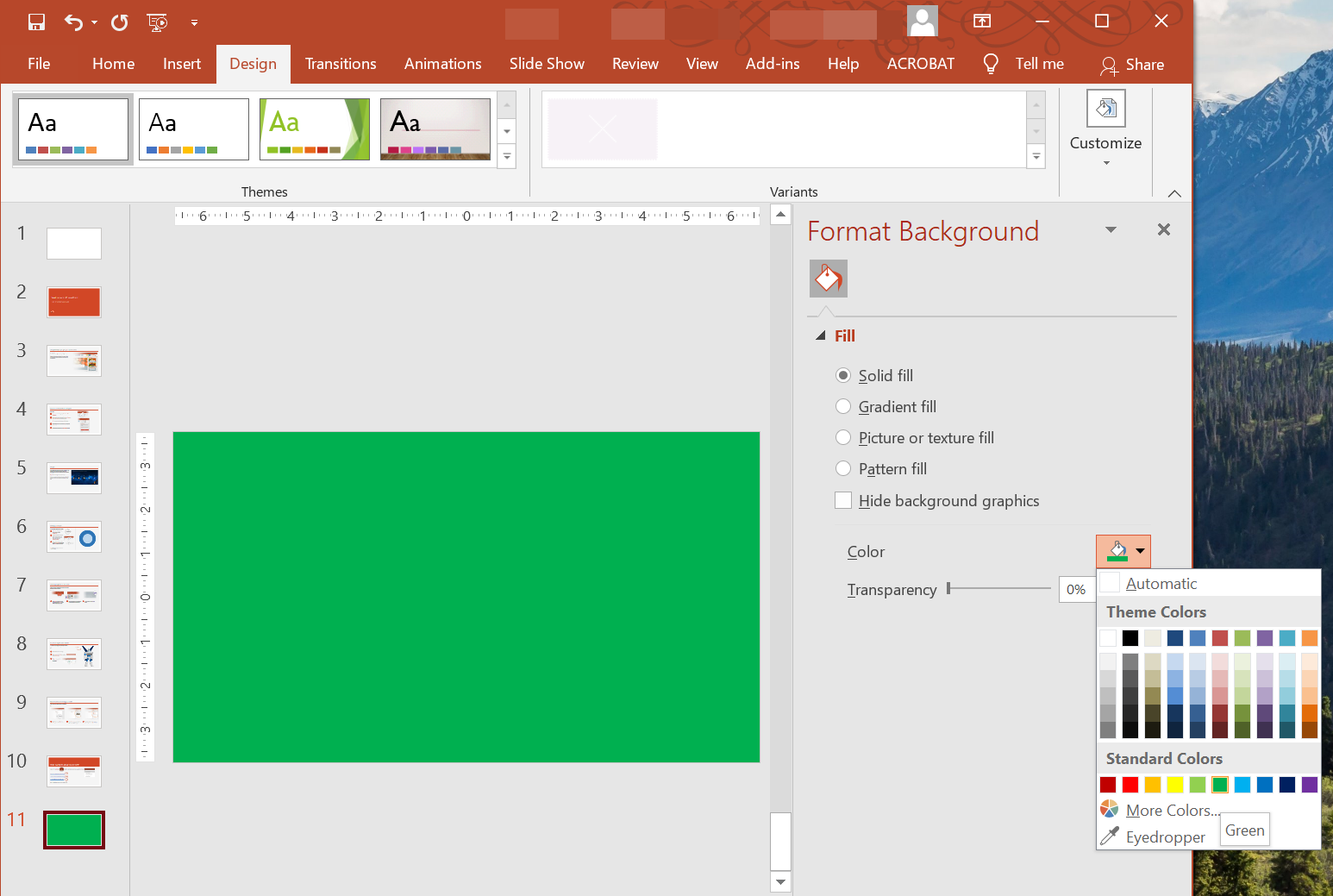
为普通幻灯片设置纯色背景
Aspose.Slides 允许您为演示文稿中的特定幻灯片设置纯色背景——即使演示文稿使用了母版幻灯片。此更改仅适用于所选幻灯片。
- 创建 Presentation 类的实例。
- 将幻灯片的 BackgroundType 设置为
OwnBackground。 - 将幻灯片背景的 FillType 设置为
Solid。 - 在 FillFormat 上使用 getSolidFillColor 方法来指定纯色背景颜色。
- 保存修改后的演示文稿。
以下 Java 示例演示如何将蓝色纯色设置为普通幻灯片的背景:
// 创建 Presentation 类的实例。
Presentation presentation = new Presentation();
try {
    ISlide slide = presentation.getSlides().get_Item(0);

    // 将幻灯片的背景颜色设置为蓝色。
    slide.getBackground().setType(BackgroundType.OwnBackground);
    slide.getBackground().getFillFormat().setFillType(FillType.Solid);
    slide.getBackground().getFillFormat().getSolidFillColor().setColor(Color.BLUE);

    // 将演示文稿保存到磁盘。
    presentation.save("SolidColorBackground.pptx", SaveFormat.Pptx);
} finally {
    presentation.dispose();
}
为母版幻灯片设置纯色背景
Aspose.Slides 允许您为演示文稿的母版幻灯片设置纯色背景。母版幻灯片充当控制所有幻灯片格式的模板,因此当您为母版幻灯片的背景选择纯色时,它会应用于每个幻灯片。
- 创建 Presentation 类的实例。
- 通过
getMasters将母版幻灯片的 BackgroundType 设置为OwnBackground。 - 将母版幻灯片背景的 FillType 设置为
Solid。 - 使用 getSolidFillColor 方法指定纯色背景颜色。
- 保存修改后的演示文稿。
以下 Java 示例演示如何将绿色纯色设置为母版幻灯片的背景:
// 创建 Presentation 类的实例。
Presentation presentation = new Presentation();
try {
    IMasterSlide masterSlide = presentation.getMasters().get_Item(0);

    // 将 Master 幻灯片的背景颜色设置为森林绿。
    masterSlide.getBackground().setType(BackgroundType.OwnBackground);
    masterSlide.getBackground().getFillFormat().setFillType(FillType.Solid);
    masterSlide.getBackground().getFillFormat().getSolidFillColor().setColor(Color.GREEN);

    // 将演示文稿保存到磁盘。
    presentation.save("MasterSlideBackground.pptx", SaveFormat.Pptx);
} finally {
    presentation.dispose();
}
为幻灯片设置渐变背景
渐变是一种通过颜色逐渐变化创建的图形效果。当用作幻灯片背景时,渐变可以使演示文稿看起来更具艺术性和专业性。Aspose.Slides 允许您将渐变颜色设置为幻灯片的背景。
- 创建 Presentation 类的实例。
- 将幻灯片的 BackgroundType 设置为
OwnBackground。 - 将幻灯片背景的 FillType 设置为
Gradient。 - 在 FillFormat 上使用 getGradientFormat 方法配置所需的渐变设置。
- 保存修改后的演示文稿。
以下 Java 示例演示如何将渐变颜色设置为幻灯片的背景:
// 创建 Presentation 类的实例。
Presentation presentation = new Presentation();
try {
    ISlide slide = presentation.getSlides().get_Item(0);

    // 为背景应用渐变效果。
    slide.getBackground().setType(BackgroundType.OwnBackground);
    slide.getBackground().getFillFormat().setFillType(FillType.Gradient);
    slide.getBackground().getFillFormat().getGradientFormat().setTileFlip(TileFlip.FlipBoth);

    // 将演示文稿保存到磁盘。
    presentation.save("GradientBackground.pptx", SaveFormat.Pptx);
} finally {
    presentation.dispose();
}
将图像设为幻灯片背景
除了纯色和渐变填充外,Aspose.Slides 还允许您使用图像作为幻灯片背景。
- 创建 Presentation 类的实例。
- 将幻灯片的 BackgroundType 设置为
OwnBackground。 - 将幻灯片背景的 FillType 设置为
Picture。 - 加载您想用作幻灯片背景的图像。
- 将图像添加到演示文稿的图像集合中。
- 在 FillFormat 上使用 getPictureFillFormat 方法将图像指定为背景。
- 保存修改后的演示文稿。
以下 Java 示例演示如何将图像设置为幻灯片的背景:
// 创建 Presentation 类的实例。
Presentation presentation = new Presentation();
try {
    ISlide slide = presentation.getSlides().get_Item(0);

    // 设置背景图像属性。
    slide.getBackground().setType(BackgroundType.OwnBackground);
    slide.getBackground().getFillFormat().setFillType(FillType.Picture);
    slide.getBackground().getFillFormat().getPictureFillFormat().setPictureFillMode(PictureFillMode.Stretch);

    // 加载图像。
    IImage image = Images.fromFile("Tulips.jpg");
    // 将图像添加到演示文稿的图像集合中。
    IPPImage ppImage = presentation.getImages().addImage(image);
    image.dispose();

    slide.getBackground().getFillFormat().getPictureFillFormat().getPicture().setImage(ppImage);

    // 将演示文稿保存到磁盘。
    presentation.save("ImageAsBackground.pptx", SaveFormat.Pptx);
} finally {
    presentation.dispose();
}
以下代码示例演示如何将背景填充类型设置为平铺图片并修改平铺属性:
Presentation presentation = new Presentation();
try {
    ISlide firstSlide = presentation.getSlides().get_Item(0);

    IBackground background = firstSlide.getBackground();

    background.setType(BackgroundType.OwnBackground);
    background.getFillFormat().setFillType(FillType.Picture);

    IImage newImage = Images.fromFile("image.png");
    IPPImage ppImage = presentation.getImages().addImage(newImage);
    newImage.dispose();

    // 设置用于背景填充的图像。
    IPictureFillFormat backPictureFillFormat = background.getFillFormat().getPictureFillFormat();
    backPictureFillFormat.getPicture().setImage(ppImage);

    // 将图片填充模式设置为平铺并调整平铺属性。
    backPictureFillFormat.setPictureFillMode(PictureFillMode.Tile);
    backPictureFillFormat.setTileOffsetX(15f);
    backPictureFillFormat.setTileOffsetY(15f);
    backPictureFillFormat.setTileScaleX(46f);
    backPictureFillFormat.setTileScaleY(87f);
    backPictureFillFormat.setTileAlignment(RectangleAlignment.Center);
    backPictureFillFormat.setTileFlip(TileFlip.FlipY);

    presentation.save("TileBackground.pptx", SaveFormat.Pptx);
} finally {
    presentation.dispose();
}
更改背景图像透明度
您可能想调整幻灯片背景图像的透明度,以突出幻灯片内容。以下 Java 代码展示了如何更改幻灯片背景图像的透明度:
int transparencyValue = 30; // 例如。

// Get the collection of picture transform operations.
IImageTransformOperationCollection imageTransform = slide.getBackground().getFillFormat().getPictureFillFormat().getPicture().getImageTransform();

// Find an existing fixed-percentage transparency effect.
IAlphaModulateFixed transparencyOperation = null;
for (IImageTransformOperation operation : imageTransform) {
    if (operation instanceof IAlphaModulateFixed) {
        transparencyOperation = (IAlphaModulateFixed)operation;
        break;
    }
}

// Set the new transparency value.
if (transparencyOperation == null) {
    imageTransform.addAlphaModulateFixedEffect(100 - transparencyValue);
}
else {
    transparencyOperation.setAmount(100 - transparencyValue);
}
获取幻灯片背景值
Aspose.Slides 提供了 IBackgroundEffectiveData 接口,用于检索幻灯片的有效背景值。该接口公开了有效的 FillFormat 和 EffectFormat。
使用 BaseSlide 类的 getBackground 方法,您可以获取幻灯片的有效背景。
以下 Java 示例演示如何获取幻灯片的有效背景值:
// 创建 Presentation 类的实例。
Presentation presentation = new Presentation("Sample.pptx");
try {
    ISlide slide = presentation.getSlides().get_Item(0);

    // 检索有效背景,考虑母版、布局和主题。
    IBackgroundEffectiveData effBackground = slide.getBackground().getEffective();

    if (effBackground.getFillFormat().getFillType() == FillType.Solid)
        System.out.println("Fill color: " + effBackground.getFillFormat().getSolidFillColor());
    else
        System.out.println("Fill type: " + effBackground.getFillFormat().getFillType());
} finally {
    presentation.dispose();
}
常见问题
我可以重置自定义背景并恢复主题/布局背景吗?
可以。删除幻灯片的自定义填充后,背景将再次从相应的 layout/master 幻灯片继承(即 theme background)。
如果我稍后更改演示文稿的主题,背景会怎样?
如果幻灯片拥有自己的填充,则保持不变。如果背景是从 layout/master 继承的,则会更新以匹配 new theme。