
在 Python 透過 Java 轉換 PPT 與 PPTX 為 PDF [包含進階功能]
概觀
在 Python 透過 Java 將 PowerPoint 簡報(PPT、PPTX、ODP 等)轉換為 PDF 格式具備多項優勢,包括在不同裝置間的相容性以及保留簡報的版面配置與格式。本指南說明如何將簡報轉換為 PDF 文件、使用各種選項控制影像品質、包含隱藏投影片、為 PDF 檔案設定密碼保護、偵測字型替換、選擇特定投影片進行轉換,以及對輸出文件套用合規標準。
PowerPoint 轉 PDF 轉換
使用 Aspose.Slides,您可以將以下格式的簡報轉換為 PDF:
- PPT
- PPTX
- ODP
要將簡報轉換為 PDF,只需將檔名作為參數傳遞給 Presentation 類別,然後使用 save 方法將簡報儲存為 PDF。Presentation 類別公開了 save 方法,通常用於將簡報轉換為 PDF。
Note
Aspose.Slides for Python via Java 會將其 API 資訊與版本號插入輸出文件中。例如,將簡報轉換為 PDF 時,Aspose.Slides 會在 Application 欄位填入「Aspose.Slides」,在 PDF Producer 欄位填入形如「Aspose.Slides v XX.XX」的值。Note 您無法指示 Aspose.Slides 更改或移除這些資訊。Aspose.Slides 允許您進行以下轉換:
- 整份簡報轉換為 PDF
- 從簡報中挑選特定投影片轉換為 PDF
Aspose.Slides 會將簡報匯出為 PDF,確保產生的 PDF 與原始簡報高度相符。轉換過程中會精確呈現各種元素與屬性,包括:
- 圖片
- 文字方塊與圖形
- 文字格式
- 段落格式
- 超連結
- 頁首與頁尾
- 項目符號
- 表格
轉換 PowerPoint 為 PDF
標準轉換會使用預設的 PDF 匯出設定。當您需要控制影像品質、頁面內容或 PDF 合規性時,請使用自訂選項。
以下範例會載入簡報,並使用預設匯出設定將所有可見投影片儲存為 PDF。
import jpype
import asposeslides

if not jpype.isJVMStarted():
    jpype.startJVM()

from asposeslides.api import Presentation, SaveFormat

presentation = Presentation("presentation.pptx")
try:
    presentation.save("presentation.pdf", SaveFormat.Pdf)
finally:
    presentation.dispose()
Note
Aspose 提供一個免費的線上 PowerPoint 轉 PDF 轉換器 以示範簡報轉 PDF 的流程。您可以使用此轉換器測試本文所述的實作程序。使用選項將 PowerPoint 轉換為 PDF
Aspose.Slides 提供自訂選項—位於 PdfOptions 類別下的屬性—讓您自訂產生的 PDF、以密碼鎖定 PDF,或指定轉換流程的執行方式。
使用自訂選項將 PowerPoint 轉換為 PDF
透過自訂轉換選項,您可以為點陣圖設定偏好的品質、指定中繪檔的處理方式、設定文字壓縮等級、配置影像 DPI,等等。
以下範例將簡報匯出為 PDF 1.5,JPEG 品質設定為 90,影像解析度設定為 300 DPI,中繪檔保存為 PNG,並使用 Flate 文字壓縮。
import jpype
import asposeslides

if not jpype.isJVMStarted():
    jpype.startJVM()

from asposeslides.api import PdfCompliance, PdfOptions, PdfTextCompression, Presentation, SaveFormat

pdf_options = PdfOptions()
pdf_options.setJpegQuality(jpype.JByte(90))
pdf_options.setSufficientResolution(300)
pdf_options.setSaveMetafilesAsPng(True)
pdf_options.setTextCompression(PdfTextCompression.Flate)
pdf_options.setCompliance(PdfCompliance.Pdf15)

presentation = Presentation("presentation.pptx")
try:
    presentation.save("presentation-custom.pdf", SaveFormat.Pdf, pdf_options)
finally:
    presentation.dispose()
自動選擇影像壓縮
當簡報包含大量照片或螢幕截圖時,縮小匯出 PDF 的大小可使其更易於透過電子郵件或下載。於 PDF 匯出時,將 True 傳遞給 PdfOptions.setBestImagesCompressionRatio 以自動為每張影像選擇最適合的壓縮演算法。
以下範例載入現有簡報,啟用自動影像壓縮選擇,並將其儲存為 PDF 文件。其他所有 PDF 匯出設定均保留預設值。
import jpype
import asposeslides

if not jpype.isJVMStarted():
    jpype.startJVM()

from asposeslides.api import PdfOptions, Presentation, SaveFormat

pdf_options = PdfOptions()
pdf_options.setBestImagesCompressionRatio(True)

presentation = Presentation("image-heavy.pptx")
try:
    presentation.save("image-heavy.pdf", SaveFormat.Pdf, pdf_options)
finally:
    presentation.dispose()
此選項會為每張影像選擇壓縮演算法。降低傳遞給 setJpegQuality 的數值會降低 JPEG 影像品質;降低傳遞給 setSufficientResolution 的數值則允許影像降採樣至較低解析度,可能減少細節。啟用自動壓縮選擇本身不會降低上述任一設定。
選擇影像壓縮演算法會增加額外的處理時間與記憶體需求。大小縮減取決於簡報中的影像及匯出設定;無法保證每份簡報皆有固定的縮減幅度。
保留內嵌 OLE 檔案為 PDF 附件
如果簡報內嵌了 Excel 活頁簿,您可能希望 PDF 接收者同時能取得該活頁簿的資料以及檢視投影片。將 True 傳遞給 setIncludeOleData 以在產生的 PDF 中保留內嵌 OLE 檔案作為附件。
預設值為 False:OLE 物件的預覽圖或圖示會呈現在 PDF 頁面上,但其內嵌檔案不會作為附件包含。將此選項設為 True 會額外加入檔案資料。預覽仍為視覺表示;附件則允許接收者單獨開啟或儲存內嵌檔案。OLE 物件不會在 PDF 頁面上變成可互動的 Excel 工作表。
以下範例載入已包含內嵌 Excel 活頁簿的簡報,並將其匯出為附帶活頁簿的 PDF。
import jpype
import asposeslides

if not jpype.isJVMStarted():
    jpype.startJVM()

from asposeslides.api import PdfOptions, Presentation, SaveFormat

pdf_options = PdfOptions()
pdf_options.setIncludeOleData(True)

presentation = Presentation("presentation.pptx")
try:
    presentation.save("presentation.pdf", SaveFormat.Pdf, pdf_options)
finally:
    presentation.dispose()
檢查結果的方法:
- 在支援檔案附件的檢視器(例如 Adobe Acrobat Reader)中開啟匯出的 PDF。
- 開啟檢視器的 Attachments 面板,找到內嵌的活頁簿。
- 將附件儲存並以 Excel 開啟以檢視資料,或在檢視器允許的情況下直接開啟。PDF 頁面的預覽與附件是分開的。
Note
PDF/A 標準對附件有限制:PDF/A-1 禁止嵌入檔案,PDF/A-2 只允許 PDF/A 附件,PDF/A-3 允許其他類型的檔案,包括 Excel 活頁簿。這些是標準的要求,並非 Aspose.Slides 的特定限制。本範例使用預設的 PDF 合規設定,未示範 PDF/A 匯出。含隱藏投影片的 PowerPoint 轉 PDF
如果簡報中有隱藏投影片,您可以使用 PdfOptions 類別的 setShowHiddenSlides 方法,將隱藏投影片包含為產生 PDF 中的頁面。
以下範例匯出簡報為 PDF,並包含所有隱藏投影片。
import jpype
import asposeslides

if not jpype.isJVMStarted():
    jpype.startJVM()

from asposeslides.api import PdfOptions, Presentation, SaveFormat

pdf_options = PdfOptions()
pdf_options.setShowHiddenSlides(True)

presentation = Presentation("presentation.pptx")
try:
    presentation.save("presentation-hidden-slides.pdf", SaveFormat.Pdf, pdf_options)
finally:
    presentation.dispose()
將 PowerPoint 轉換為受密碼保護的 PDF
以下範例將簡報匯出為需要密碼 password 才能開啟的 PDF。其存取權限允許印刷,包括高品質印刷。
import jpype
import asposeslides

if not jpype.isJVMStarted():
    jpype.startJVM()

from asposeslides.api import PdfAccessPermissions, PdfOptions, Presentation, SaveFormat

pdf_options = PdfOptions()
pdf_options.setPassword("password")
pdf_options.setAccessPermissions(PdfAccessPermissions.PrintDocument | PdfAccessPermissions.HighQualityPrint)

presentation = Presentation("presentation.pptx")
try:
    presentation.save("presentation-protected.pdf", SaveFormat.Pdf, pdf_options)
finally:
    presentation.dispose()
偵測字型替換
Aspose.Slides 在 PdfOptions 類別下提供 setWarningCallback 方法,讓您在簡報轉 PDF 的過程中偵測字型替換。
以下範例將簡報匯出為 PDF,並將字型替換警告輸出至主控台。僅當在匯出期間替換了不可用的字型時才會列印警告。使用 JPype 代理以接收來自 Java API 的警告回呼。於檢查字串前,先將 Java 描述字串轉換為 Python 字串:
import jpype
import asposeslides

if not jpype.isJVMStarted():
    jpype.startJVM()

from asposeslides.api import PdfOptions, Presentation, ReturnAction, SaveFormat, WarningType

class FontSubstitutionHandler:
    def warning(self, warning):
        description = str(warning.getDescription())
        if warning.getWarningType() == WarningType.DataLoss and description.startswith("Font will be substituted"):
            print(f"Font substitution warning: {description}")
        return ReturnAction.Continue


handler = FontSubstitutionHandler()
callback = jpype.JProxy("com.aspose.slides.IWarningCallback", inst=handler)

pdf_options = PdfOptions()
pdf_options.setWarningCallback(callback)

presentation = Presentation("presentation.pptx")
try:
    presentation.save("presentation-font-warnings.pdf", SaveFormat.Pdf, pdf_options)
finally:
    presentation.dispose()
Note
欲取得關於字型替換的更多資訊,請參閱 Font Substitution 文章。處理沒有專用粗體字型的字型
即使字型沒有專用的粗體字形,簡報仍可對文字套用粗體格式。文字會透過合成粗體(合成加粗)呈現,即人工增厚常規字形。若在 PDF 中此文字顯得過於粗重或與預期外觀不符,請嘗試將 True 傳遞給 PdfOptions.setRasterizeUnsupportedFontStyles。此選項會在 PDF 匯出時將受影響的文字以點陣圖方式呈現,對某些字型可改善外觀。其預設值為 False。
範例簡報包含兩個文字方塊:一個為普通文字,另一個對同一字型套用粗體格式,而該字型沒有專用粗體字形。以下範例載入簡報,啟用不支援字型樣式的點陣化,並將其匯出為 PDF:
import jpype
import asposeslides

if not jpype.isJVMStarted():
    jpype.startJVM()

from asposeslides.api import PdfOptions, Presentation, SaveFormat

pdf_options = PdfOptions()
pdf_options.setRasterizeUnsupportedFontStyles(True)

presentation = Presentation("unsupported-bold.pptx")
try:
    presentation.save("rasterized.pdf", SaveFormat.Pdf, pdf_options)
finally:
    presentation.dispose()
以下預覽展示了停用與啟用時的輸出差異。在本例中,停用選項時粗體文字的筆畫較粗;啟用選項後筆畫變得較細;普通文字保持不變。請比較結果後再為您的簡報選擇設定。
停用選項 (False,預設) |
啟用選項 (True) |
|---|---|
 |
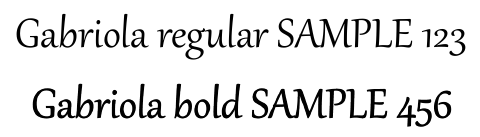 |
在此範例中,啟用此選項會將僅粗體文字轉為點陣圖:在未使用 OCR 時無法選取、複製或搜尋該文字,且在 800% 放大時邊緣較為柔和。普通文字仍可搜尋。停用選項時,兩段文字皆保持為文字。
此選項會在字型沒有專用粗體字形時,將粗體格式的文字點陣化。Font substitution 則會在原始字型不可用時選擇其他字型。
從 PowerPoint 轉換選取投影片為 PDF
傳遞給 Presentation.save 的投影片編號是以 1 為起點。以下範例在投影片 1 與 3 存在時將其匯出:
import jpype
import asposeslides

if not jpype.isJVMStarted():
    jpype.startJVM()

from asposeslides.api import Presentation, SaveFormat

presentation = Presentation("presentation.pptx")
try:
    slide_numbers = jpype.JArray(jpype.JInt)([1, 3])
    presentation.save("presentation-selected-slides.pdf", slide_numbers, SaveFormat.Pdf)
finally:
    presentation.dispose()
使用自訂投影片大小將 PowerPoint 轉為 PDF
此範例將第一張投影片匯出至尺寸為 612 x 792 點(美國信紙)的頁面。它會將該投影片複製到具有指定大小的新簡報,並將投影片內容縮放以適應頁面。
import jpype
import asposeslides

if not jpype.isJVMStarted():
    jpype.startJVM()

from asposeslides.api import Presentation, SaveFormat, SlideSizeScaleType

presentation = Presentation("presentation.pptx")
resized_presentation = Presentation()
try:
    resized_presentation.getSlideSize().setSize(612, 792, SlideSizeScaleType.EnsureFit)
    slide = presentation.getSlides().get_Item(0)
    resized_presentation.getSlides().insertClone(0, slide)

    # 移除新簡報建立時所產生的空白投影片。
    resized_presentation.getSlides().removeAt(1)

    resized_presentation.save("presentation-custom-size.pdf", SaveFormat.Pdf)
finally:
    presentation.dispose()
    resized_presentation.dispose()
在備註投影片檢視中將 PowerPoint 轉為 PDF
以下範例將簡報匯出為 PDF,將每張投影片的說明者備註置於投影片下方。請使用包含說明者備註的簡報以查看結果。
import jpype
import asposeslides

if not jpype.isJVMStarted():
    jpype.startJVM()

from asposeslides.api import NotesCommentsLayoutingOptions, NotesPositions, PdfOptions, Presentation, SaveFormat

notes_options = NotesCommentsLayoutingOptions()
notes_options.setNotesPosition(NotesPositions.BottomFull)

pdf_options = PdfOptions()
pdf_options.setSlidesLayoutOptions(notes_options)

presentation = Presentation("presentation.pptx")
try:
    presentation.save("presentation-with-notes.pdf", SaveFormat.Pdf, pdf_options)
finally:
    presentation.dispose()
PDF 的可及性與合規標準
在製作可及性 PDF 時,請參考 Web Content Accessibility Guidelines (WCAG)。使用 PdfOptions.setCompliance 以選擇輸出標準:PDF/A1a、PDF/A1b 與 PDF/UA。
以下程式碼示範如何根據不同的合規標準產生多個 PDF 的 PowerPoint 轉 PDF 流程:
import jpype
import asposeslides

if not jpype.isJVMStarted():
    jpype.startJVM()

from asposeslides.api import PdfCompliance, PdfOptions, Presentation, SaveFormat

presentation = Presentation("presentation.pptx")
try:
    pdf_options = PdfOptions()

    pdf_options.setCompliance(PdfCompliance.PdfA1a)
    presentation.save("presentation-a1a.pdf", SaveFormat.Pdf, pdf_options)

    pdf_options.setCompliance(PdfCompliance.PdfA1b)
    presentation.save("presentation-a1b.pdf", SaveFormat.Pdf, pdf_options)

    pdf_options.setCompliance(PdfCompliance.PdfUa)
    presentation.save("presentation-ua.pdf", SaveFormat.Pdf, pdf_options)
finally:
    presentation.dispose()
Note: 匯出為 PDF/UA 時,Aspose.Slides 會將 SmartArt、圖表與公式等複雜圖形視為單一圖形。個別路徑元素不會保留為獨立內容,可能被標示為雜訊;僅為整體圖形提供替代文字。
常見問題
我可以一次大量將多個 PowerPoint 檔案轉換為 PDF 嗎?
是的,Aspose.Slides 支援將多個 PPT 或 PPTX 檔案批次轉換為 PDF。您可以程式化地遍歷檔案並套用轉換程序。
是否可以為轉換後的 PDF 加密保護?
是的。於轉換過程中使用 PdfOptions 類別設定密碼並定義存取權限。
如何在 PDF 中包含隱藏投影片?
於 PdfOptions 類別中將 True 傳遞給 setShowHiddenSlides 以在產生的 PDF 中包含隱藏投影片。
Aspose.Slides 能在 PDF 中保持高影像品質嗎?
是的,您可透過在 PdfOptions 類別中使用 setJpegQuality 與 setSufficientResolution 等方法,以確保 PDF 中的影像具備高品質。
Aspose.Slides 是否支援 PDF/A 合規標準?
是的,Aspose.Slides 允許您匯出符合各種標準的 PDF,包括 PDF/A1a、PDF/A1b 與 PDF/UA,適用於可及性或存檔需求。請選擇適當的標準並依照您的需求檢視輸出結果。