
Python を介した Java で PPT と PPTX を PDF に変換する [高度な機能を含む]
概要
Python から Java を介して PowerPoint プレゼンテーション (PPT、PPTX、ODP など) を PDF 形式に変換すると、さまざまなデバイス間での互換性や、プレゼンテーションのレイアウトと書式設定の保持など、複数の利点があります。このガイドでは、プレゼンテーションを PDF ドキュメントに変換する方法、画像品質を制御するオプションの使用、非表示スライドの含め方、PDF ファイルへのパスワード保護、フォント置換の検出、特定スライドだけを変換する方法、そして出力ドキュメントにコンプライアンス基準を適用する方法を示します。
PowerPoint から PDF への変換
Aspose.Slides を使用すると、以下の形式のプレゼンテーションを PDF に変換できます。
- PPT
- PPTX
- ODP
プレゼンテーションを PDF に変換するには、ファイル名を Presentation クラスの引数として渡し、次に save メソッドを使用して PDF として保存します。Presentation クラスは、通常プレゼンテーションを PDF に変換するために使用される save メソッドを公開しています。
Note
Aspose.Slides for Python via Java は、API 情報とバージョン番号を出力ドキュメントに挿入します。たとえば、プレゼンテーションを PDF に変換すると、Application フィールドに「Aspose.Slides」が、PDF Producer フィールドには「Aspose.Slides v XX.XX」という形式の値が設定されます。注:この情報を出力ドキュメントから変更または除去するように指示することはできません。Aspose.Slides では、次の変換が可能です。
- プレゼンテーション全体を PDF に変換
- プレゼンテーションの特定スライドを PDF に変換
Aspose.Slides はプレゼンテーションを PDF にエクスポートし、結果の PDF が元のプレゼンテーションに極めて近い形になるようにします。変換時に正確にレンダリングされる要素と属性は次のとおりです。
- 画像
- テキスト ボックスと図形
- テキスト書式設定
- 段落書式設定
- ハイパーリンク
- ヘッダーとフッター
- 箇条書き
- 表
PowerPoint を PDF に変換する
標準の変換はデフォルトの PDF エクスポート設定を使用します。画像品質、ページ内容、または PDF コンプライアンスを制御する必要がある場合はカスタム オプションを使用してください。
以下の例は、プレゼンテーションを読み込み、デフォルトのエクスポート設定で表示スライドすべてを PDF に保存します。
import jpype
import asposeslides

if not jpype.isJVMStarted():
    jpype.startJVM()

from asposeslides.api import Presentation, SaveFormat

presentation = Presentation("presentation.pptx")
try:
    presentation.save("presentation.pdf", SaveFormat.Pdf)
finally:
    presentation.dispose()
Note
Aspose は、無料のオンライン PowerPoint から PDF へのコンバータ を提供しており、プレゼンテーションから PDF への変換プロセスをデモンストレーションしています。このコンバータでテストを実行し、ここで説明した手順のライブ実装を確認できます。オプション付きで PowerPoint を PDF に変換する
Aspose.Slides は、PdfOptions クラスのプロパティとしてカスタム オプションを提供し、結果の PDF をカスタマイズしたり、PDF にパスワードを設定したり、変換プロセスの進め方を指定したりできます。
カスタム オプションで PowerPoint を PDF に変換する
カスタム変換オプションを使用すると、ラスター画像の品質設定、メタファイルの取り扱い方法、テキストの圧縮レベル、画像の DPI などを指定できます。
以下の例は、PDF 1.5 にエクスポートし、JPEG 品質を 90、画像解像度を 300 DPI、メタファイルを PNG として保存し、Flate テキスト圧縮を適用します。
import jpype
import asposeslides

if not jpype.isJVMStarted():
    jpype.startJVM()

from asposeslides.api import PdfCompliance, PdfOptions, PdfTextCompression, Presentation, SaveFormat

pdf_options = PdfOptions()
pdf_options.setJpegQuality(jpype.JByte(90))
pdf_options.setSufficientResolution(300)
pdf_options.setSaveMetafilesAsPng(True)
pdf_options.setTextCompression(PdfTextCompression.Flate)
pdf_options.setCompliance(PdfCompliance.Pdf15)

presentation = Presentation("presentation.pptx")
try:
    presentation.save("presentation-custom.pdf", SaveFormat.Pdf, pdf_options)
finally:
    presentation.dispose()
画像圧縮を自動選択する
プレゼンテーションに多数の写真やスクリーンショットが含まれている場合、エクスポートされた PDF のサイズを縮小すると、メールやダウンロードが容易になります。True を渡して PdfOptions.setBestImagesCompressionRatio を呼び出すと、PDF エクスポート時に各画像に最も適切な圧縮アルゴリズムが自動的に選択されます。
以下の例は、既存のプレゼンテーションを読み込み、自動画像圧縮選択を有効にして PDF ドキュメントとして保存します。その他の PDF エクスポート設定はデフォルト値のままです。
import jpype
import asposeslides

if not jpype.isJVMStarted():
    jpype.startJVM()

from asposeslides.api import PdfOptions, Presentation, SaveFormat

pdf_options = PdfOptions()
pdf_options.setBestImagesCompressionRatio(True)

presentation = Presentation("image-heavy.pptx")
try:
    presentation.save("image-heavy.pdf", SaveFormat.Pdf, pdf_options)
finally:
    presentation.dispose()
このオプションは画像ごとに圧縮アルゴリズムを選択します。setJpegQuality に渡す値を下げると JPEG 画像の品質が低下し、setSufficientResolution に渡す値を下げると画像が低解像度にダウンサンプルされ、詳細が削減されます。自動圧縮選択を有効にしても、これらの設定自体は下げられません。
画像圧縮アルゴリズムの選択には追加の処理時間とメモリが必要です。サイズ削減はプレゼンテーションの画像とエクスポート設定に依存し、すべてのプレゼンテーションで一定の削減が保証されるわけではありません。
埋め込み OLE ファイルを PDF 添付ファイルとして保持する
プレゼンテーションに埋め込みの Excel ワークブックが含まれている場合、PDF の受信者がスライドだけでなくワークブックのデータにもアクセスできるようにしたいことがあります。True を渡して setIncludeOleData を呼び出すと、埋め込み OLE ファイルが結果の PDF の添付ファイルとして保持されます。
デフォルト値は False で、OLE オブジェクトのプレビュー画像またはアイコンは PDF ページに描画されますが、埋め込みファイルは添付されません。True に設定するとファイルデータも添付されます。プレビューは視覚的な表現のままで、添付ファイルにより受信者は埋め込みファイルを別個に開いたり保存したりできます。OLE オブジェクト自体が PDF ページ上で対話的な Excel シートになることはありません。
以下の例は、既に埋め込みの Excel ワークブックを含むプレゼンテーションを読み込み、ワークブックを添付した状態で PDF にエクスポートします。
import jpype
import asposeslides

if not jpype.isJVMStarted():
    jpype.startJVM()

from asposeslides.api import PdfOptions, Presentation, SaveFormat

pdf_options = PdfOptions()
pdf_options.setIncludeOleData(True)

presentation = Presentation("presentation.pptx")
try:
    presentation.save("presentation.pdf", SaveFormat.Pdf, pdf_options)
finally:
    presentation.dispose()
結果を確認する手順:
- 添付ファイルをサポートするビューア (例: Adobe Acrobat Reader) でエクスポートされた PDF を開く。
- ビューアの Attachments パネルを開き、埋め込みワークブックを探す。
- 添付ファイルを保存し、Excel で開いてデータを確認するか、ビューアが許可すれば直接開く。PDF ページ上のプレビューは添付とは別です。
Note
PDF/A 標準は添付ファイルに制限を課します。PDF/A-1 は埋め込みファイルを禁止し、PDF/A-2 は PDF/A 添付ファイルのみを許可し、PDF/A-3 は Excel ワークブックを含むその他のファイルタイプも許可します。これは標準の要件であり、Aspose.Slides 固有の制限ではありません。この例はデフォルトの PDF コンプライアンス設定を使用しており、PDF/A エクスポートは示していません。非表示スライドを含めて PowerPoint を PDF に変換する
プレゼンテーションに非表示スライドが含まれている場合、PdfOptions クラスの setShowHiddenSlides メソッドを使用して、非表示スライドを PDF のページとして含めることができます。
以下の例は、非表示スライドを含めてプレゼンテーションを PDF にエクスポートします。
import jpype
import asposeslides

if not jpype.isJVMStarted():
    jpype.startJVM()

from asposeslides.api import PdfOptions, Presentation, SaveFormat

pdf_options = PdfOptions()
pdf_options.setShowHiddenSlides(True)

presentation = Presentation("presentation.pptx")
try:
    presentation.save("presentation-hidden-slides.pdf", SaveFormat.Pdf, pdf_options)
finally:
    presentation.dispose()
パスワード保護された PDF に変換する
以下の例は、パスワード password が必要な PDF にプレゼンテーションをエクスポートします。アクセス権限は印刷を許可し、高品質印刷も可能です。
import jpype
import asposeslides

if not jpype.isJVMStarted():
    jpype.startJVM()

from asposeslides.api import PdfAccessPermissions, PdfOptions, Presentation, SaveFormat

pdf_options = PdfOptions()
pdf_options.setPassword("password")
pdf_options.setAccessPermissions(PdfAccessPermissions.PrintDocument | PdfAccessPermissions.HighQualityPrint)

presentation = Presentation("presentation.pptx")
try:
    presentation.save("presentation-protected.pdf", SaveFormat.Pdf, pdf_options)
finally:
    presentation.dispose()
フォント置換を検出する
Aspose.Slides は、PdfOptions クラスの下にある setWarningCallback メソッドを提供し、プレゼンテーションから PDF への変換プロセス中にフォント置換を検出できます。
以下の例は、プレゼンテーションを PDF にエクスポートし、フォント置換の警告をコンソールに出力します。利用できないフォントが置換されたときだけ警告が出力されます。Java API からの警告コールバックを受け取るには JPype プロキシを使用し、Java の文字列を Python の文字列に変換してプレフィックスをチェックします。
import jpype
import asposeslides

if not jpype.isJVMStarted():
    jpype.startJVM()

from asposeslides.api import PdfOptions, Presentation, ReturnAction, SaveFormat, WarningType

class FontSubstitutionHandler:
    def warning(self, warning):
        description = str(warning.getDescription())
        if warning.getWarningType() == WarningType.DataLoss and description.startswith("Font will be substituted"):
            print(f"Font substitution warning: {description}")
        return ReturnAction.Continue


handler = FontSubstitutionHandler()
callback = jpype.JProxy("com.aspose.slides.IWarningCallback", inst=handler)

pdf_options = PdfOptions()
pdf_options.setWarningCallback(callback)

presentation = Presentation("presentation.pptx")
try:
    presentation.save("presentation-font-warnings.pdf", SaveFormat.Pdf, pdf_options)
finally:
    presentation.dispose()
Note
フォント置換に関する詳細は、Font Substitution 記事をご参照ください。専用の太字フォントがない場合の処理
フォントに専用の太字タイプフェイスが存在しない場合でも、プレゼンテーションは太字書式を適用できます。太字テキストは合成太字として表示され、通常のグリフを人工的に太くします。このテキストが PDF で見た目が重すぎる、または期待通りでない場合は、True を渡して PdfOptions.setRasterizeUnsupportedFontStyles を呼び出してみてください。このオプションは、PDF エクスポート時に該当テキストをビットマップとして描画し、特定フォントでの表示を改善します。既定値は False です。
サンプルのプレゼンテーションには、同一フォント(専用太字がない)で通常テキストと太字テキストの 2 つのテキスト ボックスが含まれています。以下の例はプレゼンテーションを読み込み、サポートされていないフォントスタイルのラスタライズを有効にして PDF にエクスポートします。
import jpype
import asposeslides

if not jpype.isJVMStarted():
    jpype.startJVM()

from asposeslides.api import PdfOptions, Presentation, SaveFormat

pdf_options = PdfOptions()
pdf_options.setRasterizeUnsupportedFontStyles(True)

presentation = Presentation("unsupported-bold.pptx")
try:
    presentation.save("rasterized.pdf", SaveFormat.Pdf, pdf_options)
finally:
    presentation.dispose()
以下のプレビューは、オプション無効時と有効時の出力を示しています。この例では、オプション無効時の太字テキストは線が太く、オプション有効時は線が細くなります。通常テキストは変わりません。設定を決定する前に結果を比較してください。
オプション無効 (False, 既定) |
オプション有効 (True) |
|---|---|
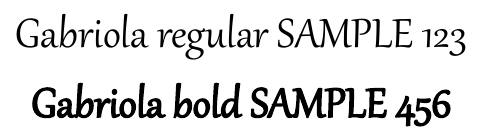 |
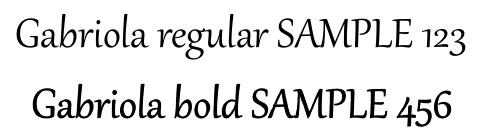 |
この例では、オプションを有効にすると太字テキストだけがビットマップ化され、OCR なしでは選択・コピー・検索できず、800% ズーム時にエッジが柔らかく表示されます。通常テキストは引き続き検索可能です。オプション無効時は両方の文字列がテキストとして残ります。
このオプションは、フォントに専用太字がない場合に太字テキストをラスタライズします。代わりに Font substitution が利用できないフォントを別のフォントに置き換えます。
プレゼンテーションから選択したスライドを PDF に変換する
Presentation.save に渡すスライド番号は 1 から始まります。以下の例は、スライド 1 と 3 が存在する場合にそれらをエクスポートします。
import jpype
import asposeslides

if not jpype.isJVMStarted():
    jpype.startJVM()

from asposeslides.api import Presentation, SaveFormat

presentation = Presentation("presentation.pptx")
try:
    slide_numbers = jpype.JArray(jpype.JInt)([1, 3])
    presentation.save("presentation-selected-slides.pdf", slide_numbers, SaveFormat.Pdf)
finally:
    presentation.dispose()
カスタム スライド サイズで PowerPoint を PDF に変換する
この例は、ページサイズ 612×792 ポイント (US Letter) のページに最初のスライドをエクスポートします。スライドを指定サイズの新しいプレゼンテーションにクローンし、スライドコンテンツをフィットさせるようにスケーリングします。
import jpype
import asposeslides

if not jpype.isJVMStarted():
    jpype.startJVM()

from asposeslides.api import Presentation, SaveFormat, SlideSizeScaleType

presentation = Presentation("presentation.pptx")
resized_presentation = Presentation()
try:
    resized_presentation.getSlideSize().setSize(612, 792, SlideSizeScaleType.EnsureFit)
    slide = presentation.getSlides().get_Item(0)
    resized_presentation.getSlides().insertClone(0, slide)

    # 新しいプレゼンテーションが作成された際にできた空白スライドを削除します。
    resized_presentation.getSlides().removeAt(1)

    resized_presentation.save("presentation-custom-size.pdf", SaveFormat.Pdf)
finally:
    presentation.dispose()
    resized_presentation.dispose()
ノート スライド ビューで PowerPoint を PDF に変換する
以下の例は、各スライドのスピーカーノートをスライドの下部に配置してプレゼンテーションを PDF にエクスポートします。結果を確認するには、スピーカーノートを含むプレゼンテーションを使用してください。
import jpype
import asposeslides

if not jpype.isJVMStarted():
    jpype.startJVM()

from asposeslides.api import NotesCommentsLayoutingOptions, NotesPositions, PdfOptions, Presentation, SaveFormat

notes_options = NotesCommentsLayoutingOptions()
notes_options.setNotesPosition(NotesPositions.BottomFull)

pdf_options = PdfOptions()
pdf_options.setSlidesLayoutOptions(notes_options)

presentation = Presentation("presentation.pptx")
try:
    presentation.save("presentation-with-notes.pdf", SaveFormat.Pdf, pdf_options)
finally:
    presentation.dispose()
PDF のアクセシビリティとコンプライアンス基準
アクセシブルな PDF を作成する際は、Web Content Accessibility Guidelines (WCAG) を参照してください。出力標準を選択するには、PdfOptions.setCompliance を使用し、PDF/A1a、PDF/A1b、PDF/UA から選択します。
以下のコードは、異なるコンプライアンス基準に基づいて複数の PDF を生成する PowerPoint から PDF への変換プロセスを示しています。
import jpype
import asposeslides

if not jpype.isJVMStarted():
    jpype.startJVM()

from asposeslides.api import PdfCompliance, PdfOptions, Presentation, SaveFormat

presentation = Presentation("presentation.pptx")
try:
    pdf_options = PdfOptions()

    pdf_options.setCompliance(PdfCompliance.PdfA1a)
    presentation.save("presentation-a1a.pdf", SaveFormat.Pdf, pdf_options)

    pdf_options.setCompliance(PdfCompliance.PdfA1b)
    presentation.save("presentation-a1b.pdf", SaveFormat.Pdf, pdf_options)

    pdf_options.setCompliance(PdfCompliance.PdfUa)
    presentation.save("presentation-ua.pdf", SaveFormat.Pdf, pdf_options)
finally:
    presentation.dispose()
注: PDF/UA にエクスポートする場合、Aspose.Slides は SmartArt、チャート、数式などの複雑なグラフィックを単一の図形として扱います。個別のパス要素は別々のコンテンツとして保持されず、アーティファクトとしてマークされることがあります。代替テキストは全体の図形に対してのみ提供されます。
FAQ
複数の PowerPoint ファイルを一括で PDF に変換できますか?
はい、Aspose.Slides は複数の PPT または PPTX ファイルをバッチ変換して PDF に変換することをサポートしています。ファイルを列挙してプログラムで変換処理を実行できます。
変換した PDF にパスワードを設定できますか?
はい。PdfOptions クラスを使用して、変換時にパスワードとアクセス権限を設定できます。
PDF に非表示スライドを含めるにはどうすればよいですか?
PdfOptions クラスで True を渡して setShowHiddenSlides を呼び出すと、結果の PDF に非表示スライドが含まれます。
Aspose.Slides は PDF の画像品質を高く保てますか?
はい。PdfOptions クラスの setJpegQuality や setSufficientResolution などのメソッドを使用して、PDF 内の画像品質を高く保つことができます。
Aspose.Slides は PDF/A コンプライアンス標準をサポートしていますか?
はい、Aspose.Slides は various standards を含む PDF/A1a、PDF/A1b、PDF/UA などの標準に準拠した PDF のエクスポートをサポートしています。目的に応じた標準を選択し、出力が要件を満たすか確認してください。