
Python via Java에서 PPT 및 PPTX를 PDF로 변환 [고급 기능 포함]
개요
Python via Java를 사용하여 PowerPoint 프레젠테이션(PPT, PPTX, ODP 등)을 PDF 형식으로 변환하면 다양한 장점이 있습니다. 여기에는 다양한 장치와의 호환성 및 프레젠테이션 레이아웃과 서식 보존이 포함됩니다. 이 가이드는 프레젠테이션을 PDF 문서로 변환하고, 이미지 품질을 제어하는 다양한 옵션을 사용하며, 숨겨진 슬라이드를 포함하고, PDF 파일에 비밀번호를 설정하고, 글꼴 대체를 감지하고, 변환할 특정 슬라이드를 선택하고, 출력 문서에 규정 준수 표준을 적용하는 방법을 보여줍니다.
PowerPoint를 PDF로 변환
Aspose.Slides를 사용하면 다음 형식의 프레젠테이션을 PDF로 변환할 수 있습니다:
- PPT
- PPTX
- ODP
프레젠테이션을 PDF로 변환하려면 파일 이름을 Presentation 클래스의 인수로 전달한 다음 save 메서드를 사용하여 프레젠테이션을 PDF로 저장합니다. Presentation 클래스는 일반적으로 프레젠테이션을 PDF로 변환하는 데 사용되는 save 메서드를 제공합니다.
Note
Aspose.Slides for Python via Java는 API 정보와 버전 번호를 출력 문서에 삽입합니다. 예를 들어, 프레젠테이션을 PDF로 변환할 때 Aspose.Slides는 Application 필드에 “Aspose.Slides“를, PDF Producer 필드에 “Aspose.Slides v XX.XX” 형식의 값을 채웁니다. Note 이 정보를 출력 문서에서 변경하거나 제거하도록 Aspose.Slides에 지시할 수 없음을 유의하세요.Aspose.Slides를 사용하면 다음을 변환할 수 있습니다:
- 전체 프레젠테이션을 PDF로
- 프레젠테이션의 특정 슬라이드를 PDF로
Aspose.Slides는 프레젠테이션을 PDF로 내보내어 결과 PDF가 원본 프레젠테이션과 매우 유사하도록 보장합니다. 변환 시 요소와 속성이 정확하게 렌더링됩니다. 포함되는 내용은 다음과 같습니다:
- 이미지
- 텍스트 상자 및 도형
- 텍스트 서식
- 단락 서식
- 하이퍼링크
- 머리글 및 바닥글
- 글머리표
- 표
PowerPoint를 PDF로 변환
표준 변환은 기본 PDF 내보내기 설정을 사용합니다. 이미지 품질, 페이지 내용 또는 PDF 규정 준수를 제어해야 할 경우 사용자 지정 옵션을 사용하세요.
다음 예제는 프레젠테이션을 로드하고 기본 내보내기 설정을 사용하여 모든 보이는 슬라이드를 PDF로 저장합니다.
import jpype
import asposeslides

if not jpype.isJVMStarted():
    jpype.startJVM()

from asposeslides.api import Presentation, SaveFormat

presentation = Presentation("presentation.pptx")
try:
    presentation.save("presentation.pdf", SaveFormat.Pdf)
finally:
    presentation.dispose()
Note
Aspose는 프레젠테이션을 PDF로 변환하는 과정을 보여주는 무료 온라인 PowerPoint to PDF 변환기를 제공합니다. 여기에서 설명한 절차를 실시간으로 테스트하려면 이 변환기를 사용할 수 있습니다.옵션을 사용한 PowerPoint를 PDF로 변환
Aspose.Slides는 결과 PDF를 사용자 지정하고, PDF에 비밀번호를 설정하거나, 변환 프로세스가 어떻게 진행될지 지정할 수 있는 사용자 지정 옵션—PdfOptions 클래스의 속성—을 제공합니다.
맞춤 옵션을 사용한 PowerPoint를 PDF로 변환
맞춤 변환 옵션을 사용하면 래스터 이미지에 대한 원하는 품질 설정을 정의하고, 메타파일 처리 방식을 지정하고, 텍스트 압축 수준을 설정하고, 이미지 DPI를 구성하는 등 다양한 작업을 수행할 수 있습니다.
다음 예제는 JPEG 품질을 90으로, 이미지 해상도를 300 DPI로, 메타파일을 PNG로 저장하고, Flate 텍스트 압축을 적용하여 PDF 1.5로 프레젠테이션을 내보냅니다.
import jpype
import asposeslides

if not jpype.isJVMStarted():
    jpype.startJVM()

from asposeslides.api import PdfCompliance, PdfOptions, PdfTextCompression, Presentation, SaveFormat

pdf_options = PdfOptions()
pdf_options.setJpegQuality(jpype.JByte(90))
pdf_options.setSufficientResolution(300)
pdf_options.setSaveMetafilesAsPng(True)
pdf_options.setTextCompression(PdfTextCompression.Flate)
pdf_options.setCompliance(PdfCompliance.Pdf15)

presentation = Presentation("presentation.pptx")
try:
    presentation.save("presentation-custom.pdf", SaveFormat.Pdf, pdf_options)
finally:
    presentation.dispose()
이미지 압축 자동 선택
프레젠테이션에 많은 사진이나 스크린샷이 포함된 경우, 내보낸 PDF의 크기를 줄이면 이메일이나 다운로드가 쉬워집니다. PDF 내보내기 중 각 이미지에 가장 적합한 압축 알고리즘을 자동으로 선택하려면 True와 함께 PdfOptions.setBestImagesCompressionRatio 를 호출하십시오.
다음 예제는 기존 프레젠테이션을 로드하고 자동 이미지 압축 선택을 활성화한 뒤 PDF 문서로 저장합니다. 다른 모든 PDF 내보내기 설정은 기본값을 유지합니다.
import jpype
import asposeslides

if not jpype.isJVMStarted():
    jpype.startJVM()

from asposeslides.api import PdfOptions, Presentation, SaveFormat

pdf_options = PdfOptions()
pdf_options.setBestImagesCompressionRatio(True)

presentation = Presentation("image-heavy.pptx")
try:
    presentation.save("image-heavy.pdf", SaveFormat.Pdf, pdf_options)
finally:
    presentation.dispose()
이 옵션은 각 이미지에 대한 압축 알고리즘을 선택합니다. setJpegQuality에 전달하는 값을 낮추면 JPEG 이미지 품질이 감소하고, setSufficientResolution에 전달하는 값을 낮추면 이미지가 낮은 해상도로 다운샘플링되어 세부 사항이 감소할 수 있습니다. 자동 압축 선택을 활성화해도 이러한 설정 중 어느 것도 자동으로 낮아지지는 않습니다.
이미지 압축 알고리즘을 선택하면 추가적인 처리 시간과 메모리가 필요합니다. 크기 감소는 프레젠테이션의 이미지와 내보내기 설정에 따라 달라지며, 모든 프레젠테이션에 대해 일정한 감소가 보장되지 않습니다.
내장 OLE 파일을 PDF 첨부 파일로 보존
프레젠테이션에 포함된 Excel 워크북이 있는 경우, PDF 수신자가 워크북 데이터를 액세스하고 슬라이드를 볼 수 있기를 원할 수 있습니다. True와 함께 setIncludeOleData를 호출하면 결과 PDF에 내장 OLE 파일을 첨부 파일로 보존합니다.
기본값은 False입니다. OLE 개체의 미리보기 이미지 또는 아이콘은 PDF 페이지에 렌더링되지만, 내장 파일은 첨부 파일로 포함되지 않습니다. 옵션을 True로 설정하면 파일 데이터가 추가로 포함됩니다. 미리보기는 시각적 표현으로 남으며, 첨부 파일을 통해 수신자는 내장 파일을 별도로 열거나 저장할 수 있습니다. OLE 개체가 PDF 페이지에서 대화형 Excel 워크시트가 되지는 않습니다.
다음 예제는 이미 포함된 Excel 워크북이 있는 프레젠테이션을 로드하고 워크북이 첨부된 상태로 PDF로 내보냅니다.
import jpype
import asposeslides

if not jpype.isJVMStarted():
    jpype.startJVM()

from asposeslides.api import PdfOptions, Presentation, SaveFormat

pdf_options = PdfOptions()
pdf_options.setIncludeOleData(True)

presentation = Presentation("presentation.pptx")
try:
    presentation.save("presentation.pdf", SaveFormat.Pdf, pdf_options)
finally:
    presentation.dispose()
결과를 확인하려면:
- Adobe Acrobat Reader와 같이 파일 첨부를 지원하는 뷰어에서 내보낸 PDF를 엽니다.
- 뷰어의 Attachments 패널을 열고 포함된 워크북을 찾습니다.
- 첨부 파일을 저장하고 Excel에서 열어 데이터를 확인하거나, 뷰어가 허용한다면 바로 열 수 있습니다. PDF 페이지의 미리보기는 첨부 파일과 별개입니다.
Note
PDF/A 표준은 첨부 파일에 제한을 둡니다: PDF/A-1은 내장 파일을 금지하고, PDF/A-2는 PDF/A 첨부 파일만 허용하며, PDF/A-3는 Excel 워크북을 포함한 다른 파일 유형을 허용합니다. 이는 표준의 요구 사항이며 Aspose.Slides에만 해당되는 제한이 아닙니다. 이 예제는 기본 PDF 규정 준수 설정을 사용하며 PDF/A 내보내기를 보여주지는 않습니다.숨겨진 슬라이드를 포함한 PowerPoint를 PDF로 변환
프레젠테이션에 숨겨진 슬라이드가 있는 경우, PdfOptions 클래스의 setShowHiddenSlides 메서드를 사용하여 숨겨진 슬라이드를 결과 PDF의 페이지로 포함시킬 수 있습니다.
다음 예제는 숨겨진 슬라이드를 포함하여 프레젠테이션을 PDF로 내보냅니다.
import jpype
import asposeslides

if not jpype.isJVMStarted():
    jpype.startJVM()

from asposeslides.api import PdfOptions, Presentation, SaveFormat

pdf_options = PdfOptions()
pdf_options.setShowHiddenSlides(True)

presentation = Presentation("presentation.pptx")
try:
    presentation.save("presentation-hidden-slides.pdf", SaveFormat.Pdf, pdf_options)
finally:
    presentation.dispose()
비밀번호가 설정된 PDF로 PowerPoint 변환
다음 예제는 열려면 password 비밀번호가 필요한 PDF로 프레젠테이션을 내보냅니다. 접근 권한은 인쇄를 허용하며, 고품질 인쇄도 포함됩니다.
import jpype
import asposeslides

if not jpype.isJVMStarted():
    jpype.startJVM()

from asposeslides.api import PdfAccessPermissions, PdfOptions, Presentation, SaveFormat

pdf_options = PdfOptions()
pdf_options.setPassword("password")
pdf_options.setAccessPermissions(PdfAccessPermissions.PrintDocument | PdfAccessPermissions.HighQualityPrint)

presentation = Presentation("presentation.pptx")
try:
    presentation.save("presentation-protected.pdf", SaveFormat.Pdf, pdf_options)
finally:
    presentation.dispose()
글꼴 대체 감지
Aspose.Slides는 PdfOptions 클래스 아래에 있는 setWarningCallback 메서드를 제공하여 프레젠테이션을 PDF로 변환하는 과정에서 글꼴 대체를 감지할 수 있게 합니다.
다음 예제는 프레젠테이션을 PDF로 내보내고 콘솔에 글꼴 대체 경고를 출력합니다. 사용할 수 없는 글꼴이 대체될 때만 경고가 출력됩니다. Java API에서 경고 콜백을 받으려면 JPype 프록시를 사용하십시오. 접두사를 확인하기 전에 Java 설명 문자열을 Python 문자열로 변환하십시오:
import jpype
import asposeslides

if not jpype.isJVMStarted():
    jpype.startJVM()

from asposeslides.api import PdfOptions, Presentation, ReturnAction, SaveFormat, WarningType

class FontSubstitutionHandler:
    def warning(self, warning):
        description = str(warning.getDescription())
        if warning.getWarningType() == WarningType.DataLoss and description.startswith("Font will be substituted"):
            print(f"Font substitution warning: {description}")
        return ReturnAction.Continue


handler = FontSubstitutionHandler()
callback = jpype.JProxy("com.aspose.slides.IWarningCallback", inst=handler)

pdf_options = PdfOptions()
pdf_options.setWarningCallback(callback)

presentation = Presentation("presentation.pptx")
try:
    presentation.save("presentation-font-warnings.pdf", SaveFormat.Pdf, pdf_options)
finally:
    presentation.dispose()
Note
글꼴 대체에 대한 자세한 내용은 Font Substitution 문서를 참조하세요.전용 굵은 글꼴이 없는 경우 처리
프레젠테이션은 글꼴에 전용 굵은 스타일이 없더라도 텍스트에 굵게 서식을 적용할 수 있습니다. 이러한 경우 합성 굵게 처리(synthetic bolding)를 통해 일반 글리프를 인위적으로 두껍게 하여 굵게 보이게 합니다. PDF에서 해당 텍스트가 너무 무겁게 보이거나 원하는 모양과 다를 경우, True와 함께 PdfOptions.setRasterizeUnsupportedFontStyles를 호출해 보세요. 이 옵션은 PDF 내보내기 중 영향을 받은 텍스트를 비트맵으로 렌더링하여 특정 글꼴의 모양을 개선할 수 있습니다. 기본값은 False입니다.
샘플 프레젠테이션에는 일반 텍스트가 있는 텍스트 상자와 동일한 글꼴에 굵게 서식을 적용했지만 전용 굵은 글꼴이 없는 텍스트 상자 두 개가 포함되어 있습니다. 다음 예제는 프레젠테이션을 로드하고 지원되지 않는 글꼴 스타일의 래스터화를 활성화한 뒤 PDF로 내보냅니다:
import jpype
import asposeslides

if not jpype.isJVMStarted():
    jpype.startJVM()

from asposeslides.api import PdfOptions, Presentation, SaveFormat

pdf_options = PdfOptions()
pdf_options.setRasterizeUnsupportedFontStyles(True)

presentation = Presentation("unsupported-bold.pptx")
try:
    presentation.save("rasterized.pdf", SaveFormat.Pdf, pdf_options)
finally:
    presentation.dispose()
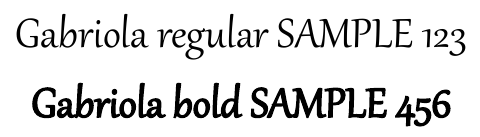
다음 미리보기는 옵션이 비활성화된 출력과 활성화된 출력을 보여줍니다. 이 예제에서는 옵션이 비활성화된 경우 굵은 텍스트의 획이 더 두껍습니다. 옵션을 활성화하면 획이 가벼워지고 일반 텍스트는 변하지 않습니다. 프레젠테이션에 적용할 설정을 선택하기 전에 결과를 비교하십시오.
Option disabled (False, the default) |
Option enabled (True) |
|---|---|
 |
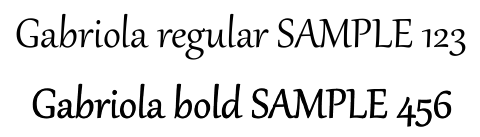 |
이 예제에서 옵션을 활성화하면 굵은 텍스트만 비트맵으로 변환됩니다. OCR 없이 선택, 복사 또는 텍스트 검색이 불가능하며, 800% 줌에서는 가장자리가 부드럽게 보입니다. 일반 텍스트는 검색 가능 상태를 유지합니다. 옵션이 비활성화된 경우 두 문자열 모두 텍스트로 남습니다.
이 옵션은 글꼴에 전용 굵은 스타일이 없을 때 굵게 서식이 적용된 텍스트를 래스터화합니다. Font substitution은 원본 글꼴을 사용할 수 없을 경우 다른 글꼴을 선택합니다.
PowerPoint에서 선택한 슬라이드만 PDF로 변환
Presentation.save에 전달되는 슬라이드 번호는 1부터 시작합니다. 이 예제는 슬라이드 1과 3이 모두 존재할 때 해당 슬라이드를 내보냅니다:
import jpype
import asposeslides

if not jpype.isJVMStarted():
    jpype.startJVM()

from asposeslides.api import Presentation, SaveFormat

presentation = Presentation("presentation.pptx")
try:
    slide_numbers = jpype.JArray(jpype.JInt)([1, 3])
    presentation.save("presentation-selected-slides.pdf", slide_numbers, SaveFormat.Pdf)
finally:
    presentation.dispose()
사용자 지정 슬라이드 크기로 PowerPoint를 PDF로 변환
이 예제는 첫 번째 슬라이드를 612×792 포인트(US Letter) 크기의 페이지에 내보냅니다. 지정된 크기로 새 프레젠테이션에 슬라이드를 복제하고 슬라이드 내용을 맞추도록 스케일링합니다.
import jpype
import asposeslides

if not jpype.isJVMStarted():
    jpype.startJVM()

from asposeslides.api import Presentation, SaveFormat, SlideSizeScaleType

presentation = Presentation("presentation.pptx")
resized_presentation = Presentation()
try:
    resized_presentation.getSlideSize().setSize(612, 792, SlideSizeScaleType.EnsureFit)
    slide = presentation.getSlides().get_Item(0)
    resized_presentation.getSlides().insertClone(0, slide)

    # 새 프레젠테이션이 생성될 때 만들어진 빈 슬라이드를 제거합니다.
    resized_presentation.getSlides().removeAt(1)

    resized_presentation.save("presentation-custom-size.pdf", SaveFormat.Pdf)
finally:
    presentation.dispose()
    resized_presentation.dispose()
노트 슬라이드 보기에서 PowerPoint를 PDF로 변환
다음 예제는 프레젠테이션을 PDF로 내보내며 각 슬라이드 아래에 발표자 노트를 배치합니다. 결과를 확인하려면 발표자 노트가 포함된 프레젠테이션을 사용하십시오.
import jpype
import asposeslides

if not jpype.isJVMStarted():
    jpype.startJVM()

from asposeslides.api import NotesCommentsLayoutingOptions, NotesPositions, PdfOptions, Presentation, SaveFormat

notes_options = NotesCommentsLayoutingOptions()
notes_options.setNotesPosition(NotesPositions.BottomFull)

pdf_options = PdfOptions()
pdf_options.setSlidesLayoutOptions(notes_options)

presentation = Presentation("presentation.pptx")
try:
    presentation.save("presentation-with-notes.pdf", SaveFormat.Pdf, pdf_options)
finally:
    presentation.dispose()
PDF 접근성 및 규정 준수 표준
접근 가능한 PDF를 준비할 때는 Web Content Accessibility Guidelines (WCAG)를 참고하십시오. 출력 표준을 선택하려면 PdfOptions.setCompliance를 사용하고, PDF/A1a, PDF/A1b, PDF/UA 중 하나를 선택합니다.
다음 코드는 서로 다른 규정 준수 표준에 따라 여러 PDF를 생성하는 PowerPoint-to-PDF 변환 프로세스를 보여줍니다:
import jpype
import asposeslides

if not jpype.isJVMStarted():
    jpype.startJVM()

from asposeslides.api import PdfCompliance, PdfOptions, Presentation, SaveFormat

presentation = Presentation("presentation.pptx")
try:
    pdf_options = PdfOptions()

    pdf_options.setCompliance(PdfCompliance.PdfA1a)
    presentation.save("presentation-a1a.pdf", SaveFormat.Pdf, pdf_options)

    pdf_options.setCompliance(PdfCompliance.PdfA1b)
    presentation.save("presentation-a1b.pdf", SaveFormat.Pdf, pdf_options)

    pdf_options.setCompliance(PdfCompliance.PdfUa)
    presentation.save("presentation-ua.pdf", SaveFormat.Pdf, pdf_options)
finally:
    presentation.dispose()
Note: PDF/UA로 내보낼 때 Aspose.Slides는 SmartArt, 차트, 수식과 같은 복잡한 그래픽을 단일 도형으로 처리합니다. 개별 경로 요소는 별도 콘텐츠로 보존되지 않으며 아티팩트로 표시될 수 있습니다; 대체 텍스트는 전체 도형에만 제공됩니다.
FAQ
여러 PowerPoint 파일을 한 번에 PDF로 변환할 수 있나요?
예, Aspose.Slides는 여러 PPT 또는 PPTX 파일을 PDF로 일괄 변환을 지원합니다. 파일을 반복하여 프로그래밍 방식으로 변환 프로세스를 적용할 수 있습니다.
변환된 PDF에 비밀번호를 설정할 수 있나요?
예. 변환 과정에서 비밀번호를 설정하고 접근 권한을 정의하려면 PdfOptions 클래스를 사용하십시오.
PDF에 숨겨진 슬라이드를 포함하려면 어떻게 해야 하나요?
숨겨진 슬라이드를 결과 PDF에 포함하려면 PdfOptions 클래스에서 True와 함께 setShowHiddenSlides를 호출하십시오.
Aspose.Slides가 PDF에서 높은 이미지 품질을 유지할 수 있나요?
예, PdfOptions 클래스의 setJpegQuality 및 setSufficientResolution와 같은 메서드를 사용하여 이미지 품질을 제어하고 PDF에서 고품질 이미지를 보장할 수 있습니다.
Aspose.Slides가 PDF/A 규정 준수 표준을 지원하나요?
예, Aspose.Slides는 접근성 또는 보관을 위해 PDF/A1a, PDF/A1b, PDF/UA 등을 포함한 various standards를 준수하는 PDF를 내보낼 수 있게 합니다. 적절한 표준을 선택하고 출력이 요구 사항에 부합하는지 검토하십시오.