
投影片
Contents
[
Hide
]
本文提供了一系列範例,展示如何使用 Aspose.Slides for Python via .NET 來操作投影片。您將學習如何使用 Presentation 類別新增、存取、複製、重新排序與移除投影片。
以下每個範例都包含簡短說明,後接一段 Python 程式碼片段。
新增投影片
若要新增投影片,必須先選擇版面配置。本範例使用 Blank 版面,並將空白投影片加入簡報中。
def add_slide():
    with slides.Presentation() as presentation:
        # 每張投影片皆基於版面配置,而版面配置本身則基於母片。
        # 使用 Blank 版面來建立新投影片。
        blank_layout = presentation.layout_slides.get_by_type(slides.SlideLayoutType.BLANK)

        # 使用選取的版面新增一張空白投影片。
        presentation.slides.add_empty_slide(blank_layout)

        presentation.save("slide.pptx", slides.export.SaveFormat.PPTX)
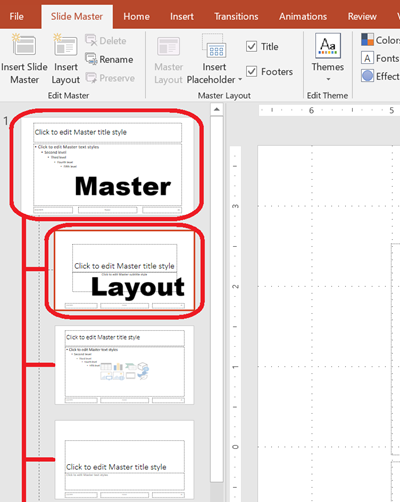
💡 Tip: 每個投影片版面皆源自母片,它定義整體設計與置放區結構。下圖說明了 PowerPoint 中母片與其相關版面的組織方式。
依索引存取投影片
您可以使用索引存取投影片,這對於遍歷或修改特定投影片很有幫助。
def access_slide():
    with slides.Presentation("slide.pptx") as presentation:
        # 依索引存取投影片。
        first_slide = presentation.slides[0]
複製投影片
本範例示範如何複製現有的投影片。複製的投影片會自動加入投影片集合的末端。
def clone_slide():
    with slides.Presentation("slide.pptx") as presentation:
        slide = presentation.slides[0]

        # 複製投影片;它將被加入至簡報的末端。
        cloned_slide = presentation.slides.add_clone(slide)

        presentation.save("slide_cloned.pptx", slides.export.SaveFormat.PPTX)
重新排序投影片
您可以透過將投影片移動至新索引來更改順序。例如,我們將一張投影片移至第一個位置。
def reorder_slide():
    with slides.Presentation("slide.pptx") as presentation:
        slide = presentation.slides[1]

        # 將投影片移至第一個位置(其他投影片往下移)。
        presentation.slides.reorder(0, slide)

        presentation.save("slide_reordered.pptx", slides.export.SaveFormat.PPTX)
移除投影片
若要移除投影片,只需取得該投影片並呼叫 remove。本範例會移除第一張投影片。
def remove_slide():
    with slides.Presentation("slide.pptx") as presentation:
        slide = presentation.slides[0]

        # 移除投影片。
        presentation.slides.remove(slide)

        presentation.save("slide_removed.pptx", slides.export.SaveFormat.PPTX)