
在 .NET 中管理演示文稿母版
概述
slide master 定义了一组幻灯片的共享设计设置。它可以包含通用形状、标志、背景、文本样式、主题设置和页脚设置。在 PowerPoint 中,编辑 slide master 是保持演示文稿一致性而无需在每张幻灯片上重复相同格式的常用方法。
Aspose.Slides for .NET 支持相同的模型。一个演示文稿可以包含一个或多个 master slide,且每个 master slide 可以包含多个 layout slide。普通幻灯片通常不会直接引用 master slide,而是使用 layout slide,该 layout slide 属于某个 master slide。
层次结构如下:
- Slide master - 定义共享的设计和主题。
- Layout slide - 定义占位符的特定布局以及版式级别的格式设置。
- Normal slide - 包含实际的演示内容,并使用一个 layout slide。

在 Aspose.Slides 中,slide master 由 IMasterSlide 接口表示。演示文稿中的所有 master slide 可通过 Presentation.Masters 集合访问,该集合实现了 IMasterSlideCollection。
Inheritance
当相同属性在多个层级上定义时,更具体的层级会覆盖。例如,如果 master slide 和 layout slide 都定义了背景,则基于该 layout 的幻灯片使用 layout 背景。有关 layout slide 的更多信息,请参阅 Apply or Change Slide Layouts。访问 Slide Master
在 PowerPoint 中,您可以通过 View > Slide Master 打开 Slide Master 视图。
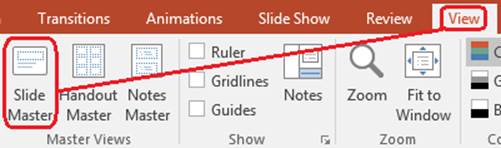
在 Aspose.Slides 中,使用 Masters 集合来访问 master slide:
using Aspose.Slides;

using var presentation = new Presentation("presentation.pptx");

var firstMasterSlide = presentation.Masters[0];
var masterSlideCount = presentation.Masters.Count;
var firstMasterLayoutSlideCount = firstMasterSlide.LayoutSlides.Count;

Console.WriteLine("Master slides: " + masterSlideCount);
Console.WriteLine("Layouts in the first master: " + firstMasterLayoutSlideCount);
您也可以通过普通幻灯片的版式获取其使用的 master slide:
using Aspose.Slides;

using var presentation = new Presentation("presentation.pptx");

var slide = presentation.Slides[0];
var layoutSlide = slide.LayoutSlide;
var masterSlide = layoutSlide.MasterSlide;
var masterSlideName = masterSlide.Name;

Console.WriteLine(masterSlideName);
Slide Master 包含什么
master slide 是类似幻灯片的对象。它实现了 IBaseSlide,因此它提供了许多普通幻灯片和 layout slide 使用的相同幻灯片属性。特定于 master 的成员列在 IMasterSlide API 页面上。
常用的 master slide 成员包括:
| 成员 | 用途 |
|---|---|
Background |
设置 master 级别的幻灯片背景。 |
Shapes |
存储放置在 master 上的形状,例如标志、图片框和共享文本。 |
LayoutSlides |
存储属于该 master 的 layout slides。 |
ThemeManager |
提供对 master 主题 API 的访问。 |
HeaderFooterManager |
控制 master 及其子布局的页眉、页脚、日期和幻灯片编号。 |
GetDependingSlides |
返回通过其 layout 依赖于该 master 的普通幻灯片。 |
向 Slide Master 添加图像
当您向 master slide 添加图像时,该图像会出现在使用该 master 的布局的幻灯片上。这对于标志、水印、装饰条以及其他重复的视觉元素非常有用。
以下示例向第一个 master slide 添加了一个标志:
using Aspose.Slides;
using Aspose.Slides.Export;

using var presentation = new Presentation("presentation.pptx");

var masterSlide = presentation.Masters[0];
var logoBytes = File.ReadAllBytes("logo.png");
var logoImage = presentation.Images.AddImage(logoBytes);

masterSlide.Shapes.AddPictureFrame(
    ShapeType.Rectangle,
    x: 20,
    y: 20,
    width: 80,
    height: 80,
    image: logoImage);

presentation.Save("presentation-with-logo.pptx", SaveFormat.Pptx);
有关图片框的更多信息,请参阅 Picture Frame。
控制 Master 图形的可见性
使用 IBaseSlide.ShowMasterShapes 可隐藏继承自 master 的图形(如标志或装饰形状),而无需从 master 中删除它们。在需要省略这些图形的幻灯片上将 Slide.ShowMasterShapes 设置为 false,在需要显示它们的幻灯片上保持为 true。
下面的独立示例在 master 上创建一个蓝色装饰条,并创建使用相同空白布局的两张幻灯片。该装饰条在第一张幻灯片上可见,在第二张上隐藏。无需输入演示文稿或图像。
using System.Drawing;
using Aspose.Slides;
using Aspose.Slides.Export;

using var presentation = new Presentation();
var masterSlide = presentation.Masters[0];
var layoutSlide = masterSlide.LayoutSlides.GetByType(SlideLayoutType.Blank);
layoutSlide.ShowMasterShapes = true;

var slideHeight = presentation.SlideSize.Size.Height;
var band = masterSlide.Shapes.AddAutoShape(ShapeType.Rectangle, 0, 0, 60, slideHeight);
band.FillFormat.FillType = FillType.Solid;
band.FillFormat.SolidFillColor.Color = Color.SteelBlue;
band.LineFormat.FillFormat.FillType = FillType.NoFill;

var visibleSlide = presentation.Slides[0];
visibleSlide.LayoutSlide = layoutSlide;
visibleSlide.Shapes.Clear();

var hiddenSlide = presentation.Slides.AddEmptySlide(layoutSlide);

visibleSlide.ShowMasterShapes = true;
hiddenSlide.ShowMasterShapes = false;

presentation.Save("master-graphics.pptx", SaveFormat.Pptx);
该示例使用新演示文稿附带的 Blank 布局,并移除初始幻灯片的占位符。
选择设置的范围
普通幻灯片通过 ISlide.LayoutSlide 和 ILayoutSlide.MasterSlide 使用其 master。对单个幻灯片设置该属性仅影响该幻灯片。将 LayoutSlide.ShowMasterShapes 设置为 false 会隐藏使用该共享布局的所有幻灯片的 master 图形,即使它们各自的设置为 true。若仅在一张幻灯片上隐藏图形,请更改该幻灯片的属性并保持共享布局不变。
该设置在 master slide 本身上不支持作为可见性控制。在 master 上始终返回 false,将其赋值为 true 会引发 NotSupportedException。请将其应用于普通幻灯片或 layout。
区分图形和背景
| 操作 | 效果 |
|---|---|
| 隐藏 master 图形 | 在不删除或更改幻灯片自身形状的情况下控制继承自 master 的形状的可见性。 |
| 更改幻灯片背景填充 | 更改背景颜色、渐变或图像。master 图形是独立的形状,仍可在该背景上可见。参见 Presentation Background。 |
| 从 master 删除形状 | 删除共享的源形状,使得任何使用该 master 的幻灯片都不再可用该形状。 |
使用占位符
占位符通常在 layout slide 上定义。master slide 提供这些布局继承的共享样式和主题,而每个 layout 决定哪些占位符可用以及它们放置的位置。
在 PowerPoint 中,占位符命令可在 Slide Master 视图中使用。
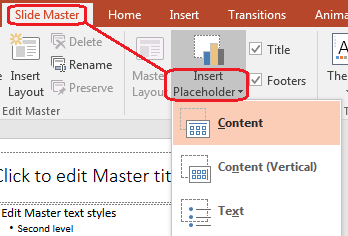
使用 Aspose.Slides 添加新占位符时,处理属于该 master 的 layout slide:
using Aspose.Slides;
using Aspose.Slides.Export;

using var presentation = new Presentation("presentation.pptx");

var masterSlide = presentation.Masters[0];
var blankLayoutSlide =
    masterSlide.LayoutSlides.GetByType(SlideLayoutType.Blank) ??
    masterSlide.LayoutSlides.Add(SlideLayoutType.Blank, "Blank");

blankLayoutSlide.PlaceholderManager.AddTextPlaceholder(
    x: 60,
    y: 120,
    width: 600,
    height: 80);

presentation.Slides.AddEmptySlide(blankLayoutSlide);
presentation.Save("presentation-with-placeholder.pptx", SaveFormat.Pptx);
您还可以格式化已存在于 master slide 上的占位符形状。以下示例查找标题占位符并应用线性渐变填充:
using System.Drawing;
using Aspose.Slides;
using Aspose.Slides.Export;

using var presentation = new Presentation("presentation.pptx");

var masterSlide = presentation.Masters[0];
var titlePlaceholder = FindPlaceholder(masterSlide, PlaceholderType.Title);

if (titlePlaceholder != null)
{
    var redGradientColor = Color.FromArgb(255, 0, 0);
    var purpleGradientColor = Color.FromArgb(128, 0, 128);

    titlePlaceholder.FillFormat.FillType = FillType.Gradient;
    titlePlaceholder.FillFormat.GradientFormat.GradientShape = GradientShape.Linear;
    titlePlaceholder.FillFormat.GradientFormat.GradientStops.Add(0, redGradientColor);
    titlePlaceholder.FillFormat.GradientFormat.GradientStops.Add(255, purpleGradientColor);
}

presentation.Save("presentation-title-style.pptx", SaveFormat.Pptx);

static IAutoShape? FindPlaceholder(IMasterSlide masterSlide, PlaceholderType placeholderType)
{
    foreach (var shape in masterSlide.Shapes)
    {
        if (shape is IAutoShape { Placeholder: not null } autoShape &&
            autoShape.Placeholder.Type == placeholderType)
        {
            return autoShape;
        }
    }

    return null;
}
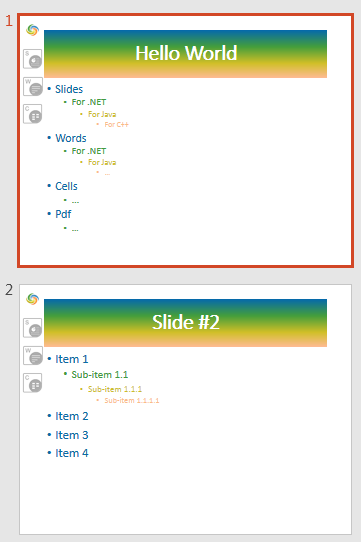
有关更多占位符和文本格式化选项,请参阅 Set Prompt Text in Placeholder 和 Text Formatting。
更改 Slide Master 背景
master 背景被其 layout 和未覆盖它的幻灯片继承。以下示例为第一个 master slide 设置纯色背景:
using System.Drawing;
using Aspose.Slides;
using Aspose.Slides.Export;

using var presentation = new Presentation("presentation.pptx");

var masterSlide = presentation.Masters[0];

masterSlide.Background.Type = BackgroundType.OwnBackground;
masterSlide.Background.FillFormat.FillType = FillType.Solid;
masterSlide.Background.FillFormat.SolidFillColor.Color = Color.ForestGreen;

presentation.Save("presentation-master-background.pptx", SaveFormat.Pptx);
相关主题请参阅 Presentation Background 和 Presentation Theme。
将 Slide Master 克隆到另一个演示文稿
使用 IMasterSlideCollection.AddClone 可将 master slide 复制到另一个演示文稿中。复制后的 master 可供目标演示文稿中的 layouts 和幻灯片使用。
using Aspose.Slides;
using Aspose.Slides.Export;

using var sourcePresentation = new Presentation("source.pptx");
using var destinationPresentation = new Presentation("destination.pptx");

var sourceMasterSlide = sourcePresentation.Masters[0];
var clonedMasterSlide = destinationPresentation.Masters.AddClone(sourceMasterSlide);

destinationPresentation.Save("destination-with-master.pptx", SaveFormat.Pptx);
如果需要连同其 master 一起克隆普通幻灯片,请参阅 Clone Slides。
添加多个 Slide Master
一个演示文稿可以包含多个 master slide。当不同章节需要不同的品牌、页面结构或主题设置时,这非常有用。
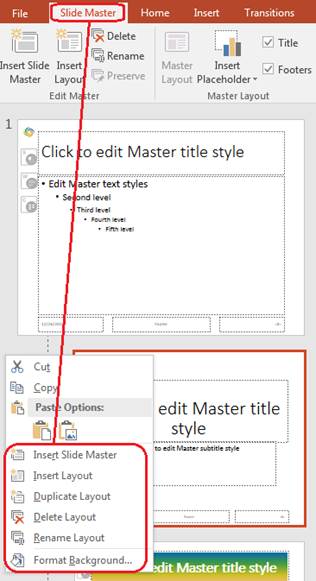
以下示例克隆默认 master, 为克隆的 master 设置不同的背景, 在该克隆的 master 下创建 layout,并基于该 layout 添加新幻灯片:
using System.Drawing;
using Aspose.Slides;
using Aspose.Slides.Export;

using var presentation = new Presentation("presentation.pptx");

var defaultMasterSlide = presentation.Masters[0];
var sectionMasterSlide = presentation.Masters.AddClone(defaultMasterSlide);

sectionMasterSlide.Background.Type = BackgroundType.OwnBackground;
sectionMasterSlide.Background.FillFormat.FillType = FillType.Solid;
sectionMasterSlide.Background.FillFormat.SolidFillColor.Color = Color.LightSteelBlue;

var sourceBlankLayout =
    defaultMasterSlide.LayoutSlides.GetByType(SlideLayoutType.Blank) ??
    defaultMasterSlide.LayoutSlides[0];
var sectionBlankLayout = sectionMasterSlide.LayoutSlides.AddClone(sourceBlankLayout);

presentation.Slides.AddEmptySlide(sectionBlankLayout);
presentation.Save("presentation-with-multiple-masters.pptx", SaveFormat.Pptx);
比较 Slide Master
可以使用从 IBaseSlide 继承的 Equals 方法比较 master slide。比较会检查结构和静态内容,如形状、文本、格式、动画以及其他幻灯片设置。不比较唯一标识符(如幻灯片 ID)或动态占位符值(如当前日期)。
using Aspose.Slides;

using var firstPresentation = new Presentation("first.pptx");
using var secondPresentation = new Presentation("second.pptx");

var firstPresentationMasterCount = firstPresentation.Masters.Count;
var secondPresentationMasterCount = secondPresentation.Masters.Count;

for (var firstMasterIndex = 0; firstMasterIndex < firstPresentationMasterCount; firstMasterIndex++)
{
    for (var secondMasterIndex = 0; secondMasterIndex < secondPresentationMasterCount; secondMasterIndex++)
    {
        var firstMasterSlide = firstPresentation.Masters[firstMasterIndex];
        var secondMasterSlide = secondPresentation.Masters[secondMasterIndex];
        var areMasterSlidesEqual = firstMasterSlide.Equals(secondMasterSlide);

        if (areMasterSlidesEqual)
        {
            Console.WriteLine(
                "first.pptx master #{0} equals second.pptx master #{1}",
                firstMasterIndex,
                secondMasterIndex);
        }
    }
}
更多信息请参阅 Compare Presentation Slides。
将 Slide Master 视图设为默认视图
使用 ViewProperties 上的 LastView 属性可控制 PowerPoint 首次打开的视图。以下示例在 Slide Master 视图中打开演示文稿:
using Aspose.Slides;
using Aspose.Slides.Export;

using var presentation = new Presentation("presentation.pptx");

presentation.ViewProperties.LastView = ViewType.SlideMasterView;
presentation.Save("presentation-master-view.pptx", SaveFormat.Pptx);
有关更多视图设置,请参阅 Save Presentation。
删除未使用的 Master 幻灯片
演示文稿有时会包含已不再被任何普通幻灯片使用的 master slide。删除未使用的 master 可以减小文件大小并简化模板维护。
使用 MasterSlideCollection.RemoveUnused 可从 Masters 集合中删除未使用的 master:
using Aspose.Slides;
using Aspose.Slides.Export;

using var presentation = new Presentation("presentation.pptx");

presentation.Masters.RemoveUnused(ignorePreserveField: true);
presentation.Save("presentation-clean.pptx", SaveFormat.Pptx);
您也可以使用低代码的 Compress.RemoveUnusedMasterSlides 方法:
using Aspose.Slides;
using Aspose.Slides.Export;

using var presentation = new Presentation("presentation.pptx");

Aspose.Slides.LowCode.Compress.RemoveUnusedMasterSlides(presentation);
presentation.Save("presentation-clean.pptx", SaveFormat.Pptx);
FAQ
Slide Master 与 Layout Slide 的区别是什么?
Slide master 定义了共享的设计设置,如主题、背景、通用形状和文本样式。Layout slide 属于某个 master slide,定义了占位符的具体排列。普通幻灯片使用 layout slide,因此它同时继承自 layout 和 master。
一个演示文稿可以包含多个 slide master 吗?
可以。一个演示文稿可以包含多个 slide master。当不同章节需要不同的视觉系统或品牌时,可使用多个 master。
应在 master slide 还是 layout slide 上添加占位符?
大多数情况下,应在 layout slide 上添加占位符。将共享的视觉元素和共享格式放在 master slide 上,然后在普通幻灯片将使用的 layout 上放置内容占位符。
还能删除仍在使用的 master slide 吗?
不能。拥有依赖幻灯片的 master slide 不能直接安全删除。首先将这些幻灯片移动到另一个 master 下的 layout,或使用仅删除未被使用的 master 的清理方法。