

Analyzing your prompt, please hold on...
An error occurred while retrieving the results. Please refresh the page and try again.
Purpose Summary. What is this page about?
This page shows how to use Aspose.Words for Python via .NET to convert documents between supported formats and Markdown, including code examples, save options, and supported Markdown features.
Markdown is a popular format used to markup text and its further converting to HTML, PDF, DOCX, or other formats. Many developers choose this format for writing documentation, preparing articles for publication on blogs, describing projects, and so on.
Markdown is so popular because it is easy to work with this format, as well as it can be quite simply converted to other formats. For this reason, Aspose.Words provides the ability to convert a document in any supported load format to Markdown and vice versa – Aspose.Words also supports most popular save formats.
Now the functionality for working with the Markdown format is being actively developed to provide you with more opportunities for convenient and comfortable work with documents.
To convert a document to Markdown, you just need to load a document in any supported format or create a new one programmatically. Then you need to save the document to Markdown format.
The following code example shows how to convert DOCX to Markdown:
.NET
You can also specify the physical folder in which you want to save images when exporting a document to Markdown format. By default, Aspose.Words saves images in the same folder where the document file is saved, but you can override this behavior using the images_folder property.
Specifying a folder via images_folder is also useful if you save a document to a stream and Aspose.Words does not have a folder for saving images.
If the specified images_folder does not exist, it will be created automatically.
The following code example shows how to specify a folder for images when saving a document to a stream:
.NET
Aspose.Words provides the ability to use the MarkdownSaveOptions class to work with advanced options when saving a document to Markdown format. Most properties are inheriting or overloading properties that already exist within other aspose.words.saving Namespace classes. In addition to them, a number of properties that are specific for Markdown format have also been added. For example, the table_content_alignment property to control the alignment of content in tables, or images_folder and ImagesFolder to control how images are saved upon converting a document to Markdown format.
Aspose.Words currently supports the following Markdown features, which mostly follow the CommonMark specification in the Aspose.Words API and are represented as appropriate styles or direct formatting:
Font style nameHorizontalRule shapeTable classFieldHyperlink classThe following example shows how to create a document with some styles and save it to Markdown:
.NET
The result of this code example is shown below.
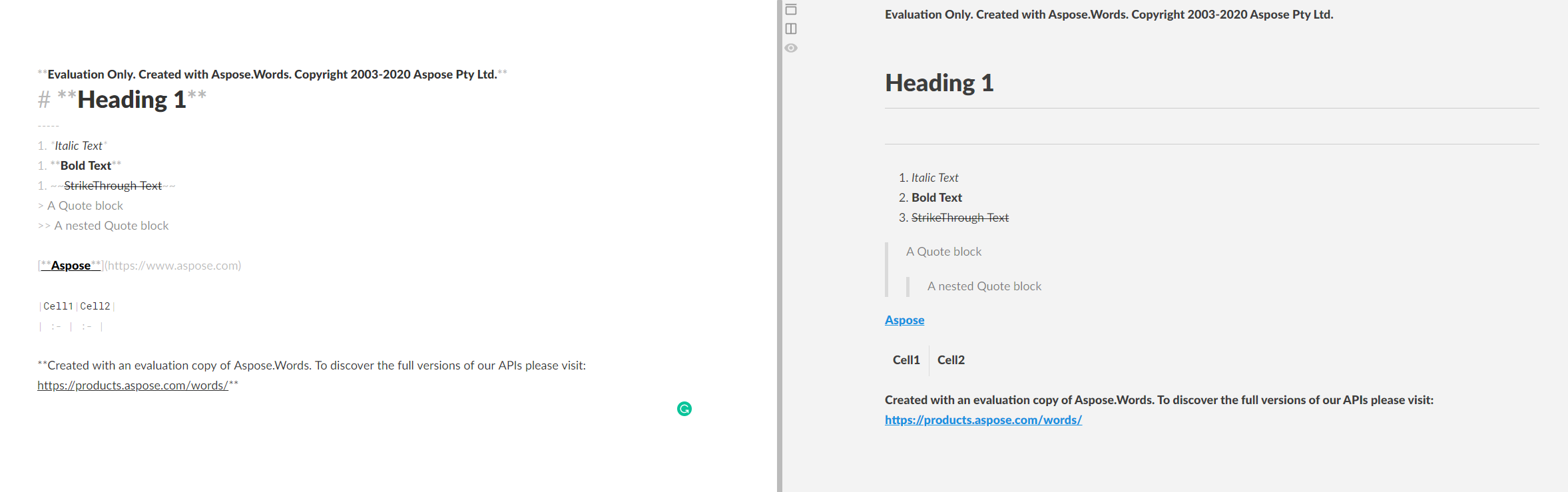
There are several nuances and interesting cases, having learned which you can work with Markdown files more flexibly and conveniently. For example, there is the ability to use:
Q: How do I convert a document to Markdown using Aspose.Words for Python via .NET?
A: Load the source document with Document doc = new Document("source.docx"); and then call doc.save("output.md", SaveFormat.MARKDOWN);. The API automatically handles the conversion based on the file extensions.
Q: How can I control where images are saved when exporting to Markdown?
A: Create a MarkdownSaveOptions object, set its images_folder property to the desired path, and pass the options to save. Example:
MarkdownSaveOptions options = new MarkdownSaveOptions()
options.images_folder = "C:/ExportedImages" + "Images"
doc.save("output.md", options)
Q: Is there a way to adjust the alignment of tables in the generated Markdown?
A: Yes. Use the table_content_alignment property of MarkdownSaveOptions. Set it to TableContentAlignment.LEFT, CENTER, or RIGHT before saving.
Q: Which heading styles are recognized when converting to Markdown?
A: Paragraphs styled with Heading 1 through Heading 6 are converted to Markdown headings (# to ######). For multi‑line headings you can use the SetextHeading style, which maps to the Setext syntax.
Q: Can I convert a Markdown file back to DOCX or PDF?
A: Absolutely. Load the Markdown file using LoadFormat.MARKDOWN and then save it to any supported format, e.g., doc.save("output.docx", SaveFormat.DOCX); or doc.save("output.pdf", SaveFormat.PDF);.

Analyzing your prompt, please hold on...
An error occurred while retrieving the results. Please refresh the page and try again.