
.NET Core で SMTP クライアントのアクティビティ ロギングを設定する
アクティビティ ロギングはデバッグに使用されるだけでなく、SMTP クライアントの動作情報を収集・分析するためにも使用されます。
アクティビティ ロギングを有効化
appsettings.json ファイルを使用してアクティビティ ロギングを有効化
注: このオプションは .NET Core アプリケーションに推奨されます。
ロギング SmtpClient 以下の手順とコードサンプルで有効にできます:
-
C# プロジェクトにまだ追加されていない場合は、appsettings.json 設定ファイルを追加してください。
-
プロジェクト ファイルの ItemGroup セクションに以下の行が含まれていることを確認してください。
<Content Include="appsettings.json"> <CopyToOutputDirectory>Always</CopyToOutputDirectory> </Content> -
次に、appsettings.json ファイルに以下の内容を追加します。
   {
     "SmtpDiagnosticLog": "smtp.log",
     "SmtpDiagnosticLog_UseDate": true
   }
上記の2つのプロパティは次のとおりです:
-
SmtpDiagnosticLog - ログファイルへの相対パスまたは絶対パスを指定します。
-
SmtpDiagnosticLog_UseDate - ログファイル名に現在の日付の文字列表現を追加するかどうかを指定します。
プログラムコードでアクティビティ ロギングを有効にする
コード内で即座にロギングを有効にすることもできます。
注: 設定ファイルでロギングをすでに有効にしていても、このオプションが適用されます。
ロギング SmtpClient 以下の手順とコードサンプルで有効にできます:
- 作成します SmtpClient.
- 以下を使用してログファイルのパスを設定します LogFileName プロパティです。
- 設定します UseDateInLogFileName 必要に応じてプロパティを設定します。
   using (var client = new SmtpClient("your smtp server"))
   {
       // Set username, password, port, and security options
       client.Username = "your username";
       client.Password = "your password";
       client.Port = 465;
       client.SecurityOptions = SecurityOptions.SSLImplicit;

       // Set the path to the log file using the LogFileName property.
       client.LogFileName = @"C:\Aspose.Email.Smtp.log";

       // Set the UseDateInLogFileName property if it is necessary.
       client.UseDateInLogFileName = false;

       var eml = new MailMessage("from address", "to address", "this is a test subject", "this is a test body");

       client.Send(eml);
   }
App.config ファイルを使用してアクティビティ ロギングを有効化
SMTP クライアントのアクティビティは、設定ファイルの configSections を変更することで記録できます。診断ロギングは次の手順で実行できます:
- "applicationSettings" という sectionGroup を追加します。
- "Aspose.Email.Properties.Settings" というセクションを追加します。
- applicationSettings/Aspose.Email.Properties.Settings でファイル名が定義されている SmtpDiagonosticLog という名前の設定を含めます。
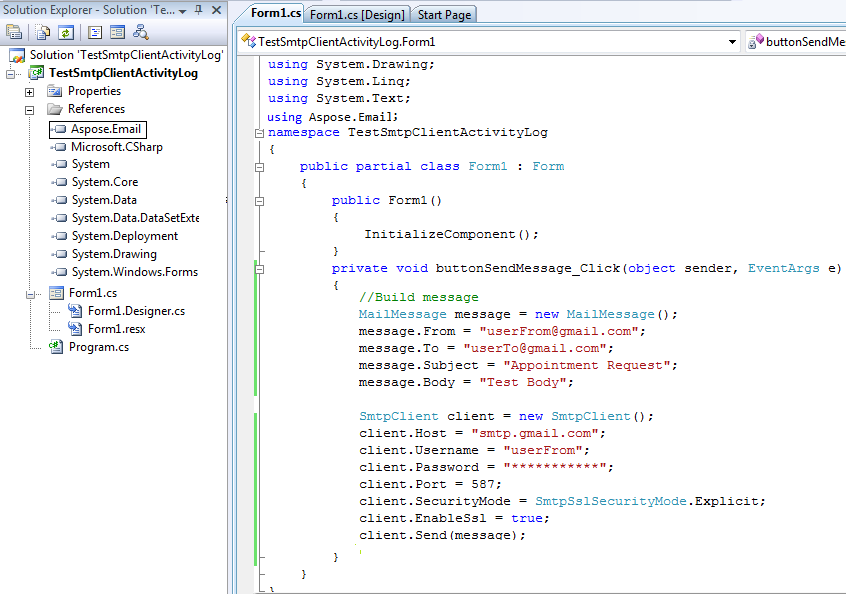
こちらは、使用しているサンプルのフォームベースアプリケーションです。 SmtpClient メールを送信するために。この全体のアクティビティは App.config ファイルを変更して記録されます。単一のボタンを持つフォームアプリケーションを作成し、ボタンのクリックイベントに以下のコードを追加してください:
// Build message
MailMessage message = new MailMessage();

// Set email address for From and TO
message.From = "userFrom@gmail.com";
message.To = "userTo@gmail.com";

// Set Subject and Body
message.Subject = "Appointment Request";
message.Body = "Test Body";

// Initialize SmtpClient and Set valid user name and password, Port and SecurityOptions
SmtpClient client = new SmtpClient();
client.Host = "smtp.gmail.com";
client.Username = "userFrom";
client.Password = "***********";
client.Port = 587;
client.SecurityOptions = SecurityOptions.SSLExplicit;
try
{
    client.Send(message);
}
catch(Exception ex)
{
    Console.WriteLine(ex.Message);
}
- Aspose.Email への参照を追加します。
 |
|---|
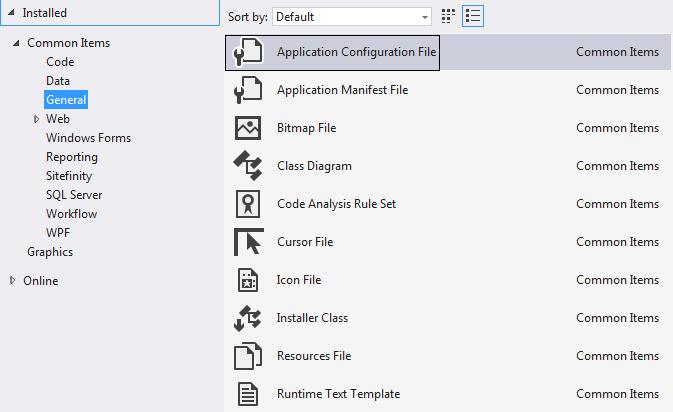
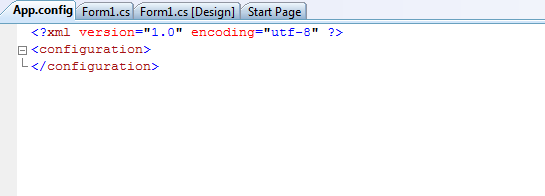
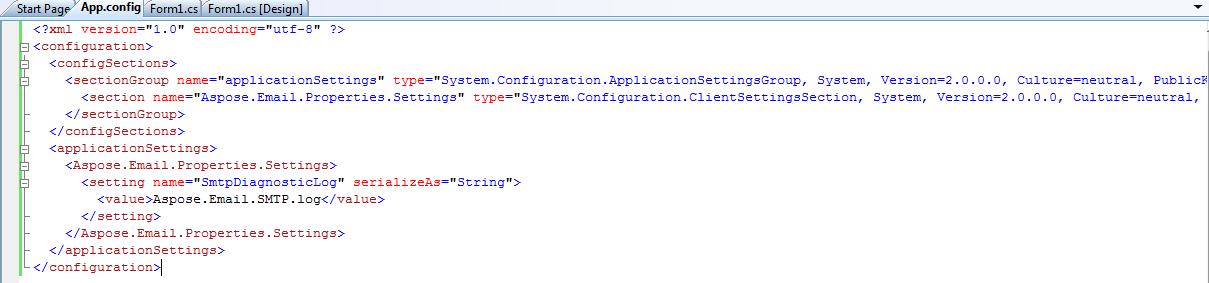
- App.Config ファイルを追加し、内容を以下のように変更します。
<configuration>
   <configSections>
    <sectionGroup name="applicationSettings" type="System.Configuration.ApplicationSettingsGroup, System, Version=2.0.0.0, Culture=neutral, PublicKeyToken=b77a5c561934e089" >
      <section name="Aspose.Email.Properties.Settings" type="System.Configuration.ClientSettingsSection, System, Version=2.0.0.0, Culture=neutral, PublicKeyToken=b77a5c561934e089" requirePermission="false" />
    </sectionGroup>
  </configSections>
  <applicationSettings>
    <Aspose.Email.Properties.Settings>
      <setting name="SmtpDiagnosticLog" serializeAs="String">
        <value>Aspose.Email.SMTP.log</value>
      </setting>
    </Aspose.Email.Properties.Settings>
</applicationSettings>
</configuration>
- C# .NET の場合は次のオプションを使用します。
 |
|---|
- VB .NET の場合は次のオプションを使用します。
|
 |
|---|
 |
|---|
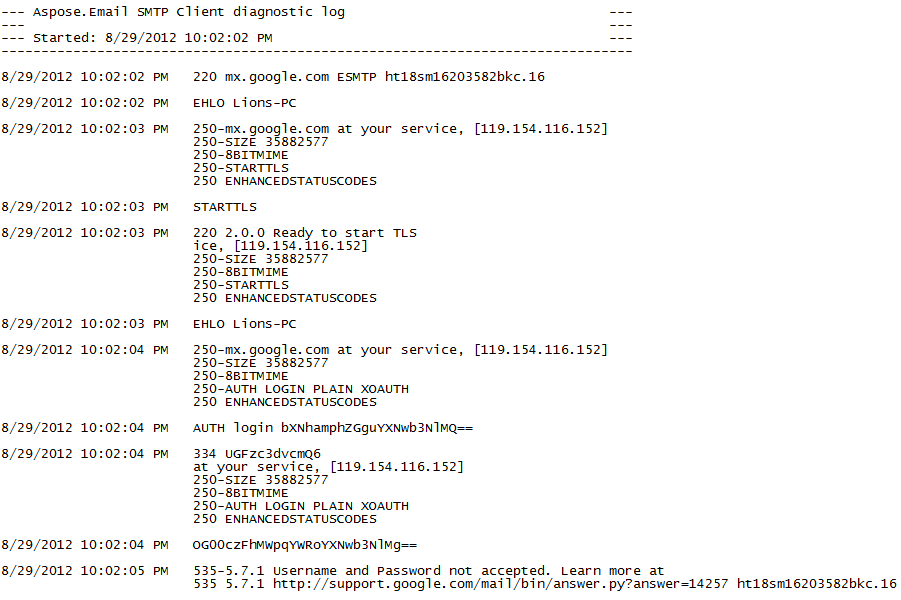
- コードを実行し、デバッグ フォルダーを確認してください。次のファイルが生成されます。
 |
|---|