
إنشاء ملف PDF ذي علامات في بايثون
يعني إنشاء ملف PDF ذي علامات إضافة (أو إنشاء) عناصر معينة إلى المستند والتي ستمكن من التحقق من صحة المستند وفقًا لمتطلبات PDF/UA. تسمى هذه العناصر غالبًا عناصر الهيكل.
إنشاء ملف PDF ذي علامات (سيناريو بسيط)
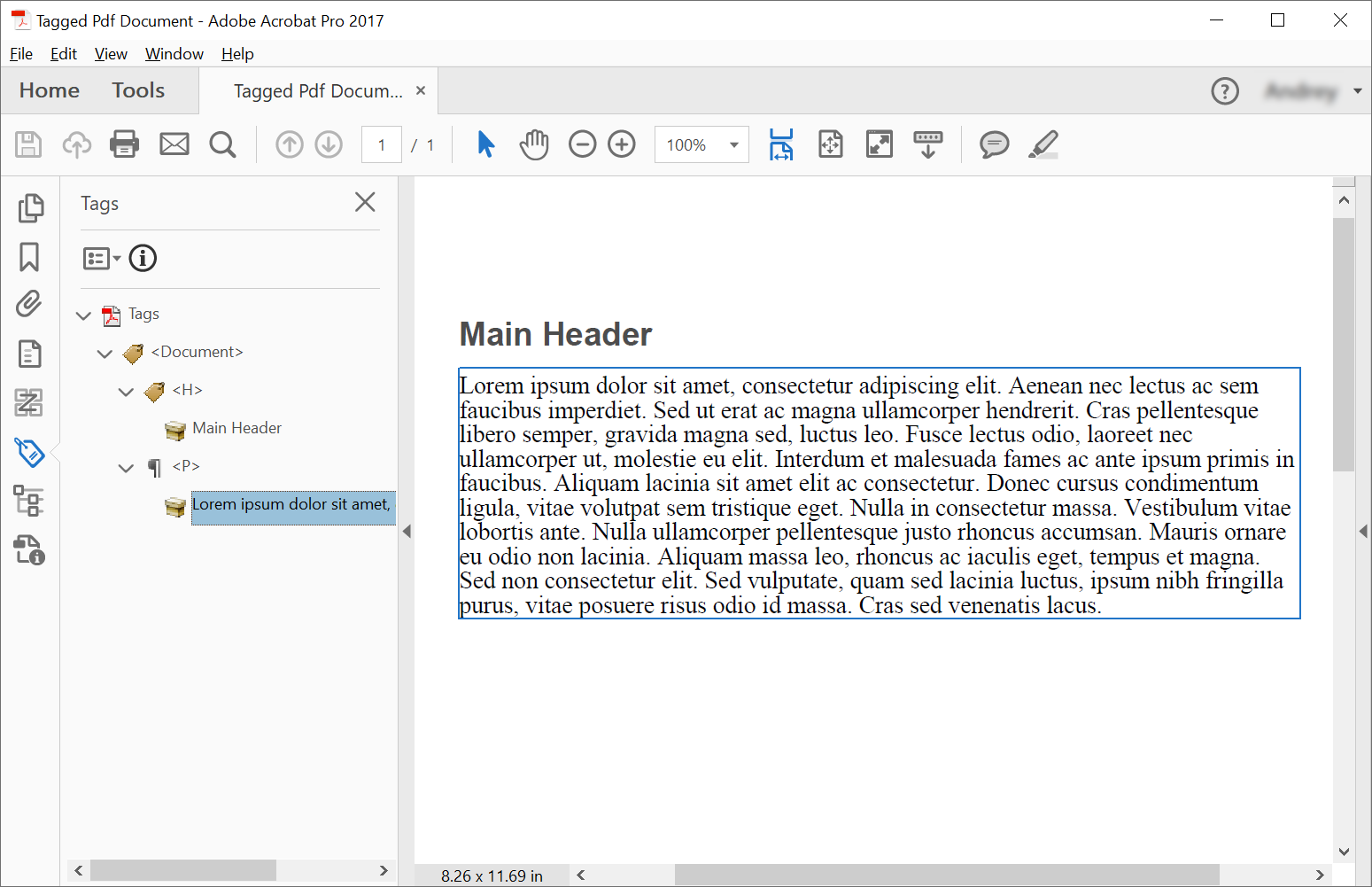
من أجل إنشاء عناصر هيكلية في مستند PDF ذي علامات تمييز، يقدم Aspose.PDF طرقًا لإنشاء عناصر هيكلية باستخدام لقد قمت بوضع علامة على المحتوى واجهة. يقوم هذا المثال بإنشاء مستند PDF ذي علامات تمييز - ملف PDF بهيكل دلالي، مما يجعله أكثر سهولة ومتوافقًا مع معايير مثل PDF/UA. يوضح مقتطف الشفرة التالي كيفية إنشاء ملف PDF ذي علامات تمييز يحتوي على عنصرين: العنوان والفقرة.
import aspose.pdf as ap
import sys
from os import path

def create_tagged_pdf_document_simple(outfile):

    # Create PDF Document
    with ap.Document() as document:
        # Get Content for working with TaggedPdf
        tagged_content = document.tagged_content
        root_element = tagged_content.root_element

        # Set Title and Language for Document
        tagged_content.set_title("Tagged Pdf Document")
        tagged_content.set_language("en-US")
        main_header = tagged_content.create_header_element()
        main_header.set_text("Main Header")
        paragraph_element = tagged_content.create_paragraph_element()
        paragraph_element.set_text(
            "Lorem ipsum dolor sit amet, consectetur adipiscing elit. "
            + "Aenean nec lectus ac sem faucibus imperdiet. Sed ut erat ac magna ullamcorper hendrerit. "
            + "Cras pellentesque libero semper, gravida magna sed, luctus leo. Fusce lectus odio, laoreet "
            + "nec ullamcorper ut, molestie eu elit. Interdum et malesuada fames ac ante ipsum primis in faucibus. "
            + "Aliquam lacinia sit amet elit ac consectetur. Donec cursus condimentum ligula, vitae volutpat "
            + "sem tristique eget. Nulla in consectetur massa. Vestibulum vitae lobortis ante. Nulla ullamcorper "
            + "pellentesque justo rhoncus accumsan. Mauris ornare eu odio non lacinia. Aliquam massa leo, rhoncus "
            + "ac iaculis eget, tempus et magna. Sed non consectetur elit. Sed vulputate, quam sed lacinia luctus, "
            + "ipsum nibh fringilla purus, vitae posuere risus odio id massa. Cras sed venenatis lacus."
        )
        root_element.append_child(main_header, True)
        root_element.append_child(paragraph_element, True)

        # Save Tagged PDF Document
        document.save(outfile)
إنشاء ملف PDF ذي علامات (متقدم)
import aspose.pdf as ap
import sys
from os import path

def create_tagged_pdf_document_adv(outfile):
    # Create PDF Document
    with ap.Document() as document:
        # Get Content for working with TaggedPdf
        tagged_content = document.tagged_content
        root_element = tagged_content.root_element

        # Set Title and Language for Document
        tagged_content.set_title("Tagged Pdf Document")
        tagged_content.set_language("en-US")

        # Create Header Level 1
        header1 = tagged_content.create_header_element(1)
        header1.set_text("Header Level 1")

        # Create Paragraph with Quotes
        paragraph_with_quotes = tagged_content.create_paragraph_element()
        paragraph_with_quotes.structure_text_state.font = (
            ap.text.FontRepository.find_font("Arial")
        )
        position_settings = ap.tagged.PositionSettings()
        position_settings.margin = ap.MarginInfo(10, 5, 10, 5)
        paragraph_with_quotes.adjust_position(position_settings)

        # Create Span Element
        span_element1 = tagged_content.create_span_element()
        span_element1.set_text(
            "Lorem ipsum dolor sit amet, consectetur adipiscing elit. Aenean nec lectus ac sem faucibus imperdiet. "
            "Sed ut erat ac magna ullamcorper hendrerit. Cras pellentesque libero semper, gravida magna sed, "
            "luctus leo. Fusce lectus odio, laoreet nec ullamcorper ut, molestie eu elit. Interdum et malesuada "
            "fames ac ante ipsum primis in faucibus. Aliquam lacinia sit amet elit ac consectetur. Donec cursus "
            "condimentum ligula, vitae volutpat sem tristique eget. Nulla in consectetur massa. Vestibulum vitae "
            "lobortis ante. Nulla ullamcorper pellentesque justo rhoncus accumsan. Mauris ornare eu odio non "
            "lacinia. Aliquam massa leo, rhoncus ac iaculis eget, tempus et magna. Sed non consectetur elit."
        )

        # Create Quote Element
        quote_element = tagged_content.create_quote_element()
        quote_element.set_text(
            "Sed vulputate, quam sed lacinia luctus, ipsum nibh fringilla purus, vitae posuere risus odio id massa."
        )
        quote_element.structure_text_state.font_style = (
            ap.text.FontStyles.BOLD | ap.text.FontStyles.ITALIC
        )

        # Create Another Span Element
        span_element2 = tagged_content.create_span_element()
        span_element2.set_text(" Sed non consectetur elit.")

        # Append Children to Paragraph
        paragraph_with_quotes.append_child(span_element1, True)
        paragraph_with_quotes.append_child(quote_element, True)
        paragraph_with_quotes.append_child(span_element2, True)

        # Append Header and Paragraph to Root Element
        root_element.append_child(header1, True)
        root_element.append_child(paragraph_with_quotes, True)

        # Save Tagged PDF Document
        document.save(outfile)
سنحصل على المستند التالي بعد الإنشاء:
تصميم بنية النص
ملفات PDF ذات العلامات هي مستندات منظمة توفر ميزات إمكانية الوصول والمعنى الدلالي للمحتوى.
يقوم المثال بإنشاء مستند PDF مع ميزات إمكانية الوصول باستخدام بنية محتوى ذات علامات تمييز. يوضح كيفية إنشاء عنصر فقرة بتصميم مخصص وبيانات تعريف مناسبة للمستند.
import aspose.pdf as ap
import sys
from os import path

def add_style(outfile):

    # Create PDF Document
    with ap.Document() as document:
        # Get Content for work with TaggedPdf
        tagged_content = document.tagged_content

        # Set Title and Language for Document
        tagged_content.set_title("Tagged Pdf Document")
        tagged_content.set_language("en-US")

        paragraph_element = tagged_content.create_paragraph_element()
        tagged_content.root_element.append_child(paragraph_element, True)

        paragraph_element.structure_text_state.font_size = 18.0
        paragraph_element.structure_text_state.foreground_color = ap.Color.red
        paragraph_element.structure_text_state.font_style = ap.text.FontStyles.ITALIC

        paragraph_element.set_text("Red italic text.")

        # Save Tagged PDF Document
        document.save(outfile)
توضيح عناصر الهيكل
تعد ملفات PDF ذات العلامات ضرورية للامتثال لإمكانية الوصول وتوفر محتوى منظمًا يمكن تفسيره بشكل صحيح بواسطة برامج قراءة الشاشة والتقنيات المساعدة الأخرى. يوضح مقتطف الشفرة التالي كيفية إنشاء مستند PDF ذي علامة مع صورة مضمنة:
- قم بإنشاء ملف PDF ذو علامة مع صورة.
- قم بتكوين المستند.
- إنشاء الشكل وتكوينه.
- تعيين المواقع.
- احفظ المستند.
import aspose.pdf as ap
import sys
from os import path

def illustrate_structure_elements(imagefile, outfile):
    # Create PDF Document
    with ap.Document() as document:
        # Get Content for work with TaggedPdf
        tagged_content = document.tagged_content

        # Set Title and Language for Document
        tagged_content.set_title("Tagged Pdf Document")
        tagged_content.set_language("en-US")
        figure1 = tagged_content.create_figure_element()
        tagged_content.root_element.append_child(figure1, True)
        figure1.alternative_text = "Figure One"
        figure1.title = "Image 1"
        figure1.set_tag("Fig1")
        figure1.set_image(imagefile, 300)
        # Adjust position
        position_settings = ap.tagged.PositionSettings()
        margin_info = ap.MarginInfo()
        margin_info.left = 50
        margin_info.top = 20
        position_settings.margin = margin_info
        figure1.adjust_position(position_settings)

        # Save Tagged PDF Document
        document.save(outfile)
التحقق من صحة ملف PDF الموسوم
يوفر Aspose.PDF لبيثون عبر .NET القدرة على التحقق من صحة مستند PDF ذي علامة PDF/UA. تقوم طريقة ‘validate_tagged_pdf’ بالتحقق من صحة مستندات PDF مقابل معيار PDF/UA-1، والذي يعد جزءًا من مواصفات ISO 14289 لمستندات PDF التي يمكن الوصول إليها. هذا يضمن أن ملفات PDF يمكن الوصول إليها للمستخدمين ذوي الإعاقة والتقنيات المساعدة.
- هيكل المستند. وضع العلامات الدلالية المناسبة والبنية المنطقية.
- نص بديل. نص بديل للصور والعناصر غير النصية.
- ترتيب القراءة. التسلسل المنطقي لقارئات الشاشة.
- اللون والتباين. نسب تباين كافية.
- النماذج. حقول النماذج والتسميات التي يمكن الوصول إليها.
- ملاحة. الإشارات المرجعية المناسبة وهيكل التنقل.
import aspose.pdf as ap
import sys
from os import path

def validate_tagged_pdf(infile, logfile):
    # Open PDF document
    with ap.Document(infile) as document:
        is_valid = document.validate(logfile, ap.PdfFormat.PDF_UA_1)
    print(f"Is Valid: {is_valid}")
ضبط موضع بنية النص
يوضح مقتطف الشفرة التالي كيفية ضبط موضع بنية النص في مستند PDF ذي العلامات:
import aspose.pdf as ap
import sys
from os import path

def adjust_position(outfile):
    # Create PDF Document
    with ap.Document() as document:
        # Get Content for work with TaggedPdf
        tagged_content = document.tagged_content

        # Set Title and Language for Document
        tagged_content.set_title("Tagged Pdf Document")
        tagged_content.set_language("en-US")

        # Create paragraph
        paragraph = tagged_content.create_paragraph_element()
        tagged_content.root_element.append_child(paragraph, True)
        paragraph.set_text("Text.")

        # Adjust position
        position_settings = ap.tagged.PositionSettings()
        margin_info = ap.MarginInfo()
        margin_info.left = 300
        margin_info.top = 20
        margin_info.right = 0
        margin_info.bottom = 0
        position_settings.margin = margin_info
        position_settings.horizontal_alignment = ap.HorizontalAlignment.NONE
        position_settings.vertical_alignment = ap.VerticalAlignment.NONE
        position_settings.is_first_paragraph_in_column = False
        position_settings.is_kept_with_next = False
        position_settings.is_in_new_page = False
        position_settings.is_in_line_paragraph = False
        paragraph.adjust_position(position_settings)

        # Save Tagged PDF Document
        document.save(outfile)
تحويل PDF إلى PDF/UA-1 باستخدام العلامات التلقائية
يشرح مقتطف الشفرة هذا كيفية تحويل ملف PDF قياسي إلى ملف متوافق مع PDF/UA-1 (إمكانية الوصول الشامل) باستخدام Aspose.PDF لـ Python عبر .NET.
يضمن PDF/UA إمكانية الوصول إلى المستندات للمستخدمين ذوي الإعاقة ومتوافقة مع التقنيات المساعدة مثل قارئات الشاشة. أثناء التحويل، يمكن للمكتبة إنشاء شجرة البنية المنطقية تلقائيًا وتطبيق العلامات الدلالية باستخدام العلامات التلقائية المضمنة والتعرف على العناوين.
من خلال تكوين PDFFormatConversionOptions وتمكين AutoTaggingSettings، يمكنك تحويل ملفات PDF الموجودة بكفاءة إلى مستندات يمكن الوصول إليها دون تحرير البنية يدويًا.
- قم بتحميل المستند المصدر.
- قم بإنشاء خيارات تحويل PDF/UA.
- قم بتمكين وضع العلامات التلقائي.
- قم بتكوين التعرف على العنوان.
- قم بإرفاق تكوين وضع العلامات بخيارات التحويل.
- قم بتشغيل عملية التحويل.
- احفظ ملف PDF الذي يمكن الوصول إليه.
import aspose.pdf as ap
import sys
from os import path

def convert_to_pdf_ua_with_automatic_tagging(infile, outfile, logfile):
    # Create PDF Document
    with ap.Document(infile) as document:
        # Create conversion options
        options = ap.PdfFormatConversionOptions(
            logfile, ap.PdfFormat.PDF_UA_1, ap.ConvertErrorAction.DELETE
        )
        # Create auto-tagging settings
        # aspose.pdf.AutoTaggingSettings.default may be used to set the same settings as given below
        auto_tagging_settings = ap.AutoTaggingSettings()
        # Enable auto-tagging during the conversion process
        auto_tagging_settings.enable_auto_tagging = True
        # Use the heading recognition strategy that's optimal for the given document structure
        auto_tagging_settings.heading_recognition_strategy = (
            ap.HeadingRecognitionStrategy.AUTO
        )
        # Assign auto-tagging settings to be used during the conversion process
        options.auto_tagging_settings = auto_tagging_settings
        # During the conversion, the document logical structure will be automatically created
        document.convert(options)
        # Save PDF document
        document.save(outfile)
قم بإنشاء ملف PDF ذو علامات مع حقل نموذج توقيع يمكن الوصول إليه
- قم بإنشاء مستند PDF جديد.
- الوصول إلى المحتوى الذي تم وضع علامة عليه.
- قم بإنشاء حقل نموذج التوقيع.
- أضف الحقل إلى AcroForm.
- قم بإنشاء عنصر نموذج في بنية العلامة.
- اربط عنصر الهيكل بحقل النموذج.
- قم بإلحاق عنصر النموذج بشجرة البنية المنطقية.
- احفظ المستند.
import aspose.pdf as ap
import sys
from os import path

def create_pdf_with_tagged_form_field(outfile):
    # Create PDF document
    with ap.Document() as document:
        document.pages.add()
        # Get Content for work with TaggedPdf
        tagged_content = document.tagged_content
        root_element = tagged_content.root_element
        # Create a visible signature form field (AcroForm)
        signature_field = ap.forms.SignatureField(
            document.pages[1], ap.Rectangle(50, 50, 100, 100, True)
        )
        signature_field.partial_name = "Signature1"
        signature_field.alternate_name = "signature 1"

        # Add the signature field to the document's AcroForm
        document.form.add(signature_field)

        # Create a /Form structure element in the tag tree
        form = tagged_content.create_form_element()
        form.alternative_text = "form 1"

        # Link the /Form tag to the signature field via an /OBJR reference
        form.tag(signature_field)

        # Add the /Form structure element to the document’s logical structure tree
        root_element.append_child(form, True)

        # Save PDF document
        document.save(outfile)
قم بإنشاء ملف PDF ذي علامات مع صفحة جدول المحتويات (TOC)
يوضح هذا المثال كيفية إنشاء مستند PDF ذي علامات مع صفحة جدول المحتويات المنظمة (TOC) باستخدام Aspose.PDF لـ Python عبر .NET.
- قم بإنشاء مستند PDF جديد.
- قم بإنشاء صفحة مخصصة لجدول المحتويات.
- قم بإنشاء عنصر TOC وتسجيله في شجرة البنية المنطقية.
- إضافة صفحة محتوى.
- قم بإنشاء عنصر رأس.
- قم بإنشاء عنصر /TOCI.
- اربط العنوان بـ TOC.
- احفظ المستند.
import aspose.pdf as ap
import sys
from os import path

def create_pdf_with_toc_page(outfile):
    # Create PDF document
    with ap.Document() as document:
        # Get tagged content for the PDF structure
        content = document.tagged_content
        root_element = content.root_element
        content.set_language("en-US")
        # Add the table of contents (TOC) page
        toc_page = document.pages.add()
        toc_page.toc_info = ap.TocInfo()
        # Create a TOC structure element
        toc_element = content.create_toc_element()
        # Add the TOC element to the document structure tree
        root_element.append_child(toc_element, True)
        # Add a content page
        document.pages.add()
        # Create a header element and set its text
        header = content.create_header_element(1)
        header.set_text("1. Header")
        # Add the header to the document structure
        root_element.append_child(header, True)
        # Create a TOC item (TOCI) element
        toci = content.create_toci_element()
        # Add the TOCI element to the TOC element
        toc_element.append_child(toci, True)
        # Add an entry to the TOC page and link it to the TOCI element
        header.add_entry_to_toc_page(toc_page, toci)
        # Add a logical reference to the header within the TOCI element
        toci.add_ref(header)
        # Save PDF document
        document.save(outfile)
قم بإنشاء ملف PDF متقدم ذو علامات مع جدول المحتويات الهرمي (TOC)
باستخدام Aspose.PDF لـ Python عبر .NET، يمكنك إنشاء مستند PDF متقدم وموسوم بالكامل مع جدول محتويات منظم وهرمي (TOC).
- قم بإنشاء المستند وتمكين المحتوى الموسوم.
- قم بإضافة صفحة TOC وتكوينها.
- قم بإنشاء عنصر البنية /TOC.
- اربط عنوان صفحة TOC بعنصر رأس.
- أضف صفحة المحتوى الرئيسية والعنوان الأول.
- قم بإنشاء إدخال TOC للرأس.
- قم بإنشاء أقسام فرعية متداخلة باستخدام بنية القائمة.
- أضف قسم المستوى الأعلى الثاني.
- احفظ المستند.
import aspose.pdf as ap
import sys
from os import path

def create_pdf_with_toc_page_advanced(outfile):
    # Create PDF document
    with ap.Document() as document:
        # Get tagged content for the PDF structure
        content = document.tagged_content
        root_element = content.root_element
        content.set_language("en-US")
        # Add the table of contents (TOC) page
        toc_page = document.pages.add()
        toc_page.toc_info = ap.TocInfo()
        toc_page.toc_info.title = ap.text.TextFragment("Table of Contents")
        # Create a TOC structure element
        toc_element = content.create_toc_element()
        # Create a header element for the TOC page title
        header_for_toc_page_title = content.create_header_element(1)
        toc_element.link_toc_page_title_to_header_element(
            toc_page, header_for_toc_page_title
        )
        # Add the TOC page title header and TOC element to the document structure tree
        root_element.append_child(header_for_toc_page_title, True)
        root_element.append_child(toc_element, True)
        # Add a content page
        document.pages.add()
        # Create a header element and set its text
        header = content.create_header_element(1)
        header.set_text("1. Header")
        # Add the header to the document structure
        root_element.append_child(header, True)
        # Create a TOC item (TOCI) element
        toci = content.create_toci_element()
        # Add the TOCI element to the TOC element
        toc_element.append_child(toci, True)
        # Add an entry to the TOC page and link it to the TOCI element
        header.add_entry_to_toc_page(toc_page, toci)
        # Add a logical reference to the header within the TOCI element
        toci.add_ref(header)
        # Create a list element for TOCI subitems
        list_element = content.create_list_element()
        for i in range(1, 4):
            # Create a list item (LI) element
            li = content.create_list_li_element()
            # Add the list item to the list element
            list_element.append_child(li, True)
            # Create a sub-header element and set its properties
            sub_header = content.create_header_element(2)
            sub_header.structure_text_state.font_size = 14
            sub_header.language = "en-US"
            sub_header.set_text(f"1.{i} subheader ")
            # Add an entry to the TOC page and link it to the LI element
            sub_header.add_entry_to_toc_page(toc_page, li)
            # Add a logical reference to the subheader element
            li.add_ref(sub_header)
            # Create a paragraph element and set its text and language
            p = content.create_paragraph_element()
            p.set_text(
                "Lorem ipsum dolor sit amet, consectetur adipiscing elit, sed do eiusmod tempor incididunt ut labore et dolore magna aliqua. Ut enim ad minim veniam, quis nostrud exercitation ullamco laboris nisi ut aliquip ex ea commodo consequat. Duis aute irure dolor in reprehenderit in voluptate velit esse cillum dolore eu fugiat nulla pariatur. Excepteur sint occaecat cupidatat non proident, sunt in culpa qui officia deserunt mollit anim id est laborum."
            )
            p.language = "en-US"
            # Add the sub-header and paragraph to the document structure
            root_element.append_child(sub_header, True)
            root_element.append_child(p, True)
        # Add the list element as a child to the TOCI element
        toci.append_child(list_element, True)
        # --- Additional TOC header example ---
        # Create a second header element (see comments above for header 1)
        header2 = content.create_header_element(1)
        header2.set_text("2. Header")
        root_element.append_child(header2, True)

        toci2 = content.create_toci_element()
        toc_element.append_child(toci2, True)

        header2.add_entry_to_toc_page(toc_page, toci2)
        toci2.add_ref(header2)
        # Save the PDF document
        document.save(outfile)
موضوعات PDF ذات صلة
- استخراج المحتوى الموسوم من ملفات PDF ذات العلامات لفحص شجرة البنية المنطقية بعد الإنشاء.
- إعداد خصائص عناصر الهيكل لتحسين العناوين واللغة والنص البديل والنص التوسعي.
- العمل مع الجدول في ملفات PDF ذات العلامات عندما يتضمن المستند الذي يمكن الوصول إليه جداول منظمة.