
使用 Python 创建带标签的 PDF
创建带标签的 PDF 意味着在文档中添加(或创建)某些元素,使文档能够根据 PDF/UA 要求进行验证。这些元素通常被称为结构元素。
创建带标签的 PDF(简单场景)
为了在带标签的 PDF 文档中创建结构元素,Aspose.PDF 提供了使用以下方法创建结构元素的方法 ItaggedContent 接口。此示例创建了带标签的 PDF 文档,即具有语义结构的 PDF,使其更易于访问且符合 PDF/UA 等标准。 以下代码片段显示如何创建带标签的 PDF,其中包含 2 个元素:标题和段落。
import aspose.pdf as ap
import sys
from os import path

def create_tagged_pdf_document_simple(outfile):

    # Create PDF Document
    with ap.Document() as document:
        # Get Content for working with TaggedPdf
        tagged_content = document.tagged_content
        root_element = tagged_content.root_element

        # Set Title and Language for Document
        tagged_content.set_title("Tagged Pdf Document")
        tagged_content.set_language("en-US")
        main_header = tagged_content.create_header_element()
        main_header.set_text("Main Header")
        paragraph_element = tagged_content.create_paragraph_element()
        paragraph_element.set_text(
            "Lorem ipsum dolor sit amet, consectetur adipiscing elit. "
            + "Aenean nec lectus ac sem faucibus imperdiet. Sed ut erat ac magna ullamcorper hendrerit. "
            + "Cras pellentesque libero semper, gravida magna sed, luctus leo. Fusce lectus odio, laoreet "
            + "nec ullamcorper ut, molestie eu elit. Interdum et malesuada fames ac ante ipsum primis in faucibus. "
            + "Aliquam lacinia sit amet elit ac consectetur. Donec cursus condimentum ligula, vitae volutpat "
            + "sem tristique eget. Nulla in consectetur massa. Vestibulum vitae lobortis ante. Nulla ullamcorper "
            + "pellentesque justo rhoncus accumsan. Mauris ornare eu odio non lacinia. Aliquam massa leo, rhoncus "
            + "ac iaculis eget, tempus et magna. Sed non consectetur elit. Sed vulputate, quam sed lacinia luctus, "
            + "ipsum nibh fringilla purus, vitae posuere risus odio id massa. Cras sed venenatis lacus."
        )
        root_element.append_child(main_header, True)
        root_element.append_child(paragraph_element, True)

        # Save Tagged PDF Document
        document.save(outfile)
创建带标签的 PDF(高级)
import aspose.pdf as ap
import sys
from os import path

def create_tagged_pdf_document_adv(outfile):
    # Create PDF Document
    with ap.Document() as document:
        # Get Content for working with TaggedPdf
        tagged_content = document.tagged_content
        root_element = tagged_content.root_element

        # Set Title and Language for Document
        tagged_content.set_title("Tagged Pdf Document")
        tagged_content.set_language("en-US")

        # Create Header Level 1
        header1 = tagged_content.create_header_element(1)
        header1.set_text("Header Level 1")

        # Create Paragraph with Quotes
        paragraph_with_quotes = tagged_content.create_paragraph_element()
        paragraph_with_quotes.structure_text_state.font = (
            ap.text.FontRepository.find_font("Arial")
        )
        position_settings = ap.tagged.PositionSettings()
        position_settings.margin = ap.MarginInfo(10, 5, 10, 5)
        paragraph_with_quotes.adjust_position(position_settings)

        # Create Span Element
        span_element1 = tagged_content.create_span_element()
        span_element1.set_text(
            "Lorem ipsum dolor sit amet, consectetur adipiscing elit. Aenean nec lectus ac sem faucibus imperdiet. "
            "Sed ut erat ac magna ullamcorper hendrerit. Cras pellentesque libero semper, gravida magna sed, "
            "luctus leo. Fusce lectus odio, laoreet nec ullamcorper ut, molestie eu elit. Interdum et malesuada "
            "fames ac ante ipsum primis in faucibus. Aliquam lacinia sit amet elit ac consectetur. Donec cursus "
            "condimentum ligula, vitae volutpat sem tristique eget. Nulla in consectetur massa. Vestibulum vitae "
            "lobortis ante. Nulla ullamcorper pellentesque justo rhoncus accumsan. Mauris ornare eu odio non "
            "lacinia. Aliquam massa leo, rhoncus ac iaculis eget, tempus et magna. Sed non consectetur elit."
        )

        # Create Quote Element
        quote_element = tagged_content.create_quote_element()
        quote_element.set_text(
            "Sed vulputate, quam sed lacinia luctus, ipsum nibh fringilla purus, vitae posuere risus odio id massa."
        )
        quote_element.structure_text_state.font_style = (
            ap.text.FontStyles.BOLD | ap.text.FontStyles.ITALIC
        )

        # Create Another Span Element
        span_element2 = tagged_content.create_span_element()
        span_element2.set_text(" Sed non consectetur elit.")

        # Append Children to Paragraph
        paragraph_with_quotes.append_child(span_element1, True)
        paragraph_with_quotes.append_child(quote_element, True)
        paragraph_with_quotes.append_child(span_element2, True)

        # Append Header and Paragraph to Root Element
        root_element.append_child(header1, True)
        root_element.append_child(paragraph_with_quotes, True)

        # Save Tagged PDF Document
        document.save(outfile)
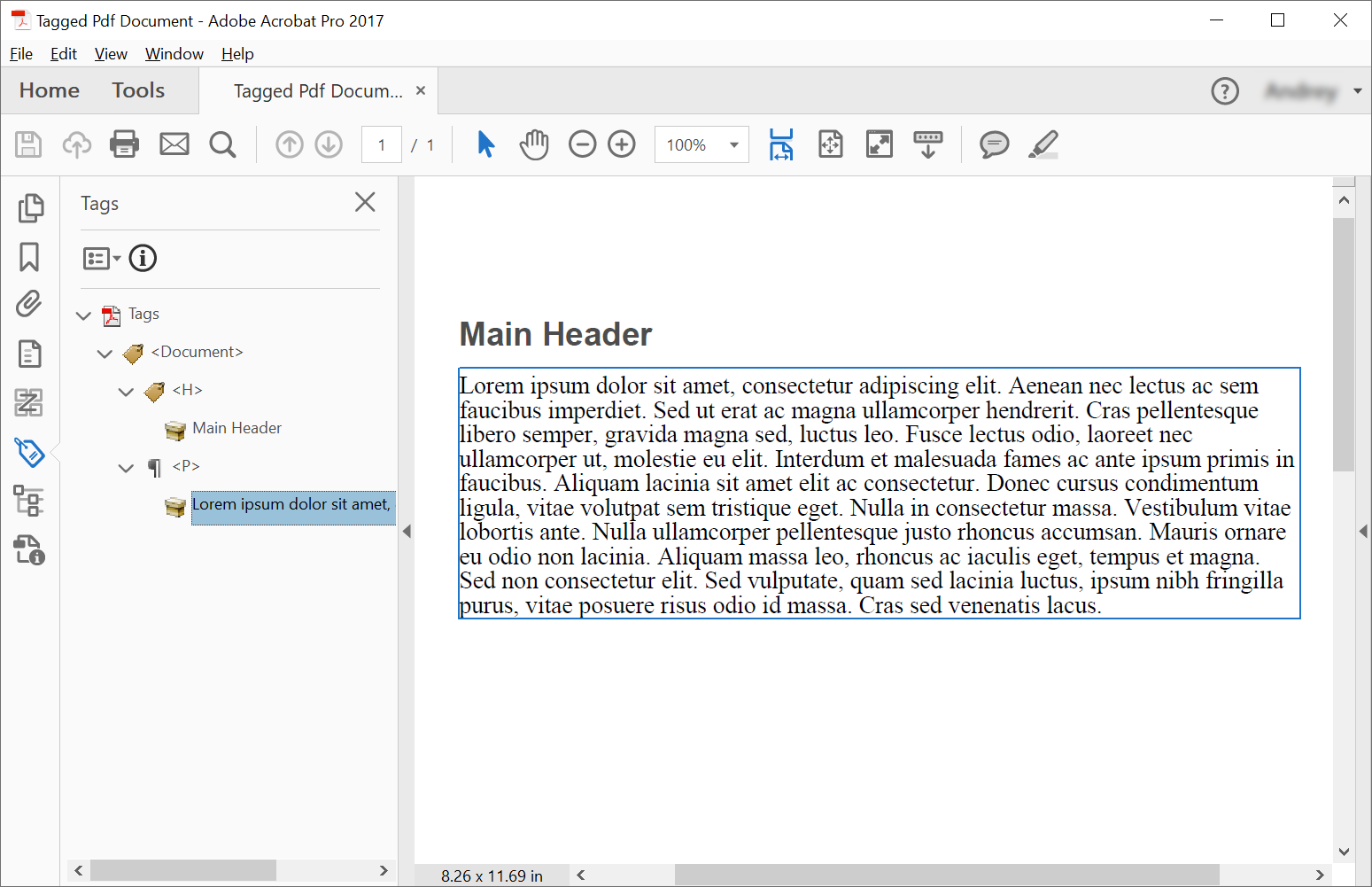
创建后我们将获得以下文档:
设置文本结构样式
带标签的 PDF 是结构化文档,为内容提供可访问性功能和语义含义。
该示例使用带标签的内容结构创建具有无障碍功能的 PDF 文档。它演示了如何使用自定义样式和适当的文档元数据制作段落元素。
import aspose.pdf as ap
import sys
from os import path

def add_style(outfile):

    # Create PDF Document
    with ap.Document() as document:
        # Get Content for work with TaggedPdf
        tagged_content = document.tagged_content

        # Set Title and Language for Document
        tagged_content.set_title("Tagged Pdf Document")
        tagged_content.set_language("en-US")

        paragraph_element = tagged_content.create_paragraph_element()
        tagged_content.root_element.append_child(paragraph_element, True)

        paragraph_element.structure_text_state.font_size = 18.0
        paragraph_element.structure_text_state.foreground_color = ap.Color.red
        paragraph_element.structure_text_state.font_style = ap.text.FontStyles.ITALIC

        paragraph_element.set_text("Red italic text.")

        # Save Tagged PDF Document
        document.save(outfile)
说明结构元素
带标签的 PDF 对于无障碍访问合规性至关重要,可提供可由屏幕阅读器和其他辅助技术正确解释的结构化内容。以下代码片段显示了如何使用嵌入式图像创建带标签的 PDF 文档:
- 使用图像创建带标签的 PDF。
- 配置文档。
- 创建和配置图。
- 设置定位。
- 保存文档。
import aspose.pdf as ap
import sys
from os import path

def illustrate_structure_elements(imagefile, outfile):
    # Create PDF Document
    with ap.Document() as document:
        # Get Content for work with TaggedPdf
        tagged_content = document.tagged_content

        # Set Title and Language for Document
        tagged_content.set_title("Tagged Pdf Document")
        tagged_content.set_language("en-US")
        figure1 = tagged_content.create_figure_element()
        tagged_content.root_element.append_child(figure1, True)
        figure1.alternative_text = "Figure One"
        figure1.title = "Image 1"
        figure1.set_tag("Fig1")
        figure1.set_image(imagefile, 300)
        # Adjust position
        position_settings = ap.tagged.PositionSettings()
        margin_info = ap.MarginInfo()
        margin_info.left = 50
        margin_info.top = 20
        position_settings.margin = margin_info
        figure1.adjust_position(position_settings)

        # Save Tagged PDF Document
        document.save(outfile)
验证带标签的 PDF
通过 .NET for Python 的 Aspose.PDF 提供了验证带有 PDF/UA 标签的 PDF 文档的功能。“validate_tagged_pdf” 方法根据 PDF/UA-1 标准验证 PDF 文档,该标准是 ISO 14289 可访问的 PDF 文档规范的一部分。这可确保残障用户和辅助技术用户可以访问 PDF。
- 文件结构。正确的语义标记和逻辑结构。
- 替代文本。图像和非文本元素的替代文本。
- 阅读顺序。屏幕阅读器的逻辑顺序。
- 颜色和对比度。足够的对比度。
- 表格。可访问的表单字段和标签。
- 导航。正确的书签和导航结构。
import aspose.pdf as ap
import sys
from os import path

def validate_tagged_pdf(infile, logfile):
    # Open PDF document
    with ap.Document(infile) as document:
        is_valid = document.validate(logfile, ap.PdfFormat.PDF_UA_1)
    print(f"Is Valid: {is_valid}")
调整文本结构的位置
以下代码片段显示了如何调整带标签的 PDF 文档中的文本结构位置:
import aspose.pdf as ap
import sys
from os import path

def adjust_position(outfile):
    # Create PDF Document
    with ap.Document() as document:
        # Get Content for work with TaggedPdf
        tagged_content = document.tagged_content

        # Set Title and Language for Document
        tagged_content.set_title("Tagged Pdf Document")
        tagged_content.set_language("en-US")

        # Create paragraph
        paragraph = tagged_content.create_paragraph_element()
        tagged_content.root_element.append_child(paragraph, True)
        paragraph.set_text("Text.")

        # Adjust position
        position_settings = ap.tagged.PositionSettings()
        margin_info = ap.MarginInfo()
        margin_info.left = 300
        margin_info.top = 20
        margin_info.right = 0
        margin_info.bottom = 0
        position_settings.margin = margin_info
        position_settings.horizontal_alignment = ap.HorizontalAlignment.NONE
        position_settings.vertical_alignment = ap.VerticalAlignment.NONE
        position_settings.is_first_paragraph_in_column = False
        position_settings.is_kept_with_next = False
        position_settings.is_in_new_page = False
        position_settings.is_in_line_paragraph = False
        paragraph.adjust_position(position_settings)

        # Save Tagged PDF Document
        document.save(outfile)
使用自动标记将 PDF 转换为 PDF/UA-1
此代码片段解释了如何使用适用于 Python 的 Aspose.PDF 通过.NET 将标准 PDF 转换为符合 PDF/UA-1(通用无障碍访问)的文件。
PDF/UA 确保残障用户可以访问文档,并与屏幕阅读器等辅助技术兼容。在转换过程中,该库可以自动生成逻辑结构树并使用内置的自动标记和标题识别应用语义标签。
通过配置 PDF 格式转换选项和启用 “自动标记设置”,您可以高效地将现有 PDF 转换为可访问的文档,而无需手动编辑结构。
- 加载源文档。
- 创建 PDF/UA 转换选项。
- 启用自动标记。
- 配置航向识别。
- 将标记配置附加到转换选项。
- 运行转换过程。
- 保存可访问的 PDF。
import aspose.pdf as ap
import sys
from os import path

def convert_to_pdf_ua_with_automatic_tagging(infile, outfile, logfile):
    # Create PDF Document
    with ap.Document(infile) as document:
        # Create conversion options
        options = ap.PdfFormatConversionOptions(
            logfile, ap.PdfFormat.PDF_UA_1, ap.ConvertErrorAction.DELETE
        )
        # Create auto-tagging settings
        # aspose.pdf.AutoTaggingSettings.default may be used to set the same settings as given below
        auto_tagging_settings = ap.AutoTaggingSettings()
        # Enable auto-tagging during the conversion process
        auto_tagging_settings.enable_auto_tagging = True
        # Use the heading recognition strategy that's optimal for the given document structure
        auto_tagging_settings.heading_recognition_strategy = (
            ap.HeadingRecognitionStrategy.AUTO
        )
        # Assign auto-tagging settings to be used during the conversion process
        options.auto_tagging_settings = auto_tagging_settings
        # During the conversion, the document logical structure will be automatically created
        document.convert(options)
        # Save PDF document
        document.save(outfile)
使用可访问的签名表单字段创建带标签的 PDF
- 创建新的 PDF 文档。
- 访问带标签的内容。
- 创建签名表单字段。
- 将该字段添加到 AcroForm。
- 在标签结构中创建表单元素。
- 将 “结构” 元素链接到 “表单” 字段。
- 将表单元素追加到逻辑结构树中。
- 保存文档。
import aspose.pdf as ap
import sys
from os import path

def create_pdf_with_tagged_form_field(outfile):
    # Create PDF document
    with ap.Document() as document:
        document.pages.add()
        # Get Content for work with TaggedPdf
        tagged_content = document.tagged_content
        root_element = tagged_content.root_element
        # Create a visible signature form field (AcroForm)
        signature_field = ap.forms.SignatureField(
            document.pages[1], ap.Rectangle(50, 50, 100, 100, True)
        )
        signature_field.partial_name = "Signature1"
        signature_field.alternate_name = "signature 1"

        # Add the signature field to the document's AcroForm
        document.form.add(signature_field)

        # Create a /Form structure element in the tag tree
        form = tagged_content.create_form_element()
        form.alternative_text = "form 1"

        # Link the /Form tag to the signature field via an /OBJR reference
        form.tag(signature_field)

        # Add the /Form structure element to the document’s logical structure tree
        root_element.append_child(form, True)

        # Save PDF document
        document.save(outfile)
使用目录 (TOC) 页面创建带标签的 PDF
此示例说明如何使用适用于 Python 的 Aspose.PDF 通过.NET 创建带有结构化目录 (TOC) 页面的带标签的 PDF 文档。
- 创建新的 PDF 文档。
- 创建专用的目录页面。
- 在逻辑结构树中创建和注册 TOC 元素。
- 添加内容页面。
- 创建标题元素。
- 创建 /TOCI 元素。
- 将标题链接到目录。
- 保存文档。
import aspose.pdf as ap
import sys
from os import path

def create_pdf_with_toc_page(outfile):
    # Create PDF document
    with ap.Document() as document:
        # Get tagged content for the PDF structure
        content = document.tagged_content
        root_element = content.root_element
        content.set_language("en-US")
        # Add the table of contents (TOC) page
        toc_page = document.pages.add()
        toc_page.toc_info = ap.TocInfo()
        # Create a TOC structure element
        toc_element = content.create_toc_element()
        # Add the TOC element to the document structure tree
        root_element.append_child(toc_element, True)
        # Add a content page
        document.pages.add()
        # Create a header element and set its text
        header = content.create_header_element(1)
        header.set_text("1. Header")
        # Add the header to the document structure
        root_element.append_child(header, True)
        # Create a TOC item (TOCI) element
        toci = content.create_toci_element()
        # Add the TOCI element to the TOC element
        toc_element.append_child(toci, True)
        # Add an entry to the TOC page and link it to the TOCI element
        header.add_entry_to_toc_page(toc_page, toci)
        # Add a logical reference to the header within the TOCI element
        toci.add_ref(header)
        # Save PDF document
        document.save(outfile)
使用分层目录 (TOC) 创建带有高级标签的 PDF
通过.NET 使用 Python 版 Aspose.PDF,您可以创建具有结构化和分层目录表 (TOC) 的高级、带完整标签的 PDF 文档。
- 创建文档并启用带标签的内容。
- 添加和配置 TOC 页面。
- 创建 /TOC 结构元素。
- 将 TOC 页面标题链接到标题元素。
- 添加主内容页面和第一个标题。
- 为标题创建 TOC 条目。
- 使用列表结构创建嵌套小节。
- 添加第二个顶级版块。
- 保存文档。
import aspose.pdf as ap
import sys
from os import path

def create_pdf_with_toc_page_advanced(outfile):
    # Create PDF document
    with ap.Document() as document:
        # Get tagged content for the PDF structure
        content = document.tagged_content
        root_element = content.root_element
        content.set_language("en-US")
        # Add the table of contents (TOC) page
        toc_page = document.pages.add()
        toc_page.toc_info = ap.TocInfo()
        toc_page.toc_info.title = ap.text.TextFragment("Table of Contents")
        # Create a TOC structure element
        toc_element = content.create_toc_element()
        # Create a header element for the TOC page title
        header_for_toc_page_title = content.create_header_element(1)
        toc_element.link_toc_page_title_to_header_element(
            toc_page, header_for_toc_page_title
        )
        # Add the TOC page title header and TOC element to the document structure tree
        root_element.append_child(header_for_toc_page_title, True)
        root_element.append_child(toc_element, True)
        # Add a content page
        document.pages.add()
        # Create a header element and set its text
        header = content.create_header_element(1)
        header.set_text("1. Header")
        # Add the header to the document structure
        root_element.append_child(header, True)
        # Create a TOC item (TOCI) element
        toci = content.create_toci_element()
        # Add the TOCI element to the TOC element
        toc_element.append_child(toci, True)
        # Add an entry to the TOC page and link it to the TOCI element
        header.add_entry_to_toc_page(toc_page, toci)
        # Add a logical reference to the header within the TOCI element
        toci.add_ref(header)
        # Create a list element for TOCI subitems
        list_element = content.create_list_element()
        for i in range(1, 4):
            # Create a list item (LI) element
            li = content.create_list_li_element()
            # Add the list item to the list element
            list_element.append_child(li, True)
            # Create a sub-header element and set its properties
            sub_header = content.create_header_element(2)
            sub_header.structure_text_state.font_size = 14
            sub_header.language = "en-US"
            sub_header.set_text(f"1.{i} subheader ")
            # Add an entry to the TOC page and link it to the LI element
            sub_header.add_entry_to_toc_page(toc_page, li)
            # Add a logical reference to the subheader element
            li.add_ref(sub_header)
            # Create a paragraph element and set its text and language
            p = content.create_paragraph_element()
            p.set_text(
                "Lorem ipsum dolor sit amet, consectetur adipiscing elit, sed do eiusmod tempor incididunt ut labore et dolore magna aliqua. Ut enim ad minim veniam, quis nostrud exercitation ullamco laboris nisi ut aliquip ex ea commodo consequat. Duis aute irure dolor in reprehenderit in voluptate velit esse cillum dolore eu fugiat nulla pariatur. Excepteur sint occaecat cupidatat non proident, sunt in culpa qui officia deserunt mollit anim id est laborum."
            )
            p.language = "en-US"
            # Add the sub-header and paragraph to the document structure
            root_element.append_child(sub_header, True)
            root_element.append_child(p, True)
        # Add the list element as a child to the TOCI element
        toci.append_child(list_element, True)
        # --- Additional TOC header example ---
        # Create a second header element (see comments above for header 1)
        header2 = content.create_header_element(1)
        header2.set_text("2. Header")
        root_element.append_child(header2, True)

        toci2 = content.create_toci_element()
        toc_element.append_child(toci2, True)

        header2.add_entry_to_toc_page(toc_page, toci2)
        toci2.add_ref(header2)
        # Save the PDF document
        document.save(outfile)
相关标签 PDF 主题
- 从带标签的 PDF 中提取带标签的内容 在创建后检查逻辑结构树。
- 设置结构元素的属性 优化标题、语言、替代文本和扩展文本。
- 在带标签的 PDF 中使用表格 当您的可访问文档包含结构化表格时。