
Buat Tagged PDF dengan Python
Membuat Tagged PDF berarti menambahkan (atau membuat) elemen tertentu ke dokumen yang akan memungkinkan dokumen divalidasi sesuai dengan persyaratan PDF/UA. Elemen-elemen ini sering disebut Structure Elements.
Membuat Tagged PDF (Skenario Sederhana)
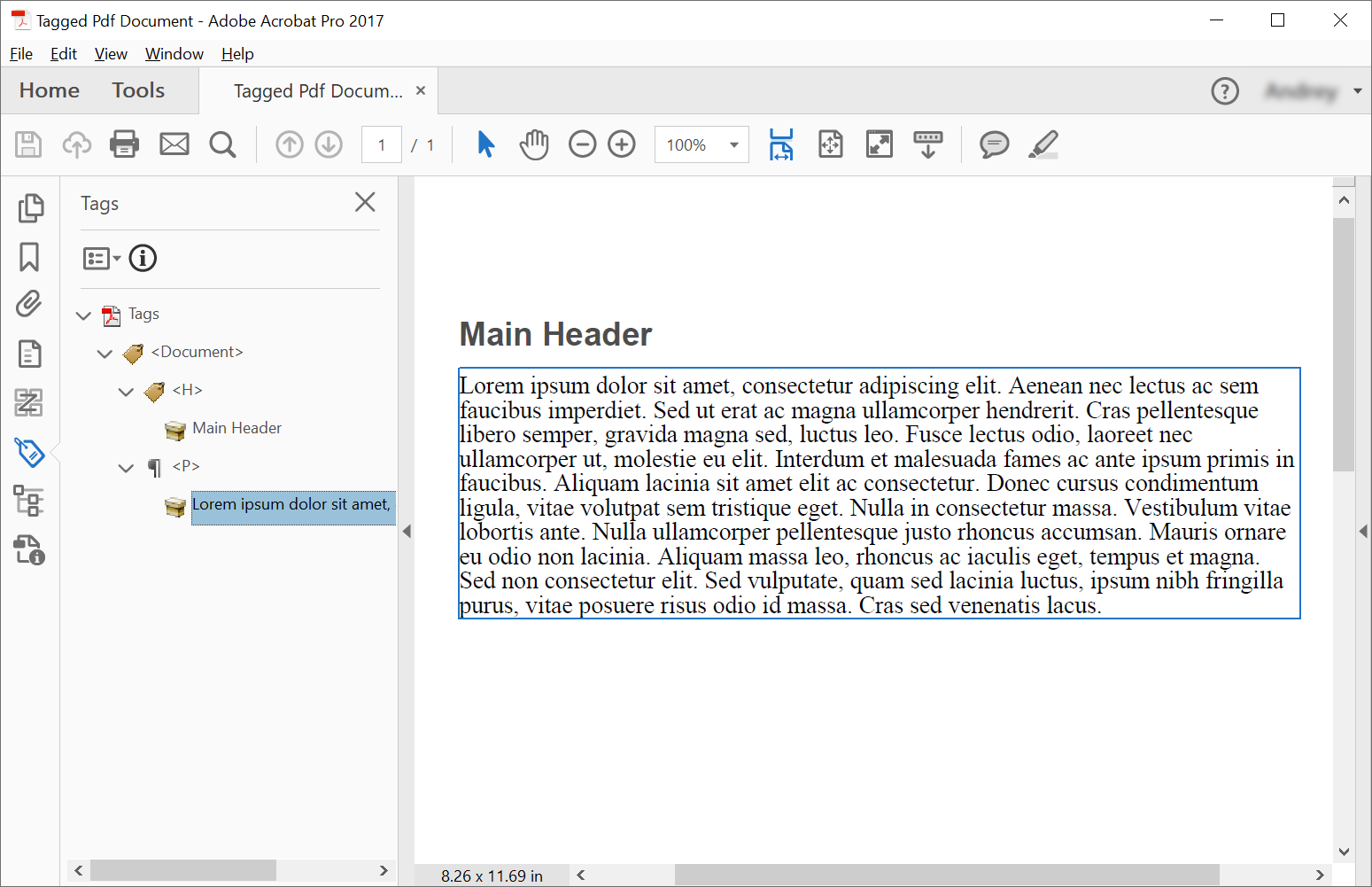
Untuk membuat elemen struktur dalam Tagged PDF Document, Aspose.PDF menawarkan metode untuk membuat elemen struktur menggunakan ITaggedContent antarmuka. Contoh ini membuat dokumen Tagged PDF — sebuah PDF dengan struktur semantik, menjadikannya lebih mudah diakses dan mematuhi standar seperti PDF/UA. Potongan kode berikut menunjukkan cara membuat Tagged PDF yang berisi 2 elemen: header dan paragraf.
import aspose.pdf as ap
import sys
from os import path

def create_tagged_pdf_document_simple(outfile):

    # Create PDF Document
    with ap.Document() as document:
        # Get Content for working with TaggedPdf
        tagged_content = document.tagged_content
        root_element = tagged_content.root_element

        # Set Title and Language for Document
        tagged_content.set_title("Tagged Pdf Document")
        tagged_content.set_language("en-US")
        main_header = tagged_content.create_header_element()
        main_header.set_text("Main Header")
        paragraph_element = tagged_content.create_paragraph_element()
        paragraph_element.set_text(
            "Lorem ipsum dolor sit amet, consectetur adipiscing elit. "
            + "Aenean nec lectus ac sem faucibus imperdiet. Sed ut erat ac magna ullamcorper hendrerit. "
            + "Cras pellentesque libero semper, gravida magna sed, luctus leo. Fusce lectus odio, laoreet "
            + "nec ullamcorper ut, molestie eu elit. Interdum et malesuada fames ac ante ipsum primis in faucibus. "
            + "Aliquam lacinia sit amet elit ac consectetur. Donec cursus condimentum ligula, vitae volutpat "
            + "sem tristique eget. Nulla in consectetur massa. Vestibulum vitae lobortis ante. Nulla ullamcorper "
            + "pellentesque justo rhoncus accumsan. Mauris ornare eu odio non lacinia. Aliquam massa leo, rhoncus "
            + "ac iaculis eget, tempus et magna. Sed non consectetur elit. Sed vulputate, quam sed lacinia luctus, "
            + "ipsum nibh fringilla purus, vitae posuere risus odio id massa. Cras sed venenatis lacus."
        )
        root_element.append_child(main_header, True)
        root_element.append_child(paragraph_element, True)

        # Save Tagged PDF Document
        document.save(outfile)
Membuat Tagged PDF (Lanjutan)
import aspose.pdf as ap
import sys
from os import path

def create_tagged_pdf_document_adv(outfile):
    # Create PDF Document
    with ap.Document() as document:
        # Get Content for working with TaggedPdf
        tagged_content = document.tagged_content
        root_element = tagged_content.root_element

        # Set Title and Language for Document
        tagged_content.set_title("Tagged Pdf Document")
        tagged_content.set_language("en-US")

        # Create Header Level 1
        header1 = tagged_content.create_header_element(1)
        header1.set_text("Header Level 1")

        # Create Paragraph with Quotes
        paragraph_with_quotes = tagged_content.create_paragraph_element()
        paragraph_with_quotes.structure_text_state.font = (
            ap.text.FontRepository.find_font("Arial")
        )
        position_settings = ap.tagged.PositionSettings()
        position_settings.margin = ap.MarginInfo(10, 5, 10, 5)
        paragraph_with_quotes.adjust_position(position_settings)

        # Create Span Element
        span_element1 = tagged_content.create_span_element()
        span_element1.set_text(
            "Lorem ipsum dolor sit amet, consectetur adipiscing elit. Aenean nec lectus ac sem faucibus imperdiet. "
            "Sed ut erat ac magna ullamcorper hendrerit. Cras pellentesque libero semper, gravida magna sed, "
            "luctus leo. Fusce lectus odio, laoreet nec ullamcorper ut, molestie eu elit. Interdum et malesuada "
            "fames ac ante ipsum primis in faucibus. Aliquam lacinia sit amet elit ac consectetur. Donec cursus "
            "condimentum ligula, vitae volutpat sem tristique eget. Nulla in consectetur massa. Vestibulum vitae "
            "lobortis ante. Nulla ullamcorper pellentesque justo rhoncus accumsan. Mauris ornare eu odio non "
            "lacinia. Aliquam massa leo, rhoncus ac iaculis eget, tempus et magna. Sed non consectetur elit."
        )

        # Create Quote Element
        quote_element = tagged_content.create_quote_element()
        quote_element.set_text(
            "Sed vulputate, quam sed lacinia luctus, ipsum nibh fringilla purus, vitae posuere risus odio id massa."
        )
        quote_element.structure_text_state.font_style = (
            ap.text.FontStyles.BOLD | ap.text.FontStyles.ITALIC
        )

        # Create Another Span Element
        span_element2 = tagged_content.create_span_element()
        span_element2.set_text(" Sed non consectetur elit.")

        # Append Children to Paragraph
        paragraph_with_quotes.append_child(span_element1, True)
        paragraph_with_quotes.append_child(quote_element, True)
        paragraph_with_quotes.append_child(span_element2, True)

        # Append Header and Paragraph to Root Element
        root_element.append_child(header1, True)
        root_element.append_child(paragraph_with_quotes, True)

        # Save Tagged PDF Document
        document.save(outfile)
Kami akan mendapatkan dokumen berikut setelah pembuatan:
Penggayaan Struktur Teks
Tagged PDFs adalah dokumen terstruktur yang menyediakan fitur aksesibilitas dan makna semantik pada kontennya.
Contoh ini membuat dokumen PDF dengan fitur aksesibilitas dengan menggunakan struktur konten bertag. Ini menunjukkan cara membuat elemen paragraf dengan gaya khusus dan metadata dokumen yang tepat.
import aspose.pdf as ap
import sys
from os import path

def add_style(outfile):

    # Create PDF Document
    with ap.Document() as document:
        # Get Content for work with TaggedPdf
        tagged_content = document.tagged_content

        # Set Title and Language for Document
        tagged_content.set_title("Tagged Pdf Document")
        tagged_content.set_language("en-US")

        paragraph_element = tagged_content.create_paragraph_element()
        tagged_content.root_element.append_child(paragraph_element, True)

        paragraph_element.structure_text_state.font_size = 18.0
        paragraph_element.structure_text_state.foreground_color = ap.Color.red
        paragraph_element.structure_text_state.font_style = ap.text.FontStyles.ITALIC

        paragraph_element.set_text("Red italic text.")

        # Save Tagged PDF Document
        document.save(outfile)
Mengilustrasikan Structure Elements
Tagged PDFs sangat penting untuk kepatuhan aksesibilitas dan menyediakan konten terstruktur yang dapat ditafsirkan dengan tepat oleh pembaca layar dan teknologi bantuan lainnya. Potongan kode berikut menunjukkan cara membuat dokumen PDF ber-tag dengan gambar tersemat:
- Buat PDF bertanda dengan gambar.
- Konfigurasikan dokumen.
- Buat dan konfigurasikan gambar.
- Atur posisi.
- Simpan dokumen.
import aspose.pdf as ap
import sys
from os import path

def illustrate_structure_elements(imagefile, outfile):
    # Create PDF Document
    with ap.Document() as document:
        # Get Content for work with TaggedPdf
        tagged_content = document.tagged_content

        # Set Title and Language for Document
        tagged_content.set_title("Tagged Pdf Document")
        tagged_content.set_language("en-US")
        figure1 = tagged_content.create_figure_element()
        tagged_content.root_element.append_child(figure1, True)
        figure1.alternative_text = "Figure One"
        figure1.title = "Image 1"
        figure1.set_tag("Fig1")
        figure1.set_image(imagefile, 300)
        # Adjust position
        position_settings = ap.tagged.PositionSettings()
        margin_info = ap.MarginInfo()
        margin_info.left = 50
        margin_info.top = 20
        position_settings.margin = margin_info
        figure1.adjust_position(position_settings)

        # Save Tagged PDF Document
        document.save(outfile)
Validasi Tagged PDF
Aspose.PDF for Python via .NET menyediakan kemampuan untuk memvalidasi Dokumen PDF/UA Tagged PDF. Metode ‘validate_tagged_pdf’ memvalidasi dokumen PDF terhadap standar PDF/UA-1, yang merupakan bagian dari spesifikasi ISO 14289 untuk dokumen PDF yang dapat diakses. Ini memastikan bahwa PDF dapat diakses oleh pengguna dengan disabilitas dan teknologi bantuan.
- Struktur Dokumen. Penandaan semantik yang tepat dan struktur logis.
- Teks Alternatif. Teks alt untuk gambar dan elemen non‑teks.
- Urutan Membaca. Urutan logis untuk pembaca layar.
- Warna dan Kontras. Rasio kontras yang cukup.
- Formulir. Bidang formulir yang dapat diakses dan label.
- Navigasi. Penanda buku yang tepat dan struktur navigasi.
import aspose.pdf as ap
import sys
from os import path

def validate_tagged_pdf(infile, logfile):
    # Open PDF document
    with ap.Document(infile) as document:
        is_valid = document.validate(logfile, ap.PdfFormat.PDF_UA_1)
    print(f"Is Valid: {is_valid}")
Sesuaikan posisi Struktur Teks
Potongan kode berikut menunjukkan cara menyesuaikan posisi Struktur Teks dalam dokumen Tagged PDF:
import aspose.pdf as ap
import sys
from os import path

def adjust_position(outfile):
    # Create PDF Document
    with ap.Document() as document:
        # Get Content for work with TaggedPdf
        tagged_content = document.tagged_content

        # Set Title and Language for Document
        tagged_content.set_title("Tagged Pdf Document")
        tagged_content.set_language("en-US")

        # Create paragraph
        paragraph = tagged_content.create_paragraph_element()
        tagged_content.root_element.append_child(paragraph, True)
        paragraph.set_text("Text.")

        # Adjust position
        position_settings = ap.tagged.PositionSettings()
        margin_info = ap.MarginInfo()
        margin_info.left = 300
        margin_info.top = 20
        margin_info.right = 0
        margin_info.bottom = 0
        position_settings.margin = margin_info
        position_settings.horizontal_alignment = ap.HorizontalAlignment.NONE
        position_settings.vertical_alignment = ap.VerticalAlignment.NONE
        position_settings.is_first_paragraph_in_column = False
        position_settings.is_kept_with_next = False
        position_settings.is_in_new_page = False
        position_settings.is_in_line_paragraph = False
        paragraph.adjust_position(position_settings)

        # Save Tagged PDF Document
        document.save(outfile)
Konversi PDF ke PDF/UA-1 dengan Tagging Otomatis
Potongan kode ini menjelaskan cara mengonversi PDF standar menjadi file yang mematuhi PDF/UA-1 (Aksesibilitas Universal) menggunakan Aspose.PDF for Python via .NET.
PDF/UA memastikan bahwa dokumen dapat diakses oleh pengguna dengan disabilitas dan kompatibel dengan teknologi bantu seperti pembaca layar. Selama konversi, perpustakaan dapat secara otomatis menghasilkan pohon struktur logis dan menerapkan tag semantik menggunakan auto-tagging bawaan serta pengenalan heading.
Dengan mengonfigurasi PdfFormatConversionOptions dan mengaktifkan AutoTaggingSettings, Anda dapat secara efisien mengubah PDF yang ada menjadi dokumen yang dapat diakses tanpa harus mengedit struktur secara manual.
- Muat dokumen sumber.
- Buat Opsi Konversi PDF/UA.
- Aktifkan Penandaan Otomatis.
- Konfigurasikan Pengenalan Heading.
- Lampirkan konfigurasi penandaan ke opsi konversi.
- Jalankan proses konversi.
- Simpan PDF yang dapat diakses.
import aspose.pdf as ap
import sys
from os import path

def convert_to_pdf_ua_with_automatic_tagging(infile, outfile, logfile):
    # Create PDF Document
    with ap.Document(infile) as document:
        # Create conversion options
        options = ap.PdfFormatConversionOptions(
            logfile, ap.PdfFormat.PDF_UA_1, ap.ConvertErrorAction.DELETE
        )
        # Create auto-tagging settings
        # aspose.pdf.AutoTaggingSettings.default may be used to set the same settings as given below
        auto_tagging_settings = ap.AutoTaggingSettings()
        # Enable auto-tagging during the conversion process
        auto_tagging_settings.enable_auto_tagging = True
        # Use the heading recognition strategy that's optimal for the given document structure
        auto_tagging_settings.heading_recognition_strategy = (
            ap.HeadingRecognitionStrategy.AUTO
        )
        # Assign auto-tagging settings to be used during the conversion process
        options.auto_tagging_settings = auto_tagging_settings
        # During the conversion, the document logical structure will be automatically created
        document.convert(options)
        # Save PDF document
        document.save(outfile)
Buat Tagged PDF dengan FormField Tanda Tangan yang Dapat Diakses
- Buat dokumen PDF baru.
- Akses konten yang ditandai.
- Buat bidang Form tanda tangan.
- Tambahkan bidang ke AcroForm.
- Buat elemen form dalam struktur tag.
- Tautkan elemen Structure ke field Form.
- Tambahkan elemen Form ke pohon struktur logis.
- Simpan dokumen.
import aspose.pdf as ap
import sys
from os import path

def create_pdf_with_tagged_form_field(outfile):
    # Create PDF document
    with ap.Document() as document:
        document.pages.add()
        # Get Content for work with TaggedPdf
        tagged_content = document.tagged_content
        root_element = tagged_content.root_element
        # Create a visible signature form field (AcroForm)
        signature_field = ap.forms.SignatureField(
            document.pages[1], ap.Rectangle(50, 50, 100, 100, True)
        )
        signature_field.partial_name = "Signature1"
        signature_field.alternate_name = "signature 1"

        # Add the signature field to the document's AcroForm
        document.form.add(signature_field)

        # Create a /Form structure element in the tag tree
        form = tagged_content.create_form_element()
        form.alternative_text = "form 1"

        # Link the /Form tag to the signature field via an /OBJR reference
        form.tag(signature_field)

        # Add the /Form structure element to the document’s logical structure tree
        root_element.append_child(form, True)

        # Save PDF document
        document.save(outfile)
Buat Tagged PDF dengan Halaman Daftar Isi (TOC)
Contoh ini menunjukkan cara membuat dokumen Tagged PDF dengan halaman Daftar Isi (TOC) yang terstruktur menggunakan Aspose.PDF for Python via .NET.
- Buat dokumen PDF baru.
- Buat halaman daftar isi khusus.
- Buat dan daftarkan elemen TOC dalam pohon struktur logis.
- Tambahkan halaman konten.
- Buat elemen header.
- Buat elemen /TOCI.
- Tautkan header ke TOC.
- Simpan dokumen.
import aspose.pdf as ap
import sys
from os import path

def create_pdf_with_toc_page(outfile):
    # Create PDF document
    with ap.Document() as document:
        # Get tagged content for the PDF structure
        content = document.tagged_content
        root_element = content.root_element
        content.set_language("en-US")
        # Add the table of contents (TOC) page
        toc_page = document.pages.add()
        toc_page.toc_info = ap.TocInfo()
        # Create a TOC structure element
        toc_element = content.create_toc_element()
        # Add the TOC element to the document structure tree
        root_element.append_child(toc_element, True)
        # Add a content page
        document.pages.add()
        # Create a header element and set its text
        header = content.create_header_element(1)
        header.set_text("1. Header")
        # Add the header to the document structure
        root_element.append_child(header, True)
        # Create a TOC item (TOCI) element
        toci = content.create_toci_element()
        # Add the TOCI element to the TOC element
        toc_element.append_child(toci, True)
        # Add an entry to the TOC page and link it to the TOCI element
        header.add_entry_to_toc_page(toc_page, toci)
        # Add a logical reference to the header within the TOCI element
        toci.add_ref(header)
        # Save PDF document
        document.save(outfile)
Buat PDF Tagged Lanjutan dengan Daftar Isi Hierarkis (TOC)
Dengan menggunakan Aspose.PDF for Python via .NET, Anda dapat membuat dokumen PDF yang canggih, sepenuhnya ber-tag, dengan Daftar Isi (TOC) yang terstruktur dan hierarkis.
- Buat dokumen dan aktifkan konten Tagged.
- Tambahkan dan konfigurasikan halaman TOC.
- Buat elemen struktur /TOC.
- Tautkan judul halaman TOC ke elemen header.
- Tambahkan halaman konten utama dan header pertama.
- Buat entri TOC untuk header.
- Buat subseksi bersarang dengan struktur daftar.
- Tambahkan bagian Tingkat Atas kedua.
- Simpan dokumen.
import aspose.pdf as ap
import sys
from os import path

def create_pdf_with_toc_page_advanced(outfile):
    # Create PDF document
    with ap.Document() as document:
        # Get tagged content for the PDF structure
        content = document.tagged_content
        root_element = content.root_element
        content.set_language("en-US")
        # Add the table of contents (TOC) page
        toc_page = document.pages.add()
        toc_page.toc_info = ap.TocInfo()
        toc_page.toc_info.title = ap.text.TextFragment("Table of Contents")
        # Create a TOC structure element
        toc_element = content.create_toc_element()
        # Create a header element for the TOC page title
        header_for_toc_page_title = content.create_header_element(1)
        toc_element.link_toc_page_title_to_header_element(
            toc_page, header_for_toc_page_title
        )
        # Add the TOC page title header and TOC element to the document structure tree
        root_element.append_child(header_for_toc_page_title, True)
        root_element.append_child(toc_element, True)
        # Add a content page
        document.pages.add()
        # Create a header element and set its text
        header = content.create_header_element(1)
        header.set_text("1. Header")
        # Add the header to the document structure
        root_element.append_child(header, True)
        # Create a TOC item (TOCI) element
        toci = content.create_toci_element()
        # Add the TOCI element to the TOC element
        toc_element.append_child(toci, True)
        # Add an entry to the TOC page and link it to the TOCI element
        header.add_entry_to_toc_page(toc_page, toci)
        # Add a logical reference to the header within the TOCI element
        toci.add_ref(header)
        # Create a list element for TOCI subitems
        list_element = content.create_list_element()
        for i in range(1, 4):
            # Create a list item (LI) element
            li = content.create_list_li_element()
            # Add the list item to the list element
            list_element.append_child(li, True)
            # Create a sub-header element and set its properties
            sub_header = content.create_header_element(2)
            sub_header.structure_text_state.font_size = 14
            sub_header.language = "en-US"
            sub_header.set_text(f"1.{i} subheader ")
            # Add an entry to the TOC page and link it to the LI element
            sub_header.add_entry_to_toc_page(toc_page, li)
            # Add a logical reference to the subheader element
            li.add_ref(sub_header)
            # Create a paragraph element and set its text and language
            p = content.create_paragraph_element()
            p.set_text(
                "Lorem ipsum dolor sit amet, consectetur adipiscing elit, sed do eiusmod tempor incididunt ut labore et dolore magna aliqua. Ut enim ad minim veniam, quis nostrud exercitation ullamco laboris nisi ut aliquip ex ea commodo consequat. Duis aute irure dolor in reprehenderit in voluptate velit esse cillum dolore eu fugiat nulla pariatur. Excepteur sint occaecat cupidatat non proident, sunt in culpa qui officia deserunt mollit anim id est laborum."
            )
            p.language = "en-US"
            # Add the sub-header and paragraph to the document structure
            root_element.append_child(sub_header, True)
            root_element.append_child(p, True)
        # Add the list element as a child to the TOCI element
        toci.append_child(list_element, True)
        # --- Additional TOC header example ---
        # Create a second header element (see comments above for header 1)
        header2 = content.create_header_element(1)
        header2.set_text("2. Header")
        root_element.append_child(header2, True)

        toci2 = content.create_toci_element()
        toc_element.append_child(toci2, True)

        header2.add_entry_to_toc_page(toc_page, toci2)
        toci2.add_ref(header2)
        # Save the PDF document
        document.save(outfile)
Topik Tagged PDF Terkait
- Ekstrak Konten Bertanda dari Tagged PDF untuk memeriksa pohon struktur logis setelah pembuatan.
- Mengatur Properti Elemen Struktur untuk menyempurnakan judul, bahasa, teks alt, dan teks ekspansi.
- Bekerja dengan Tabel dalam Tagged PDF ketika dokumen yang dapat diakses Anda menyertakan tabel terstruktur.