Python で四角形シェイプを PDF に追加する方法
四角形オブジェクトを追加
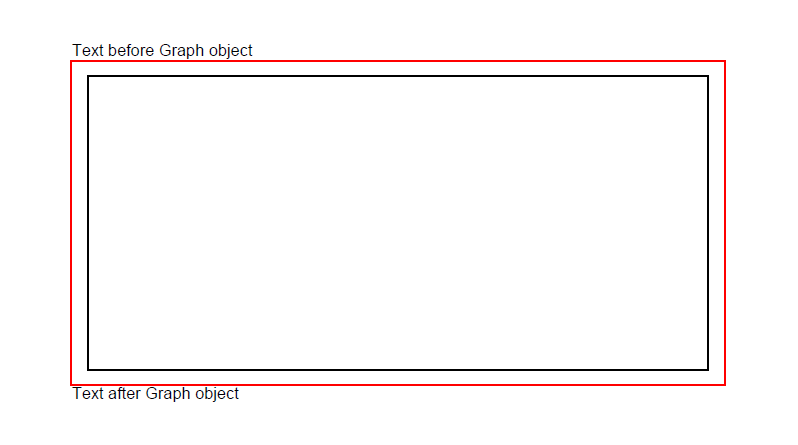
.NET 経由の Python 用 Aspose.PDF では追加できます 四角形 図形を PDF ページに変換するには グラフ クラス。輪郭を描いた長方形を描き、ベタ塗り、グラデーション塗り、透明塗りつぶしを適用できます。
以下の手順に従ってください。
- 新しい PDF の作成 文書.
- 追加 ページ PDFファイルのページコレクションへ。
- 追加 テキストフラグメント ページインスタンスの段落コレクションへ。
- 作成 グラフ インスタンス。
- の境界を設定 グラフオブジェクト.
- 追加 四角形 オブジェクトを Graph オブジェクトのシェイプコレクションに変換します。
- ページインスタンスの段落コレクションにグラフオブジェクトを追加します。
- 追加 テキストフラグメント ページインスタンスの段落コレクションへ。
- そして、PDFファイルを保存してください
import aspose.pdf as ap
import aspose.pdf.drawing as drawing

def add_rectangle(outfile: str):
    document = ap.Document()
    page = document.pages.add()
    text_fragment = ap.text.TextFragment("Rectangle")
    page.paragraphs.add(text_fragment)

    graph = drawing.Graph(400, 300)
    page.paragraphs.add(graph)
    graph.border = ap.BorderInfo(ap.BorderSide.ALL, ap.Color.red)

    rect = drawing.Rectangle(20, 20, 350, 250)
    graph.shapes.add(rect)
    page.paragraphs.add(text_fragment)

    document.save(outfile)
塗りつぶされた長方形オブジェクトを作成
.NET 経由の Python 用 Aspose.PDF には、長方形のオブジェクトを特定の色で塗りつぶす機能もあります。
次のコードスニペットは、を追加する方法を示しています。 四角形 色で塗りつぶされたオブジェクト。
import aspose.pdf as ap
import aspose.pdf.drawing as drawing

def create_rectangle_filled(outfile: str):
    document = ap.Document()
    page = document.pages.add()
    graph = drawing.Graph(100, 400)
    page.paragraphs.add(graph)

    rect = drawing.Rectangle(100, 100, 200, 120)
    rect.graph_info.fill_color = ap.Color.red
    graph.shapes.add(rect)

    document.save(outfile)
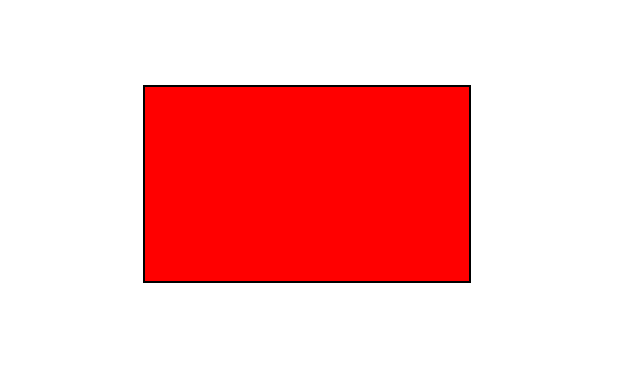
長方形の塗りつぶしをソリッドカラーで塗りつぶした結果:
グラデーションフィルによる図面の追加
Aspose.PDF for Python via .NET は PDF ドキュメントにグラフオブジェクトを追加する機能をサポートしていますが、グラフオブジェクトをグラデーションカラーで塗りつぶす必要がある場合もあります。
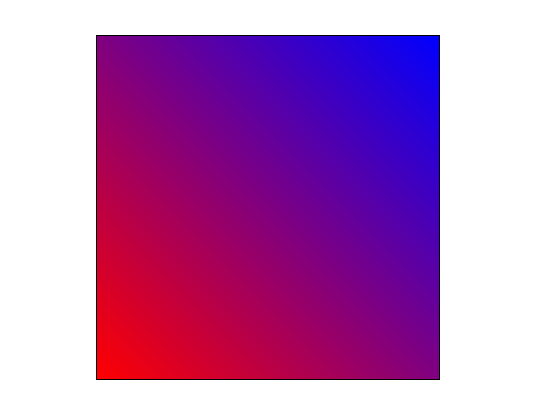
次のコードスニペットは、を追加する方法を示しています。 四角形 グラデーションカラーで塗りつぶされたオブジェクト。
import aspose.pdf as ap
import aspose.pdf.drawing as drawing

def add_drawing_with_gradient_fill(outfile: str):
    document = ap.Document()
    page = document.pages.add()
    graph = drawing.Graph(400, 400)
    page.paragraphs.add(graph)

    rect = drawing.Rectangle(0, 0, 300, 300)
    gradient_color = ap.Color()
    gradient_settings = drawing.GradientAxialShading(ap.Color.red, ap.Color.blue)
    gradient_settings.start = ap.Point(0, 0)
    gradient_settings.end = ap.Point(350, 350)
    gradient_color.pattern_color_space = gradient_settings
    rect.graph_info.fill_color = gradient_color
    graph.shapes.add(rect)

    document.save(outfile)
アルファカラーチャンネルで四角形を作成
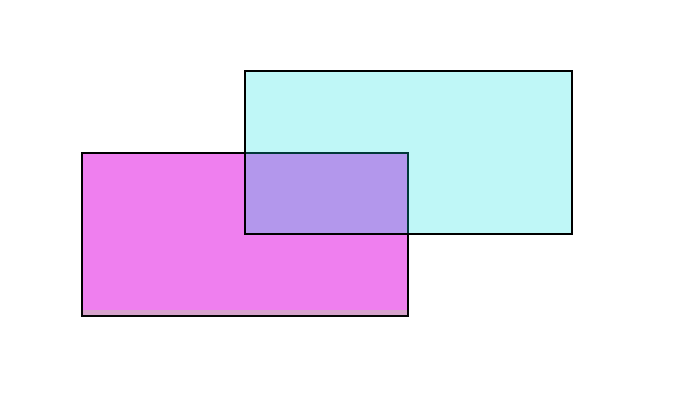
.NET 経由の Python 用 Aspose.PDF は、アルファカラーチャンネルによる透明度もサポートしています。
次のコードスニペットは、を追加する方法を示しています。 四角形 アルファ値を持つオブジェクト。
import aspose.pdf as ap
import aspose.pdf.drawing as drawing

def create_rectangle_with_alpha_color_channel(outfile: str):
    document = ap.Document()
    page = document.pages.add()
    graph = drawing.Graph(100, 400)
    page.paragraphs.add(graph)

    rect = drawing.Rectangle(100, 100, 200, 120)
    rect.graph_info.fill_color = ap.Color.from_argb(128, 244, 180, 0)
    graph.shapes.add(rect)

    rect1 = drawing.Rectangle(200, 150, 200, 100)
    rect1.graph_info.fill_color = ap.Color.from_argb(160, 120, 0, 120)
    graph.shapes.add(rect1)

    document.save(outfile)
シェイプの Z オーダーの制御
Aspose.PDF for .NET は、PDF ドキュメントにグラフオブジェクト (グラフ、線、長方形など) を追加する機能をサポートしています。PDF ファイル内に同じオブジェクトのインスタンスを複数追加する場合、Z オーダーを指定してレンダリングを制御できます。Z-Order は、オブジェクトを重ねてレンダリングする必要がある場合にも使用されます。
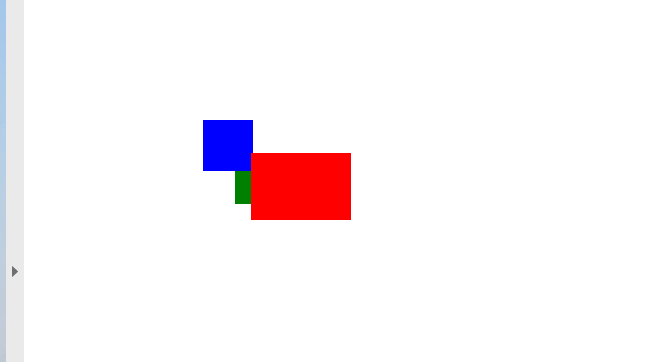
次のコードスニペットは、レンダリングの手順を示しています。 四角形 オブジェクト同士が重なり合っています。
import aspose.pdf as ap
import aspose.pdf.drawing as drawing


def _add_rectangle_to_page(
    page: ap.Page,
    x: float,
    y: float,
    width: float,
    height: float,
    color: ap.Color,
    zindex: int,
):
    graph = drawing.Graph(width, height)
    graph.is_change_position = False
    graph.left = x
    graph.top = y
    rect = drawing.Rectangle(0, 0, width, height)
    rect.graph_info.fill_color = color
    rect.graph_info.color = color
    graph.shapes.add(rect)
    graph.z_index = zindex
    page.paragraphs.add(graph)


def control_z_order_of_rectangle(outfile: str):
    document = ap.Document()
    page = document.pages.add()
    page.set_page_size(375, 300)
    page.page_info.margin.left = 0
    page.page_info.margin.top = 0

    _add_rectangle_to_page(page, 50, 40, 60, 40, ap.Color.red, 2)
    _add_rectangle_to_page(page, 20, 20, 30, 30, ap.Color.blue, 1)
    _add_rectangle_to_page(page, 40, 40, 60, 30, ap.Color.green, 0)

    document.save(outfile)