
在 Python 中使用 FloatingBox 进行 PDF 布局
基本 FloatingBox 用法
这 FloatingBox 类是用于在 PDF 页面上放置文本和其他内容的容器。它比普通文本段落提供了更强的布局、边框和样式控制。如果内容超出框的大小,裁剪行为由框设置控制。
当您需要在 PDF 文档中使用结构化文本容器、多列布局和精确定位,并使用 Aspose.PDF for Python via .NET 时,请使用此页面。
- 创建一个新
Document. - 添加一个
Page到文档。 - 创建一个
FloatingBox. - 使用设置框的边框
BorderInfo和BorderSide. - 使用控制框进行重复
is_need_repeatingproperty. - 使用添加文本内容
TextFragment. - 添加
FloatingBox到Page. - 使用保存最终 PDF 文档
Document.save().
import aspose.pdf as ap

def create_and_add_floating_box(outfile):
    # Create PDF document
    with ap.Document() as document:
        # Add page to pages collection of PDF
        page = document.pages.add()
        # Create and fill box
        box = ap.FloatingBox(400, 30)
        box.border = ap.BorderInfo(ap.BorderSide.ALL, 1.5, ap.Color.dark_green)
        box.is_need_repeating = False
        phrase = "Lorem ipsum dolor sit amet, consectetur adipiscing elit. Fusce quam odio, sollicitudin ac mauris vel, suscipit pellentesque nisi."
        box.paragraphs.add(ap.text.TextFragment(phrase))
        # Add box
        page.paragraphs.add(box)
        document.save(outfile)
在上面的示例中, FloatingBox 已创建,宽度为 400 pt,高度为 30 pt。
该文本故意超出了可用高度,因此部分被裁剪。
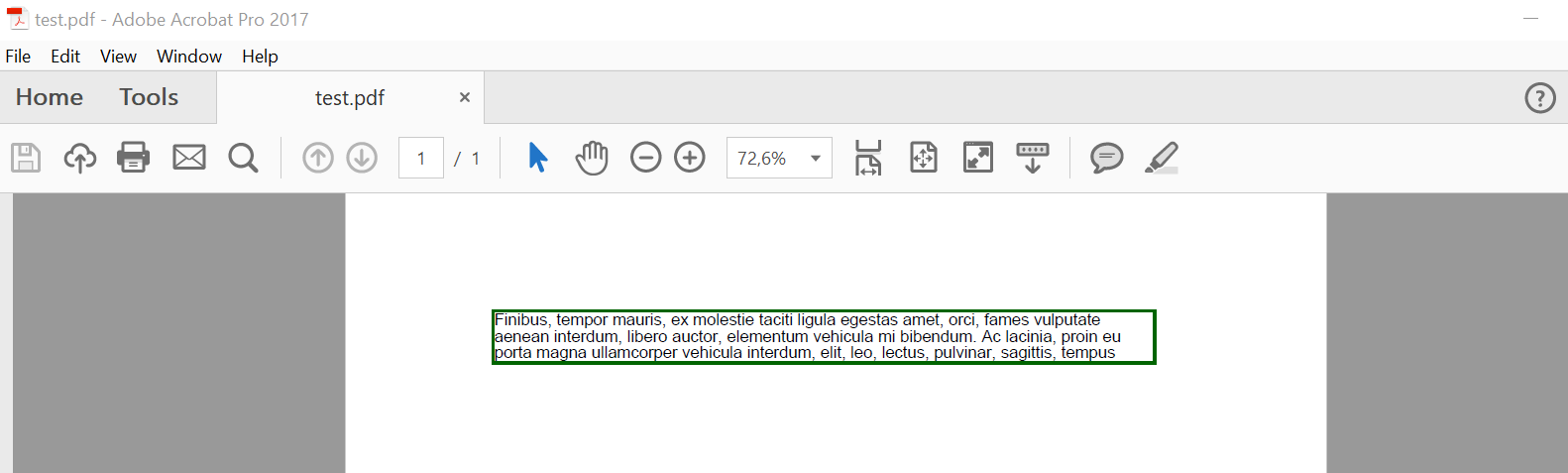
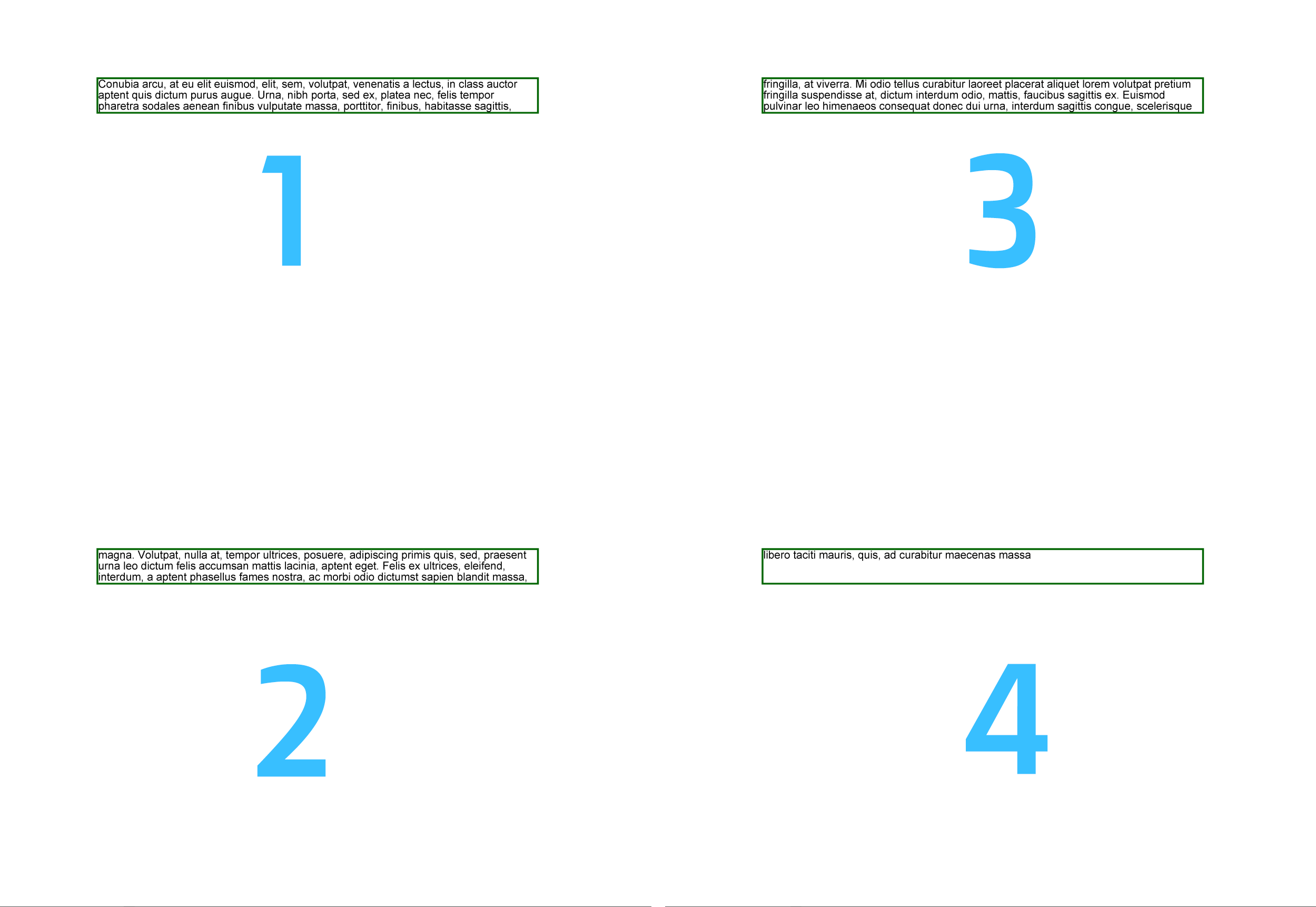
这 is_need_repeating 属性的值为 False 将文本渲染限制为单页。
如果您将此属性设置为 True, 文本在相同位置重新流向后续页面。
高级浮动框功能
多列支持
多列布局(简单情况)
FloatingBox 支持多列布局。要创建此布局,您必须定义以下值 ColumnInfo 属性。
column_widths是一个字符串,用于定义每列的宽度(以点为单位)。column_spacing是一个定义列之间间隙宽度的字符串。column_count是列的数量。
import sys
import aspose.pdf as ap
from os import path

def multi_column_layout(outfile):
    # Create PDF document
    with ap.Document() as document:
        # Add page to pages collection of PDF
        page = document.pages.add()
        # Set margin settings
        page.page_info.margin = ap.MarginInfo(36, 18, 36, 18)
        column_count = 3
        spacing = 10
        width = (
            page.page_info.width
            - page.page_info.margin.left
            - page.page_info.margin.right
            - (column_count - 1) * spacing
        )
        column_width = width / 3
        # Create FloatingBox
        box = ap.FloatingBox()
        box.is_need_repeating = True
        box.column_info.column_widths = f"{column_width} {column_width} {column_width}"
        box.column_info.column_spacing = f"{spacing}"
        box.column_info.column_count = 3
        phrase = "Lorem ipsum dolor sit amet, consectetur adipiscing elit. Fusce quam odio, sollicitudin ac mauris vel, suscipit pellentesque nisi."
        paragraphs = [
            phrase,
            phrase,
            phrase,
            phrase,
            phrase,
            phrase,
            phrase,
            phrase,
            phrase,
            phrase,
        ]
        for paragraph in paragraphs:
            box.paragraphs.add(ap.text.TextFragment(paragraph))
        # Add a box to a page
        page.paragraphs.add(box)
        # Save PDF document
        document.save(outfile)
此示例生成示例段落并将其放置在三列中。内容会继续到额外的页面,直到所有段落渲染完成。
带强制列起始的多列布局
此示例使用相同的多列布局,但强制每个新增段落在新列中开始。为此,请设置 is_first_paragraph_in_column = True 在每个 TextFragment 在将其添加到 FloatingBox.
import sys
import aspose.pdf as ap
from os import path

def multi_column_layout_2(outfile):
    # Create PDF document
    with ap.Document() as document:
        # Add page to pages collection of PDF
        page = document.pages.add()
        # Set margin settings
        page.page_info.margin = ap.MarginInfo(36, 18, 36, 18)
        column_count = 3
        spacing = 10
        width = (
            page.page_info.width
            - page.page_info.margin.left
            - page.page_info.margin.right
            - (column_count - 1) * spacing
        )
        column_width = width / 3
        # Create FloatingBox
        box = ap.FloatingBox()
        box.is_need_repeating = True
        box.column_info.column_widths = f"{column_width} {column_width} {column_width}"
        box.column_info.column_spacing = f"{spacing}"
        box.column_info.column_count = 3
        phrase = "Lorem ipsum dolor sit amet, consectetur adipiscing elit. Fusce quam odio, sollicitudin ac mauris vel, suscipit pellentesque nisi."
        paragraphs = [
            phrase,
            phrase,
            phrase,
            phrase,
            phrase,
            phrase,
            phrase,
            phrase,
            phrase,
            phrase,
        ]
        for paragraph in paragraphs:
            text = ap.text.TextFragment(paragraph)
            text.is_first_paragraph_in_column = True
            box.paragraphs.add(text)
        # Add a box to a page
        page.paragraphs.add(box)
        # Save PDF document
        document.save(outfile)
后台支持
将背景颜色应用于 FloatingBox 在 PDF 文档中使用 Aspose.PDF for Python via .NET。
通过分配一个 Color 到 background_color, 您可以突出显示标题、提示或样式化的部分。
此代码片段展示了如何创建一个带有示例内容的浅绿色文本框。
import sys
import aspose.pdf as ap
from os import path

def background_support(outfile):
    # Create PDF document
    with ap.Document() as document:
        # Add page to pages collection of PDF
        page = document.pages.add()
        # Create and fill box
        box = ap.FloatingBox(400, 30)
        box.background_color = ap.Color.light_green
        box.is_need_repeating = False
        box.paragraphs.add(ap.text.TextFragment("text example"))
        # Add box
        page.paragraphs.add(box)
        # Save PDF document
        document.save(outfile)
定位支持
a 的位置 FloatingBox 页面上由…控制 positioning_mode, left,和 top.
何时 positioning_mode 是:
位置取决于先前添加的元素。 添加新段落会影响后续元素的流动。 如果 left 或 top 为非零时,它们也会被应用。
位置已固定 left 和 top;它不依赖于先前的元素,也不影响后续元素的流程。
import sys
import aspose.pdf as ap
from os import path

def offset_support(outfile):
    # Create PDF document
    with ap.Document() as document:
        # Add page to pages collection of PDF
        page = document.pages.add()
        # Create and fill box
        box = ap.FloatingBox(400, 30)
        box.top = 45
        box.left = 15
        box.positioning_mode = ap.ParagraphPositioningMode.ABSOLUTE
        box.border = ap.BorderInfo(ap.BorderSide.ALL, 1.5, ap.Color.dark_green)
        box.paragraphs.add(ap.text.TextFragment("text example 1"))
        page.paragraphs.add(ap.text.TextFragment("text example 2"))
        # Add the box to the page
        page.paragraphs.add(box)
        page.paragraphs.add(ap.text.TextFragment("text example 3"))
        document.save(outfile)
在 PDF 中对浮动框进行垂直和水平对齐
对齐 FloatingBox 使用 PDF 页面上的元素 VerticalAlignment 和 HorizontalAlignment 在 Aspose.PDF for Python via .NET 中。这可以帮助您在页面布局、页眉/页脚块或侧注中,将浮动容器放置在顶部、居中或底部位置。
- 创建一个新的 PDF 文档。
- 向文档添加一个页面。
- 添加第一个
FloatingBox右下对齐。 - 添加第二个
FloatingBox居中右对齐。 - 添加第三个
FloatingBox右上对齐。 - 保存文档。
import sys
import aspose.pdf as ap
from os import path

def align_text_to_float(outfile):
    # Create PDF document
    with ap.Document() as document:
        # Add page to pages collection of PDF
        page = document.pages.add()

        # Create float box
        float_box = ap.FloatingBox(100, 100)
        # Set settings to float box
        float_box.vertical_alignment = ap.VerticalAlignment.BOTTOM
        float_box.horizontal_alignment = ap.HorizontalAlignment.RIGHT
        float_box.paragraphs.add(ap.text.TextFragment("FloatingBox_bottom"))
        float_box.border = ap.BorderInfo(ap.BorderSide.ALL, ap.Color.blue)
        # Add float box
        page.paragraphs.add(float_box)

        # Create float box
        float_box_2 = ap.FloatingBox(100, 100)
        # Set settings to float box
        float_box_2.vertical_alignment = ap.VerticalAlignment.CENTER
        float_box_2.horizontal_alignment = ap.HorizontalAlignment.RIGHT
        float_box_2.paragraphs.add(ap.text.TextFragment("FloatingBox_center"))
        float_box_2.border = ap.BorderInfo(ap.BorderSide.ALL, ap.Color.blue)
        # Add float box
        page.paragraphs.add(float_box_2)

        # Create float box
        float_box_3 = ap.FloatingBox(100, 100)
        # Set settings to float box
        float_box_3.vertical_alignment = ap.VerticalAlignment.TOP
        float_box_3.horizontal_alignment = ap.HorizontalAlignment.RIGHT
        float_box_3.paragraphs.add(ap.text.TextFragment("FloatingBox_top"))
        float_box_3.border = ap.BorderInfo(ap.BorderSide.ALL, ap.Color.blue)
        # Add float box
        page.paragraphs.add(float_box_3)

        # Save the document
        document.save(outfile)