
Python の PDF レイアウトにフローティングボックスを使用する
基本的なフローティングボックスの使い方
ザの FloatingBox class は、PDF ページにテキストやその他のコンテンツを配置するためのコンテナです。通常のテキスト段落よりもレイアウト、境界線、スタイルをより細かく制御できます。コンテンツがボックスサイズを超える場合、クリッピングの動作はボックス設定によって制御されます。
.NET 経由の Aspose.PDF for Python を使用して、構造化されたテキストコンテナー、複数列のレイアウト、PDF ドキュメント内の正確な配置が必要な場合は、このページを使用してください。
- 新規作成
Document. - を追加
Page文書に。 - を作成
FloatingBox. - を使用してボックスの境界線を設定します
BorderInfoそしてBorderSide. - とのコントロールボックスの繰り返し
is_need_repeating財産。 - を使用してテキストコンテンツを追加
TextFragment. - を追加
FloatingBoxにPage. - を使用して最終的な PDF ドキュメントを保存します
Document.save().
import aspose.pdf as ap

def create_and_add_floating_box(outfile):
    # Create PDF document
    with ap.Document() as document:
        # Add page to pages collection of PDF
        page = document.pages.add()
        # Create and fill box
        box = ap.FloatingBox(400, 30)
        box.border = ap.BorderInfo(ap.BorderSide.ALL, 1.5, ap.Color.dark_green)
        box.is_need_repeating = False
        phrase = "Lorem ipsum dolor sit amet, consectetur adipiscing elit. Fusce quam odio, sollicitudin ac mauris vel, suscipit pellentesque nisi."
        box.paragraphs.add(ap.text.TextFragment(phrase))
        # Add box
        page.paragraphs.add(box)
        document.save(outfile)
上の例では、 FloatingBox 幅400ポイント、高さ30ポイントで作成されています。
テキストが意図的に使用可能な高さを超えているため、テキストの一部が切り取られます。
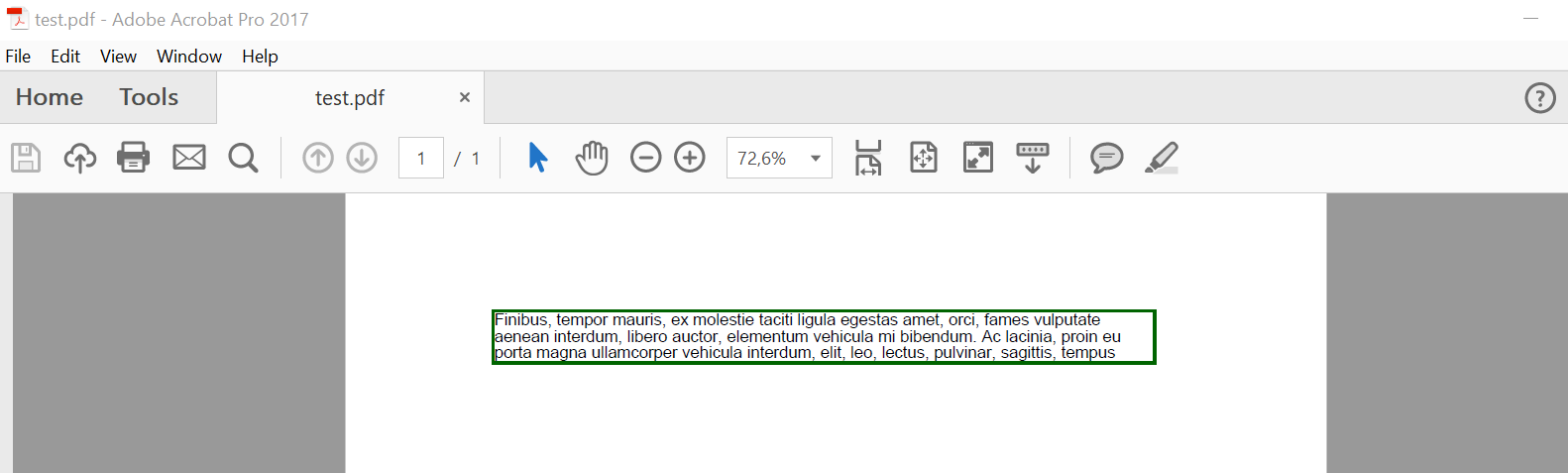
ザの is_need_repeating 値がのプロパティ False テキストレンダリングを 1 ページに制限します。
このプロパティを次のように設定した場合 True、テキストは後続ページの同じ位置にリフローされます。

高度なフローティングボックス機能
マルチカラムのサポート
複数列レイアウト (シンプルなケース)
FloatingBox 複数列のレイアウトをサポートします。このようなレイアウトを作成するには、の値を定義する必要があります。 ColumnInfo プロパティ。
column_widthsは、各列の幅をポイント単位で定義する文字列です。column_spacing列間のギャップ幅を定義する文字列です。column_countは列の数です。
import sys
import aspose.pdf as ap
from os import path

def multi_column_layout(outfile):
    # Create PDF document
    with ap.Document() as document:
        # Add page to pages collection of PDF
        page = document.pages.add()
        # Set margin settings
        page.page_info.margin = ap.MarginInfo(36, 18, 36, 18)
        column_count = 3
        spacing = 10
        width = (
            page.page_info.width
            - page.page_info.margin.left
            - page.page_info.margin.right
            - (column_count - 1) * spacing
        )
        column_width = width / 3
        # Create FloatingBox
        box = ap.FloatingBox()
        box.is_need_repeating = True
        box.column_info.column_widths = f"{column_width} {column_width} {column_width}"
        box.column_info.column_spacing = f"{spacing}"
        box.column_info.column_count = 3
        phrase = "Lorem ipsum dolor sit amet, consectetur adipiscing elit. Fusce quam odio, sollicitudin ac mauris vel, suscipit pellentesque nisi."
        paragraphs = [
            phrase,
            phrase,
            phrase,
            phrase,
            phrase,
            phrase,
            phrase,
            phrase,
            phrase,
            phrase,
        ]
        for paragraph in paragraphs:
            box.paragraphs.add(ap.text.TextFragment(paragraph))
        # Add a box to a page
        page.paragraphs.add(box)
        # Save PDF document
        document.save(outfile)
この例ではサンプル段落を生成し、3 つの列に分けて配置しています。すべての段落がレンダリングされるまで、コンテンツは別のページに続きます。
列を強制開始する複数列レイアウト
この例では同じ複数列の設定を使用していますが、追加された各段落は強制的に新しい列で開始されます。そのためには、次のように設定します。 is_first_paragraph_in_column = True それぞれに TextFragment に追加する前に FloatingBox.
import sys
import aspose.pdf as ap
from os import path

def multi_column_layout_2(outfile):
    # Create PDF document
    with ap.Document() as document:
        # Add page to pages collection of PDF
        page = document.pages.add()
        # Set margin settings
        page.page_info.margin = ap.MarginInfo(36, 18, 36, 18)
        column_count = 3
        spacing = 10
        width = (
            page.page_info.width
            - page.page_info.margin.left
            - page.page_info.margin.right
            - (column_count - 1) * spacing
        )
        column_width = width / 3
        # Create FloatingBox
        box = ap.FloatingBox()
        box.is_need_repeating = True
        box.column_info.column_widths = f"{column_width} {column_width} {column_width}"
        box.column_info.column_spacing = f"{spacing}"
        box.column_info.column_count = 3
        phrase = "Lorem ipsum dolor sit amet, consectetur adipiscing elit. Fusce quam odio, sollicitudin ac mauris vel, suscipit pellentesque nisi."
        paragraphs = [
            phrase,
            phrase,
            phrase,
            phrase,
            phrase,
            phrase,
            phrase,
            phrase,
            phrase,
            phrase,
        ]
        for paragraph in paragraphs:
            text = ap.text.TextFragment(paragraph)
            text.is_first_paragraph_in_column = True
            box.paragraphs.add(text)
        # Add a box to a page
        page.paragraphs.add(box)
        # Save PDF document
        document.save(outfile)
バックグラウンドサポート
に背景色を適用する FloatingBox .NET 経由の Python 用 Aspose.PDF を使用して PDF ドキュメントに入力します。
を割り当てることによって Color に background_color、ヘッダー、コールアウト、またはスタイル付きセクションのコンテンツを強調表示できます。
このコードスニペットは、サンプルコンテンツを含むシンプルな薄緑色のテキストボックスを作成する方法を示しています。
import sys
import aspose.pdf as ap
from os import path

def background_support(outfile):
    # Create PDF document
    with ap.Document() as document:
        # Add page to pages collection of PDF
        page = document.pages.add()
        # Create and fill box
        box = ap.FloatingBox(400, 30)
        box.background_color = ap.Color.light_green
        box.is_need_repeating = False
        box.paragraphs.add(ap.text.TextFragment("text example"))
        # Add box
        page.paragraphs.add(box)
        # Save PDF document
        document.save(outfile)
ポジショニングサポート
の位置 FloatingBox ページ上の制御は以下です positioning_mode, left、および top.
いつ positioning_mode は:
ParagraphPositioningMode.DEFAULT(デフォルト)
場所は以前に追加された要素によって異なります。新しい段落を追加すると、それ以降のエレメントのフローに影響します。もし left または top が 0 以外の場合は、それらも適用されます。
場所は以下によって固定されます left そして top; 前の要素には依存せず、後の要素の流れにも影響しません。
import sys
import aspose.pdf as ap
from os import path

def offset_support(outfile):
    # Create PDF document
    with ap.Document() as document:
        # Add page to pages collection of PDF
        page = document.pages.add()
        # Create and fill box
        box = ap.FloatingBox(400, 30)
        box.top = 45
        box.left = 15
        box.positioning_mode = ap.ParagraphPositioningMode.ABSOLUTE
        box.border = ap.BorderInfo(ap.BorderSide.ALL, 1.5, ap.Color.dark_green)
        box.paragraphs.add(ap.text.TextFragment("text example 1"))
        page.paragraphs.add(ap.text.TextFragment("text example 2"))
        # Add the box to the page
        page.paragraphs.add(box)
        page.paragraphs.add(ap.text.TextFragment("text example 3"))
        document.save(outfile)
PDF でフローティングボックスを垂直方向と水平方向に揃える
整列 FloatingBox PDF ページ上の要素を使用する VerticalAlignment そして HorizontalAlignment .NET 経由の Python 用 Aspose.PDF にあります。これにより、ページレイアウト、ヘッダー/フッターブロック、またはサイドノートの上部、中央部、または下部にフローティングコンテナを配置できます。
- 新しい PDF ドキュメントを作成します。
- 文書にページを追加します。
- 1 つ目を追加
FloatingBox右下揃えで。 - 2 つ目を追加
FloatingBox中央から右に揃えます。 - 3 つ目を追加
FloatingBox右上揃えで。 - 文書を保存します。
import sys
import aspose.pdf as ap
from os import path

def align_text_to_float(outfile):
    # Create PDF document
    with ap.Document() as document:
        # Add page to pages collection of PDF
        page = document.pages.add()

        # Create float box
        float_box = ap.FloatingBox(100, 100)
        # Set settings to float box
        float_box.vertical_alignment = ap.VerticalAlignment.BOTTOM
        float_box.horizontal_alignment = ap.HorizontalAlignment.RIGHT
        float_box.paragraphs.add(ap.text.TextFragment("FloatingBox_bottom"))
        float_box.border = ap.BorderInfo(ap.BorderSide.ALL, ap.Color.blue)
        # Add float box
        page.paragraphs.add(float_box)

        # Create float box
        float_box_2 = ap.FloatingBox(100, 100)
        # Set settings to float box
        float_box_2.vertical_alignment = ap.VerticalAlignment.CENTER
        float_box_2.horizontal_alignment = ap.HorizontalAlignment.RIGHT
        float_box_2.paragraphs.add(ap.text.TextFragment("FloatingBox_center"))
        float_box_2.border = ap.BorderInfo(ap.BorderSide.ALL, ap.Color.blue)
        # Add float box
        page.paragraphs.add(float_box_2)

        # Create float box
        float_box_3 = ap.FloatingBox(100, 100)
        # Set settings to float box
        float_box_3.vertical_alignment = ap.VerticalAlignment.TOP
        float_box_3.horizontal_alignment = ap.HorizontalAlignment.RIGHT
        float_box_3.paragraphs.add(ap.text.TextFragment("FloatingBox_top"))
        float_box_3.border = ap.BorderInfo(ap.BorderSide.ALL, ap.Color.blue)
        # Add float box
        page.paragraphs.add(float_box_3)

        # Save the document
        document.save(outfile)