
تخصيص أشكال العروض التقديمية في جافا
نظرة عامة
توضح هذه المقالة كيفية تخصيص أشكال العروض التقديمية في Aspose.Slides عن طريق تعديل هندسة الشكل من خلال نقاط التحرير ومسارات الهندسة. تُظهر كيفية العمل مع GeometryPath وIGeometryPath لتعديل الأشكال الموجودة، وتنفيذ عمليات تحرير مسار أساسية، وإضافة أو إزالة نقاط، وتطبيق الهندسة المحدثة على الشكل.
It also demonstrates how to create custom and composite shapes, build shapes with curved corners, determine whether a shape geometry is closed, inspect shape elements, and convert Java AWT text outlines into geometry paths.
تغيير شكل باستخدام نقاط التحرير
في PowerPoint، يمكنك استخدام Edit Points لتعديل مربع:
- تحريك زاوية إلى الداخل أو الخارج.
- تعديل الانحناء عند نقطة.
- إضافة نقاط جديدة.
تسمح لك نقاط التحرير بتعديل مخطط الشكل أو استخدام شكل موجود كأساس لآخر جديد.
نصائح تحرير الشكل
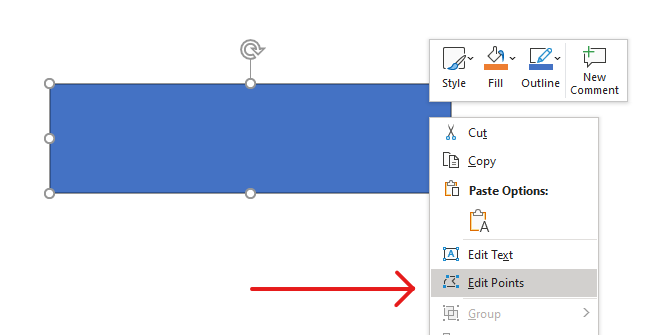
عند تحرير أشكال PowerPoint، احرص على مراعاة المفاهيم التالية:
- يمكن أن يكون الشكل (أو مساره) مغلقًا أو مفتوحًا.
- يتكون مسار الشكل من نقاط ارتكاز متصلة بقطاعات.
- يمكن أن يكون القطاع مستقيمًا أو منحنيًا. تحدد نقاط الارتكاز ومقابض التحكم شكلها.
- توجد نقاط الارتكاز كنقاط زاوية، أو نقاط مستقيمة، أو نقاط ناعمة:
- عند نقطة الزاوية، يمكن للقطاعات المتجاورة أن تلتقي بزاوية.
- عند نقطة ناعمة، تُست.align مقبضا التحكم وتكونان على مسافة متساوية من نقطة الارتكاز.
- عند نقطة مستقيمة، يكون مقبضا التحكم محاذيين لكن قد تكون المسافة مختلفة عن نقطة الارتكاز.
- تحريك نقاط الارتكاز أو تعديل مقابضها يغيّر مخطط الشكل.
To edit PowerPoint shapes through edit points, Aspose.Slides provides the GeometryPath class and IGeometryPath interface.
- تمثل مثيلة GeometryPath مسار هندسي لكائن IGeometryShape.
- لاسترجاع GeometryPath من مثيلة IGeometryShape، يمكنك استخدام طريقة IGeometryShape.getGeometryPaths .
- لتعيين GeometryPath لشكل، يمكنك استخدام هذه الطرق: IGeometryShape.setGeometryPath للأشكال ذات المسار الواحد وIGeometryShape.setGeometryPaths للأشكال ذات المسارات المتعددة.
- لإضافة قطاعات، يمكنك استخدام الطرق تحت IGeometryPath .
- باستخدام طريقتي IGeometryPath.setStroke وIGeometryPath.setFillMode، يمكنك تحديد مظهر مسار الهندسة.
- باستخدام طريقة IGeometryPath.getPathData، يمكنك استرجاع مسار الهندسة لـGeometryShape كمصفوفة من قطاعات المسار.
- للوصول إلى خيارات تخصيص هندسة الشكل الإضافية، يمكنك قراءة java.awt.Shape عبر PathIterator وإعادة تشغيل القطاعات على GeometryPath .
عمليات تحرير بسيطة
استخدم الطرق التالية لتحرير مسار هندسي. الإصدارات التي تقبل فهرس تُدرج قطاعًا في ذلك الموضع الصفري داخل مصفوفة قطاعات المسار.
| العملية | الطريقة |
|---|---|
| إضافة أو إدراج خط مستقيم. | GeometryPath.lineTo |
| إضافة أو إدراج منحنى بيزيه مكعب بنقطتي تحكم ونقطة نهاية. | GeometryPath.cubicBezierTo |
| إضافة أو إدراج منحنى بيزيه رباعي بنقطة تحكم واحدة ونقطة نهاية. | GeometryPath.quadraticBezierTo |
| إضافة قوس إهليلجي بالأبعاد والزوايا المحددة بالدرجات. | GeometryPath.arcTo |
| إغلاق الشكل الحالي بربط نقطة النهاية بنقطة البدء. | GeometryPath.closeFigure |
| تحديد نقطة البدء للشكل. | GeometryPath.moveTo |
| إزالة قطاع عند فهرس يبدأ من الصفر. | GeometryPath.removeAt |
إضافة نقاط مخصصة إلى شكل
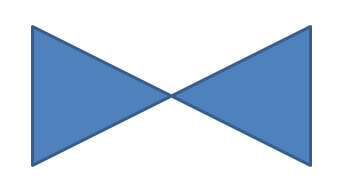
This example inserts two points into a rectangular shape using GeometryPath.lineTo and applies the edited path with IGeometryShape.setGeometryPath. The coordinates are local to the shape: both new points are at its center, 100 points from the left and 50 points from the top. Segment indices 1 and 4 place them on the top and bottom edges, pulling those edges inward.
import com.aspose.slides.*;

Presentation presentation = new Presentation();
try {
    ISlide slide = presentation.getSlides().get_Item(0);

    IAutoShape shape = slide.getShapes().addAutoShape(ShapeType.Rectangle, 100, 100, 200, 100);

    IGeometryPath geometryPath = shape.getGeometryPaths()[0];
    geometryPath.lineTo(100, 50, 1);
    geometryPath.lineTo(100, 50, 4);

    shape.setGeometryPath(geometryPath);
} finally {
    presentation.dispose();
}
إزالة نقاط من شكل
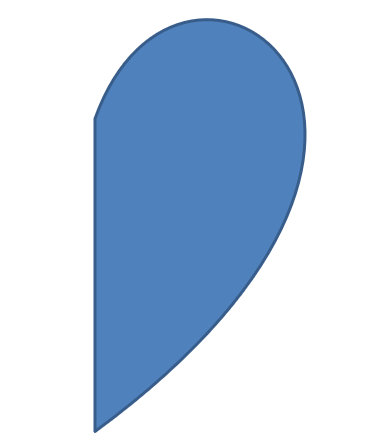
This example changes a heart-shaped outline by removing the segment at zero-based index 2 with GeometryPath.removeAt. Applying the modified path with IGeometryShape.setGeometryPath updates the shape’s contour.
import com.aspose.slides.*;

Presentation presentation = new Presentation();
try {
    ISlide slide = presentation.getSlides().get_Item(0);

    IAutoShape shape = slide.getShapes().addAutoShape(ShapeType.Heart, 100, 100, 300, 300);

    IGeometryPath path = shape.getGeometryPaths()[0];
    path.removeAt(2);

    shape.setGeometryPath(path);
} finally {
    presentation.dispose();
}
إنشاء شكل مخصص
This example builds a five-pointed star with GeometryPath. Alternating outer and inner radii of 100 and 50 points define the tips and indentations; a 72-degree step spaces the five tips evenly. The path is closed with GeometryPath.closeFigure and applied to a rectangular shape using IGeometryShape.setGeometryPath, replacing its outline.
import com.aspose.slides.*;
import java.awt.geom.Point2D;
import java.util.ArrayList;
import java.util.List;

List<Point2D.Float> points = new ArrayList<>();

float outerRadius = 100f;
float innerRadius = 50f;
int angleStep = 72;

for (int angle = -90; angle < 270; angle += angleStep)
{
    double radians = angle * (Math.PI / 180f);
    double x = outerRadius * Math.cos(radians);
    double y = outerRadius * Math.sin(radians);
    Point2D.Float point = new Point2D.Float((float)x + outerRadius, (float)y + outerRadius);
    points.add(point);

    radians = Math.PI * (angle + angleStep / 2) / 180.0;
    x = innerRadius * Math.cos(radians);
    y = innerRadius * Math.sin(radians);
    point = new Point2D.Float((float)x + outerRadius, (float)y + outerRadius);
    points.add(point);
}

GeometryPath starPath = new GeometryPath();
starPath.moveTo(points.get(0));

for (int i = 1; i < points.size(); i++)
{
    starPath.lineTo(points.get(i));
}

starPath.closeFigure();

Presentation presentation = new Presentation();
try {
    ISlide slide = presentation.getSlides().get_Item(0);

    IAutoShape shape = slide.getShapes().addAutoShape(ShapeType.Rectangle, 100, 100, outerRadius * 2, outerRadius * 2);
    shape.setGeometryPath(starPath);
} finally {
    presentation.dispose();
}

إنشاء شكل مخصص مركّب
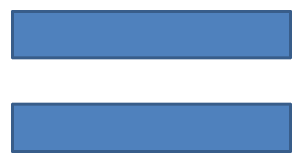
This example defines two closed GeometryPath objects for the top and bottom thirds of a shape. Applying both paths with IGeometryShape.setGeometryPaths creates a single composite shape with a gap across its middle third.
import com.aspose.slides.*;

Presentation presentation = new Presentation();
try {
    ISlide slide = presentation.getSlides().get_Item(0);

    IAutoShape shape = slide.getShapes().addAutoShape(ShapeType.Rectangle, 100, 100, 200, 100);

    GeometryPath topPath = new GeometryPath();
    topPath.moveTo(0, 0);
    topPath.lineTo(shape.getWidth(), 0);
    topPath.lineTo(shape.getWidth(), shape.getHeight() / 3);
    topPath.lineTo(0, shape.getHeight() / 3);
    topPath.closeFigure();

    GeometryPath bottomPath = new GeometryPath();
    bottomPath.moveTo(0, shape.getHeight() / 3 * 2);
    bottomPath.lineTo(shape.getWidth(), shape.getHeight() / 3 * 2);
    bottomPath.lineTo(shape.getWidth(), shape.getHeight());
    bottomPath.lineTo(0, shape.getHeight());
    bottomPath.closeFigure();

    shape.setGeometryPaths(new GeometryPath[] { topPath, bottomPath });
} finally {
    presentation.dispose();
}
إنشاء شكل مخصص بزوايا منحنية
This example combines straight segments with GeometryPath.arcTo to create a shape with inward-curved corners. Each corner size sets the arc’s width and height in points, and the -90-degree sweep draws a counterclockwise quarter ellipse. The completed path is applied with IGeometryShape.setGeometryPath, and the presentation is saved in PPTX format.
import com.aspose.slides.*;
import java.awt.geom.Point2D;

float shapeX = 20f;
float shapeY = 20f;
float shapeWidth = 300f;
float shapeHeight = 200f;

float leftTopSize = 50f;
float rightTopSize = 20f;
float rightBottomSize = 40f;
float leftBottomSize = 10f;

Presentation presentation = new Presentation();
try {
    ISlide slide = presentation.getSlides().get_Item(0);

    IAutoShape shape = slide.getShapes().addAutoShape(ShapeType.Custom, shapeX, shapeY, shapeWidth, shapeHeight);

    Point2D.Float topLeft = new Point2D.Float(leftTopSize, 0);
    Point2D.Float topRight = new Point2D.Float(shapeWidth - rightTopSize, 0);
    Point2D.Float rightBottom = new Point2D.Float(shapeWidth, shapeHeight - rightBottomSize);
    Point2D.Float bottomLeft = new Point2D.Float(leftBottomSize, shapeHeight);
    Point2D.Float leftTop = new Point2D.Float(0, leftTopSize);

    GeometryPath geometryPath = new GeometryPath();
    geometryPath.moveTo(topLeft);
    geometryPath.lineTo(topRight);
    geometryPath.arcTo(rightTopSize, rightTopSize, 180, -90);
    geometryPath.lineTo(rightBottom);
    geometryPath.arcTo(rightBottomSize, rightBottomSize, -90, -90);
    geometryPath.lineTo(bottomLeft);
    geometryPath.arcTo(leftBottomSize, leftBottomSize, 0, -90);
    geometryPath.lineTo(leftTop);
    geometryPath.arcTo(leftTopSize, leftTopSize, 90, -90);
    geometryPath.closeFigure();

    shape.setGeometryPath(geometryPath);

    presentation.save("output.pptx", SaveFormat.Pptx);
} finally {
    presentation.dispose();
}
اكتشاف ما إذا كانت هندسة الشكل مغلقة
The following helper checks whether every nonempty geometry path ends with a closing segment. It reads IGeometryPath.getPathData and compares the final segment’s IPathSegment.getPathCommand with PathCommandType.Close. It returns false when there are no nonempty paths. This checks the final command of each path; it does not inspect every subfigure within a path. The example prints true for a rectangle.
import com.aspose.slides.*;

class GeometryInspector {
    boolean isGeometryClosed(IGeometryShape geometryShape) {
        boolean hasNonemptyPath = false;

        for (IGeometryPath geometryPath : geometryShape.getGeometryPaths()) {
            IPathSegment[] segments = geometryPath.getPathData();
            if (segments.length == 0) {
                continue;
            }

            hasNonemptyPath = true;
            IPathSegment lastSegment = segments[segments.length - 1];
            if (lastSegment.getPathCommand() != PathCommandType.Close) {
                return false;
            }
        }

        return hasNonemptyPath;
    }
}

Presentation presentation = new Presentation();
try {
    ISlide slide = presentation.getSlides().get_Item(0);

    IAutoShape shape = slide.getShapes().addAutoShape(ShapeType.Rectangle, 100, 100, 200, 100);

    GeometryInspector inspector = new GeometryInspector();
    boolean closed = inspector.isGeometryClosed(shape);
    System.out.println(closed);
} finally {
    presentation.dispose();
}
استخراج وفحص عناصر الشكل
Use IGeometryShape.createShapeElements to inspect an existing shape as elements containing path points and point types. Cast each returned IShapeElement to ShapeElement to retrieve the point and type arrays through getPathPoints and getPathTypes methods. This representation is useful for contour analysis or passing geometry to custom drawing tools.
The example opens input.pptx, finds the first geometry shape directly on the first slide, and prints its path segments. Use a presentation containing a shape with straight and curved segments to see both kinds of output. It does not search inside groups.
import com.aspose.slides.*;
import java.awt.geom.Point2D;

Presentation presentation = new Presentation("input.pptx");
try {
    ISlide slide = presentation.getSlides().get_Item(0);

    IGeometryShape shape = null;
    for (IShape candidate : slide.getShapes()) {
        if (candidate instanceof IGeometryShape) {
            shape = (IGeometryShape) candidate;
            break;
        }
    }

    if (shape == null) {
        System.out.println("No geometry shape found on the first slide.");
    } else {
        for (IShapeElement element : shape.createShapeElements()) {
            ShapeElement shapeElement = (ShapeElement) element;
            Point2D.Float[] points = shapeElement.getPathPoints();
            byte[] types = shapeElement.getPathTypes();
            System.out.println("Shape element:");

            for (int i = 0; i < points.length; i++) {
                int pointType = types[i] & 0x07; // Keep the segment type, excluding flags.
                switch (pointType) {
                    case 0:
                        System.out.println("Start figure at " + points[i]);
                        break;
                    case 1:
                        System.out.println("Line to " + points[i]);
                        break;
                    case 3:
                        System.out.println("Cubic Bezier: controls " + points[i] + ", " + points[i + 1] + "; end " + points[i + 2]);
                        i += 2; // Consume both control points and the endpoint.
                        break;
                }

                if ((types[i] & 0x80) != 0) {
                    System.out.println("Close subpath back to its starting point.");
                }
            }
        }
    }
} finally {
    presentation.dispose();
}
The arrays correspond by index: points[i] is a point and types[i] describes its role. Type 0 starts a figure, and type 1 draws a line from the previous point to the current point. A cubic Bézier segment starts at the previous endpoint and uses three consecutive type-3 entries: two control points followed by the new endpoint. The loop consumes these three entries together and checks the endpoint for closure.
Point types also contain flags. Mask with 0x07 to identify the segment type, and test 0x80 separately to detect a closed subpath. For example, 129 (0x81) means a line endpoint that closes a subpath, and 131 (0x83) means a Bézier endpoint that closes one. Java stores these flags in signed bytes; masking preserves the intended bit values. Comparing the raw value only with 1 or 3 would miss these cases. Other flags, such as dash (0x10) and marker (0x20), do not change the base segment type.
الإحداثيات والتحويلات. Points are measured in points (1/72 inch), with X increasing to the right and Y increasing downward. For an ungrouped shape, the extracted coordinates already include the position returned by getX and getY and reflect its current width and height. For example, an unrotated rectangle at (100, 200) with size 120 × 80 has contour bounds (100, 200)–(220, 280). Do not add the shape’s position again. Subtract its X and Y to obtain coordinates relative to its unrotated frame.
The extracted points do not apply the shape’s rotation, returned by getRotation, or horizontal and vertical flips. To reproduce the displayed contour, apply those transformations around the shape’s center. For grouped shapes, also account for the group coordinate mapping and transformations; do not assume that the extracted points are the final rendered slide coordinates or apply a translation or scale twice if it is already reflected in the child’s frame.
الفحص مقابل التحرير. Extracted arrays describe the contour; changing them does not update the original shape. Choose this approach when your analysis or drawing code needs point/type arrays. Use getGeometryPaths when you need geometry commands in the shape’s local coordinate system or want to edit its geometry. Apply edited paths through setGeometryPath or setGeometryPaths.
تحويل شكل Java AWT إلى GeometryPath
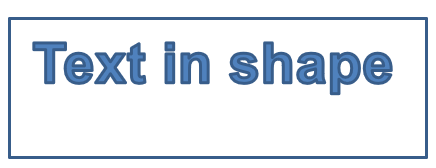
This example combines a rectangular outline with text converted to geometry. The outline’s setFillMode method disables its fill. A GlyphVector creates the text outline in a java.awt.Shape. Its PathIterator supplies move, line, quadratic, cubic, and closing segments, which the example replays on a GeometryPath.
The text uses a 40-point Arial font. The outline is offset 20 points horizontally and positioned with its visual top 10 points below the shape’s top edge. The text path is filled, while the original rectangle remains an outline. Applying both paths with IGeometryShape.setGeometryPaths produces a single shape containing the rectangle and text.
import com.aspose.slides.*;
import java.awt.Font;
import java.awt.Graphics2D;
import java.awt.Shape;
import java.awt.font.GlyphVector;
import java.awt.font.FontRenderContext;
import java.awt.geom.Rectangle2D;
import java.awt.geom.PathIterator;
import java.awt.image.BufferedImage;

Presentation presentation = new Presentation();
try {
    // إنشاء شكل جديد
    ISlide slide = presentation.getSlides().get_Item(0);

    IAutoShape shape = slide.getShapes().addAutoShape(ShapeType.Rectangle, 100, 100, 300, 100);

    // الحصول على مسار هندسة الشكل
    IGeometryPath originalPath = shape.getGeometryPaths()[0];
    originalPath.setFillMode(PathFillModeType.None);

    // إنشاء مسار رسومي جديد بالنص
    Shape graphicsPath;
    Font font = new Font("Arial", Font.PLAIN, 40);
    String text = "Text in shape";
    BufferedImage image = new BufferedImage(100, 100, BufferedImage.TYPE_INT_ARGB);
    Graphics2D graphics = image.createGraphics();

    try
    {
        FontRenderContext fontContext = graphics.getFontRenderContext();
        GlyphVector glyphVector = font.createGlyphVector(fontContext, text);
        Rectangle2D textBounds = glyphVector.getVisualBounds();
        float baseline = (float) -textBounds.getY() + 10;
        graphicsPath = glyphVector.getOutline(20f, baseline);
    }
    finally {
        graphics.dispose();
    }

    // تحويل المسار الرسومي إلى مسار هندسة
    IGeometryPath textPath = new GeometryPath();
    PathIterator pathIterator = graphicsPath.getPathIterator(null);
    float[] points = new float[6];

    while (!pathIterator.isDone())
    {
        int segmentType = pathIterator.currentSegment(points);
        switch (segmentType)
        {
            case PathIterator.SEG_MOVETO:
                textPath.moveTo(points[0], points[1]);
                break;
            case PathIterator.SEG_LINETO:
                textPath.lineTo(points[0], points[1]);
                break;
            case PathIterator.SEG_QUADTO:
                textPath.quadraticBezierTo(points[0], points[1], points[2], points[3]);
                break;
            case PathIterator.SEG_CUBICTO:
                textPath.cubicBezierTo(points[0], points[1], points[2], points[3], points[4], points[5]);
                break;
            case PathIterator.SEG_CLOSE:
                textPath.closeFigure();
                break;
        }
        pathIterator.next();
    }

    textPath.setFillMode(PathFillModeType.Normal);

    // تعيين مزيج من مسار الهندسة الجديد والمسار الأصلي إلى الشكل
    shape.setGeometryPaths(new IGeometryPath[] { originalPath, textPath });
} finally {
    presentation.dispose();
}
FAQ
ماذا سيحدث للملء والحدود بعد استبدال الهندسة؟
الستايل يبقى مع الشكل؛ فقط المخطط يتغير. يتم تطبيق الملء والحدود تلقائيًا على الهندسة الجديدة.
كيف يمكنني تدوير شكل مخصص بشكل صحيح مع هندسته؟
استخدم طريقة setRotation الخاصة بالشكل؛ الهندسة تدور مع الشكل لأنها مرتبطة بنظام إحداثيات الشكل نفسه.
هل يمكنني تحويل شكل مخصص إلى صورة لتثبيت النتيجة؟
نعم. صدّر منطقة الشريحة المطلوبة أو الشكل نفسه إلى تنسيق نقطي؛ هذا يبسط العمل اللاحق مع الهندسات المعقدة.