
إضافة معادلات رياضية إلى عروض PowerPoint التقديمية باستخدام Java
نظرة عامة
يخزن PowerPoint المعادلات بصيغة Office Math Markup Language (OMML). باستخدام Aspose.Slides for Java، يمكنك إنشاء نفس نوع المحتوى الرياضي برمجيًا: الكسور، الجذور، الدوال، الحدود، عمليات N-ary، المصفوفات، المصفوفات، وكتل الرياضيات المنسقة.
في PowerPoint، يضيف المستخدمون عادةً المعادلات من Insert > Equation:
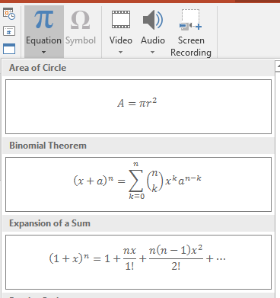
النتيجة هي نص رياضي قابل للتحرير على الشريحة:

يبني Aspose.Slides ذلك النص الرياضي من خلال ثلاثة كائنات رئيسية:
- شكل رياضي، يُنشأ باستخدام addMathShape، هو الشكل الذي يحتوي على المعادلة.
- MathPortion يخزن محتوى الرياضيات داخل إطار النص الخاص بالشكل.
- MathParagraph يحتوي على كائن واحد أو أكثر من كائنات MathBlock.
تستخدم معظم الأمثلة أدناه MathematicalText والطرق المتسلسلة من IMathElement لتقليل طول الكود وزيادة مقروئيته.
للتعامل مع تصدير MathML، راجع Export Math Equations from Presentations in Java.
إنشاء معادلة
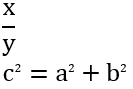
توفر هذه المثال شكلًا رياضيًا ويضيف نظرية فيثاغورس:
Presentation presentation = new Presentation();
try {
    ISlide slide = presentation.getSlides().get_Item(0);

    IAutoShape mathShape = slide.getShapes().addMathShape(20, 20, 700, 120);
    IMathParagraph mathParagraph = ((MathPortion) mathShape.getTextFrame().getParagraphs()
            .get_Item(0).getPortions().get_Item(0)).getMathParagraph();

    IMathBlock equation = new MathematicalText("c")
            .setSuperscript("2")
            .join("=")
            .join(new MathematicalText("a").setSuperscript("2"))
            .join("+")
            .join(new MathematicalText("b").setSuperscript("2"));

    mathParagraph.add(equation);

    presentation.save("pythagorean-theorem.pptx", SaveFormat.Pptx);
} finally {
    presentation.dispose();
}
addMathShape ينشئ شكلًا يحتوي مسبقًا على فقرة رياضية. قم بالوصول إلى أول MathPortion، احصل على MathParagraph الخاص به، وأضف كتل رياضية أو عناصر رياضية إليه.
إضافة الكسور
استخدم divide لإنشاء كسر. يمكنك اختيار نمط الكسر عبر MathFractionTypes.

Presentation presentation = new Presentation();
try {
    ISlide slide = presentation.getSlides().get_Item(0);

    IAutoShape mathShape = slide.getShapes().addMathShape(20, 20, 700, 100);
    IMathParagraph mathParagraph = ((MathPortion) mathShape.getTextFrame().getParagraphs()
            .get_Item(0).getPortions().get_Item(0)).getMathParagraph();

    IMathFraction fraction = new MathematicalText("1")
            .divide("x", MathFractionTypes.Skewed);

    mathParagraph.add(new MathBlock(fraction));

    presentation.save("fraction.pptx", SaveFormat.Pptx);
} finally {
    presentation.dispose();
}
لإنشاء كسر مكدس، استخدم MathFractionTypes.Bar:
IMathFraction stackedFraction = new MathematicalText("x + 1").divide("y - 1", MathFractionTypes.Bar);
إضافة الجذور
استخدم radical لإنشاء جذر تربيعي، جذر مكعب، أو أي جذر آخر. يصبح العنصر الحالي القاعدة، ويصبح الوسيط هو الدرجة.

Presentation presentation = new Presentation();
try {
    ISlide slide = presentation.getSlides().get_Item(0);

    IAutoShape mathShape = slide.getShapes().addMathShape(20, 20, 700, 100);
    IMathParagraph mathParagraph = ((MathPortion) mathShape.getTextFrame().getParagraphs()
            .get_Item(0).getPortions().get_Item(0)).getMathParagraph();

    IMathRadical radical = new MathematicalText("x")
            .radical("n");

    mathParagraph.add(new MathBlock(radical));

    presentation.save("radical.pptx", SaveFormat.Pptx);
} finally {
    presentation.dispose();
}
إضافة الدوال والحدود
استخدم asArgumentOfFunction أو function للدوال مثل sin(x)، log(x)، أو أسماء دوال مخصصة. للحدود، ضع lim داخل MathLimit أو استخدم setLowerLimit.

Presentation presentation = new Presentation();
try {
    ISlide slide = presentation.getSlides().get_Item(0);

    IAutoShape mathShape = slide.getShapes().addMathShape(20, 20, 700, 100);
    IMathParagraph mathParagraph = ((MathPortion) mathShape.getTextFrame().getParagraphs()
            .get_Item(0).getPortions().get_Item(0)).getMathParagraph();

    IMathFunction limit = new MathematicalText("lim")
            .setLowerLimit("x\u2192\u221E")
            .function("x");

    mathParagraph.add(new MathBlock(limit));

    presentation.save("functions-and-limits.pptx", SaveFormat.Pptx);
} finally {
    presentation.dispose();
}
لإعطاء اسم دالة مخصص، اجعل اسم الدالة هو العنصر الحالي:
IMathFunction customFunction = new MathematicalText("f").function("x + 1");
إضافة عمليات N-ary والتكاملات
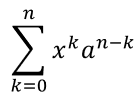
استخدم nary للجمعيات، الاتحادات، التقاطعات، وغيرها من المشغلات الكبيرة. استخدم integral للتكاملات. كلا الطريقتين تسمحان بتعيين حدود سفلية وفوقية.
Presentation presentation = new Presentation();
try {
    ISlide slide = presentation.getSlides().get_Item(0);

    IAutoShape mathShape = slide.getShapes().addMathShape(20, 20, 700, 120);
    IMathParagraph mathParagraph = ((MathPortion) mathShape.getTextFrame().getParagraphs()
            .get_Item(0).getPortions().get_Item(0)).getMathParagraph();

    IMathBlock summationBase = new MathematicalText("x")
            .setSuperscript("k")
            .join(new MathematicalText("a").setSuperscript("n-k"));

    IMathNaryOperator summation = summationBase.nary(MathNaryOperatorTypes.Summation, "k=0", "n");

    mathParagraph.add(new MathBlock(summation));

    presentation.save("nary-operators.pptx", SaveFormat.Pptx);
} finally {
    presentation.dispose();
}
عمليات N-ary مخصصة للمشغلات الكبيرة مع حدود اختيارية. المشغلات البسيطة مثل +، -، و= تُضاف عادةً كـ MathematicalText وتُدمج في التعبير.
للتكامل، استخدم integral:
IMathBlock integralBase = new MathematicalText("x").join(new MathematicalText("dx").toBox());
IMathNaryOperator integral = integralBase.integral(MathIntegralTypes.Simple, "0", "1");
إضافة المصفوفات
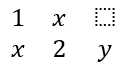
استخدم MathMatrix للصفوف والأعمدة. لا تتضمن المصفوفات الأقواس بشكل افتراضي، لذا قم بإحاطة المصفوفة عندما تحتاج إلى أقواس مستديرة أو مربعة أو معقوفة.
Presentation presentation = new Presentation();
try {
    ISlide slide = presentation.getSlides().get_Item(0);

    IAutoShape mathShape = slide.getShapes().addMathShape(20, 20, 700, 120);
    IMathParagraph mathParagraph = ((MathPortion) mathShape.getTextFrame().getParagraphs()
            .get_Item(0).getPortions().get_Item(0)).getMathParagraph();

    MathMatrix matrix = new MathMatrix(2, 3);
    matrix.set_Item(0, 0, new MathematicalText("1"));
    matrix.set_Item(0, 1, new MathematicalText("x"));
    matrix.set_Item(1, 0, new MathematicalText("x"));
    matrix.set_Item(1, 1, new MathematicalText("2"));
    matrix.set_Item(1, 2, new MathematicalText("y"));

    mathParagraph.add(new MathBlock(matrix));

    presentation.save("matrix.pptx", SaveFormat.Pptx);
} finally {
    presentation.dispose();
}
إضافة مصفوفات المعادلات
استخدم toMathArray عندما تحتاج إلى معادلات محاذاة أو مجموعة رأسية من التعابير.

Presentation presentation = new Presentation();
try {
    ISlide slide = presentation.getSlides().get_Item(0);

    IAutoShape mathShape = slide.getShapes().addMathShape(20, 20, 700, 140);
    IMathParagraph mathParagraph = ((MathPortion) mathShape.getTextFrame().getParagraphs()
            .get_Item(0).getPortions().get_Item(0)).getMathParagraph();

    IMathArray equationArray = new MathematicalText("x")
            .join("y")
            .toMathArray();

    mathParagraph.add(new MathBlock(equationArray));

    presentation.save("equation-array.pptx", SaveFormat.Pptx);
} finally {
    presentation.dispose();
}
إضافة الدوال المثلثية
استخدم asArgumentOfFunction عندما يكون الوسيط هو العنصر الحالي واسم الدالة معروف.

Presentation presentation = new Presentation();
try {
    ISlide slide = presentation.getSlides().get_Item(0);

    IAutoShape mathShape = slide.getShapes().addMathShape(20, 20, 700, 100);
    IMathParagraph mathParagraph = ((MathPortion) mathShape.getTextFrame().getParagraphs()
            .get_Item(0).getPortions().get_Item(0)).getMathParagraph();

    IMathFunction cosine = new MathematicalText("2x")
            .asArgumentOfFunction(MathFunctionsOfOneArgument.Cos);

    mathParagraph.add(new MathBlock(cosine));

    presentation.save("trigonometric-function.pptx", SaveFormat.Pptx);
} finally {
    presentation.dispose();
}
إضافة المقاطعات والارتفاعات
استخدم مساعدي المقاطعة والارتفاع للفهارس والقوى. عندما يجب أن تظهر الفهارس على الجانب الأيسر للأساس، استخدم setSubSuperscriptOnTheLeft.

Presentation presentation = new Presentation();
try {
    ISlide slide = presentation.getSlides().get_Item(0);

    IAutoShape mathShape = slide.getShapes().addMathShape(20, 20, 700, 100);
    IMathParagraph mathParagraph = ((MathPortion) mathShape.getTextFrame().getParagraphs()
            .get_Item(0).getPortions().get_Item(0)).getMathParagraph();

    IMathLeftSubSuperscriptElement scripts = new MathematicalText("Y")
            .setSubSuperscriptOnTheLeft("1", "n");

    mathParagraph.add(new MathBlock(scripts));

    presentation.save("subscript-superscript.pptx", SaveFormat.Pptx);
} finally {
    presentation.dispose();
}
إضافة محددات
استخدم enclose لوضع تعبير داخل محددات. يمكنك أيضًا تعيين حرف فاصل لتعبيرات المحددات التي تحتوي على عدة عناصر.

Presentation presentation = new Presentation();
try {
    ISlide slide = presentation.getSlides().get_Item(0);

    IAutoShape mathShape = slide.getShapes().addMathShape(20, 20, 700, 100);
    IMathParagraph mathParagraph = ((MathPortion) mathShape.getTextFrame().getParagraphs()
            .get_Item(0).getPortions().get_Item(0)).getMathParagraph();

    IMathDelimiter delimiter = new MathematicalText("x")
            .join("y")
            .join("z")
            .enclose('<', '>');
    delimiter.setSeparatorCharacter('|');

    mathParagraph.add(new MathBlock(delimiter));

    presentation.save("delimiters.pptx", SaveFormat.Pptx);
} finally {
    presentation.dispose();
}
إضافة إطار حدودي
استخدم toBorderBox عندما يجب أن يكون للمعادلة إطارًا.
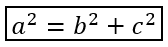
Presentation presentation = new Presentation();
try {
    ISlide slide = presentation.getSlides().get_Item(0);

    IAutoShape mathShape = slide.getShapes().addMathShape(20, 20, 700, 100);
    IMathParagraph mathParagraph = ((MathPortion) mathShape.getTextFrame().getParagraphs()
            .get_Item(0).getPortions().get_Item(0)).getMathParagraph();

    IMathBorderBox boxedEquation = new MathematicalText("a")
            .setSuperscript("2")
            .join("=")
            .join(new MathematicalText("b").setSuperscript("2"))
            .join("+")
            .join(new MathematicalText("c").setSuperscript("2"))
            .toBorderBox();

    mathParagraph.add(new MathBlock(boxedEquation));

    presentation.save("border-box.pptx", SaveFormat.Pptx);
} finally {
    presentation.dispose();
}
تجميع المصطلحات
استخدم group لوضع رمز تجميع فوق أو تحت التعبير. أضف حدًا لتسمية المصطلحات المجمعة.

Presentation presentation = new Presentation();
try {
    ISlide slide = presentation.getSlides().get_Item(0);

    IAutoShape mathShape = slide.getShapes().addMathShape(20, 20, 700, 120);
    IMathParagraph mathParagraph = ((MathPortion) mathShape.getTextFrame().getParagraphs()
            .get_Item(0).getPortions().get_Item(0)).getMathParagraph();

    IMathLimit grouped = new MathematicalText("x + y")
            .group('\u23DF', MathTopBotPositions.Bottom, MathTopBotPositions.Top)
            .setLowerLimit("any text");

    mathParagraph.add(new MathBlock(grouped));

    presentation.save("grouped-terms.pptx", SaveFormat.Pptx);
} finally {
    presentation.dispose();
}
تنسيق عناصر الرياضيات
استخدم مساعدي التنسيق فقط حيث يوضح الصيغة. على سبيل المثال، overbar يضع شريطًا فوق عنصر رياضي.

Presentation presentation = new Presentation();
try {
    ISlide slide = presentation.getSlides().get_Item(0);

    IAutoShape mathShape = slide.getShapes().addMathShape(20, 20, 700, 100);
    IMathParagraph mathParagraph = ((MathPortion) mathShape.getTextFrame().getParagraphs()
            .get_Item(0).getPortions().get_Item(0)).getMathParagraph();

    IMathBar overbar = new MathematicalText("ABC").overbar();

    mathParagraph.add(new MathBlock(overbar));

    presentation.save("overbar.pptx", SaveFormat.Pptx);
} finally {
    presentation.dispose();
}
مرجع سريع
| المهمة | API الرئيسي |
|---|---|
| إنشاء نص رياضي | MathematicalText |
| دمج العناصر | IMathElement.join |
| إنشاء الكسور | IMathElement.divide |
| إضافة ارتفاع أو مقاطعة | setSuperscript, setSubscript |
| إضافة الدوال | function, asArgumentOfFunction |
| إضافة الجذور | IMathElement.radical |
| إضافة الحدود | setLowerLimit, setUpperLimit |
| إضافة سكريبتات على الجانب الأيسر | setSubSuperscriptOnTheLeft |
| إضافة الجمعيات والتكاملات | nary, integral |
| إضافة المصفوفات | MathMatrix |
| إضافة مصفوفات المعادلات | toMathArray |
| إضافة المحددات | enclose |
| إضافة الشرائط والإطارات | overbar, toBorderBox |
| تجميع المصطلحات | group |
الأسئلة المتداولة
هل يمكنني تعديل معادلة PowerPoint موجودة؟
نعم. افتح العرض، ابحث عن الشكل الذي يحتوي على MathPortion، احصل على MathParagraph الخاص به، وقم بتحديث كتل الرياضيات في تلك الفقرة.
هل تُحفظ المعادلات كرياضيات PowerPoint قابلة للتحرير؟
نعم. عند حفظك إلى PPTX، تكتب Aspose.Slides المعادلة كمحتوى رياضي Office قابل للتحرير.
هل يمكنني تصدير المعادلات إلى LaTeX؟
نعم. احصل على IMathParagraph الخاص بالمعادلة من خلال IMathPortion، واستدعِ IMathParagraph.toLatex لتصديره مباشرة. لمثال كامل، راجع Export Math Equations from Presentations in Java.