
إدارة الموصلات في العروض التقديمية باستخدام Java
نظرة عامة
الموصِل هو خط يمكن أن يبقى متصلًا بشكليْن عندما يتحرك أيٌّ من الشكلين. نهاياته تتصل بنقاط الاتصال، الممثلة بنقاط خضراء في PowerPoint. بعض الموصلات المنحنية والمنحنيّة تكشف أيضًا عن نقاط تعديل، تمثّل بنقاط برتقالية، التي تتحكم في موضع مقاطع الموصل الفردية.
تمثل Aspose.Slides الموصلات عبر واجهة IConnector. يمكنك إنشاؤها، ربط نهاياتها بالأشكال، اختيار نقاط الاتصال، إعادة توجيهها، وتعديل هندسة الموصلات التي لديها نقاط تعديل.
أنواع الموصل
تتضمن الفئة ShapeType موصلات مستقيمة، منحنية، ومقوسة مسبقة الإعداد. يوضح الجدول التالي الهندسة المتاحة للموصلات وعدد نقاط التعديل المعرفة لكل إعداد مسبق.
| موصل | صورة | عدد نقاط التعديل |
|---|---|---|
ShapeType.Line |
 |
0 |
ShapeType.StraightConnector1 |
 |
0 |
ShapeType.BentConnector2 |
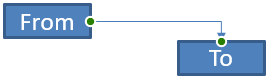 |
0 |
ShapeType.BentConnector3 |
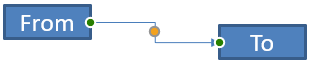 |
1 |
ShapeType.BentConnector4 |
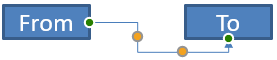 |
2 |
ShapeType.BentConnector5 |
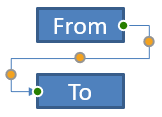 |
3 |
ShapeType.CurvedConnector2 |
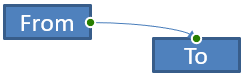 |
0 |
ShapeType.CurvedConnector3 |
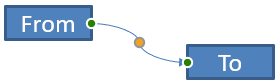 |
1 |
ShapeType.CurvedConnector4 |
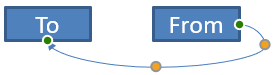 |
2 |
ShapeType.CurvedConnector5 |
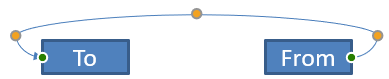 |
3 |
عدد ومعنى نقاط التعديل جزء من الإعداد المسبق للموصل المختار. لا تفترض أن نوعي موصل مختلفين يكشفان عن نفس تخطيط المجموعة.
ربط شكلين
استخدم IShapeCollection.addConnector لإضافة موصل، واستخدم IConnector.setStartShapeConnectedTo وIConnector.setEndShapeConnectedTo لربط نهاياته. بعد ربط كلتا النهايتين، يختار IConnector.reroute مسارًا قصيرًا بين الشكلين.
المثال التالي يربط قطعًا بيضاويًا ومستطيلًا بموصل منحنٍ:
import com.aspose.slides.*;

Presentation presentation = new Presentation();
try {
    ISlide slide = presentation.getSlides().get_Item(0);

    IAutoShape ellipse = slide.getShapes().addAutoShape(ShapeType.Ellipse, 40, 80, 120, 80);
    IAutoShape rectangle = slide.getShapes().addAutoShape(ShapeType.Rectangle, 320, 240, 140, 80);
    IConnector connector = slide.getShapes().addConnector(ShapeType.BentConnector2, 0, 0, 10, 10);

    connector.setStartShapeConnectedTo(ellipse);
    connector.setEndShapeConnectedTo(rectangle);
    connector.reroute();

    presentation.save("connected-shapes.pptx", SaveFormat.Pptx);
} finally {
    presentation.dispose();
}
Warning
استدعاءreroute قد يغيّر قيمتي setStartShapeConnectionSiteIndex وsetEndShapeConnectionSiteIndex. قم بتعيين نقاط اتصال محددة بعد إعادة التوجيه إذا كان يجب أن تظل تلك النقاط ثابتة.
اختر موقع اتصال
كل شكل يمكن ربطه يبلغ عن عدد مواقع الاتصال عبر IShape.getConnectionSiteCount. تحقق من صحة فهرس الموقع الصفري القاعدي قبل تعيينه لنهاية الموصل؛ عدد المواقع يختلف حسب هندسة الشكل.
هذا المثال يربط الموصل بموقع معين على القطعة البيضاوية عندما يكون ذلك الموقع موجودًا:
import com.aspose.slides.*;

Presentation presentation = new Presentation();
try {
    ISlide slide = presentation.getSlides().get_Item(0);

    IAutoShape ellipse = slide.getShapes().addAutoShape(ShapeType.Ellipse, 40, 80, 120, 80);
    IAutoShape rectangle = slide.getShapes().addAutoShape(ShapeType.Rectangle, 320, 240, 140, 80);
    IConnector connector = slide.getShapes().addConnector(ShapeType.BentConnector3, 0, 0, 10, 10);

    connector.setStartShapeConnectedTo(ellipse);
    connector.setEndShapeConnectedTo(rectangle);

    long preferredSiteIndex = 2;
    if (preferredSiteIndex < ellipse.getConnectionSiteCount()) {
        connector.setStartShapeConnectionSiteIndex(preferredSiteIndex);
    } else {
        System.out.println("The ellipse has only " + ellipse.getConnectionSiteCount() + " connection sites.");
    }

    presentation.save("specific-connection-site.pptx", SaveFormat.Pptx);
} finally {
    presentation.dispose();
}
ضبط نقطة موصل
الموصلات التي تحتوي على نقاط تعديل تكشف عنها عبر IGeometryShape.getAdjustments. افحص كل IAdjustValue وتحقق من قيمة getType قبل تغييرها باستخدام setRawValue. القواعد العامة لتحديد تعديلات الشكل المسبقة موصوفة في Shape Manipulation.
عدد وترتيب ومعنى ونطاق القيم الصالحة لتعديلات الموصل تعتمد على الإعداد المسبق للموصل. نوع التعديل للقراءة فقط، بينما قيمة التعديل قابلة للكتابة. طريقة القراءة فقط getName توفر تعريفًا إضافيًا عندما يحتوي الموصل على أكثر من تعديل واحد من نفس النوع الدلالي.
توجيه حول عائق
في التخطيط التالي، موصل BentConnector5 بين شكلين يمر عبر شكل ثالث:
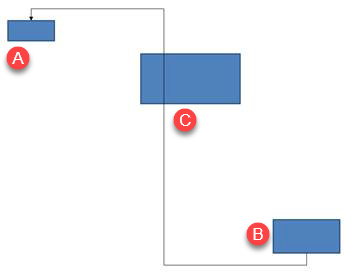
هذا الكود ينشئ الموصل المعترض:
import com.aspose.slides.*;
import java.awt.Color;

Presentation presentation = new Presentation();
try {
    ISlide slide = presentation.getSlides().get_Item(0);

    slide.getShapes().addAutoShape(ShapeType.Rectangle, 300, 150, 150, 75);
    IAutoShape sourceShape = slide.getShapes().addAutoShape(ShapeType.Rectangle, 500, 400, 100, 50);
    IAutoShape targetShape = slide.getShapes().addAutoShape(ShapeType.Rectangle, 100, 100, 70, 30);
    IConnector connector = slide.getShapes().addConnector(ShapeType.BentConnector5, 20, 20, 400, 300);

    connector.getLineFormat().setEndArrowheadStyle(LineArrowheadStyle.Triangle);
    connector.getLineFormat().getFillFormat().setFillType(FillType.Solid);
    connector.getLineFormat().getFillFormat().getSolidFillColor().setColor(Color.BLACK);
    connector.setStartShapeConnectedTo(sourceShape);
    connector.setEndShapeConnectedTo(targetShape);
    connector.setStartShapeConnectionSiteIndex(2);

    presentation.save("connector-obstruction.pptx", SaveFormat.Pptx);
} finally {
    presentation.dispose();
}
تحريك الانحناء الرأسي يغير المسار بحيث يتجاوز الموصل العقبة:
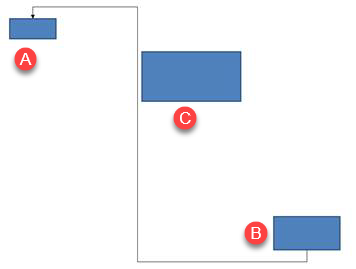
بدلاً من افتراض أن فهرس المجموعة 1 يمثل دائمًا الانحناء الرأسي، يبحث هذا المثال عن ConnectorBendPositionY ويغيّره فقط عندما يكون النوع الدلالي المتوقع موجودًا:
import com.aspose.slides.*;
import java.awt.Color;

Presentation presentation = new Presentation();
try {
    ISlide slide = presentation.getSlides().get_Item(0);

    slide.getShapes().addAutoShape(ShapeType.Rectangle, 300, 150, 150, 75);
    IAutoShape sourceShape = slide.getShapes().addAutoShape(ShapeType.Rectangle, 500, 400, 100, 50);
    IAutoShape targetShape = slide.getShapes().addAutoShape(ShapeType.Rectangle, 100, 100, 70, 30);
    IConnector connector = slide.getShapes().addConnector(ShapeType.BentConnector5, 20, 20, 400, 300);

    connector.getLineFormat().setEndArrowheadStyle(LineArrowheadStyle.Triangle);
    connector.getLineFormat().getFillFormat().setFillType(FillType.Solid);
    connector.getLineFormat().getFillFormat().getSolidFillColor().setColor(Color.BLACK);
    connector.setStartShapeConnectedTo(sourceShape);
    connector.setEndShapeConnectedTo(targetShape);
    connector.setStartShapeConnectionSiteIndex(2);

    IAdjustValue verticalBend = null;
    for (int adjustmentIndex = 0; adjustmentIndex < connector.getAdjustments().size(); adjustmentIndex++) {
        IAdjustValue adjustment = connector.getAdjustments().get_Item(adjustmentIndex);
        System.out.println(adjustment.getName() + ": " + adjustment.getType() + ", raw value = " + adjustment.getRawValue());
        if (adjustment.getType() == ShapeAdjustmentType.ConnectorBendPositionY) {
            verticalBend = adjustment;
            break;
        }
    }

    if (verticalBend == null) {
        System.out.println("The connector does not expose a vertical bend adjustment.");
    } else {
        verticalBend.setRawValue(60000);
        presentation.save("connector-obstruction-fixed.pptx", SaveFormat.Pptx);
    }
} finally {
    presentation.dispose();
}
يحتوي BentConnector5 على تعديلين ConnectorBendPositionX وتعديل واحد ConnectorBendPositionY. إذا كان النوع الذي تحتاجه يحدث أكثر من مرة، افحص getName والهندسة المعروفة لهذا الإعداد قبل اختيار أحدهما. إذا أبلغ تعديل عن ShapeAdjustmentType.Custom، فاعتبر معناه ونطاقه خاصًا بالإعداد المسبق ولا تغيّره حتى تُعرف العقود المتعلقة به.
ربط قيم التعديل بهندسة الموصل
بالنسبة للموصلات المنحنية، يمكن استخدام قيم التعديل لتقدير مواضع المقاطع الفردية. هذه الحسابات خاصة بإعداد الموصل المسبق:
- عادةً يكشف
BentConnector4عن تعديل واحدConnectorBendPositionXوتعديل واحدConnectorBendPositionY. - لهذه المواقع، قسّم القيمة المرجعة من
getRawValueعلى100000fللحصول على الكسر من عرض أو ارتفاع إطار الموصل المستخدم في الأمثلة أدناه. - يمكن أن يتم تدوير أو قلب إطار الموصل، لذا يجب تحويل إحداثيات الإطار قبل مقارنتها بإحداثيات الشريحة.
الأمثلة التالية تستخدم getType لتحديد التعديلات أولًا. لا تتعامل مع فهارس المجموعة كمعرفات قابلة للنقل.
موصل غير مدور
التخطيط الأولي يحتوي على شكلين نصيين متصلين بـ BentConnector4:
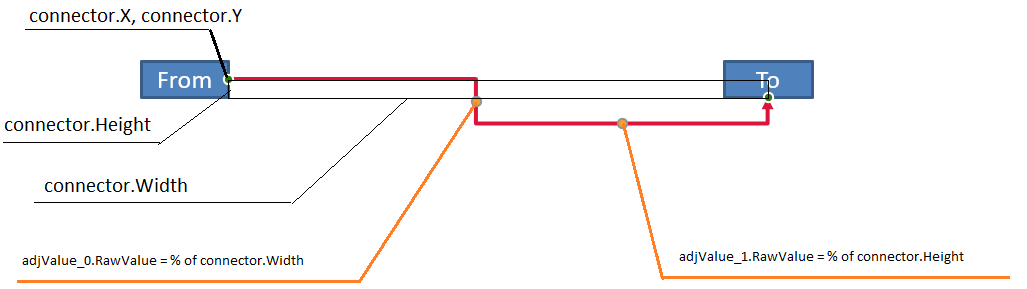
هذا المثال يفحص الموصل ويحصل على تعديلات الانحناء الأفقي والعمودي:
import com.aspose.slides.*;
import java.awt.Color;

Presentation presentation = new Presentation();
try {
    ISlide slide = presentation.getSlides().get_Item(0);

    IAutoShape sourceShape = slide.getShapes().addAutoShape(ShapeType.Rectangle, 100, 100, 60, 25);
    sourceShape.getTextFrame().setText("From");
    IAutoShape targetShape = slide.getShapes().addAutoShape(ShapeType.Rectangle, 500, 100, 60, 25);
    targetShape.getTextFrame().setText("To");
    IConnector connector = slide.getShapes().addConnector(ShapeType.BentConnector4, 20, 20, 400, 300);

    connector.getLineFormat().setEndArrowheadStyle(LineArrowheadStyle.Triangle);
    connector.getLineFormat().getFillFormat().setFillType(FillType.Solid);
    connector.getLineFormat().getFillFormat().getSolidFillColor().setColor(Color.RED);
    connector.getLineFormat().setWidth(3);
    connector.setStartShapeConnectedTo(sourceShape);
    connector.setStartShapeConnectionSiteIndex(3);
    connector.setEndShapeConnectedTo(targetShape);
    connector.setEndShapeConnectionSiteIndex(2);

    for (int adjustmentIndex = 0; adjustmentIndex < connector.getAdjustments().size(); adjustmentIndex++) {
        IAdjustValue adjustment = connector.getAdjustments().get_Item(adjustmentIndex);
        System.out.println(adjustment.getName() + ": " + adjustment.getType() + ", raw value = " + adjustment.getRawValue());
    }
} finally {
    presentation.dispose();
}
لتغيير كلا الانحنائين، حدد كل نوع متوقع وعدّل القيم فقط بعد العثور على كلاهما:
import com.aspose.slides.*;

Presentation presentation = new Presentation();
try {
    ISlide slide = presentation.getSlides().get_Item(0);

    IAutoShape sourceShape = slide.getShapes().addAutoShape(ShapeType.Rectangle, 100, 100, 60, 25);
    IAutoShape targetShape = slide.getShapes().addAutoShape(ShapeType.Rectangle, 500, 100, 60, 25);
    IConnector connector = slide.getShapes().addConnector(ShapeType.BentConnector4, 20, 20, 400, 300);
    connector.setStartShapeConnectedTo(sourceShape);
    connector.setStartShapeConnectionSiteIndex(3);
    connector.setEndShapeConnectedTo(targetShape);
    connector.setEndShapeConnectionSiteIndex(2);

    IAdjustValue horizontalBend = null;
    IAdjustValue verticalBend = null;
    for (int adjustmentIndex = 0; adjustmentIndex < connector.getAdjustments().size(); adjustmentIndex++) {
        IAdjustValue adjustment = connector.getAdjustments().get_Item(adjustmentIndex);
        if (adjustment.getType() == ShapeAdjustmentType.ConnectorBendPositionX) {
            horizontalBend = adjustment;
        } else if (adjustment.getType() == ShapeAdjustmentType.ConnectorBendPositionY) {
            verticalBend = adjustment;
        }
    }

    if (horizontalBend == null || verticalBend == null) {
        System.out.println("The connector does not expose the expected bend adjustments.");
    } else {
        horizontalBend.setRawValue(horizontalBend.getRawValue() + 20000);
        verticalBend.setRawValue(verticalBend.getRawValue() + 200000);
        presentation.save("connector-adjusted.pptx", SaveFormat.Pptx);
    }
} finally {
    presentation.dispose();
}
النتيجة موصل تتحرك مقاطعه الأفقية والعمودية:

بمجرد معرفة الأنواع الدلالية، يمكن تحويل قيمها إلى إحداثيات إطار الموصل. هذا المثال يرسم مستطيلًا رفيعًا فوق المقطع العمودي المتحكم به تعديلَا الانحناء:
import com.aspose.slides.*;

Presentation presentation = new Presentation();
try {
    ISlide slide = presentation.getSlides().get_Item(0);

    IAutoShape sourceShape = slide.getShapes().addAutoShape(ShapeType.Rectangle, 100, 100, 60, 25);
    IAutoShape targetShape = slide.getShapes().addAutoShape(ShapeType.Rectangle, 500, 100, 60, 25);
    IConnector connector = slide.getShapes().addConnector(ShapeType.BentConnector4, 20, 20, 400, 300);
    connector.setStartShapeConnectedTo(sourceShape);
    connector.setStartShapeConnectionSiteIndex(3);
    connector.setEndShapeConnectedTo(targetShape);
    connector.setEndShapeConnectionSiteIndex(2);

    IAdjustValue horizontalBend = null;
    IAdjustValue verticalBend = null;
    for (int adjustmentIndex = 0; adjustmentIndex < connector.getAdjustments().size(); adjustmentIndex++) {
        IAdjustValue adjustment = connector.getAdjustments().get_Item(adjustmentIndex);
        if (adjustment.getType() == ShapeAdjustmentType.ConnectorBendPositionX) {
            horizontalBend = adjustment;
        } else if (adjustment.getType() == ShapeAdjustmentType.ConnectorBendPositionY) {
            verticalBend = adjustment;
        }
    }

    if (horizontalBend == null || verticalBend == null) {
        System.out.println("The connector does not expose the expected bend adjustments.");
    } else {
        float x = connector.getX() + connector.getWidth() * horizontalBend.getRawValue() / 100000f;
        float y = connector.getY();
        float height = connector.getHeight() * verticalBend.getRawValue() / 100000f;
        slide.getShapes().addAutoShape(ShapeType.Rectangle, x, y, 1, height);
        presentation.save("connector-segment-guide.pptx", SaveFormat.Pptx);
    }
} finally {
    presentation.dispose();
}
الشكل الإرشادي يوضح المقطع المحسوب:

موصل مدور أو مقلوب
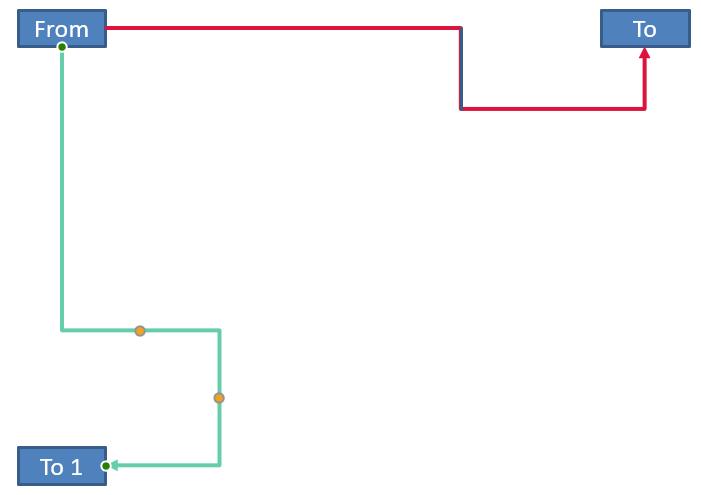
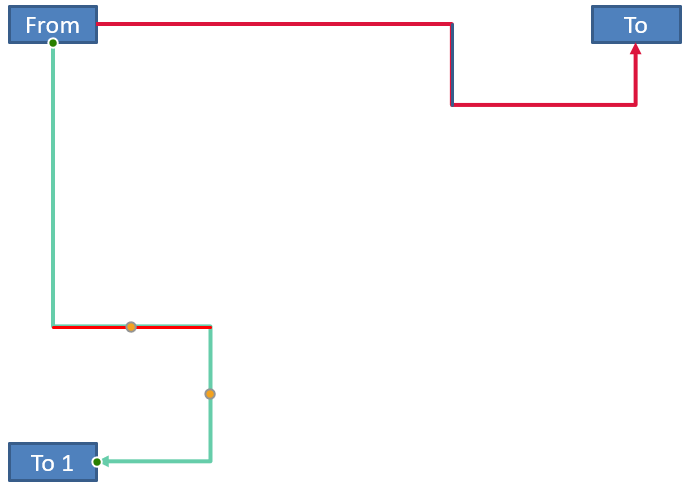
عندما تكون هندسة الموصل نفسها موجهة عموديًا، تؤثر قيم IShape.getFrame، ShapeFrame.getFlipH، وShapeFrame.getFlipV على التحويل من إحداثيات إطار الموصل إلى إحداثيات الشريحة.
هذا المثال ينشئ ويضبط الموصل الموجه عموديًا:
import com.aspose.slides.*;
import java.awt.Color;

Presentation presentation = new Presentation();
try {
    ISlide slide = presentation.getSlides().get_Item(0);

    IAutoShape sourceShape = slide.getShapes().addAutoShape(ShapeType.Rectangle, 100, 100, 60, 25);
    sourceShape.getTextFrame().setText("From");
    IAutoShape targetShape = slide.getShapes().addAutoShape(ShapeType.Rectangle, 100, 400, 60, 25);
    targetShape.getTextFrame().setText("To 1");
    IConnector connector = slide.getShapes().addConnector(ShapeType.BentConnector4, 20, 20, 400, 300);

    connector.getLineFormat().setEndArrowheadStyle(LineArrowheadStyle.Triangle);
    connector.getLineFormat().getFillFormat().setFillType(FillType.Solid);
    connector.getLineFormat().getFillFormat().getSolidFillColor().setColor(new Color(102, 205, 170));
    connector.getLineFormat().setWidth(3);
    connector.setStartShapeConnectedTo(sourceShape);
    connector.setStartShapeConnectionSiteIndex(2);
    connector.setEndShapeConnectedTo(targetShape);
    connector.setEndShapeConnectionSiteIndex(3);

    for (int adjustmentIndex = 0; adjustmentIndex < connector.getAdjustments().size(); adjustmentIndex++) {
        IAdjustValue adjustment = connector.getAdjustments().get_Item(adjustmentIndex);
        if (adjustment.getType() == ShapeAdjustmentType.ConnectorBendPositionX) {
            adjustment.setRawValue(adjustment.getRawValue() + 20000);
        } else if (adjustment.getType() == ShapeAdjustmentType.ConnectorBendPositionY) {
            adjustment.setRawValue(adjustment.getRawValue() + 200000);
        }
    }

    presentation.save("vertical-connector-adjusted.pptx", SaveFormat.Pptx);
} finally {
    presentation.dispose();
}
الموصل المعدل يظهر عموديًا بين الشكلين:
لزاوية دوران عشوائية alpha، دوّر نقطة إطار الموصل (x, y) حول مركز الإطار (x0, y0):
X = (x - x0) * cos(alpha) - (y - y0) * sin(alpha) + x0
Y = (x - x0) * sin(alpha) + (y - y0) * cos(alpha) + y0
الكود التالي يتعامل مع التوجيه بزاوية 90 درجة المستخدم في هذا المثال ويرسم دليلًا أحمر فوق المقطع المقابل للموصل:
import com.aspose.slides.*;
import java.awt.Color;

Presentation presentation = new Presentation();
try {
    ISlide slide = presentation.getSlides().get_Item(0);

    IAutoShape sourceShape = slide.getShapes().addAutoShape(ShapeType.Rectangle, 100, 100, 60, 25);
    IAutoShape targetShape = slide.getShapes().addAutoShape(ShapeType.Rectangle, 100, 400, 60, 25);
    IConnector connector = slide.getShapes().addConnector(ShapeType.BentConnector4, 20, 20, 400, 300);
    connector.setStartShapeConnectedTo(sourceShape);
    connector.setStartShapeConnectionSiteIndex(2);
    connector.setEndShapeConnectedTo(targetShape);
    connector.setEndShapeConnectionSiteIndex(3);

    IAdjustValue horizontalBend = null;
    IAdjustValue verticalBend = null;
    for (int adjustmentIndex = 0; adjustmentIndex < connector.getAdjustments().size(); adjustmentIndex++) {
        IAdjustValue adjustment = connector.getAdjustments().get_Item(adjustmentIndex);
        if (adjustment.getType() == ShapeAdjustmentType.ConnectorBendPositionX) {
            horizontalBend = adjustment;
        } else if (adjustment.getType() == ShapeAdjustmentType.ConnectorBendPositionY) {
            verticalBend = adjustment;
        }
    }

    if (horizontalBend == null || verticalBend == null) {
        System.out.println("The connector does not expose the expected bend adjustments.");
    } else {
        horizontalBend.setRawValue(horizontalBend.getRawValue() + 20000);
        verticalBend.setRawValue(verticalBend.getRawValue() + 200000);

        float x = connector.getX();
        float y = connector.getY();
        if (connector.getFrame().getFlipH() == NullableBool.True) {
            x += connector.getWidth();
        }
        if (connector.getFrame().getFlipV() == NullableBool.True) {
            y += connector.getHeight();
        }

        x += connector.getWidth() * horizontalBend.getRawValue() / 100000f;
        float rotatedX = connector.getFrame().getCenterX() - y + connector.getFrame().getCenterY();
        float rotatedY = x - connector.getFrame().getCenterX() + connector.getFrame().getCenterY();
        float segmentWidth = connector.getHeight() * verticalBend.getRawValue() / 100000f;
        IAutoShape guide = slide.getShapes().addAutoShape(ShapeType.Rectangle, rotatedX, rotatedY, segmentWidth, 1);
        guide.getLineFormat().getFillFormat().setFillType(FillType.Solid);
        guide.getLineFormat().getFillFormat().getSolidFillColor().setColor(Color.RED);

        presentation.save("rotated-connector-segment-guide.pptx", SaveFormat.Pptx);
    }
} finally {
    presentation.dispose();
}
الدليل الأحمر يوضح المقطع المحسوب بعد تحويل الإحداثيات:
هذه الصيغ تصف الإعدادات المستخدمة في الأمثلة، وليس نموذج موصل عالمي. تحقق من أنواع التعديل، توجيه الإطار، ونطاقات القيم قبل تطبيق نفس الحساب على إعداد مسبق مختلف.
إيجاد زاوية اتجاه الموصل
يمكن حساب اتجاه موصل مستقيم من عرضه وارتفاعه، مع تطبيق الانعكاسات الأفقية والرأسية. المثال التالي يُعيد الزاوية باتجاه عقارب الساعة من المحور الأفقي الموجب في إحداثيات الشريحة:
import com.aspose.slides.*;

Presentation presentation = new Presentation();
try {
    ISlide slide = presentation.getSlides().get_Item(0);
    IConnector connector = slide.getShapes().addConnector(ShapeType.StraightConnector1, 100, 100, 200, 100);

    boolean flipH = connector.getFrame().getFlipH() == NullableBool.True;
    boolean flipV = connector.getFrame().getFlipV() == NullableBool.True;
    float deltaX = connector.getWidth() * (flipH ? -1 : 1);
    float deltaY = connector.getHeight() * (flipV ? -1 : 1);
    double angle = Math.atan2(deltaY, deltaX) * 180.0 / Math.PI;

    if (angle < 0) {
        angle += 360;
    }

    System.out.printf("Connector direction: %.2f degrees%n", angle);
} finally {
    presentation.dispose();
}
الأسئلة الشائعة
كيف يمكنني معرفة ما إذا كان الموصل يمكنه الارتباط بشكل؟
تحقق من قيمة getConnectionSiteCount الخاصة بالشكل. العدد الإيجابي يعني أن الشكل ي expose نقاط اتصال. تحقق من صحة فهرس الموقع المختار قبل تعيينه لأي طرف من أطراف الموصل.
هل يمكنني تحديد تعديل الموصل عبر فهرس مجموعته؟
الفهرس ذو معنى فقط لإعداد موصل معروف وتخطيط مجموعة معروف. تحقق من IAdjustValue.getType قبل تعديل قيمة، واستخدم IAdjustValue.getName كمعلومات إضافية عندما يتكرر نفس النوع الدلالي أكثر من مرة.
ماذا يحدث عندما يتم حذف الشكل المتصل؟
ينفصل الطرف المقابل من الموصل. يبقى الموصل على الشريحة ويمكن حذفه، أو وضعه كخط حر، أو ربطه بشكل آخر.
هل تُحافظ ربطات الموصل عند نسخ الشريحة؟
عادةً ما تُحافظ الرابطات عند نسخ الأشكال المتصلة مع الشريحة. إذا نُسخ موصل دون أحد الأشكال المستهدفة، يجب ربط الطرف المتأثر مرة أخرى.