
تنسيق نص العرض التقديمي باستخدام JavaScript
نظرة عامة
توضح هذه المقالة كيفية تنسيق النص في عروض PowerPoint وOpenDocument باستخدام Aspose.Slides لـ Node.js عبر Java. تغطي ألوان الخلفية، الشفافية، تباعد الأحرف، خصائص الخط، الدوران، تباعد الفقرات، سلوك الملاءمة التلقائية، تثبيت النص، إيقافات الجدولة، وإعدادات اللغة.
ما لم يُذكر خلاف ذلك، تستخدم الأمثلة الملف sample.pptx. الشكل الأول في الشريحة الأولى هو صندوق نص، ويحتوي الفقرة الأولى على النص المعروض أدناه. كل من فهارس الشرائح والأشكال تبدأ من الصفر. الأمثلة التي تختار أجزاءً بالخط العريض تستخدم التنسيق الفعّال، بما في ذلك تنسيق العريض الموروث:

للعثور على النص الحرفي أو مطابقة التعبيرات النمطية وتظليلها، راجع بحث واستبدال النص.
تعيين لون خلفية النص
استخدم ParagraphFormat.getDefaultPortionFormat لتعيين لون التظليل الافتراضي لفقرة، أو استخدم BasePortionFormat.getHighlightColor لأجزاء النص الفردية.
المثال التالي يعيّن تظليلًا رماديًا فاتحًا كافتراضي للفقرة الأولى. ألوان التظليل الصريحة على الأجزاء الفردية تتفوق على هذا الافتراضي:
const aspose = { slides: require("aspose.slides.via.java") };
const java = require("java");

const presentation = new aspose.slides.Presentation("sample.pptx");
try {
    const slide = presentation.getSlides().get_Item(0);

    const autoShape = slide.getShapes().get_Item(0);
    const paragraph = autoShape.getTextFrame().getParagraphs().get_Item(0);

    // تعيين لون التظليل للفقرة بأكملها.
    paragraph.getParagraphFormat().getDefaultPortionFormat().getHighlightColor().setColor(java.getStaticFieldValue("java.awt.Color", "LIGHT_GRAY"));

    presentation.save("gray_paragraph.pptx", aspose.slides.SaveFormat.Pptx);
} finally {
    presentation.dispose();
}
النتيجة:

مثال الشيفرة أدناه يوضح كيفية تعيين لون الخلفية لـ أجزاء النص ذات الخط العريض:
const aspose = { slides: require("aspose.slides.via.java") };
const java = require("java");

const presentation = new aspose.slides.Presentation("sample.pptx");
try {
    const slide = presentation.getSlides().get_Item(0);

    const autoShape = slide.getShapes().get_Item(0);
    const paragraph = autoShape.getTextFrame().getParagraphs().get_Item(0);
    const portions = paragraph.getPortions();
    const portionCount = portions.getCount();

    for (let portionIndex = 0; portionIndex < portionCount; portionIndex++) {
        const portion = portions.get_Item(portionIndex);
        if (portion.getPortionFormat().getEffective().getFontBold()) {
            // تعيين لون التظليل لجزء النص.
            portion.getPortionFormat().getHighlightColor().setColor(java.getStaticFieldValue("java.awt.Color", "LIGHT_GRAY"));
        }
    }

    presentation.save("gray_text_portions.pptx", aspose.slides.SaveFormat.Pptx);
} finally {
    presentation.dispose();
}
النتيجة:

محاذاة فقرات النص
استخدم ParagraphFormat.setAlignment لتعيين محاذاة الفقرة داخل إطار النص. يمكن أن تكون القيمة مركزة، محاذاة إلى اليسار، محاذاة إلى اليمين، مبررة، وما إلى ذلك.
المثال التالي يوضح كيفية محاذاة الفقرة إلى الوسط:
const aspose = { slides: require("aspose.slides.via.java") };

const presentation = new aspose.slides.Presentation("sample.pptx");
try {
    const slide = presentation.getSlides().get_Item(0);

    const autoShape = slide.getShapes().get_Item(0);
    const paragraph = autoShape.getTextFrame().getParagraphs().get_Item(0);

    // تعيين محاذاة الفقرة إلى الوسط.
    paragraph.getParagraphFormat().setAlignment(aspose.slides.TextAlignment.Center);

    presentation.save("aligned_paragraph.pptx", aspose.slides.SaveFormat.Pptx);
} finally {
    presentation.dispose();
}
النتيجة:

محاذاة الخطوط داخل السطر
استخدم ParagraphFormat.setFontAlignment لمحاذاة أجزاء النص ذات الأحجام المختلفة للخط عموديًا داخل السطر. هذا الإعداد يطبق على الفقرة بأكملها ويتحكم في المحاذاة داخل كل سطر منها.
المثال المستقل التالي ينشئ أربعة صناديق نصية مع عناوين على شريحة واحدة. كل فقرة تحتوي على نفس النص بحجم 18 و36 و54 نقطة، مع محاذاة خط مختلفة. يستخدم Arial، ويعطل الملاءمة التلقائية واللف، ويحافظ على إطارات النص كبيرة بما يكفي لسطر واحد.
const aspose = { slides: require("aspose.slides.via.java") };
const java = require("java");

const presentation = new aspose.slides.Presentation();
try {
    const slide = presentation.getSlides().get_Item(0);

    const alignments = [aspose.slides.FontAlignment.Baseline, aspose.slides.FontAlignment.Top, aspose.slides.FontAlignment.Center, aspose.slides.FontAlignment.Bottom];
    const alignmentNames = ["Baseline", "Top", "Center", "Bottom"];
    const fontSizes = [18, 36, 54];

    for (let i = 0; i < alignments.length; i++) {
        const shape = slide.getShapes().addAutoShape(aspose.slides.ShapeType.Rectangle, 30, 20 + i * 130, 660, 120);
        shape.getFillFormat().setFillType(java.newByte(aspose.slides.FillType.NoFill));
        shape.getLineFormat().getFillFormat().setFillType(java.newByte(aspose.slides.FillType.NoFill));

        const textFrame = shape.getTextFrame();
        textFrame.getTextFrameFormat().setAnchoringType(java.newByte(aspose.slides.TextAnchorType.Top));
        textFrame.getTextFrameFormat().setAutofitType(java.newByte(aspose.slides.TextAutofitType.None));
        textFrame.getTextFrameFormat().setWrapText(java.newByte(aspose.slides.NullableBool.False));

        const label = textFrame.getParagraphs().get_Item(0);
        label.setText(alignmentNames[i]);
        label.getParagraphFormat().setAlignment(aspose.slides.TextAlignment.Left);
        label.getParagraphFormat().getDefaultPortionFormat().setFontHeight(14);
        label.getParagraphFormat().getDefaultPortionFormat().setLatinFont(new aspose.slides.FontData("Arial"));
        label.getParagraphFormat().getDefaultPortionFormat().getFillFormat().setFillType(java.newByte(aspose.slides.FillType.Solid));
        label.getParagraphFormat().getDefaultPortionFormat().getFillFormat().getSolidFillColor().setColor(java.getStaticFieldValue("java.awt.Color", "GRAY"));

        const paragraph = new aspose.slides.Paragraph();
        paragraph.getParagraphFormat().setFontAlignment(alignments[i]);
        paragraph.getParagraphFormat().setAlignment(aspose.slides.TextAlignment.Left);
        paragraph.getParagraphFormat().getDefaultPortionFormat().setLatinFont(new aspose.slides.FontData("Arial"));
        paragraph.getParagraphFormat().getDefaultPortionFormat().getFillFormat().setFillType(java.newByte(aspose.slides.FillType.Solid));
        paragraph.getParagraphFormat().getDefaultPortionFormat().getFillFormat().getSolidFillColor().setColor(java.getStaticFieldValue("java.awt.Color", "BLACK"));

        for (const fontSize of fontSizes) {
            const portion = new aspose.slides.Portion("Ag ");
            portion.getPortionFormat().setFontHeight(fontSize);
            paragraph.getPortions().add(portion);
        }

        textFrame.getParagraphs().add(paragraph);
    }

    presentation.save("font_alignment.pptx", aspose.slides.SaveFormat.Pptx);
} finally {
    presentation.dispose();
}
النتيجة:
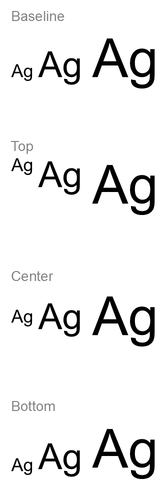
تستخدم محاذاة الخط مقاييس الخط، لذا لا تُطابق حواف الحروف الفردية بالضرورة تمامًا. يتضمن المثال حرفًا كبيرًا وحرفًا ذا سُفلٍ لتوضيح الفرق بين محاذاة القاعدة والسفلية. توفر الخط واستبداله، الأحرف المستخدمة، والفرق في أحجام الخطوط يؤثر على النتيجة. أبعاد الإطار، الهوامش، تباعد الأسطر، اللف، والملاءمة التلقائية تؤثر أيضًا على التخطيط؛ استخدم نفس الخطوط وإعدادات التخطيط عند مقارنة الأنماط.
هذا الإعداد يختلف عن ParagraphFormat.setAlignment, الذي يتحكم في محاذاة الفقرة الأفقية، وعن TextFrameFormat.setAnchoringType, الذي يحدد موضع كتلة النص عموديًا داخل الشكل. تنسيق النص العلوي أو السفلي عبر BasePortionFormat.setEscapement يغيّر موضع الأجزاء الفردية بالنسبة للخط القاعدي بدلاً من تعيين محاذاة الخط لأسطر الفقرة.
تعيين الشفافية للنص
تتحكم شفافية النص من خلال مكوّن ألفا للون المعيّن إلى BasePortionFormat.getFillFormat. في الأمثلة أدناه، alpha = 50 هو قيمة قناة ألفا ARGB على مقياس 0–255، وليس نسبة الشفافية.
مثال الشيفرة أدناه يوضح كيفية تطبيق الشفافية على الفقرة بأكملها:
const aspose = { slides: require("aspose.slides.via.java") };
const java = require("java");

const alpha = 50;
const transparentBlack = java.newInstanceSync("java.awt.Color", 0, 0, 0, alpha);
const presentation = new aspose.slides.Presentation("sample.pptx");
try {
    const slide = presentation.getSlides().get_Item(0);

    const autoShape = slide.getShapes().get_Item(0);
    const paragraph = autoShape.getTextFrame().getParagraphs().get_Item(0);
    const fillFormat = paragraph.getParagraphFormat().getDefaultPortionFormat().getFillFormat();

    // تعيين لون تعبئة النص إلى لون شفاف.
    fillFormat.setFillType(java.newByte(aspose.slides.FillType.Solid));
    fillFormat.getSolidFillColor().setColor(transparentBlack);

    presentation.save("transparent_paragraph.pptx", aspose.slides.SaveFormat.Pptx);
} finally {
    presentation.dispose();
}
النتيجة:

المثال التالي يوضح كيفية تطبيق الشفافية على أجزاء النص ذات الخط العريض:
const aspose = { slides: require("aspose.slides.via.java") };
const java = require("java");

const alpha = 50;
const transparentBlack = java.newInstanceSync("java.awt.Color", 0, 0, 0, alpha);
const presentation = new aspose.slides.Presentation("sample.pptx");
try {
    const slide = presentation.getSlides().get_Item(0);

    const autoShape = slide.getShapes().get_Item(0);
    const paragraph = autoShape.getTextFrame().getParagraphs().get_Item(0);
    const portions = paragraph.getPortions();
    const portionCount = portions.getCount();

    for (let portionIndex = 0; portionIndex < portionCount; portionIndex++) {
        const portion = portions.get_Item(portionIndex);
        if (portion.getPortionFormat().getEffective().getFontBold()) {
            const fillFormat = portion.getPortionFormat().getFillFormat();

            // تعيين شفافية جزء النص.
            fillFormat.setFillType(java.newByte(aspose.slides.FillType.Solid));
            fillFormat.getSolidFillColor().setColor(transparentBlack);
        }
    }

    presentation.save("transparent_text_portions.pptx", aspose.slides.SaveFormat.Pptx);
} finally {
    presentation.dispose();
}
النتيجة:

تعيين تباعد الأحرف للنص
استخدم BasePortionFormat.setSpacing لتوسيع أو تضييق التباعد بين الأحرف في صندوق نص. تضيف الأمثلة 3 نقاط من التباعد؛ القيم السالبة تضغط النص.
الكود التالي بلغة JavaScript يوضح كيفية توسيع تباعد الأحرف في الفقرة بأكملها:
const aspose = { slides: require("aspose.slides.via.java") };

const presentation = new aspose.slides.Presentation("sample.pptx");
try {
    const slide = presentation.getSlides().get_Item(0);

    const autoShape = slide.getShapes().get_Item(0);
    const paragraph = autoShape.getTextFrame().getParagraphs().get_Item(0);

    // ملاحظة: استخدم القيم السالبة لضغط تباعد الأحرف.
    paragraph.getParagraphFormat().getDefaultPortionFormat().setSpacing(3); // توسيع تباعد الأحرف.

    presentation.save("character_spacing_in_paragraph.pptx", aspose.slides.SaveFormat.Pptx);
} finally {
    presentation.dispose();
}
النتيجة:

مثال الشيفرة أدناه يوضح كيفية توسيع تباعد الأحرف في أجزاء النص ذات الخط العريض:
const aspose = { slides: require("aspose.slides.via.java") };

const presentation = new aspose.slides.Presentation("sample.pptx");
try {
    const slide = presentation.getSlides().get_Item(0);

    const autoShape = slide.getShapes().get_Item(0);
    const paragraph = autoShape.getTextFrame().getParagraphs().get_Item(0);
    const portions = paragraph.getPortions();
    const portionCount = portions.getCount();

    for (let portionIndex = 0; portionIndex < portionCount; portionIndex++) {
        const portion = portions.get_Item(portionIndex);
        if (portion.getPortionFormat().getEffective().getFontBold()) {
            // ملاحظة: استخدم القيم السالبة لضغط تباعد الأحرف.
            portion.getPortionFormat().setSpacing(3); // توسيع تباعد الأحرف.
        }
    }

    presentation.save("character_spacing_in_text_portions.pptx", aspose.slides.SaveFormat.Pptx);
} finally {
    presentation.dispose();
}
النتيجة:

تعطيل التباعد الحرفي لخطوط محددة
في بعض الحالات، قد يبدو النص المُصوَّر بواسطة Aspose.Slides أكثر ضيقًا قليلاً مقارنةً بالنص نفسه المعروض في PowerPoint. يمكن أن يحدث ذلك لأن PowerPoint قد يتجاهل بيانات التباعد الحرفي (Kerning) لبعض الخطوط، حتى عندما يحتوي الخط على معلومات تباعد صحيحة ويتم تمكين التباعد في إعدادات PowerPoint.
لجعل المخرجات المُصوَّرة أقرب إلى PowerPoint في مثل هذه الحالات، يمكنك تعطيل التباعد الحرفي لأجزاء النص التي تستخدم الخط المتأثر. اضبط BasePortionFormat.setKerningMinimalSize إلى قيمة أكبر من حجم الخط الفعلي. يتطلب هذا المثال ملف “presentation.pptx” مع صندوق نص كأول شكل في الشريحة الأولى. يتحقق من أسماء الخطوط الفعّالة، بما في ذلك الخطوط الموروثة، ويضع حدًا بقيمة 100 نقطة للأجزاء التي تستخدم Roboto. هذا يعطل التباعد الحرفي للأجزاء المطابقة التي يكون حجم الخط أقل من 100 نقطة:
const aspose = { slides: require("aspose.slides.via.java") };

const presentation = new aspose.slides.Presentation("presentation.pptx");
try {
    const slide = presentation.getSlides().get_Item(0);

    const autoShape = slide.getShapes().get_Item(0);
    const paragraphs = autoShape.getTextFrame().getParagraphs();
    const paragraphCount = paragraphs.getCount();
    const targetFont = "Roboto";

    for (let paragraphIndex = 0; paragraphIndex < paragraphCount; paragraphIndex++) {
        const portions = paragraphs.get_Item(paragraphIndex).getPortions();
        const portionCount = portions.getCount();

        for (let portionIndex = 0; portionIndex < portionCount; portionIndex++) {
            const portion = portions.get_Item(portionIndex);
            const portionFormat = portion.getPortionFormat().getEffective();
            const latinFont = portionFormat.getLatinFont();
            const eastAsianFont = portionFormat.getEastAsianFont();
            const complexScriptFont = portionFormat.getComplexScriptFont();

            if ((latinFont !== null && latinFont.getFontName() === targetFont) ||
                (eastAsianFont !== null && eastAsianFont.getFontName() === targetFont) ||
                (complexScriptFont !== null && complexScriptFont.getFontName() === targetFont)) {
                portion.getPortionFormat().setKerningMinimalSize(100);
            }
        }
    }

    presentation.save("output.pptx", aspose.slides.SaveFormat.Pptx);
} finally {
    presentation.dispose();
}
بالنسبة للنص المتطابق الذي يكون حجمه أقل من الحد، يمنع هذا الإعداد التباعد الحرفي ويمكن أن يساعد في ضبط مخرجات Aspose.Slides لتتطابق مع المظهر البصري لـ PowerPoint للخطوط المتأثرة بهذا السلوك الخاص بـ PowerPoint.
إدارة خصائص خط النص
يمكن تعيين خصائص الخط على مستوى الفقرة عبر ParagraphFormat.getDefaultPortionFormat أو على أجزاء فردية عبر PortionFormat.
المثال التالي يعيّن الخط الافتراضي للفقرة الأولى إلى Times New Roman بحجم 12 نقطة مع تنسيق عريض ومائل وتسطير منقط. التنسيق الصريح على الأجزاء الفردية يتفوق على هذه الافتراضيات.
const aspose = { slides: require("aspose.slides.via.java") };
const java = require("java");

const presentation = new aspose.slides.Presentation("sample.pptx");
try {
    const slide = presentation.getSlides().get_Item(0);

    const autoShape = slide.getShapes().get_Item(0);
    const paragraph = autoShape.getTextFrame().getParagraphs().get_Item(0);
    const defaultPortionFormat = paragraph.getParagraphFormat().getDefaultPortionFormat();

    // تعيين خصائص الخط للفقرة.
    defaultPortionFormat.setFontHeight(12);
    defaultPortionFormat.setFontBold(java.newByte(aspose.slides.NullableBool.True));
    defaultPortionFormat.setFontItalic(java.newByte(aspose.slides.NullableBool.True));
    defaultPortionFormat.setFontUnderline(java.newByte(aspose.slides.TextUnderlineType.Dotted));
    defaultPortionFormat.setLatinFont(new aspose.slides.FontData("Times New Roman"));

    presentation.save("font_properties_for_paragraph.pptx", aspose.slides.SaveFormat.Pptx);
} finally {
    presentation.dispose();
}
النتيجة:

المثال التالي يطبق Times New Roman بحجم 13 نقطة، وتنسيق مائل، وتسطير منقط على الأجزاء التي تنسيقها الفعّال هو عريض:
const aspose = { slides: require("aspose.slides.via.java") };
const java = require("java");

const presentation = new aspose.slides.Presentation("sample.pptx");
try {
    const slide = presentation.getSlides().get_Item(0);

    const autoShape = slide.getShapes().get_Item(0);
    const paragraph = autoShape.getTextFrame().getParagraphs().get_Item(0);
    const portions = paragraph.getPortions();
    const portionCount = portions.getCount();

    for (let portionIndex = 0; portionIndex < portionCount; portionIndex++) {
        const portion = portions.get_Item(portionIndex);
        if (portion.getPortionFormat().getEffective().getFontBold()) {
            const portionFormat = portion.getPortionFormat();

            // تعيين خصائص الخط لجزء النص.
            portionFormat.setFontHeight(13);
            portionFormat.setFontItalic(java.newByte(aspose.slides.NullableBool.True));
            portionFormat.setFontUnderline(java.newByte(aspose.slides.TextUnderlineType.Dotted));
            portionFormat.setLatinFont(new aspose.slides.FontData("Times New Roman"));
        }
    }

    presentation.save("font_properties_for_text_portions.pptx", aspose.slides.SaveFormat.Pptx);
} finally {
    presentation.dispose();
}
النتيجة:

تعيين دوران النص
استخدم TextFrameFormat.setTextVerticalType لتحديد اتجاه نص مسبق داخل الشكل.
مثال الشيفرة التالي يعيّن اتجاه النص داخل الشكل إلى TextVerticalType.Vertical270, والذي يدور النص 90 درجة عكس عقارب الساعة:
const aspose = { slides: require("aspose.slides.via.java") };
const java = require("java");

const presentation = new aspose.slides.Presentation("sample.pptx");
try {
    const slide = presentation.getSlides().get_Item(0);

    const autoShape = slide.getShapes().get_Item(0);
    autoShape.getTextFrame().getTextFrameFormat().setTextVerticalType(java.newByte(aspose.slides.TextVerticalType.Vertical270));

    presentation.save("text_rotation.pptx", aspose.slides.SaveFormat.Pptx);
} finally {
    presentation.dispose();
}
النتيجة:

تعيين دوران مخصص لإطارات النص
استخدم TextFrameFormat.setRotationAngle لتحديد زاوية دوران مخصصة لإطار نص (TextFrame).
مثال الشيفرة أدناه يدور إطار النص بزاوية 3 درجات باتجاه عقارب الساعة داخل الشكل:
const aspose = { slides: require("aspose.slides.via.java") };

const presentation = new aspose.slides.Presentation("sample.pptx");
try {
    const slide = presentation.getSlides().get_Item(0);

    const autoShape = slide.getShapes().get_Item(0);
    autoShape.getTextFrame().getTextFrameFormat().setRotationAngle(3);

    presentation.save("custom_text_rotation.pptx", aspose.slides.SaveFormat.Pptx);
} finally {
    presentation.dispose();
}
النتيجة:

تعيين تباعد الأسطر للفقرات
توفر Aspose.Slides ParagraphFormat.setSpaceAfter, ParagraphFormat.setSpaceBefore, وParagraphFormat.setSpaceWithin للتحكم في تباعد الفقرات. تُستخدم هذه الخصائص على النحو التالي:
- استخدم قيمة موجبة لتحديد تباعد السطر كنسبة مئوية من ارتفاع السطر.
- استخدم قيمة سالبة لتحديد تباعد السطر بالنقاط.
المثال التالي يعيّن التباعد داخل الفقرة الأولى إلى 200٪ من ارتفاع السطر (تباعد مزدوج):
const aspose = { slides: require("aspose.slides.via.java") };

const presentation = new aspose.slides.Presentation("sample.pptx");
try {
    const slide = presentation.getSlides().get_Item(0);

    const autoShape = slide.getShapes().get_Item(0);

    const paragraph = autoShape.getTextFrame().getParagraphs().get_Item(0);
    paragraph.getParagraphFormat().setSpaceWithin(200);

    presentation.save("line_spacing.pptx", aspose.slides.SaveFormat.Pptx);
} finally {
    presentation.dispose();
}
النتيجة:

التحكم في كسر السطر
قواعد كسر سطر الفقرة مفيدة في كتل نصية ضيقة وعروض تقديمية تمزج بين النص اللاتيني والنص الآسيوي الشرقي. الطرق التالية تنتمي إلى ParagraphFormat, لذا تُطبق على الفقرة بأكملها:
- setLatinLineBreak يتحكم في قواعد كسر السطر للخط اللاتيني. في النص المختلط، قد يغيّر ذلك موضع التفاف النص الآسيوي الشرقي وعلامات الترقيم المجاورة.
- setEastAsianLineBreak يتحكم في قواعد كسر السطر للخط الآسيوي الشرقي، بما في ذلك القيود على الأحرف في بداية ونهاية السطر.
هذه القواعد لا تحل محل TextFrameFormat.setWrapText, الذي يُفعّل اللف التلقائي داخل إطار النص. هي تؤثر على التخطيط عند حدوث اللف؛ لا تُدخل أحرف كسر سطر. كسر سطر صريح يُجبر على سطر جديد داخل الفقرة بشكل مستقل عن العرض المتاح.
المثال المستقل التالي ينشئ كتلة نصية ضيقة تحتوي على نص صيني ولاتيني. يحدد كلا خيارى كسر السطر صراحةً ويحفظ الملف “line_breaking.pptx”. لتجربة أي قاعدة، غيّر القيمة المقابلة مع إبقاء الإعدادات الأخرى ثابتة. يستخدم المثال Arial بحجم 24 نقطة وSimSun، بعرض إطار 160 نقطة وصفر هوامش أفقية لإطار النص. يتم استدعاء TextFrameFormat.setAutofitType مع TextAutofitType.None بحيث يظل حجم النص وأبعاد الإطار ثابتين.
const aspose = { slides: require("aspose.slides.via.java") };
const java = require("java");

const presentation = new aspose.slides.Presentation();
try {
    const slide = presentation.getSlides().get_Item(0);

    const shape = slide.getShapes().addAutoShape(aspose.slides.ShapeType.Rectangle, 50, 50, 160, 300);
    shape.getFillFormat().setFillType(java.newByte(aspose.slides.FillType.NoFill));

    const textFrame = shape.getTextFrame();
    textFrame.getTextFrameFormat().setWrapText(java.newByte(aspose.slides.NullableBool.True));
    textFrame.getTextFrameFormat().setAutofitType(java.newByte(aspose.slides.TextAutofitType.None));
    textFrame.getTextFrameFormat().setMarginLeft(0);
    textFrame.getTextFrameFormat().setMarginRight(0);

    const paragraph = textFrame.getParagraphs().get_Item(0);
    paragraph.setText("中文排版测试,PowerPoint 中文演示。");

    const format = paragraph.getParagraphFormat();
    format.setAlignment(aspose.slides.TextAlignment.Left);
    format.getDefaultPortionFormat().setFontHeight(24);
    const latinFont = new aspose.slides.FontData("Arial");
    format.getDefaultPortionFormat().setLatinFont(latinFont);
    const eastAsianFont = new aspose.slides.FontData("SimSun");
    format.getDefaultPortionFormat().setEastAsianFont(eastAsianFont);
    format.getDefaultPortionFormat().getFillFormat().setFillType(java.newByte(aspose.slides.FillType.Solid));
    const textColor = java.getStaticFieldValue("java.awt.Color", "BLACK");
    format.getDefaultPortionFormat().getFillFormat().getSolidFillColor().setColor(textColor);
    format.setLatinLineBreak(java.newByte(aspose.slides.NullableBool.False));
    format.setEastAsianLineBreak(java.newByte(aspose.slides.NullableBool.True));

    presentation.save("line_breaking.pptx", aspose.slides.SaveFormat.Pptx);
} finally {
    presentation.dispose();
}
التحكم في علامات الترقيم المتدلية
ParagraphFormat.setHangingPunctuation يسمح للعلامات الترقيمية المؤهلة بالامتداد خارج الطرف الأيمن لسطر النص بدلاً من احتلال السطر التالي. يطبق على الفقرة بأكملها ويختلف عن المسافة المتدلية.
المثال المستقل التالي يُفعّل علامات الترقيم المتدلية في إطار نص بعرض 100 نقطة ويحفظ “hanging_punctuation.pptx”. مع Arial بحجم 24 نقطة وصفر هوامش أفقية لإطار النص، يبقى النقطة الأخيرة بعد “sentence” وتتمدد خارج الطرف الأيمن للنص. اضبط الخاصية إلى NullableBool.False للمقارنة: مع هذه الإعدادات، تحتل النقطة سطرًا منفصلًا. تم تمكين اللف وتم تعطيل الملاءمة التلقائية للحفاظ على عرض ثابت.
const aspose = { slides: require("aspose.slides.via.java") };
const java = require("java");

const presentation = new aspose.slides.Presentation();
try {
    const slide = presentation.getSlides().get_Item(0);

    const shape = slide.getShapes().addAutoShape(aspose.slides.ShapeType.Rectangle, 50, 50, 100, 200);
    shape.getFillFormat().setFillType(java.newByte(aspose.slides.FillType.NoFill));

    const textFrame = shape.getTextFrame();
    textFrame.getTextFrameFormat().setWrapText(java.newByte(aspose.slides.NullableBool.True));
    textFrame.getTextFrameFormat().setAutofitType(java.newByte(aspose.slides.TextAutofitType.None));
    textFrame.getTextFrameFormat().setMarginLeft(0);
    textFrame.getTextFrameFormat().setMarginRight(0);

    const paragraph = textFrame.getParagraphs().get_Item(0);
    paragraph.setText("Simple text, next sentence.");

    const format = paragraph.getParagraphFormat();
    format.setAlignment(aspose.slides.TextAlignment.Left);
    format.getDefaultPortionFormat().setFontHeight(24);
    const latinFont = new aspose.slides.FontData("Arial");
    format.getDefaultPortionFormat().setLatinFont(latinFont);
    format.getDefaultPortionFormat().getFillFormat().setFillType(java.newByte(aspose.slides.FillType.Solid));
    const textColor = java.getStaticFieldValue("java.awt.Color", "BLACK");
    format.getDefaultPortionFormat().getFillFormat().getSolidFillColor().setColor(textColor);
    format.setHangingPunctuation(java.newByte(aspose.slides.NullableBool.True));

    presentation.save("hanging_punctuation.pptx", aspose.slides.SaveFormat.Pptx);
} finally {
    presentation.dispose();
}
ليس كل علامة ترقيم يمكنها أن تتدلى. شروط الخط والتخطيط الموصوفة أعلاه تنطبق أيضًا على هذه المقارنة: تغيير الخط، العرض المتاح، الهوامش، أو إعدادات الملاءمة التلقائية قد يزيل الفرق المرئي.
تعيين نوع الملاءمة التلقائية لإطارات النص
TextFrameFormat.setAutofitType يحدد سلوك النص عندما يتجاوز حدود حاويته. استخدمه للتحكم فيما إذا كان النص يتقلص، يفيض، أو يغيّر حجم الشكل تلقائيًا. المثال التالي يضبط الشكل لإعادة حجمه ليتناسب مع النص ويحفظ النتيجة في “autofit_type.pptx”.
const aspose = { slides: require("aspose.slides.via.java") };
const java = require("java");

const presentation = new aspose.slides.Presentation("sample.pptx");
try {
    const slide = presentation.getSlides().get_Item(0);

    const autoShape = slide.getShapes().get_Item(0);
    autoShape.getTextFrame().getTextFrameFormat().setAutofitType(java.newByte(aspose.slides.TextAutofitType.Shape));

    presentation.save("autofit_type.pptx", aspose.slides.SaveFormat.Pptx);
} finally {
    presentation.dispose();
}
لحساب عدد الأسطر بعد اللف التلقائي ورؤية كيف يغيّر عرض النص أو الشكل النتيجة، راجع Count Rendered Lines. عدد الأسطر وحده لا يُظهر ما إذا كان النص يفيض عن حاويته.
تعيين تثبيت إطارات النص
TextFrameFormat.setAnchoringType يعرّف كيفية تموضع النص عموديًا داخل الشكل، على سبيل المثال، في الأعلى، الوسط، أو الأسفل. المثال التالي يثبت النص في أسفل الشكل الأول ويحفظ النتيجة في “text_anchor.pptx”.
const aspose = { slides: require("aspose.slides.via.java") };
const java = require("java");

const presentation = new aspose.slides.Presentation("sample.pptx");
try {
    const slide = presentation.getSlides().get_Item(0);

    const autoShape = slide.getShapes().get_Item(0);
    autoShape.getTextFrame().getTextFrameFormat().setAnchoringType(java.newByte(aspose.slides.TextAnchorType.Bottom));

    presentation.save("text_anchor.pptx", aspose.slides.SaveFormat.Pptx);
} finally {
    presentation.dispose();
}
تعيين جدولة النص
استخدم ParagraphFormat.setDefaultTabSize وParagraphFormat.getTabs لضبط إيقافات التبويب في الفقرة. المثال التالي يعيّن الفاصل الافتراضي للتبويب إلى 100 نقطة ويضيف إيقاف تبويب محاذى إلى اليسار عند 30 نقطة. تؤثر هذه الإعدادات على النص الذي يحتوي على أحرف تبويب.
const aspose = { slides: require("aspose.slides.via.java") };
const java = require("java");

const presentation = new aspose.slides.Presentation("sample.pptx");
try {
    const slide = presentation.getSlides().get_Item(0);

    const autoShape = slide.getShapes().get_Item(0);

    const paragraph = autoShape.getTextFrame().getParagraphs().get_Item(0);
    paragraph.getParagraphFormat().setDefaultTabSize(100);
    paragraph.getParagraphFormat().getTabs().add(30, java.newByte(aspose.slides.TabAlignment.Left));

    presentation.save("paragraph_tabs.pptx", aspose.slides.SaveFormat.Pptx);
} finally {
    presentation.dispose();
}
النتيجة:

تعيين لغة التدقيق
توفر Aspose.Slides BasePortionFormat.setLanguageId, والتي تتيح لك تعيين لغة التدقيق لجزء نص. تحدد لغة التدقيق اللغة المستخدمة لتدقيق الإملاء والقواعد في PowerPoint.
المثال التالي يتطلب ملف “presentation.pptx” مع صندوق نص كأول شكل في الشريحة الأولى وعلى الأقل فقرة واحدة. يستبدل محتوى الفقرة الأولى بـ “1。"، يعيّن SimSun كخط له، ويُعيّن لغة التدقيق للصينية المبسطة (zh-CN). يحفظ النتيجة في “proofing_language.pptx”:
const aspose = { slides: require("aspose.slides.via.java") };

const presentation = new aspose.slides.Presentation("presentation.pptx");
try {
    const slide = presentation.getSlides().get_Item(0);

    const autoShape = slide.getShapes().get_Item(0);

    const paragraph = autoShape.getTextFrame().getParagraphs().get_Item(0);
    paragraph.getPortions().clear();

    const font = new aspose.slides.FontData("SimSun");
    const textPortion = new aspose.slides.Portion();
    textPortion.getPortionFormat().setComplexScriptFont(font);
    textPortion.getPortionFormat().setEastAsianFont(font);
    textPortion.getPortionFormat().setLatinFont(font);

    // تعيين معرف لغة التدقيق.
    textPortion.getPortionFormat().setLanguageId("zh-CN");

    textPortion.setText("1。");
    paragraph.getPortions().add(textPortion);

    presentation.save("proofing_language.pptx", aspose.slides.SaveFormat.Pptx);
} finally {
    presentation.dispose();
}
تعيين اللغة الافتراضية
استخدم LoadOptions.setDefaultTextLanguage لتحديد اللغة الافتراضية للنص المُنشئ أثناء تحميل أو إنشاء عرض تقديمي. المثال التالي يُنشئ عرضًا تقديميًا بالإنجليزية الأمريكية كلغة نص افتراضية، يضيف صندوق نص، ويطبع en-US للجزء النصي الأول.
const aspose = { slides: require("aspose.slides.via.java") };

const loadOptions = new aspose.slides.LoadOptions();
loadOptions.setDefaultTextLanguage("en-US");

const presentation = new aspose.slides.Presentation(loadOptions);
try {
    const slide = presentation.getSlides().get_Item(0);

    // إضافة شكل مستطيل جديد مع نص.
    const shape = slide.getShapes().addAutoShape(aspose.slides.ShapeType.Rectangle, 20, 20, 150, 50);
    shape.getTextFrame().setText("Sample text");

    // تحقق من لغة الجزء الأول.
    const portion = shape.getTextFrame().getParagraphs().get_Item(0).getPortions().get_Item(0);
    console.log(portion.getPortionFormat().getLanguageId());
} finally {
    presentation.dispose();
}
تعيين نمط النص الافتراضي
لتطبيق تنسيق نص افتراضي على مستوى العرض، استخدم Presentation.getDefaultTextStyle.
المثال التالي يعيّن خطًا عريضًا بحجم 14 نقطة كافتراضي للفقرات المستوى الأعلى في عرض تقديمي جديد ويحفظه في “default_text_style.pptx”. يمكن للنص أن يرث هذه الافتراضيات ما لم يُستبدل بتنسيق أكثر تحديدًا.
const aspose = { slides: require("aspose.slides.via.java") };
const java = require("java");

const presentation = new aspose.slides.Presentation();
try {
    // الحصول على تنسيق الفقرة على المستوى الأعلى.
    const paragraphFormat = presentation.getDefaultTextStyle().getLevel(0);

    if (paragraphFormat !== null) {
        paragraphFormat.getDefaultPortionFormat().setFontHeight(14);
        paragraphFormat.getDefaultPortionFormat().setFontBold(java.newByte(aspose.slides.NullableBool.True));
    }

    presentation.save("default_text_style.pptx", aspose.slides.SaveFormat.Pptx);
} finally {
    presentation.dispose();
}
استخراج النص مع تأثير الأحرف الكبيرة
في PowerPoint، تطبيق تأثير الخط All Caps (الأحرف الكبيرة) يجعل النص يظهر بأحرف كبيرة على الشريحة حتى لو كُتب أصلاً بأحرف صغيرة. عند استرجاع مثل هذا الجزء النصي باستخدام Aspose.Slides، تُعيد المكتبة النص كما أُدخل بالضبط. لمطابقة النص المعروض، تحقق من TextCapType وحول السلسلة المُسترجعة إلى أحرف كبيرة عندما تكون القيمة All.
يتطلب هذا المثال ملف “sample2.pptx” مع صندوق نص كأول شكل في الشريحة الأولى. يحتوي الجزء الأول من الفقرة الأولى على “Hello, Aspose!” مع تطبيق تأثير الأحرف الكبيرة، كما هو موضح أدناه.

مثال الشيفرة أدناه يوضح كيفية استخراج النص مع تطبيق تأثير All Caps:
const aspose = { slides: require("aspose.slides.via.java") };

const presentation = new aspose.slides.Presentation("sample2.pptx");
try {
    const slide = presentation.getSlides().get_Item(0);

    const autoShape = slide.getShapes().get_Item(0);
    const textPortion = autoShape.getTextFrame().getParagraphs().get_Item(0).getPortions().get_Item(0);

    console.log("Original text: " + textPortion.getText());

    const textFormat = textPortion.getPortionFormat().getEffective();
    if (textFormat.getTextCapType() === aspose.slides.TextCapType.All) {
        const text = textPortion.getText().toUpperCase();
        console.log("All-Caps effect: " + text);
    }
} finally {
    presentation.dispose();
}
المخرجات:
Original text: Hello, Aspose!
All-Caps effect: HELLO, ASPOSE!
الأسئلة الشائعة
كيف يمكنني تعديل النص في جدول على شريحة؟
لتعديل النص في جدول على شريحة، استخدم Table. كرّر عبر الخلايا وقم بتحديث كل خلية عبر Cell.getTextFrame وتنسيق الفقرة عبر Paragraph.getParagraphFormat.
كيف يمكنني تطبيق لون متدرج على النص في شريحة PowerPoint؟
لتطبيق لون متدرج على النص، استخدم BasePortionFormat.getFillFormat. اضبط FillFormat.setFillType إلى FillType.Gradient وتهيئ نقاط التدرج، الاتجاه، والشفافية.