
JavaScript でプレゼンテーション テキストをフォーマット
概要
この記事では、Aspose.Slides for Node.js via Java を使用して PowerPoint および OpenDocument プレゼンテーションのテキストをフォーマットする方法を示します。背景色、透明度、文字間隔、フォント プロパティ、回転、段落間隔、オートフィット 動作、テキスト アンカー、タブ位置、言語設定についてカバーします。
特に記載がない限り、例は sample.pptx を使用します。最初のスライドの最初のシェイプはテキスト ボックスで、最初の段落に以下のテキストが含まれています。スライドとシェイプのインデックスは 0 ベースです。太字部分を選択する例は、継承された太字書式を含む有効な書式設定を使用します。

文字列や正規表現マッチを検索してハイライトする方法については、Search and Replace Text を参照してください。
テキストの背景色を設定
段落のデフォルトハイライト色を設定するには ParagraphFormat.getDefaultPortionFormat を使用し、個々のテキスト部分のハイライト色を設定するには BasePortionFormat.getHighlightColor を使用します。
以下の例は、最初の段落のデフォルトとして薄いグレーのハイライトを設定します。個々の部分に対する明示的なハイライト色はこのデフォルトより優先されます。
const aspose = { slides: require("aspose.slides.via.java") };
const java = require("java");

const presentation = new aspose.slides.Presentation("sample.pptx");
try {
    const slide = presentation.getSlides().get_Item(0);

    const autoShape = slide.getShapes().get_Item(0);
    const paragraph = autoShape.getTextFrame().getParagraphs().get_Item(0);

    // 段落全体のハイライト色を設定します。
    paragraph.getParagraphFormat().getDefaultPortionFormat().getHighlightColor().setColor(java.getStaticFieldValue("java.awt.Color", "LIGHT_GRAY"));

    presentation.save("gray_paragraph.pptx", aspose.slides.SaveFormat.Pptx);
} finally {
    presentation.dispose();
}
結果:

以下のコード例は 太字フォントのテキスト部分 の背景色を設定する方法を示します。
const aspose = { slides: require("aspose.slides.via.java") };
const java = require("java");

const presentation = new aspose.slides.Presentation("sample.pptx");
try {
    const slide = presentation.getSlides().get_Item(0);

    const autoShape = slide.getShapes().get_Item(0);
    const paragraph = autoShape.getTextFrame().getParagraphs().get_Item(0);
    const portions = paragraph.getPortions();
    const portionCount = portions.getCount();

    for (let portionIndex = 0; portionIndex < portionCount; portionIndex++) {
        const portion = portions.get_Item(portionIndex);
        if (portion.getPortionFormat().getEffective().getFontBold()) {
            // テキスト部分のハイライト色を設定します。
            portion.getPortionFormat().getHighlightColor().setColor(java.getStaticFieldValue("java.awt.Color", "LIGHT_GRAY"));
        }
    }

    presentation.save("gray_text_portions.pptx", aspose.slides.SaveFormat.Pptx);
} finally {
    presentation.dispose();
}
結果:

段落テキストを整列
テキスト フレーム内の段落の配置を設定するには ParagraphFormat.setAlignment を使用します。値はセンター、左揃え、右揃え、両端揃えなどが指定可能です。
以下のコード例は段落を 中央 に整列させます。
const aspose = { slides: require("aspose.slides.via.java") };

const presentation = new aspose.slides.Presentation("sample.pptx");
try {
    const slide = presentation.getSlides().get_Item(0);

    const autoShape = slide.getShapes().get_Item(0);
    const paragraph = autoShape.getTextFrame().getParagraphs().get_Item(0);

    // 段落の配置を中央に設定します。
    paragraph.getParagraphFormat().setAlignment(aspose.slides.TextAlignment.Center);

    presentation.save("aligned_paragraph.pptx", aspose.slides.SaveFormat.Pptx);
} finally {
    presentation.dispose();
}
結果:

行内のフォントを整列
異なるフォント サイズのテキスト部分を同一行内で垂直に揃えるには ParagraphFormat.setFontAlignment を使用します。この設定は段落全体に適用され、各行内の揃え方を制御します。
以下の自己完結型例は、1 つのスライド上に 4 つのラベル付きテキスト ボックスを作成します。各段落は同じテキストを 18、36、54 ポイントで表示し、フォント整列をそれぞれ異なる設定にします。Arial を使用し、オートフィットと折り返しを無効にし、テキスト フレームを 1 行分の幅に保ちます。
const aspose = { slides: require("aspose.slides.via.java") };
const java = require("java");

const presentation = new aspose.slides.Presentation();
try {
    const slide = presentation.getSlides().get_Item(0);

    const alignments = [aspose.slides.FontAlignment.Baseline, aspose.slides.FontAlignment.Top, aspose.slides.FontAlignment.Center, aspose.slides.FontAlignment.Bottom];
    const alignmentNames = ["Baseline", "Top", "Center", "Bottom"];
    const fontSizes = [18, 36, 54];

    for (let i = 0; i < alignments.length; i++) {
        const shape = slide.getShapes().addAutoShape(aspose.slides.ShapeType.Rectangle, 30, 20 + i * 130, 660, 120);
        shape.getFillFormat().setFillType(java.newByte(aspose.slides.FillType.NoFill));
        shape.getLineFormat().getFillFormat().setFillType(java.newByte(aspose.slides.FillType.NoFill));

        const textFrame = shape.getTextFrame();
        textFrame.getTextFrameFormat().setAnchoringType(java.newByte(aspose.slides.TextAnchorType.Top));
        textFrame.getTextFrameFormat().setAutofitType(java.newByte(aspose.slides.TextAutofitType.None));
        textFrame.getTextFrameFormat().setWrapText(java.newByte(aspose.slides.NullableBool.False));

        const label = textFrame.getParagraphs().get_Item(0);
        label.setText(alignmentNames[i]);
        label.getParagraphFormat().setAlignment(aspose.slides.TextAlignment.Left);
        label.getParagraphFormat().getDefaultPortionFormat().setFontHeight(14);
        label.getParagraphFormat().getDefaultPortionFormat().setLatinFont(new aspose.slides.FontData("Arial"));
        label.getParagraphFormat().getDefaultPortionFormat().getFillFormat().setFillType(java.newByte(aspose.slides.FillType.Solid));
        label.getParagraphFormat().getDefaultPortionFormat().getFillFormat().getSolidFillColor().setColor(java.getStaticFieldValue("java.awt.Color", "GRAY"));

        const paragraph = new aspose.slides.Paragraph();
        paragraph.getParagraphFormat().setFontAlignment(alignments[i]);
        paragraph.getParagraphFormat().setAlignment(aspose.slides.TextAlignment.Left);
        paragraph.getParagraphFormat().getDefaultPortionFormat().setLatinFont(new aspose.slides.FontData("Arial"));
        paragraph.getParagraphFormat().getDefaultPortionFormat().getFillFormat().setFillType(java.newByte(aspose.slides.FillType.Solid));
        paragraph.getParagraphFormat().getDefaultPortionFormat().getFillFormat().getSolidFillColor().setColor(java.getStaticFieldValue("java.awt.Color", "BLACK"));

        for (const fontSize of fontSizes) {
            const portion = new aspose.slides.Portion("Ag ");
            portion.getPortionFormat().setFontHeight(fontSize);
            paragraph.getPortions().add(portion);
        }

        textFrame.getParagraphs().add(paragraph);
    }

    presentation.save("font_alignment.pptx", aspose.slides.SaveFormat.Pptx);
} finally {
    presentation.dispose();
}
結果:
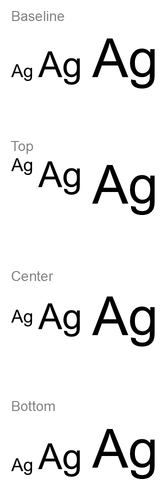
フォント整列はフォント メトリクスに基づくため、文字ごとの可視エッジが必ずしも完全に一致するわけではありません。例では大文字とディセンダ(下がり)の文字を含め、ベースラインと下揃えの違いを示しています。フォントの利用可能性や代替、使用文字、フォントサイズの差が結果に影響します。フレームサイズ、余白、行間、折り返し、オートフィットもレイアウトに影響しますので、モード比較時は同一フォントとレイアウト設定を使用してください。
この設定は水平段落整列を制御する ParagraphFormat.setAlignment や、シェイプ内でテキスト ブロックを垂直に配置する TextFrameFormat.setAnchoringType とは異なります。上付き文字 と 下付き文字 の書式は BasePortionFormat.setEscapement により個々の部分をベースライン相対でシフトさせ、段落行のフォント整列を設定するものではありません。
テキストの透明度を設定
テキストの透明度は BasePortionFormat.getFillFormat に割り当てられた色のアルファ成分で制御します。以下の例では alpha = 50 は 0〜255 のスケールでの ARGB アルファ値であり、透明度のパーセンテージではありません。
以下のコード例は 段落全体 に透明度を適用する方法を示します。
const aspose = { slides: require("aspose.slides.via.java") };
const java = require("java");

const alpha = 50;
const transparentBlack = java.newInstanceSync("java.awt.Color", 0, 0, 0, alpha);
const presentation = new aspose.slides.Presentation("sample.pptx");
try {
    const slide = presentation.getSlides().get_Item(0);

    const autoShape = slide.getShapes().get_Item(0);
    const paragraph = autoShape.getTextFrame().getParagraphs().get_Item(0);
    const fillFormat = paragraph.getParagraphFormat().getDefaultPortionFormat().getFillFormat();

    // テキストの塗りつぶし色を透明色に設定します。
    fillFormat.setFillType(java.newByte(aspose.slides.FillType.Solid));
    fillFormat.getSolidFillColor().setColor(transparentBlack);

    presentation.save("transparent_paragraph.pptx", aspose.slides.SaveFormat.Pptx);
} finally {
    presentation.dispose();
}
結果:

次のコード例は 太字フォントのテキスト部分 に透明度を適用する方法を示します。
const aspose = { slides: require("aspose.slides.via.java") };
const java = require("java");

const alpha = 50;
const transparentBlack = java.newInstanceSync("java.awt.Color", 0, 0, 0, alpha);
const presentation = new aspose.slides.Presentation("sample.pptx");
try {
    const slide = presentation.getSlides().get_Item(0);

    const autoShape = slide.getShapes().get_Item(0);
    const paragraph = autoShape.getTextFrame().getParagraphs().get_Item(0);
    const portions = paragraph.getPortions();
    const portionCount = portions.getCount();

    for (let portionIndex = 0; portionIndex < portionCount; portionIndex++) {
        const portion = portions.get_Item(portionIndex);
        if (portion.getPortionFormat().getEffective().getFontBold()) {
            const fillFormat = portion.getPortionFormat().getFillFormat();

            // テキスト部分の透明度を設定します。
            fillFormat.setFillType(java.newByte(aspose.slides.FillType.Solid));
            fillFormat.getSolidFillColor().setColor(transparentBlack);
        }
    }

    presentation.save("transparent_text_portions.pptx", aspose.slides.SaveFormat.Pptx);
} finally {
    presentation.dispose();
}
結果:

テキストの文字間隔を設定
テキスト ボックス内の文字間隔を拡大または縮小するには BasePortionFormat.setSpacing を使用します。例では 3 ポイントの間隔を追加しています。負の値を指定すると文字が凝縮されます。
以下の JavaScript コードは 段落全体 の文字間隔を拡げる方法を示します。
const aspose = { slides: require("aspose.slides.via.java") };

const presentation = new aspose.slides.Presentation("sample.pptx");
try {
    const slide = presentation.getSlides().get_Item(0);

    const autoShape = slide.getShapes().get_Item(0);
    const paragraph = autoShape.getTextFrame().getParagraphs().get_Item(0);

    // 注: 文字間隔を圧縮するには負の値を使用します。
    paragraph.getParagraphFormat().getDefaultPortionFormat().setSpacing(3); // 文字間隔を拡大します。

    presentation.save("character_spacing_in_paragraph.pptx", aspose.slides.SaveFormat.Pptx);
} finally {
    presentation.dispose();
}
結果:

以下のコード例は 太字フォントのテキスト部分 の文字間隔を拡げる方法を示します。
const aspose = { slides: require("aspose.slides.via.java") };

const presentation = new aspose.slides.Presentation("sample.pptx");
try {
    const slide = presentation.getSlides().get_Item(0);

    const autoShape = slide.getShapes().get_Item(0);
    const paragraph = autoShape.getTextFrame().getParagraphs().get_Item(0);
    const portions = paragraph.getPortions();
    const portionCount = portions.getCount();

    for (let portionIndex = 0; portionIndex < portionCount; portionIndex++) {
        const portion = portions.get_Item(portionIndex);
        if (portion.getPortionFormat().getEffective().getFontBold()) {
            // 注: 文字間隔を圧縮するには負の値を使用します。
            portion.getPortionFormat().setSpacing(3); // 文字間隔を拡大します。
        }
    }

    presentation.save("character_spacing_in_text_portions.pptx", aspose.slides.SaveFormat.Pptx);
} finally {
    presentation.dispose();
}
結果:

特定フォントのカーニングを無効化
場合によっては、Aspose.Slides が生成するテキストが PowerPoint の表示より僅かに詰まって見えることがあります。これは PowerPoint が特定のフォントに対してカーニング データを無視するためです(フォントに有効なカーニング情報が含まれていても、PowerPoint 設定でカーニングが有効でも同様)。
このような場合、影響を受けるフォントを使用するテキスト部分のカーニングを無効にできます。実際のフォント サイズより大きい値を BasePortionFormat.setKerningMinimalSize に設定します。この例は、最初のスライドの最初のシェイプがテキスト ボックスである “presentation.pptx” を使用します。効果的なフォント名(継承フォントを含む)をチェックし、Roboto を使用する部分に対して 100 ポイントのしきい値を設定します。これにより、100 ポイント未満の Roboto 部分のカーニングが無効化されます。
const aspose = { slides: require("aspose.slides.via.java") };

const presentation = new aspose.slides.Presentation("presentation.pptx");
try {
    const slide = presentation.getSlides().get_Item(0);

    const autoShape = slide.getShapes().get_Item(0);
    const paragraphs = autoShape.getTextFrame().getParagraphs();
    const paragraphCount = paragraphs.getCount();
    const targetFont = "Roboto";

    for (let paragraphIndex = 0; paragraphIndex < paragraphCount; paragraphIndex++) {
        const portions = paragraphs.get_Item(paragraphIndex).getPortions();
        const portionCount = portions.getCount();

        for (let portionIndex = 0; portionIndex < portionCount; portionIndex++) {
            const portion = portions.get_Item(portionIndex);
            const portionFormat = portion.getPortionFormat().getEffective();
            const latinFont = portionFormat.getLatinFont();
            const eastAsianFont = portionFormat.getEastAsianFont();
            const complexScriptFont = portionFormat.getComplexScriptFont();

            if ((latinFont !== null && latinFont.getFontName() === targetFont) ||
                (eastAsianFont !== null && eastAsianFont.getFontName() === targetFont) ||
                (complexScriptFont !== null && complexScriptFont.getFontName() === targetFont)) {
                portion.getPortionFormat().setKerningMinimalSize(100);
            }
        }
    }

    presentation.save("output.pptx", aspose.slides.SaveFormat.Pptx);
} finally {
    presentation.dispose();
}
しきい値以下の該当テキストに対してはカーニングが無効化され、PowerPoint 固有の動作で影響を受けるフォントの表示が Aspose.Slides の描画とより一致する場合があります。
テキスト フォント プロパティを管理
フォント プロパティは段落レベルで ParagraphFormat.getDefaultPortionFormat を介して、または個々の部分で PortionFormat を介して設定できます。
以下の例は、最初の段落のデフォルトフォントを 12 ポイントの Times New Roman に設定し、太字、斜体、点線下線を適用します。個々の部分に対する明示的な書式はこれらのデフォルトより優先されます。
const aspose = { slides: require("aspose.slides.via.java") };
const java = require("java");

const presentation = new aspose.slides.Presentation("sample.pptx");
try {
    const slide = presentation.getSlides().get_Item(0);

    const autoShape = slide.getShapes().get_Item(0);
    const paragraph = autoShape.getTextFrame().getParagraphs().get_Item(0);
    const defaultPortionFormat = paragraph.getParagraphFormat().getDefaultPortionFormat();

    // 段落のフォントプロパティを設定します。
    defaultPortionFormat.setFontHeight(12);
    defaultPortionFormat.setFontBold(java.newByte(aspose.slides.NullableBool.True));
    defaultPortionFormat.setFontItalic(java.newByte(aspose.slides.NullableBool.True));
    defaultPortionFormat.setFontUnderline(java.newByte(aspose.slides.TextUnderlineType.Dotted));
    defaultPortionFormat.setLatinFont(new aspose.slides.FontData("Times New Roman"));

    presentation.save("font_properties_for_paragraph.pptx", aspose.slides.SaveFormat.Pptx);
} finally {
    presentation.dispose();
}
結果:

以下の例は、効果的な書式が太字である部分に対して 13 ポイントの Times New Roman、斜体、点線下線を適用します。
const aspose = { slides: require("aspose.slides.via.java") };
const java = require("java");

const presentation = new aspose.slides.Presentation("sample.pptx");
try {
    const slide = presentation.getSlides().get_Item(0);

    const autoShape = slide.getShapes().get_Item(0);
    const paragraph = autoShape.getTextFrame().getParagraphs().get_Item(0);
    const portions = paragraph.getPortions();
    const portionCount = portions.getCount();

    for (let portionIndex = 0; portionIndex < portionCount; portionIndex++) {
        const portion = portions.get_Item(portionIndex);
        if (portion.getPortionFormat().getEffective().getFontBold()) {
            const portionFormat = portion.getPortionFormat();

            // テキスト部分のフォントプロパティを設定します。
            portionFormat.setFontHeight(13);
            portionFormat.setFontItalic(java.newByte(aspose.slides.NullableBool.True));
            portionFormat.setFontUnderline(java.newByte(aspose.slides.TextUnderlineType.Dotted));
            portionFormat.setLatinFont(new aspose.slides.FontData("Times New Roman"));
        }
    }

    presentation.save("font_properties_for_text_portions.pptx", aspose.slides.SaveFormat.Pptx);
} finally {
    presentation.dispose();
}
結果:

テキストの回転を設定
シェイプ内のテキストの向きを事前定義されたものに設定するには TextFrameFormat.setTextVerticalType を使用します。
以下のコード例はテキストの向きを TextVerticalType.Vertical270 に設定し、テキストを 反時計回りに 90 度 回転させます。
const aspose = { slides: require("aspose.slides.via.java") };
const java = require("java");

const presentation = new aspose.slides.Presentation("sample.pptx");
try {
    const slide = presentation.getSlides().get_Item(0);

    const autoShape = slide.getShapes().get_Item(0);
    autoShape.getTextFrame().getTextFrameFormat().setTextVerticalType(java.newByte(aspose.slides.TextVerticalType.Vertical270));

    presentation.save("text_rotation.pptx", aspose.slides.SaveFormat.Pptx);
} finally {
    presentation.dispose();
}
結果:

テキスト フレームのカスタム回転を設定
TextFrameFormat.setRotationAngle を使用して、TextFrame のカスタム回転角度を設定できます。
以下のコード例はシェイプ内のテキスト フレームを時計回りに 3 度回転させます。
const aspose = { slides: require("aspose.slides.via.java") };

const presentation = new aspose.slides.Presentation("sample.pptx");
try {
    const slide = presentation.getSlides().get_Item(0);

    const autoShape = slide.getShapes().get_Item(0);
    autoShape.getTextFrame().getTextFrameFormat().setRotationAngle(3);

    presentation.save("custom_text_rotation.pptx", aspose.slides.SaveFormat.Pptx);
} finally {
    presentation.dispose();
}
結果:

段落の行間を設定
Aspose.Slides は ParagraphFormat.setSpaceAfter、ParagraphFormat.setSpaceBefore、ParagraphFormat.setSpaceWithin を提供し、段落間隔を制御します。使い方は次のとおりです。
- 正の値は行高さのパーセンテージとして行間を指定します。
- 負の値はポイント単位で行間を指定します。
以下の例は最初の段落の行間を行高さの 200%(倍行間)に設定します。
const aspose = { slides: require("aspose.slides.via.java") };

const presentation = new aspose.slides.Presentation("sample.pptx");
try {
    const slide = presentation.getSlides().get_Item(0);

    const autoShape = slide.getShapes().get_Item(0);

    const paragraph = autoShape.getTextFrame().getParagraphs().get_Item(0);
    paragraph.getParagraphFormat().setSpaceWithin(200);

    presentation.save("line_spacing.pptx", aspose.slides.SaveFormat.Pptx);
} finally {
    presentation.dispose();
}
結果:

改行の制御
段落の改行規則は狭いテキスト ブロックやラテン文字と東アジア文字が混在するプレゼンテーションで有用です。以下のメソッドはすべて ParagraphFormat に属し、段落全体に適用されます。
- setLatinLineBreak はラテン文字の改行規則を制御します。混在テキストでは、これを変更すると隣接する東アジア文字や句読点の折り返し位置も変わることがあります。
- setEastAsianLineBreak は東アジア文字の改行規則を制御し、行頭・行末の文字制限を含みます。
これらの規則は TextFrameFormat.setWrapText(テキスト フレーム内の自動折り返し) を置き換えるものではありません。折り返しが発生した際のレイアウトに影響しますが、改行文字を挿入するわけではありません。明示的な改行は、利用可能幅に関係なく段落内に新しい行を強制します。
以下の自己完結型例は、中国語とラテン語が混在した狭いテキスト ブロックを作成し、両方の改行オプションを明示的に設定して “line_breaking.pptx” として保存します。ルールを試す場合は、一方の値を変更し、もう一方は固定したままにします。例は 24 ポイント Arial と SimSun を使用し、フレーム幅 160 ポイント、水平余白 0 に設定しています。TextFrameFormat.setAutofitType は TextAutofitType.None に設定し、テキスト サイズとフレーム寸法を固定します。
const aspose = { slides: require("aspose.slides.via.java") };
const java = require("java");

const presentation = new aspose.slides.Presentation();
try {
    const slide = presentation.getSlides().get_Item(0);

    const shape = slide.getShapes().addAutoShape(aspose.slides.ShapeType.Rectangle, 50, 50, 160, 300);
    shape.getFillFormat().setFillType(java.newByte(aspose.slides.FillType.NoFill));

    const textFrame = shape.getTextFrame();
    textFrame.getTextFrameFormat().setWrapText(java.newByte(aspose.slides.NullableBool.True));
    textFrame.getTextFrameFormat().setAutofitType(java.newByte(aspose.slides.TextAutofitType.None));
    textFrame.getTextFrameFormat().setMarginLeft(0);
    textFrame.getTextFrameFormat().setMarginRight(0);

    const paragraph = textFrame.getParagraphs().get_Item(0);
    paragraph.setText("中文排版测试,PowerPoint 中文演示。");

    const format = paragraph.getParagraphFormat();
    format.setAlignment(aspose.slides.TextAlignment.Left);
    format.getDefaultPortionFormat().setFontHeight(24);
    const latinFont = new aspose.slides.FontData("Arial");
    format.getDefaultPortionFormat().setLatinFont(latinFont);
    const eastAsianFont = new aspose.slides.FontData("SimSun");
    format.getDefaultPortionFormat().setEastAsianFont(eastAsianFont);
    format.getDefaultPortionFormat().getFillFormat().setFillType(java.newByte(aspose.slides.FillType.Solid));
    const textColor = java.getStaticFieldValue("java.awt.Color", "BLACK");
    format.getDefaultPortionFormat().getFillFormat().getSolidFillColor().setColor(textColor);
    format.setLatinLineBreak(java.newByte(aspose.slides.NullableBool.False));
    format.setEastAsianLineBreak(java.newByte(aspose.slides.NullableBool.True));

    presentation.save("line_breaking.pptx", aspose.slides.SaveFormat.Pptx);
} finally {
    presentation.dispose();
}
ぶら下げ句読点を制御
ParagraphFormat.setHangingPunctuation を使用すると、対象となる句読点がテキスト 行の右端を超えて表示され、次の行を占有しなくなります。段落全体に適用され、ぶら下げインデントとは異なります。
以下の自己完結型例は幅 100 ポイントのテキスト フレームでぶら下げ句読点を有効にし、“hanging_punctuation.pptx” として保存します。24 ポイント Arial、水平余白 0 の設定で、最後のピリオドは “sentence” の後に残り、右端を超えて表示されます。比較のためにプロパティを NullableBool.False に設定すると、ピリオドが別行に配置されます。折り返しは有効で、オートフィットは無効にして幅を固定しています。
const aspose = { slides: require("aspose.slides.via.java") };
const java = require("java");

const presentation = new aspose.slides.Presentation();
try {
    const slide = presentation.getSlides().get_Item(0);

    const shape = slide.getShapes().addAutoShape(aspose.slides.ShapeType.Rectangle, 50, 50, 100, 200);
    shape.getFillFormat().setFillType(java.newByte(aspose.slides.FillType.NoFill));

    const textFrame = shape.getTextFrame();
    textFrame.getTextFrameFormat().setWrapText(java.newByte(aspose.slides.NullableBool.True));
    textFrame.getTextFrameFormat().setAutofitType(java.newByte(aspose.slides.TextAutofitType.None));
    textFrame.getTextFrameFormat().setMarginLeft(0);
    textFrame.getTextFrameFormat().setMarginRight(0);

    const paragraph = textFrame.getParagraphs().get_Item(0);
    paragraph.setText("Simple text, next sentence.");

    const format = paragraph.getParagraphFormat();
    format.setAlignment(aspose.slides.TextAlignment.Left);
    format.getDefaultPortionFormat().setFontHeight(24);
    const latinFont = new aspose.slides.FontData("Arial");
    format.getDefaultPortionFormat().setLatinFont(latinFont);
    format.getDefaultPortionFormat().getFillFormat().setFillType(java.newByte(aspose.slides.FillType.Solid));
    const textColor = java.getStaticFieldValue("java.awt.Color", "BLACK");
    format.getDefaultPortionFormat().getFillFormat().getSolidFillColor().setColor(textColor);
    format.setHangingPunctuation(java.newByte(aspose.slides.NullableBool.True));

    presentation.save("hanging_punctuation.pptx", aspose.slides.SaveFormat.Pptx);
} finally {
    presentation.dispose();
}
すべての句読点がぶら下げ可能なわけではありません。上記の フォントとレイアウト条件 もこの比較に適用されます。フォント、利用可能幅、余白、オートフィット設定を変更すると可視差がなくなることがあります。
テキスト フレームのオートフィット タイプを設定
TextFrameFormat.setAutofitType は、テキストがコンテナの境界を超えたときの挙動を決定します。テキストを縮小するか、はみ出させるか、シェイプを自動的にサイズ変更するかを制御できます。以下の例はシェイプをテキストに合わせてサイズ変更するよう構成し、結果を “autofit_type.pptx” として保存します。
const aspose = { slides: require("aspose.slides.via.java") };
const java = require("java");

const presentation = new aspose.slides.Presentation("sample.pptx");
try {
    const slide = presentation.getSlides().get_Item(0);

    const autoShape = slide.getShapes().get_Item(0);
    autoShape.getTextFrame().getTextFrameFormat().setAutofitType(java.newByte(aspose.slides.TextAutofitType.Shape));

    presentation.save("autofit_type.pptx", aspose.slides.SaveFormat.Pptx);
} finally {
    presentation.dispose();
}
自動折り返し後の行数をカウントし、テキストまたはシェイプ幅の変化が結果に与える影響を確認するには、Count Rendered Lines を参照してください。行数だけではテキストがコンテナをはみ出しているかどうかは判断できません。
テキスト フレームのアンカーを設定
TextFrameFormat.setAnchoringType は、シェイプ内部でテキストを垂直方向に配置する方法(上部、中央、下部など)を定義します。以下の例は最初のシェイプのテキストを下部にアンカーし、結果を “text_anchor.pptx” として保存します。
const aspose = { slides: require("aspose.slides.via.java") };
const java = require("java");

const presentation = new aspose.slides.Presentation("sample.pptx");
try {
    const slide = presentation.getSlides().get_Item(0);

    const autoShape = slide.getShapes().get_Item(0);
    autoShape.getTextFrame().getTextFrameFormat().setAnchoringType(java.newByte(aspose.slides.TextAnchorType.Bottom));

    presentation.save("text_anchor.pptx", aspose.slides.SaveFormat.Pptx);
} finally {
    presentation.dispose();
}
テキストのタブ位置を設定
段落内のタブ位置を構成するには、ParagraphFormat.setDefaultTabSize と ParagraphFormat.getTabs を使用します。以下の例はデフォルトタブ間隔を 100 ポイントに設定し、30 ポイント位置に左揃えタブ位置を追加します。これらの設定はタブ文字を含むテキストに影響します。
const aspose = { slides: require("aspose.slides.via.java") };
const java = require("java");

const presentation = new aspose.slides.Presentation("sample.pptx");
try {
    const slide = presentation.getSlides().get_Item(0);

    const autoShape = slide.getShapes().get_Item(0);

    const paragraph = autoShape.getTextFrame().getParagraphs().get_Item(0);
    paragraph.getParagraphFormat().setDefaultTabSize(100);
    paragraph.getParagraphFormat().getTabs().add(30, java.newByte(aspose.slides.TabAlignment.Left));

    presentation.save("paragraph_tabs.pptx", aspose.slides.SaveFormat.Pptx);
} finally {
    presentation.dispose();
}
結果:

校正言語を設定
Aspose.Slides は BasePortionFormat.setLanguageId を提供し、テキスト 部分の校正言語を設定できます。校正言語は PowerPoint のスペルチェックと文法チェックに使用される言語を決定します。
以下の例は “presentation.pptx”(最初のスライドの最初のシェイプがテキスト ボックス)を使用し、最初の段落の内容を “1。” に置き換え、フォントを SimSun、校正言語を簡体字中国語 (zh-CN) に設定して、結果を “proofing_language.pptx” として保存します。
const aspose = { slides: require("aspose.slides.via.java") };

const presentation = new aspose.slides.Presentation("presentation.pptx");
try {
    const slide = presentation.getSlides().get_Item(0);

    const autoShape = slide.getShapes().get_Item(0);

    const paragraph = autoShape.getTextFrame().getParagraphs().get_Item(0);
    paragraph.getPortions().clear();

    const font = new aspose.slides.FontData("SimSun");
    const textPortion = new aspose.slides.Portion();
    textPortion.getPortionFormat().setComplexScriptFont(font);
    textPortion.getPortionFormat().setEastAsianFont(font);
    textPortion.getPortionFormat().setLatinFont(font);

    // 校正言語の ID を設定します。
    textPortion.getPortionFormat().setLanguageId("zh-CN");

    textPortion.setText("1。");
    paragraph.getPortions().add(textPortion);

    presentation.save("proofing_language.pptx", aspose.slides.SaveFormat.Pptx);
} finally {
    presentation.dispose();
}
デフォルト言語を設定
LoadOptions.setDefaultTextLanguage を使用して、プレゼンテーションの読み込みまたは作成時に作成されるテキストのデフォルト言語を定義できます。以下の例はデフォルトテキスト言語を米国英語に設定したプレゼンテーションを作成し、テキスト ボックスを追加し、最初のテキスト 部分の言語として en-US を出力します。
const aspose = { slides: require("aspose.slides.via.java") };

const loadOptions = new aspose.slides.LoadOptions();
loadOptions.setDefaultTextLanguage("en-US");

const presentation = new aspose.slides.Presentation(loadOptions);
try {
    const slide = presentation.getSlides().get_Item(0);

    // 新しい四角形シェイプをテキスト付きで追加します。
    const shape = slide.getShapes().addAutoShape(aspose.slides.ShapeType.Rectangle, 20, 20, 150, 50);
    shape.getTextFrame().setText("Sample text");

    // 最初の部分の言語を確認します。
    const portion = shape.getTextFrame().getParagraphs().get_Item(0).getPortions().get_Item(0);
    console.log(portion.getPortionFormat().getLanguageId());
} finally {
    presentation.dispose();
}
デフォルト テキスト スタイルを設定
プレゼンテーション レベルでデフォルトのテキスト 書式設定を適用するには、Presentation.getDefaultTextStyle を使用します。
以下の例は新しいプレゼンテーションの上位段落に対して 14 ポイントの太字フォントをデフォルトとして設定し、結果を “default_text_style.pptx” として保存します。テキストはこれらのデフォルトを継承しますが、より具体的な書式設定が上書きします。
const aspose = { slides: require("aspose.slides.via.java") };
const java = require("java");

const presentation = new aspose.slides.Presentation();
try {
    // 上位レベルの段落書式を取得します。
    const paragraphFormat = presentation.getDefaultTextStyle().getLevel(0);

    if (paragraphFormat !== null) {
        paragraphFormat.getDefaultPortionFormat().setFontHeight(14);
        paragraphFormat.getDefaultPortionFormat().setFontBold(java.newByte(aspose.slides.NullableBool.True));
    }

    presentation.save("default_text_style.pptx", aspose.slides.SaveFormat.Pptx);
} finally {
    presentation.dispose();
}
All-Caps 効果付きテキストを抽出
PowerPoint では All Caps フォント効果を適用すると、スライド上ではテキストが大文字で表示されますが、元の入力は小文字のままです。Aspose.Slides でそのテキスト部分を取得すると、入力通りの文字列が返されます。表示されているテキストと一致させるには、TextCapType を確認し、値が All の場合は取得した文字列を大文字に変換します。
この例は “sample2.pptx”(最初のスライドの最初のシェイプがテキスト ボックス)を使用し、最初の段落の最初の部分に All Caps 効果が適用された “Hello, Aspose!” が含まれています(下図参照)。

以下のコード例は All Caps 効果が適用されたテキストを抽出する方法を示します。
const aspose = { slides: require("aspose.slides.via.java") };

const presentation = new aspose.slides.Presentation("sample2.pptx");
try {
    const slide = presentation.getSlides().get_Item(0);

    const autoShape = slide.getShapes().get_Item(0);
    const textPortion = autoShape.getTextFrame().getParagraphs().get_Item(0).getPortions().get_Item(0);

    console.log("Original text: " + textPortion.getText());

    const textFormat = textPortion.getPortionFormat().getEffective();
    if (textFormat.getTextCapType() === aspose.slides.TextCapType.All) {
        const text = textPortion.getText().toUpperCase();
        console.log("All-Caps effect: " + text);
    }
} finally {
    presentation.dispose();
}
出力:
Original text: Hello, Aspose!
All-Caps effect: HELLO, ASPOSE!
FAQ
スライド上のテーブルのテキストを変更するにはどうすればよいですか?
テーブルのテキストを変更するには Table を使用します。セルを走査し、各セルを Cell.getTextFrame で取得し、段落書式を Paragraph.getParagraphFormat で更新してください。
PowerPoint スライドのテキストにグラデーション 色を適用するにはどうすればよいですか?
テキストにグラデーション色を適用するには BasePortionFormat.getFillFormat を使用します。FillFormat.setFillType を FillType.Gradient に設定し、グラデーション ストップ、方向、透明度を構成してください。