
Manage Presentation Slide Masters in C++
Overview
A slide master defines shared design settings for a group of slides. It can contain common shapes, logos, backgrounds, text styles, theme settings, and footer settings. In PowerPoint, editing a slide master is the usual way to keep a presentation consistent without repeating the same formatting on every slide.
Aspose.Slides for C++ supports the same model. A presentation can contain one or more master slides, and each master slide can contain several layout slides. Normal slides do not usually refer to a master slide directly. Instead, a normal slide uses a layout slide, and that layout slide belongs to a master slide.
The hierarchy is:
- Slide master - defines the shared design and theme.
- Layout slide - defines a specific arrangement of placeholders and layout-level formatting.
- Normal slide - contains the actual presentation content and uses one layout slide.
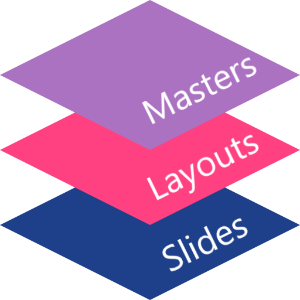
In Aspose.Slides, a slide master is represented by the IMasterSlide interface. All master slides in a presentation are available through the Presentation::get_Masters collection, which implements IMasterSlideCollection.
Inheritance
When the same property is defined at more than one level, the more specific level wins. For example, if a master slide and a layout slide both define a background, slides based on that layout use the layout background. For more information about layout slides, see Apply or Change Slide Layouts.Access Slide Masters
In PowerPoint, you can open the Slide Master view from View > Slide Master.
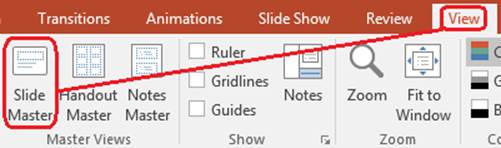
In Aspose.Slides, use the get_Masters() collection to access master slides:
#include <DOM/IMasterLayoutSlideCollection.h>
#include <DOM/IMasterSlide.h>
#include <DOM/IMasterSlideCollection.h>
#include <DOM/Presentation.h>
#include <system/console.h>
using namespace Aspose::Slides;
using namespace System;

auto presentation = System::MakeObject<Presentation>(u"presentation.pptx");

auto firstMasterSlide = presentation->get_Master(0);
auto masterSlideCount = presentation->get_Masters()->get_Count();
auto firstMasterLayoutSlideCount = firstMasterSlide->get_LayoutSlides()->get_Count();

System::Console::WriteLine(System::String(u"Master slides: ") + masterSlideCount);
System::Console::WriteLine(System::String(u"Layouts in the first master: ") + firstMasterLayoutSlideCount);

presentation->Dispose();
You can also get the master slide used by a normal slide through its layout:
#include <DOM/ILayoutSlide.h>
#include <DOM/IMasterSlide.h>
#include <DOM/ISlide.h>
#include <DOM/Presentation.h>
#include <system/console.h>
using namespace Aspose::Slides;
using namespace System;

auto presentation = System::MakeObject<Presentation>(u"presentation.pptx");

auto slide = presentation->get_Slide(0);
auto layoutSlide = slide->get_LayoutSlide();
auto masterSlide = layoutSlide->get_MasterSlide();
auto masterSlideName = masterSlide->get_Name();

System::Console::WriteLine(masterSlideName);

presentation->Dispose();
What a Slide Master Contains
A master slide is a slide-like object. It implements IBaseSlide, so it exposes many of the same slide properties used by normal and layout slides. Master-specific members are listed on the IMasterSlide API page.
Commonly used master slide members include:
| Member | Purpose |
|---|---|
get_Background() |
Sets the master-level slide background. |
get_Shapes() |
Stores shapes placed on the master, such as logos, picture frames, and shared text. |
get_LayoutSlides() |
Stores the layout slides that belong to the master. |
get_ThemeManager() |
Provides access to the master theme APIs. |
get_HeaderFooterManager() |
Controls headers, footers, dates, and slide numbers for the master and its child layouts. |
GetDependingSlides() |
Returns normal slides that depend on the master through their layouts. |
Add an Image to a Slide Master
When you add an image to a master slide, it appears on slides that use layouts from that master. This is useful for logos, watermarks, decorative bands, and other repeated visual elements.
The following example adds a logo to the first master slide:
#include <DOM/IImageCollection.h>
#include <DOM/IMasterSlide.h>
#include <DOM/IShapeCollection.h>
#include <DOM/Presentation.h>
#include <DOM/ShapeType.h>
#include <Export/SaveFormat.h>
#include <system/io/file.h>
using namespace Aspose::Slides;
using namespace Aspose::Slides::Export;
using namespace System::IO;

auto presentation = System::MakeObject<Presentation>(u"presentation.pptx");

auto masterSlide = presentation->get_Master(0);
auto logoBytes = System::IO::File::ReadAllBytes(u"logo.png");
auto logoImage = presentation->get_Images()->AddImage(logoBytes);

masterSlide->get_Shapes()->AddPictureFrame(
    ShapeType::Rectangle,
    20.0f,
    20.0f,
    80.0f,
    80.0f,
    logoImage);

presentation->Save(u"presentation-with-logo.pptx", SaveFormat::Pptx);
presentation->Dispose();
For more information about picture frames, see Picture Frame.
Control the Visibility of Master Graphics
Use IBaseSlide::set_ShowMasterShapes to hide inherited master graphics, such as logos or decorative shapes, without deleting them from the master. Pass false to Slide::set_ShowMasterShapes on the slide that should omit those graphics and true on slides that should display them.
The following self-contained example creates a blue decorative band on a master and two slides that use the same blank layout. The band is visible on the first slide and hidden on the second. No input presentation or image is required.
#include <DOM/FillType.h>
#include <DOM/IAutoShape.h>
#include <DOM/IColorFormat.h>
#include <DOM/IFillFormat.h>
#include <DOM/ILayoutSlide.h>
#include <DOM/ILineFormat.h>
#include <DOM/IMasterLayoutSlideCollection.h>
#include <DOM/IMasterSlide.h>
#include <DOM/IShapeCollection.h>
#include <DOM/ISlide.h>
#include <DOM/ISlideCollection.h>
#include <DOM/ISlideSize.h>
#include <DOM/Presentation.h>
#include <DOM/ShapeType.h>
#include <DOM/SlideLayoutType.h>
#include <Export/SaveFormat.h>
#include <drawing/color.h>

using namespace Aspose::Slides;
using namespace Aspose::Slides::Export;
using namespace System;
using namespace System::Drawing;

auto presentation = MakeObject<Presentation>();
auto masterSlide = presentation->get_Master(0);
auto layoutSlide = masterSlide->get_LayoutSlides()->GetByType(SlideLayoutType::Blank);
layoutSlide->set_ShowMasterShapes(true);

auto slideHeight = presentation->get_SlideSize()->get_Size().get_Height();
auto band = masterSlide->get_Shapes()->AddAutoShape(ShapeType::Rectangle, 0.0f, 0.0f, 60.0f, slideHeight);
band->get_FillFormat()->set_FillType(FillType::Solid);
band->get_FillFormat()->get_SolidFillColor()->set_Color(Color::get_SteelBlue());
band->get_LineFormat()->get_FillFormat()->set_FillType(FillType::NoFill);

auto visibleSlide = presentation->get_Slide(0);
visibleSlide->set_LayoutSlide(layoutSlide);
visibleSlide->get_Shapes()->Clear();

auto hiddenSlide = presentation->get_Slides()->AddEmptySlide(layoutSlide);

visibleSlide->set_ShowMasterShapes(true);
hiddenSlide->set_ShowMasterShapes(false);

presentation->Save(u"master-graphics.pptx", SaveFormat::Pptx);
presentation->Dispose();
The example uses the Blank layout supplied with a new presentation and removes the initial slide’s own placeholders.
Choose the Scope of the Setting
A normal slide uses its master through ISlide::get_LayoutSlide and ILayoutSlide::get_MasterSlide. Setting the property on an individual slide affects only that slide. Passing false to LayoutSlide::set_ShowMasterShapes hides master graphics for slides that use that shared layout, even if their own setting is true. To hide graphics on just one slide, change the slide property and leave the shared layout unchanged.
The setting is not supported as a visibility control on the master slide itself. On a master it always returns false, and assigning true raises System::NotSupportedException. Apply it to a normal slide or a layout instead.
Distinguish Graphics from the Background
| Operation | Effect |
|---|---|
| Hide master graphics | Controls the visibility of inherited master shapes without deleting them or changing the slide’s own shapes. |
| Change the slide background fill | Changes the background color, gradient, or image. Master graphics are separate shapes and can remain visible over that background. See Presentation Background. |
| Delete a shape from the master | Removes the shared source shape, so it is no longer available to any slide using that master. |
Work with Placeholders
Placeholders are normally defined on layout slides. The master slide provides the shared style and theme that those layouts inherit, while each layout decides which placeholders are available and where they are placed.
In PowerPoint, placeholder commands are available in Slide Master view.
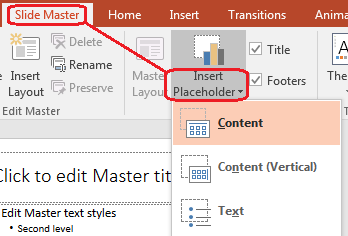
To add new placeholders with Aspose.Slides, work with the layout slide that belongs to the master:
#include <DOM/ILayoutPlaceholderManager.h>
#include <DOM/ILayoutSlide.h>
#include <DOM/IMasterLayoutSlideCollection.h>
#include <DOM/IMasterSlide.h>
#include <DOM/ISlideCollection.h>
#include <DOM/Presentation.h>
#include <DOM/SlideLayoutType.h>
#include <Export/SaveFormat.h>
using namespace Aspose::Slides;
using namespace Aspose::Slides::Export;

auto presentation = System::MakeObject<Presentation>(u"presentation.pptx");

auto masterSlide = presentation->get_Master(0);
auto blankLayoutSlide = masterSlide->get_LayoutSlides()->GetByType(SlideLayoutType::Blank);

if (blankLayoutSlide == nullptr)
{
    blankLayoutSlide = masterSlide->get_LayoutSlides()->Add(SlideLayoutType::Blank, u"Blank");
}

blankLayoutSlide->get_PlaceholderManager()->AddTextPlaceholder(
    60.0f,
    120.0f,
    600.0f,
    80.0f);

presentation->get_Slides()->AddEmptySlide(blankLayoutSlide);
presentation->Save(u"presentation-with-placeholder.pptx", SaveFormat::Pptx);
presentation->Dispose();
You can also format placeholder shapes that already exist on a master slide. The following example finds the title placeholder and applies a linear gradient fill:
#include <DOM/FillType.h>
#include <DOM/GradientShape.h>
#include <DOM/IAutoShape.h>
#include <DOM/IFillFormat.h>
#include <DOM/IGradientFormat.h>
#include <DOM/IGradientStopCollection.h>
#include <DOM/IMasterSlide.h>
#include <DOM/IPlaceholder.h>
#include <DOM/IShapeCollection.h>
#include <DOM/PlaceholderType.h>
#include <DOM/Presentation.h>
#include <Export/SaveFormat.h>
#include <drawing/color.h>
using namespace Aspose::Slides;
using namespace Aspose::Slides::Export;
using namespace System::Drawing;

auto presentation = System::MakeObject<Presentation>(u"presentation.pptx");

auto masterSlide = presentation->get_Master(0);
System::SharedPtr<IAutoShape> titlePlaceholder;

for (auto&& shape : masterSlide->get_Shapes())
{
    auto autoShape = System::AsCast<IAutoShape>(shape);

    if (autoShape != nullptr &&
        autoShape->get_Placeholder() != nullptr &&
        autoShape->get_Placeholder()->get_Type() == PlaceholderType::Title)
    {
        titlePlaceholder = autoShape;
        break;
    }
}

if (titlePlaceholder != nullptr)
{
    auto fillFormat = titlePlaceholder->get_FillFormat();
    fillFormat->set_FillType(FillType::Gradient);

    auto gradientFormat = fillFormat->get_GradientFormat();
    gradientFormat->set_GradientShape(GradientShape::Linear);

    auto gradientStops = gradientFormat->get_GradientStops();
    auto redGradientColor = System::Drawing::Color::FromArgb(255, 0, 0);
    auto purpleGradientColor = System::Drawing::Color::FromArgb(128, 0, 128);

    gradientStops->Add(0.0f, redGradientColor);
    gradientStops->Add(255.0f, purpleGradientColor);
}

presentation->Save(u"presentation-title-style.pptx", SaveFormat::Pptx);
presentation->Dispose();
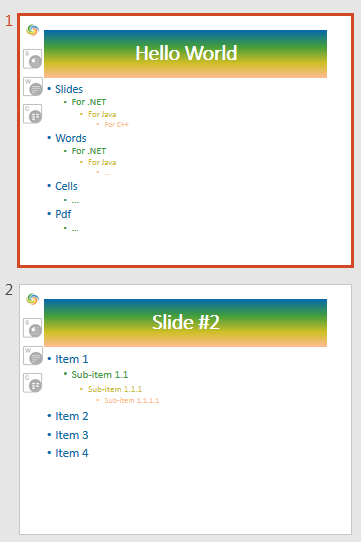
For more placeholder and text formatting options, see Set Prompt Text in Placeholder and Text Formatting.
Change a Slide Master Background
A master background is inherited by layouts and slides that do not override it. The following example sets a solid background color for the first master slide:
#include <DOM/BackgroundType.h>
#include <DOM/FillType.h>
#include <DOM/IBackground.h>
#include <DOM/IColorFormat.h>
#include <DOM/IFillFormat.h>
#include <DOM/IMasterSlide.h>
#include <DOM/Presentation.h>
#include <Export/SaveFormat.h>
#include <drawing/color.h>
using namespace Aspose::Slides;
using namespace Aspose::Slides::Export;
using namespace System::Drawing;

auto presentation = System::MakeObject<Presentation>(u"presentation.pptx");

auto masterSlide = presentation->get_Master(0);
auto masterBackgroundColor = System::Drawing::Color::get_ForestGreen();

masterSlide->get_Background()->set_Type(BackgroundType::OwnBackground);
masterSlide->get_Background()->get_FillFormat()->set_FillType(FillType::Solid);
masterSlide->get_Background()->get_FillFormat()->get_SolidFillColor()->set_Color(masterBackgroundColor);

presentation->Save(u"presentation-master-background.pptx", SaveFormat::Pptx);
presentation->Dispose();
For related topics, see Presentation Background and Presentation Theme.
Clone a Slide Master to Another Presentation
Use IMasterSlideCollection::AddClone to copy a master slide into another presentation. The copied master can then be used by layouts and slides in the destination presentation.
#include <DOM/IMasterSlideCollection.h>
#include <DOM/Presentation.h>
#include <Export/SaveFormat.h>
using namespace Aspose::Slides;
using namespace Aspose::Slides::Export;

auto sourcePresentation = System::MakeObject<Presentation>(u"source.pptx");
auto destinationPresentation = System::MakeObject<Presentation>(u"destination.pptx");

auto sourceMasterSlide = sourcePresentation->get_Master(0);
auto clonedMasterSlide = destinationPresentation->get_Masters()->AddClone(sourceMasterSlide);

destinationPresentation->Save(u"destination-with-master.pptx", SaveFormat::Pptx);
destinationPresentation->Dispose();
sourcePresentation->Dispose();
If you need to clone normal slides together with their master, see Clone Slides.
Add Multiple Slide Masters
A presentation can contain multiple master slides. This is useful when different sections require different branding, page structure, or theme settings.
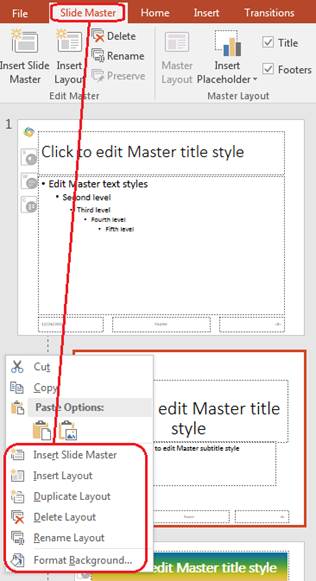
The following example clones the default master, gives the clone a different background, creates a layout under that cloned master, and adds a new slide based on that layout:
#include <DOM/BackgroundType.h>
#include <DOM/FillType.h>
#include <DOM/IBackground.h>
#include <DOM/IColorFormat.h>
#include <DOM/IFillFormat.h>
#include <DOM/IMasterLayoutSlideCollection.h>
#include <DOM/IMasterSlide.h>
#include <DOM/IMasterSlideCollection.h>
#include <DOM/ISlideCollection.h>
#include <DOM/Presentation.h>
#include <DOM/SlideLayoutType.h>
#include <Export/SaveFormat.h>
#include <drawing/color.h>
using namespace Aspose::Slides;
using namespace Aspose::Slides::Export;
using namespace System::Drawing;

auto presentation = System::MakeObject<Presentation>(u"presentation.pptx");

auto defaultMasterSlide = presentation->get_Master(0);
auto sectionMasterSlide = presentation->get_Masters()->AddClone(defaultMasterSlide);
auto sectionMasterBackgroundColor = System::Drawing::Color::get_LightSteelBlue();

sectionMasterSlide->get_Background()->set_Type(BackgroundType::OwnBackground);
sectionMasterSlide->get_Background()->get_FillFormat()->set_FillType(FillType::Solid);
sectionMasterSlide->get_Background()->get_FillFormat()->get_SolidFillColor()->set_Color(sectionMasterBackgroundColor);

auto sourceBlankLayout = defaultMasterSlide->get_LayoutSlides()->GetByType(SlideLayoutType::Blank);

if (sourceBlankLayout == nullptr)
{
    sourceBlankLayout = defaultMasterSlide->get_LayoutSlide(0);
}

auto sectionBlankLayout = sectionMasterSlide->get_LayoutSlides()->AddClone(sourceBlankLayout);

presentation->get_Slides()->AddEmptySlide(sectionBlankLayout);
presentation->Save(u"presentation-with-multiple-masters.pptx", SaveFormat::Pptx);
presentation->Dispose();
Compare Slide Masters
Master slides can be compared with the Equals method inherited from IBaseSlide. The comparison checks structure and static content, such as shapes, text, formatting, animations, and other slide settings. It does not compare unique identifiers, such as slide IDs, or dynamic placeholder values, such as the current date.
#include <DOM/IMasterSlide.h>
#include <DOM/IMasterSlideCollection.h>
#include <DOM/Presentation.h>
#include <system/console.h>
using namespace Aspose::Slides;
using namespace System;

auto firstPresentation = System::MakeObject<Presentation>(u"first.pptx");
auto secondPresentation = System::MakeObject<Presentation>(u"second.pptx");
auto firstPresentationMasterCount = firstPresentation->get_Masters()->get_Count();
auto secondPresentationMasterCount = secondPresentation->get_Masters()->get_Count();

for (int32_t firstMasterIndex = 0;
     firstMasterIndex < firstPresentationMasterCount;
     firstMasterIndex++)
{
    for (int32_t secondMasterIndex = 0;
         secondMasterIndex < secondPresentationMasterCount;
         secondMasterIndex++)
    {
        auto firstMasterSlide = firstPresentation->get_Master(firstMasterIndex);
        auto secondMasterSlide = secondPresentation->get_Master(secondMasterIndex);
        auto areMasterSlidesEqual = firstMasterSlide->Equals(secondMasterSlide);

        if (areMasterSlidesEqual)
        {
            System::Console::WriteLine(
                System::String::Format(
                    u"first.pptx master #{0} equals second.pptx master #{1}",
                    firstMasterIndex,
                    secondMasterIndex));
        }
    }
}

secondPresentation->Dispose();
firstPresentation->Dispose();
For more information, see Compare Presentation Slides.
Set Slide Master View as the Default View
Use the set_LastView method on ViewProperties to control the view that PowerPoint opens first. The following example opens the presentation in Slide Master view:
#include <DOM/IViewProperties.h>
#include <DOM/Presentation.h>
#include <Export/SaveFormat.h>
#include <ViewType.h>
using namespace Aspose::Slides;
using namespace Aspose::Slides::Export;

auto presentation = System::MakeObject<Presentation>(u"presentation.pptx");

presentation->get_ViewProperties()->set_LastView(ViewType::SlideMasterView);
presentation->Save(u"presentation-master-view.pptx", SaveFormat::Pptx);
presentation->Dispose();
For more view settings, see Save Presentation.
Remove Unused Master Slides
Presentations sometimes contain master slides that are no longer used by any normal slides. Removing unused masters can reduce file size and simplify template maintenance.
Use MasterSlideCollection::RemoveUnused to remove unused masters from the get_Masters() collection:
#include <DOM/IMasterSlideCollection.h>
#include <DOM/Presentation.h>
#include <Export/SaveFormat.h>
using namespace Aspose::Slides;
using namespace Aspose::Slides::Export;

auto presentation = System::MakeObject<Presentation>(u"presentation.pptx");

presentation->get_Masters()->RemoveUnused(true);
presentation->Save(u"presentation-clean.pptx", SaveFormat::Pptx);
presentation->Dispose();
You can also use the low-code Compress::RemoveUnusedMasterSlides method:
#include <DOM/Presentation.h>
#include <Export/SaveFormat.h>
#include <LowCode/Compress.h>
using namespace Aspose::Slides;
using namespace Aspose::Slides::Export;
using namespace Aspose::Slides::LowCode;

auto presentation = System::MakeObject<Presentation>(u"presentation.pptx");

LowCode::Compress::RemoveUnusedMasterSlides(presentation);
presentation->Save(u"presentation-clean.pptx", SaveFormat::Pptx);
presentation->Dispose();
FAQ
What is the difference between a slide master and a layout slide?
A slide master defines shared design settings such as theme, background, common shapes, and text styles. A layout slide belongs to a master slide and defines a specific arrangement of placeholders. A normal slide uses a layout slide, so it inherits from both the layout and the master.
Can one presentation contain several slide masters?
Yes. A presentation can contain several slide masters. Use multiple masters when different sections need different visual systems or branding.
Should I add placeholders to a master slide or a layout slide?
In most cases, add placeholders to layout slides. Put shared visual elements and shared formatting on the master slide, then put content placeholders on the layouts that normal slides will use.
Can I delete a master slide that is still used?
No. A master slide that has dependent slides cannot be safely removed directly. First move those slides to layouts under another master, or use an unused-master cleanup method that removes only masters that are not in use.