
在 C++ 中管理演示文稿幻灯片母版
概述
幻灯片母版 定义一组幻灯片的共享设计设置。它可以包含通用形状、徽标、背景、文本样式、主题设置和页脚设置。在 PowerPoint 中,编辑幻灯片母版是保持演示文稿一致性的常用方法,而无需在每张幻灯片上重复相同的格式。
Aspose.Slides for C++ 支持相同的模型。一个演示文稿可以包含一个或多个母版幻灯片,每个母版幻灯片可以包含若干版式幻灯片。普通幻灯片通常不会直接引用母版幻灯片,而是使用版式幻灯片,而该版式幻灯片隶属于母版幻灯片。
层次结构如下:
- 幻灯片母版 - 定义共享的设计和主题。
- 版式幻灯片 - 定义占位符的特定排列以及版式级别的格式。
- 普通幻灯片 - 包含实际的演示内容,并使用一个版式幻灯片。

在 Aspose.Slides 中,幻灯片母版由 IMasterSlide 接口表示。演示文稿中的所有母版幻灯片可通过 Presentation::get_Masters 集合访问,该集合实现了 IMasterSlideCollection。
Inheritance
当相同属性在多个层级中定义时,更具体的层级优先。例如,如果母版幻灯片和版式幻灯片都定义了背景,则基于该版式的幻灯片使用版式的背景。有关版式幻灯片的更多信息,请参阅 Apply or Change Slide Layouts。访问幻灯片母版
在 PowerPoint 中,您可以通过 视图 > 幻灯片母版 打开幻灯片母版视图。
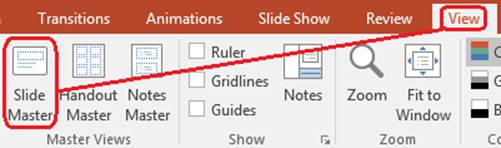
在 Aspose.Slides 中,使用 get_Masters() 集合访问母版幻灯片:
#include <DOM/IMasterLayoutSlideCollection.h>
#include <DOM/IMasterSlide.h>
#include <DOM/IMasterSlideCollection.h>
#include <DOM/Presentation.h>
#include <system/console.h>
using namespace Aspose::Slides;
using namespace System;

auto presentation = System::MakeObject<Presentation>(u"presentation.pptx");

auto firstMasterSlide = presentation->get_Master(0);
auto masterSlideCount = presentation->get_Masters()->get_Count();
auto firstMasterLayoutSlideCount = firstMasterSlide->get_LayoutSlides()->get_Count();

System::Console::WriteLine(System::String(u"Master slides: ") + masterSlideCount);
System::Console::WriteLine(System::String(u"Layouts in the first master: ") + firstMasterLayoutSlideCount);

presentation->Dispose();
您还可以通过普通幻灯片的版式获取其使用的母版幻灯片:
#include <DOM/ILayoutSlide.h>
#include <DOM/IMasterSlide.h>
#include <DOM/ISlide.h>
#include <DOM/Presentation.h>
#include <system/console.h>
using namespace Aspose::Slides;
using namespace System;

auto presentation = System::MakeObject<Presentation>(u"presentation.pptx");

auto slide = presentation->get_Slide(0);
auto layoutSlide = slide->get_LayoutSlide();
auto masterSlide = layoutSlide->get_MasterSlide();
auto masterSlideName = masterSlide->get_Name();

System::Console::WriteLine(masterSlideName);

presentation->Dispose();
幻灯片母版包含的内容
母版幻灯片是一种类似幻灯片的对象。它实现了 IBaseSlide,因此它公开了许多普通幻灯片和版式幻灯片使用的相同属性。特定于母版的成员列在 IMasterSlide API 页面上。
常用的母版幻灯片成员包括:
| Member | Purpose |
|---|---|
get_Background() |
设置母版级别的幻灯片背景。 |
get_Shapes() |
存储放置在母版上的形状,例如徽标、图片框和共享文本。 |
get_LayoutSlides() |
存储属于该母版的版式幻灯片。 |
get_ThemeManager() |
提供对母版主题 API 的访问。 |
get_HeaderFooterManager() |
控制母版及其子版式的页眉、页脚、日期和幻灯片编号。 |
GetDependingSlides() |
返回通过其版式依赖于该母版的普通幻灯片。 |
向幻灯片母版添加图像
当您向母版幻灯片添加图像时,它会出现在使用该母版版式的幻灯片上。这对于徽标、水印、装饰带以及其他重复的视觉元素非常有用。
以下示例向第一个母版幻灯片添加徽标:
#include <DOM/IImageCollection.h>
#include <DOM/IMasterSlide.h>
#include <DOM/IShapeCollection.h>
#include <DOM/Presentation.h>
#include <DOM/ShapeType.h>
#include <Export/SaveFormat.h>
#include <system/io/file.h>
using namespace Aspose::Slides;
using namespace Aspose::Slides::Export;
using namespace System::IO;

auto presentation = System::MakeObject<Presentation>(u"presentation.pptx");

auto masterSlide = presentation->get_Master(0);
auto logoBytes = System::IO::File::ReadAllBytes(u"logo.png");
auto logoImage = presentation->get_Images()->AddImage(logoBytes);

masterSlide->get_Shapes()->AddPictureFrame(
    ShapeType::Rectangle,
    20.0f,
    20.0f,
    80.0f,
    80.0f,
    logoImage);

presentation->Save(u"presentation-with-logo.pptx", SaveFormat::Pptx);
presentation->Dispose();
有关图片框的更多信息,请参阅 Picture Frame。
控制母版图形的可见性
使用 IBaseSlide::set_ShowMasterShapes 可以隐藏继承自母版的图形(如徽标或装饰形状),而无需从母版中删除它们。对对应隐藏这些图形的幻灯片调用 Slide::set_ShowMasterShapes 并传入 false,在需要显示的幻灯片传入 true。
以下独立示例在母版上创建一个蓝色装饰带,并创建两个使用相同空白版式的幻灯片。该装饰带在第一张幻灯片上可见,在第二张幻灯片上隐藏。无需输入演示文稿或图像。
#include <DOM/FillType.h>
#include <DOM/IAutoShape.h>
#include <DOM/IColorFormat.h>
#include <DOM/IFillFormat.h>
#include <DOM/ILayoutSlide.h>
#include <DOM/ILineFormat.h>
#include <DOM/IMasterLayoutSlideCollection.h>
#include <DOM/IMasterSlide.h>
#include <DOM/IShapeCollection.h>
#include <DOM/ISlide.h>
#include <DOM/ISlideCollection.h>
#include <DOM/ISlideSize.h>
#include <DOM/Presentation.h>
#include <DOM/ShapeType.h>
#include <DOM/SlideLayoutType.h>
#include <Export/SaveFormat.h>
#include <drawing/color.h>

using namespace Aspose::Slides;
using namespace Aspose::Slides::Export;
using namespace System;
using namespace System::Drawing;

auto presentation = MakeObject<Presentation>();
auto masterSlide = presentation->get_Master(0);
auto layoutSlide = masterSlide->get_LayoutSlides()->GetByType(SlideLayoutType::Blank);
layoutSlide->set_ShowMasterShapes(true);

auto slideHeight = presentation->get_SlideSize()->get_Size().get_Height();
auto band = masterSlide->get_Shapes()->AddAutoShape(ShapeType::Rectangle, 0.0f, 0.0f, 60.0f, slideHeight);
band->get_FillFormat()->set_FillType(FillType::Solid);
band->get_FillFormat()->get_SolidFillColor()->set_Color(Color::get_SteelBlue());
band->get_LineFormat()->get_FillFormat()->set_FillType(FillType::NoFill);

auto visibleSlide = presentation->get_Slide(0);
visibleSlide->set_LayoutSlide(layoutSlide);
visibleSlide->get_Shapes()->Clear();

auto hiddenSlide = presentation->get_Slides()->AddEmptySlide(layoutSlide);

visibleSlide->set_ShowMasterShapes(true);
hiddenSlide->set_ShowMasterShapes(false);

presentation->Save(u"master-graphics.pptx", SaveFormat::Pptx);
presentation->Dispose();
示例使用新演示文稿提供的 Blank 版式,并移除初始幻灯片自身的占位符。
选择设置的范围
普通幻灯片通过 ISlide::get_LayoutSlide 和 ILayoutSlide::get_MasterSlide 使用其母版。对单个幻灯片设置属性仅影响该幻灯片。对 LayoutSlide::set_ShowMasterShapes 传入 false 会隐藏使用该共享版式的幻灯片的母版图形,即使它们自身的设置为 true。若只在一张幻灯片上隐藏图形,请更改该幻灯片的属性而保持共享版式不变。
此设置不支持在母版幻灯片本身上作为可见性控制。在母版上始终返回 false,并且将其设为 true 会抛出 System::NotSupportedException。请改在普通幻灯片或版式上使用。
将图形与背景区分开来
| 操作 | 效果 |
|---|---|
| 隐藏母版图形 | 在不删除或更改幻灯片自身形状的情况下,控制继承自母版的形状的可见性。 |
| 更改幻灯片背景填充 | 更改背景颜色、渐变或图像。母版图形是独立的形状,仍可在该背景上可见。参见 Presentation Background。 |
| 从母版删除形状 | 移除共享的源形状,因而任何使用该母版的幻灯片都不再可用该形状。 |
使用占位符
占位符通常在版式幻灯片上定义。母版幻灯片提供共享的样式和主题,供这些版式继承,而每个版式决定哪些占位符可用及其放置位置。
在 PowerPoint 中,占位符命令可在幻灯片母版视图中使用。
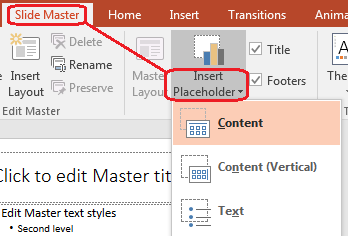
使用 Aspose.Slides 添加新占位符,请操作属于母版的版式幻灯片:
#include <DOM/ILayoutPlaceholderManager.h>
#include <DOM/ILayoutSlide.h>
#include <DOM/IMasterLayoutSlideCollection.h>
#include <DOM/IMasterSlide.h>
#include <DOM/ISlideCollection.h>
#include <DOM/Presentation.h>
#include <DOM/SlideLayoutType.h>
#include <Export/SaveFormat.h>
using namespace Aspose::Slides;
using namespace Aspose::Slides::Export;

auto presentation = System::MakeObject<Presentation>(u"presentation.pptx");

auto masterSlide = presentation->get_Master(0);
auto blankLayoutSlide = masterSlide->get_LayoutSlides()->GetByType(SlideLayoutType::Blank);

if (blankLayoutSlide == nullptr)
{
    blankLayoutSlide = masterSlide->get_LayoutSlides()->Add(SlideLayoutType::Blank, u"Blank");
}

blankLayoutSlide->get_PlaceholderManager()->AddTextPlaceholder(
    60.0f,
    120.0f,
    600.0f,
    80.0f);

presentation->get_Slides()->AddEmptySlide(blankLayoutSlide);
presentation->Save(u"presentation-with-placeholder.pptx", SaveFormat::Pptx);
presentation->Dispose();
您还可以对母版幻灯片上已存在的占位符形状进行格式化。以下示例查找标题占位符并应用线性渐变填充:
#include <DOM/FillType.h>
#include <DOM/GradientShape.h>
#include <DOM/IAutoShape.h>
#include <DOM/IFillFormat.h>
#include <DOM/IGradientFormat.h>
#include <DOM/IGradientStopCollection.h>
#include <DOM/IMasterSlide.h>
#include <DOM/IPlaceholder.h>
#include <DOM/IShapeCollection.h>
#include <DOM/PlaceholderType.h>
#include <DOM/Presentation.h>
#include <Export/SaveFormat.h>
#include <drawing/color.h>
using namespace Aspose::Slides;
using namespace Aspose::Slides::Export;
using namespace System::Drawing;

auto presentation = System::MakeObject<Presentation>(u"presentation.pptx");

auto masterSlide = presentation->get_Master(0);
System::SharedPtr<IAutoShape> titlePlaceholder;

for (auto&& shape : masterSlide->get_Shapes())
{
    auto autoShape = System::AsCast<IAutoShape>(shape);

    if (autoShape != nullptr &&
        autoShape->get_Placeholder() != nullptr &&
        autoShape->get_Placeholder()->get_Type() == PlaceholderType::Title)
    {
        titlePlaceholder = autoShape;
        break;
    }
}

if (titlePlaceholder != nullptr)
{
    auto fillFormat = titlePlaceholder->get_FillFormat();
    fillFormat->set_FillType(FillType::Gradient);

    auto gradientFormat = fillFormat->get_GradientFormat();
    gradientFormat->set_GradientShape(GradientShape::Linear);

    auto gradientStops = gradientFormat->get_GradientStops();
    auto redGradientColor = System::Drawing::Color::FromArgb(255, 0, 0);
    auto purpleGradientColor = System::Drawing::Color::FromArgb(128, 0, 128);

    gradientStops->Add(0.0f, redGradientColor);
    gradientStops->Add(255.0f, purpleGradientColor);
}

presentation->Save(u"presentation-title-style.pptx", SaveFormat::Pptx);
presentation->Dispose();
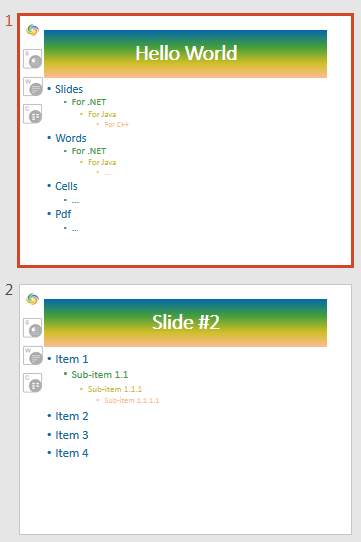
有关更多占位符和文本格式化选项,请参阅 Set Prompt Text in Placeholder 和 Text Formatting。
更改幻灯片母版背景
母版背景会被未覆盖的版式和幻灯片继承。以下示例为第一个母版幻灯片设置纯色背景:
#include <DOM/BackgroundType.h>
#include <DOM/FillType.h>
#include <DOM/IBackground.h>
#include <DOM/IColorFormat.h>
#include <DOM/IFillFormat.h>
#include <DOM/IMasterSlide.h>
#include <DOM/Presentation.h>
#include <Export/SaveFormat.h>
#include <drawing/color.h>
using namespace Aspose::Slides;
using namespace Aspose::Slides::Export;
using namespace System::Drawing;

auto presentation = System::MakeObject<Presentation>(u"presentation.pptx");

auto masterSlide = presentation->get_Master(0);
auto masterBackgroundColor = System::Drawing::Color::get_ForestGreen();

masterSlide->get_Background()->set_Type(BackgroundType::OwnBackground);
masterSlide->get_Background()->get_FillFormat()->set_FillType(FillType::Solid);
masterSlide->get_Background()->get_FillFormat()->get_SolidFillColor()->set_Color(masterBackgroundColor);

presentation->Save(u"presentation-master-background.pptx", SaveFormat::Pptx);
presentation->Dispose();
相关主题请参阅 Presentation Background 和 Presentation Theme。
将幻灯片母版克隆到另一演示文稿
使用 IMasterSlideCollection::AddClone 将母版幻灯片复制到另一个演示文稿中。复制后的母版即可在目标演示文稿的版式和幻灯片中使用。
#include <DOM/IMasterSlideCollection.h>
#include <DOM/Presentation.h>
#include <Export/SaveFormat.h>
using namespace Aspose::Slides;
using namespace Aspose::Slides::Export;

auto sourcePresentation = System::MakeObject<Presentation>(u"source.pptx");
auto destinationPresentation = System::MakeObject<Presentation>(u"destination.pptx");

auto sourceMasterSlide = sourcePresentation->get_Master(0);
auto clonedMasterSlide = destinationPresentation->get_Masters()->AddClone(sourceMasterSlide);

destinationPresentation->Save(u"destination-with-master.pptx", SaveFormat::Pptx);
destinationPresentation->Dispose();
sourcePresentation->Dispose();
如果需要连同其母版一起克隆普通幻灯片,请参阅 Clone Slides。
添加多个幻灯片母版
一个演示文稿可以包含多个母版幻灯片。这在不同章节需要不同的品牌、页面结构或主题设置时非常有用。
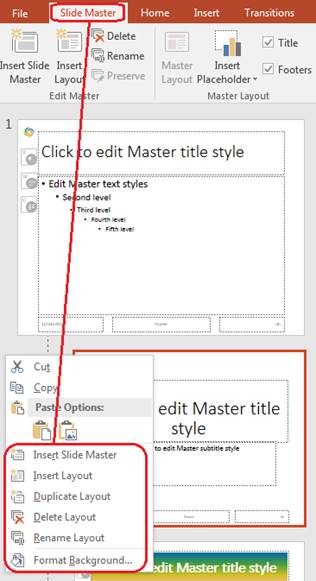
以下示例克隆默认母版,给予克隆不同的背景,在该克隆母版下创建版式,并基于该版式添加新幻灯片:
#include <DOM/BackgroundType.h>
#include <DOM/FillType.h>
#include <DOM/IBackground.h>
#include <DOM/IColorFormat.h>
#include <DOM/IFillFormat.h>
#include <DOM/IMasterLayoutSlideCollection.h>
#include <DOM/IMasterSlide.h>
#include <DOM/IMasterSlideCollection.h>
#include <DOM/ISlideCollection.h>
#include <DOM/Presentation.h>
#include <DOM/SlideLayoutType.h>
#include <Export/SaveFormat.h>
#include <drawing/color.h>
using namespace Aspose::Slides;
using namespace Aspose::Slides::Export;
using namespace System::Drawing;

auto presentation = System::MakeObject<Presentation>(u"presentation.pptx");

auto defaultMasterSlide = presentation->get_Master(0);
auto sectionMasterSlide = presentation->get_Masters()->AddClone(defaultMasterSlide);
auto sectionMasterBackgroundColor = System::Drawing::Color::get_LightSteelBlue();

sectionMasterSlide->get_Background()->set_Type(BackgroundType::OwnBackground);
sectionMasterSlide->get_Background()->get_FillFormat()->set_FillType(FillType::Solid);
sectionMasterSlide->get_Background()->get_FillFormat()->get_SolidFillColor()->set_Color(sectionMasterBackgroundColor);

auto sourceBlankLayout = defaultMasterSlide->get_LayoutSlides()->GetByType(SlideLayoutType::Blank);

if (sourceBlankLayout == nullptr)
{
    sourceBlankLayout = defaultMasterSlide->get_LayoutSlide(0);
}

auto sectionBlankLayout = sectionMasterSlide->get_LayoutSlides()->AddClone(sourceBlankLayout);

presentation->get_Slides()->AddEmptySlide(sectionBlankLayout);
presentation->Save(u"presentation-with-multiple-masters.pptx", SaveFormat::Pptx);
presentation->Dispose();
比较幻灯片母版
母版幻灯片可以使用从 IBaseSlide 继承的 Equals 方法进行比较。比较检查结构和静态内容,如形状、文本、格式、动画以及其他幻灯片设置。它不比较唯一标识符(如幻灯片 ID)或动态占位符值(如当前日期)。
#include <DOM/IMasterSlide.h>
#include <DOM/IMasterSlideCollection.h>
#include <DOM/Presentation.h>
#include <system/console.h>
using namespace Aspose::Slides;
using namespace System;

auto firstPresentation = System::MakeObject<Presentation>(u"first.pptx");
auto secondPresentation = System::MakeObject<Presentation>(u"second.pptx");
auto firstPresentationMasterCount = firstPresentation->get_Masters()->get_Count();
auto secondPresentationMasterCount = secondPresentation->get_Masters()->get_Count();

for (int32_t firstMasterIndex = 0;
     firstMasterIndex < firstPresentationMasterCount;
     firstMasterIndex++)
{
    for (int32_t secondMasterIndex = 0;
         secondMasterIndex < secondPresentationMasterCount;
         secondMasterIndex++)
    {
        auto firstMasterSlide = firstPresentation->get_Master(firstMasterIndex);
        auto secondMasterSlide = secondPresentation->get_Master(secondMasterIndex);
        auto areMasterSlidesEqual = firstMasterSlide->Equals(secondMasterSlide);

        if (areMasterSlidesEqual)
        {
            System::Console::WriteLine(
                System::String::Format(
                    u"first.pptx master #{0} equals second.pptx master #{1}",
                    firstMasterIndex,
                    secondMasterIndex));
        }
    }
}

secondPresentation->Dispose();
firstPresentation->Dispose();
更多信息,请参阅 Compare Presentation Slides。
将幻灯片母版视图设为默认视图
使用 ViewProperties 上的 set_LastView 方法来控制 PowerPoint 首次打开的视图。以下示例在幻灯片母版视图中打开演示文稿:
#include <DOM/IViewProperties.h>
#include <DOM/Presentation.h>
#include <Export/SaveFormat.h>
#include <ViewType.h>
using namespace Aspose::Slides;
using namespace Aspose::Slides::Export;

auto presentation = System::MakeObject<Presentation>(u"presentation.pptx");

presentation->get_ViewProperties()->set_LastView(ViewType::SlideMasterView);
presentation->Save(u"presentation-master-view.pptx", SaveFormat::Pptx);
presentation->Dispose();
有关更多视图设置,请参阅 Save Presentation。
删除未使用的母版幻灯片
演示文稿有时会包含已不再被任何普通幻灯片使用的母版幻灯片。删除未使用的母版可以降低文件大小并简化模板维护。
使用 MasterSlideCollection::RemoveUnused 从 get_Masters() 集合中删除未使用的母版:
#include <DOM/IMasterSlideCollection.h>
#include <DOM/Presentation.h>
#include <Export/SaveFormat.h>
using namespace Aspose::Slides;
using namespace Aspose::Slides::Export;

auto presentation = System::MakeObject<Presentation>(u"presentation.pptx");

presentation->get_Masters()->RemoveUnused(true);
presentation->Save(u"presentation-clean.pptx", SaveFormat::Pptx);
presentation->Dispose();
您还可以使用低代码的 Compress::RemoveUnusedMasterSlides 方法:
#include <DOM/Presentation.h>
#include <Export/SaveFormat.h>
#include <LowCode/Compress.h>
using namespace Aspose::Slides;
using namespace Aspose::Slides::Export;
using namespace Aspose::Slides::LowCode;

auto presentation = System::MakeObject<Presentation>(u"presentation.pptx");

LowCode::Compress::RemoveUnusedMasterSlides(presentation);
presentation->Save(u"presentation-clean.pptx", SaveFormat::Pptx);
presentation->Dispose();
常见问题
幻灯片母版和版式幻灯片有什么区别?
幻灯片母版定义共享的设计设置,例如主题、背景、通用形状和文本样式。版式幻灯片隶属于母版幻灯片,定义占位符的特定排列。普通幻灯片使用版式幻灯片,因此它同时继承版式和母版的设置。
一个演示文稿可以包含多个幻灯片母版吗?
可以。一个演示文稿可以包含多个幻灯片母版。当不同章节需要不同的视觉体系或品牌时,请使用多个母版。
应该在母版幻灯片还是版式幻灯片上添加占位符?
大多数情况下,请在版式幻灯片上添加占位符。将共享的视觉元素和共享格式放在母版幻灯片上,然后在普通幻灯片将使用的版式上放置内容占位符。
我可以删除仍在使用的母版幻灯片吗?
不能。拥有依赖幻灯片的母版幻灯片不能直接安全删除。请先将这些幻灯片移动到另一个母版下的版式,或者使用仅删除未使用母版的清理方法。