
在 C++ 中管理簡報投影片母片
概述
投影片母片 定義一組投影片的共用設計設定。它可以包含共用圖形、標誌、背景、文字樣式、佈景主題設定,以及頁尾設定。在 PowerPoint 中,編輯投影片母片是保持簡報一致性的常用方式,無需在每張投影片上重複相同的格式設定。
Aspose.Slides for C++ 支援相同的模型。簡報可以包含一個或多個母片,而每個母片可以包含多個版面投影片。普通投影片通常不會直接參考母片。相反,普通投影片使用版面投影片,而該版面投影片屬於某個母片。
階層結構如下:
- 投影片母片 - 定義共用的設計與主題。
- 版面投影片 - 定義占位符的特定排列與版面層級的格式設定。
- 普通投影片 - 包含實際的簡報內容,且使用一個版面投影片。
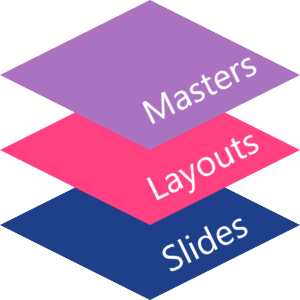
在 Aspose.Slides 中,投影片母片由 IMasterSlide 介面表示。簡報中所有的母片可透過 Presentation::get_Masters 集合取得,該集合實作 IMasterSlideCollection。
Inheritance
當同一屬性在多個層級定義時,較具體的層級會優先。舉例來說,若母片與版面投影片都定義了背景,基於該版面的投影片會使用版面的背景。更多關於版面投影片的資訊,請參閱 套用或變更投影片版面。存取投影片母片
在 PowerPoint 中,您可以從 檢視 > 投影片母片 開啟投影片母片檢視。
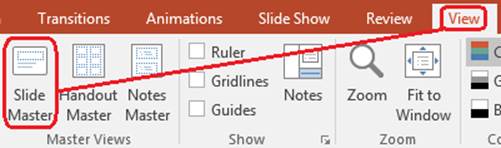
在 Aspose.Slides 中,使用 get_Masters() 集合存取母片:
#include <DOM/IMasterLayoutSlideCollection.h>
#include <DOM/IMasterSlide.h>
#include <DOM/IMasterSlideCollection.h>
#include <DOM/Presentation.h>
#include <system/console.h>
using namespace Aspose::Slides;
using namespace System;

auto presentation = System::MakeObject<Presentation>(u"presentation.pptx");

auto firstMasterSlide = presentation->get_Master(0);
auto masterSlideCount = presentation->get_Masters()->get_Count();
auto firstMasterLayoutSlideCount = firstMasterSlide->get_LayoutSlides()->get_Count();

System::Console::WriteLine(System::String(u"Master slides: ") + masterSlideCount);
System::Console::WriteLine(System::String(u"Layouts in the first master: ") + firstMasterLayoutSlideCount);

presentation->Dispose();
您也可以透過普通投影片的版面取得其使用的母片:
#include <DOM/ILayoutSlide.h>
#include <DOM/IMasterSlide.h>
#include <DOM/ISlide.h>
#include <DOM/Presentation.h>
#include <system/console.h>
using namespace Aspose::Slides;
using namespace System;

auto presentation = System::MakeObject<Presentation>(u"presentation.pptx");

auto slide = presentation->get_Slide(0);
auto layoutSlide = slide->get_LayoutSlide();
auto masterSlide = layoutSlide->get_MasterSlide();
auto masterSlideName = masterSlide->get_Name();

System::Console::WriteLine(masterSlideName);

presentation->Dispose();
投影片母片包含什麼
母片是一種類似投影片的物件。它實作 IBaseSlide,因此具有普通投影片與版面投影片的許多相同屬性。母片專屬的成員請參考 IMasterSlide API 頁面。
常用的母片成員包括:
| 成員 | 目的 |
|---|---|
get_Background() |
設定母片層級的投影片背景。 |
get_Shapes() |
儲存放置在母片上的圖形,例如標誌、圖片框與共用文字。 |
get_LayoutSlides() |
儲存屬於該母片的版面投影片。 |
get_ThemeManager() |
提供存取母片主題 API 的方式。 |
get_HeaderFooterManager() |
控制母片及其子版面的頁首、頁尾、日期與投影片編號。 |
GetDependingSlides() |
返回透過版面依賴於該母片的普通投影片。 |
將影像新增至投影片母片
將影像加入母片後,使用該母片版面的投影片都會顯示該影像。這對於標誌、浮水印、裝飾條帶等重複的視覺元素非常有用。
以下範例將標誌新增至第一個母片:
#include <DOM/IImageCollection.h>
#include <DOM/IMasterSlide.h>
#include <DOM/IShapeCollection.h>
#include <DOM/Presentation.h>
#include <DOM/ShapeType.h>
#include <Export/SaveFormat.h>
#include <system/io/file.h>
using namespace Aspose::Slides;
using namespace Aspose::Slides::Export;
using namespace System::IO;

auto presentation = System::MakeObject<Presentation>(u"presentation.pptx");

auto masterSlide = presentation->get_Master(0);
auto logoBytes = System::IO::File::ReadAllBytes(u"logo.png");
auto logoImage = presentation->get_Images()->AddImage(logoBytes);

masterSlide->get_Shapes()->AddPictureFrame(
    ShapeType::Rectangle,
    20.0f,
    20.0f,
    80.0f,
    80.0f,
    logoImage);

presentation->Save(u"presentation-with-logo.pptx", SaveFormat::Pptx);
presentation->Dispose();
更多關於圖片框的資訊,請參閱 圖片框。
控制母片圖形的可見性
使用 IBaseSlide::set_ShowMasterShapes 可隱藏繼承自母片的圖形(如標誌或裝飾圖形),而不會從母片中刪除它們。對需要隱藏圖形的投影片呼叫 Slide::set_ShowMasterShapes 並傳入 false,對需要顯示圖形的投影片傳入 true。
以下獨立範例在母片上建立藍色裝飾條,並於兩張使用相同空白版面的投影片中分別顯示與隱藏該條帶。此範例不需要任何輸入簡報或影像。
#include <DOM/FillType.h>
#include <DOM/IAutoShape.h>
#include <DOM/IColorFormat.h>
#include <DOM/IFillFormat.h>
#include <DOM/ILayoutSlide.h>
#include <DOM/ILineFormat.h>
#include <DOM/IMasterLayoutSlideCollection.h>
#include <DOM/IMasterSlide.h>
#include <DOM/IShapeCollection.h>
#include <DOM/ISlide.h>
#include <DOM/ISlideCollection.h>
#include <DOM/ISlideSize.h>
#include <DOM/Presentation.h>
#include <DOM/ShapeType.h>
#include <DOM/SlideLayoutType.h>
#include <Export/SaveFormat.h>
#include <drawing/color.h>

using namespace Aspose::Slides;
using namespace Aspose::Slides::Export;
using namespace System;
using namespace System::Drawing;

auto presentation = MakeObject<Presentation>();
auto masterSlide = presentation->get_Master(0);
auto layoutSlide = masterSlide->get_LayoutSlides()->GetByType(SlideLayoutType::Blank);
layoutSlide->set_ShowMasterShapes(true);

auto slideHeight = presentation->get_SlideSize()->get_Size().get_Height();
auto band = masterSlide->get_Shapes()->AddAutoShape(ShapeType::Rectangle, 0.0f, 0.0f, 60.0f, slideHeight);
band->get_FillFormat()->set_FillType(FillType::Solid);
band->get_FillFormat()->get_SolidFillColor()->set_Color(Color::get_SteelBlue());
band->get_LineFormat()->get_FillFormat()->set_FillType(FillType::NoFill);

auto visibleSlide = presentation->get_Slide(0);
visibleSlide->set_LayoutSlide(layoutSlide);
visibleSlide->get_Shapes()->Clear();

auto hiddenSlide = presentation->get_Slides()->AddEmptySlide(layoutSlide);

visibleSlide->set_ShowMasterShapes(true);
hiddenSlide->set_ShowMasterShapes(false);

presentation->Save(u"master-graphics.pptx", SaveFormat::Pptx);
presentation->Dispose();
範例使用新簡報預設的 Blank 版面,並移除初始投影片本身的占位符。
選擇設定的範圍
普通投影片透過 ISlide::get_LayoutSlide 與 ILayoutSlide::get_MasterSlide 取得其母片。將屬性設於單一投影片只會影響該投影片本身。將 false 傳給 LayoutSlide::set_ShowMasterShapes 會隱藏使用該共用版面的所有投影片的母片圖形,即使它們自己的設定為 true。若只想在單一投影片上隱藏圖形,請變更該投影片的屬性而保留共用版面的設定不變。
此設定在母片本身上不支援作為可見性控制。母片上永遠回傳 false,且將 true 指派給它會拋出 System::NotSupportedException。請在普通投影片或版面上套用此設定。
區分圖形與背景
| 操作 | 效果 |
|---|---|
| 隱藏母片圖形 | 在不刪除或變更投影片自有圖形的前提下,控制繼承自母片的圖形可見性。 |
| 變更投影片背景填充 | 變更背景顏色、漸層或圖片。母片圖形屬於獨立圖形,可保持在背景之上顯示。請參閱 簡報背景。 |
| 從母片刪除圖形 | 移除共用來源圖形,之後任何使用該母片的投影片都不再擁有此圖形。 |
使用占位符
占位符通常定義於版面投影片上。母片提供版面繼承的共用樣式與主題,而每個版面決定哪些占位符可用以及它們的放置位置。
在 PowerPoint 中,占位符指令可於投影片母片檢視中使用。
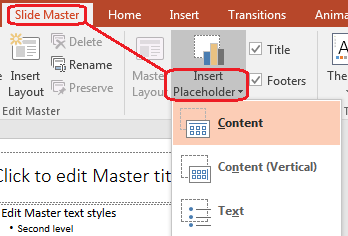
要在 Aspose.Slides 中新增占位符,請操作屬於母片的版面投影片:
#include <DOM/ILayoutPlaceholderManager.h>
#include <DOM/ILayoutSlide.h>
#include <DOM/IMasterLayoutSlideCollection.h>
#include <DOM/IMasterSlide.h>
#include <DOM/ISlideCollection.h>
#include <DOM/Presentation.h>
#include <DOM/SlideLayoutType.h>
#include <Export/SaveFormat.h>
using namespace Aspose::Slides;
using namespace Aspose::Slides::Export;

auto presentation = System::MakeObject<Presentation>(u"presentation.pptx");

auto masterSlide = presentation->get_Master(0);
auto blankLayoutSlide = masterSlide->get_LayoutSlides()->GetByType(SlideLayoutType::Blank);

if (blankLayoutSlide == nullptr)
{
    blankLayoutSlide = masterSlide->get_LayoutSlides()->Add(SlideLayoutType::Blank, u"Blank");
}

blankLayoutSlide->get_PlaceholderManager()->AddTextPlaceholder(
    60.0f,
    120.0f,
    600.0f,
    80.0f);

presentation->get_Slides()->AddEmptySlide(blankLayoutSlide);
presentation->Save(u"presentation-with-placeholder.pptx", SaveFormat::Pptx);
presentation->Dispose();
您也可以格式化已存在於母片上的占位符圖形。以下範例尋找標題占位符並套用線性漸層填充:
#include <DOM/FillType.h>
#include <DOM/GradientShape.h>
#include <DOM/IAutoShape.h>
#include <DOM/IFillFormat.h>
#include <DOM/IGradientFormat.h>
#include <DOM/IGradientStopCollection.h>
#include <DOM/IMasterSlide.h>
#include <DOM/IPlaceholder.h>
#include <DOM/IShapeCollection.h>
#include <DOM/PlaceholderType.h>
#include <DOM/Presentation.h>
#include <Export/SaveFormat.h>
#include <drawing/color.h>
using namespace Aspose::Slides;
using namespace Aspose::Slides::Export;
using namespace System::Drawing;

auto presentation = System::MakeObject<Presentation>(u"presentation.pptx");

auto masterSlide = presentation->get_Master(0);
System::SharedPtr<IAutoShape> titlePlaceholder;

for (auto&& shape : masterSlide->get_Shapes())
{
    auto autoShape = System::AsCast<IAutoShape>(shape);

    if (autoShape != nullptr &&
        autoShape->get_Placeholder() != nullptr &&
        autoShape->get_Placeholder()->get_Type() == PlaceholderType::Title)
    {
        titlePlaceholder = autoShape;
        break;
    }
}

if (titlePlaceholder != nullptr)
{
    auto fillFormat = titlePlaceholder->get_FillFormat();
    fillFormat->set_FillType(FillType::Gradient);

    auto gradientFormat = fillFormat->get_GradientFormat();
    gradientFormat->set_GradientShape(GradientShape::Linear);

    auto gradientStops = gradientFormat->get_GradientStops();
    auto redGradientColor = System::Drawing::Color::FromArgb(255, 0, 0);
    auto purpleGradientColor = System::Drawing::Color::FromArgb(128, 0, 128);

    gradientStops->Add(0.0f, redGradientColor);
    gradientStops->Add(255.0f, purpleGradientColor);
}

presentation->Save(u"presentation-title-style.pptx", SaveFormat::Pptx);
presentation->Dispose();
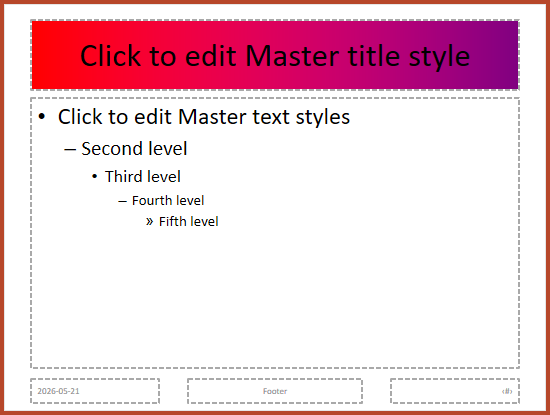
更多占位符與文字格式化選項,請參閱 在占位符中設定提示文字 與 文字格式設定。
變更投影片母片背景
母片背景會被版面與未覆寫的投影片繼承。以下範例為第一個母片設定純色背景:
#include <DOM/BackgroundType.h>
#include <DOM/FillType.h>
#include <DOM/IBackground.h>
#include <DOM/IColorFormat.h>
#include <DOM/IFillFormat.h>
#include <DOM/IMasterSlide.h>
#include <DOM/Presentation.h>
#include <Export/SaveFormat.h>
#include <drawing/color.h>
using namespace Aspose::Slides;
using namespace Aspose::Slides::Export;
using namespace System::Drawing;

auto presentation = System::MakeObject<Presentation>(u"presentation.pptx");

auto masterSlide = presentation->get_Master(0);
auto masterBackgroundColor = System::Drawing::Color::get_ForestGreen();

masterSlide->get_Background()->set_Type(BackgroundType::OwnBackground);
masterSlide->get_Background()->get_FillFormat()->set_FillType(FillType::Solid);
masterSlide->get_Background()->get_FillFormat()->get_SolidFillColor()->set_Color(masterBackgroundColor);

presentation->Save(u"presentation-master-background.pptx", SaveFormat::Pptx);
presentation->Dispose();
將投影片母片複製至另一個簡報
使用 IMasterSlideCollection::AddClone 可將母片複製到其他簡報。複製後的母片即可供目的簡報中的版面與投影片使用。
#include <DOM/IMasterSlideCollection.h>
#include <DOM/Presentation.h>
#include <Export/SaveFormat.h>
using namespace Aspose::Slides;
using namespace Aspose::Slides::Export;

auto sourcePresentation = System::MakeObject<Presentation>(u"source.pptx");
auto destinationPresentation = System::MakeObject<Presentation>(u"destination.pptx");

auto sourceMasterSlide = sourcePresentation->get_Master(0);
auto clonedMasterSlide = destinationPresentation->get_Masters()->AddClone(sourceMasterSlide);

destinationPresentation->Save(u"destination-with-master.pptx", SaveFormat::Pptx);
destinationPresentation->Dispose();
sourcePresentation->Dispose();
若需要同時複製普通投影片及其母片,請參閱 複製投影片。
新增多個投影片母片
簡報可以包含多個母片。當不同章節需要不同的品牌、頁面結構或主題設定時,此功能非常有用。
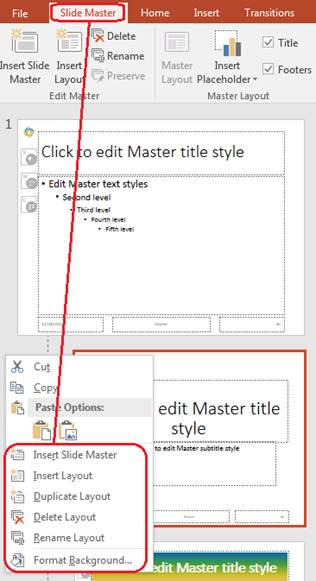
以下範例複製預設母片、為複製品設定不同背景、在該複製母片下建立版面,並依該版面新增投影片:
#include <DOM/BackgroundType.h>
#include <DOM/FillType.h>
#include <DOM/IBackground.h>
#include <DOM/IColorFormat.h>
#include <DOM/IFillFormat.h>
#include <DOM/IMasterLayoutSlideCollection.h>
#include <DOM/IMasterSlide.h>
#include <DOM/IMasterSlideCollection.h>
#include <DOM/ISlideCollection.h>
#include <DOM/Presentation.h>
#include <DOM/SlideLayoutType.h>
#include <Export/SaveFormat.h>
#include <drawing/color.h>
using namespace Aspose::Slides;
using namespace Aspose::Slides::Export;
using namespace System::Drawing;

auto presentation = System::MakeObject<Presentation>(u"presentation.pptx");

auto defaultMasterSlide = presentation->get_Master(0);
auto sectionMasterSlide = presentation->get_Masters()->AddClone(defaultMasterSlide);
auto sectionMasterBackgroundColor = System::Drawing::Color::get_LightSteelBlue();

sectionMasterSlide->get_Background()->set_Type(BackgroundType::OwnBackground);
sectionMasterSlide->get_Background()->get_FillFormat()->set_FillType(FillType::Solid);
sectionMasterSlide->get_Background()->get_FillFormat()->get_SolidFillColor()->set_Color(sectionMasterBackgroundColor);

auto sourceBlankLayout = defaultMasterSlide->get_LayoutSlides()->GetByType(SlideLayoutType::Blank);

if (sourceBlankLayout == nullptr)
{
    sourceBlankLayout = defaultMasterSlide->get_LayoutSlide(0);
}

auto sectionBlankLayout = sectionMasterSlide->get_LayoutSlides()->AddClone(sourceBlankLayout);

presentation->get_Slides()->AddEmptySlide(sectionBlankLayout);
presentation->Save(u"presentation-with-multiple-masters.pptx", SaveFormat::Pptx);
presentation->Dispose();
比較投影片母片
母片可使用繼承自 IBaseSlide 的 Equals 方法進行比較。比較會檢查結構與靜態內容,如圖形、文字、格式、動畫與其他投影片設定。它不會比較唯一識別碼(如投影片 ID)或動態占位符值(如當前日期)。
#include <DOM/IMasterSlide.h>
#include <DOM/IMasterSlideCollection.h>
#include <DOM/Presentation.h>
#include <system/console.h>
using namespace Aspose::Slides;
using namespace System;

auto firstPresentation = System::MakeObject<Presentation>(u"first.pptx");
auto secondPresentation = System::MakeObject<Presentation>(u"second.pptx");
auto firstPresentationMasterCount = firstPresentation->get_Masters()->get_Count();
auto secondPresentationMasterCount = secondPresentation->get_Masters()->get_Count();

for (int32_t firstMasterIndex = 0;
     firstMasterIndex < firstPresentationMasterCount;
     firstMasterIndex++)
{
    for (int32_t secondMasterIndex = 0;
         secondMasterIndex < secondPresentationMasterCount;
         secondMasterIndex++)
    {
        auto firstMasterSlide = firstPresentation->get_Master(firstMasterIndex);
        auto secondMasterSlide = secondPresentation->get_Master(secondMasterIndex);
        auto areMasterSlidesEqual = firstMasterSlide->Equals(secondMasterSlide);

        if (areMasterSlidesEqual)
        {
            System::Console::WriteLine(
                System::String::Format(
                    u"first.pptx master #{0} equals second.pptx master #{1}",
                    firstMasterIndex,
                    secondMasterIndex));
        }
    }
}

secondPresentation->Dispose();
firstPresentation->Dispose();
更多資訊,請參閱 比較簡報投影片。
將投影片母片檢視設為預設檢視
使用 ViewProperties 的 set_LastView 方法可控制 PowerPoint 首次開啟的檢視。以下範例在投影片母片檢視中開啟簡報:
#include <DOM/IViewProperties.h>
#include <DOM/Presentation.h>
#include <Export/SaveFormat.h>
#include <ViewType.h>
using namespace Aspose::Slides;
using namespace Aspose::Slides::Export;

auto presentation = System::MakeObject<Presentation>(u"presentation.pptx");

presentation->get_ViewProperties()->set_LastView(ViewType::SlideMasterView);
presentation->Save(u"presentation-master-view.pptx", SaveFormat::Pptx);
presentation->Dispose();
更多檢視設定,請參閱 儲存簡報。
移除未使用的投影片母片
簡報有時會保有已不被任何普通投影片使用的母片。移除未使用的母片可減少檔案大小並簡化範本維護。
使用 MasterSlideCollection::RemoveUnused 從 get_Masters() 集合中移除未使用的母片:
#include <DOM/IMasterSlideCollection.h>
#include <DOM/Presentation.h>
#include <Export/SaveFormat.h>
using namespace Aspose::Slides;
using namespace Aspose::Slides::Export;

auto presentation = System::MakeObject<Presentation>(u"presentation.pptx");

presentation->get_Masters()->RemoveUnused(true);
presentation->Save(u"presentation-clean.pptx", SaveFormat::Pptx);
presentation->Dispose();
也可以使用低程式碼的 Compress::RemoveUnusedMasterSlides 方法:
#include <DOM/Presentation.h>
#include <Export/SaveFormat.h>
#include <LowCode/Compress.h>
using namespace Aspose::Slides;
using namespace Aspose::Slides::Export;
using namespace Aspose::Slides::LowCode;

auto presentation = System::MakeObject<Presentation>(u"presentation.pptx");

LowCode::Compress::RemoveUnusedMasterSlides(presentation);
presentation->Save(u"presentation-clean.pptx", SaveFormat::Pptx);
presentation->Dispose();
常見問題
投影片母片與版面投影片有何差異?
投影片母片定義共用的設計設定,例如主題、背景、共用圖形與文字樣式。版面投影片屬於母片,定義占位符的具體排列。普通投影片使用版面投影片,因而同時繼承版面與母片的設定。
一個簡報可以包含多個投影片母片嗎?
可以。簡報可以包含多個投影片母片。當不同章節需要不同的視覺系統或品牌時,請使用多個母片。
我應該在母片還是版面投影片上加入占位符?
大多數情況下,應在版面投影片上加入占位符。將共用的視覺元素與格式放在母片上,然後在版面上放置內容占位符,供普通投影片使用。
我可以刪除仍被使用的投影片母片嗎?
不能。仍有依賴投影片的母片無法直接安全刪除。請先將那些投影片移至其他母片的版面,或使用僅移除未使用母片的清理方法。