
प्रेजेंटेशन में Python का उपयोग करके 3D इफ़ेक्ट बनाएं
परिचय
Aspose.Slides for Python via Java आकार और टेक्स्ट के लिए PowerPoint‑स्टाइल 3D फ़ॉर्मेटिंग बना सकता है, संपादित कर सकता है, संरक्षित रख सकता है और रेंडर कर सकता है। यह लेख घुमाव, एक्सट्रुज़न, बिवेल, लाइटिंग, मैटेरियल, ग्रेडिएंट या पिक्चर फिल, तथा 3D टेक्स्ट जैसे 3D इफ़ेक्ट्स को कवर करता है।
Note
यह लेख PowerPoint आकार और टेक्स्ट पर 3D फ़ॉर्मेटिंग इफ़ेक्ट्स के बारे में है। यह स्वतंत्र 3D मॉडल फ़ाइलों को सम्मिलित या संपादित करने के बारे में नहीं है। जब आप स्लाइड को चित्र, PDF, या HTML में निर्यात करते हैं, तो Aspose.Slides उन 3D इफ़ेक्ट्स को निर्यातित 2D आउटपुट में रेंडर करता है।3D फ़ॉर्मेटिंग अवधारणाएँ
आकार पर 3D फ़ॉर्मेटिंग लागू करने के लिए Shape.getThreeDFormat मेथड का प्रयोग करें। यह मेथड ThreeDFormat लौटाता है, जो उस आकार के लिए 3D सीन को नियंत्रित करता है।
टेक्स्ट के लिए, TextFrameFormat.getThreeDFormat मेथड का उपयोग करें। यह टेक्स्ट फ़्रेम पर 3D फ़ॉर्मेटिंग लागू करता है, न कि आकार के बॉडी पर।
सबसे महत्वपूर्ण API सदस्य हैं:
| API सदस्य | क्या नियंत्रित करता है | कब उपयोग करें |
|---|---|---|
| getCamera | दृष्टिकोण, प्रीसेट कैमरा प्रकार, घुमाव, ज़ूम, और परिप्रेक्ष्य। | 3D स्थान में वस्तु को घुमाएँ या PowerPoint के 3D घुमाव प्रीसेट से मेल करें। |
| getLightRig | लाइट प्रीसेट, दिशा, और लाइट घुमाव। | 3D सतह पर हाइलाइट और शैडो की उपस्थिति बदलें। |
| getMaterial और setMaterial | सतह सामग्री, जैसे फ्लैट, मैट, प्लास्टिक, या धातु। | समान ज्यामिति को अधिक सपाट, मुलायम, चमकदार, या धात्विक बनाएं। |
| getExtrusionHeight और setExtrusionHeight | आकार कितनी दूरी तक उसकी सामने वाली सतह से पीछे बढ़ता है। | एक सपाट आकार को स्पष्ट रूप से मोटा 3D ऑब्जेक्ट बनाएं। |
| getExtrusionColor | एक्सट्रुज़्ड किनारों का रंग। | गहराई को दृश्य बनाएं या साइड के रंग को सामने के फिल के साथ समन्वयित करें। |
| getDepth और setDepth | PowerPoint 3D फ़ॉर्मेटिंग द्वारा उपयोग की गई अतिरिक्त 3D गहराई। | आकार या टेक्स्ट के लिए गहराई को बिवेल और सामग्री सेटिंग्स के साथ सूक्ष्म रूप से समायोजित करें। |
| getBevelTop और getBevelBottom | आगे और पीछे के सतहों पर उठे या गोल किनारे। | तीखा सपाट चेहरा के बजाय नरम या ढाले हुए किनारे जोड़ें। |
| getContourColor और getContourWidth और setContourWidth | 3D ऑब्जेक्ट के चारों ओर आउटलाइन। | रेंडर किए गए आउटपुट में ऑब्जेक्ट की सीमा पर ज़ोर दें। |
3D आकार बनाना
एक आकार को विश्वसनीय रूप से 3D दिखाने के लिए आमतौर पर चार प्रकार की सेटिंग्स की आवश्यकता होती है:
- कैमरा सेटिंग्स, क्योंकि डिफ़ॉल्ट फ्रंट व्यू एक्सट्रुज़न को छिपा सकता है।
- लाइट सेटिंग्स, क्योंकि प्रकाश सतहों और किनारों को पठनीय बनाता है।
- सामग्री सेटिंग्स, क्योंकि सतह का प्रभाव प्रकाश के रेंडर होने पर पड़ता है।
- एक्सट्रुज़न या गहराई सेटिंग्स, क्योंकि सपाट आकार को मोटाई चाहिए।
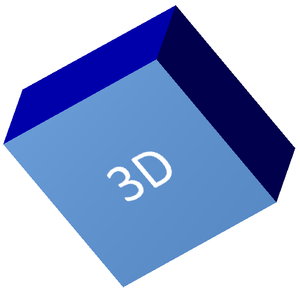
निम्न उदाहरण एक आयत बनाता है, उसकी सामने वाली सतह पर टेक्स्ट जोड़ता है, और 3D फ़ॉर्मेटिंग लागू करता है। कैमरा घुमाव मान डिग्री में हैं, और एक्सट्रुज़न ऊँचाई 100 पॉइंट है। उदाहरण स्लाइड को दो गुना डिफ़ॉल्ट आयामों वाले PNG चित्र में रेंडर करता है और प्रस्तुति को PPTX के रूप में सहेजता है।
import jpype
import asposeslides

if not jpype.isJVMStarted():
    jpype.startJVM()

from asposeslides.api import CameraPresetType, FillType, ImageFormat, LightRigPresetType, LightingDirection, MaterialPresetType, Presentation, SaveFormat, ShapeType
from java.awt import Color

image_scale = 2.0

presentation = Presentation()
try:
    slide = presentation.getSlides().get_Item(0)

    shape = slide.getShapes().addAutoShape(ShapeType.Rectangle, 200, 150, 200, 200)
    shape.getTextFrame().setText("3D")
    shape.getTextFrame().getParagraphs().get_Item(0).getParagraphFormat().getDefaultPortionFormat().setFontHeight(64)

    shape.getFillFormat().setFillType(FillType.Solid)
    shape.getFillFormat().getSolidFillColor().setColor(Color(100, 149, 237))

    shape.getThreeDFormat().getCamera().setCameraType(CameraPresetType.OrthographicFront)
    shape.getThreeDFormat().getCamera().setRotation(20, 30, 40)
    shape.getThreeDFormat().getLightRig().setLightType(LightRigPresetType.Flat)
    shape.getThreeDFormat().getLightRig().setDirection(LightingDirection.Top)
    shape.getThreeDFormat().setMaterial(MaterialPresetType.Flat)
    shape.getThreeDFormat().setExtrusionHeight(100)
    shape.getThreeDFormat().getExtrusionColor().setColor(Color.BLUE)

    thumbnail = slide.getImage(image_scale, image_scale)
    try:
        thumbnail.save("shape_3d.png", ImageFormat.Png)
    finally:
        thumbnail.dispose()

    presentation.save("shape_3d.pptx", SaveFormat.Pptx)
finally:
    presentation.dispose()
रेंडर किया गया स्लाइड चित्र आयत को मोटी 3D ब्लॉक के रूप में दर्शाता है:
कैमरा से आकार घुमाएँ
PowerPoint में, 3D घुमाव 3‑D Rotation पैन से कॉन्फ़िगर किया जाता है। X, Y, और Z घुमाव मान वह घुमाव दर्शाते हैं जो आप कैमरा API के माध्यम से सेट करते हैं।
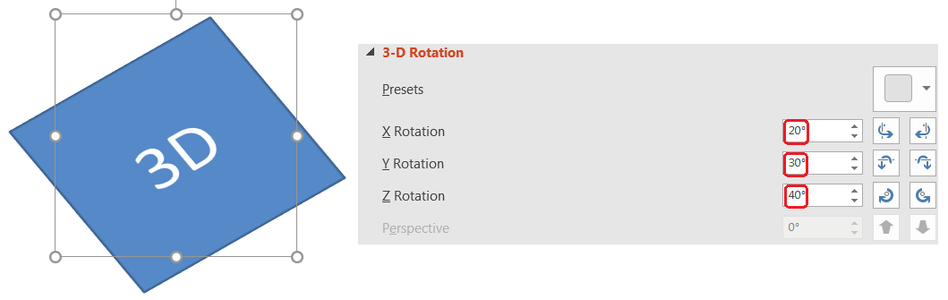
Aspose.Slides में, कैमरा तक पहुँचने के लिए ThreeDFormat.getCamera का उपयोग करें। यह उदाहरण एक आयत बनाता है, ऑर्थोग्राफ़िक फ्रंट व्यू चुनता है, और उसके X, Y, Z घुमाव क्रमशः 20, 30, और 40 डिग्री सेट करता है। यह आकार को मेमोरी में कॉन्फ़िगर करता है बिना फ़ाइल सहेजे:
import jpype
import asposeslides

if not jpype.isJVMStarted():
    jpype.startJVM()

from asposeslides.api import CameraPresetType, Presentation, ShapeType

presentation = Presentation()
try:
    slide = presentation.getSlides().get_Item(0)

    shape = slide.getShapes().addAutoShape(ShapeType.Rectangle, 200, 150, 200, 200)

    shape.getThreeDFormat().getCamera().setCameraType(CameraPresetType.OrthographicFront)
    shape.getThreeDFormat().getCamera().setRotation(20, 30, 40)
finally:
    presentation.dispose()
वह समय कैमरा उपयोग करें जब आपको दर्शक के ऑब्जेक्ट देखने के तरीके को बदलना हो। यह स्लाइड पर 2D आकार ज्यामिति को नहीं बदलता, बल्कि PowerPoint और Aspose.Slides द्वारा रेंडरिंग के समय उपयोग किए जाने वाले 3D दृष्टिकोण को बदलता है।
एक्सट्रुज़न और गहराई जोड़ें
एक्सट्रुज़न आकार को उसके सामने वाले चेहरे के पीछे विस्तार करके मोटा दिखाता है। PowerPoint में, गहराई नियंत्रण इस दृश्य मोटाई को सेट करता है, और रंग नियंत्रण साइड फेस के रंग को तय करता है।
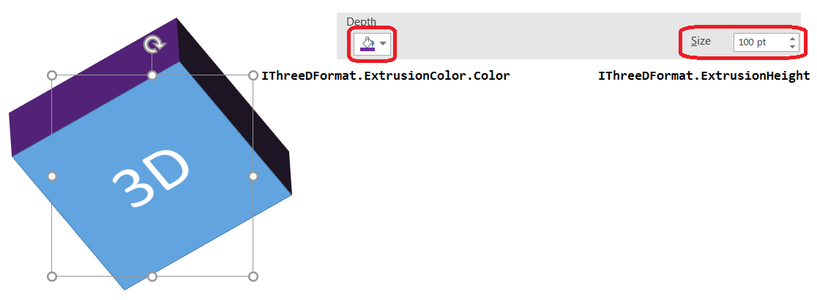
ThreeDFormat.setExtrusionHeight का उपयोग करके मोटाई निर्धारित करें और ThreeDFormat.getExtrusionColor से साइड रंग प्राप्त करें। यह उदाहरण आयत को 100‑पॉइंट एक्सट्रुज़न के साथ बैंगनी साइड्स देता है और कैमरा को घुमाकर उसकी मोटाई को दिखाता है। यह आकार को मेमोरी में कॉन्फ़िगर करता है बिना फ़ाइल सहेजे:
import jpype
import asposeslides

if not jpype.isJVMStarted():
    jpype.startJVM()

from asposeslides.api import CameraPresetType, LightRigPresetType, LightingDirection, MaterialPresetType, Presentation, ShapeType
from java.awt import Color

presentation = Presentation()
try:
    slide = presentation.getSlides().get_Item(0)

    shape = slide.getShapes().addAutoShape(ShapeType.Rectangle, 200, 150, 200, 200)

    extrusion_color = Color(128, 0, 128)

    shape.getThreeDFormat().getCamera().setCameraType(CameraPresetType.OrthographicFront)
    shape.getThreeDFormat().getCamera().setRotation(20, 30, 40)
    shape.getThreeDFormat().getLightRig().setLightType(LightRigPresetType.Flat)
    shape.getThreeDFormat().getLightRig().setDirection(LightingDirection.Top)
    shape.getThreeDFormat().setMaterial(MaterialPresetType.Flat)
    shape.getThreeDFormat().setExtrusionHeight(100)
    shape.getThreeDFormat().getExtrusionColor().setColor(extrusion_color)
finally:
    presentation.dispose()
ThreeDFormat.setDepth मेथड 3D आकार की गहराई सेट करता है। setExtrusionHeight मेथड एक्सट्रुज़न प्रभाव की ऊँचाई को नियंत्रित करता है, जैसा कि इस उदाहरण में दिखाया गया है।
ग्रेडिएंट या पिक्चर फिल के साथ 3D इफ़ेक्ट्स उपयोग करें
3D फ़ॉर्मेटिंग आकार के फिल से स्वतंत्र है। आप सामने वाले चेहरे पर ठोस रंग, ग्रेडिएंट, पैटर्न, या पिक्चर फिल लागू कर सकते हैं और फिर भी वही कैमरा, लाइट, मैटेरियल, और एक्सट्रुज़न सेटिंग्स प्रयोग कर सकते हैं।
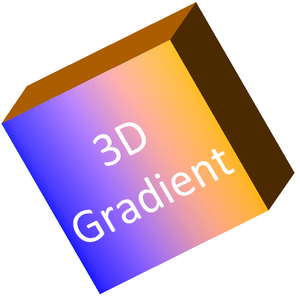
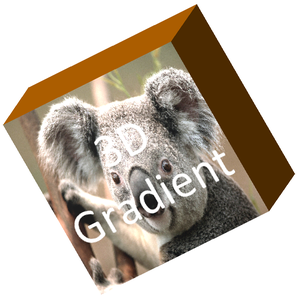
यह उदाहरण फ्रंट फेस पर नीले‑से‑ऑरेंज ग्रेडिएंट और 150‑पॉइंट एक्सट्रुज़न पर डार्क ऑरेंज रंग लागू करता है। ग्रेडिएंट स्टॉप 0 और 100 पर क्रमशः ग्रेडिएंट की शुरुआत और अंत को दर्शाते हैं। कैमरा घुमाव मान डिग्री में हैं। स्लाइड दो गुना डिफ़ॉल्ट आयामों वाले PNG चित्र में रेंडर किया जाता है:
import jpype
import asposeslides

if not jpype.isJVMStarted():
    jpype.startJVM()

from asposeslides.api import CameraPresetType, FillType, ImageFormat, LightRigPresetType, LightingDirection, MaterialPresetType, Presentation, ShapeType
from java.awt import Color

image_scale = 2.0

presentation = Presentation()
try:
    slide = presentation.getSlides().get_Item(0)

    shape = slide.getShapes().addAutoShape(ShapeType.Rectangle, 200, 150, 250, 250)
    shape.getTextFrame().setText("3D Gradient")
    shape.getTextFrame().getParagraphs().get_Item(0).getParagraphFormat().getDefaultPortionFormat().setFontHeight(64)

    shape.getFillFormat().setFillType(FillType.Gradient)
    shape.getFillFormat().getGradientFormat().getGradientStops().add(0, Color.BLUE)
    shape.getFillFormat().getGradientFormat().getGradientStops().add(100, Color(255, 165, 0))

    shape.getThreeDFormat().getCamera().setCameraType(CameraPresetType.OrthographicFront)
    shape.getThreeDFormat().getCamera().setRotation(10, 20, 30)
    shape.getThreeDFormat().getLightRig().setLightType(LightRigPresetType.Flat)
    shape.getThreeDFormat().getLightRig().setDirection(LightingDirection.Top)
    shape.getThreeDFormat().setMaterial(MaterialPresetType.Flat)
    extrusion_color = Color(255, 140, 0)
    shape.getThreeDFormat().setExtrusionHeight(150)
    shape.getThreeDFormat().getExtrusionColor().setColor(extrusion_color)

    thumbnail = slide.getImage(image_scale, image_scale)
    try:
        thumbnail.save("gradient_3d.png", ImageFormat.Png)
    finally:
        thumbnail.dispose()
finally:
    presentation.dispose()
रेंडर किया गया आउटपुट फ्रंट फेस पर ग्रेडिएंट को बरकरार रखता है और एक्सट्रुज़न को अलग से रेंडर करता है:
पिक्चर फिल उपयोग करने के लिए, चित्र को प्रस्तुति में जोड़ें और उसे आकार फिल के रूप में असाइन करें। यह उदाहरण कार्य निर्देशिका में मौजूद “image.jpg” नामक फ़ाइल को मानता है। यह चित्र को आयत में भरने के लिए स्ट्रेच करता है, 150‑पॉइंट एक्सट्रुज़न लागू करता है, और कैमरा घुमाव को डिग्री में सेट करता है। यह आकार को मेमोरी में कॉन्फ़िगर करता है बिना फ़ाइल सहेजे या रेंडर किए:
import jpype
import asposeslides

if not jpype.isJVMStarted():
    jpype.startJVM()

from asposeslides.api import CameraPresetType, FillType, LightRigPresetType, LightingDirection, MaterialPresetType, PictureFillMode, Presentation, ShapeType
from java.awt import Color
from pathlib import Path

presentation = Presentation()
try:
    slide = presentation.getSlides().get_Item(0)

    shape = slide.getShapes().addAutoShape(ShapeType.Rectangle, 200, 150, 250, 250)

    image_data = Path("image.jpg").read_bytes()
    java_image_data = jpype.JArray(jpype.JByte)(image_data)
    image = presentation.getImages().addImage(java_image_data)

    shape.getFillFormat().setFillType(FillType.Picture)
    shape.getFillFormat().getPictureFillFormat().getPicture().setImage(image)
    shape.getFillFormat().getPictureFillFormat().setPictureFillMode(PictureFillMode.Stretch)

    extrusion_color = Color(255, 140, 0)
    shape.getThreeDFormat().getCamera().setCameraType(CameraPresetType.OrthographicFront)
    shape.getThreeDFormat().getCamera().setRotation(10, 20, 30)
    shape.getThreeDFormat().getLightRig().setLightType(LightRigPresetType.Flat)
    shape.getThreeDFormat().getLightRig().setDirection(LightingDirection.Top)
    shape.getThreeDFormat().setMaterial(MaterialPresetType.Flat)
    shape.getThreeDFormat().setExtrusionHeight(150)
    shape.getThreeDFormat().getExtrusionColor().setColor(extrusion_color)
finally:
    presentation.dispose()
चित्र फ्रंट फेस पर रेंडर होता है, जबकि एक्सट्रुज़न 3D साइड सतह के रूप में रेंडर होता है:
टेक्स्ट पर 3D फ़ॉर्मेटिंग लागू करें
आकार की 3D फ़ॉर्मेटिंग आकार बॉडी को प्रभावित करती है। टेक्स्ट की 3D फ़ॉर्मेटिंग टेक्स्ट फ़्रेम को प्रभावित करती है। यह WordArt‑समान इफ़ेक्ट्स के लिए उपयोगी है जहाँ अक्षरों को स्वयं एक्सट्रुज़न, मैटेरियल, लाइटिंग, और कैमरा सेटिंग्स की आवश्यकता होती है।
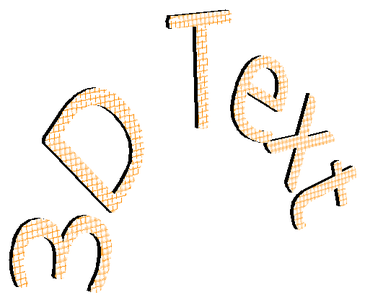
निम्न उदाहरण एक टेक्स्ट बनाता है जिसमें नारंगी‑और‑सफ़ेद ग्रिड पैटर्न है, एक ऊपर की ओर घुमाव लागू करता है, और TextFrameFormat.getThreeDFormat के माध्यम से 3D सेटिंग्स कॉन्फ़िगर करता है। एक्सट्रुज़न ऊँचाई और गहराई पॉइंट में हैं, और लाइट घुमाव डिग्री में है। आकार फिल और आउटलाइन छिपाए गए हैं ताकि केवल टेक्स्ट दिखाई दे। उदाहरण दो गुना डिफ़ॉल्ट स्लाइड आयामों वाले PNG चित्र में रेंडर करता है और प्रस्तुति को PPTX के रूप में सहेजता है:
import jpype
import asposeslides

if not jpype.isJVMStarted():
    jpype.startJVM()

from asposeslides.api import CameraPresetType, FillType, ImageFormat, LightRigPresetType, LightingDirection, MaterialPresetType, PatternStyle, Presentation, SaveFormat, ShapeType, TextShapeType
from java.awt import Color

image_scale = 2.0

presentation = Presentation()
try:
    slide = presentation.getSlides().get_Item(0)

    shape = slide.getShapes().addAutoShape(ShapeType.Rectangle, 200, 150, 250, 250)
    shape.getFillFormat().setFillType(FillType.NoFill)
    shape.getLineFormat().getFillFormat().setFillType(FillType.NoFill)
    shape.getTextFrame().setText("3D Text")

    portion = shape.getTextFrame().getParagraphs().get_Item(0).getPortions().get_Item(0)
    portion.getPortionFormat().getFillFormat().setFillType(FillType.Pattern)
    pattern_color = Color(255, 140, 0)
    portion.getPortionFormat().getFillFormat().getPatternFormat().getForeColor().setColor(pattern_color)
    portion.getPortionFormat().getFillFormat().getPatternFormat().getBackColor().setColor(Color.WHITE)
    portion.getPortionFormat().getFillFormat().getPatternFormat().setPatternStyle(PatternStyle.LargeGrid)

    shape.getTextFrame().getParagraphs().get_Item(0).getParagraphFormat().getDefaultPortionFormat().setFontHeight(128)

    text_frame_format = shape.getTextFrame().getTextFrameFormat()
    text_frame_format.setTransform(TextShapeType.ArchUp)
    text_frame_format.getThreeDFormat().setExtrusionHeight(3.5)
    text_frame_format.getThreeDFormat().setDepth(3)
    text_frame_format.getThreeDFormat().setMaterial(MaterialPresetType.Plastic)
    text_frame_format.getThreeDFormat().getLightRig().setDirection(LightingDirection.Top)
    text_frame_format.getThreeDFormat().getLightRig().setLightType(LightRigPresetType.Balanced)
    text_frame_format.getThreeDFormat().getLightRig().setRotation(0, 0, 40)
    text_frame_format.getThreeDFormat().getCamera().setCameraType(CameraPresetType.PerspectiveContrastingRightFacing)

    thumbnail = slide.getImage(image_scale, image_scale)
    try:
        thumbnail.save("text_3d.png", ImageFormat.Png)
    finally:
        thumbnail.dispose()

    presentation.save("text_3d.pptx", SaveFormat.Pptx)
finally:
    presentation.dispose()
टेक्स्ट को कर्व्ड, एक्सट्रुज़्ड 3D अक्षरों के रूप में रेंडर किया गया है:
3D आकार पर टेक्स्ट को सपाट रखें
टेक्स्ट को पढ़ने योग्य रखने के साथ साथ आकार की 3D उपस्थिति को बनाए रखने के लिये, TextFrame.getTextFrameFormat के माध्यम से TextFrameFormat.setKeepTextFlat को कॉल करें। जब मान True हो, तो टेक्स्ट 3D सीन से बाहर रहता है। जब False हो, तो टेक्स्ट सीन में भाग लेता है और उसकी 3D अभिविन्यास का पालन करता है।
यह सेटिंग आकार की 3D फ़ॉर्मेटिंग को नहीं हटाती: कैमरा, लाइटिंग, मैटेरियल, और एक्सट्रुज़न अभी भी Shape.getThreeDFormat द्वारा कॉन्फ़िगर किए हुए हैं। यह सामान्य घुमाव से भी अलग है। Shape.setRotation स्लाइड प्लेन में आकार को घुमाता है, जबकि TextFrameFormat.setRotationAngle टेक्स्ट के बॉन्डिंग बॉक्स के भीतर कस्टम घुमाव को नियंत्रित करता है। टेक्स्ट को 3D सीन से बाहर रखना इन कोणों में से किसी को भी रीसेट नहीं करता।
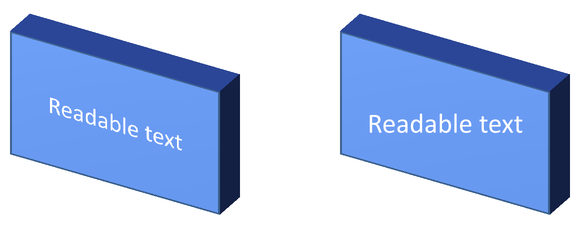
निम्न स्व-निहित उदाहरण एक नीले आयत को टेक्स्ट के साथ बनाता है और उसे मूल के बगल में क्लोन करता है। दोनों आकारों की 3D फ़ॉर्मेटिंग समान है; केवल टेक्स्ट सेटिंग अलग है: बाएँ पर False और दाएँ पर True। कैमरा कोण डिग्री में हैं, और एक्सट्रुज़न ऊँचाई 40 पॉइंट है। उदाहरण प्रस्तुति को PPTX के रूप में सहेजता है और तुलना स्लाइड को दो गुना डिफ़ॉल्ट आयामों वाले PNG में रेंडर करता है।
import jpype
import asposeslides

if not jpype.isJVMStarted():
    jpype.startJVM()

from asposeslides.api import CameraPresetType, FillType, ImageFormat, LightRigPresetType, LightingDirection, MaterialPresetType, Presentation, SaveFormat, ShapeType, TextAlignment, TextAnchorType
from java.awt import Color

presentation = Presentation()
try:
    slide = presentation.getSlides().get_Item(0)

    shape = slide.getShapes().addAutoShape(ShapeType.Rectangle, 70, 160, 240, 140)

    shape.getTextFrame().setText("Readable text")
    shape.getTextFrame().getParagraphs().get_Item(0).getParagraphFormat().getDefaultPortionFormat().setFontHeight(28)
    shape.getTextFrame().getParagraphs().get_Item(0).getParagraphFormat().setAlignment(TextAlignment.Center)
    shape.getTextFrame().getTextFrameFormat().setAnchoringType(TextAnchorType.Center)
    shape.getFillFormat().setFillType(FillType.Solid)
    shape.getFillFormat().getSolidFillColor().setColor(Color(100, 149, 237))

    shape.getThreeDFormat().getCamera().setCameraType(CameraPresetType.OrthographicFront)
    shape.getThreeDFormat().getCamera().setRotation(30, 30, 0)
    shape.getThreeDFormat().getLightRig().setLightType(LightRigPresetType.Flat)
    shape.getThreeDFormat().getLightRig().setDirection(LightingDirection.Top)
    shape.getThreeDFormat().setMaterial(MaterialPresetType.Flat)
    shape.getThreeDFormat().setExtrusionHeight(40)
    shape.getThreeDFormat().getExtrusionColor().setColor(Color(65, 105, 225))
    shape.getTextFrame().getTextFrameFormat().setKeepTextFlat(False)

    flat_text_shape = slide.getShapes().addClone(shape, 400, 160)
    flat_text_shape.getTextFrame().getTextFrameFormat().setKeepTextFlat(True)

    presentation.save("keep_text_flat.pptx", SaveFormat.Pptx)
    image = slide.getImage(2, 2)
    try:
        image.save("keep_text_flat.png", ImageFormat.Png)
    finally:
        image.dispose()
finally:
    presentation.dispose()
बाएँ पर टेक्स्ट 3D अभिविन्यास का पालन करता है। दाएँ पर टेक्स्ट सपाट रहता है और पढ़ने में आसान है। दोनों आयत समान दृश्य एक्सट्रुज़न और 3D अभिविन्यास बनाए रखते हैं।
निर्यात और रेंडरिंग व्यवहार
Aspose.Slides PPTX जैसी PowerPoint फ़ॉर्मेट में सहेजते समय 3D फ़ॉर्मेटिंग को संरक्षित रखता है। जब स्थायी‑लेआउट फ़ॉर्मेट में रेंडर या निर्यात किया जाता है, तो 3D सीन को रास्टराइज़ किया जाता है या 2D परिणाम के रूप में आउटपुट में खींचा जाता है। यह तब लागू होता है जब आप स्लाइड को PNG पर रेंडर करते हैं, PDF में निर्यात करते हैं, HTML में निर्यात करते हैं, या वीडियो रूपांतरण के लिए फ्रेम उत्पन्न करते हैं।
ध्यान रखें:
- निर्यातित छवियां और PDF इंटरैक्टिव नहीं होते। निर्यात के बाद दर्शक ऑब्जेक्ट को घुमा नहीं सकता।
- अंतिम रूपांकन कैमरा, लाइट रिग, मैटेरियल, एक्सट्रुज़न, फिल, और स्लाइड स्केलिंग के संयोजन पर निर्भर करता है।
- यदि आपको विरासत या थीम‑आधारित फ़ॉर्मेटिंग मानों की जांच करनी है, तो effective shape properties पढ़ें।
- कुछ आउटपुट फ़ॉर्मेट संपादन योग्य PowerPoint 3D फ़ॉर्मेटिंग को संग्रहीत नहीं कर सकते। उन फ़ॉर्मेट में दृश्य परिणाम रेंडर किया जाता है न कि संपादन योग्य 3D सेटिंग्स के रूप में।
FAQ
क्या Aspose.Slides इंटरैक्टिव 3D प्रस्तुतियां बना सकता है?
Aspose.Slides आकार और टेक्स्ट के लिए PowerPoint 3D इफ़ेक्ट्स बनाता और रेंडर करता है। यह निर्यातित छवियों, PDF, या HTML पृष्ठों को इंटरैक्टिव 3D सीन नहीं बनाता जिन्हें दर्शक घुमा सके। PPTX में, जहाँ फ़ॉर्मेट समर्थन करता है, 3D फ़ॉर्मेटिंग PowerPoint में संपादन योग्य रहती है।
3D मॉडल और 3D इफ़ेक्ट में क्या अंतर है?
3D मॉडल एक अलग 3D ऑब्जेक्ट है जिसे प्रस्तुति में सम्मिलित किया जाता है। 3D इफ़ेक्ट सामान्य PowerPoint आकार या टेक्स्ट पर लागू फ़ॉर्मेटिंग है, जैसे घुमाव, एक्सट्रुज़न, बिवेल, लाइटिंग, और मैटेरियल। यह लेख 3D इफ़ेक्ट को कवर करता है।
दृश्यमान 3D आकार के लिए कौन सी सेटिंग्स आवश्यक हैं?
न्यूनतम रूप से कैमरा घुमाव और या तो एक्सट्रुज़न या गहराई सेट करें। व्यावहारिक रूप से लाइट रिग और मैटेरियल भी सेट करें ताकि रेंडर की गई सतहों में स्पष्ट हाइलाइट और शैडो हों।
क्या मैं दोनों आकार और टेक्स्ट पर 3D इफ़ेक्ट लगा सकता हूँ?
हाँ। आकार बॉडी के लिये Shape.getThreeDFormat और टेक्स्ट के लिये TextFrameFormat.getThreeDFormat उपयोग करें।
क्या 3D इफ़ेक्ट छवियों, PDF, HTML, या वीडियो फ़्रेम में निर्यात पर दिखेंगे?
हाँ। Aspose.Slides स्लाइड चित्र, PDF आउटपुट, HTML आउटपुट, और वीडियो रूपांतरण के लिए उपयोग किए जाने वाले फ़्रेम बनाते समय 3D इफ़ेक्ट रेंडर करता है। निर्यातित आउटपुट में रेंडर किया हुआ दृश्य होता है, संपादन योग्य 3D ऑब्जेक्ट नहीं।
क्या मैं विरासत और थीम सेटिंग्स के लागू होने के बाद अंतिम 3D मान पढ़ सकता हूँ?
हाँ। Shape Effective Properties में वर्णित प्रभावी फ़ॉर्मेटिंग API का उपयोग करके अंतिम कैमरा, लाइट रिग, बिवेल, और संबंधित 3D मान पढ़ें।