
使用 Python 在演示文稿中创建 3D 效果
概述
Aspose.Slides for Python via Java 可以创建、编辑、保留并渲染 PowerPoint 样式的形状和文本的 3D 格式化。本文涵盖旋转、挤出、倒角、照明、材质、渐变或图片填充以及 3D 文本等 3D 效果。
Note
本文讨论的是 PowerPoint 形状和文本的 3D 格式化效果。它并不涉及插入或编辑独立的 3D 模型文件。当您将幻灯片导出为图像、PDF 或 HTML 时,Aspose.Slides 会将这些 3D 效果渲染到导出的 2D 输出中。3D 格式化概念
使用 Shape.getThreeDFormat 方法将 3D 格式化应用于形状。该方法返回 ThreeDFormat,用于控制该形状的 3D 场景。
对于文本,请使用 TextFrameFormat.getThreeDFormat 方法。这将 3D 格式化应用于文本框,而不是形状主体。
最重要的 API 成员如下:
| API 成员 | 控制内容 | 何时使用 |
|---|---|---|
| getCamera | 视点、预设相机类型、旋转、缩放和透视。 | 在 3D 空间中旋转对象或匹配 PowerPoint 3D 旋转预设。 |
| getLightRig | 光照预设、方向和光线旋转。 | 更改 3D 表面上高光和阴影的呈现方式。 |
| getMaterial and setMaterial | 表面材质,如平面、哑光、塑料或金属。 | 使相同的几何体看起来更平坦、柔和、光亮或金属感。 |
| getExtrusionHeight and setExtrusionHeight | 形状从前表面向后延伸的距离。 | 将平面形状转换为可见的厚度 3D 对象。 |
| getExtrusionColor | 挤出侧面的颜色。 | 使深度可见或将侧面颜色与前面填充协调。 |
| getDepth and setDepth | PowerPoint 3D 格式化使用的额外深度。 | 微调形状或文本的深度,特别是与倒角和材质设置一起使用。 |
| getBevelTop and getBevelBottom | 前后表面的凸起或圆角边缘。 | 添加柔化或成型的边缘,而不是锐利的平面。 |
| getContourColor and getContourWidth and setContourWidth | 3D 对象的轮廓颜色和宽度。 | 在渲染输出中强调对象边界。 |
创建 3D 形状
一个形状在看起来逼真的 3D 效果之前通常需要四种设置:
- 相机设置,因为默认的正视图可能隐藏挤出效果。
- 光线设置,因为光照使面和侧可读。
- 材质设置,因为表面影响光线渲染方式。
- 挤出或深度设置,因为平面形状需要厚度。
import jpype
import asposeslides

if not jpype.isJVMStarted():
    jpype.startJVM()

from asposeslides.api import CameraPresetType, FillType, ImageFormat, LightRigPresetType, LightingDirection, MaterialPresetType, Presentation, SaveFormat, ShapeType
from java.awt import Color

image_scale = 2.0

presentation = Presentation()
try:
    slide = presentation.getSlides().get_Item(0)

    shape = slide.getShapes().addAutoShape(ShapeType.Rectangle, 200, 150, 200, 200)
    shape.getTextFrame().setText("3D")
    shape.getTextFrame().getParagraphs().get_Item(0).getParagraphFormat().getDefaultPortionFormat().setFontHeight(64)

    shape.getFillFormat().setFillType(FillType.Solid)
    shape.getFillFormat().getSolidFillColor().setColor(Color(100, 149, 237))

    shape.getThreeDFormat().getCamera().setCameraType(CameraPresetType.OrthographicFront)
    shape.getThreeDFormat().getCamera().setRotation(20, 30, 40)
    shape.getThreeDFormat().getLightRig().setLightType(LightRigPresetType.Flat)
    shape.getThreeDFormat().getLightRig().setDirection(LightingDirection.Top)
    shape.getThreeDFormat().setMaterial(MaterialPresetType.Flat)
    shape.getThreeDFormat().setExtrusionHeight(100)
    shape.getThreeDFormat().getExtrusionColor().setColor(Color.BLUE)

    thumbnail = slide.getImage(image_scale, image_scale)
    try:
        thumbnail.save("shape_3d.png", ImageFormat.Png)
    finally:
        thumbnail.dispose()

    presentation.save("shape_3d.pptx", SaveFormat.Pptx)
finally:
    presentation.dispose()
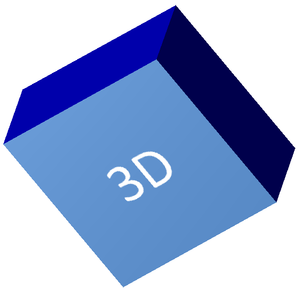
渲染的幻灯片图像显示矩形为一个厚实的 3D 块:
使用相机旋转形状
在 PowerPoint 中,3D 旋转在 3-D Rotation 面板中配置。X、Y、Z 旋转值对应于通过相机 API 设置的旋转。
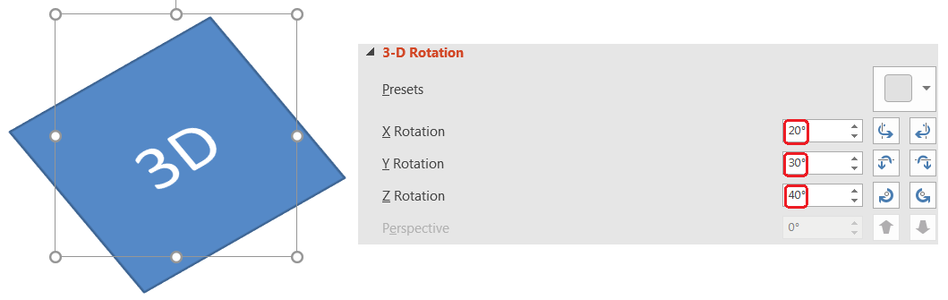
在 Aspose.Slides 中,通过 ThreeDFormat.getCamera 访问相机。此示例创建一个矩形,选择正投影视图,并将其 X、Y、Z 旋转分别设置为 20、30、40 度。它在内存中配置形状,但不保存文件:
import jpype
import asposeslides

if not jpype.isJVMStarted():
    jpype.startJVM()

from asposeslides.api import CameraPresetType, Presentation, ShapeType

presentation = Presentation()
try:
    slide = presentation.getSlides().get_Item(0)

    shape = slide.getShapes().addAutoShape(ShapeType.Rectangle, 200, 150, 200, 200)

    shape.getThreeDFormat().getCamera().setCameraType(CameraPresetType.OrthographicFront)
    shape.getThreeDFormat().getCamera().setRotation(20, 30, 40)
finally:
    presentation.dispose()
在需要更改观察者观看对象方式时使用相机。它不改变幻灯片上 2D 形状的几何形状,只更改 PowerPoint 和 Aspose.Slides 渲染时使用的 3D 视点。
添加挤出和深度
挤出通过在前表面后方延伸形状,使其看起来更厚。PowerPoint 中的深度控件设置此可见厚度,颜色控件设置侧面的颜色。
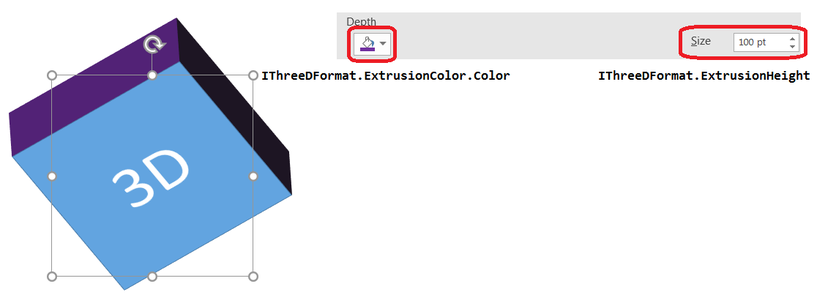
使用 ThreeDFormat.setExtrusionHeight 设置厚度,使用 ThreeDFormat.getExtrusionColor 访问侧面颜色。此示例为矩形设置 100 点的挤出,侧面为紫色,并旋转相机以显示其厚度。它在内存中配置形状,但不保存文件:
import jpype
import asposeslides

if not jpype.isJVMStarted():
    jpype.startJVM()

from asposeslides.api import CameraPresetType, LightRigPresetType, LightingDirection, MaterialPresetType, Presentation, ShapeType
from java.awt import Color

presentation = Presentation()
try:
    slide = presentation.getSlides().get_Item(0)

    shape = slide.getShapes().addAutoShape(ShapeType.Rectangle, 200, 150, 200, 200)

    extrusion_color = Color(128, 0, 128)

    shape.getThreeDFormat().getCamera().setCameraType(CameraPresetType.OrthographicFront)
    shape.getThreeDFormat().getCamera().setRotation(20, 30, 40)
    shape.getThreeDFormat().getLightRig().setLightType(LightRigPresetType.Flat)
    shape.getThreeDFormat().getLightRig().setDirection(LightingDirection.Top)
    shape.getThreeDFormat().setMaterial(MaterialPresetType.Flat)
    shape.getThreeDFormat().setExtrusionHeight(100)
    shape.getThreeDFormat().getExtrusionColor().setColor(extrusion_color)
finally:
    presentation.dispose()
ThreeDFormat.setDepth 方法设置 3D 形状的深度。 setExtrusionHeight 方法控制挤出效果的高度,如本例所示。
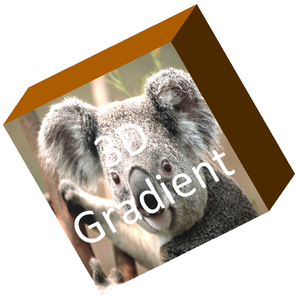
在 3D 效果中使用渐变或图片填充
3D 格式化独立于形状填充。您可以对前表面使用纯色、渐变、图案或图片填充,并仍然使用相同的相机、光线、材质和挤出设置。
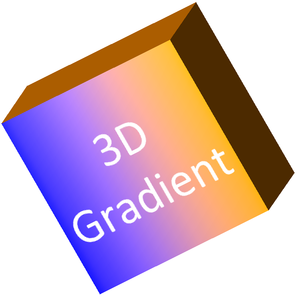
此示例对前表面应用蓝到橙的渐变,对 150 点的挤出使用深橙色。渐变在 0% 和 100% 处标记起止。相机旋转值以度为单位。幻灯片渲染为两倍默认尺寸的 PNG 图像:
import jpype
import asposeslides

if not jpype.isJVMStarted():
    jpype.startJVM()

from asposeslides.api import CameraPresetType, FillType, ImageFormat, LightRigPresetType, LightingDirection, MaterialPresetType, Presentation, ShapeType
from java.awt import Color

image_scale = 2.0

presentation = Presentation()
try:
    slide = presentation.getSlides().get_Item(0)

    shape = slide.getShapes().addAutoShape(ShapeType.Rectangle, 200, 150, 250, 250)
    shape.getTextFrame().setText("3D Gradient")
    shape.getTextFrame().getParagraphs().get_Item(0).getParagraphFormat().getDefaultPortionFormat().setFontHeight(64)

    shape.getFillFormat().setFillType(FillType.Gradient)
    shape.getFillFormat().getGradientFormat().getGradientStops().add(0, Color.BLUE)
    shape.getFillFormat().getGradientFormat().getGradientStops().add(100, Color(255, 165, 0))

    shape.getThreeDFormat().getCamera().setCameraType(CameraPresetType.OrthographicFront)
    shape.getThreeDFormat().getCamera().setRotation(10, 20, 30)
    shape.getThreeDFormat().getLightRig().setLightType(LightRigPresetType.Flat)
    shape.getThreeDFormat().getLightRig().setDirection(LightingDirection.Top)
    shape.getThreeDFormat().setMaterial(MaterialPresetType.Flat)
    extrusion_color = Color(255, 140, 0)
    shape.getThreeDFormat().setExtrusionHeight(150)
    shape.getThreeDFormat().getExtrusionColor().setColor(extrusion_color)

    thumbnail = slide.getImage(image_scale, image_scale)
    try:
        thumbnail.save("gradient_3d.png", ImageFormat.Png)
    finally:
        thumbnail.dispose()
finally:
    presentation.dispose()
若使用图片填充,将图片添加到演示文稿并分配给形状填充。本示例假设工作目录中存在名为 “image.jpg” 的文件。它将图片拉伸填满矩形,应用 150 点挤出,并以度为单位设置相机旋转。它在内存中配置形状,但不保存或渲染文件:
import jpype
import asposeslides

if not jpype.isJVMStarted():
    jpype.startJVM()

from asposeslides.api import CameraPresetType, FillType, LightRigPresetType, LightingDirection, MaterialPresetType, PictureFillMode, Presentation, ShapeType
from java.awt import Color
from pathlib import Path

presentation = Presentation()
try:
    slide = presentation.getSlides().get_Item(0)

    shape = slide.getShapes().addAutoShape(ShapeType.Rectangle, 200, 150, 250, 250)

    image_data = Path("image.jpg").read_bytes()
    java_image_data = jpype.JArray(jpype.JByte)(image_data)
    image = presentation.getImages().addImage(java_image_data)

    shape.getFillFormat().setFillType(FillType.Picture)
    shape.getFillFormat().getPictureFillFormat().getPicture().setImage(image)
    shape.getFillFormat().getPictureFillFormat().setPictureFillMode(PictureFillMode.Stretch)

    extrusion_color = Color(255, 140, 0)
    shape.getThreeDFormat().getCamera().setCameraType(CameraPresetType.OrthographicFront)
    shape.getThreeDFormat().getCamera().setRotation(10, 20, 30)
    shape.getThreeDFormat().getLightRig().setLightType(LightRigPresetType.Flat)
    shape.getThreeDFormat().getLightRig().setDirection(LightingDirection.Top)
    shape.getThreeDFormat().setMaterial(MaterialPresetType.Flat)
    shape.getThreeDFormat().setExtrusionHeight(150)
    shape.getThreeDFormat().getExtrusionColor().setColor(extrusion_color)
finally:
    presentation.dispose()
将 3D 格式应用于文本
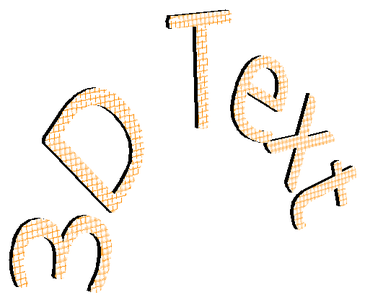
形状的 3D 格式化影响形状主体。文本的 3D 格式化影响文本框。这对于类似 WordArt 的效果很有用,需要对文字本身进行挤出、材质、照明和相机设置。
以下示例创建带有橙白网格图案的文本,应用向上拱形,并通过 TextFrameFormat.getThreeDFormat 配置 3D 设置。挤出高度和深度以点为单位,光线旋转以度为单位。形状填充和轮廓被隐藏,仅显示文本。示例将 PNG 图像渲染为两倍默认幻灯片尺寸,并保存演示文稿为 PPTX:
import jpype
import asposeslides

if not jpype.isJVMStarted():
    jpype.startJVM()

from asposeslides.api import CameraPresetType, FillType, ImageFormat, LightRigPresetType, LightingDirection, MaterialPresetType, PatternStyle, Presentation, SaveFormat, ShapeType, TextShapeType
from java.awt import Color

image_scale = 2.0

presentation = Presentation()
try:
    slide = presentation.getSlides().get_Item(0)

    shape = slide.getShapes().addAutoShape(ShapeType.Rectangle, 200, 150, 250, 250)
    shape.getFillFormat().setFillType(FillType.NoFill)
    shape.getLineFormat().getFillFormat().setFillType(FillType.NoFill)
    shape.getTextFrame().setText("3D Text")

    portion = shape.getTextFrame().getParagraphs().get_Item(0).getPortions().get_Item(0)
    portion.getPortionFormat().getFillFormat().setFillType(FillType.Pattern)
    pattern_color = Color(255, 140, 0)
    portion.getPortionFormat().getFillFormat().getPatternFormat().getForeColor().setColor(pattern_color)
    portion.getPortionFormat().getFillFormat().getPatternFormat().getBackColor().setColor(Color.WHITE)
    portion.getPortionFormat().getFillFormat().getPatternFormat().setPatternStyle(PatternStyle.LargeGrid)

    shape.getTextFrame().getParagraphs().get_Item(0).getParagraphFormat().getDefaultPortionFormat().setFontHeight(128)

    text_frame_format = shape.getTextFrame().getTextFrameFormat()
    text_frame_format.setTransform(TextShapeType.ArchUp)
    text_frame_format.getThreeDFormat().setExtrusionHeight(3.5)
    text_frame_format.getThreeDFormat().setDepth(3)
    text_frame_format.getThreeDFormat().setMaterial(MaterialPresetType.Plastic)
    text_frame_format.getThreeDFormat().getLightRig().setDirection(LightingDirection.Top)
    text_frame_format.getThreeDFormat().getLightRig().setLightType(LightRigPresetType.Balanced)
    text_frame_format.getThreeDFormat().getLightRig().setRotation(0, 0, 40)
    text_frame_format.getThreeDFormat().getCamera().setCameraType(CameraPresetType.PerspectiveContrastingRightFacing)

    thumbnail = slide.getImage(image_scale, image_scale)
    try:
        thumbnail.save("text_3d.png", ImageFormat.Png)
    finally:
        thumbnail.dispose()

    presentation.save("text_3d.pptx", SaveFormat.Pptx)
finally:
    presentation.dispose()
保持文本在 3D 形状上平面
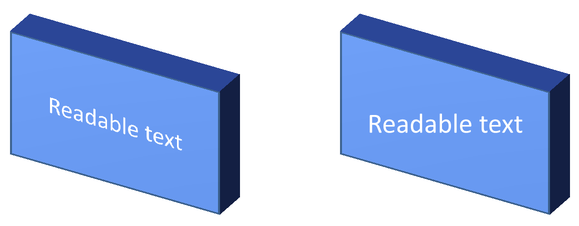
要在保持形状 3D 外观的同时保持文本可读,需通过 TextFrame.getTextFrameFormat 调用 TextFrameFormat.setKeepTextFlat。当值为 True 时,文本保持在 3D 场景之外;为 False 时,文本参与场景并遵循其 3D 方向。
此设置不会移除形状的 3D 格式化:相机、光照、材质和挤出仍通过 Shape.getThreeDFormat 配置。它也不同于普通旋转。Shape.setRotation 在幻灯片平面内旋转形状,而 TextFrameFormat.setRotationAngle 控制文本在其边框内的自定义旋转。将文本保持在 3D 场景之外不会重置这些角度。
以下独立示例创建带文本的蓝色矩形,并在原始旁边克隆它。两个形状具有相同的 3D 格式化,唯一的文本设置不同:左侧为 False,右侧为 True。相机角度以度为单位,挤出高度为 40 点。示例将演示文稿保存为 PPTX,并将比较幻灯片渲染为两倍默认尺寸的 PNG。
import jpype
import asposeslides

if not jpype.isJVMStarted():
    jpype.startJVM()

from asposeslides.api import CameraPresetType, FillType, ImageFormat, LightRigPresetType, LightingDirection, MaterialPresetType, Presentation, SaveFormat, ShapeType, TextAlignment, TextAnchorType
from java.awt import Color

presentation = Presentation()
try:
    slide = presentation.getSlides().get_Item(0)

    shape = slide.getShapes().addAutoShape(ShapeType.Rectangle, 70, 160, 240, 140)

    shape.getTextFrame().setText("Readable text")
    shape.getTextFrame().getParagraphs().get_Item(0).getParagraphFormat().getDefaultPortionFormat().setFontHeight(28)
    shape.getTextFrame().getParagraphs().get_Item(0).getParagraphFormat().setAlignment(TextAlignment.Center)
    shape.getTextFrame().getTextFrameFormat().setAnchoringType(TextAnchorType.Center)
    shape.getFillFormat().setFillType(FillType.Solid)
    shape.getFillFormat().getSolidFillColor().setColor(Color(100, 149, 237))

    shape.getThreeDFormat().getCamera().setCameraType(CameraPresetType.OrthographicFront)
    shape.getThreeDFormat().getCamera().setRotation(30, 30, 0)
    shape.getThreeDFormat().getLightRig().setLightType(LightRigPresetType.Flat)
    shape.getThreeDFormat().getLightRig().setDirection(LightingDirection.Top)
    shape.getThreeDFormat().setMaterial(MaterialPresetType.Flat)
    shape.getThreeDFormat().setExtrusionHeight(40)
    shape.getThreeDFormat().getExtrusionColor().setColor(Color(65, 105, 225))
    shape.getTextFrame().getTextFrameFormat().setKeepTextFlat(False)

    flat_text_shape = slide.getShapes().addClone(shape, 400, 160)
    flat_text_shape.getTextFrame().getTextFrameFormat().setKeepTextFlat(True)

    presentation.save("keep_text_flat.pptx", SaveFormat.Pptx)
    image = slide.getImage(2, 2)
    try:
        image.save("keep_text_flat.png", ImageFormat.Png)
    finally:
        image.dispose()
finally:
    presentation.dispose()
导出和渲染行为
Aspose.Slides 在保存为 PPTX 等 PowerPoint 格式时保留 3D 格式化。渲染或导出为固定布局格式时,3D 场景会光栅化或绘制为 2D 结果。这在将幻灯片渲染为 PNG、导出为 PDF、导出为 HTML、或为 video conversion 生成帧时适用。
- 导出的图像和 PDF 不是交互式的。对象在导出后无法被观看者旋转。
- 最终外观取决于相机、光线、材质、挤出、填充和幻灯片缩放的组合。
- 如果需要检查继承或基于主题的格式化值,请读取 effective shape properties。
- 某些输出格式无法存储可编辑的 PowerPoint 3D 格式化。在这些格式中,视觉结果是渲染的,而不是可编辑的 3D 设置。
常见问题
Aspose.Slides 能创建交互式 3D 演示文稿吗?
Aspose.Slides 创建并渲染 PowerPoint 形状和文本的 3D 效果。它不会使导出的图像、PDF 或 HTML 页面成为可交互的 3D 场景,观看者无法旋转。 在 PPTX 中,只要格式支持,3D 格式化仍然可以在 PowerPoint 中编辑。
3D 模型和 3D 效果有什么区别?
3D 模型是插入到演示文稿中的独立 3D 对象。3D 效果是对普通 PowerPoint 形状或文本应用的格式化,如旋转、挤出、倒角、照明和材质。本文仅讨论 3D 效果。
可见的 3D 形状需要哪些设置?
至少需要设置相机旋转并且设置挤出或深度。实际使用中,还应设置光线装置和材质,以便渲染出的面具有清晰的高光和阴影。
我可以将 3D 效果应用于形状和文本吗?
可以。对形状主体使用 Shape.getThreeDFormat,对文本使用 TextFrameFormat.getThreeDFormat。
将 3D 效果导出为图像、PDF、HTML 或视频帧时会出现吗?
会。Aspose.Slides 在生成幻灯片图像、PDF 输出、HTML 输出以及用于视频转换的帧时渲染 3D 效果。导出的输出包含渲染后的外观,而不是可编辑的 3D 对象。
在应用继承和主题设置后,我可以读取最终的 3D 值吗?
可以。使用在 Shape Effective Properties 中描述的有效格式化 API 来读取最终的相机、光线装置、倒角和相关 3D 值。