
.NET で PowerPoint プレゼンテーションに数式を追加する
概要
PowerPoint は数式を Office Math Markup Language (OMML) として保存します。Aspose.Slides for .NET を使用すると、分数、根号、関数、リミット、N 進演算子、行列、配列、書式設定された数式ブロックなど、同様の数式コンテンツをプログラムで作成できます。
In PowerPoint では、ユーザーは通常 挿入 > 数式 から数式を追加します:
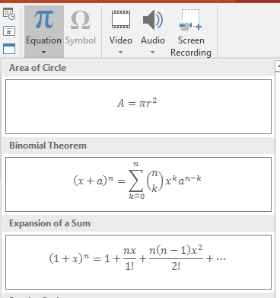
結果としてスライド上に編集可能な数式テキストが表示されます:

Aspose.Slides は、次の 3 つの主要オブジェクトを使用して数式テキストを構築します:
- AddMathShape で作成された数式シェイプは、数式を含むシェイプです。
- MathPortion はシェイプのテキストフレーム内に数式コンテンツを格納します。
- MathParagraph は 1 つ以上の MathBlock オブジェクトを含みます。
以下の例の多くは、コードを簡潔かつ読みやすくするために MathematicalText と IMathElement のフルエントメソッドを使用しています。
For MathML export scenarios, see Export Math Equations from Presentations in .NET.
数式の作成
この例では、数式シェイプを作成し、ピタゴラスの定理を追加します:
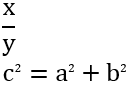
using var presentation = new Presentation();
var slide = presentation.Slides[0];

var mathShape = slide.Shapes.AddMathShape(20, 20, 700, 120);
var mathParagraph = ((MathPortion)mathShape.TextFrame.Paragraphs[0].Portions[0]).MathParagraph;

var equation = new MathematicalText("c")
    .SetSuperscript("2")
    .Join("=")
    .Join(new MathematicalText("a").SetSuperscript("2"))
    .Join("+")
    .Join(new MathematicalText("b").SetSuperscript("2"));

mathParagraph.Add(equation);

presentation.Save("pythagorean-theorem.pptx", SaveFormat.Pptx);
AddMathShape は、既に数式段落を含むシェイプを作成します。最初の MathPortion にアクセスし、その MathParagraph を取得して、数式ブロックまたは数式要素を追加します。
分数の追加
Divide を使用して分数を作成します。分数のスタイルは MathFractionTypes で選択できます。

using var presentation = new Presentation();
var slide = presentation.Slides[0];

var mathShape = slide.Shapes.AddMathShape(20, 20, 700, 100);
var mathParagraph = ((MathPortion)mathShape.TextFrame.Paragraphs[0].Portions[0]).MathParagraph;

var fraction = new MathematicalText("1")
    .Divide("x", MathFractionTypes.Skewed);

mathParagraph.Add(new MathBlock(fraction));

presentation.Save("fraction.pptx", SaveFormat.Pptx);
積み重ね式の分数には、MathFractionTypes.Bar を使用します:
var stackedFraction = new MathematicalText("x + 1").Divide("y - 1", MathFractionTypes.Bar);
根号の追加
Radical を使用して平方根、立方根、その他の根号を作成します。現在の要素が基底となり、引数が指数(根の次数)になります。

using var presentation = new Presentation();
var slide = presentation.Slides[0];

var mathShape = slide.Shapes.AddMathShape(20, 20, 700, 100);
var mathParagraph = ((MathPortion)mathShape.TextFrame.Paragraphs[0].Portions[0]).MathParagraph;

var radical = new MathematicalText("x")
    .Radical("n");

mathParagraph.Add(new MathBlock(radical));

presentation.Save("radical.pptx", SaveFormat.Pptx);
関数とリミットの追加
sin(x), log(x) などの関数やカスタム関数名には AsArgumentOfFunction または Function を使用します。リミットの場合は、lim を MathLimit に入れるか、SetLowerLimit を使用します。

using var presentation = new Presentation();
var slide = presentation.Slides[0];

var mathShape = slide.Shapes.AddMathShape(20, 20, 700, 100);
var mathParagraph = ((MathPortion)mathShape.TextFrame.Paragraphs[0].Portions[0]).MathParagraph;

var limit = new MathematicalText("lim")
    .SetLowerLimit("x→∞")
    .Function("x");

mathParagraph.Add(new MathBlock(limit));

presentation.Save("functions-and-limits.pptx", SaveFormat.Pptx);
カスタム関数名の場合は、関数名を現在の要素にします:
var customFunction = new MathematicalText("f").Function("x + 1");
N 進演算子と積分の追加
Nary を使用して総和、和集合、積集合、その他の大きな演算子を作成します。積分には Integral を使用します。どちらのメソッドも下限と上限を設定できます。
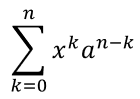
using var presentation = new Presentation();
var slide = presentation.Slides[0];

var mathShape = slide.Shapes.AddMathShape(20, 20, 700, 120);
var mathParagraph = ((MathPortion)mathShape.TextFrame.Paragraphs[0].Portions[0]).MathParagraph;

var summationBase = new MathematicalText("x")
    .SetSuperscript("k")
    .Join(new MathematicalText("a").SetSuperscript("n-k"));

var summation = summationBase.Nary(MathNaryOperatorTypes.Summation, "k=0", "n");

mathParagraph.Add(new MathBlock(summation));

presentation.Save("nary-operators.pptx", SaveFormat.Pptx);
N-ary 演算子は、オプションのリミットを持つ大きな演算子用です。+、-、= などの単純な演算子は通常 MathematicalText として追加し、式に結合します。
積分の場合は、Integral を使用します:
var integralBase = new MathematicalText("x").Join(new MathematicalText("dx").ToBox());
var integral = integralBase.Integral(MathIntegralTypes.Simple, "0", "1");
行列の追加
行と列には MathMatrix を使用します。行列はデフォルトで括弧を含まないため、丸括弧、角括弧、波括弧が必要な場合は矩形を囲んでください。
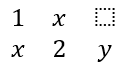
using var presentation = new Presentation();
var slide = presentation.Slides[0];

var mathShape = slide.Shapes.AddMathShape(20, 20, 700, 120);
var mathParagraph = ((MathPortion)mathShape.TextFrame.Paragraphs[0].Portions[0]).MathParagraph;

var matrix = new MathMatrix(2, 3);
matrix[0, 0] = new MathematicalText("1");
matrix[0, 1] = new MathematicalText("x");
matrix[1, 0] = new MathematicalText("x");
matrix[1, 1] = new MathematicalText("2");
matrix[1, 2] = new MathematicalText("y");

mathParagraph.Add(new MathBlock(matrix));

presentation.Save("matrix.pptx", SaveFormat.Pptx);
数式配列の追加
整列した数式や縦に並んだ式が必要なときは ToMathArray を使用します。

using var presentation = new Presentation();
var slide = presentation.Slides[0];

var mathShape = slide.Shapes.AddMathShape(20, 20, 700, 140);
var mathParagraph = ((MathPortion)mathShape.TextFrame.Paragraphs[0].Portions[0]).MathParagraph;

var equationArray = new MathematicalText("x")
    .Join("y")
    .ToMathArray();

mathParagraph.Add(new MathBlock(equationArray));

presentation.Save("equation-array.pptx", SaveFormat.Pptx);
三角関数の追加
引数が現在の要素で関数名が既知の場合は AsArgumentOfFunction を使用します。

using var presentation = new Presentation();
var slide = presentation.Slides[0];

var mathShape = slide.Shapes.AddMathShape(20, 20, 700, 100);
var mathParagraph = ((MathPortion)mathShape.TextFrame.Paragraphs[0].Portions[0]).MathParagraph;

var cosine = new MathematicalText("2x")
    .AsArgumentOfFunction(MathFunctionsOfOneArgument.Cos);

mathParagraph.Add(new MathBlock(cosine));

presentation.Save("trigonometric-function.pptx", SaveFormat.Pptx);
下付き文字と上付き文字の追加
添字と上付き文字のヘルパーを使用してインデックスやべき乗を設定します。インデックスを基底の左側に表示する必要がある場合は SetSubSuperscriptOnTheLeft を使用します。

using var presentation = new Presentation();
var slide = presentation.Slides[0];

var mathShape = slide.Shapes.AddMathShape(20, 20, 700, 100);
var mathParagraph = ((MathPortion)mathShape.TextFrame.Paragraphs[0].Portions[0]).MathParagraph;

var scripts = new MathematicalText("Y")
    .SetSubSuperscriptOnTheLeft("1", "n");

mathParagraph.Add(new MathBlock(scripts));

presentation.Save("subscript-superscript.pptx", SaveFormat.Pptx);
区切り文字の追加
Enclose を使用して式を区切り文字で囲みます。複数の要素を含む区切り式では、区切り文字を設定することもできます。

using var presentation = new Presentation();
var slide = presentation.Slides[0];

var mathShape = slide.Shapes.AddMathShape(20, 20, 700, 100);
var mathParagraph = ((MathPortion)mathShape.TextFrame.Paragraphs[0].Portions[0]).MathParagraph;

var delimiter = new MathematicalText("x")
    .Join("y")
    .Join("z")
    .Enclose('<', '>');
delimiter.SeparatorCharacter = '|';

mathParagraph.Add(new MathBlock(delimiter));

presentation.Save("delimiters.pptx", SaveFormat.Pptx);
枠付きボックスの追加
数式自体を枠で囲む必要がある場合は ToBorderBox を使用します。
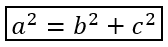
using var presentation = new Presentation();
var slide = presentation.Slides[0];

var mathShape = slide.Shapes.AddMathShape(20, 20, 700, 100);
var mathParagraph = ((MathPortion)mathShape.TextFrame.Paragraphs[0].Portions[0]).MathParagraph;

var boxedEquation = new MathematicalText("a")
    .SetSuperscript("2")
    .Join("=")
    .Join(new MathematicalText("b").SetSuperscript("2"))
    .Join("+")
    .Join(new MathematicalText("c").SetSuperscript("2"))
    .ToBorderBox();

mathParagraph.Add(new MathBlock(boxedEquation));

presentation.Save("border-box.pptx", SaveFormat.Pptx);
項のグループ化
Group を使用して、式の上または下にグループ化文字を配置します。リミットを追加してグループ化された項にラベルを付けることができます。

using var presentation = new Presentation();
var slide = presentation.Slides[0];

var mathShape = slide.Shapes.AddMathShape(20, 20, 700, 120);
var mathParagraph = ((MathPortion)mathShape.TextFrame.Paragraphs[0].Portions[0]).MathParagraph;

var grouped = new MathematicalText("x + y")
    .Group('\u23DF', MathTopBotPositions.Bottom, MathTopBotPositions.Top)
    .SetLowerLimit("any text");

mathParagraph.Add(new MathBlock(grouped));

presentation.Save("grouped-terms.pptx", SaveFormat.Pptx);
数式要素の書式設定
フォーマットヘルパーは、式の明瞭さが必要な箇所でのみ使用してください。例えば Overbar は数式要素の上にバーを付加します。

using var presentation = new Presentation();
var slide = presentation.Slides[0];

var mathShape = slide.Shapes.AddMathShape(20, 20, 700, 100);
var mathParagraph = ((MathPortion)mathShape.TextFrame.Paragraphs[0].Portions[0]).MathParagraph;

var overbar = new MathematicalText("ABC").Overbar();

mathParagraph.Add(new MathBlock(overbar));

presentation.Save("overbar.pptx", SaveFormat.Pptx);
クイックリファレンス
| Task | Main API |
|---|---|
| 数式テキストの作成 | MathematicalText |
| 要素の結合 | IMathElement.Join |
| 分数の作成 | IMathElement.Divide |
| 上付き文字または下付き文字の追加 | SetSuperscript, SetSubscript |
| 関数の追加 | Function, AsArgumentOfFunction |
| 根号の追加 | IMathElement.Radical |
| リミットの追加 | SetLowerLimit, SetUpperLimit |
| 左側添字の追加 | SetSubSuperscriptOnTheLeft |
| 総和と積分の追加 | Nary, Integral |
| 行列の追加 | MathMatrix |
| 数式配列の追加 | ToMathArray |
| 区切り文字の追加 | Enclose |
| バーと枠の追加 | Overbar, ToBorderBox |
| 項のグループ化 | Group |
よくある質問
既存の PowerPoint の数式を編集できますか?
はい。プレゼンテーションを開き、MathPortion を含むシェイプを見つけ、その MathParagraph を取得して、段落内の数式ブロックを更新します。
数式は編集可能な PowerPoint の数式として保存されますか?
はい。PPTX として保存すると、Aspose.Slides は数式を編集可能な Office 数式コンテンツとして書き込みます。
数式を LaTeX にエクスポートできますか?
はい。数式の [MathPortion] から [IMathParagraph] を取得し、[IMathParagraph.ToLatex] を呼び出すことで直接エクスポートできます。完全な例については、Export Math Equations from Presentations in .NET を参照してください。