
在 .NET 中向 PowerPoint 演示文稿添加数学公式
概述
PowerPoint 将公式存储为 Office Math Markup Language(OMML)。使用 Aspose.Slides for .NET,您可以以编程方式创建相同类型的数学内容:分数、根式、函数、极限、N 元运算符、矩阵、数组以及格式化的数学块。
在 PowerPoint 中,用户通常通过 Insert > Equation 添加公式:
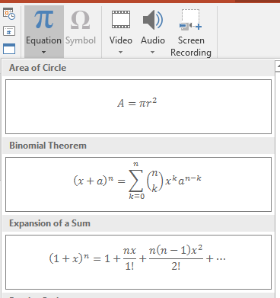
结果是在幻灯片上显示可编辑的数学文本:

Aspose.Slides 通过以下三个主要对象构建该数学文本:
- 使用 AddMathShape 创建的数学形状,用于容纳公式的形状。
- MathPortion 在形状的文本框内存储数学内容。
- MathParagraph 包含一个或多个 MathBlock 对象。
下面的大多数示例使用 MathematicalText 和来自 IMathElement 的流畅方法,以保持代码简洁易读。
有关 MathML 导出场景,请参阅 Export Math Equations from Presentations in .NET。
创建公式
此示例创建一个数学形状并添加勾股定理:
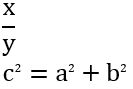
using var presentation = new Presentation();
var slide = presentation.Slides[0];

var mathShape = slide.Shapes.AddMathShape(20, 20, 700, 120);
var mathParagraph = ((MathPortion)mathShape.TextFrame.Paragraphs[0].Portions[0]).MathParagraph;

var equation = new MathematicalText("c")
    .SetSuperscript("2")
    .Join("=")
    .Join(new MathematicalText("a").SetSuperscript("2"))
    .Join("+")
    .Join(new MathematicalText("b").SetSuperscript("2"));

mathParagraph.Add(equation);

presentation.Save("pythagorean-theorem.pptx", SaveFormat.Pptx);
AddMathShape 创建的形状已经包含一个数学段落。访问第一个 MathPortion,获取其 MathParagraph,然后向其中添加数学块或数学元素。
添加分数
使用 Divide 创建分数。您可以通过 MathFractionTypes 选择分数样式。

using var presentation = new Presentation();
var slide = presentation.Slides[0];

var mathShape = slide.Shapes.AddMathShape(20, 20, 700, 100);
var mathParagraph = ((MathPortion)mathShape.TextFrame.Paragraphs[0].Portions[0]).MathParagraph;

var fraction = new MathematicalText("1")
    .Divide("x", MathFractionTypes.Skewed);

mathParagraph.Add(new MathBlock(fraction));

presentation.Save("fraction.pptx", SaveFormat.Pptx);
对于堆叠式分数,使用 MathFractionTypes.Bar:
var stackedFraction = new MathematicalText("x + 1").Divide("y - 1", MathFractionTypes.Bar);
添加根式
使用 Radical 创建平方根、立方根或其他根式。当前元素成为底数,参数成为指数。

using var presentation = new Presentation();
var slide = presentation.Slides[0];

var mathShape = slide.Shapes.AddMathShape(20, 20, 700, 100);
var mathParagraph = ((MathPortion)mathShape.TextFrame.Paragraphs[0].Portions[0]).MathParagraph;

var radical = new MathematicalText("x")
    .Radical("n");

mathParagraph.Add(new MathBlock(radical));

presentation.Save("radical.pptx", SaveFormat.Pptx);
添加函数和极限
使用 AsArgumentOfFunction 或 Function 添加如 sin(x)、log(x) 或自定义函数名的函数。对于极限,将 lim 放入 MathLimit 或使用 SetLowerLimit。

using var presentation = new Presentation();
var slide = presentation.Slides[0];

var mathShape = slide.Shapes.AddMathShape(20, 20, 700, 100);
var mathParagraph = ((MathPortion)mathShape.TextFrame.Paragraphs[0].Portions[0]).MathParagraph;

var limit = new MathematicalText("lim")
    .SetLowerLimit("x→∞")
    .Function("x");

mathParagraph.Add(new MathBlock(limit));

presentation.Save("functions-and-limits.pptx", SaveFormat.Pptx);
对于自定义函数名,请将函数名设为当前元素:
var customFunction = new MathematicalText("f").Function("x + 1");
添加 N 元运算符和积分
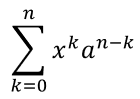
使用 Nary 处理求和、并集、交集等大型运算符。使用 Integral 处理积分。这两种方法都允许您设置上下限。
using var presentation = new Presentation();
var slide = presentation.Slides[0];

var mathShape = slide.Shapes.AddMathShape(20, 20, 700, 120);
var mathParagraph = ((MathPortion)mathShape.TextFrame.Paragraphs[0].Portions[0]).MathParagraph;

var summationBase = new MathematicalText("x")
    .SetSuperscript("k")
    .Join(new MathematicalText("a").SetSuperscript("n-k"));

var summation = summationBase.Nary(MathNaryOperatorTypes.Summation, "k=0", "n");

mathParagraph.Add(new MathBlock(summation));

presentation.Save("nary-operators.pptx", SaveFormat.Pptx);
N 元运算符用于带可选上下限的大型运算符。诸如 +、-、= 等简单运算符通常使用 MathematicalText 添加,并与表达式连接。
对于积分,使用 Integral:
var integralBase = new MathematicalText("x").Join(new MathematicalText("dx").ToBox());
var integral = integralBase.Integral(MathIntegralTypes.Simple, "0", "1");
添加矩阵
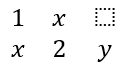
使用 MathMatrix 定义行和列。矩阵默认不包含括号,如需括号、方括号或大括号,请自行在矩阵外添加。
using var presentation = new Presentation();
var slide = presentation.Slides[0];

var mathShape = slide.Shapes.AddMathShape(20, 20, 700, 120);
var mathParagraph = ((MathPortion)mathShape.TextFrame.Paragraphs[0].Portions[0]).MathParagraph;

var matrix = new MathMatrix(2, 3);
matrix[0, 0] = new MathematicalText("1");
matrix[0, 1] = new MathematicalText("x");
matrix[1, 0] = new MathematicalText("x");
matrix[1, 1] = new MathematicalText("2");
matrix[1, 2] = new MathematicalText("y");

mathParagraph.Add(new MathBlock(matrix));

presentation.Save("matrix.pptx", SaveFormat.Pptx);
添加公式数组
当需要对齐公式或垂直堆叠表达式时,使用 ToMathArray。

using var presentation = new Presentation();
var slide = presentation.Slides[0];

var mathShape = slide.Shapes.AddMathShape(20, 20, 700, 140);
var mathParagraph = ((MathPortion)mathShape.TextFrame.Paragraphs[0].Portions[0]).MathParagraph;

var equationArray = new MathematicalText("x")
    .Join("y")
    .ToMathArray();

mathParagraph.Add(new MathBlock(equationArray));

presentation.Save("equation-array.pptx", SaveFormat.Pptx);
添加三角函数
当参数是当前元素且函数名已知时,使用 AsArgumentOfFunction。

using var presentation = new Presentation();
var slide = presentation.Slides[0];

var mathShape = slide.Shapes.AddMathShape(20, 20, 700, 100);
var mathParagraph = ((MathPortion)mathShape.TextFrame.Paragraphs[0].Portions[0]).MathParagraph;

var cosine = new MathematicalText("2x")
    .AsArgumentOfFunction(MathFunctionsOfOneArgument.Cos);

mathParagraph.Add(new MathBlock(cosine));

presentation.Save("trigonometric-function.pptx", SaveFormat.Pptx);
添加下标和上标
使用下标和上标辅助方法处理索引和幂。当索引需要显示在基数左侧时,使用 SetSubSuperscriptOnTheLeft。

using var presentation = new Presentation();
var slide = presentation.Slides[0];

var mathShape = slide.Shapes.AddMathShape(20, 20, 700, 100);
var mathParagraph = ((MathPortion)mathShape.TextFrame.Paragraphs[0].Portions[0]).MathParagraph;

var scripts = new MathematicalText("Y")
    .SetSubSuperscriptOnTheLeft("1", "n");

mathParagraph.Add(new MathBlock(scripts));

presentation.Save("subscript-superscript.pptx", SaveFormat.Pptx);
添加分隔符
使用 Enclose 将表达式放入分隔符中。对于包含多个元素的分隔符表达式,还可以设置分隔符字符。

using var presentation = new Presentation();
var slide = presentation.Slides[0];

var mathShape = slide.Shapes.AddMathShape(20, 20, 700, 100);
var mathParagraph = ((MathPortion)mathShape.TextFrame.Paragraphs[0].Portions[0]).MathParagraph;

var delimiter = new MathematicalText("x")
    .Join("y")
    .Join("z")
    .Enclose('<', '>');
delimiter.SeparatorCharacter = '|';

mathParagraph.Add(new MathBlock(delimiter));

presentation.Save("delimiters.pptx", SaveFormat.Pptx);
添加边框框
当公式本身需要加框时,使用 ToBorderBox。
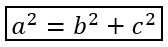
using var presentation = new Presentation();
var slide = presentation.Slides[0];

var mathShape = slide.Shapes.AddMathShape(20, 20, 700, 100);
var mathParagraph = ((MathPortion)mathShape.TextFrame.Paragraphs[0].Portions[0]).MathParagraph;

var boxedEquation = new MathematicalText("a")
    .SetSuperscript("2")
    .Join("=")
    .Join(new MathematicalText("b").SetSuperscript("2"))
    .Join("+")
    .Join(new MathematicalText("c").SetSuperscript("2"))
    .ToBorderBox();

mathParagraph.Add(new MathBlock(boxedEquation));

presentation.Save("border-box.pptx", SaveFormat.Pptx);
分组项
使用 Group 在表达式上方或下方放置分组选字符。添加限制以为分组项标记标签。

using var presentation = new Presentation();
var slide = presentation.Slides[0];

var mathShape = slide.Shapes.AddMathShape(20, 20, 700, 120);
var mathParagraph = ((MathPortion)mathShape.TextFrame.Paragraphs[0].Portions[0]).MathParagraph;

var grouped = new MathematicalText("x + y")
    .Group('\u23DF', MathTopBotPositions.Bottom, MathTopBotPositions.Top)
    .SetLowerLimit("any text");

mathParagraph.Add(new MathBlock(grouped));

presentation.Save("grouped-terms.pptx", SaveFormat.Pptx);
格式化数学元素
仅在有助于澄清公式时使用格式化辅助方法。例如,Overbar 在数学元素上方添加横线。

using var presentation = new Presentation();
var slide = presentation.Slides[0];

var mathShape = slide.Shapes.AddMathShape(20, 20, 700, 100);
var mathParagraph = ((MathPortion)mathShape.TextFrame.Paragraphs[0].Portions[0]).MathParagraph;

var overbar = new MathematicalText("ABC").Overbar();

mathParagraph.Add(new MathBlock(overbar));

presentation.Save("overbar.pptx", SaveFormat.Pptx);
快速参考
| 任务 | 主要 API |
|---|---|
| 创建数学文本 | MathematicalText |
| 合并元素 | IMathElement.Join |
| 创建分数 | IMathElement.Divide |
| 添加上标或下标 | SetSuperscript, SetSubscript |
| 添加函数 | Function, AsArgumentOfFunction |
| 添加根式 | IMathElement.Radical |
| 添加极限 | SetLowerLimit, SetUpperLimit |
| 添加左侧脚本 | SetSubSuperscriptOnTheLeft |
| 添加求和和积分 | Nary, Integral |
| 添加矩阵 | MathMatrix |
| 添加公式数组 | ToMathArray |
| 添加分隔符 | Enclose |
| 添加横线和边框 | Overbar, ToBorderBox |
| 分组项 | Group |
常见问题
我可以编辑现有的 PowerPoint 公式吗?
可以。打开演示文稿,找到包含 MathPortion 的形状,获取其 MathParagraph,并更新该段落中的数学块。
公式会保存为可编辑的 PowerPoint 数学吗?
会。保存为 PPTX 时,Aspose.Slides 会将公式写入可编辑的 Office 数学内容。
我可以将公式导出为 LaTeX 吗?
可以。从其 MathPortion 获取公式的 IMathParagraph,然后调用 IMathParagraph.ToLatex 直接导出。完整示例请参阅 Export Math Equations from Presentations in .NET。