
Add Math Equations to PowerPoint Presentations in .NET
Overview
PowerPoint stores equations as Office Math Markup Language (OMML). With Aspose.Slides for .NET, you can create the same kind of math content programmatically: fractions, radicals, functions, limits, N-ary operators, matrices, arrays, and formatted math blocks.
In PowerPoint, users normally add equations from Insert > Equation:
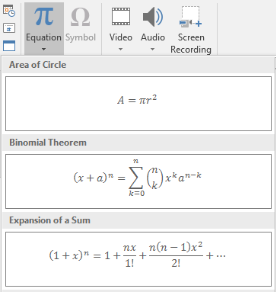
The result is editable math text on the slide:

Aspose.Slides builds that math text through three main objects:
- A math shape, created with AddMathShape, is the shape that contains the equation.
- MathPortion stores math content inside the shape text frame.
- MathParagraph contains one or more MathBlock objects.
Most examples below use MathematicalText and the fluent methods from IMathElement to keep the code short and readable.
For MathML export scenarios, see Export Math Equations from Presentations in .NET.
Create an Equation
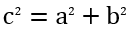
This example creates a math shape and adds the Pythagorean theorem:
using Aspose.Slides;
using Aspose.Slides.Export;
using Aspose.Slides.MathText;

using var presentation = new Presentation();
var slide = presentation.Slides[0];

var mathShape = slide.Shapes.AddMathShape(20, 20, 700, 120);
var mathParagraph = ((MathPortion)mathShape.TextFrame.Paragraphs[0].Portions[0]).MathParagraph;

var equation = new MathematicalText("c")
    .SetSuperscript("2")
    .Join("=")
    .Join(new MathematicalText("a").SetSuperscript("2"))
    .Join("+")
    .Join(new MathematicalText("b").SetSuperscript("2"));

mathParagraph.Add(equation);

presentation.Save("pythagorean-theorem.pptx", SaveFormat.Pptx);
AddMathShape creates a shape that already contains a math paragraph. Access the first MathPortion, get its MathParagraph, and add math blocks or math elements to it.
Add Fractions
Use Divide to create a fraction. You can choose a fraction style with MathFractionTypes.

using Aspose.Slides;
using Aspose.Slides.Export;
using Aspose.Slides.MathText;

using var presentation = new Presentation();
var slide = presentation.Slides[0];

var mathShape = slide.Shapes.AddMathShape(20, 20, 700, 100);
var mathParagraph = ((MathPortion)mathShape.TextFrame.Paragraphs[0].Portions[0]).MathParagraph;

var fraction = new MathematicalText("1")
    .Divide("x", MathFractionTypes.Skewed);

mathParagraph.Add(new MathBlock(fraction));

presentation.Save("fraction.pptx", SaveFormat.Pptx);
For a stacked fraction, use MathFractionTypes.Bar:
using Aspose.Slides.MathText;

var stackedFraction = new MathematicalText("x + 1").Divide("y - 1", MathFractionTypes.Bar);
Add Radicals
Use Radical to create a square root, cube root, or other root. The current element becomes the base, and the argument becomes the degree.

using Aspose.Slides;
using Aspose.Slides.Export;
using Aspose.Slides.MathText;

using var presentation = new Presentation();
var slide = presentation.Slides[0];

var mathShape = slide.Shapes.AddMathShape(20, 20, 700, 100);
var mathParagraph = ((MathPortion)mathShape.TextFrame.Paragraphs[0].Portions[0]).MathParagraph;

var radical = new MathematicalText("x")
    .Radical("n");

mathParagraph.Add(new MathBlock(radical));

presentation.Save("radical.pptx", SaveFormat.Pptx);
Add Functions and Limits
Use AsArgumentOfFunction or Function for functions such as sin(x), log(x), or custom function names. For limits, put lim in a MathLimit or use SetLowerLimit.

using Aspose.Slides;
using Aspose.Slides.Export;
using Aspose.Slides.MathText;

using var presentation = new Presentation();
var slide = presentation.Slides[0];

var mathShape = slide.Shapes.AddMathShape(20, 20, 700, 100);
var mathParagraph = ((MathPortion)mathShape.TextFrame.Paragraphs[0].Portions[0]).MathParagraph;

var limit = new MathematicalText("lim")
    .SetLowerLimit("x→∞")
    .Function("x");

mathParagraph.Add(new MathBlock(limit));

presentation.Save("functions-and-limits.pptx", SaveFormat.Pptx);
For a custom function name, make the function name the current element:
using Aspose.Slides.MathText;

var customFunction = new MathematicalText("f").Function("x + 1");
Add N-ary Operators and Integrals
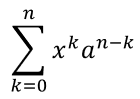
Use Nary for summations, unions, intersections, and other large operators. Use Integral for integrals. Both methods let you set lower and upper limits.
using Aspose.Slides;
using Aspose.Slides.Export;
using Aspose.Slides.MathText;

using var presentation = new Presentation();
var slide = presentation.Slides[0];

var mathShape = slide.Shapes.AddMathShape(20, 20, 700, 120);
var mathParagraph = ((MathPortion)mathShape.TextFrame.Paragraphs[0].Portions[0]).MathParagraph;

var summationBase = new MathematicalText("x")
    .SetSuperscript("k")
    .Join(new MathematicalText("a").SetSuperscript("n-k"));

var summation = summationBase.Nary(MathNaryOperatorTypes.Summation, "k=0", "n");

mathParagraph.Add(new MathBlock(summation));

presentation.Save("nary-operators.pptx", SaveFormat.Pptx);
N-ary operators are for large operators with optional limits. Simple operators such as +, -, and = are usually added as MathematicalText and joined into the expression.
For an integral, use Integral:
using Aspose.Slides.MathText;

var integralBase = new MathematicalText("x").Join(new MathematicalText("dx").ToBox());
var integral = integralBase.Integral(MathIntegralTypes.Simple, "0", "1");
Add Matrices
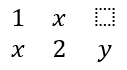
Use MathMatrix for rows and columns. Matrices do not include brackets by default, so enclose the matrix when you need parentheses, brackets, or braces.
using Aspose.Slides;
using Aspose.Slides.Export;
using Aspose.Slides.MathText;

using var presentation = new Presentation();
var slide = presentation.Slides[0];

var mathShape = slide.Shapes.AddMathShape(20, 20, 700, 120);
var mathParagraph = ((MathPortion)mathShape.TextFrame.Paragraphs[0].Portions[0]).MathParagraph;

var matrix = new MathMatrix(2, 3);
matrix[0, 0] = new MathematicalText("1");
matrix[0, 1] = new MathematicalText("x");
matrix[1, 0] = new MathematicalText("x");
matrix[1, 1] = new MathematicalText("2");
matrix[1, 2] = new MathematicalText("y");

mathParagraph.Add(new MathBlock(matrix));

presentation.Save("matrix.pptx", SaveFormat.Pptx);
Add Equation Arrays
Use ToMathArray when you need aligned equations or a vertical stack of expressions.

using Aspose.Slides;
using Aspose.Slides.Export;
using Aspose.Slides.MathText;

using var presentation = new Presentation();
var slide = presentation.Slides[0];

var mathShape = slide.Shapes.AddMathShape(20, 20, 700, 140);
var mathParagraph = ((MathPortion)mathShape.TextFrame.Paragraphs[0].Portions[0]).MathParagraph;

var equationArray = new MathematicalText("x")
    .Join("y")
    .ToMathArray();

mathParagraph.Add(new MathBlock(equationArray));

presentation.Save("equation-array.pptx", SaveFormat.Pptx);
Add Trigonometric Functions
Use AsArgumentOfFunction when the argument is the current element and the function name is known.

using Aspose.Slides;
using Aspose.Slides.Export;
using Aspose.Slides.MathText;

using var presentation = new Presentation();
var slide = presentation.Slides[0];

var mathShape = slide.Shapes.AddMathShape(20, 20, 700, 100);
var mathParagraph = ((MathPortion)mathShape.TextFrame.Paragraphs[0].Portions[0]).MathParagraph;

var cosine = new MathematicalText("2x")
    .AsArgumentOfFunction(MathFunctionsOfOneArgument.Cos);

mathParagraph.Add(new MathBlock(cosine));

presentation.Save("trigonometric-function.pptx", SaveFormat.Pptx);
Add Subscripts and Superscripts
Use the subscript and superscript helpers for indexes and powers. When the indexes must appear on the left side of the base, use SetSubSuperscriptOnTheLeft.

using Aspose.Slides;
using Aspose.Slides.Export;
using Aspose.Slides.MathText;

using var presentation = new Presentation();
var slide = presentation.Slides[0];

var mathShape = slide.Shapes.AddMathShape(20, 20, 700, 100);
var mathParagraph = ((MathPortion)mathShape.TextFrame.Paragraphs[0].Portions[0]).MathParagraph;

var scripts = new MathematicalText("Y")
    .SetSubSuperscriptOnTheLeft("1", "n");

mathParagraph.Add(new MathBlock(scripts));

presentation.Save("subscript-superscript.pptx", SaveFormat.Pptx);
Add Delimiters
Use Enclose to put an expression inside delimiters. You can also set a separator character for delimiter expressions that contain several elements.

using Aspose.Slides;
using Aspose.Slides.Export;
using Aspose.Slides.MathText;

using var presentation = new Presentation();
var slide = presentation.Slides[0];

var mathShape = slide.Shapes.AddMathShape(20, 20, 700, 100);
var mathParagraph = ((MathPortion)mathShape.TextFrame.Paragraphs[0].Portions[0]).MathParagraph;

var delimiter = new MathematicalText("x")
    .Join("y")
    .Join("z")
    .Enclose('<', '>');
delimiter.SeparatorCharacter = '|';

mathParagraph.Add(new MathBlock(delimiter));

presentation.Save("delimiters.pptx", SaveFormat.Pptx);
Add a Border Box
Use ToBorderBox when the equation itself should be framed.
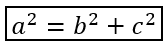
using Aspose.Slides;
using Aspose.Slides.Export;
using Aspose.Slides.MathText;

using var presentation = new Presentation();
var slide = presentation.Slides[0];

var mathShape = slide.Shapes.AddMathShape(20, 20, 700, 100);
var mathParagraph = ((MathPortion)mathShape.TextFrame.Paragraphs[0].Portions[0]).MathParagraph;

var boxedEquation = new MathematicalText("a")
    .SetSuperscript("2")
    .Join("=")
    .Join(new MathematicalText("b").SetSuperscript("2"))
    .Join("+")
    .Join(new MathematicalText("c").SetSuperscript("2"))
    .ToBorderBox();

mathParagraph.Add(new MathBlock(boxedEquation));

presentation.Save("border-box.pptx", SaveFormat.Pptx);
Group Terms
Use Group to place a grouping character above or below an expression. Add a limit to label the grouped terms.

using Aspose.Slides;
using Aspose.Slides.Export;
using Aspose.Slides.MathText;

using var presentation = new Presentation();
var slide = presentation.Slides[0];

var mathShape = slide.Shapes.AddMathShape(20, 20, 700, 120);
var mathParagraph = ((MathPortion)mathShape.TextFrame.Paragraphs[0].Portions[0]).MathParagraph;

var grouped = new MathematicalText("x + y")
    .Group('\u23DF', MathTopBotPositions.Bottom, MathTopBotPositions.Top)
    .SetLowerLimit("any text");

mathParagraph.Add(new MathBlock(grouped));

presentation.Save("grouped-terms.pptx", SaveFormat.Pptx);
Format Math Elements
Use formatting helpers only where they clarify the formula. For example, Overbar places a bar above a math element.

using Aspose.Slides;
using Aspose.Slides.Export;
using Aspose.Slides.MathText;

using var presentation = new Presentation();
var slide = presentation.Slides[0];

var mathShape = slide.Shapes.AddMathShape(20, 20, 700, 100);
var mathParagraph = ((MathPortion)mathShape.TextFrame.Paragraphs[0].Portions[0]).MathParagraph;

var overbar = new MathematicalText("ABC").Overbar();

mathParagraph.Add(new MathBlock(overbar));

presentation.Save("overbar.pptx", SaveFormat.Pptx);
Quick Reference
| Task | Main API |
|---|---|
| Create math text | MathematicalText |
| Combine elements | IMathElement.Join |
| Create fractions | IMathElement.Divide |
| Add superscript or subscript | SetSuperscript, SetSubscript |
| Add functions | Function, AsArgumentOfFunction |
| Add radicals | IMathElement.Radical |
| Add limits | SetLowerLimit, SetUpperLimit |
| Add left-side scripts | SetSubSuperscriptOnTheLeft |
| Add summations and integrals | Nary, Integral |
| Add matrices | MathMatrix |
| Add equation arrays | ToMathArray |
| Add delimiters | Enclose |
| Add bars and borders | Overbar, ToBorderBox |
| Group terms | Group |
FAQ
Can I edit an existing PowerPoint equation?
Yes. Open the presentation, find the shape that contains a MathPortion, get its MathParagraph, and update the math blocks in that paragraph.
Are equations saved as editable PowerPoint math?
Yes. When you save to PPTX, Aspose.Slides writes the equation as editable Office math content.
Can I export equations to LaTeX?
Yes. Get the equation’s IMathParagraph from its MathPortion, and call IMathParagraph.ToLatex to export it directly. For a complete example, see Export Math Equations from Presentations in .NET.