
PHP を使用したプレゼンテーションで 3D 効果を作成
概要
Aspose.Slides for PHP via Java は、図形やテキストに対して PowerPoint 形式の 3D 書式設定を作成、編集、保持、レンダリングできます。本記事では、回転、押し出し、ベベル、照明、素材、グラデーションまたは画像塗りつぶし、そして 3D テキストなどの 3D 効果について説明します。
Note
この項目は PowerPoint の図形やテキストに対する 3D 書式設定効果について説明しています。スタンドアロンの 3D モデル ファイルの挿入や編集については扱いません。スライドを画像、PDF、または HTML にエクスポートすると、Aspose.Slides はそれらの 3D 効果をエクスポートされた 2D 出力にレンダリングします。3D 書式設定の概念
Shape::getThreeDFormat メソッドを使用して、図形に 3D 書式設定を適用します。このメソッドは ThreeDFormat を返し、該当図形の 3D シーンを制御します。
テキストの場合は、TextFrameFormat::getThreeDFormat メソッドを使用します。これは図形本体ではなくテキスト フレームに 3D 書式設定を適用します。
最も重要な API メンバーは次のとおりです。
| API メンバー | 制御対象 | 使用シーン |
|---|---|---|
| getCamera | 視点、プリセット カメラタイプ、回転、ズーム、遠近法 | 3D 空間でオブジェクトを回転させる、または PowerPoint の 3D 回転プリセットに合わせる |
| getLightRig | ライトのプリセット、方向、光の回転 | 3D 表面のハイライトや影の見え方を変更 |
| getMaterial と setMaterial | フラット、マット、プラスチック、金属などの表面素材 | 同じ形状をフラット、柔らかい、光沢のある、金属的に見せる |
| getExtrusionHeight と setExtrusionHeight | 前面から後方へどれだけ伸びるか | 平面の図形を肉厚な 3D オブジェクトに変える |
| getExtrusionColor | 押し出された側面の色 | 奥行きを見せる、または前面の塗りつぶしと側面の色を合わせる |
| getDepth と setDepth | PowerPoint の 3D 書式で使用される追加奥行き | ベベルや素材設定と組み合わせて形状やテキストの奥行きを微調整 |
| getBevelTop と getBevelBottom | 前面・背面のエッジを立ち上げたり丸めたりする | 鋭利な平面の代わりに柔らかい、成形されたエッジを追加 |
| getContourColor と getContourWidth と setContourWidth | 3D オブジェクトの輪郭線 | レンダリング結果でオブジェクトの境界を強調 |
3D 図形の作成
図形が説得力のある 3D 表示になるためには、通常次の 4 種類の設定が必要です。
- カメラ設定(デフォルトの正面ビューでは押し出しが見えにくいため)
- ライト設定(照明が面と側面を見やすくするため)
- 素材設定(表面が光の当たり方に影響するため)
- 押し出しまたは奥行き設定(平面図形に厚みを持たせるため)
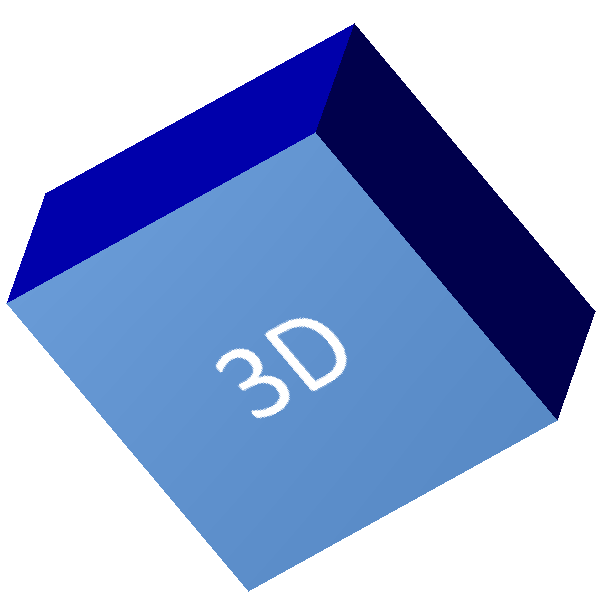
以下の例は長方形を作成し、前面にテキストを追加し、3D 書式設定を適用します。カメラ回転値は度数で、押し出し高さは 100 ポイントです。例はスライドを PNG 画像に 2 倍のデフォルトサイズでレンダリングし、プレゼンテーションを PPTX として保存します。
use aspose\slides\CameraPresetType;
use aspose\slides\FillType;
use aspose\slides\ImageFormat;
use aspose\slides\LightingDirection;
use aspose\slides\LightRigPresetType;
use aspose\slides\MaterialPresetType;
use aspose\slides\Presentation;
use aspose\slides\SaveFormat;
use aspose\slides\ShapeType;

$imageScale = 2;

$presentation = new Presentation();
try {
    $slide = $presentation->getSlides()->get_Item(0);

    $shape = $slide->getShapes()->addAutoShape(ShapeType::Rectangle, 200, 150, 200, 200);

    $shape->getTextFrame()->setText("3D");
    $shape->getTextFrame()->getParagraphs()->get_Item(0)->getParagraphFormat()->getDefaultPortionFormat()->setFontHeight(64);

    $shape->getFillFormat()->setFillType(FillType::Solid);
    $shape->getFillFormat()->getSolidFillColor()->setColor(new Java("java.awt.Color", 100, 149, 237));

    $shape->getThreeDFormat()->getCamera()->setCameraType(CameraPresetType::OrthographicFront);
    $shape->getThreeDFormat()->getCamera()->setRotation(20, 30, 40);
    $shape->getThreeDFormat()->getLightRig()->setLightType(LightRigPresetType::Flat);
    $shape->getThreeDFormat()->getLightRig()->setDirection(LightingDirection::Top);
    $shape->getThreeDFormat()->setMaterial(MaterialPresetType::Flat);
    $shape->getThreeDFormat()->setExtrusionHeight(100);
    $shape->getThreeDFormat()->getExtrusionColor()->setColor(java("java.awt.Color")->BLUE);

    $thumbnail = $slide->getImage($imageScale, $imageScale);
    try {
        $thumbnail->save("shape_3d.png", ImageFormat::Png);
    } finally {
        $thumbnail->dispose();
    }

    $presentation->save("shape_3d.pptx", SaveFormat::Pptx);
} finally {
    $presentation->dispose();
}
レンダリングされたスライド画像は、長方形が厚みのある 3D ブロックとして表示されます。
カメラで図形を回転させる
PowerPoint では、3‑D 回転ペインで回転を設定します。X、Y、Z の回転値はカメラ API で設定する回転に相当します。
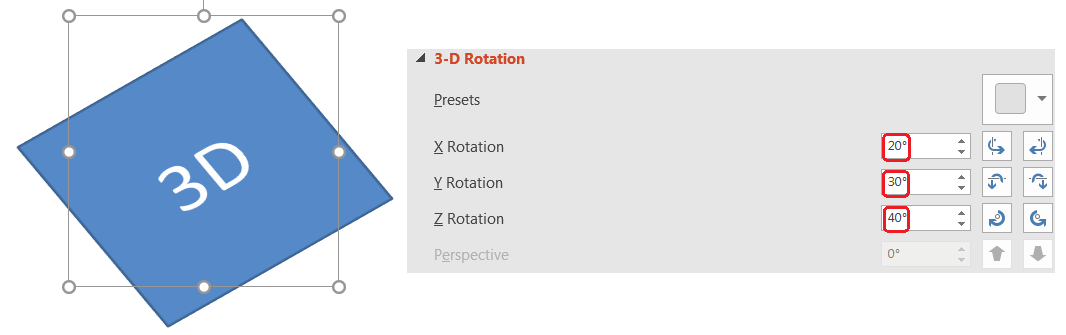
Aspose.Slides では、ThreeDFormat::getCamera を介してカメラにアクセスします。この例は長方形を作成し、正投影の正面ビューを選択し、X、Y、Z の回転をそれぞれ 20、30、40 度に設定します。ファイルを保存せずにメモリ上で図形を構成します。
use aspose\slides\CameraPresetType;
use aspose\slides\Presentation;
use aspose\slides\ShapeType;

$presentation = new Presentation();
try {
    $slide = $presentation->getSlides()->get_Item(0);

    $shape = $slide->getShapes()->addAutoShape(ShapeType::Rectangle, 200, 150, 200, 200);

    $shape->getThreeDFormat()->getCamera()->setCameraType(CameraPresetType::OrthographicFront);
    $shape->getThreeDFormat()->getCamera()->setRotation(20, 30, 40);
} finally {
    $presentation->dispose();
}
ビューアがオブジェクトを見る角度を変更したいときにカメラを使用します。スライド上の 2D 図形ジオメトリは変更されません。PowerPoint および Aspose.Slides がレンダリング時に使用する 3D 視点が変わります。
押し出しと奥行きを追加する
押し出しは図形の前面の後ろに延長させて厚みを持たせます。PowerPoint では奥行きコントロールがこの可視的な厚さを設定し、色コントロールが側面の色を設定します。
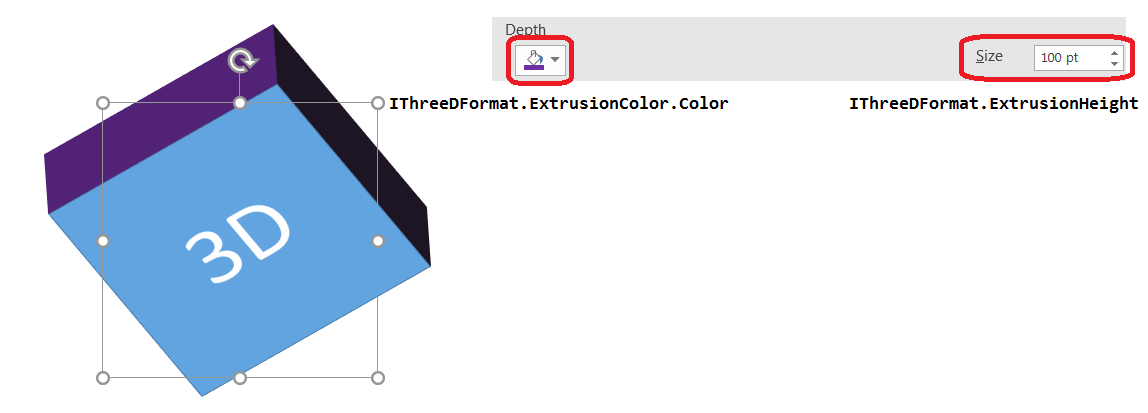
ThreeDFormat::setExtrusionHeight で厚さを、ThreeDFormat::getExtrusionColor で側面の色を取得します。この例は長方形に 100 ポイントの押し出しと紫色の側面を与え、カメラを回転させて厚みを見せます。ファイルを保存せずにメモリ上で図形を構成します。
use aspose\slides\CameraPresetType;
use aspose\slides\LightingDirection;
use aspose\slides\LightRigPresetType;
use aspose\slides\MaterialPresetType;
use aspose\slides\Presentation;
use aspose\slides\ShapeType;

$presentation = new Presentation();
try {
    $slide = $presentation->getSlides()->get_Item(0);

    $shape = $slide->getShapes()->addAutoShape(ShapeType::Rectangle, 200, 150, 200, 200);

    $extrusionColor = new Java("java.awt.Color", 128, 0, 128);

    $shape->getThreeDFormat()->getCamera()->setCameraType(CameraPresetType::OrthographicFront);
    $shape->getThreeDFormat()->getCamera()->setRotation(20, 30, 40);
    $shape->getThreeDFormat()->getLightRig()->setLightType(LightRigPresetType::Flat);
    $shape->getThreeDFormat()->getLightRig()->setDirection(LightingDirection::Top);
    $shape->getThreeDFormat()->setMaterial(MaterialPresetType::Flat);
    $shape->getThreeDFormat()->setExtrusionHeight(100);
    $shape->getThreeDFormat()->getExtrusionColor()->setColor($extrusionColor);
} finally {
    $presentation->dispose();
}
ThreeDFormat::setDepth メソッドは 3D 図形の奥行きを設定します。setExtrusionHeight メソッドは押し出し効果の高さを制御します(この例を参照)。
3D 効果と共にグラデーションまたは画像塗りつぶしを使用する
3D 書式設定は図形の塗りつぶしとは独立しています。前面に単色、グラデーション、パターン、または画像塗りつぶしを適用しながら、同じカメラ、光源、素材、押し出し設定を使用できます。
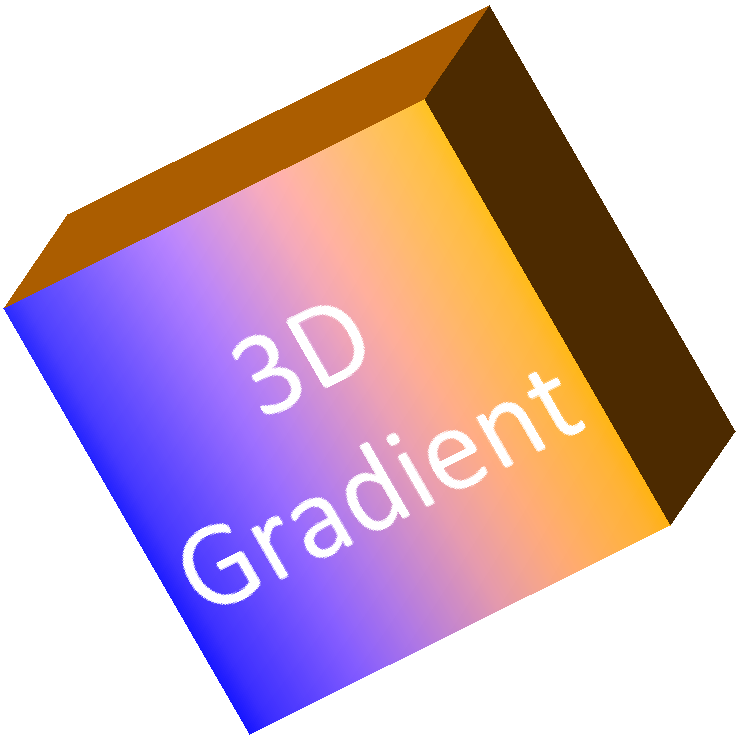
この例は前面に青からオレンジへのグラデーションを、150 ポイントの押し出し側面に濃いオレンジ色を適用します。グラデーション ストップは 0 と 100 がそれぞれ開始点と終了点です。カメラ回転値は度数です。スライドは PNG 画像に 2 倍のデフォルトサイズでレンダリングされます。
use aspose\slides\CameraPresetType;
use aspose\slides\FillType;
use aspose\slides\ImageFormat;
use aspose\slides\LightingDirection;
use aspose\slides\LightRigPresetType;
use aspose\slides\MaterialPresetType;
use aspose\slides\Presentation;
use aspose\slides\ShapeType;

$imageScale = 2;

$presentation = new Presentation();
try {
    $slide = $presentation->getSlides()->get_Item(0);

    $shape = $slide->getShapes()->addAutoShape(ShapeType::Rectangle, 200, 150, 250, 250);

    $shape->getTextFrame()->setText("3D Gradient");
    $shape->getTextFrame()->getParagraphs()->get_Item(0)->getParagraphFormat()->getDefaultPortionFormat()->setFontHeight(64);

    $shape->getFillFormat()->setFillType(FillType::Gradient);
    $shape->getFillFormat()->getGradientFormat()->getGradientStops()->add(0, java("java.awt.Color")->BLUE);
    $shape->getFillFormat()->getGradientFormat()->getGradientStops()->add(100, new Java("java.awt.Color", 255, 165, 0));

    $shape->getThreeDFormat()->getCamera()->setCameraType(CameraPresetType::OrthographicFront);
    $shape->getThreeDFormat()->getCamera()->setRotation(10, 20, 30);
    $shape->getThreeDFormat()->getLightRig()->setLightType(LightRigPresetType::Flat);
    $shape->getThreeDFormat()->getLightRig()->setDirection(LightingDirection::Top);
    $shape->getThreeDFormat()->setMaterial(MaterialPresetType::Flat);
    $extrusionColor = new Java("java.awt.Color", 255, 140, 0);
    $shape->getThreeDFormat()->setExtrusionHeight(150);
    $shape->getThreeDFormat()->getExtrusionColor()->setColor($extrusionColor);

    $thumbnail = $slide->getImage($imageScale, $imageScale);
    try {
        $thumbnail->save("gradient_3d.png", ImageFormat::Png);
    } finally {
        $thumbnail->dispose();
    }
} finally {
    $presentation->dispose();
}
レンダリング結果は前面のグラデーションを保持し、押し出しは別々に描画されます。
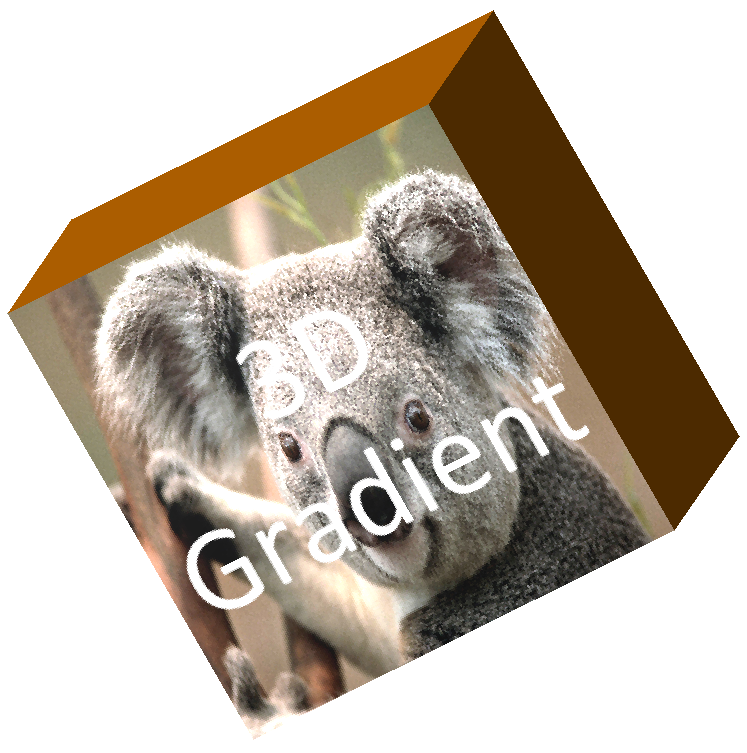
画像塗りつぶしを使用する場合は、プレゼンテーションに画像を追加し、図形塗りつぶしに割り当てます。この例では作業ディレクトリに “image.jpg” というファイルが存在すると想定しています。画像を長方形全体に伸ばし、150 ポイントの押し出しを適用し、カメラ回転を度数で設定します。ファイルを保存またはレンダリングせずにメモリ上で図形を構成します。
use aspose\slides\CameraPresetType;
use aspose\slides\FillType;
use aspose\slides\Images;
use aspose\slides\LightingDirection;
use aspose\slides\LightRigPresetType;
use aspose\slides\MaterialPresetType;
use aspose\slides\PictureFillMode;
use aspose\slides\Presentation;
use aspose\slides\ShapeType;

$presentation = new Presentation();
try {
    $slide = $presentation->getSlides()->get_Item(0);

    $shape = $slide->getShapes()->addAutoShape(ShapeType::Rectangle, 200, 150, 250, 250);

    $sourceImage = Images::fromFile("image.jpg");

    try {
        $image = $presentation->getImages()->addImage($sourceImage);
    } finally {
        $sourceImage->dispose();
    }

    $shape->getFillFormat()->setFillType(FillType::Picture);
    $shape->getFillFormat()->getPictureFillFormat()->getPicture()->setImage($image);
    $shape->getFillFormat()->getPictureFillFormat()->setPictureFillMode(PictureFillMode::Stretch);

    $extrusionColor = new Java("java.awt.Color", 255, 140, 0);
    $shape->getThreeDFormat()->getCamera()->setCameraType(CameraPresetType::OrthographicFront);
    $shape->getThreeDFormat()->getCamera()->setRotation(10, 20, 30);
    $shape->getThreeDFormat()->getLightRig()->setLightType(LightRigPresetType::Flat);
    $shape->getThreeDFormat()->getLightRig()->setDirection(LightingDirection::Top);
    $shape->getThreeDFormat()->setMaterial(MaterialPresetType::Flat);
    $shape->getThreeDFormat()->setExtrusionHeight(150);
    $shape->getThreeDFormat()->getExtrusionColor()->setColor($extrusionColor);
} finally {
    $presentation->dispose();
}
画像は前面にレンダリングされ、押し出しは 3D 側面として描画されます。
テキストへの 3D 書式設定の適用
図形の 3D 書式設定は図形本体に影響します。テキストの 3D 書式設定はテキスト フレームに影響します。これは文字自体に押し出し、素材、照明、カメラ設定が必要な WordArt のような効果に便利です。
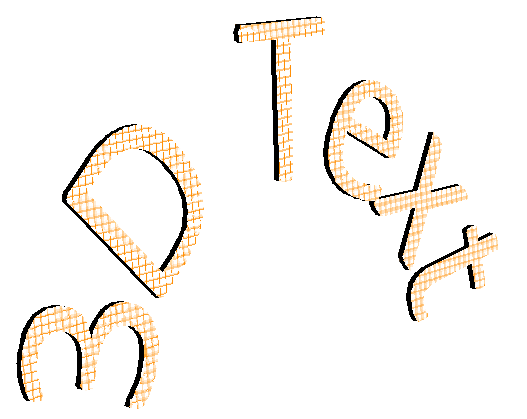
以下の例はオレンジと白の格子パターンでテキストを作成し、上向きのアーチを適用し、TextFrameFormat::getThreeDFormat を介して 3D 設定を構成します。押し出し高さと奥行きはポイント、光の回転は度数です。図形の塗りつぶしと輪郭は非表示にし、テキストのみが見えるようにします。例はデフォルトスライドサイズの 2 倍で PNG 画像をレンダリングし、プレゼンテーションを PPTX として保存します。
use aspose\slides\CameraPresetType;
use aspose\slides\FillType;
use aspose\slides\ImageFormat;
use aspose\slides\LightingDirection;
use aspose\slides\LightRigPresetType;
use aspose\slides\MaterialPresetType;
use aspose\slides\PatternStyle;
use aspose\slides\Presentation;
use aspose\slides\SaveFormat;
use aspose\slides\ShapeType;
use aspose\slides\TextShapeType;

$imageScale = 2;

$presentation = new Presentation();
try {
    $slide = $presentation->getSlides()->get_Item(0);

    $shape = $slide->getShapes()->addAutoShape(ShapeType::Rectangle, 200, 150, 250, 250);

    $shape->getFillFormat()->setFillType(FillType::NoFill);
    $shape->getLineFormat()->getFillFormat()->setFillType(FillType::NoFill);
    $shape->getTextFrame()->setText("3D Text");

    $portion = $shape->getTextFrame()->getParagraphs()->get_Item(0)->getPortions()->get_Item(0);
    $portion->getPortionFormat()->getFillFormat()->setFillType(FillType::Pattern);
    $patternColor = new Java("java.awt.Color", 255, 140, 0);
    $portion->getPortionFormat()->getFillFormat()->getPatternFormat()->getForeColor()->setColor($patternColor);
    $portion->getPortionFormat()->getFillFormat()->getPatternFormat()->getBackColor()->setColor(java("java.awt.Color")->WHITE);
    $portion->getPortionFormat()->getFillFormat()->getPatternFormat()->setPatternStyle(PatternStyle::LargeGrid);

    $shape->getTextFrame()->getParagraphs()->get_Item(0)->getParagraphFormat()->getDefaultPortionFormat()->setFontHeight(128);

    $textFrameFormat = $shape->getTextFrame()->getTextFrameFormat();
    $textFrameFormat->setTransform(TextShapeType::ArchUp);
    $textFrameFormat->getThreeDFormat()->setExtrusionHeight(3.5);
    $textFrameFormat->getThreeDFormat()->setDepth(3);
    $textFrameFormat->getThreeDFormat()->setMaterial(MaterialPresetType::Plastic);
    $textFrameFormat->getThreeDFormat()->getLightRig()->setDirection(LightingDirection::Top);
    $textFrameFormat->getThreeDFormat()->getLightRig()->setLightType(LightRigPresetType::Balanced);
    $textFrameFormat->getThreeDFormat()->getLightRig()->setRotation(0, 0, 40);
    $textFrameFormat->getThreeDFormat()->getCamera()->setCameraType(CameraPresetType::PerspectiveContrastingRightFacing);

    $thumbnail = $slide->getImage($imageScale, $imageScale);
    try {
        $thumbnail->save("text_3d.png", ImageFormat::Png);
    } finally {
        $thumbnail->dispose();
    }

    $presentation->save("text_3d.pptx", SaveFormat::Pptx);
} finally {
    $presentation->dispose();
}
テキストは曲線状に押し出された 3D 文字としてレンダリングされます。
3D 図形上でテキストを平坦に保つ
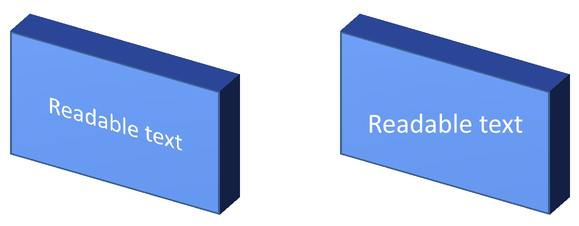
テキストを読みやすくしながら図形の 3D 外観を保持したい場合は、TextFrame::getTextFrameFormat を介して TextFrameFormat::setKeepTextFlat を呼び出します。値が true のとき、テキストは 3D シーンから除外されます。false のとき、テキストはシーンに参加し、3D 向きに従います。
この設定は図形の 3D 書式設定(カメラ、照明、素材、押し出し)を削除しません。また、通常の回転とは異なります。Shape::setRotation はスライド平面上で図形を回転させ、TextFrameFormat::setRotationAngle はテキストのバウンディング ボックス内での独自回転を制御します。テキストを 3D シーンから除外してもこれらの角度はリセットされません。
以下の自己完結型例は、テキスト付きの青い長方形を作成し、元の横にコピーします。両方の図形は同じ 3D 書式設定を持ちますが、テキスト設定だけが異なります:左側は false、右側は true。カメラ角度は度数、押し出し高さは 40 ポイントです。例はプレゼンテーションを PPTX として保存し、比較スライドを PNG に 2 倍のデフォルトサイズでレンダリングします。
use aspose\slides\CameraPresetType;
use aspose\slides\FillType;
use aspose\slides\ImageFormat;
use aspose\slides\LightingDirection;
use aspose\slides\LightRigPresetType;
use aspose\slides\MaterialPresetType;
use aspose\slides\Presentation;
use aspose\slides\SaveFormat;
use aspose\slides\ShapeType;
use aspose\slides\TextAlignment;
use aspose\slides\TextAnchorType;

$presentation = new Presentation();
try {
    $slide = $presentation->getSlides()->get_Item(0);

    $shape = $slide->getShapes()->addAutoShape(ShapeType::Rectangle, 70, 160, 240, 140);

    $shape->getTextFrame()->setText("Readable text");
    $shape->getTextFrame()->getParagraphs()->get_Item(0)->getParagraphFormat()->getDefaultPortionFormat()->setFontHeight(28);
    $shape->getTextFrame()->getParagraphs()->get_Item(0)->getParagraphFormat()->setAlignment(TextAlignment::Center);
    $shape->getTextFrame()->getTextFrameFormat()->setAnchoringType(TextAnchorType::Center);
    $shape->getFillFormat()->setFillType(FillType::Solid);
    $shape->getFillFormat()->getSolidFillColor()->setColor(new Java("java.awt.Color", 100, 149, 237));

    $shape->getThreeDFormat()->getCamera()->setCameraType(CameraPresetType::OrthographicFront);
    $shape->getThreeDFormat()->getCamera()->setRotation(30, 30, 0);
    $shape->getThreeDFormat()->getLightRig()->setLightType(LightRigPresetType::Flat);
    $shape->getThreeDFormat()->getLightRig()->setDirection(LightingDirection::Top);
    $shape->getThreeDFormat()->setMaterial(MaterialPresetType::Flat);
    $shape->getThreeDFormat()->setExtrusionHeight(40);
    $shape->getThreeDFormat()->getExtrusionColor()->setColor(new Java("java.awt.Color", 65, 105, 225));
    $shape->getTextFrame()->getTextFrameFormat()->setKeepTextFlat(false);

    $flatTextShape = $slide->getShapes()->addClone($shape, 400, 160);
    $flatTextShape->getTextFrame()->getTextFrameFormat()->setKeepTextFlat(true);

    $presentation->save("keep_text_flat.pptx", SaveFormat::Pptx);
    $image = $slide->getImage(2, 2);
    try {
        $image->save("keep_text_flat.png", ImageFormat::Png);
    } finally {
        $image->dispose();
    }
} finally {
    $presentation->dispose();
}
左側ではテキストが 3D 向きに従い、右側では平坦に保たれ読みやすくなります。両方の長方形は同じ可視的な押し出しと 3D 向きを保持しています。
エクスポートとレンダリングの動作
Aspose.Slides は PPTX などの PowerPoint 形式に保存する際に 3D 書式設定を保持します。固定レイアウト形式へレンダリングまたはエクスポートする場合、3D シーンはラスター化または 2D 結果として出力に描画されます。これはスライドを PNG にレンダリング、PDF にエクスポート、HTML にエクスポート、または ビデオ変換 用フレームを生成する場合にも適用されます。
留意点:
- エクスポートされた画像や PDF はインタラクティブではありません。エクスポート後にビューアがオブジェクトを回転させることはできません。
- 最終的な外観はカメラ、ライト リグ、素材、押し出し、塗りつぶし、スライドのスケーリングの組み合わせに依存します。
- 継承またはテーマベースの書式設定値を確認したい場合は、Effective Shape Properties を参照してください。
- 一部の出力形式は編集可能な PowerPoint 3D 書式設定を保存できません。そのような形式では、視覚結果がレンダリングされ、編集可能な 3D 設定は保存されません。
FAQ
Aspose.Slides はインタラクティブな 3D プレゼンテーションを作成できますか?
Aspose.Slides は図形とテキストの PowerPoint 3D 効果を作成およびレンダリングしますが、エクスポートされた画像、PDF、HTML ページをビューアが回転できるインタラクティブな 3D シーンにすることはできません。PPTX では、形式がサポートしている限り 3D 書式設定は PowerPoint で編集可能なまま残ります。
3D モデルと 3D 効果の違いは何ですか?
3D モデルはプレゼンテーションに挿入される別個の 3D オブジェクトです。3D 効果は通常の PowerPoint 図形またはテキストに適用される書式設定で、回転、押し出し、ベベル、照明、素材などを指します。本稿は 3D 効果について説明しています。
見える 3D 図形に必要な設定は何ですか?
最低限、カメラ回転と押し出しまたは奥行きを設定します。実務では、レンダリングされた面に明確なハイライトと影を付けるためにライト リグと素材も設定します。
図形とテキストの両方に 3D 効果を適用できますか?
はい。Shape::getThreeDFormat を使用して図形本体に、TextFrameFormat::getThreeDFormat を使用してテキストに適用します。
画像、PDF、HTML、ビデオ フレームへのエクスポート時に 3D 効果は表示されますか?
はい。Aspose.Slides はスライド画像、PDF 出力、HTML 出力、ビデオ変換用フレームを生成する際に 3D 効果をレンダリングします。エクスポートされた出力にはレンダリングされた外観が含まれ、編集可能な 3D オブジェクトは含まれません。
継承やテーマ設定が適用された後の最終的な 3D 値を取得できますか?
はい。Shape Effective Properties で説明されている Effective Formatting API を使用して、最終的なカメラ、ライト リグ、ベベル、関連 3D 値を取得できます。