
Android에서 AutoFit으로 프레젠테이션 향상
소개
기본적으로 텍스트 상자를 추가하면 Microsoft PowerPoint는 텍스트 상자에 대해 Resize shape to fix text 설정을 사용합니다—텍스트가 항상 상자에 맞도록 자동으로 크기를 조정합니다.
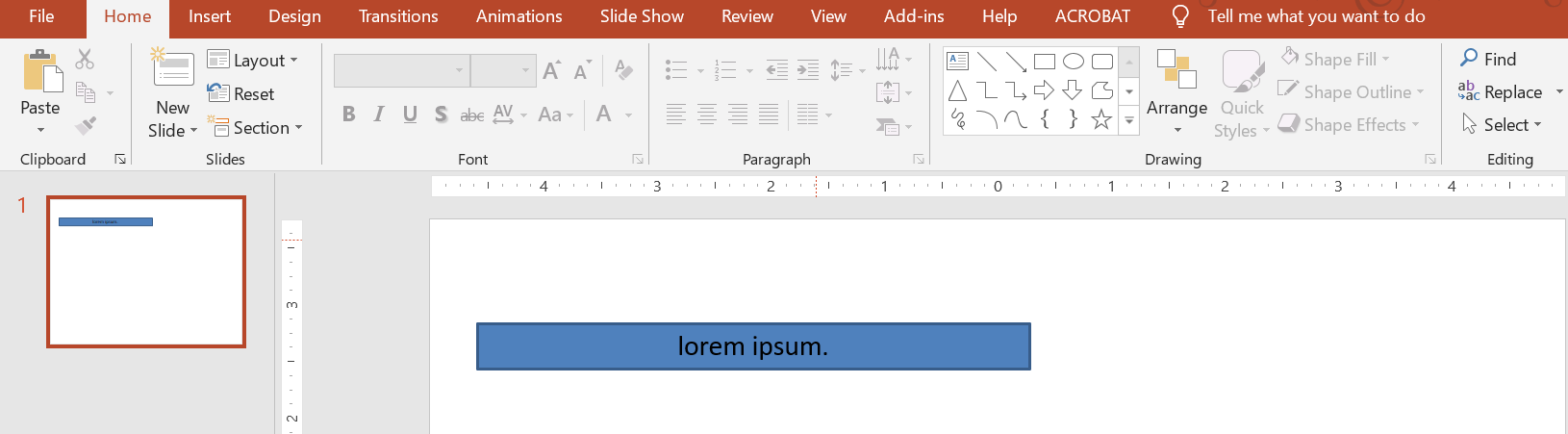
- 텍스트 상자의 텍스트가 길어지거나 커지면 PowerPoint는 텍스트 상자를 자동으로 확대합니다—높이를 늘려서 더 많은 텍스트를 담을 수 있게 합니다.
- 텍스트 상자의 텍스트가 짧아지거나 작아지면 PowerPoint는 텍스트 상자를 자동으로 축소합니다—높이를 줄여 불필요한 공간을 없앱니다.
PowerPoint에서 텍스트 상자의 자동 맞춤 동작을 제어하는 4가지 중요한 매개변수 또는 옵션은 다음과 같습니다:
- Do not Autofit
- Shrink text on overflow
- Resize shape to fit text
- Wrap text in shape.
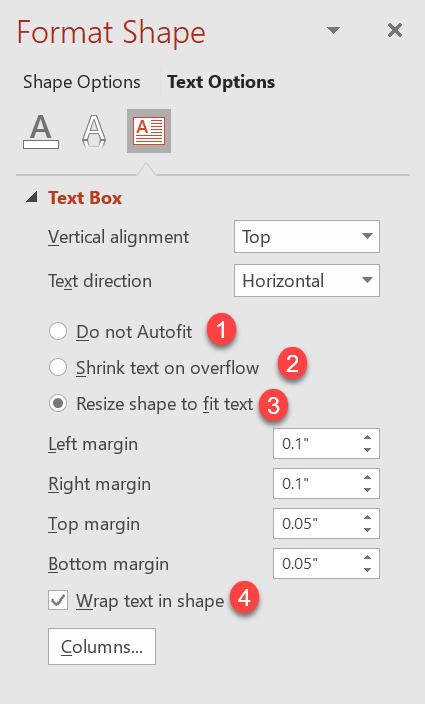
Aspose.Slides for Android via Java는 유사한 옵션을 제공합니다—TextFrameFormat 클래스 아래의 일부 속성—이를 통해 프레젠테이션의 텍스트 상자에 대한 자동 맞춤 동작을 제어할 수 있습니다.
텍스트에 맞게 도형 크기 조정
텍스트 박스의 텍스트가 변경된 후에도 항상 박스에 맞게 하려면 Resize shape to fix text 옵션을 사용해야 합니다. 이 설정을 지정하려면 TextFrameFormat 클래스의 AutofitType 속성을 Shape 로 설정합니다.
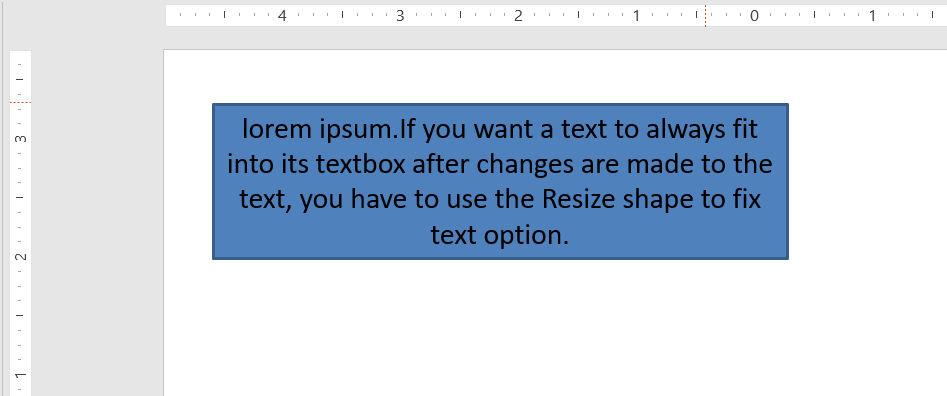
이 Java 코드는 텍스트가 항상 박스에 맞도록 지정하는 방법을 보여 줍니다:
Presentation pres = new Presentation();
try {
    ISlide slide = pres.getSlides().get_Item(0);
    IAutoShape autoShape = slide.getShapes().addAutoShape(ShapeType.Rectangle, 30, 30, 350, 100);

    Portion portion = new Portion("lorem ipsum...");
    portion.getPortionFormat().getFillFormat().getSolidFillColor().setColor(Color.BLACK);
    portion.getPortionFormat().getFillFormat().setFillType(FillType.Solid);
    autoShape.getTextFrame().getParagraphs().get_Item(0).getPortions().add(portion);

    ITextFrameFormat textFrameFormat = autoShape.getTextFrame().getTextFrameFormat();
    textFrameFormat.setAutofitType(TextAutofitType.Shape);

    pres.save("Output-presentation.pptx", SaveFormat.Pptx);
} finally {
    if (pres != null) pres.dispose();
}
텍스트가 길어지거나 커지면 텍스트 상자가 자동으로 높이가 늘어나서 모든 텍스트가 들어갑니다. 텍스트가 짧아지면 그 반대가 발생합니다.
자동 맞춤 안 함
텍스트 상자 또는 도형이 포함된 텍스트와 관계없이 크기를 유지하도록 하려면 Do not Autofit 옵션을 사용해야 합니다. 이 설정을 지정하려면 TextFrameFormat 클래스의 AutofitType 속성을 None 로 설정합니다.
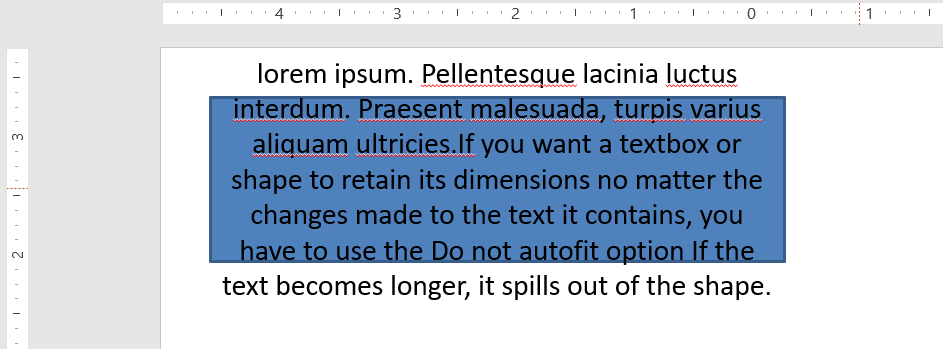
이 Java 코드는 텍스트 상자가 항상 크기를 유지하도록 지정하는 방법을 보여 줍니다:
Presentation pres = new Presentation();
try {
    ISlide slide = pres.getSlides().get_Item(0);
    IAutoShape autoShape = slide.getShapes().addAutoShape(ShapeType.Rectangle, 30, 30, 350, 100);

    Portion portion = new Portion("lorem ipsum...");
    portion.getPortionFormat().getFillFormat().getSolidFillColor().setColor(Color.BLACK);
    portion.getPortionFormat().getFillFormat().setFillType(FillType.Solid);
    autoShape.getTextFrame().getParagraphs().get_Item(0).getPortions().add(portion);

    ITextFrameFormat textFrameFormat = autoShape.getTextFrame().getTextFrameFormat();
    textFrameFormat.setAutofitType(TextAutofitType.None);

    pres.save("Output-presentation.pptx", SaveFormat.Pptx);
} finally {
    if (pres != null) pres.dispose();
}
텍스트가 박스보다 길어지면 텍스트가 넘쳐 나옵니다.
오버플로 시 텍스트 축소
텍스트가 박스보다 길어질 경우 Shrink text on overflow 옵션을 사용하면 텍스트의 크기와 간격을 줄여 박스에 맞출 수 있습니다. 이 설정을 지정하려면 TextFrameFormat 클래스의 AutofitType 속성을 Normal 로 설정합니다.
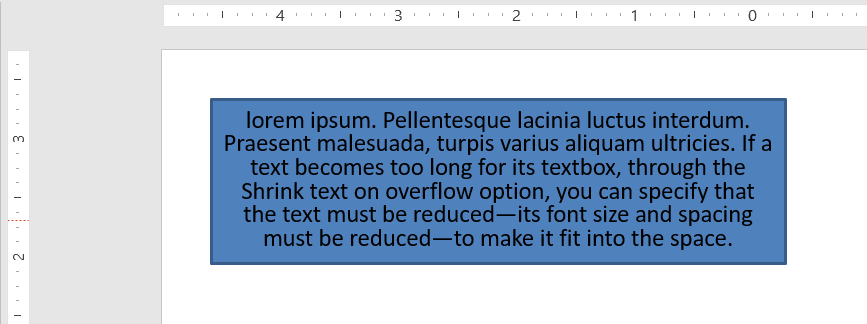
이 Java 코드는 오버플로 시 텍스트를 축소하도록 지정하는 방법을 보여 줍니다:
Presentation pres = new Presentation();
try {
    ISlide slide = pres.getSlides().get_Item(0);
    IAutoShape autoShape = slide.getShapes().addAutoShape(ShapeType.Rectangle, 30, 30, 350, 100);

    Portion portion = new Portion("lorem ipsum...");
    portion.getPortionFormat().getFillFormat().getSolidFillColor().setColor(Color.BLACK);
    portion.getPortionFormat().getFillFormat().setFillType(FillType.Solid);
    autoShape.getTextFrame().getParagraphs().get_Item(0).getPortions().add(portion);

    ITextFrameFormat textFrameFormat = autoShape.getTextFrame().getTextFrameFormat();
    textFrameFormat.setAutofitType(TextAutofitType.Normal);

    pres.save("Output-presentation.pptx", SaveFormat.Pptx);
} finally {
    if (pres != null) pres.dispose();
}
Info
Shrink text on overflow 옵션을 사용하면 텍스트가 박스보다 길어질 때만 해당 설정이 적용됩니다.텍스트 자동 줄바꿈
텍스트가 도형의 경계(가로) 너머로 넘어갈 경우 도형 내부에서 자동으로 줄바꿈되도록 하려면 Wrap text in shape 매개변수를 사용해야 합니다. 이 설정을 지정하려면 TextFrameFormat 클래스의 WrapText 속성을 true 로 설정합니다.
이 Java 코드는 PowerPoint 프레젠테이션에서 텍스트 자동 줄바꿈 설정을 사용하는 방법을 보여 줍니다:
Presentation pres = new Presentation();
try {
    ISlide slide = pres.getSlides().get_Item(0);
    IAutoShape autoShape = slide.getShapes().addAutoShape(ShapeType.Rectangle, 30, 30, 350, 100);

    Portion portion = new Portion("lorem ipsum...");
    portion.getPortionFormat().getFillFormat().getSolidFillColor().setColor(Color.BLACK);
    portion.getPortionFormat().getFillFormat().setFillType(FillType.Solid);
    autoShape.getTextFrame().getParagraphs().get_Item(0).getPortions().add(portion);

    ITextFrameFormat textFrameFormat = autoShape.getTextFrame().getTextFrameFormat();
    textFrameFormat.setWrapText(NullableBool.True);

    pres.save("Output-presentation.pptx", SaveFormat.Pptx);
} finally {
    if (pres != null) pres.dispose();
}
Note
도형에 대해WrapText 속성을 False 로 설정하면, 도형 내부 텍스트가 도형의 너비보다 길어질 때 텍스트가 한 줄로 도형 경계를 넘어 확장됩니다.
FAQ
텍스트 프레임의 내부 여백이 AutoFit에 영향을 줍니까?
예. 패딩(내부 여백)으로 사용 가능한 텍스트 영역이 줄어들어 AutoFit이 더 일찍 작동합니다—폰트를 축소하거나 도형 크기를 더 빨리 조정합니다. AutoFit을 조정하기 전에 여백을 확인하고 조정하세요.
AutoFit이 수동 및 부드러운 줄바꿈과 어떻게 상호 작용합니까?
강제 줄바꿈은 그대로 유지되고, AutoFit은 그 주변의 폰트 크기와 간격을 조정합니다. 불필요한 줄바꿈을 제거하면 AutoFit이 텍스트를 과도하게 축소해야 할 경우가 줄어듭니다.
테마 글꼴을 변경하거나 글꼴 대체가 AutoFit 결과에 영향을 줍니까?
예. 다른 글리프 메트릭을 가진 글꼴로 대체하면 텍스트 폭/높이가 바뀌어 최종 폰트 크기와 줄바꿈이 달라질 수 있습니다. 글꼴을 변경하거나 대체한 후에는 슬라이드를 다시 확인하세요.