
Manage Chart Workbooks in Presentations Using JavaScript
Overview
This article explains how to work with chart workbooks in Aspose.Slides. It shows how to read and write chart data through workbook streams, use workbook cells as chart data labels, access worksheet collections, and specify the data source type for chart values.
It also covers working with external workbooks as chart data sources. The examples demonstrate how to create and assign an external workbook, retrieve the path of an external workbook linked to a chart, and edit chart data when the workbook is available.
For workbook cells that represent missing data, see Control the Display of Empty Cells for the difference between an empty cell and zero, and a line-chart comparison of the available display modes.
Include Data from Hidden Rows and Columns
Use Chart.setPlotVisibleCellsOnly to control whether a chart plots data from hidden worksheet rows and columns. Set it to true to plot only visible cells, or false to include both visible and hidden cells. This setting controls chart plotting; it does not hide or unhide worksheet rows or columns.
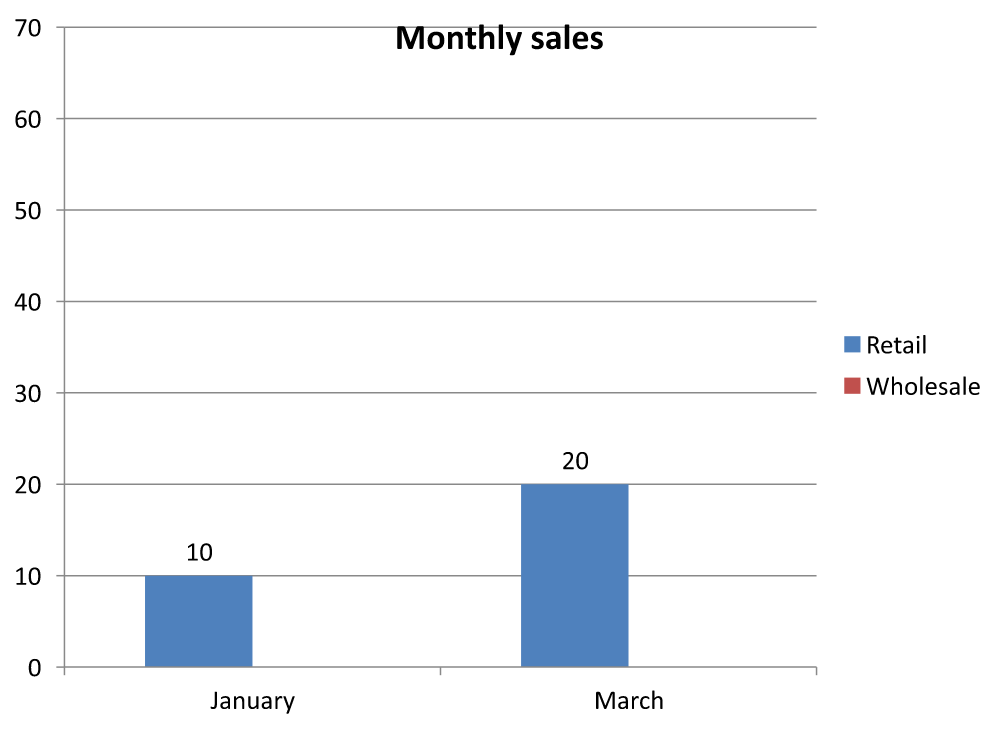
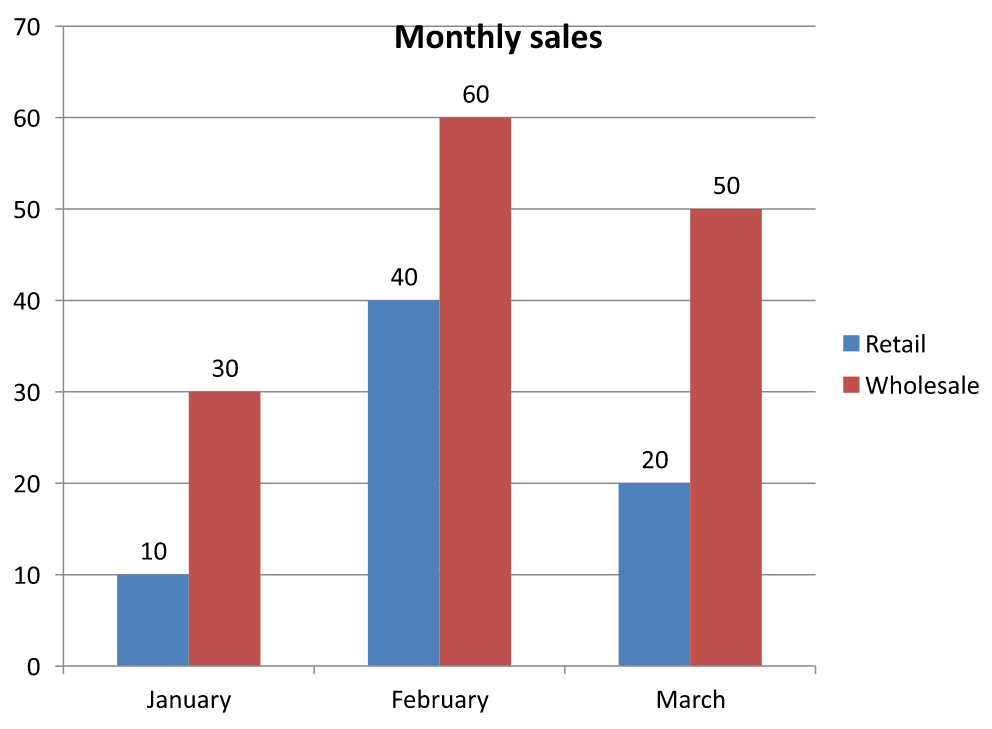
The sample presentation contains a column chart as the first shape on its first slide. The embedded worksheet, Sheet1, contains the following source range, A1:C4. Row 3 and column C are hidden, but their cells still contain values.
| Worksheet row | A: Month | B: Retail | C: Wholesale (hidden column) |
|---|---|---|---|
| 2 | January | 10 | 30 |
| 3 (hidden row) | February | 40 | 60 |
| 4 | March | 20 | 50 |
Access source cells through ChartData.getChartDataWorkbook and read ChartDataCell.isHidden to inspect their hidden status. This method reports the hidden status without changing it. In this file, B2 is visible, B3 belongs to the hidden row, and C2 belongs to the hidden column; the example prints false, true, and true, respectively.
For this example, refresh the chart data after changing the plotting setting: retain the embedded workbook with readWorkbookStream and reload it with writeWorkbookStream. When including all cells, also use setRange to restore the complete range, including the hidden February category. Simply changing the flag is insufficient to refresh this sample’s cached chart data and category labels. The example converts the returned Node.js buffer to a Java byte array before passing it to the write method.
const aspose = { slides: require("aspose.slides.via.java") };
const java = require("java");

const presentation = new aspose.slides.Presentation("hidden-source-data.pptx");
try {
    const slide = presentation.getSlides().get_Item(0);

    const shapeCount = slide.getShapes().size();
    if (shapeCount > 0 && java.instanceOf(slide.getShapes().get_Item(0), "com.aspose.slides.IChart")) {
        const chart = slide.getShapes().get_Item(0);
        const workbook = chart.getChartData().getChartDataWorkbook();
        console.log("B2 hidden: " + workbook.getCell(0, "B2").isHidden());
        console.log("B3 hidden: " + workbook.getCell(0, "B3").isHidden());
        console.log("C2 hidden: " + workbook.getCell(0, "C2").isHidden());

        const workbookBuffer = chart.getChartData().readWorkbookStream();
        const workbookBytes = Array.from(workbookBuffer);
        const workbookData = java.newArray("byte", workbookBytes);
        for (const visibleOnly of [true, false]) {
            chart.setPlotVisibleCellsOnly(visibleOnly);

            // Refresh the chart data from the embedded workbook.
            chart.getChartData().writeWorkbookStream(workbookData);
            if (!visibleOnly) {
                // Restore the complete source range, including hidden categories.
                chart.getChartData().setRange("Sheet1!$A$1:$C$4");
            }

            presentation.save("hidden_cells_" + visibleOnly + ".pptx", aspose.slides.SaveFormat.Pptx);
        }
    } else {
        console.log("The first shape is not a chart.");
    }
} finally {
    presentation.dispose();
}
The example saves two versions of the presentation: one with only the visible Retail values (10 and 20), and another with all six values. The images below illustrate the two plotting modes. Row 3 and column C remain hidden in both embedded workbooks.
Only visible cells (true) |
All cells (false) |
|---|---|
 |
 |
A hidden cell containing a value is different from an empty cell. Chart.setDisplayBlanksAs controls how missing values are displayed; it does not include or exclude hidden source data. See Control the Display of Empty Cells for an example.
Retrieve a Chart’s Data Range
Before updating workbook data in an existing presentation, inspect the source ranges to identify which worksheet cells each chart uses. The ChartData.getRange method returns the current data range as a worksheet-qualified formula, such as Sheet1!$A$1:$D$5. Here, Sheet1 is the worksheet name, ! separates it from the cell range, and $A$1:$D$5 identifies cells A1 through D5, inclusive. The dollar signs indicate absolute row and column references.
The method reads the current range without changing the chart or its workbook. If the chart does not use a workbook as its data source, it throws InvalidOperationException. For more information, see the ChartData API Reference.
This example opens a presentation and checks the shapes directly on each slide for charts. It prints each chart’s name and source range. If a chart does not use a workbook, it prints a message and continues to the next chart.
const aspose = { slides: require("aspose.slides.via.java") };
const java = require("java");

const presentation = new aspose.slides.Presentation("presentation.pptx");
try {
    for (let slideIndex = 0; slideIndex < presentation.getSlides().size(); slideIndex++) {
        const slide = presentation.getSlides().get_Item(slideIndex);
        for (let shapeIndex = 0; shapeIndex < slide.getShapes().size(); shapeIndex++) {
            const shape = slide.getShapes().get_Item(shapeIndex);
            if (java.instanceOf(shape, "com.aspose.slides.IChart")) {
                const chart = shape;
                try {
                    const range = chart.getChartData().getRange();
                    console.log(chart.getName() + ": " + range);
                } catch (exception) {
                    if (exception.cause && java.instanceOf(exception.cause, "com.aspose.slides.exceptions.InvalidOperationException")) {
                        console.log(chart.getName() + ": The chart does not use a workbook as its data source.");
                    } else {
                        console.log(chart.getName() + ": Could not retrieve the data range: " + exception.message);
                    }
                }
            }
        }
    }
} finally {
    presentation.dispose();
}
Read and Write Chart Data from a Workbook
Aspose.Slides for Node.js via Java provides the readWorkbookStream and writeWorkbookStream methods that allow you to read and write chart data workbooks (containing chart data edited with Aspose.Cells). Note that the chart data has to be organized in the same manner or must have a structure similar to the source.
This example uses a presentation with a chart as the first shape on its first slide. It reads the embedded workbook into a byte array, clears the existing series and categories, and writes the same workbook back. The changes remain in memory; the example does not save the presentation.
const aspose = { slides: require("aspose.slides.via.java") };
const java = require("java");

const presentation = new aspose.slides.Presentation("chart.pptx");
try {
    const slide = presentation.getSlides().get_Item(0);

    const shapeCount = slide.getShapes().size();
    if (shapeCount > 0 && java.instanceOf(slide.getShapes().get_Item(0), "com.aspose.slides.IChart")) {
        const chart = slide.getShapes().get_Item(0);
        const chartData = chart.getChartData();
        const workbookBuffer = chartData.readWorkbookStream();
        const workbookBytes = Array.from(workbookBuffer);
        const workbookData = java.newArray("byte", workbookBytes);

        chartData.getSeries().clear();
        chartData.getCategories().clear();

        chartData.writeWorkbookStream(workbookData);
    } else {
        console.log("The first shape is not a chart.");
    }
} finally {
    presentation.dispose();
}
Validate Chart Layout After Workbook Modification
When you replace an embedded workbook with a modified one, the chart retains its original series and category collections. This mismatch can cause Chart.validateChartLayout to fail with an index-out-of-range error. Clear the existing series and categories before writing the updated workbook back to the chart. This example uses a chart that is the first shape on the first slide. The comment marks where workbook editing would occur; the runnable example writes the original workbook back and validates the layout in memory.
const aspose = { slides: require("aspose.slides.via.java") };
const java = require("java");

const presentation = new aspose.slides.Presentation("chart.pptx");
try {
    const slide = presentation.getSlides().get_Item(0);

    const shapeCount = slide.getShapes().size();
    if (shapeCount > 0 && java.instanceOf(slide.getShapes().get_Item(0), "com.aspose.slides.IChart")) {
        const chart = slide.getShapes().get_Item(0);
        const chartData = chart.getChartData();
        const workbookBuffer = chartData.readWorkbookStream();
        const workbookBytes = Array.from(workbookBuffer);
        const workbookData = java.newArray("byte", workbookBytes);

        // Modify the workbook bytes here, for example, using Aspose.Cells.

        chartData.getSeries().clear();
        chartData.getCategories().clear();

        chartData.writeWorkbookStream(workbookData);
        chart.validateChartLayout();
    } else {
        console.log("The first shape is not a chart.");
    }
} finally {
    presentation.dispose();
}
Clearing the collections removes stale data references before the workbook is written back. Rebuild any required series and category mappings for the updated workbook before using the chart.
Set Custom Number Formats for Workbook Cells
Use ChartDataCell.setCustomNumberFormat to control how numeric values appear in a chart’s embedded workbook. For example, a report may need a conversion rate displayed as a percentage with four decimal places and a coefficient displayed with five decimal places. Keep both values numeric so they remain available for calculations and chart plotting.
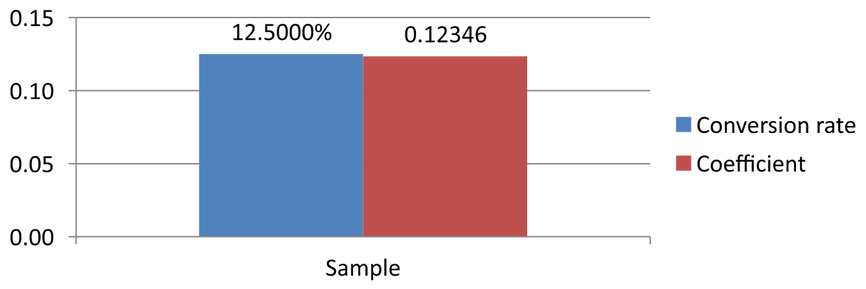
A number format changes the display, not the stored value. The format 0.0000% displays 0.125 as 12.5000%; it does not replace the stored number with 12.5. Similarly, 0.00000 displays 0.1234567 as 0.12346 without rounding the stored value. If the custom format is an empty string (""), the format returned by getPresetNumberFormat is used instead.
The following example creates a column chart and accesses its cells through getChartDataWorkbook. On worksheet 0, B2 contains the conversion rate and C2 contains the coefficient. Both cells supply chart values. The example also enables value labels linked to the source formats.
const aspose = { slides: require("aspose.slides.via.java") };

const presentation = new aspose.slides.Presentation();
try {
    presentation.getSlideSize().setSize(720, 270, aspose.slides.SlideSizeScaleType.DoNotScale);
    const slide = presentation.getSlides().get_Item(0);

    const chart = slide.getShapes().addChart(aspose.slides.ChartType.ClusteredColumn, 50, 20, 620, 210);
    chart.setTitle(false);

    chart.getAxes().getVerticalAxis().setNumberFormatLinkedToSource(false);
    chart.getAxes().getVerticalAxis().setNumberFormat("0.00");
    chart.getAxes().getVerticalAxis().setAutomaticMinValue(false);
    chart.getAxes().getVerticalAxis().setMinValue(0);

    chart.getChartData().getSeries().clear();
    chart.getChartData().getCategories().clear();

    const workbook = chart.getChartData().getChartDataWorkbook();
    workbook.clear(0);

    const categoryCell = workbook.getCell(0, "A2", "Sample");
    chart.getChartData().getCategories().add(categoryCell);

    const percentageCell = workbook.getCell(0, "B2", 0.125);
    percentageCell.setCustomNumberFormat("0.0000%");
    const percentageName = workbook.getCell(0, "B1", "Conversion rate");
    const percentageSeries = chart.getChartData().getSeries().add(percentageName, chart.getType());
    percentageSeries.getDataPoints().addDataPointForBarSeries(percentageCell);

    const precisionCell = workbook.getCell(0, "C2", 0.1234567);
    precisionCell.setCustomNumberFormat("0.00000");
    const precisionName = workbook.getCell(0, "C1", "Coefficient");
    const precisionSeries = chart.getChartData().getSeries().add(precisionName, chart.getType());
    precisionSeries.getDataPoints().addDataPointForBarSeries(precisionCell);

    for (let seriesIndex = 0; seriesIndex < chart.getChartData().getSeries().size(); seriesIndex++) {
        const series = chart.getChartData().getSeries().get_Item(seriesIndex);
        const labelFormat = series.getDataPoints().get_Item(0).getLabel().getDataLabelFormat();
        labelFormat.setShowValue(true);
        labelFormat.setNumberFormatLinkedToSource(true);
    }

    presentation.save("CustomCellFormats.pptx", aspose.slides.SaveFormat.Pptx);
} finally {
    presentation.dispose();
}
Workbook cell formats are separate from formats set directly on chart axes or data labels. In this example, each label displays its source cell’s value because setShowValue is set to true, and follows the source number format because setNumberFormatLinkedToSource is set to true. After saving and reopening the presentation, the labels display 12.5000% and 0.12346, as shown below. The vertical axis uses its own number format, assigned with setNumberFormat as 0.00, with setNumberFormatLinkedToSource set to false.
To format a data label independently, set its source-link flag to false and assign a format with setNumberFormat. This does not change the workbook cell’s format. For example, an independent label format of 0.00 displays the first value as 0.13, while B2 still displays 12.5000%. See Chart Data Labels for direct label formatting.
The image below was rendered from the saved presentation after reopening it:
Set a Workbook Cell as a Chart Data Label
You can use text from workbook cells as chart data labels.
This example adds a bubble chart with default data to the first slide of an existing presentation. It uses cells A10:A12 on worksheet 0 for the first three labels in the first series, enables labels from cells, and saves the updated presentation.
const aspose = { slides: require("aspose.slides.via.java") };

const presentation = new aspose.slides.Presentation("chart2.pptx");
try {
    const slide = presentation.getSlides().get_Item(0);

    const chart = slide.getShapes().addChart(aspose.slides.ChartType.Bubble, 50, 50, 600, 400, true);
    const series = chart.getChartData().getSeries().get_Item(0);
    const workbook = chart.getChartData().getChartDataWorkbook();

    series.getLabels().getDefaultDataLabelFormat().setShowLabelValueFromCell(true);
    series.getLabels().get_Item(0).setValueFromCell(workbook.getCell(0, "A10", "Label 0 cell value"));
    series.getLabels().get_Item(1).setValueFromCell(workbook.getCell(0, "A11", "Label 1 cell value"));
    series.getLabels().get_Item(2).setValueFromCell(workbook.getCell(0, "A12", "Label 2 cell value"));

    presentation.save("resultchart.pptx", aspose.slides.SaveFormat.Pptx);
} finally {
    presentation.dispose();
}
Manage Worksheets
The ChartDataWorkbook.getWorksheets method provides access to the worksheets in a chart workbook. This example creates a pie chart with default data and prints each worksheet name to the console.
const aspose = { slides: require("aspose.slides.via.java") };

const presentation = new aspose.slides.Presentation();
try {
    const slide = presentation.getSlides().get_Item(0);

    const chart = slide.getShapes().addChart(aspose.slides.ChartType.Pie, 50, 50, 400, 500);
    const workbook = chart.getChartData().getChartDataWorkbook();

    for (let i = 0; i < workbook.getWorksheets().size(); i++) {
        console.log(workbook.getWorksheets().get_Item(i).getName());
    }
} finally {
    presentation.dispose();
}
Specify the Data Source Type
Series point values can also be stored directly as numeric literals. See Set Series Values Using Numeric Literals for a complete example that saves and reads them. The source type of point values is separate from the chart’s internal or external workbook configuration; using numeric literals does not, by itself, remove the embedded workbook.
This example creates a 3D column chart with default data and sets two series names using different data sources. The first name uses a string literal; the second uses cell C1 on worksheet 0. The DataSourceType enumeration selects the source for each name. The example saves the presentation with the updated series names.
const aspose = { slides: require("aspose.slides.via.java") };

const presentation = new aspose.slides.Presentation();
try {
    const slide = presentation.getSlides().get_Item(0);

    const chart = slide.getShapes().addChart(aspose.slides.ChartType.Column3D, 50, 50, 600, 400, true);
    const literalName = chart.getChartData().getSeries().get_Item(0).getName();

    literalName.setDataSourceType(aspose.slides.DataSourceType.StringLiterals);
    literalName.setData("LiteralString");

    const cellName = chart.getChartData().getSeries().get_Item(1).getName();
    const nameCell = chart.getChartData().getChartDataWorkbook().getCell(0, "C1", "NewCell");
    cellName.setDataSourceType(aspose.slides.DataSourceType.Worksheet);
    cellName.setData(nameCell);

    presentation.save("pres.pptx", aspose.slides.SaveFormat.Pptx);
} finally {
    presentation.dispose();
}
Detect Unsupported Embedded Workbook Formats
Aspose.Slides does not support the Excel binary workbook (.xlsb) format that can be embedded in some charts. You can use the getEmbeddedWorkbookType method on ChartData together with the WorkbookType enumeration to detect unsupported formats and skip those charts. This example inspects the shapes on the first slide of an existing presentation, skips non-chart shapes, and prints a diagnostic message for each chart with an embedded .xlsb workbook.
const aspose = { slides: require("aspose.slides.via.java") };
const java = require("java");

const presentation = new aspose.slides.Presentation("sample.pptx");
try {
    const slide = presentation.getSlides().get_Item(0);

    for (let shapeIndex = 0; shapeIndex < slide.getShapes().size(); shapeIndex++) {
        const shape = slide.getShapes().get_Item(shapeIndex);
        if (!(java.instanceOf(shape, "com.aspose.slides.IChart"))) {
            continue;
        }

        const chart = shape;
        const chartData = chart.getChartData();
        const isInternalWorkbook = chartData.getDataSourceType() == aspose.slides.ChartDataSourceType.InternalWorkbook;
        const isBinaryMacro = chartData.getEmbeddedWorkbookType() == aspose.slides.WorkbookType.WorkbookBinaryMacro;

        if (isInternalWorkbook && isBinaryMacro) {
            console.log("Skipping a chart with an unsupported .xlsb workbook.");
            continue;
        }

        // Read or modify supported chart workbook data here.
    }
} finally {
    presentation.dispose();
}
External Workbook
Aspose.Slides supports using external workbooks as a data source for charts.
Create an External Workbook
Use readWorkbookStream and setExternalWorkbook to export an embedded chart workbook to a file and link the chart to that external workbook.
This example creates a pie chart with default data and exports its workbook. It completes the file write before assigning the external workbook as the chart data source, then saves the linked presentation.
const aspose = { slides: require("aspose.slides.via.java") };
const path = require("path");
const fileSystem = require("fs");

const presentation = new aspose.slides.Presentation();
try {
    const slide = presentation.getSlides().get_Item(0);

    const chart = slide.getShapes().addChart(aspose.slides.ChartType.Pie, 50, 50, 400, 600);
    const workbookPath = path.resolve("externalWorkbook1.xlsx");
    const workbookData = chart.getChartData().readWorkbookStream();
    try {
        fileSystem.writeFileSync(workbookPath, Buffer.from(workbookData));
        chart.getChartData().setExternalWorkbook(workbookPath);

        presentation.save("externalWorkbook.pptx", aspose.slides.SaveFormat.Pptx);
    } catch (exception) {
        console.log("Could not write the external workbook: " + exception.message);
    }
} finally {
    presentation.dispose();
}
Set an External Workbook
Using the setExternalWorkbook method, you can assign an external workbook to a chart as its data source. This method can also be used to update a path to the external workbook (if the latter has been moved).
While you cannot edit the data in workbooks stored in remote locations or resources, you can still use such workbooks as an external data source. If the relative path for an external workbook is provided, it gets converted to a full path automatically.
This example uses an external workbook whose worksheet named Sheet1 contains a series name in B1, category names in A2:A4, and numeric values in B2:B4. The example creates a pie chart, links the workbook, and uses setRange to map A1:B4 to one series and three categories. It saves the presentation with the linked chart.
const aspose = { slides: require("aspose.slides.via.java") };
const path = require("path");

const presentation = new aspose.slides.Presentation();
try {
    const slide = presentation.getSlides().get_Item(0);

    const chart = slide.getShapes().addChart(aspose.slides.ChartType.Pie, 50, 50, 400, 600, true);
    const chartData = chart.getChartData();
    const workbookPath = path.resolve("externalWorkbook.xlsx");

    chartData.setExternalWorkbook(workbookPath);
    chartData.setRange("Sheet1!$A$1:$B$4");

    presentation.save("Presentation_with_externalWorkbook.pptx", aspose.slides.SaveFormat.Pptx);
} finally {
    presentation.dispose();
}
The updateChartData parameter of setExternalWorkbook controls whether the workbook is loaded.
- When
updateChartDataisfalse, only the workbook path is updated. The chart data is not loaded or updated from the target workbook, so the workbook can be unavailable. - When
updateChartDataistrue, the chart data is updated from the target workbook.
The following example assigns a placeholder URL with updateChartData set to false. It retains the pie chart’s default data and saves the presentation without loading the unavailable workbook.
const aspose = { slides: require("aspose.slides.via.java") };

const presentation = new aspose.slides.Presentation();
try {
    const slide = presentation.getSlides().get_Item(0);

    const chart = slide.getShapes().addChart(aspose.slides.ChartType.Pie, 50, 50, 400, 600, true);
    chart.getChartData().setExternalWorkbook("https://example.com/unavailable-workbook.xlsx", false);

    presentation.save("SetExternalWorkbookWithUpdateChartData.pptx", aspose.slides.SaveFormat.Pptx);
} finally {
    presentation.dispose();
}
Get the External Data Source Workbook Path of a Chart
To identify the workbook linked to a chart, check whether the chart uses an external data source and retrieve its workbook path.
This example inspects the first shape on the first slide of a presentation with a linked external workbook. If it is a chart linked to an external workbook, the example prints getExternalWorkbookPath to the console. It then saves a copy of the presentation.
const aspose = { slides: require("aspose.slides.via.java") };
const java = require("java");

const presentation = new aspose.slides.Presentation("externalWorkbook.pptx");
try {
    const slide = presentation.getSlides().get_Item(0);

    if (slide.getShapes().size() > 0 && java.instanceOf(slide.getShapes().get_Item(0), "com.aspose.slides.IChart")) {
        const chart = slide.getShapes().get_Item(0);
        const chartData = chart.getChartData();
        if (chartData.getDataSourceType() == aspose.slides.ChartDataSourceType.ExternalWorkbook) {
            console.log(chartData.getExternalWorkbookPath());
        } else {
            console.log("The chart does not use an external workbook.");
        }
    } else {
        console.log("The first shape is not a chart.");
    }

    presentation.save("Result.pptx", aspose.slides.SaveFormat.Pptx);
} finally {
    presentation.dispose();
}
Edit Chart Data
You can edit the data in external workbooks the same way you make changes to the contents of internal workbooks. When an external workbook cannot be loaded, an exception is thrown.
This example uses a chart that is the first shape on the first slide and is linked to an accessible external workbook. It sets the cell-backed value of the first data point in the first series to 100 and saves the updated presentation. Editing cell values can update the linked external XLSX file, so use a copy if you need to preserve the original workbook.
const aspose = { slides: require("aspose.slides.via.java") };
const java = require("java");

const presentation = new aspose.slides.Presentation("presentation.pptx");
try {
    const slide = presentation.getSlides().get_Item(0);

    const shapeCount = slide.getShapes().size();
    if (shapeCount > 0 && java.instanceOf(slide.getShapes().get_Item(0), "com.aspose.slides.IChart")) {
        const chart = slide.getShapes().get_Item(0);
        const series = chart.getChartData().getSeries();
        if (series.size() > 0 && series.get_Item(0).getDataPoints().size() > 0) {
            const valueCell = series.get_Item(0).getDataPoints().get_Item(0).getValue().getAsCell();
            if (valueCell != null) {
                valueCell.setValue(100);
                presentation.save("presentation_out.pptx", aspose.slides.SaveFormat.Pptx);
            } else {
                console.log("The first data point is not linked to a workbook cell.");
            }
        } else {
            console.log("The chart has no data points to edit.");
        }
    } else {
        console.log("The first shape is not a chart.");
    }
} finally {
    presentation.dispose();
}
Recover a Workbook from the Chart Cache
If a chart uses an external workbook that is missing or unavailable, Aspose.Slides can reconstruct the chart workbook from the data cached in the presentation. Create LoadOptions, call LoadOptions.setSpreadsheetOptions, and set SpreadsheetOptions.setRecoverWorkbookFromChartCache to true before opening the presentation.
The following JavaScript example recovers workbook data for a chart that is the first shape on the first slide and references an unavailable external workbook. It accesses the recovered data through Chart.getChartData and ChartData.getChartDataWorkbook:
const aspose = { slides: require("aspose.slides.via.java") };
const java = require("java");

const spreadsheetOptions = new aspose.slides.SpreadsheetOptions();
spreadsheetOptions.setRecoverWorkbookFromChartCache(true);

const loadOptions = new aspose.slides.LoadOptions();
loadOptions.setSpreadsheetOptions(spreadsheetOptions);

const presentation = new aspose.slides.Presentation("presentation.pptx", loadOptions);
try {
    const slide = presentation.getSlides().get_Item(0);

    const shapeCount = slide.getShapes().size();
    if (shapeCount > 0 && java.instanceOf(slide.getShapes().get_Item(0), "com.aspose.slides.IChart")) {
        const chart = slide.getShapes().get_Item(0);
        const recoveredWorkbook = chart.getChartData().getChartDataWorkbook();

        // Read or modify the recovered workbook data here.
    } else {
        console.log("The first shape is not a chart.");
    }
} finally {
    presentation.dispose();
}
If the external workbook is unavailable and recovery is disabled, Aspose.Slides throws an exception. Enable recovery only when using the cached chart data is an acceptable fallback, because the cache may not contain changes made to the external workbook after the presentation was last updated.
FAQ
Can I determine whether a specific chart is linked to an external or an embedded workbook?
Yes. A chart has a data source type and a path to an external workbook; if the source is an external workbook, you can read the full path to make sure an external file is being used.
Are relative paths to external workbooks supported, and how are they stored?
Yes. If you specify a relative path, it is automatically converted to an absolute path. The presentation stores the absolute path in the PPTX file, so moving the workbook may require updating the link.
Can I use workbooks located on network resources/shares?
Yes, such workbooks can be used as an external data source. However, editing remote workbooks directly from Aspose.Slides is not supported—they can only be used as a source.
Does Aspose.Slides overwrite the external XLSX when saving the presentation?
The presentation stores a link to the external file. Editing cell-backed chart data can also update the linked local XLSX file. Use a copy of the workbook if the original must remain unchanged.
What should I do if the external file is password-protected?
Aspose.Slides does not accept a password when linking. A common approach is to remove protection in advance or prepare a decrypted copy (for example, using Aspose.Cells) and link to that copy.
Can multiple charts reference the same external workbook?
Yes. Each chart stores its own link. If they all point to the same file, updating that file will be reflected in each chart the next time the data is loaded.