
Object Preview Issue When Adding OleObjectFrame
Introduction
When you use Aspose.Slides for Python via Java to add an OleObjectFrame to a slide, an “EMBEDDED OLE OBJECT” message is shown on the output slide. This message is intentional and is not a bug.
For more information on working with OLE objects, see Manage OLE.
Explanation and Solution
Aspose.Slides displays the “EMBEDDED OLE OBJECT” message to notify you that the OLE object has been changed and the preview image has to be updated.
For example, if you add a Microsoft Excel chart as an OleObjectFrame to a slide (for more details, see the “Manage OLE” article) and then open the presentation in Microsoft PowerPoint, you will see this image on the slide:

To confirm that your OLE object was added to the slide, double-click the “EMBEDDED OLE OBJECT” message, or right-click it and select Object > Edit.
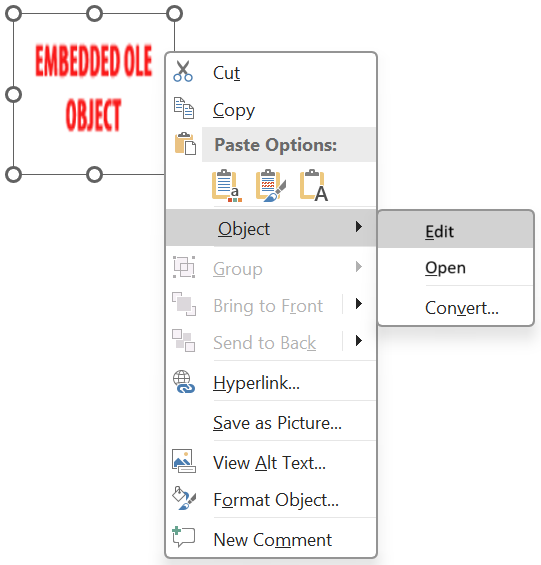
PowerPoint then opens the embedded OLE object.
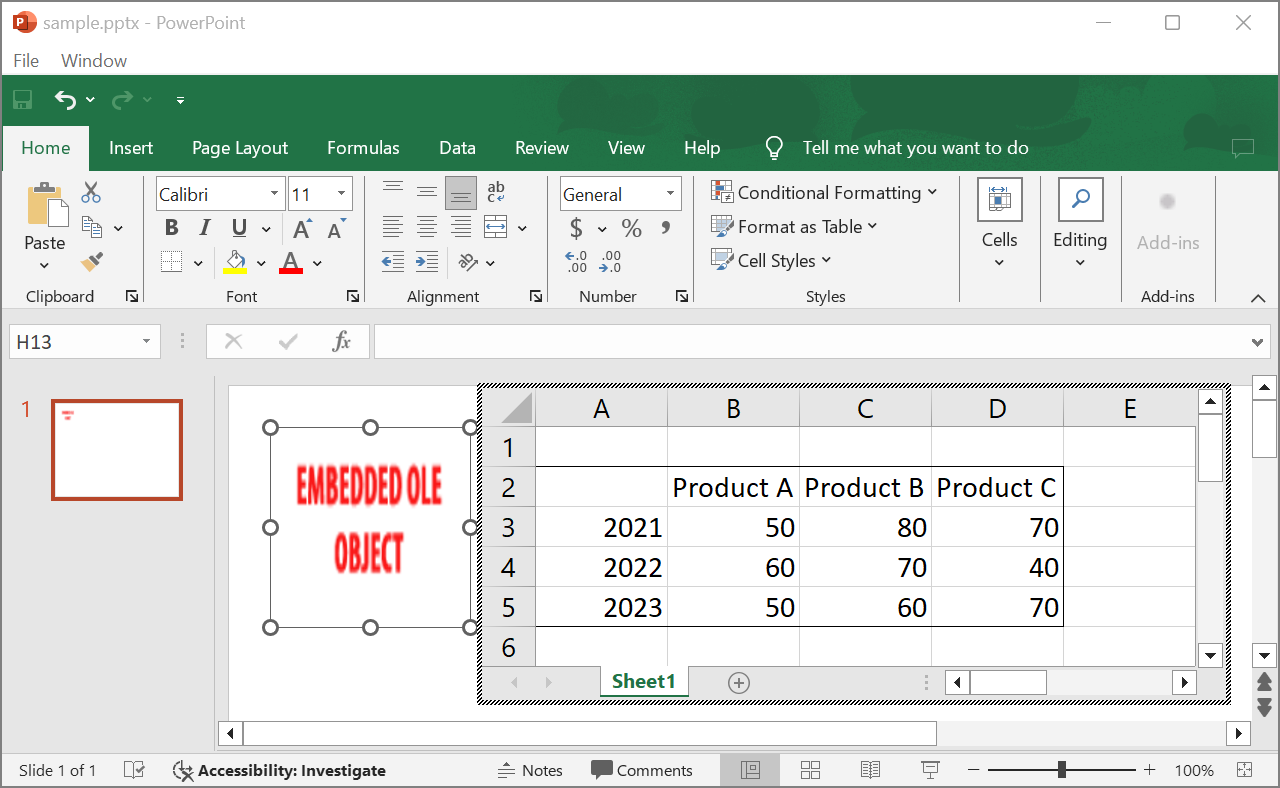
The slide may retain the “EMBEDDED OLE OBJECT” message. Once you click the OLE object, the slide preview is updated and the “EMBEDDED OLE OBJECT” message is replaced by the actual image for the OLE object.
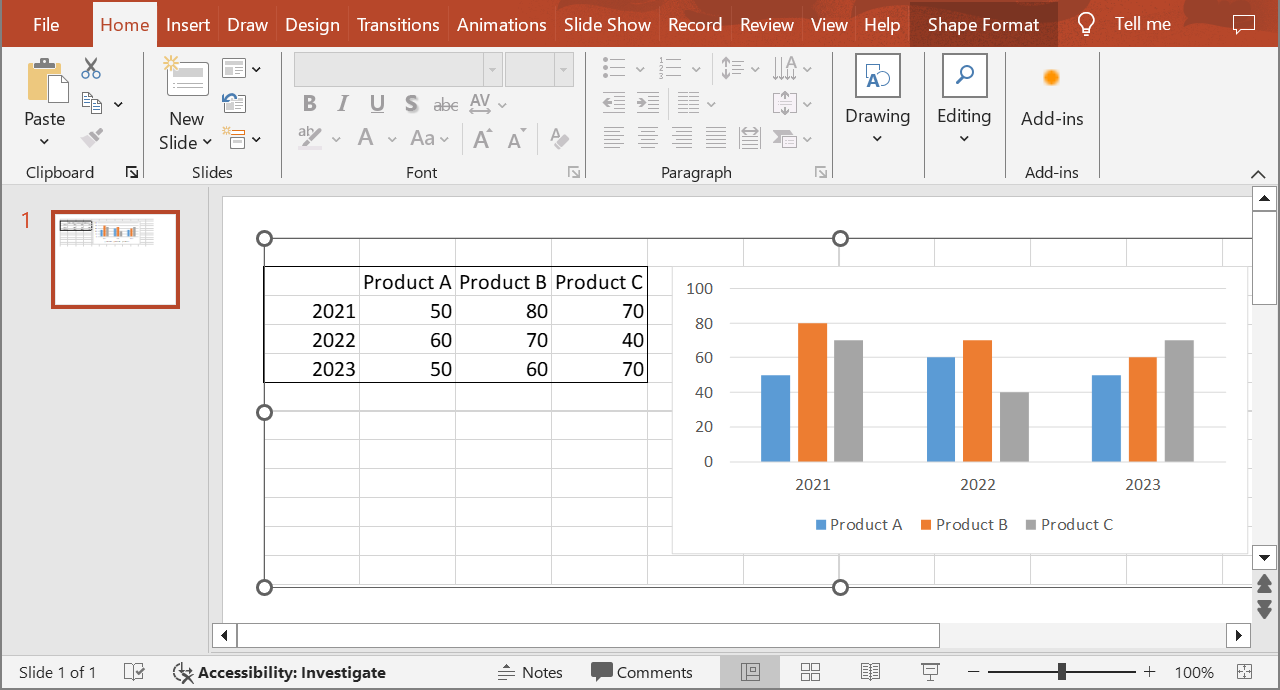
Save your presentation to preserve the updated OLE object preview image. When you open the presentation again, you will no longer see the “EMBEDDED OLE OBJECT” message.
Other Solution
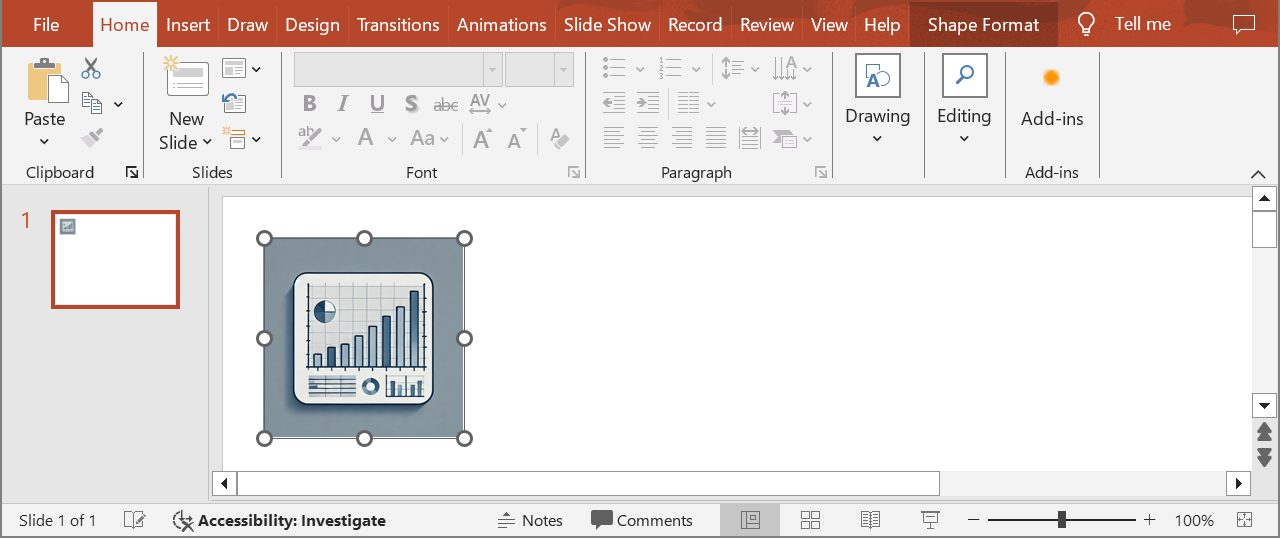
If you do not want to remove the “EMBEDDED OLE OBJECT” message by opening the presentation in PowerPoint and then saving it, you can replace the message with your preferred preview image. The following code demonstrates the process:
import jpype
import asposeslides

if not jpype.isJVMStarted():
    jpype.startJVM()

from asposeslides.api import Images, Presentation, SaveFormat

presentation = Presentation("embeddedOLE.pptx")
try:
    slide = presentation.getSlides().get_Item(0)
    ole_frame = slide.getShapes().get_Item(0)

    # Add an image to presentation resources.
    image = Images.fromFile("myImage.png")
    try:
        ole_image = presentation.getImages().addImage(image)
    finally:
        image.dispose()

    # Set a title and the image for the OLE object preview.
    ole_frame.setSubstitutePictureTitle("My title")
    ole_frame.getSubstitutePictureFormat().getPicture().setImage(ole_image)
    ole_frame.setObjectIcon(False)

    presentation.save("embeddedOLE-newImage.pptx", SaveFormat.Pptx)
finally:
    presentation.dispose()
The slide containing the OleObjectFrame then changes to this:
FAQ
Why does the “EMBEDDED OLE OBJECT” message appear?
The message indicates that the OLE object has changed and its preview image needs to be updated. This behavior is intentional.
How can I update the preview in PowerPoint?
Double-click the message or select Object > Edit to open the embedded OLE object. Click the OLE object to update the preview, then save the presentation.
Can I replace the message without opening the presentation in PowerPoint?
Yes. You can assign a preferred preview image to the OLE object, as shown in the code example above.