
จัดการธีมการนำเสนอใน C++
บทนำ
ธีมการนำเสนอกำหนดชุดสี, ฟอนต์, สไตล์พื้นหลัง, การเติม, เส้น, และเอฟเฟกต์ที่ประสานกัน Theme‑aware objects อ้างอิงถึงคำจำกัดความที่ใช้ร่วมนี้แทนการเก็บคุณสมบัติภาพทุกอย่างเป็นค่าคงที่ จึงทำให้การเปลี่ยนธีมสามารถอัปเดตหลายวัตถุพร้อมกันได้
ใน Aspose.Slides ธีมระดับการนำเสนอสามารถเข้าถึงได้ผ่าน Presentation::get_MasterTheme(). การนำเสนออาจมีการเขียนทับธีมในระดับล่างได้ มาสเตอร์สามารถเขียนทับธีมการนำเสนอผ่าน MasterThemeManager::get_OverrideTheme(), ส่วนเลย์เอาต์หรือสไลด์เดี่ยวสามารถใช้ IOverrideThemeManager::get_OverrideTheme(). โดยทั่วไป ธีมที่มีผลสำหรับสไลด์หนึ่งจะถูกสืบค้นจากโซ่การสืบทอดต่อไปนี้: ธีมการนำเสนอ, การเขียนทับของมาสเตอร์, การเขียนทับของเลย์เอาต์, และการเขียนทับของสไลด์
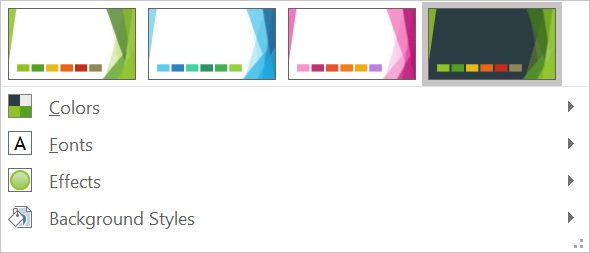
ส่วนต่อไปนี้แสดงกระบวนการทำงานของธีมที่พบบ่อยที่สุด: ตรวจสอบธีม, เปลี่ยนสีและฟอนต์, คัดลอกหรือใช้ธีม, อัปเดตสไตล์พื้นหลังและเอฟเฟกต์, และอ่านค่าที่มีผลหลังจากการสืบทอดและการเขียนทับได้รับการแก้ไขแล้ว
ตรวจสอบธีม
อ็อบเจ็กต์ MasterTheme เปิดเผยเมธอดของธีม get_ColorScheme(), get_FontScheme(), และ get_FormatScheme() การตรวจสอบคอลเลกชันเหล่านี้ก่อนทำการเปลี่ยนแปลงเป็นประโยชน์เป็นพิเศษเมื่อการนำเสนอมาจากแหล่งภายนอก เพราะจำนวนและเนื้อหาของรายการสไตล์อาจแตกต่างกัน
#include <DOM/IColorFormat.h>
#include <DOM/IFonts.h>
#include <DOM/Presentation.h>
#include <DOM/Theme/IColorScheme.h>
#include <DOM/Theme/IEffectStyleCollection.h>
#include <DOM/Theme/IFillFormatCollection.h>
#include <DOM/Theme/IFontScheme.h>
#include <DOM/Theme/IFormatScheme.h>
#include <DOM/Theme/ILineFormatCollection.h>
#include <DOM/Theme/IMasterTheme.h>
#include <system/console.h>

using namespace Aspose::Slides;
using namespace System;

auto presentation = MakeObject<Presentation>(u"input.pptx");
auto theme = presentation->get_MasterTheme();
auto formatScheme = theme->get_FormatScheme();

Console::WriteLine(u"Theme name: {0}", theme->get_Name());
Console::WriteLine(u"Accent 1: {0}", theme->get_ColorScheme()->get_Accent1()->get_Color());
Console::WriteLine(u"Major Latin font: {0}", theme->get_FontScheme()->get_Major()->get_LatinFont()->get_FontName());
Console::WriteLine(u"Minor Latin font: {0}", theme->get_FontScheme()->get_Minor()->get_LatinFont()->get_FontName());
Console::WriteLine(u"Background fill styles: {0}", formatScheme->get_BackgroundFillStyles()->get_Count());
Console::WriteLine(u"Fill styles: {0}", formatScheme->get_FillStyles()->get_Count());
Console::WriteLine(u"Line styles: {0}", formatScheme->get_LineStyles()->get_Count());
Console::WriteLine(u"Effect styles: {0}", formatScheme->get_EffectStyles()->get_Count());
หากไฟล์ใช้มาสเตอร์หลายตัว อย่าสันนิษฐานว่าทุกสไลด์มีธีมที่มีผลเหมือนกัน ตรวจสอบมาสเตอร์ที่เชื่อมโยงกับสไลด์และใช้กระบวนการทำงานของธีมที่มีผลที่แสดงต่อไปในบทความนี้เมื่อมีการเขียนทับของเลย์เอาต์หรือสไลด์
เปลี่ยนสีของธีม
การเติม, เส้น, และข้อความที่รับรู้ธีมสามารถอ้างอิงถึงสีตรรกะจาก enumeration SchemeColor เมื่อคุณเปลี่ยนรายการที่สอดคล้องใน IColorScheme ของธีม, วัตถุทั้งหมดที่ยังอ้างอิงสีธีมนั้นจะได้รับการแก้ไขตามค่าใหม่ วัตถุที่ใช้สี RGB โดยตรงจะไม่ถูกเปลี่ยนโดยการอัปเดตสีธีม
#include <DOM/FillType.h>
#include <DOM/IAutoShape.h>
#include <DOM/IColorFormat.h>
#include <DOM/IFillFormat.h>
#include <DOM/IFillFormatEffectiveData.h>
#include <DOM/IShapeCollection.h>
#include <DOM/ISlide.h>
#include <DOM/Presentation.h>
#include <DOM/SchemeColor.h>
#include <DOM/ShapeType.h>
#include <DOM/Theme/IColorScheme.h>
#include <DOM/Theme/IMasterTheme.h>
#include <Export/SaveFormat.h>
#include <drawing/color.h>
#include <system/console.h>

using namespace Aspose::Slides;
using namespace Aspose::Slides::Export;
using namespace System;
using namespace System::Drawing;

auto presentation = MakeObject<Presentation>();
auto slide = presentation->get_Slide(0);
auto shape = slide->get_Shapes()->AddAutoShape(ShapeType::Rectangle, 10.0f, 10.0f, 100.0f, 100.0f);
shape->get_FillFormat()->set_FillType(FillType::Solid);
shape->get_FillFormat()->get_SolidFillColor()->set_SchemeColor(SchemeColor::Accent4);
presentation->get_MasterTheme()->get_ColorScheme()->get_Accent4()->set_Color(Color::get_Red());
presentation->Save(u"theme-color.pptx", SaveFormat::Pptx);

auto savedPresentation = MakeObject<Presentation>(u"theme-color.pptx");
auto savedSlide = savedPresentation->get_Slide(0);
auto savedShape = savedSlide->get_Shape(0);
auto effectiveFill = savedShape->get_FillFormat()->GetEffective();
Console::WriteLine(u"Effective fill color: {0}", effectiveFill->get_SolidFillColor());
เนื่องจากสี่เหลี่ยมยังคงเชื่อมโยงกับ Accent4 สีที่มองเห็นจึงกลายเป็นสีแดงหลังจากธีมถูกเปลี่ยน หากคุณแทนที่สีตาลจากสกีมด้วยสีโดยตรงบนรูปร่าง การเปลี่ยน Accent4 ต่อไปจะไม่มีผลต่อการเติมนั้น
ใช้สีจากพาเล็ตเสริม
PowerPoint สร้างสีที่อ่อนกว่าและเข้มกว่าโดยใช้การแปลงสีจากสีธีม Aspose.Slides เปิดเผยการแปลงเหล่านี้ผ่าน ColorTransformOperation
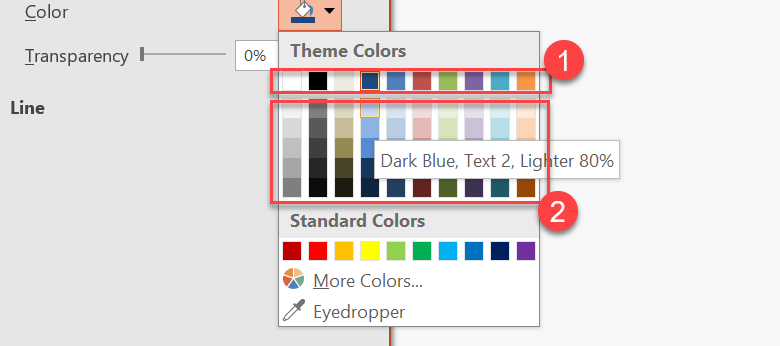
1 - สีหลักของธีม
2 - สีที่อ่อนและเข้มที่ผลิตจากสีหลักของธีม
#include <DOM/ColorTransformOperation.h>
#include <DOM/FillType.h>
#include <DOM/IAutoShape.h>
#include <DOM/IColorFormat.h>
#include <DOM/IColorOperationCollection.h>
#include <DOM/IFillFormat.h>
#include <DOM/IShapeCollection.h>
#include <DOM/ISlide.h>
#include <DOM/Presentation.h>
#include <DOM/SchemeColor.h>
#include <DOM/ShapeType.h>
#include <Export/SaveFormat.h>

using namespace Aspose::Slides;
using namespace Aspose::Slides::Export;
using namespace System;

auto presentation = MakeObject<Presentation>();
auto shapes = presentation->get_Slide(0)->get_Shapes();

auto shape1 = shapes->AddAutoShape(ShapeType::Rectangle, 10.0f, 10.0f, 50.0f, 50.0f);
auto fillFormat1 = shape1->get_FillFormat();
fillFormat1->set_FillType(FillType::Solid);
fillFormat1->get_SolidFillColor()->set_SchemeColor(SchemeColor::Accent4);

auto shape2 = shapes->AddAutoShape(ShapeType::Rectangle, 10.0f, 70.0f, 50.0f, 50.0f);
auto fillFormat2 = shape2->get_FillFormat();
auto solidFillColor2 = fillFormat2->get_SolidFillColor();
fillFormat2->set_FillType(FillType::Solid);
solidFillColor2->set_SchemeColor(SchemeColor::Accent4);
solidFillColor2->get_ColorTransform()->Add(ColorTransformOperation::MultiplyLuminance, 0.2f);
solidFillColor2->get_ColorTransform()->Add(ColorTransformOperation::AddLuminance, 0.8f);

auto shape3 = shapes->AddAutoShape(ShapeType::Rectangle, 10.0f, 130.0f, 50.0f, 50.0f);
auto fillFormat3 = shape3->get_FillFormat();
auto solidFillColor3 = fillFormat3->get_SolidFillColor();
fillFormat3->set_FillType(FillType::Solid);
solidFillColor3->set_SchemeColor(SchemeColor::Accent4);
solidFillColor3->get_ColorTransform()->Add(ColorTransformOperation::MultiplyLuminance, 0.4f);
solidFillColor3->get_ColorTransform()->Add(ColorTransformOperation::AddLuminance, 0.6f);

auto shape4 = shapes->AddAutoShape(ShapeType::Rectangle, 10.0f, 190.0f, 50.0f, 50.0f);
auto fillFormat4 = shape4->get_FillFormat();
auto solidFillColor4 = fillFormat4->get_SolidFillColor();
fillFormat4->set_FillType(FillType::Solid);
solidFillColor4->set_SchemeColor(SchemeColor::Accent4);
solidFillColor4->get_ColorTransform()->Add(ColorTransformOperation::MultiplyLuminance, 0.6f);
solidFillColor4->get_ColorTransform()->Add(ColorTransformOperation::AddLuminance, 0.4f);

auto shape5 = shapes->AddAutoShape(ShapeType::Rectangle, 10.0f, 250.0f, 50.0f, 50.0f);
auto fillFormat5 = shape5->get_FillFormat();
auto solidFillColor5 = fillFormat5->get_SolidFillColor();
fillFormat5->set_FillType(FillType::Solid);
solidFillColor5->set_SchemeColor(SchemeColor::Accent4);
solidFillColor5->get_ColorTransform()->Add(ColorTransformOperation::MultiplyLuminance, 0.75f);

auto shape6 = shapes->AddAutoShape(ShapeType::Rectangle, 10.0f, 310.0f, 50.0f, 50.0f);
auto fillFormat6 = shape6->get_FillFormat();
auto solidFillColor6 = fillFormat6->get_SolidFillColor();
fillFormat6->set_FillType(FillType::Solid);
solidFillColor6->set_SchemeColor(SchemeColor::Accent4);
solidFillColor6->get_ColorTransform()->Add(ColorTransformOperation::MultiplyLuminance, 0.5f);

presentation->Save(u"theme-color-palette.pptx", SaveFormat::Pptx);
ตัวแปรเหล่านี้ยังคงอิงตามสีธีม หาก Accent4 เปลี่ยนในภายหลัง สีที่แปลงแล้วจะถูกคำนวณใหม่จากค่า Accent4 ใหม่
แมพค่า SchemeColor ไปยังช่อง IColorScheme
enumeration SchemeColor ใช้ Text1, Background1, Text2, และ Background2 ขณะที่ IColorScheme เปิดเผยช่องธีมเดียวกันเป็น Dark1, Light1, Dark2, และ Light2 การแมพคงที่ดังนี้
Text1=Dark1Background1=Light1Text2=Dark2Background2=Light2
นี่เป็นชื่อแทนสำหรับช่องธีมเดียวกัน ไม่ได้เป็นค่าที่มีการแปลงแบบไดนามิกจากรูปแบบหนึ่งไปอีกรูปแบบหนึ่ง
เปลี่ยนฟอนต์ของธีม
สกีมฟอนต์ของธีมมีชุดฟอนต์หลักสำหรับหัวเรื่องและชุดฟอนต์ย่อยสำหรับข้อความตัว본문 เมธอด FontScheme::get_Major() และ FontScheme::get_Minor() เปิดเผยชุดเหล่านี้
ตัวระบุฟอนต์ของธีมที่เข้ากันกับ PowerPoint สามารถใช้ในรูปแบบข้อความได้
+mn‑lt- ฟอนต์ข้อความหลัก Latin (Minor Latin Font)+mj‑lt- ฟอนต์หัวเรื่อง Latin (Major Latin Font)+mn‑ea- ฟอนต์ข้อความหลัก East Asian (Minor East Asian Font)+mj‑ea- ฟอนต์หัวเรื่อง East Asian (Major East Asian Font)
#include <DOM/Fonts/FontData.h>
#include <DOM/IAutoShape.h>
#include <DOM/IFonts.h>
#include <DOM/IParagraph.h>
#include <DOM/IParagraphCollection.h>
#include <DOM/IPortion.h>
#include <DOM/IPortionCollection.h>
#include <DOM/IPortionFormat.h>
#include <DOM/IShapeCollection.h>
#include <DOM/ISlide.h>
#include <DOM/ITextFrame.h>
#include <DOM/Presentation.h>
#include <DOM/ShapeType.h>
#include <DOM/Theme/IFontScheme.h>
#include <DOM/Theme/IMasterTheme.h>
#include <Export/SaveFormat.h>

using namespace Aspose::Slides;
using namespace Aspose::Slides::Export;
using namespace System;

auto presentation = MakeObject<Presentation>();
auto slide = presentation->get_Slide(0);

auto heading = slide->get_Shapes()->AddAutoShape(ShapeType::Rectangle, 40.0f, 40.0f, 500.0f, 60.0f);
heading->get_TextFrame()->set_Text(u"Theme heading");
heading->get_TextFrame()->get_Paragraph(0)->get_Portion(0)->get_PortionFormat()->set_LatinFont(MakeObject<FontData>(u"+mj-lt"));

auto body = slide->get_Shapes()->AddAutoShape(ShapeType::Rectangle, 40.0f, 120.0f, 500.0f, 60.0f);
body->get_TextFrame()->set_Text(u"Theme body text");
body->get_TextFrame()->get_Paragraph(0)->get_Portion(0)->get_PortionFormat()->set_LatinFont(MakeObject<FontData>(u"+mn-lt"));

presentation->get_MasterTheme()->get_FontScheme()->get_Major()->set_LatinFont(MakeObject<FontData>(u"Aptos Display"));
presentation->get_MasterTheme()->get_FontScheme()->get_Minor()->set_LatinFont(MakeObject<FontData>(u"Arial"));
presentation->Save(u"theme-fonts.pptx", SaveFormat::Pptx);
หัวเรื่องจะใช้ฟอนต์ Latin หลักและข้อความตัว본문จะใช้ฟอนต์ Latin ย่อย ข้อความที่กำหนดชื่อฟอนต์อย่างชัดเจนแทนตัวระบุธีมจะไม่สลับโดยอัตโนมัติเมื่อสกีมฟอนต์ของธีมเปลี่ยน
คอลเลกชันฟอนต์หลักและรองยังสามารถมีการแมพฟอนต์สำหรับระบบเขียนตัวอักษรเฉพาะ เช่น ซิริลลิก, อารบิก, ญี่ปุ่น, จอร์เจียและธานา เพื่อดู, เพิ่ม, แทนที่ หรือเอาการแมพเหล่านี้ออก ดูที่ ฟอนต์ธีมเฉพาะสคริปต์
Tip
สำหรับข้อมูลเพิ่มเติมเกี่ยวกับฟอนต์การนำเสนอ ดูที่ ฟอนต์ PowerPoint.คัดลอกหรือใช้ธีม
กระบวนการต่อไปนี้แก้ไขปัญหาที่เกี่ยวข้องกับธีมต่าง ๆ
ใช้ธีมภายนอกกับสไลด์ที่ขึ้นอยู่กับมาสเตอร์
ใช้ IMasterSlide::ApplyExternalThemeToDependingSlides เมื่อคุณมีไฟล์ธีม PowerPoint (.thmx) และต้องการปรับสไตล์ทุกสไลด์ที่ขึ้นอยู่กับมาสเตอร์ใดมาสเตอร์หนึ่ง เลือกมาสเตอร์จากคอลเลกชัน Presentation::get_Masters ซึ่งเป็นการทำงานของ IMasterSlideCollection แล้วส่งพาธไฟล์ธีมไปยังเมธอด
เมธอดทำการดังต่อไปนี้
- สร้างมาสเตอร์สไลด์ใหม่บนพื้นมาสเตอร์ที่เลือก
- นำธีมภายนอกไปใช้กับมาสเตอร์ใหม่
- กำหนดมาสเตอร์ใหม่ให้กับสไลด์ทั้งหมดที่เคยขึ้นอยู่กับมาสเตอร์ที่เลือก
- คืนค่า IMasterSlide ที่สร้างใหม่
#include <DOM/IMasterSlide.h>
#include <DOM/Presentation.h>
#include <Export/SaveFormat.h>
#include <iostream>

using namespace Aspose::Slides;
using namespace Aspose::Slides::Export;
using namespace System;

auto presentation = MakeObject<Presentation>(u"presentation.pptx");
auto selectedMaster = presentation->get_Master(0);
auto themedMaster = selectedMaster->ApplyExternalThemeToDependingSlides(u"corporate-theme.thmx");

Console::WriteLine(u"Created master: {0}", themedMaster->get_Name());
presentation->Save(u"presentation-with-external-theme.pptx", SaveFormat::Pptx);
ธีมที่ไม่ถูกต้อง, เสียหาย, หรือไม่รองรับอาจทำให้เกิด PptxException หรือคลาสย่อยที่เกี่ยวกับฟอร์แมต ตรวจสอบพาธที่ผู้ใช้ระบุ, จัดการความล้มเหลวในการเข้าถึงระบบไฟล์, และบันทึกการนำเสนอหลังจากธีมถูกนำไปใช้สำเร็จแล้ว
เฉพาะสไลด์ที่ขึ้นอยู่กับมาสเตอร์ที่เลือกเท่านั้นที่จะถูกกำหนดใหม่ สไลด์ที่เชื่อมโยงกับมาสเตอร์อื่นจะคงมาสเตอร์และธีมเดิมไว้ สี, ฟอนต์, การเติม, เส้น, พื้นหลังและเอฟเฟกต์ที่รับรู้ธีมจะอ้างอิงกับธีมภายนอก สี, ฟอนต์, การเติมและการฟอร์แมตที่กำหนดโดยตรงอาจคงเดิม การเขียนทับระดับเลย์เอาต์และสไลด์ก็อาจมีลำดับความสำคัญเหนือค่าที่สืบทอดจากมาสเตอร์ใหม่
ธีมอาจอ้างอิงฟอนต์ที่ไม่มีในสภาพแวดล้อมการรันไทม์ เพื่อการเรนเดอร์และการส่งออกที่สอดคล้อง ให้ติดตั้งฟอนต์ที่จำเป็น, ให้บริการผ่าน custom font sources, หรือกำหนด font substitution
นี่เป็นกระบวนการทำงานระดับมาสเตอร์โดยตรง: เมธอดรับพาธไฟล์ .thmx และไม่ต้องสร้างการเขียนทับธีมระดับสไลด์หรือเลย์เอาต์ด้วยตนเอง
ใช้ธีมภายนอกที่แตกต่างกันในงานนำเสนอหลายมาสเตอร์
เมื่อมาสเตอร์ที่เกี่ยวข้องไม่ทราบล่วงหน้า ให้ดึงมาจากสไลด์ตัวอย่างผ่าน ISlide::get_LayoutSlide และ ILayoutSlide::get_MasterSlide เก็บอ้างอิงมาสเตอร์เดิมก่อนนำธีมใด ๆ ไปใช้ เพราะแต่ละครั้งที่เรียกจะสร้างมาสเตอร์ใหม่ในงานนำเสนอ
#include <DOM/ILayoutSlide.h>
#include <DOM/IMasterSlide.h>
#include <DOM/Presentation.h>
#include <Export/SaveFormat.h>
#include <iostream>

using namespace Aspose::Slides;
using namespace Aspose::Slides::Export;
using namespace System;

auto presentation = MakeObject<Presentation>(u"multi-master-presentation.pptx");

if (presentation->get_Slides()->get_Count() < 5)
{
    std::cout << "The presentation does not contain the expected representative slides." << std::endl;
}
else
{
    auto firstGroupMaster = presentation->get_Slide(0)->get_LayoutSlide()->get_MasterSlide();
    auto secondGroupMaster = presentation->get_Slide(4)->get_LayoutSlide()->get_MasterSlide();

    if (firstGroupMaster->get_SlideId() == secondGroupMaster->get_SlideId())
    {
        std::cout << "The representative slides use the same master." << std::endl;
    }
    else
    {
        auto firstThemedMaster = firstGroupMaster->ApplyExternalThemeToDependingSlides(u"blue-theme.thmx");
        auto secondThemedMaster = secondGroupMaster->ApplyExternalThemeToDependingSlides(u"green-theme.thmx");

        Console::WriteLine(u"First themed master: {0}", firstThemedMaster->get_Name());
        Console::WriteLine(u"Second themed master: {0}", secondThemedMaster->get_Name());
        presentation->Save(u"multi-master-with-external-themes.pptx", SaveFormat::Pptx);
    }
}
การเรียกครั้งแรกมีผลเฉพาะสไลด์ที่ขึ้นอยู่กับ firstGroupMaster การเรียกครั้งที่สองมีผลเฉพาะสไลด์ที่ขึ้นอยู่กับ secondGroupMaster สไลด์ที่เชื่อมโยงกับมาสเตอร์อื่นจะไม่ได้รับการปรับสไตล์
คงธีมต้นฉบับเมื่อย้ายสไลด์
หากต้องการย้ายสไลด์ไปยังงานนำเสนออื่นพร้อมคงการออกแบบเดิมให้คัดลอกมาสเตอร์ต้นทางเข้าสู่งานนำเป้าหมายด้วย IMasterSlideCollection::AddClone(), แล้วคัดลอกสไลด์ด้วย ISlideCollection::AddClone() และมาสเตอร์ที่คัดลอก วิธีนี้จะพามาสเตอร์, เลย์เอาต์และธีมที่เกี่ยวข้องไปด้วย
#include <DOM/ILayoutSlide.h>
#include <DOM/IMasterSlide.h>
#include <DOM/IMasterSlideCollection.h>
#include <DOM/ISlide.h>
#include <DOM/ISlideCollection.h>
#include <DOM/Presentation.h>
#include <Export/SaveFormat.h>

using namespace Aspose::Slides;
using namespace Aspose::Slides::Export;
using namespace System;

auto source = MakeObject<Presentation>(u"source-theme.pptx");
auto target = MakeObject<Presentation>(u"target.pptx");
auto sourceSlide = source->get_Slide(0);
auto sourceMaster = sourceSlide->get_LayoutSlide()->get_MasterSlide();
auto clonedMaster = target->get_Masters()->AddClone(sourceMaster);
target->get_Slides()->AddClone(sourceSlide, clonedMaster, true);
target->Save(u"theme-preserved.pptx", SaveFormat::Pptx);
นี่เป็นวิธีทำงานที่แนะนำเมื่อสไลด์ต้นทางต้องดูเหมือนกันในปลายทาง การคัดลอกเนื้อหาไปยังมาสเตอร์ปลายทางที่ไม่เกี่ยวข้องอาจทำให้สี, ฟอนต์, พื้นหลังและเอฟเฟกต์ที่ขับเคลื่อนด้วยธีมเปลี่ยนแปลง
นำค่าธีมไปใช้กับสไลด์ที่มีอยู่
หากสไลด์เป้าหมายต้องคงอยู่บนมาสเตอร์และเลย์เอาต์ปัจจุบัน ให้เริ่มการเขียนทับระดับสไลด์จากธีมต้นฉบับ เมธอด OverrideTheme::InitColorSchemeFrom(), OverrideTheme::InitFontSchemeFrom(), และ OverrideTheme::InitFormatSchemeFrom() คัดลอกสามส่วนหลักของธีมเข้าสู่การเขียนทับ
#include <DOM/ISlide.h>
#include <DOM/Presentation.h>
#include <DOM/Theme/IOverrideTheme.h>
#include <DOM/Theme/IOverrideThemeManager.h>
#include <DOM/Theme/IMasterTheme.h>
#include <Export/SaveFormat.h>

using namespace Aspose::Slides;
using namespace Aspose::Slides::Export;
using namespace System;

auto source = MakeObject<Presentation>(u"source-theme.pptx");
auto target = MakeObject<Presentation>(u"target.pptx");
auto targetSlide = target->get_Slide(0);
auto overrideTheme = targetSlide->get_ThemeManager()->get_OverrideTheme();
overrideTheme->InitColorSchemeFrom(source->get_MasterTheme()->get_ColorScheme());
overrideTheme->InitFontSchemeFrom(source->get_MasterTheme()->get_FontScheme());
overrideTheme->InitFormatSchemeFrom(source->get_MasterTheme()->get_FormatScheme());
target->Save(u"theme-applied-to-slide.pptx", SaveFormat::Pptx);
วิธีนี้เปลี่ยนธีมที่ใช้โดยสไลด์นั้นโดยไม่กระทบธีมที่สืบทอดโดยสไลด์อื่น หากต้องการลบการเขียนทับระดับท้องถิ่นและกลับไปใช้ค่าที่สืบทอด ให้เรียก OverrideTheme::Clear()
นำการเขียนทับธีมไปใช้กับเลย์เอาต์
การเขียนทับระดับเลย์เอาต์จะส่งผลต่อสไลด์ที่ใช้เลย์เอาต์นั้น ยกเว้นสไลด์บางรายการที่มีการเขียนทับของตนเอง เมธอดการเริ่มต้นเดียวกันสามารถใช้ผ่าน IOverrideThemeManager ของเลย์เอาต์
#include <DOM/ILayoutSlide.h>
#include <DOM/ISlide.h>
#include <DOM/Presentation.h>
#include <DOM/Theme/IOverrideTheme.h>
#include <DOM/Theme/IOverrideThemeManager.h>
#include <DOM/Theme/IMasterTheme.h>
#include <Export/SaveFormat.h>

using namespace Aspose::Slides;
using namespace Aspose::Slides::Export;
using namespace System;

auto source = MakeObject<Presentation>(u"source-theme.pptx");
auto target = MakeObject<Presentation>(u"target.pptx");
auto targetSlide = target->get_Slide(0);
auto targetLayout = targetSlide->get_LayoutSlide();
auto overrideTheme = targetLayout->get_ThemeManager()->get_OverrideTheme();
overrideTheme->InitColorSchemeFrom(source->get_MasterTheme()->get_ColorScheme());
overrideTheme->InitFontSchemeFrom(source->get_MasterTheme()->get_FontScheme());
overrideTheme->InitFormatSchemeFrom(source->get_MasterTheme()->get_FormatScheme());
target->Save(u"theme-applied-to-layout.pptx", SaveFormat::Pptx);
ใช้ธีมระดับมาสเตอร์หรือการนำเสนอเมื่อหลายเลย์เอาต์และสไลด์ต้องการแชร์การออกแบบฐานเดียวกัน ใช้การเขียนทับระดับเลย์เอาต์เมื่อต้องการสไตล์ที่แตกต่างสำหรับกลุ่มเลย์เอาต์หนึ่ง และใช้การเขียนทับระดับสไลด์เฉพาะกรณีพิเศษ การเขียนทับระดับสไลด์มากเกินไปทำให้การเปลี่ยนธีมทั่วโลกในภายหลังคาดเดาได้ยาก
อัปเดตสไตล์พื้นหลังของธีม
การเติมพื้นหลังของธีมถูกเก็บใน FormatScheme::get_BackgroundFillStyles(). PowerPoint สามารถแสดงตัวเลือกพื้นหลังได้มากกว่าจำนวนการกำหนดการเติมที่มีจริงในคอลเลกชันนี้ เนื่องจาก UI สามารถผสานการเติมธีมกับสีธีมและอ้างอิงสไตล์อื่น ๆ
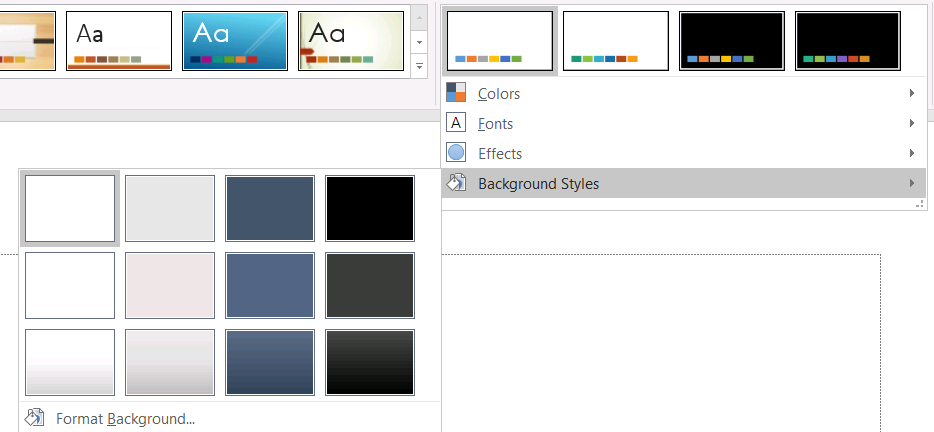
ก่อนใช้สไตล์พื้นหลัง ให้ตรวจสอบคอลเลกชันที่เก็บไว้และค่า Background::get_StyleIndex() ปัจจุบัน StyleIndex ใช้ค่า 0 สำหรับไม่มีการเติมธีม ค่าบวกเป็นการอ้างอิงสไตล์พื้นหลังของธีม ซึ่งแตกต่างจากการใช้ดัชนีคอลเลกชัน C++ โดยตรงด้วย idx_get(0) ที่ 0 หมายถึงรายการแรกที่เก็บไว้ อย่าสันนิษฐานว่าทุกงานนำเสนอมีจำนวนสไตล์การเติมพื้นหลังเท่ากัน
#include <DOM/BackgroundType.h>
#include <DOM/IBackground.h>
#include <DOM/IMasterSlide.h>
#include <DOM/Presentation.h>
#include <DOM/Theme/IFillFormatCollection.h>
#include <DOM/Theme/IFormatScheme.h>
#include <DOM/Theme/IMasterTheme.h>
#include <Export/SaveFormat.h>
#include <system/console.h>

using namespace Aspose::Slides;
using namespace Aspose::Slides::Export;
using namespace System;

auto presentation = MakeObject<Presentation>(u"input.pptx");
auto backgroundStyles = presentation->get_MasterTheme()->get_FormatScheme()->get_BackgroundFillStyles();
Console::WriteLine(u"Background fill styles: {0}", backgroundStyles->get_Count());

if (backgroundStyles->get_Count() > 0)
{
    auto masterSlide = presentation->get_Master(0);
    masterSlide->get_Background()->set_Type(BackgroundType::Themed);
    masterSlide->get_Background()->set_StyleIndex(1);
    presentation->Save(u"theme-background.pptx", SaveFormat::Pptx);
}
ผลลัพธ์ที่มองเห็นขึ้นกับรายการธีมที่มาสเตอร์อ้างอิงและการเขียนทับพื้นหลังที่ระดับเลย์เอาต์หรือสไลด์ ถ้าสตรีมใช้พื้นหลังของตัวเอง การเปลี่ยนพื้นหลังของมาสเตอร์เท่านั้นอาจไม่กระทบสไลด์นั้น ใช้ Background::GetEffective() เมื่อคุณต้องการทราบพื้นหลังสุดท้ายหลังจากการสืบทอด
Warning
อย่าปฏิบัติกับStyleIndex ว่าเป็นดัชนีคอลเลกชันแบบเริ่มต้นจากศูนย์ หลีกเลี่ยงการกำหนดค่าตัวเลขสไตล์จากไฟล์หนึ่งและสันนิษฐานว่ามีลักษณะเดียวกันในไฟล์อื่น คำนิยามสไตล์ของธีมเป็นเรื่องเฉพาะงานนำเสนอ
Tip
สำหรับการฟอร์แมตพื้นหลังโดยตรงและการสืบทอดพื้นหลัง ดูที่ Presentation Backgroundอัปเดตเอฟเฟกต์ของธีม
สกีมฟอร์แมตของธีมมีคอลเลกชันแยกจาก FormatScheme::get_FillStyles(), FormatScheme::get_LineStyles(), และ FormatScheme::get_EffectStyles() ธีมของ Office ส่วนใหญ่มีสามรายการสไตล์หลักที่สอดคล้องกับการฟอร์แมตแบบ Subtle, Moderate, และ Intense อย่างไรก็ตาม โค้ดควรตรวจสอบแต่ละคอลเลกชันแทนการสันนิษฐานจำนวนคงที่
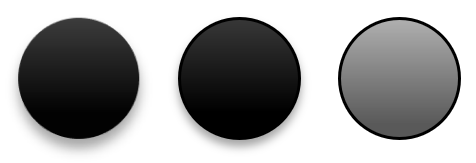
เมื่อเข้าถึงคอลเลกชันเหล่านี้ใน C++ ดัชนีคอลเลกชันเริ่มจากศูนย์: idx_get(0) คือสไตล์แรกที่เก็บไว้และ idx_get(2) คือสไตล์ที่สาม ดัชนีอ้างอิงสไตล์ของรูปร่างเป็นแนวคิดแยกต่างหาก เปิดเผยผ่าน IShapeStyle การแก้ไขสไตล์ธีมจะมีผลต่อรูปร่างที่อ้างอิงสไตล์ธีมนั้น; รูปร่างที่ใช้ฟอร์แมตโดยตรงอาจคงเดิม
#include <DOM/Effects/IOuterShadow.h>
#include <DOM/FillType.h>
#include <DOM/IColorFormat.h>
#include <DOM/IEffectFormat.h>
#include <DOM/IFillFormat.h>
#include <DOM/ILineFormat.h>
#include <DOM/Presentation.h>
#include <DOM/Theme/IEffectStyle.h>
#include <DOM/Theme/IEffectStyleCollection.h>
#include <DOM/Theme/IFillFormatCollection.h>
#include <DOM/Theme/IFormatScheme.h>
#include <DOM/Theme/ILineFormatCollection.h>
#include <DOM/Theme/IMasterTheme.h>
#include <Export/SaveFormat.h>
#include <drawing/color.h>
#include <system/console.h>

using namespace Aspose::Slides;
using namespace Aspose::Slides::Export;
using namespace System;
using namespace System::Drawing;

auto presentation = MakeObject<Presentation>(u"Subtle_Moderate_Intense.pptx");
auto formatScheme = presentation->get_MasterTheme()->get_FormatScheme();
auto lineStyles = formatScheme->get_LineStyles();
auto fillStyles = formatScheme->get_FillStyles();
auto effectStyles = formatScheme->get_EffectStyles();

if (lineStyles->get_Count() < 1 || fillStyles->get_Count() < 3 || effectStyles->get_Count() < 3)
{
    Console::WriteLine(u"The theme does not contain the style entries required by this example.");
}
else
{
    auto lineStyle = lineStyles->idx_get(0);
    lineStyle->get_FillFormat()->set_FillType(FillType::Solid);
    lineStyle->get_FillFormat()->get_SolidFillColor()->set_Color(Color::get_Red());

    auto fillStyle = fillStyles->idx_get(2);
    fillStyle->set_FillType(FillType::Solid);
    fillStyle->get_SolidFillColor()->set_Color(Color::get_ForestGreen());

    auto effectFormat = effectStyles->idx_get(2)->get_EffectFormat();
    effectFormat->EnableOuterShadowEffect();
    effectFormat->get_OuterShadowEffect()->set_Distance(10.0f);

    presentation->Save(u"theme-effects.pptx", SaveFormat::Pptx);
}
สำหรับรูปร่างที่อ้างอิงช่องเหล่านี้ สไตล์เส้นธีมแรกจะกลายเป็นสีแดง สไตล์เติมธีมที่สามจะกลายเป็นสีเขียวป่าแบบทึบ และสไตล์เอฟเฟกต์ที่สามจะได้รับเงาแบบ outer shadow ระยะ 10 จุด ผลลัพธ์ภาพที่แน่นอนยังคงขึ้นกับว่าแต่ละรูปร่างอ้างอิงช่องสไตล์ใดและว่าฟอร์แมตโดยตรงได้เขียนทับธีมหรือไม่

ตรวจสอบว่าการเติมแบบ Solid ที่มีผลใช้สีจากธีมหรือไม่
การเติมอาจเก็บไว้โดยตรงบนวัตถุหรือสืบทอดจากย่อหน้า, เลย์เอาต์, มาสเตอร์, สไตล์ธีม หรือระดับฟอร์แมตอื่น เรียก IFillFormat::GetEffective เพื่อแก้ไขลำดับชั้นนั้นเป็น IFillFormatEffectiveData ที่ไม่เปลี่ยนแปลง แรกตรวจสอบ IFillFormatEffectiveData::get_FillType เฉพาะเมื่อค่าเป็น FillType::Solid จึงอ่านคุณสมบัติของการเติมแบบ Solid
สำหรับการเติมแบบ Solid, IFillFormatEffectiveData::get_SolidFillColor คืนค่า RGB ที่เรนเดอร์สุดท้ายหลังจากสืบทอด, ค้นหาธีม, และการแปลงสี IFillFormatEffectiveData::get_SolidFillSchemeColor คืนค่า slot ของ SchemeColor ที่เกี่ยวข้อง เช่น Text1 หรือ Accent6 ค่าที่เป็น SchemeColor::NotDefined หมายความว่าการเติมแบบ Solid ที่มีผลไม่ได้อิงจากสีสกีม ในกระบวนการทำงานที่การเติมเป็นสีธีมหรือสี RGB โดยตรง ค่านี้บ่งบอกการเติม RGB โดยตรง
อย่าใช้ค่า IColorFormat::get_SchemeColor ท้องถิ่นเพียงอย่างเดียวเพื่อจำแนกการเติม เช่น ส่วนของข้อความอาจไม่มีสีสกีมที่กำหนดในระดับท้องถิ่นจึงค่า NotDefined ในขณะที่การเติมที่มีผลสืบทอดสีธีมและสรุปเป็น Text1 หรือ Accent6 ในทางกลับกัน get_SolidFillSchemeColor บอกว่าช่องธีมตรรกะใดสร้างสีที่มีผล แต่ไม่ได้บอกว่าช่องนั้นมาจากวัตถุ, ย่อหน้า, เลย์เอาต์, มาสเตอร์ หรือระดับอื่นของลำดับฟอร์แมต
#include <DOM/FillType.h>
#include <DOM/IAutoShape.h>
#include <DOM/IColorFormat.h>
#include <DOM/IFillFormat.h>
#include <DOM/IFillFormatEffectiveData.h>
#include <DOM/IParagraph.h>
#include <DOM/IParagraphCollection.h>
#include <DOM/IPortion.h>
#include <DOM/IPortionCollection.h>
#include <DOM/IShape.h>
#include <DOM/ITextFrame.h>
#include <DOM/Presentation.h>
#include <DOM/SchemeColor.h>
#include <system/console.h>
#include <system/object_ext.h>
#include <system/string.h>

using namespace Aspose::Slides;
using namespace System;

auto auditFill = [](const String& objectName, const SharedPtr<IFillFormat>& localFill)
{
    auto effectiveFill = localFill->GetEffective();

    if (effectiveFill->get_FillType() != FillType::Solid)
    {
        Console::WriteLine(u"{0}: fill type = {1}; not a solid fill.", objectName, effectiveFill->get_FillType());
        return;
    }

    auto rgb = effectiveFill->get_SolidFillColor();
    auto effectiveSchemeColor = effectiveFill->get_SolidFillSchemeColor();
    auto localSchemeColor = localFill->get_SolidFillColor()->get_SchemeColor();

    Console::WriteLine(u"{0}: RGB = #{1:X2}{2:X2}{3:X2}", objectName, rgb.get_R(), rgb.get_G(), rgb.get_B());
    Console::WriteLine(u"{0}: local scheme = {1}, effective scheme = {2}", objectName, localSchemeColor, effectiveSchemeColor);

    if (effectiveSchemeColor == SchemeColor::NotDefined)
    {
        Console::WriteLine(u"{0}: direct RGB or another non-scheme fill; audit as theme-independent.", objectName);
    }
    else
    {
        Console::WriteLine(u"{0}: theme-dependent through {1}.", objectName, effectiveSchemeColor);
    }
};

auto presentation = MakeObject<Presentation>(u"input.pptx");

auto slideCount = presentation->get_Slides()->get_Count();
for (int32_t slideIndex = 0; slideIndex < slideCount; slideIndex++)
{
    auto slide = presentation->get_Slide(slideIndex);

    auto shapeCount = slide->get_Shapes()->get_Count();
    for (int32_t shapeIndex = 0; shapeIndex < shapeCount; shapeIndex++)
    {
        auto shape = slide->get_Shape(shapeIndex);
        auto shapeName = String::Format(u"Slide {0}, shape {1}", slideIndex + 1, shapeIndex + 1);
        auditFill(shapeName, shape->get_FillFormat());

        if (ObjectExt::Is<IAutoShape>(shape))
        {
            auto autoShape = ExplicitCast<IAutoShape>(shape);
            auto textFrame = autoShape->get_TextFrame();
            auto paragraphCount = textFrame->get_Paragraphs()->get_Count();
            for (int32_t paragraphIndex = 0; paragraphIndex < paragraphCount; paragraphIndex++)
            {
                auto paragraph = textFrame->get_Paragraph(paragraphIndex);

                auto portionCount = paragraph->get_Portions()->get_Count();
                for (int32_t portionIndex = 0; portionIndex < portionCount; portionIndex++)
                {
                    auto portion = paragraph->get_Portion(portionIndex);
                    auto portionName = String::Format(u"{0}, paragraph {1}, portion {2}", shapeName, paragraphIndex + 1, portionIndex + 1);
                    auditFill(portionName, portion->get_PortionFormat()->get_FillFormat());
                }
            }
        }
    }
}
สาขา NotDefined ให้รายการตรวจสอบการเติมแบบ Solid ที่จะไม่ตอบสนองต่อการเปลี่ยนแปลงในช่องสีของธีม ตรวจสอบวัตถุเหล่านั้นเมื่อการนำเสนอจำเป็นต้องสอดคล้องกับพาเล็ตแบรนด์ใหม่ ค่า RGB ที่รายงานยังคงแสดงลักษณะปัจจุบัน ส่วนค่า scheme อธิบายว่าลักษณะนั้นเชื่อมโยงกับธีมหรือไม่
อ็อบเจ็กต์รูปแบบที่มีผลเป็นสแนปช็อต หลังจากเปลี่ยนธีมของการนำเสนอ, การเขียนทับธีม, หรือการฟอร์แมตที่สืบทอดใด ๆ ให้เรียก GetEffective อีกครั้งและอ่านอ็อบเจ็กต์ IFillFormatEffectiveData ใหม่ก่อนทำการเปรียบเทียบหรือรายงานสี
อ่านค่าธีมที่มีผล
อ็อบเจ็กต์ธีมดิบบอกว่ามีการกำหนดอะไรในระดับหนึ่ง ค่าที่มีผลบอกว่าผลลัพธ์ที่สไลด์หรือรูปร่างใช้จริงหลังจากสืบทอดและการเขียนทับท้องถิ่นได้รับการแก้ไข สำหรับสไลด์ ให้เรียก IThemeable::CreateThemeEffective() สำหรับพื้นหลัง ใช้ Background::GetEffective() และสำหรับการเติม ใช้ FillFormat::GetEffective()
#include <DOM/FillType.h>
#include <DOM/IBackground.h>
#include <DOM/IBackgroundEffectiveData.h>
#include <DOM/IFillFormat.h>
#include <DOM/IFillFormatEffectiveData.h>
#include <DOM/IFontsEffectiveData.h>
#include <DOM/IShape.h>
#include <DOM/IShapeCollection.h>
#include <DOM/ISlide.h>
#include <DOM/Presentation.h>
#include <DOM/Theme/IFontSchemeEffectiveData.h>
#include <DOM/Theme/IThemeEffectiveData.h>
#include <system/console.h>

using namespace Aspose::Slides;
using namespace System;

auto presentation = MakeObject<Presentation>(u"input.pptx");
auto slide = presentation->get_Slide(0);
auto effectiveTheme = slide->CreateThemeEffective();
auto effectiveBackground = slide->get_Background()->GetEffective();

Console::WriteLine(u"Effective major Latin font: {0}", effectiveTheme->get_FontScheme()->get_Major()->get_LatinFont()->get_FontName());
Console::WriteLine(u"Effective minor Latin font: {0}", effectiveTheme->get_FontScheme()->get_Minor()->get_LatinFont()->get_FontName());
Console::WriteLine(u"Effective background fill type: {0}", effectiveBackground->get_FillFormat()->get_FillType());

if (slide->get_Shapes()->get_Count() > 0)
{
    auto effectiveFill = slide->get_Shape(0)->get_FillFormat()->GetEffective();
    Console::WriteLine(u"First shape effective fill type: {0}", effectiveFill->get_FillType());
    if (effectiveFill->get_FillType() == FillType::Solid)
    {
        Console::WriteLine(u"First shape effective fill color: {0}", effectiveFill->get_SolidFillColor());
    }
}
ใช้ข้อมูลที่มีผลสำหรับการวินิจฉัยการเรนเดอร์, การตรวจสอบ, และการเปรียบเทียบ หากคุณตรวจสอบเพียง Presentation::get_MasterTheme() คุณอาจพลาดการเขียนทับของมาสเตอร์, เลย์เอาต์, สไลด์, หรือรูปร่างที่เปลี่ยนลักษณะสุดท้าย
คำถามที่พบบ่อย
การใช้ธีมภายนอกจะส่งผลต่อทุกสไลด์ในงานนำเสนอหรือไม่?
ไม่ IMasterSlide::ApplyExternalThemeToDependingSlides จะกำหนดใหม่เฉพาะสไลด์ที่ขึ้นอยู่กับมาสเตอร์ที่เลือก สไลด์ที่ใช้มาสเตอร์อื่นจะคงธีมเดิมไว้
สามารถใช้ธีมกับสไลด์เดียวโดยไม่เปลี่ยนมาสเตอร์ได้หรือไม่?
ได้ ใช้ IOverrideThemeManager ของสไลด์และเริ่มต้นธีมเขียนทับ การเปลี่ยนจะมีผลเฉพาะสไลด์นั้น สไลด์อื่นจะยังคงสืบทอดธีมที่มีอยู่
วิธีที่ปลอดภัยที่สุดในการย้ายธีมจากงานนำเสนอหนึ่งไปยังอีกงานนำเสนอคืออะไร?
เมื่อย้ายสไลด์และคงลักษณะต้นทาง ให้คัดลอกมาสเตอร์ต้นทางเข้าสู่ปลายทางและคัดลอกสไลด์พร้อมมาสเตอร์นั้นโดยใช้ IMasterSlideCollection::AddClone() และ ISlideCollection::AddClone() วิธีนี้จะทำให้มาสเตอร์, เลย์เอาต์และธีมอยู่ด้วยกัน
จะดูค่าที่มีผลหลังจากการสืบทอดและการเขียนทับได้อย่างไร?
ใช้ IThemeable::CreateThemeEffective() สำหรับสไลด์หรือธีมเลย์เอาต์และเมธอดข้อมูลที่มีผลที่สอดคล้องสำหรับอ็อบเจ็กต์ฟอร์แมต เช่น Background::GetEffective() และ FillFormat::GetEffective() API เหล่านี้จะคืนค่าที่สรุปหลังจากการสืบทอดและการเขียนทับถูกนำไปใช้