
จัดการคุณสมบัติการนำเสนอใน .NET
บทนำ
Aspose.Slides for .NET รองรับสองประเภทของคุณสมบัติเอกสาร: Built-in และ Custom. ทั้งสองประเภทนี้สามารถเข้าถึงและจัดการได้ง่ายโดยใช้ Aspose.Slides for .NET API.
Aspose.Slides ให้คุณทำงานกับคุณสมบัติเอกสารของงานนำเสนอผ่านอินเทอร์เฟซ IDocumentProperties อินสแตนซ์ของอินเทอร์เฟซนี้จะถูกส่งคืนโดย IPresentation.DocumentProperties. ตัวอย่างต่อไปนี้แสดงวิธีการอ่าน, แก้ไข, และจัดการคุณสมบัติเหล่านี้.
Note
โปรดทราบว่า ฟิลด์ Application และ Producer ไม่สามารถแก้ไขได้ เนื่องจากฟิลด์เหล่านี้จะแสดงเสมอว่า “Aspose Ltd.” และ “Aspose.Slides for .NET x.x.x”.จัดการคุณสมบัติการนำเสนอ
Microsoft PowerPoint มีฟีเจอร์ในการเพิ่มคุณสมบัติให้กับไฟล์งานนำเสนอ. คุณสมบัติเอกสารเหล่านี้ทำให้สามารถเก็บข้อมูลที่เป็นประโยชน์อยู่ร่วมกับไฟล์ได้. มีสองประเภทของคุณสมบัติเอกสาร:
- System-defined (built-in) properties
- User-defined (custom) properties
Built-in properties ประกอบด้วยข้อมูลทั่วไปเกี่ยวกับเอกสาร เช่น ชื่อเรื่องของเอกสาร, ชื่อผู้เขียน, สถิติเอกสาร, และอื่นๆ
Custom properties ถูกกำหนดโดยผู้ใช้เป็นคู่ Name/Value ที่ชื่อและค่าทั้งสองถูกระบุโดยผู้ใช้เอง
โดยใช้ Aspose.Slides for .NET นักพัฒนาสามารถเข้าถึงและแก้ไขทั้งคุณสมบัติ built‑in และ custom ได้
Microsoft PowerPoint ให้ผู้ใช้จัดการคุณสมบัติเอกสารได้โดยคลิกไอคอน Office แล้วเลือก File → Info → Properties. หลังจากเลือก Advanced Properties จะปรากฏหน้าต่างที่คุณสามารถจัดการคุณสมบัติเอกสารทั้งหมดของไฟล์งานนำเสนอได้
ในหน้าต่าง Properties มีหลายแท็บ เช่น General, Summary, Statistics, Contents, และ Custom. แต่ละแท็บให้ตัวเลือกสำหรับกำหนดค่าประเภทข้อมูลที่เกี่ยวข้องกับไฟล์ PowerPoint. แท็บ Custom ใช้สำหรับจัดการคุณสมบัติที่ผู้ใช้กำหนดเอง
อ่านคุณสมบัติสาธารณะจากการนำเสนอที่เข้ารหัส
รหัสผ่านเปิดไฟล์โดยปกติจะปกป้องทั้งเนื้อหาการนำเสนอและคุณสมบัติเอกสาร. เมื่อการนำเสนอถูกเข้ารหัสด้วย IProtectionManager.EncryptDocumentProperties ตั้งค่าเป็น false, คุณสมบัติเอกสารจะคงเป็นสาธารณะ. แอปพลิเคชันจึงสามารถตั้งค่า LoadOptions.OnlyLoadDocumentProperties เป็น true และอ่านเมตาดาต้าสาธารณะโดยไม่ต้องให้รหัสผ่านเปิดไฟล์ได้
OnlyLoadDocumentProperties ควบคุมสิ่งที่ Aspose.Slides โหลด; มันไม่ได้ทำการถอดรหัสใดๆ. หากคุณสมบัตินั้นรวมอยู่ในการเข้ารหัส การโหลดโดยไม่มีรหัสผ่านจะล้มเหลว. หากการนำเสนอไม่ได้เข้ารหัส ตัวเลือกจะถูกละเว้นและการนำเสนอทั้งหมดจะถูกโหลด
ตัวอย่างต่อไปนี้ตรวจสอบโหมดการโหลดผ่าน IProtectionManager.IsOnlyDocumentPropertiesLoaded แล้วอ่านคุณสมบัติ built‑in ผ่าน IPresentation.DocumentProperties:
using System;
using Aspose.Slides;

var loadOptions = new LoadOptions { OnlyLoadDocumentProperties = true };
using var presentation = new Presentation("public-properties-encrypted.pptx", loadOptions);

if (presentation.ProtectionManager.IsOnlyDocumentPropertiesLoaded)
{
    var properties = presentation.DocumentProperties;

    Console.WriteLine("Author: " + properties.Author);
    Console.WriteLine("Title: " + properties.Title);
    Console.WriteLine("Keywords: " + properties.Keywords);
}
else
{
    Console.WriteLine("The presentation was not loaded in document-properties-only mode.");
}
ในโหมดนี้เนื้อหาสไลด์จะไม่ถูกโหลด. สไลด์, มาสเตอร์, เลย์เอาต์, รูปทรง, สื่อ, และอ็อบเจ็กต์การนำเสนออื่นๆ จะไม่พร้อมใช้งาน. แอปพลิเคชันควรตรวจสอบ IsOnlyDocumentPropertiesLoaded ก่อนทำการดำเนินการที่ต้องการโมเดลอ็อบเจ็กต์การนำเสนอเต็มรูปแบบเสมอ
Security
เมตาดาต้าสาธารณะอาจเปิดเผยชื่อผู้เขียน, ชื่อเรื่อง, เรื่อง, คำสำคัญ, ข้อมูลบริษัท, ความคิดเห็น, และค่าที่กำหนดเอง. ให้เข้ารหัสคุณสมบัติที่สำคัญร่วมกับการนำเสนอ. ปล่อยให้เป็นสาธารณะเฉพาะเมื่อระบบการทำดัชนี, การจัดประเภท, การค้นหา, หรือระบบจัดการเอกสารมีความต้องการเฉพาะเพื่อเข้าถึงโดยไม่มีรหัสผ่านอัปเดตคุณสมบัติของการนำเสนอที่เข้ารหัส
สำหรับไฟล์ PPTX ที่เข้ารหัส การนำเสนอที่โหลดด้วย OnlyLoadDocumentProperties มีจุดประสงค์เพื่ออ่านเมตาดาต้าสาธารณะ. Aspose.Slides ไม่สามารถบันทึกการเปลี่ยนแปลงคุณสมบัติจากอ็อบเจ็กต์ที่โหลดเฉพาะเมตาดาต้าได้ เนื่องจากคุณสมบัติสาธารณะต้องสอดคล้องกับข้อมูลที่อยู่ภายในการนำเสนอที่เข้ารหัส. ดังนั้นการอัปเดตจึงต้องใช้รหัสผ่านเปิดไฟล์ที่ถูกต้องและการโหลดแบบเต็ม
ตัวอย่างต่อไปนี้เปิดการนำเสนอด้วย LoadOptions.Password, อัปเดตคุณสมบัติ built‑in สาธารณะ, แล้วบันทึกผลลัพธ์. จากนั้นใช้ IPresentationInfo.IsEncrypted เพื่อตรวจสอบว่าการเข้ารหัสยังคงอยู่และเปิดเมตาดาต้าสาธารณะอีกครั้งโดยไม่มีรหัสผ่านเพื่อยืนยันค่าที่ใหม่:
using System;
using Aspose.Slides;
using Aspose.Slides.Export;

const string inputPath = "public-properties-encrypted.pptx";
const string outputPath = "updated-public-properties-encrypted.pptx";

{
    var loadOptions = new LoadOptions { Password = "open_password" };
    using var presentation = new Presentation(inputPath, loadOptions);

    presentation.DocumentProperties.Title = "Updated Product Roadmap";
    presentation.DocumentProperties.Keywords = "roadmap, planning, indexed";
    presentation.Save(outputPath, SaveFormat.Pptx);
}

var presentationInfo = PresentationFactory.Instance.GetPresentationInfo(outputPath);
Console.WriteLine("The presentation is encrypted: " + presentationInfo.IsEncrypted);

var metadataLoadOptions = new LoadOptions { OnlyLoadDocumentProperties = true };
using var metadataPresentation = new Presentation(outputPath, metadataLoadOptions);

if (metadataPresentation.ProtectionManager.IsOnlyDocumentPropertiesLoaded)
{
    Console.WriteLine("Title: " + metadataPresentation.DocumentProperties.Title);
    Console.WriteLine("Keywords: " + metadataPresentation.DocumentProperties.Keywords);
}
else
{
    Console.WriteLine("The presentation was not loaded in document-properties-only mode.");
}
หากแอปพลิเคชันไม่ได้รับอนุญาตให้ถอดรหัสหรือโหลดเนื้อหาการนำเสนอ จะต้องถือคุณสมบัติสาธารณะของไฟล์ PPTX ที่เข้ารหัสเป็นแบบอ่าน‑อย่างเดียว
เข้าถึงคุณสมบัติ Built-in
คุณสมบัติเหล่านี้ที่เปิดเผยโดยอินเทอร์เฟซ IDocumentProperties รวมถึง: Creator (Author), Description, Keywords, Created (Creation Date), Modified (Modification Date), Printed (Last Print Date), LastModifiedBy, SharedDoc (ระบุว่าตัวเอกสารถูกแชร์ระหว่างผู้ผลิตต่างๆ), PresentationFormat, Subject, Title, และอื่นๆ
using Aspose.Slides;

// สร้างอินสแตนซ์ของคลาส Presentation ที่เป็นตัวแทนไฟล์การนำเสนอ.
using Presentation presentation = new Presentation("AccessBuiltInProperties.pptx");

// รับการอ้างอิงถึงออบเจกต์ประเภท IDocumentProperties ที่เกี่ยวข้องกับการนำเสนอ.
IDocumentProperties documentProperties = presentation.DocumentProperties;

// แสดงคุณสมบัติ Built-in.
Console.WriteLine("Category : " + documentProperties.Category);
Console.WriteLine("Content status : " + documentProperties.ContentStatus);
Console.WriteLine("Creation date : " + documentProperties.CreatedTime);
Console.WriteLine("Author : " + documentProperties.Author);
Console.WriteLine("Comments : " + documentProperties.Comments);
Console.WriteLine("Key words : " + documentProperties.Keywords);
Console.WriteLine("Last modified by : " + documentProperties.LastSavedBy);
Console.WriteLine("Manager : " + documentProperties.Manager);
Console.WriteLine("Modified date : " + documentProperties.LastSavedTime);
Console.WriteLine("Presentation format : " + documentProperties.PresentationFormat);
Console.WriteLine("Last print date : " + documentProperties.LastPrinted);
Console.WriteLine("Is shared between producers : " + documentProperties.SharedDoc);
Console.WriteLine("Subject : " + documentProperties.Subject);
Console.WriteLine("Title : " + documentProperties.Title);
แก้ไขคุณสมบัติ Built-in
การแก้ไขคุณสมบัติ built‑in ของไฟล์งานนำเสนอทำได้ง่ายเท่ากับการเข้าถึง. คุณสามารถกำหนดค่าข้อความให้กับคุณสมบัติใดก็ได้ที่ต้องการและค่าของคุณสมบัติก็จะถูกอัปเดต. ตัวอย่างด้านล่างแสดงวิธีการแก้ไขคุณสมบัติเอกสาร built‑in ของไฟล์การนำเสนอ
using Aspose.Slides;
using Aspose.Slides.Export;

// สร้างอินสแตนซ์ของคลาส Presentation ที่เป็นตัวแทนไฟล์การนำเสนอ.
using Presentation presentation = new Presentation("ModifyBuiltInProperties.pptx");

// รับการอ้างอิงถึงอ็อบเจ็กต์ประเภท IDocumentProperties ที่เชื่อมโยงกับการนำเสนอ.
IDocumentProperties documentProperties = presentation.DocumentProperties;

// ตั้งค่าคุณสมบัติ Built-in.
documentProperties.Author = "Aspose.Slides for .NET";
documentProperties.Title = "Manage PowerPoint Presentation Properties";
documentProperties.Subject = "Modify Built-in Properties";
documentProperties.Comments = "Aspose description";
documentProperties.Manager = "Aspose manager";

// บันทึกการนำเสนอลงไฟล์.
presentation.Save("DocumentProperties_output.pptx", SaveFormat.Pptx);
เพิ่มคุณสมบัติการนำเสนอแบบกำหนดเอง
คุณสมบัติการนำเสนอแบบกำหนดเองช่วยให้นักพัฒนาสามารถเก็บเมตาดาต้าเพิ่มเติมหรือข้อมูลเฉพาะภายในไฟล์การนำเสนอได้. Aspose.Slides ทำให้การสร้างและจัดการคุณสมบัติแบบกำหนดเองเหล่านี้โดยโปรแกรมทำได้ง่าย. ตัวอย่างต่อไปนี้สาธิตวิธีการเพิ่มคุณสมบัติแบบกำหนดเองให้กับงานนำเสนอของคุณ
using Aspose.Slides;
using Aspose.Slides.Export;

// สร้างอินสแตนซ์ของคลาส Presentation.
using Presentation presentation = new Presentation();

// รับการอ้างอิงถึงอ็อบเจ็กต์ประเภท IDocumentProperties ที่เชื่อมโยงกับการนำเสนอ.
IDocumentProperties documentProperties = presentation.DocumentProperties;

// เพิ่มคุณสมบัติกำหนดเอง.
documentProperties["Reviewed by"] = "John Smith";
documentProperties["Confidentiality level"] = "Internal";
documentProperties["Document version"] = 2;

// บันทึกการนำเสนอลงไฟล์.
presentation.Save("CustomDocumentProperties_output.pptx", SaveFormat.Pptx);
เข้าถึงและแก้ไขคุณสมบัติแบบกำหนดเอง
Aspose.Slides ยังอนุญาตให้นักพัฒนาสามารถเข้าถึงคุณสมบัติแบบกำหนดเองที่มีอยู่และแก้ไขค่าได้ง่าย. ความสามารถนี้ช่วยให้รักษาเมตาดาต้าที่แม่นยำและสนับสนุนการอัปเดตแบบไดนามิกตามข้อมูลป้อนจากผู้ใช้หรือตรรกะทางธุรกิจ. ตัวอย่างด้านล่างแสดงวิธีการดึงค่าและอัปเดตคุณสมบัติแบบกำหนดเองภายในงานนำเสนอ
using Aspose.Slides;
using Aspose.Slides.Export;

// สร้างอินสแตนซ์ของคลาส Presentation ที่เป็นตัวแทนไฟล์ PPTX.
using Presentation presentation = new Presentation("AccessAndModifyProperties.pptx");

// รับการอ้างอิงถึงอ็อบเจ็กต์ประเภท IDocumentProperties ที่เชื่อมโยงกับการนำเสนอ.
IDocumentProperties documentProperties = presentation.DocumentProperties;

// เข้าถึงและแก้ไขคุณสมบัติกำหนดเอง.
for (int i = 0; i < documentProperties.CountOfCustomProperties; i++)
{
    string propertyName = documentProperties.GetCustomPropertyName(i);
    object propertyValue = documentProperties[propertyName];

    // แสดงชื่อและค่าของคุณสมบัติกำหนดเอง.
    Console.WriteLine("Custom property name : " + propertyName);
    Console.WriteLine("Custom property value : " + propertyValue);

    // แก้ไขค่าของคุณสมบัติกำหนดเอง.
    documentProperties[propertyName] = "New Value " + (i + 1);
}

// บันทึกการนำเสนอลงไฟล์.
presentation.Save("CustomProperties_output.pptx", SaveFormat.Pptx);
ตัวอย่างสด
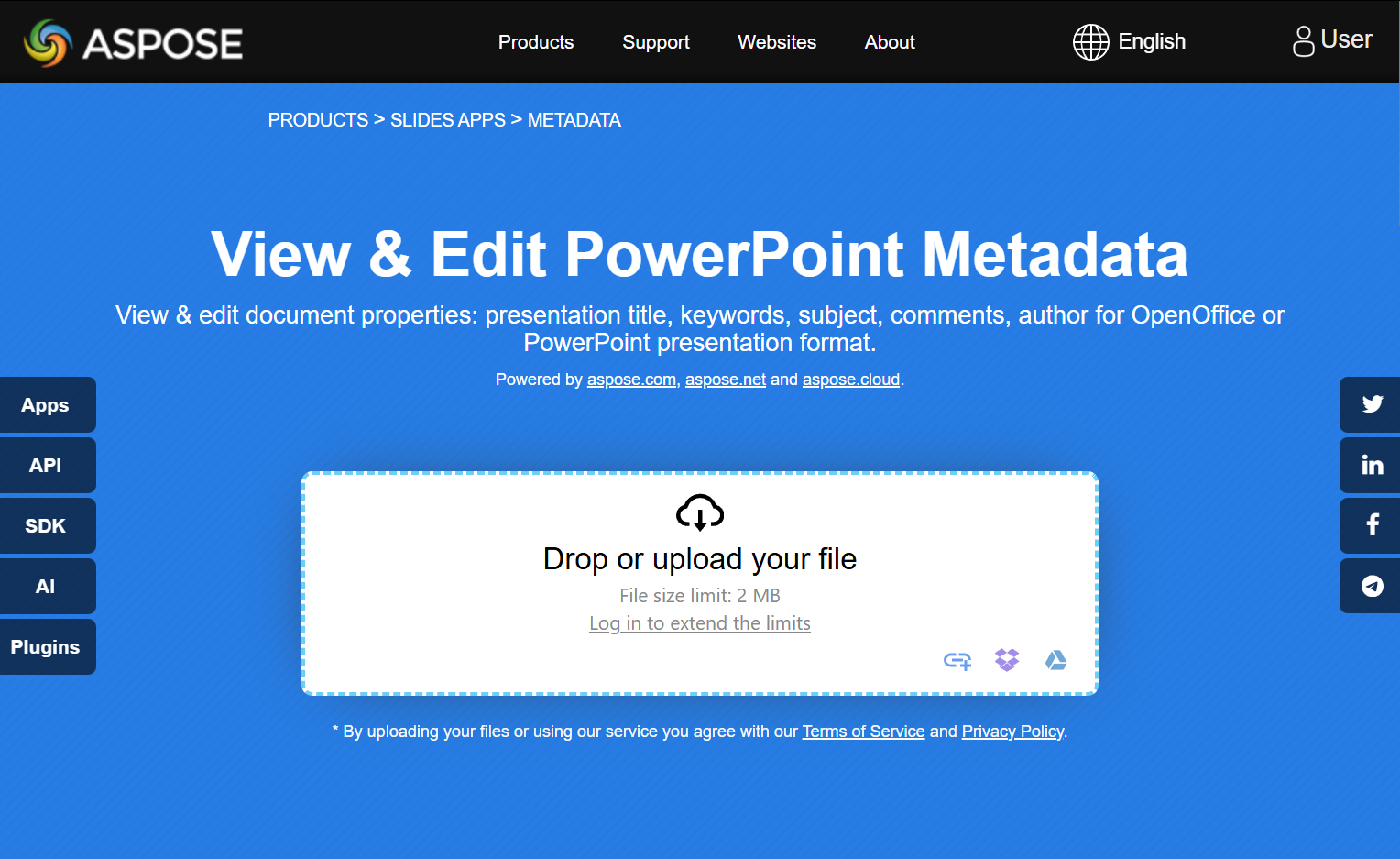
ลองใช้แอปออนไลน์ View & Edit PowerPoint Metadata เพื่อดูวิธีทำงานกับคุณสมบัติเอกสารโดยใช้ Aspose.Slides API:
คำถามที่พบบ่อย
ฉันจะลบคุณสมบัติ Built-in จากการนำเสนอได้อย่างไร?
คุณสมบัติ Built-in เป็นส่วนสำคัญของการนำเสนอและไม่สามารถลบออกได้ทั้งหมด. อย่างไรก็ตามคุณสามารถเปลี่ยนค่าเป็นค่าว่างหรือปรับเปลี่ยนให้เป็นค่าอื่นได้หากคุณสมบัตินั้นอนุญาตให้เป็นค่าว่าง
จะเกิดอะไรขึ้นหากฉันเพิ่มคุณสมบัติแบบกำหนดเองที่มีอยู่แล้ว?
หากคุณเพิ่มคุณสมบัติแบบกำหนดเองที่มีอยู่แล้ว ค่าที่มีอยู่จะถูกเขียนทับด้วยค่าที่ใหม่. คุณไม่จำเป็นต้องลบหรือเช็คคุณสมบัติก่อน, เนื่องจาก Aspose.Slides จะอัปเดตค่าของคุณสมบัติโดยอัตโนมัติ
ฉันสามารถเข้าถึงคุณสมบัติการนำเสนอได้โดยไม่ต้องโหลดการนำเสนอเต็มรูปแบบหรือไม่?
ได้. ใช้ PresentationFactory.GetPresentationInfo แล้วตามด้วย IPresentationInfo.ReadDocumentProperties เพื่ออ่านเมตาดาต้าเอกสารที่จัดเก็บโดยไม่ต้องสร้างอินสแตนซ์ Presentation. ดูตัวอย่างการสร้างรายงานแบบเบาใน Build a Lightweight Presentation Inventory สำหรับตัวอย่างเต็มและข้อจำกัดตามฟอร์แมต
ฉันสามารถอ่านคุณสมบัติสาธารณะของการนำเสนอที่เข้ารหัสโดยไม่ต้องใช้รหัสผ่านเปิดไฟล์ได้หรือไม่?
ได้. การนำเสนอจะต้องถูกเข้ารหัสด้วย EncryptDocumentProperties ตั้งค่าเป็น false และต้องโหลดด้วย OnlyLoadDocumentProperties ตั้งค่าเป็น true
ฉันสามารถอัปเดตไฟล์ PPTX ที่เข้ารหัสได้ในโหมด document‑properties‑only หรือไม่?
ไม่ได้. ข้อมูลคุณสมบัติสาธารณะและข้อมูลที่เข้ารหัสต้องสอดคล้องกัน, ดังนั้นการอัปเดตไฟล์ PPTX ที่เข้ารหัสต้องโหลดการนำเสนอทั้งหมดพร้อมรหัสผ่านเปิดไฟล์ที่ถูกต้อง