
จัดการธีมการนำเสนอใน Python ผ่าน Java
บทนำ
ธีมของการนำเสนอกำหนดชุดสี, แบบอักษร, รูปแบบพื้นหลัง, การเติม, เส้น และเอฟเฟกต์ ที่ประสานกันอย่างสอดคล้อง วัตถุที่รับรู้ธีมจะอ้างอิงคำนิยามเหล่านี้แทนการเก็บค่าคุณลักษณะภาพแต่ละอย่างเป็นค่าคงที่ ดังนั้นการเปลี่ยนธีมจะอัปเดตวัตถุหลายรายการพร้อมกัน
ใน Aspose.Slides ธีมระดับการนำเสนอสามารถเข้าถึงได้ผ่าน Presentation.getMasterTheme การนำเสนออาจมีการแทนที่ธีมในระดับล่างได้ มาสเตอร์สามารถแทนที่ธีมของการนำเสนอผ่าน MasterThemeManager.getOverrideTheme ในขณะที่เลเอาต์หรือสไลด์แต่ละอันสามารถแทนที่ธีมที่สืบทอดมาผ่าน BaseOverrideThemeManager.getOverrideTheme โดยทั่วไปธีมที่ใช้จริงสำหรับสไลด์จะถูกแก้ไขผ่านสายการสืบทอดนี้: ธีมของการนำเสนอ → การแทนที่มาสเตอร์ → การแทนที่เลเอาต์ → การแทนที่สไลด์
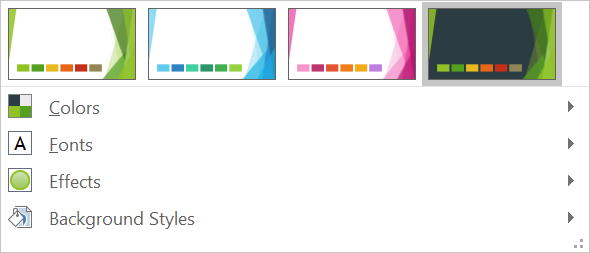
ส่วนต่อไปนี้แสดงขั้นตอนการทำงานของธีมที่พบบ่อยที่สุด: ตรวจสอบธีม, เปลี่ยนสีและแบบอักษร, คัดลอกหรือใช้ธีม, อัปเดตรูปแบบพื้นหลังและเอฟเฟกต์, และอ่านค่าที่ใช้จริงหลังจากการสืบทอดและการแทนที่ถูกแก้ไขแล้ว
ตรวจสอบธีม
อ็อบเจ็กต์ MasterTheme จะเปิดเผยโครงสร้างสีของธีม, โครงสร้างแบบอักษร, และโครงสร้างรูปแบบผ่าน MasterTheme.getColorScheme, MasterTheme.getFontScheme และ MasterTheme.getFormatScheme การตรวจสอบคอลเลกชันเหล่านี้ก่อนการเปลี่ยนแปลงมีประโยชน์อย่างยิ่งเมื่อการนำเข้ามาจากแหล่งภายนอกเพราะจำนวนและเนื้อหาของรายการสไตล์อาจแตกต่างกัน
ตัวอย่างต่อไปนี้อ่านคุณสมบัติหลักของธีมและรายงานจำนวนสไตล์พื้นหลัง, การเติม, เส้น และเอฟเฟกต์ที่จัดเก็บในธีม:
import jpype
import asposeslides

if not jpype.isJVMStarted():
    jpype.startJVM()

from asposeslides.api import Presentation

presentation = Presentation("input.pptx")
try:
    theme = presentation.getMasterTheme()
    print("Theme name:", theme.getName())
    print("Accent 1:", theme.getColorScheme().getAccent1().getColor())
    print("Major Latin font:", theme.getFontScheme().getMajor().getLatinFont().getFontName())
    print("Minor Latin font:", theme.getFontScheme().getMinor().getLatinFont().getFontName())
    print("Background fill styles:", theme.getFormatScheme().getBackgroundFillStyles().size())
    print("Fill styles:", theme.getFormatScheme().getFillStyles().size())
    print("Line styles:", theme.getFormatScheme().getLineStyles().size())
    print("Effect styles:", theme.getFormatScheme().getEffectStyles().size())
finally:
    presentation.dispose()
หากไฟล์ใช้มาสเตอร์หลายตัว อย่าสมมติว่าสไลด์ทุกสไลด์มีธีมที่ใช้จริงเดียวกัน ตรวจสอบมาสเตอร์ที่เชื่อมโยงกับสไลด์ และใช้ขั้นตอนการทำงานของธีมที่ใช้จริงที่แสดงต่อไปในบทความนี้เมื่อมีการแทนที่เลเอาต์หรือสไลด์
เปลี่ยนสีของธีม
การเติม, เส้น, และข้อความที่รับรู้ธีมสามารถอ้างอิงสีเชิงตรรกะจาก enumeration SchemeColor เมื่อคุณเปลี่ยนรายการที่สอดคล้องใน ColorScheme วัตถุทั้งหมดที่ยังอ้างอิงสีธีมนั้นจะถูกแก้ไขให้ตรงกับค่าที่ใหม่ วัตถุที่ใช้สี RGB โดยตรงจะไม่ถูกเปลี่ยนโดยการอัปเดตสีธีม
ตัวอย่างต่อไปนี้เป็นกระบวนการตั้งแต่ต้นจนจบ: สร้างรูปทรงที่ใช้ Accent4 เปลี่ยนสีธีม Accent4 เป็นสีแดง บันทึกการนำเสนอ, เปิดใหม่อีกครั้ง, และพิมพ์สีการเติมที่ใช้จริง:
import jpype
import asposeslides

if not jpype.isJVMStarted():
    jpype.startJVM()

from asposeslides.api import FillType, Presentation, SaveFormat, SchemeColor, ShapeType
from java.awt import Color

presentation = Presentation()
try:
    slide = presentation.getSlides().get_Item(0)
    shape = slide.getShapes().addAutoShape(ShapeType.Rectangle, 10, 10, 100, 100)
    shape.getFillFormat().setFillType(FillType.Solid)
    shape.getFillFormat().getSolidFillColor().setSchemeColor(SchemeColor.Accent4)
    presentation.getMasterTheme().getColorScheme().getAccent4().setColor(Color.RED)
    presentation.save("theme-color.pptx", SaveFormat.Pptx)
finally:
    presentation.dispose()

saved_presentation = Presentation("theme-color.pptx")
try:
    saved_slide = saved_presentation.getSlides().get_Item(0)
    saved_shape = saved_slide.getShapes().get_Item(0)
    effective_fill = saved_shape.getFillFormat().getEffective()
    print("Effective fill color:", effective_fill.getSolidFillColor())
finally:
    saved_presentation.dispose()
เนื่องจากสี่เหลี่ยมยังคงเชื่อมโยงกับ Accent4 สีที่มองเห็นจึงกลายเป็นสีแดงหลังจากเปลี่ยนธีม หากคุณเปลี่ยนสีเชิงตรรกะเป็นสีโดยตรงบนรูปทรง การเปลี่ยนแปลงต่อไปของ Accent4 จะไม่มีผลต่อการเติมนั้นอีกต่อไป
ใช้สีจากพาเลตเพิ่มเติม
PowerPoint สร้างสีที่อ่อนและเข้มจากสีธีมโดยการใช้การแปลงสี Aspose.Slides เปิดเผยการแปลงเหล่านี้ผ่าน enumeration ColorTransformOperation
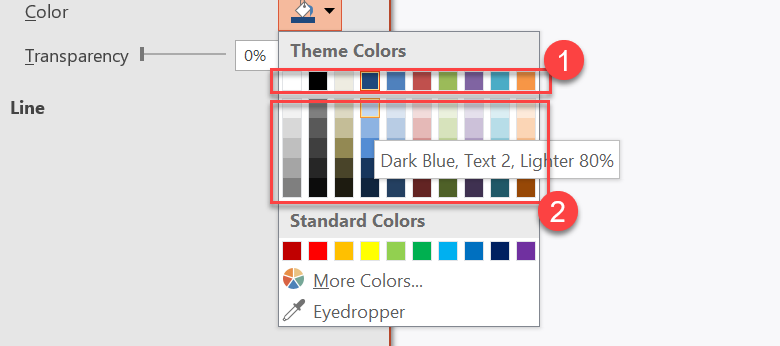
1 - สีหลักของธีม
2 - สีที่อ่อนและเข้มที่ผลิตจากสีหลักของธีม
ตัวอย่างต่อไปนี้สร้างสี่เหลี่ยมหกรูปบนพื้นฐานของ Accent4 ใช้การแปลงความสว่างกับห้ารูปและบันทึกผลลัพธ์:
import jpype
import asposeslides

if not jpype.isJVMStarted():
    jpype.startJVM()

from asposeslides.api import ColorTransformOperation, FillType, Presentation, SaveFormat, SchemeColor, ShapeType

presentation = Presentation()
try:
    slide = presentation.getSlides().get_Item(0)

    base_shape = slide.getShapes().addAutoShape(ShapeType.Rectangle, 10, 10, 50, 50)
    base_shape.getFillFormat().setFillType(FillType.Solid)
    base_shape.getFillFormat().getSolidFillColor().setSchemeColor(SchemeColor.Accent4)

    lightest_shape = slide.getShapes().addAutoShape(ShapeType.Rectangle, 10, 70, 50, 50)
    lightest_shape.getFillFormat().setFillType(FillType.Solid)
    lightest_shape.getFillFormat().getSolidFillColor().setSchemeColor(SchemeColor.Accent4)
    lightest_shape.getFillFormat().getSolidFillColor().getColorTransform().add(ColorTransformOperation.MultiplyLuminance, 0.2)
    lightest_shape.getFillFormat().getSolidFillColor().getColorTransform().add(ColorTransformOperation.AddLuminance, 0.8)

    lighter_shape = slide.getShapes().addAutoShape(ShapeType.Rectangle, 10, 130, 50, 50)
    lighter_shape.getFillFormat().setFillType(FillType.Solid)
    lighter_shape.getFillFormat().getSolidFillColor().setSchemeColor(SchemeColor.Accent4)
    lighter_shape.getFillFormat().getSolidFillColor().getColorTransform().add(ColorTransformOperation.MultiplyLuminance, 0.4)
    lighter_shape.getFillFormat().getSolidFillColor().getColorTransform().add(ColorTransformOperation.AddLuminance, 0.6)

    light_shape = slide.getShapes().addAutoShape(ShapeType.Rectangle, 10, 190, 50, 50)
    light_shape.getFillFormat().setFillType(FillType.Solid)
    light_shape.getFillFormat().getSolidFillColor().setSchemeColor(SchemeColor.Accent4)
    light_shape.getFillFormat().getSolidFillColor().getColorTransform().add(ColorTransformOperation.MultiplyLuminance, 0.6)
    light_shape.getFillFormat().getSolidFillColor().getColorTransform().add(ColorTransformOperation.AddLuminance, 0.4)

    dark_shape = slide.getShapes().addAutoShape(ShapeType.Rectangle, 10, 250, 50, 50)
    dark_shape.getFillFormat().setFillType(FillType.Solid)
    dark_shape.getFillFormat().getSolidFillColor().setSchemeColor(SchemeColor.Accent4)
    dark_shape.getFillFormat().getSolidFillColor().getColorTransform().add(ColorTransformOperation.MultiplyLuminance, 0.75)

    darker_shape = slide.getShapes().addAutoShape(ShapeType.Rectangle, 10, 310, 50, 50)
    darker_shape.getFillFormat().setFillType(FillType.Solid)
    darker_shape.getFillFormat().getSolidFillColor().setSchemeColor(SchemeColor.Accent4)
    darker_shape.getFillFormat().getSolidFillColor().getColorTransform().add(ColorTransformOperation.MultiplyLuminance, 0.5)

    presentation.save("theme-color-palette.pptx", SaveFormat.Pptx)
finally:
    presentation.dispose()
รูปแบบเหล่านี้ยังคงอ้างอิงสีธีม หาก Accent4 เปลี่ยนในภายหลัง สีที่แปลงจะถูกคำนวณใหม่จากค่า Accent4 ใหม่
แมปค่า SchemeColor ไปยังช่อง ColorScheme
enumeration SchemeColor ใช้ Text1, Background1, Text2, และ Background2 ส่วน ColorScheme เปิดเผยช่องธีมเดียวกันเป็น Dark1, Light1, Dark2, และ Light2 การแมปนี้คงที่:
Text1=Dark1Background1=Light1Text2=Dark2Background2=Light2
เหล่านี้เป็นชื่อทางเลือกสำหรับช่องธีมเดียวกัน; ไม่ได้เป็นค่าที่แปลงจากรูปแบบหนึ่งเป็นอีกรูปแบบหนึ่งแบบไดนามิก
เปลี่ยนแบบอักษรของธีม
โครงสร้างแบบอักษรของธีมประกอบด้วยชุดแบบอักษรหลักสำหรับหัวเรื่องและชุดแบบอักษรรองสำหรับข้อความหลัก วิธี FontScheme.getMajor(link) และ FontScheme.getMinor(link) จะเปิดเผยชุดเหล่านั้น
ตัวระบุตัวอักษรของธีมที่เข้ากันกับ PowerPoint สามารถใช้ได้ในการจัดรูปแบบข้อความ:
+mn-lt- แบบอักษรตัวอักษรธรรมดา Latin (Minor Latin Font)+mj-lt- แบบอักษรหัวเรื่อง Latin (Major Latin Font)+mn-ea- แบบอักษรตัวอักษรธรรมดา East Asian (Minor East Asian Font)+mj-ea- แบบอักษรหัวเรื่อง East Asian (Major East Asian Font)
ตัวอย่างต่อไปนี้สร้างหัวเรื่องหนึ่งที่ใช้แบบอักษร Latin หลักและบรรทัดข้อความหลักหนึ่งที่ใช้แบบอักษร Latin รอง จากนั้นเปลี่ยนแบบอักษรของธีมและบันทึกผลลัพธ์:
import jpype
import asposeslides

if not jpype.isJVMStarted():
    jpype.startJVM()

from asposeslides.api import FontData, Presentation, SaveFormat, ShapeType

presentation = Presentation()
try:
    slide = presentation.getSlides().get_Item(0)

    heading = slide.getShapes().addAutoShape(ShapeType.Rectangle, 40, 40, 500, 60)
    heading.getTextFrame().setText("Theme heading")
    font_data = FontData("+mj-lt")
    heading.getTextFrame().getParagraphs().get_Item(0).getPortions().get_Item(0).getPortionFormat().setLatinFont(font_data)

    body = slide.getShapes().addAutoShape(ShapeType.Rectangle, 40, 120, 500, 60)
    body.getTextFrame().setText("Theme body text")
    font_data = FontData("+mn-lt")
    body.getTextFrame().getParagraphs().get_Item(0).getPortions().get_Item(0).getPortionFormat().setLatinFont(font_data)

    font_data = FontData("Aptos Display")
    presentation.getMasterTheme().getFontScheme().getMajor().setLatinFont(font_data)
    font_data = FontData("Arial")
    presentation.getMasterTheme().getFontScheme().getMinor().setLatinFont(font_data)
    presentation.save("theme-fonts.pptx", SaveFormat.Pptx)
finally:
    presentation.dispose()
หัวเรื่องใช้แบบอักษรหลักและข้อความหลักใช้แบบอักษรรอง ข้อความที่มีชื่อแบบอักษรเฉพาะแทนนามธีมจะไม่สลับโดยอัตโนมัติเมื่อโครงสร้างแบบอักษรธีมเปลี่ยน
คอลเลกชันแบบอักษรหลักและรองยังสามารถบรรจุมapping แบบอักษรสำหรับระบบเขียนแต่ละระบบ เช่น Cyrillic, Arabic, Japanese, Georgian, และ Thaana หากต้องการตรวจสอบ, เพิ่ม, แทนที่ หรือเอา mapping เหล่านี้ออก ให้ดูที่ Script-Specific Theme Fonts
Tip
สำหรับข้อมูลเพิ่มเติมเกี่ยวกับแบบอักษรในการนำเสนอ โปรดดูที่ PowerPoint Fontsคัดลอกหรือใช้ธีม
ขั้นตอนต่อไปนี้แก้ปัญหาที่เกี่ยวข้องกับธีมต่าง ๆ
ใช้ธีมภายนอกกับสไลด์ที่พึ่งพามาสเตอร์
ใช้ MasterSlide.applyExternalThemeToDependingSlides เมื่อคุณมีไฟล์ธีม PowerPoint (.thmx) และต้องการปรับสไตล์สไลด์ทุกสไลด์ที่ขึ้นกับมาสเตอร์ใดมาสเตอร์หนึ่ง เลือกมาสเตอร์จากคอลเลกชัน Presentation.getMasters ที่แสดงโดย MasterSlideCollection แล้วส่งพาธไฟล์ธีมไปยังเมธอด
เมธอดทำงานดังต่อไปนี้:
- สร้างมาสเตอร์สไลด์ใหม่บนมาสเตอร์ที่เลือก
- ใช้ธีมภายนอกกับมาสเตอร์ใหม่
- กำหนดมาสเตอร์ใหม่ให้กับสไลด์ทั้งหมดที่เคยพึ่งพามาสเตอร์ที่เลือก
- คืนค่า MasterSlide ที่สร้างใหม่
ตัวอย่างต่อไปนี้ใช้ธีมภายนอกกับสไลด์ที่พึ่งพามาสเตอร์แรกและบันทึกการนำเสนอ:
import jpype
import asposeslides

if not jpype.isJVMStarted():
    jpype.startJVM()

from asposeslides.api import Presentation, SaveFormat

presentation = Presentation("presentation.pptx")
try:
    selected_master = presentation.getMasters().get_Item(0)
    themed_master = selected_master.applyExternalThemeToDependingSlides("corporate-theme.thmx")

    print("Created master:", themed_master.getName())
    presentation.save("presentation-with-external-theme.pptx", SaveFormat.Pptx)
finally:
    presentation.dispose()
ธีมที่ไม่ถูกต้อง, เสียหาย, หรือไม่รองรับอาจทำให้เกิด PptxReadException ตรวจสอบพาธที่ผู้ใช้ระบุ, จัดการความล้มเหลวในการเข้าถึงไฟล์ระบบ, และบันทึกการนำเสนอหลังจากธีมถูกใช้สำเร็จเท่านั้น
จะมีการกำหนดใหม่เฉพาะสไลด์ที่พึ่งพามาสเตอร์ที่เลือกเท่านั้น สไลด์ที่เชื่อมกับมาสเตอร์อื่นจะคงมาสเตอร์และธีมเดิมไว้ สี, แบบอักษร, การเติม, เส้น, พื้นหลัง, และเอฟเฟกต์ที่รับรู้ธีมจะถูกแก้ไขให้ตรงกับธีมภายนอก สี, แบบอักษร, การเติม และการจัดรูปแบบที่กำหนดโดยตรงอาจคงเดิมไว้ การแทนที่ระดับเลเอาต์และระดับสไลด์ก็อาจมีลำดับความสำคัญเหนือค่าที่สืบทอดจากมาสเตอร์ใหม่
ธีมอาจอ้างอิงแบบอักษรที่ไม่มีในสภาพแวดล้อมการทำงาน เพื่อการเรนเดอร์และการส่งออกที่สม่ำเสมอ ควรติดตั้งแบบอักษรที่จำเป็น, ให้บริการผ่าน custom font sources, หรือกำหนด font substitution
นี่เป็นขั้นตอนทำงานระดับมาสเตอร์โดยตรง: เมธอดรับพาธไฟล์ .thmx และไม่ต้องสร้างการแทนที่ธีมระดับสไลด์หรือเลเอาต์ด้วยตนเอง
ใช้ธีมภายนอกที่แตกต่างในงานนำเสนอหลายมาสเตอร์
เมื่อมาสเตอร์ที่เกี่ยวข้องไม่ทราบล่วงหน้า ให้รับมาสเตอร์จากสไลด์แทนที่ผ่าน Slide.getLayoutSlide และ LayoutSlide.getMasterSlide เก็บอ้างอิงมาสเตอร์เดิมก่อนใช้ธีมใด ๆ เนื่องจากแต่ละครั้งที่เรียกจะสร้างมาสเตอร์ใหม่ในงานนำเสนอ
ตัวอย่างต่อไปนี้ใช้สไลด์จากสองส่วนเพื่อหามาสเตอร์และใช้ธีมภายนอกที่แตกต่างกันกับแต่ละกลุ่ม:
import jpype
import asposeslides

if not jpype.isJVMStarted():
    jpype.startJVM()

from asposeslides.api import Presentation, SaveFormat

presentation = Presentation("multi-master-presentation.pptx")
try:
    if presentation.getSlides().size() < 5:
        print("The presentation does not contain the expected representative slides.")
    else:
        first_group_master = presentation.getSlides().get_Item(0).getLayoutSlide().getMasterSlide()
        second_group_master = presentation.getSlides().get_Item(4).getLayoutSlide().getMasterSlide()

        if first_group_master.getSlideId() == second_group_master.getSlideId():
            print("The representative slides use the same master.")
        else:
            first_themed_master = first_group_master.applyExternalThemeToDependingSlides("blue-theme.thmx")
            second_themed_master = second_group_master.applyExternalThemeToDependingSlides("green-theme.thmx")

            print("First themed master:", first_themed_master.getName())
            print("Second themed master:", second_themed_master.getName())
            presentation.save("multi-master-with-external-themes.pptx", SaveFormat.Pptx)
finally:
    presentation.dispose()
การเรียกครั้งแรกจะส่งผลเฉพาะสไลด์ที่พึ่งพา first_group_master ส่วนการเรียกครั้งที่สองจะส่งผลเฉพาะสไลด์ที่พึ่งพา second_group_master สไลด์ที่เชื่อมกับมาสเตอร์อื่นจะไม่ถูกปรับสไตล์
รักษาธีมต้นฉบับเมื่อย้ายสไลด์
หากต้องการย้ายสไลด์ไปยังการนำเสนออื่นและคงการออกแบบเดิมไว้ ให้โคลนมาสเตอร์ต้นฉบับเข้าสู่การนำเสนอปลายทางด้วย MasterSlideCollection.addClone แล้วโคลนสไลด์ด้วย SlideCollection.addClone พร้อมมาสเตอร์ที่โคลนไว้ วิธีนี้จะพามาสเตอร์, เลเอาต์, และธีมที่เกี่ยวข้องไปด้วย
import jpype
import asposeslides

if not jpype.isJVMStarted():
    jpype.startJVM()

from asposeslides.api import Presentation, SaveFormat

source = Presentation("source-theme.pptx")
try:
    target = Presentation("target.pptx")
    try:
        source_slide = source.getSlides().get_Item(0)
        source_master = source_slide.getLayoutSlide().getMasterSlide()
        cloned_master = target.getMasters().addClone(source_master)
        target.getSlides().addClone(source_slide, cloned_master, True)
        target.save("theme-preserved.pptx", SaveFormat.Pptx)
    finally:
        target.dispose()
finally:
    source.dispose()
นี่คือขั้นตอนที่แนะนำเมื่อสไลด์ต้นฉบับต้องดูเหมือนกันในจุดหมาย การโคลนเนื้อหาไปยังมาสเตอร์ปลายทางที่ไม่เกี่ยวข้องอาจทำให้สี, แบบอักษร, พื้นหลัง, และเอฟเฟกต์ที่ขับเคลื่อนโดยธีมเปลี่ยนแปลงได้
ใช้ค่าธีมกับสไลด์ที่มีอยู่
หากสไลด์เป้าหมายต้องคงอยู่บนมาสเตอร์และเลเอาต์ปัจจุบัน ให้เริ่มต้นการแทนที่ระดับสไลด์จากธีมต้นฉบับ วิธี OverrideTheme.initColorSchemeFrom, OverrideTheme.initFontSchemeFrom, และ OverrideTheme.initFormatSchemeFrom จะคัดลอกสามองค์ประกอบหลักของธีมเข้าไปในการแทนที่
import jpype
import asposeslides

if not jpype.isJVMStarted():
    jpype.startJVM()

from asposeslides.api import Presentation, SaveFormat

source = Presentation("source-theme.pptx")
try:
    target = Presentation("target.pptx")
    try:
        target_slide = target.getSlides().get_Item(0)
        override_theme = target_slide.getThemeManager().getOverrideTheme()
        override_theme.initColorSchemeFrom(source.getMasterTheme().getColorScheme())
        override_theme.initFontSchemeFrom(source.getMasterTheme().getFontScheme())
        override_theme.initFormatSchemeFrom(source.getMasterTheme().getFormatScheme())
        target.save("theme-applied-to-slide.pptx", SaveFormat.Pptx)
    finally:
        target.dispose()
finally:
    source.dispose()
การทำเช่นนี้จะเปลี่ยนธีมที่สไลด์นั้นใช้โดยไม่เปลี่ยนธีมที่สืบทอดจากสไลด์อื่น เพื่อเอาการแทนที่ท้องถิ่นออกและกลับไปใช้ค่าที่สืบทอด ให้เรียก OverrideTheme.clear
ใช้การแทนที่ธีมกับเลเอาต์
การแทนที่ระดับเลเอาต์จะใช้กับสไลด์ที่ใช้เลเอาต์นั้น เว้นแต่สไลด์ใดสไลด์หนึ่งจะมีการแทนที่ของตนเอง วิธีการเริ่มต้นเดียวกันสามารถใช้ผ่าน LayoutSlideThemeManager :
import jpype
import asposeslides

if not jpype.isJVMStarted():
    jpype.startJVM()

from asposeslides.api import Presentation, SaveFormat

source = Presentation("source-theme.pptx")
try:
    target = Presentation("target.pptx")
    try:
        target_slide = target.getSlides().get_Item(0)
        target_layout = target_slide.getLayoutSlide()
        override_theme = target_layout.getThemeManager().getOverrideTheme()
        override_theme.initColorSchemeFrom(source.getMasterTheme().getColorScheme())
        override_theme.initFontSchemeFrom(source.getMasterTheme().getFontScheme())
        override_theme.initFormatSchemeFrom(source.getMasterTheme().getFormatScheme())
        target.save("theme-applied-to-layout.pptx", SaveFormat.Pptx)
    finally:
        target.dispose()
finally:
    source.dispose()
ใช้ธีมระดับมาสเตอร์หรือการนำเสนอเมื่อต้องการให้หลายเลเอาต์และสไลด์แชร์การออกแบบฐานเดียวกัน ใช้การแทนที่ระดับเลเอาต์เมื่อกลุ่มเลเอาต์หนึ่งต้องการสไตล์ที่แตกต่าง และใช้การแทนที่ระดับสไลด์เฉพาะกรณีพิเศษ การแทนที่ระดับสไลด์มากเกินไปจะทำให้การเปลี่ยนธีมทั่วโลกในภายหลังคาดเดายากขึ้น
อัปเดตรูปแบบพื้นหลังของธีม
การเติมพื้นหลังของธีมถูกจัดเก็บใน FormatScheme.getBackgroundFillStyles PowerPoint สามารถแสดงตัวเลือกพื้นหลังได้มากกว่าจำนวนการกำหนดการเติมที่จัดเก็บจริงในคอลเลกชันนี้ เพราะ UI สามารถผสานการเติมธีมกับสีธีมและการอ้างอิงสไตล์อื่น ๆ
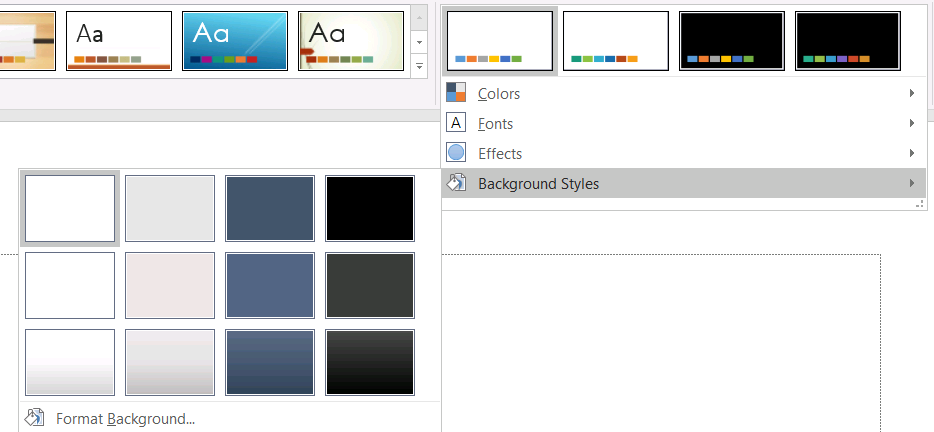
ก่อนใช้สไตล์พื้นหลัง ให้ตรวจสอบคอลเลกชันที่จัดเก็บและค่า Background.getStyleIndex ปัจจุบัน ดัชนีสไตล์ 0 หมายถึงไม่มีการเติมธีม; ค่าเป็นบวกเป็นการอ้างอิงสไตล์พื้นหลังธีม นี่แตกต่างจากการเข้าถึงคอลเลกชันโดยตรงที่ get_Item(0) หมายถึงรายการแรกที่จัดเก็บ อย่าสมมติว่าการนำเสนอทุกไฟล์มีจำนวนสไตล์การเติมพื้นหลังเท่ากัน
ตัวอย่างต่อไปนี้รายงานจำนวนการเติมพื้นหลังที่มี, กำหนดการอ้างอิงพื้นหลังธีมให้กับมาสเตอร์แรก, และบันทึกการนำเสนอ:
import jpype
import asposeslides

if not jpype.isJVMStarted():
    jpype.startJVM()

from asposeslides.api import BackgroundType, Presentation, SaveFormat

presentation = Presentation("input.pptx")
try:
    background_styles = presentation.getMasterTheme().getFormatScheme().getBackgroundFillStyles()
    print("Background fill styles:", background_styles.size())
    if background_styles.size() == 0:
        print("The presentation theme does not contain background fill styles.")
    else:
        master_slide = presentation.getMasters().get_Item(0)
        master_slide.getBackground().setType(BackgroundType.Themed)
        master_slide.getBackground().setStyleIndex(1)
        presentation.save("theme-background.pptx", SaveFormat.Pptx)
finally:
    presentation.dispose()
ผลลัพธ์ที่มองเห็นขึ้นอยู่กับรายการธีมที่มาสเตอร์อ้างอิงและการแทนที่พื้นหลังที่ระดับเลเอตหรือสไลด์ หากสไลด์ใช้พื้นหลังของตนเอง การเปลี่ยนเฉพาะพื้นหลังมาสเตอร์อาจไม่กระทบสไลด์นั้น ใช้ Background.getEffective เมื่อคุณต้องการทราบพื้นหลังสุดท้ายหลังจากการสืบทอด
Warning
ห้ามถือดัชนีสไตล์เป็นดัชนีของคอลเลกชันที่เริ่มจากศูนย์ อย่าฮาร์ดโค้ดหมายเลขสไตล์จากไฟล์หนึ่งและสมมติว่ามันมีลักษณะเดียวกันในไฟล์อื่น; คำจำกัดความของสไตล์ธีมเป็นเอกลักษณ์ของการนำเสนอแต่ละไฟล์Tip
สำหรับการจัดรูปแบบพื้นหลังโดยตรงและการสืบทอดพื้นหลัง ดูที่ Presentation Backgroundอัปเดตเอฟเฟกต์ของธีม
โครงสร้างรูปแบบของธีมมีคอลเลกชันการเติม, เส้น, และเอฟเฟกต์แยกกันที่เปิดเผยผ่าน FormatScheme.getFillStyles, FormatScheme.getLineStyles, และ FormatScheme.getEffectStyles ธีมของ Office ส่วนใหญ่มักมีสามรายการสไตล์หลักที่สอดคล้องกับการจัดรูปแบบแบบ Subtle, Moderate, และ Intense อย่างไรก็ตามโค้ดควรตรวจสอบแต่ละคอลเลกชันแทนการสมมติว่ามีจำนวนคงที่

เมื่อเข้าถึงคอลเลกชันเหล่านี้ใน Python ผ่าน Java ดัชนีคอลเลกชันเริ่มจากศูนย์: get_Item(0) คือสไตล์แรกที่จัดเก็บและ get_Item(2) คือสไตล์ที่สาม ดัชนีการอ้างอิงสไตล์ของรูปเป็นแนวคิดแยกต่างหากที่เปิดเผยผ่าน ShapeStyle การแก้ไขสไตล์ธีมจะส่งผลต่อรูปที่อ้างอิงสไตล์ธีมนั้น; รูปที่มีการจัดรูปแบบโดยตรงอาจคงเดิมไว้
ตัวอย่างต่อไปนี้ตรวจสอบว่ามีรายการสไตล์ที่ต้องการหรือไม่, เปลี่ยนสไตล์เส้นแรก, เปลี่ยนสไตล์เติมที่สาม, เปิดใช้เงานอกในสไตล์เอฟเฟกต์ที่สาม, และบันทึกผลลัพธ์:
import jpype
import asposeslides

if not jpype.isJVMStarted():
    jpype.startJVM()

from asposeslides.api import FillType, Presentation, SaveFormat
from java.awt import Color

presentation = Presentation("Subtle_Moderate_Intense.pptx")
try:
    format_scheme = presentation.getMasterTheme().getFormatScheme()
    if format_scheme.getLineStyles().size() < 1 or format_scheme.getFillStyles().size() < 3 or format_scheme.getEffectStyles().size() < 3:
        print("The theme does not contain the style entries required by this example.")
    else:
        format_scheme.getLineStyles().get_Item(0).getFillFormat().setFillType(FillType.Solid)
        format_scheme.getLineStyles().get_Item(0).getFillFormat().getSolidFillColor().setColor(Color.RED)
        format_scheme.getFillStyles().get_Item(2).setFillType(FillType.Solid)
        forest_green = Color(34, 139, 34)
        format_scheme.getFillStyles().get_Item(2).getSolidFillColor().setColor(forest_green)
        effect_format = format_scheme.getEffectStyles().get_Item(2).getEffectFormat()
        effect_format.enableOuterShadowEffect()
        effect_format.getOuterShadowEffect().setDistance(10)
        presentation.save("theme-effects.pptx", SaveFormat.Pptx)
finally:
    presentation.dispose()
สำหรับรูปที่อ้างอิงช่องเหล่านี้ สไตล์เส้นธีมแรกจะเป็นสีแดง, สไตล์เติมธีมที่สามจะเป็นสีเขียวฟอเรสต์ทึบ, และสไตล์เอฟเฟกต์ที่สามจะเพิ่มเงานอกระยะ 10 พอยท์ ผลลัพธ์ภาพที่แน่นอนยังคงขึ้นกับว่ารูปแต่ละรูปอ้างอิงช่องสไตล์ใดและการจัดรูปแบบโดยตรงจะทับธีมหรือไม่

กำหนดว่าการเติมสีทึบที่ใช้จริงใช้สีธีมหรือไม่
การเติมอาจถูกจัดเก็บโดยตรงบนอ็อบเจ็กต์หรือสืบทอดมาจากย่อหน้า, เลเอาต์, มาสเตอร์, สไตล์ธีม, หรือระดับการจัดรูปแบบอื่น ๆ ให้เรียก FillFormat.getEffective เพื่อแก้ลำดับชั้นนั้นเป็นข้อมูลการเติมที่ใช้จริงที่ไม่เปลี่ยนแปลง ก่อนตรวจสอบ getFillType บนวัตถุข้อมูลที่ใช้จริง เมื่อค่าคือ FillType.Solid จึงอ่านคุณสมบัติการเติมสีทึบ
สำหรับการเติมสีทึบ getSolidFillColor จะคืนค่า RGB สุดท้ายหลังจากการสืบทอด, การค้นหาธีม, และการแปลงสี getSolidFillSchemeColor จะคืนค่าสล็อต SchemeColor ที่สอดคล้อง เช่น Text1 หรือ Accent6 ค่า SchemeColor.NotDefined หมายถึงการเติมสีทึบที่ใช้จริงไม่ได้อิงจากสีเชิงตรรกะ ในเวิร์กโฟลว์ที่การเติมเป็นสีธีมหรือสี RGB โดยตรง ค่าดังกล่าวบ่งชี้ว่าการเติมเป็นสี RGB โดยตรง
ห้ามใช้ค่า ColorFormat.getSchemeColor เพียงอย่างเดียวในการจัดประเภทการเติม ตัวอย่างเช่น ส่วนของข้อความอาจไม่มีสีเชิงตรรกะที่กำหนดในระดับท้องถิ่น จึงค่า NotDefined แต่การเติมที่ใช้จริงอาจสืบทอดสีธีมและแก้เป็น Text1 หรือ Accent6 กลับกัน getSolidFillSchemeColor บอกว่าช่องธีมเชิงตรรกะใดสร้างสีที่ใช้จริง แต่ไม่ได้บอกว่าช่องนั้นมาจากอ็อบเจ็กต์, ย่อหน้า, เลเอาต์, มาสเตอร์, หรือระดับการจัดรูปแบบใด
ตัวอย่างต่อไปนี้โหลดการนำเสนอ, ตรวจสอบการเติมของรูปและการเติมของส่วนข้อความ, พิมพ์ค่า RGB สุดท้ายและสีเชิงตรรกะที่สัมพันธ์, และทำเครื่องหมายการเติมสีทึบที่ไม่ติดตามการเปลี่ยนแปลงสีธีม:
import jpype
import asposeslides

if not jpype.isJVMStarted():
    jpype.startJVM()

from asposeslides.api import AutoShape, FillType, Presentation, SchemeColor

def audit_fill(object_name, local_fill):
    effective_fill = local_fill.getEffective()
    if effective_fill.getFillType() != FillType.Solid:
        print(f"{object_name}: fill type = {effective_fill.getFillType()}; not a solid fill.")
        return

    rgb = effective_fill.getSolidFillColor()
    effective_scheme_color = effective_fill.getSolidFillSchemeColor()
    local_scheme_color = local_fill.getSolidFillColor().getSchemeColor()
    print(f"{object_name}: RGB = #{rgb.getRed():02X}{rgb.getGreen():02X}{rgb.getBlue():02X}")
    print(f"{object_name}: local scheme = {local_scheme_color}, effective scheme = {effective_scheme_color}")
    if effective_scheme_color == SchemeColor.NotDefined:
        print(f"{object_name}: direct RGB or another non-scheme fill; audit as theme-independent.")
    else:
        print(f"{object_name}: theme-dependent through {effective_scheme_color}.")


presentation = Presentation("input.pptx")
try:
    for slide_index, slide in enumerate(presentation.getSlides()):
        for shape_index, shape in enumerate(slide.getShapes()):
            shape_name = f"Slide {slide_index + 1}, shape {shape_index + 1}"
            audit_fill(shape_name, shape.getFillFormat())
            if isinstance(shape, AutoShape):
                for paragraph_index, paragraph in enumerate(shape.getTextFrame().getParagraphs()):
                    for portion_index, portion in enumerate(paragraph.getPortions()):
                        portion_name = f"{shape_name}, paragraph {paragraph_index + 1}, portion {portion_index + 1}"
                        audit_fill(portion_name, portion.getPortionFormat().getFillFormat())
finally:
    presentation.dispose()
สาขา NotDefined ให้รายการตรวจสอบการเติมสีทึบที่ไม่ตอบสนองต่อการเปลี่ยนแปลงในช่องสีธีม ตรวจสอบอ็อบเจ็กต์เหล่านั้นเมื่อการนำเสนอจำเป็นต้องปฏิบัติตามพาเลตแบรนด์ใหม่ ค่าที่รายงานเป็น RGB ยังคงแสดงลักษณะปัจจุบัน ส่วนค่าช่องสีบอกว่าลักษณะนั้นเชื่อมต่อกับธีมหรือไม่
วัตถุที่ใช้รูปแบบที่ใช้จริงเป็นสแน็ปชอต หลังจากเปลี่ยนธีมการนำเสนอ, การแทนที่ธีม, หรือการจัดรูปแบบที่สืบทอดใด ๆ ให้เรียก getEffective อีกครั้งและอ่านวัตถุข้อมูลการเติมที่ใช้จริงใหม่ก่อนทำการเปรียบเทียบหรือรายงานสี
อ่านค่าธีมที่ใช้จริง
อ็อบเจ็กต์ธีมดิบบอกคุณว่ามีการกำหนดอะไรที่ระดับใดระดับหนึ่ง ค่าที่ใช้จริงบอกคุณว่าสไลด์หรือรูปใช้อะไรหลังจากการสืบทอดและการแทนที่ท้องถิ่นถูกแก้ไข สำหรับสไลด์ ให้เรียก BaseOverrideThemeManager.createThemeEffective สำหรับพื้นหลัง ให้ใช้ Background.getEffective และสำหรับการเติม ให้ใช้ FillFormat.getEffective
ตัวอย่างต่อไปนี้อ่านธีมที่ใช้จริง, พื้นหลัง, และการเติมรูปแรกจากสไลด์:
import jpype
import asposeslides

if not jpype.isJVMStarted():
    jpype.startJVM()

from asposeslides.api import FillType, Presentation

presentation = Presentation("input.pptx")
try:
    slide = presentation.getSlides().get_Item(0)
    effective_theme = slide.getThemeManager().createThemeEffective()
    effective_background = slide.getBackground().getEffective()
    print("Effective major Latin font:", effective_theme.getFontScheme().getMajor().getLatinFont().getFontName())
    print("Effective minor Latin font:", effective_theme.getFontScheme().getMinor().getLatinFont().getFontName())
    print("Effective background fill type:", effective_background.getFillFormat().getFillType())
    if slide.getShapes().size() > 0:
        effective_fill = slide.getShapes().get_Item(0).getFillFormat().getEffective()
        print("First shape effective fill type:", effective_fill.getFillType())
        if effective_fill.getFillType() == FillType.Solid:
            print("First shape effective fill color:", effective_fill.getSolidFillColor())
finally:
    presentation.dispose()
ใช้ข้อมูลที่ใช้จริงสำหรับการวินิจฉัยการเรนเดอร์, การตรวจสอบความถูกต้อง, และการเปรียบเทียบ หากคุณตรวจสอบเฉพาะ Presentation.getMasterTheme คุณอาจพลาดการแทนที่มาสเตอร์, เลเอาต์, สไลด์, หรือรูปที่เปลี่ยนลักษณะสุดท้าย
คำถามที่พบบ่อย
การใช้ธีมภายนอกมีผลต่อทุกสไลด์ในงานนำเสนอหรือไม่?
ไม่ การใช้ MasterSlide.applyExternalThemeToDependingSlides จะกำหนดสไลด์ใหม่เฉพาะสไลด์ที่พึ่งพามาสเตอร์ที่เลือก สไลด์ที่ใช้มาสเตอร์อื่นจะคงธีมเดิมไว้
ฉันสามารถใช้ธีมกับสไลด์เดียวโดยไม่ต้องเปลี่ยนมาสเตอร์ได้หรือไม่?
ทำได้ ใช้ SlideThemeManager ของสไลด์และเริ่มต้นธีมการแทนที่ การเปลี่ยนแปลงจะอยู่ในระดับสไลด์นั้นเท่านั้น; สไลด์อื่น ๆ จะสืบทอดธีมเดิมต่อไป
วิธีที่ปลอดภัยที่สุดในการพาธีมจากงานนำเสนอหนึ่งไปยังอีกงานนำเสนอคืออะไร?
เมื่อย้ายสไลด์และต้องคงลักษณะที่มาจากแหล่งต้นทาง ให้โคลนมาสเตอร์ต้นทางเข้าสู่การนำเสนอปลายทางและโคลนสไลด์ด้วยมาสเตอร์นั้นโดยใช้ MasterSlideCollection.addClone และ SlideCollection.addClone วิธีนี้จะทำให้มาสเตอร์, เลเอาต์, และธีมอยู่ด้วยกัน
ฉันจะดูค่าที่ใช้จริงหลังจากการสืบทอดและการแทนที่ได้อย่างไร?
ใช้ BaseOverrideThemeManager.createThemeEffective สำหรับสไลด์หรือธีมเลเอาต์และใช้เมธอดข้อมูลที่ใช้จริงที่สอดคล้องสำหรับอ็อบเจ็กต์รูปแบบ เช่น Background.getEffective และ FillFormat.getEffective API เหล่านี้จะคืนค่าที่แก้ไขหลังจากการสืบทอดและการแทนที่ถูกนำมาใช้