
จัดการพื้นหลังงานนำเสนอใน Python ผ่าน Java
บทนำ
สีทึบ, สีไล่ระดับ, และรูปภาพมักใช้เป็นพื้นหลังของสไลด์ คุณสามารถตั้งค่าพื้นหลังสำหรับ สไลด์ปกติ (สไลด์เดียว) หรือ สไลด์แม่ (ใช้กับหลายสไลด์พร้อมกัน)
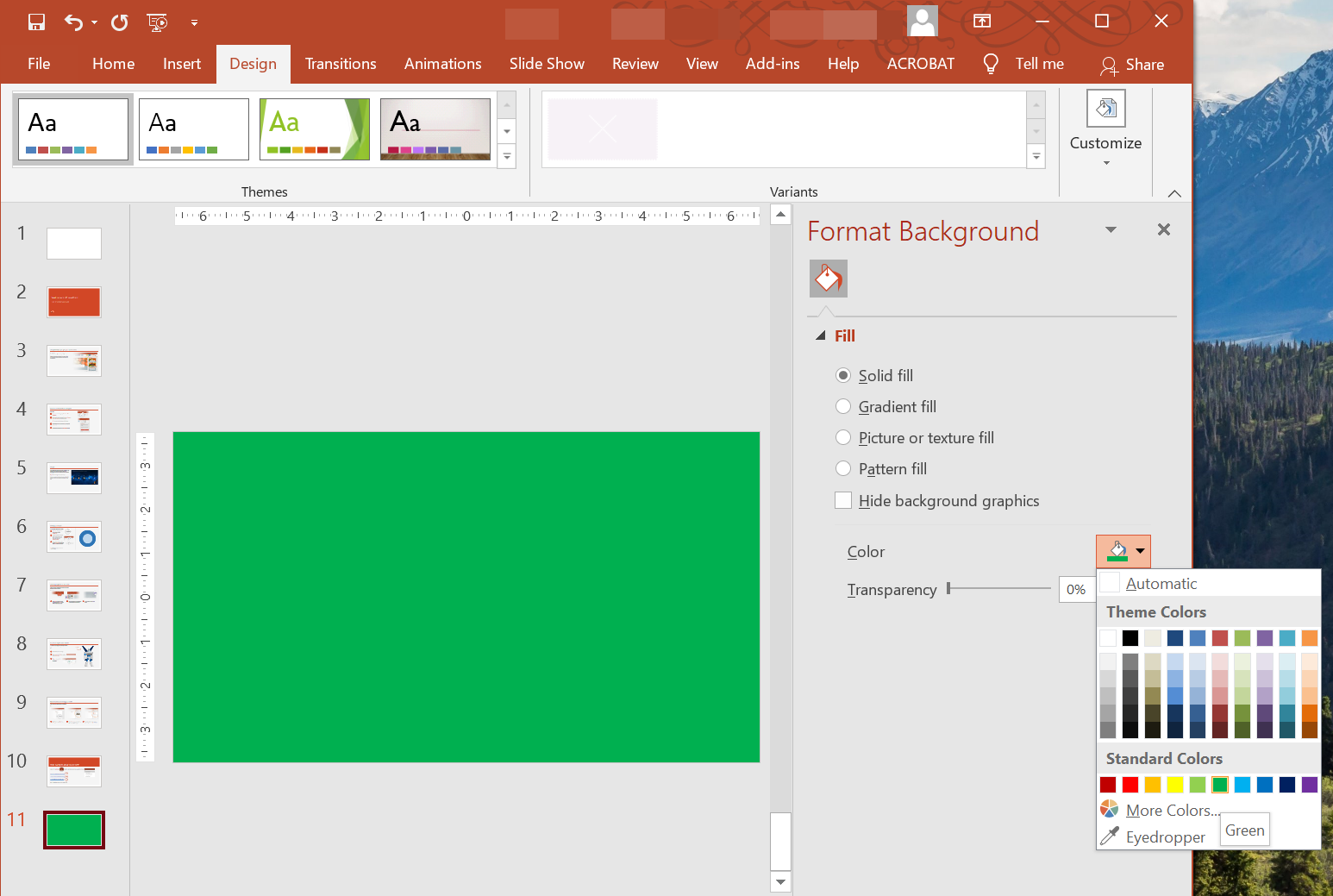
ตั้งค่าสีพื้นหลังทึบสำหรับสไลด์ปกติ
Aspose.Slides อนุญาตให้คุณตั้งค่าสีทึบเป็นพื้นหลังสำหรับสไลด์เฉพาะในงานนำเสนอ — แม้ว่างานนำเสนอจะใช้สไลด์แม่ การเปลี่ยนแปลงจะส่งผลต่อสไลด์ที่เลือกเท่านั้น
- สร้างอินสแตนซ์ของคลาส Presentation
- ตั้งค่า BackgroundType ของสไลด์เป็น
OwnBackground - ตั้งค่า FillType ของพื้นหลังสไลด์เป็น
Solid - ใช้เมธอด getSolidFillColor บน FillFormat เพื่อระบุสีพื้นหลังแบบทึบ
- บันทึกงานนำเสนอที่แก้ไขแล้ว
import jpype
import asposeslides

if not jpype.isJVMStarted():
    jpype.startJVM()

from asposeslides.api import BackgroundType, FillType, Presentation, SaveFormat
from java.awt import Color

# สร้างอินสแตนซ์ของคลาส Presentation.
presentation = Presentation()
try:
    slide = presentation.getSlides().get_Item(0)

    # ตั้งค่าสีพื้นหลังของสไลด์เป็นสีฟ้า.
    slide.getBackground().setType(BackgroundType.OwnBackground)
    slide.getBackground().getFillFormat().setFillType(FillType.Solid)
    slide.getBackground().getFillFormat().getSolidFillColor().setColor(Color.BLUE)

    # บันทึกงานนำเสนอลงดิสก์.
    presentation.save("SolidColorBackground.pptx", SaveFormat.Pptx)
finally:
    presentation.dispose()
ตั้งค่าสีพื้นหลังทึบสำหรับสไลด์แม่
Aspose.Slides อนุญาตให้คุณตั้งค่าสีทึบเป็นพื้นหลังสำหรับสไลด์แม่ในงานนำเสนอ สไลด์แม่ทำหน้าที่เป็นแม่แบบที่ควบคุมการจัดรูปแบบของสไลด์ทั้งหมด ดังนั้นเมื่อคุณเลือกสีทึบสำหรับพื้นหลังของสไลด์แม่ มันจะใช้กับทุกสไลด์
- สร้างอินสแตนซ์ของคลาส Presentation
- ตั้งค่า BackgroundType ของสไลด์แม่ (ผ่าน getMasters) เป็น
OwnBackground - ตั้งค่า FillType ของพื้นหลังสไลด์แม่เป็น
Solid - ใช้เมธอด getSolidFillColor เพื่อระบุสีพื้นหลังแบบทึบ
- บันทึกงานนำเสนอที่แก้ไขแล้ว
import jpype
import asposeslides

if not jpype.isJVMStarted():
    jpype.startJVM()

from asposeslides.api import BackgroundType, FillType, Presentation, SaveFormat
from java.awt import Color

# สร้างอินสแตนซ์ของคลาส Presentation.
presentation = Presentation()
try:
    master_slide = presentation.getMasters().get_Item(0)

    # ตั้งค่าสีพื้นหลังของสไลด์แม่เป็นสีเขียว.
    master_slide.getBackground().setType(BackgroundType.OwnBackground)
    master_slide.getBackground().getFillFormat().setFillType(FillType.Solid)
    master_slide.getBackground().getFillFormat().getSolidFillColor().setColor(Color.GREEN)

    # บันทึกงานนำเสนอลงดิสก์.
    presentation.save("MasterSlideBackground.pptx", SaveFormat.Pptx)
finally:
    presentation.dispose()
ตั้งค่าพื้นหลังแบบไล่สีสำหรับสไลด์
ไล่สีเป็นเอฟเฟกต์กราฟิกที่สร้างจากการเปลี่ยนสีอย่างค่อยเป็นค่อยไป เมื่อใช้เป็นพื้นหลังของสไลด์ ไล่สีสามารถทำให้การนำเสนอดูศิลปะและมืออาชีพมากขึ้น Aspose.Slides อนุญาตให้คุณตั้งค่าสีไล่ระดับเป็นพื้นหลังของสไลด์
- สร้างอินสแตนซ์ของคลาส Presentation
- ตั้งค่า BackgroundType ของสไลด์เป็น
OwnBackground - ตั้งค่า FillType ของพื้นหลังสไลด์เป็น
Gradient - ใช้เมธอด getGradientFormat บน FillFormat เพื่อกำหนดการตั้งค่าไล่สีที่ต้องการ
- บันทึกงานนำเสนอที่แก้ไขแล้ว
import jpype
import asposeslides

if not jpype.isJVMStarted():
    jpype.startJVM()

from asposeslides.api import BackgroundType, FillType, Presentation, SaveFormat, TileFlip
from java.awt import Color

# สร้างอินสแตนซ์ของคลาส Presentation.
presentation = Presentation()
try:
    slide = presentation.getSlides().get_Item(0)

    # ใช้เอฟเฟกต์ไล่สีบนพื้นหลัง.
    slide.getBackground().setType(BackgroundType.OwnBackground)
    slide.getBackground().getFillFormat().setFillType(FillType.Gradient)

    gradient_format = slide.getBackground().getFillFormat().getGradientFormat()
    gradient_format.setTileFlip(TileFlip.FlipBoth)

    # เพิ่มสีไล่ระดับ. หากไม่มีจุดไล่สีพื้นหลังจะใช้ค่าเริ่มต้นจากสีดำถึงสีขาว.
    gradient_format.getGradientStops().add(0.0, Color.CYAN)
    gradient_format.getGradientStops().add(1.0, Color.BLUE)

    # บันทึกงานนำเสนอลงดิสก์.
    presentation.save("GradientBackground.pptx", SaveFormat.Pptx)
finally:
    presentation.dispose()
ตั้งค่าภาพเป็นพื้นหลังสไลด์
นอกเหนือจากการเติมสีทึบและไล่สี Aspose.Slides ยังอนุญาตให้คุณใช้รูปภาพเป็นพื้นหลังของสไลด์ได้
- สร้างอินสแตนซ์ของคลาส Presentation
- ตั้งค่า BackgroundType ของสไลด์เป็น
OwnBackground - ตั้งค่า FillType ของพื้นหลังสไลด์เป็น
Picture - โหลดรูปภาพที่ต้องการใช้เป็นพื้นหลังสไลด์
- เพิ่มรูปภาพลงในคอลเลกชันรูปภาพของงานนำเสนอ
- ใช้เมธอด getPictureFillFormat บน FillFormat เพื่อกำหนดรูปภาพเป็นพื้นหลัง
- บันทึกงานนำเสนอที่แก้ไขแล้ว
import jpype
import asposeslides

if not jpype.isJVMStarted():
    jpype.startJVM()

from asposeslides.api import BackgroundType, FillType, Images, PictureFillMode, Presentation, SaveFormat

# สร้างอินสแตนซ์ของคลาส Presentation.
presentation = Presentation()
try:
    slide = presentation.getSlides().get_Item(0)

    # ตั้งค่าคุณสมบัติของภาพพื้นหลัง.
    slide.getBackground().setType(BackgroundType.OwnBackground)
    slide.getBackground().getFillFormat().setFillType(FillType.Picture)
    slide.getBackground().getFillFormat().getPictureFillFormat().setPictureFillMode(PictureFillMode.Stretch)

    # โหลดภาพ.
    image = Images.fromFile("Tulips.jpg")
    # เพิ่มภาพไปยังคอลเลกชันภาพของงานนำเสนอ.
    presentation_image = presentation.getImages().addImage(image)
    image.dispose()

    slide.getBackground().getFillFormat().getPictureFillFormat().getPicture().setImage(presentation_image)

    # บันทึกงานนำเสนอลงดิสก์.
    presentation.save("ImageAsBackground.pptx", SaveFormat.Pptx)
finally:
    presentation.dispose()
import jpype
import asposeslides

if not jpype.isJVMStarted():
    jpype.startJVM()

from asposeslides.api import BackgroundType, FillType, Images, PictureFillMode, Presentation, RectangleAlignment, SaveFormat, TileFlip

presentation = Presentation()
try:
    first_slide = presentation.getSlides().get_Item(0)

    background = first_slide.getBackground()

    background.setType(BackgroundType.OwnBackground)
    background.getFillFormat().setFillType(FillType.Picture)

    new_image = Images.fromFile("image.png")
    presentation_image = presentation.getImages().addImage(new_image)
    new_image.dispose()

    # ตั้งค่าภาพที่ใช้สำหรับเติมพื้นหลัง.
    background_picture_fill_format = background.getFillFormat().getPictureFillFormat()
    background_picture_fill_format.getPicture().setImage(presentation_image)

    # ตั้งค่าโหมดการเติมภาพเป็น Tile และปรับคุณสมบัติของการต่อภาพ.
    background_picture_fill_format.setPictureFillMode(PictureFillMode.Tile)
    background_picture_fill_format.setTileOffsetX(15.0)
    background_picture_fill_format.setTileOffsetY(15.0)
    background_picture_fill_format.setTileScaleX(46.0)
    background_picture_fill_format.setTileScaleY(87.0)
    background_picture_fill_format.setTileAlignment(RectangleAlignment.Center)
    background_picture_fill_format.setTileFlip(TileFlip.FlipY)

    presentation.save("TileBackground.pptx", SaveFormat.Pptx)
finally:
    presentation.dispose()
หมายเหตุ
อ่านต่อ: รูปแบบภาพต่อเป็นพื้นผิว.เปลี่ยนความโปร่งใสของภาพพื้นหลัง
คุณอาจต้องการปรับความโปร่งใสของภาพพื้นหลังสไลด์เพื่อให้เนื้อหาของสไลด์โดดเด่นขึ้น โค้ด Python ด้านล่างแสดงวิธีการเปลี่ยนความโปร่งใสของภาพพื้นหลังสไลด์
import jpype
import asposeslides

if not jpype.isJVMStarted():
    jpype.startJVM()

from asposeslides.api import AlphaModulateFixed, Presentation, SaveFormat

transparency_value = 30  # ตัวอย่างเช่น.

presentation = Presentation("sample.pptx")
try:
    slide = presentation.getSlides().get_Item(0)

    # รับคอลเลกชันของการแปลงรูปภาพ.
    image_transform = slide.getBackground().getFillFormat().getPictureFillFormat().getPicture().getImageTransform()

    # ค้นหาเอฟเฟกต์ความโปร่งใสแบบเปอร์เซ็นต์คงที่ที่มีอยู่.
    transparency_operation = None
    for operation in image_transform:
        if isinstance(operation, AlphaModulateFixed):
            transparency_operation = operation
            break

    # ตั้งค่าความโปร่งใสใหม่.
    if transparency_operation is None:
        image_transform.addAlphaModulateFixedEffect(100 - transparency_value)
    else:
        transparency_operation.setAmount(100 - transparency_value)

    presentation.save("output.pptx", SaveFormat.Pptx)
finally:
    presentation.dispose()
รับค่าพื้นหลังสไลด์
Aspose.Slides อนุญาตให้คุณดึงค่าพื้นหลังที่มีผลของสไลด์โดยใช้เมธอด getEffective บน Background ข้อมูลที่คืนมาจะเปิดเผยรูปแบบการเติมและเอฟเฟกต์ที่มีผล
โดยใช้เมธอด getBackground ของคลาส BaseSlide คุณสามารถดึงพื้นหลังของสไลด์ได้
import jpype
import asposeslides

if not jpype.isJVMStarted():
    jpype.startJVM()

from asposeslides.api import FillType, Presentation

# สร้างอินสแตนซ์ของคลาส Presentation.
presentation = Presentation("Sample.pptx")
try:
    slide = presentation.getSlides().get_Item(0)

    # ดึงพื้นหลังที่มีผลโดยคำนึงถึงสไลด์แม่, เลย์เอาต์, และธีม.
    effective_background = slide.getBackground().getEffective()

    if effective_background.getFillFormat().getFillType() == FillType.Solid:
        print("Fill color:", effective_background.getFillFormat().getSolidFillColor())
    else:
        print("Fill type:", effective_background.getFillFormat().getFillType())
finally:
    presentation.dispose()
คำถามที่พบบ่อย
ฉันสามารถรีเซ็ตพื้นหลังที่กำหนดเองและคืนค่าเป็นพื้นหลังของธีม/เลย์เอาต์ได้หรือไม่?
ใช่ ให้ลบการเติมที่กำหนดเองของสไลด์ แล้วพื้นหลังจะสืบทอดใหม่จากสไลด์ layout/master ที่สอดคล้อง (คือ theme background)
จะเกิดอะไรขึ้นกับพื้นหลังหากฉันเปลี่ยนธีมของงานนำเสนอในภายหลัง?
หากสไลด์มีการเติมของตนเอง มันจะคงเดิมไม่เปลี่ยน หากพื้นหลังสืบทอดจาก layout/master จะอัปเดตให้ตรงกับ new theme