
Java'da Sunum Grafiklerini Biçimlendir
Genel Bakış
Bu makale, Aspose.Slides kullanarak PowerPoint sunumlarındaki grafiklerin nasıl biçimlendirileceğini açıklar. Ekseler, ızgara çizgileri, başlıklar, açıklama kutuları, çizim alanı ve duvar doldurmaları gibi temel grafik öğelerini özelleştirerek grafik verilerinin görünümünü ve okunabilirliğini artırmayı gösterir.
Ayrıca grafik metni için yazı tipi özelliklerini nasıl ayarlayacağınızı, grafik verilerine önceden tanımlı sayısal biçimler nasıl uygulayacağınızı ve grafik alanının köşelerini nasıl yuvarlaklaştıracağınızı gösterir. Bu örnekler, bir sunumdaki grafiklerin görsel stilini ve veri sunumunu nasıl kontrol edebileceğinizi bir arada sunar.
Grafik Öğelerini Biçimlendir
Use IChart to format chart titles, axes, grid lines, legends, and the plot area. This example creates a line chart with markers and default data, then applies separate text and line styles to its value and category axes. Font sizes and line widths are specified in points; category labels are rotated by 45 degrees.
The value axis uses setNumberFormat independently of the source cells. Its scale runs from -2 to 15, with major intervals of 2 and minor intervals of 0.5. The example also combines percentage formatting with setDisplayUnit set to thousands, so adapt these settings to the meaning and magnitude of your data. The legend stays outside the plot area because setOverlay is called with false. Back-wall and floor fills are configured through getBackWall and getFloor, but these surfaces are only visible in 3D charts.
import com.aspose.slides.*;
import java.awt.Color;

Presentation presentation = new Presentation();
try {
    ISlide slide = presentation.getSlides().get_Item(0);

    IChart chart = slide.getShapes().addChart(ChartType.LineWithMarkers, 50, 50, 500, 400);

    chart.setTitle(true);
    chart.getChartTitle().addTextFrameForOverriding("");
    IPortion chartTitle = chart.getChartTitle().getTextFrameForOverriding().getParagraphs().get_Item(0).getPortions().get_Item(0);
    chartTitle.setText("Sample Chart");
    chartTitle.getPortionFormat().getFillFormat().setFillType(FillType.Solid);
    chartTitle.getPortionFormat().getFillFormat().getSolidFillColor().setColor(Color.GRAY);
    chartTitle.getPortionFormat().setFontHeight(20);
    chartTitle.getPortionFormat().setFontBold(NullableBool.True);
    chartTitle.getPortionFormat().setFontItalic(NullableBool.True);

    chart.getAxes().getVerticalAxis().getMajorGridLinesFormat().getLine().getFillFormat().setFillType(FillType.Solid);
    chart.getAxes().getVerticalAxis().getMajorGridLinesFormat().getLine().getFillFormat().getSolidFillColor().setColor(Color.BLUE);
    chart.getAxes().getVerticalAxis().getMajorGridLinesFormat().getLine().setWidth(5);
    chart.getAxes().getVerticalAxis().getMajorGridLinesFormat().getLine().setDashStyle(LineDashStyle.DashDot);

    chart.getAxes().getVerticalAxis().getMinorGridLinesFormat().getLine().getFillFormat().setFillType(FillType.Solid);
    chart.getAxes().getVerticalAxis().getMinorGridLinesFormat().getLine().getFillFormat().getSolidFillColor().setColor(Color.RED);
    chart.getAxes().getVerticalAxis().getMinorGridLinesFormat().getLine().setWidth(3);

    chart.getAxes().getVerticalAxis().setNumberFormatLinkedToSource(false);
    chart.getAxes().getVerticalAxis().setDisplayUnit(DisplayUnitType.Thousands);
    chart.getAxes().getVerticalAxis().setNumberFormat("0.0%");

    chart.getAxes().getVerticalAxis().setAutomaticMajorUnit(false);
    chart.getAxes().getVerticalAxis().setAutomaticMaxValue(false);
    chart.getAxes().getVerticalAxis().setAutomaticMinorUnit(false);
    chart.getAxes().getVerticalAxis().setAutomaticMinValue(false);

    chart.getAxes().getVerticalAxis().setMaxValue(15f);
    chart.getAxes().getVerticalAxis().setMinValue(-2f);
    chart.getAxes().getVerticalAxis().setMinorUnit(0.5f);
    chart.getAxes().getVerticalAxis().setMajorUnit(2.0f);

    IChartPortionFormat valueAxisText = chart.getAxes().getVerticalAxis().getTextFormat().getPortionFormat();
    valueAxisText.setFontBold(NullableBool.True);
    valueAxisText.setFontHeight(16);
    valueAxisText.setFontItalic(NullableBool.True);
    valueAxisText.getFillFormat().setFillType(FillType.Solid);
    valueAxisText.getFillFormat().getSolidFillColor().setPresetColor(PresetColor.DarkGreen);
    valueAxisText.setLatinFont(new FontData("Times New Roman"));

    chart.getAxes().getVerticalAxis().setTitle(true);
    chart.getAxes().getVerticalAxis().getTitle().addTextFrameForOverriding("");
    IPortion valueAxisTitle = chart.getAxes().getVerticalAxis().getTitle().getTextFrameForOverriding().getParagraphs().get_Item(0).getPortions().get_Item(0);
    valueAxisTitle.setText("Primary Axis");
    valueAxisTitle.getPortionFormat().getFillFormat().setFillType(FillType.Solid);
    valueAxisTitle.getPortionFormat().getFillFormat().getSolidFillColor().setColor(Color.GRAY);
    valueAxisTitle.getPortionFormat().setFontHeight(20);
    valueAxisTitle.getPortionFormat().setFontBold(NullableBool.True);
    valueAxisTitle.getPortionFormat().setFontItalic(NullableBool.True);

    chart.getAxes().getHorizontalAxis().getMajorGridLinesFormat().getLine().getFillFormat().setFillType(FillType.Solid);
    chart.getAxes().getHorizontalAxis().getMajorGridLinesFormat().getLine().getFillFormat().getSolidFillColor().setColor(new Color(0, 128, 0));
    chart.getAxes().getHorizontalAxis().getMajorGridLinesFormat().getLine().setWidth(5);

    chart.getAxes().getHorizontalAxis().getMinorGridLinesFormat().getLine().getFillFormat().setFillType(FillType.Solid);
    chart.getAxes().getHorizontalAxis().getMinorGridLinesFormat().getLine().getFillFormat().getSolidFillColor().setColor(Color.YELLOW);
    chart.getAxes().getHorizontalAxis().getMinorGridLinesFormat().getLine().setWidth(3);

    IChartPortionFormat categoryAxisText = chart.getAxes().getHorizontalAxis().getTextFormat().getPortionFormat();
    categoryAxisText.setFontBold(NullableBool.True);
    categoryAxisText.setFontHeight(16);
    categoryAxisText.setFontItalic(NullableBool.True);
    categoryAxisText.getFillFormat().setFillType(FillType.Solid);
    categoryAxisText.getFillFormat().getSolidFillColor().setColor(Color.BLUE);
    categoryAxisText.setLatinFont(new FontData("Arial"));

    chart.getAxes().getHorizontalAxis().setTitle(true);
    chart.getAxes().getHorizontalAxis().getTitle().addTextFrameForOverriding("");

    IPortion categoryAxisTitle = chart.getAxes().getHorizontalAxis().getTitle().getTextFrameForOverriding().getParagraphs().get_Item(0).getPortions().get_Item(0);
    categoryAxisTitle.setText("Sample Category");
    categoryAxisTitle.getPortionFormat().getFillFormat().setFillType(FillType.Solid);
    categoryAxisTitle.getPortionFormat().getFillFormat().getSolidFillColor().setColor(Color.GRAY);
    categoryAxisTitle.getPortionFormat().setFontHeight(20);
    categoryAxisTitle.getPortionFormat().setFontBold(NullableBool.True);
    categoryAxisTitle.getPortionFormat().setFontItalic(NullableBool.True);

    chart.getAxes().getHorizontalAxis().setTickLabelPosition(TickLabelPositionType.Low);
    chart.getAxes().getHorizontalAxis().setTickLabelRotationAngle(45);

    IChartPortionFormat legendText = chart.getLegend().getTextFormat().getPortionFormat();
    legendText.setFontBold(NullableBool.True);
    legendText.setFontHeight(16);
    legendText.setFontItalic(NullableBool.True);
    legendText.getFillFormat().setFillType(FillType.Solid);
    legendText.getFillFormat().getSolidFillColor().setPresetColor(PresetColor.DarkRed);

    chart.getLegend().setOverlay(false);

    chart.getBackWall().setThickness(1);
    chart.getBackWall().getFormat().getFill().setFillType(FillType.Solid);
    chart.getBackWall().getFormat().getFill().getSolidFillColor().setColor(new Color(255, 165, 0));

    chart.getFloor().getFormat().getFill().setFillType(FillType.Solid);
    chart.getFloor().getFormat().getFill().getSolidFillColor().setColor(Color.RED);

    chart.getPlotArea().getFormat().getFill().setFillType(FillType.Solid);
    chart.getPlotArea().getFormat().getFill().getSolidFillColor().setPresetColor(PresetColor.LightCyan);

    presentation.save("FormattedChart_out.pptx", SaveFormat.Pptx);
} finally {
    presentation.dispose();
}
Grafik İçin Yazı Tipi Özelliklerini Ayarla
Set the default font size for chart text through Chart.getTextFormat. The example creates a clustered column chart with a 20-point font and enables value labels for the first series through setShowValue. Text elements with their own explicit font settings can override the chart default.
import com.aspose.slides.*;

Presentation presentation = new Presentation();
try {
    ISlide slide = presentation.getSlides().get_Item(0);

    IChart chart = slide.getShapes().addChart(ChartType.ClusteredColumn, 100, 100, 500, 400);
    chart.getTextFormat().getPortionFormat().setFontHeight(20);
    chart.getChartData().getSeries().get_Item(0).getLabels().getDefaultDataLabelFormat().setShowValue(true);

    presentation.save("FontPropertiesForChart.pptx", SaveFormat.Pptx);
} finally {
    presentation.dispose();
}
Sayısal Biçimi Ayarla
Use IChartDataCell.setPresetNumberFormat to apply a built-in number format to chart workbook cells. This example creates a clustered column chart with default, cell-backed data and applies format index 10 (0.00%) to each series value cell. This changes how the values are displayed in the workbook without changing the underlying numbers; for example, 0.25 is displayed as 25.00%. Axis and data-label formats can be configured separately.
import com.aspose.slides.*;

Presentation presentation = new Presentation();
try {
    ISlide slide = presentation.getSlides().get_Item(0);

    IChart chart = slide.getShapes().addChart(ChartType.ClusteredColumn, 50, 50, 500, 400);
    IChartSeriesCollection series = chart.getChartData().getSeries();

    for (IChartSeries chartSeries : series)
    {
        for (IChartDataPoint dataPoint : chartSeries.getDataPoints())
        {
            dataPoint.getValue().getAsCell().setPresetNumberFormat((byte) 10); // 0.00%
        }
    }

    presentation.save("PresetNumberFormat_out.pptx", SaveFormat.Pptx);
} finally {
    presentation.dispose();
}
The following table lists built-in number format indices with representative Excel formats for the English (United States) locale. The exact format strings and their display can vary by application and locale, particularly for currency and dates. Some Excel formats also differ from the defaults in the OOXML standard, as described in Microsoft’s number format implementation notes.
| Dizin | Biçim |
|---|---|
| 0 | General |
| 1 | 0 |
| 2 | 0.00 |
| 3 | #,##0 |
| 4 | #,##0.00 |
| 5 | "$"#,##0_);("$"#,##0) |
| 6 | "$"#,##0_);[Red]("$"#,##0) |
| 7 | "$"#,##0.00_);("$"#,##0.00) |
| 8 | "$"#,##0.00_);[Red]("$"#,##0.00) |
| 9 | 0% |
| 10 | 0.00% |
| 11 | 0.00E+00 |
| 12 | # ?/? |
| 13 | # ??/?? |
| 14 | m/d/yyyy |
| 15 | d-mmm-yy |
| 16 | d-mmm |
| 17 | mmm-yy |
| 18 | h:mm AM/PM |
| 19 | h:mm:ss AM/PM |
| 20 | h:mm |
| 21 | h:mm:ss |
| 22 | m/d/yyyy h:mm |
| 37 | #,##0_);(#,##0) |
| 38 | #,##0_);[Red](#,##0) |
| 39 | #,##0.00_);(#,##0.00) |
| 40 | #,##0.00_);[Red](#,##0.00) |
| 41 | _(* #,##0_);_(* (#,##0);_(* "-"_);_(@_) |
| 42 | _("$"* #,##0_);_("$"* (#,##0);_("$"* "-"_);_(@_) |
| 43 | _(* #,##0.00_);_(* (#,##0.00);_(* "-"??_);_(@_) |
| 44 | _("$"* #,##0.00_);_("$"* (#,##0.00);_("$"* "-"??_);_(@_) |
| 45 | mm:ss |
| 46 | [h]:mm:ss |
| 47 | mm:ss.0 |
| 48 | ##0.0E+0 |
| 49 | @ |
Grafik Alanı Yuvarlak Kenarlar
Call IChart.setRoundedCorners with true to round the corners of the chart area. The example creates a clustered column chart and uses getLineFormat to give its outline a solid gray color and a single-line style before saving the presentation.
import com.aspose.slides.*;
import java.awt.Color;

Presentation presentation = new Presentation();
try {
    ISlide slide = presentation.getSlides().get_Item(0);

    IChart chart = slide.getShapes().addChart(ChartType.ClusteredColumn, 20, 100, 600, 400);
    chart.getLineFormat().getFillFormat().setFillType(FillType.Solid);
    chart.getLineFormat().getFillFormat().getSolidFillColor().setColor(Color.GRAY);
    chart.getLineFormat().setStyle(LineStyle.Single);
    chart.setRoundedCorners(true);

    presentation.save("out.pptx", SaveFormat.Pptx);
} finally {
    presentation.dispose();
}
Mevcut Grafik Açıklamalarını Düzenle
A chart can contain custom shapes, such as a text annotation explaining the status of a report. Access these shapes through IChart.getUserShapes, also listed under Chart.getUserShapes in the Chart API Reference. The collection returned by getShapes contains the chart-owned shapes.
An ordinary text box placed over a chart belongs to the slide, even if it looks like part of the chart. Iterating through Slide.getShapes finds the chart and ordinary slide shapes, but does not enumerate the individual shapes inside the chart. Chart titles and data labels are separate chart elements, not custom annotations in this collection.
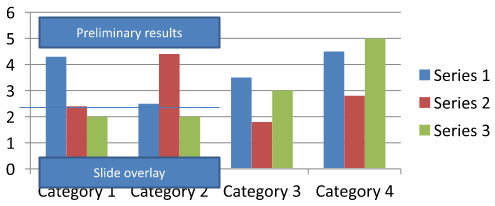
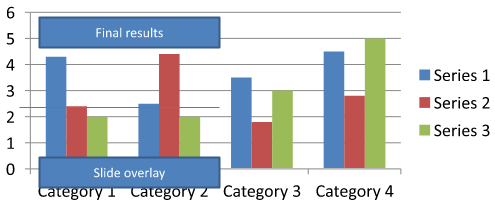
Download chart-annotations.pptx and place it in the application’s working directory. Its first slide contains a chart with an ungrouped annotation reading “Preliminary results”, a chart-owned line, and an ordinary slide text box reading “Slide overlay”. The example finds the first chart on that slide and changes the annotation to “Final results” when the report is ready to publish. It checks for an empty collection and only edits an IAutoShape with a non-null text frame returned by getTextFrame and the expected text.
import com.aspose.slides.*;

Presentation presentation = new Presentation("chart-annotations.pptx");
try {
    ISlide slide = presentation.getSlides().get_Item(0);

    IChart chart = null;
    for (IShape shape : slide.getShapes()) {
        if (shape instanceof IChart) {
            chart = (IChart) shape;
            break;
        }
    }

    if (chart == null || chart.getUserShapes().getShapes().size() == 0) {
        System.out.println("No chart or chart-owned shapes found.");
        return;
    }

    boolean updated = false;
    for (IShape shape : chart.getUserShapes().getShapes()) {
        if (shape instanceof IAutoShape) {
            IAutoShape annotation = (IAutoShape) shape;
            if (annotation.getTextFrame() != null && "Preliminary results".equals(annotation.getTextFrame().getText())) {
                annotation.getTextFrame().setText("Final results");
                updated = true;
                break;
            }
        }
    }

    if (updated) {
        presentation.save("chart-annotations-updated.pptx", SaveFormat.Pptx);
    } else {
        System.out.println("No matching text annotation found.");
    }
} finally {
    presentation.dispose();
}
The line and the slide text box remain unchanged. The following images show the input and the saved, reopened result:
| Düzenleme öncesi | Düzenleme sonrası |
|---|---|
 |
 |
Note
Örnek yalnızca en üst düzeydeki grafik‑sahibi şekilleri inceler. Bir açıklama bir IGroupShape içinde ise, o grubun getShapes koleksiyonunu da inceleyin. İç içe gruplar için aynı işlemi yineleyin ve alt şekillerde aynı metin kontrollerini uygulayın. Bir grup kendisi bir kapsayıcıdır; onu bir metin kutusu olarak değerlendirmeyin.SSS
Sütunlar/alanlar için kenarı opak tutarak yarı saydam doldurmalar ayarlayabilir miyim?
Evet. Dolgu şeffaflığı ve kenar ayrı ayrı yapılandırılır. Bu, yoğun görselleştirmelerde ızgara ve veri okunabilirliğini artırmak için faydalıdır.
Etiketler çakıştığında ne yapmalıyım?
Yazı tipi boyutunu küçültün, gereksiz etiket bileşenlerini (örneğin kategorileri) devre dışı bırakın, etiket konumunu ayarlayın, gerekirse sadece seçili noktalara etiket gösterin veya biçimi “değer + açıklama” olarak değiştirin.
Serilere degrade veya desen doldurması uygulayabilir miyim?
Evet. Seriler katı, degrade ve desen doldurmaları destekler. Pratikte, degradeleri ölçülü kullanın ve ızgara ile metin arasındaki kontrastı azaltan kombinasyonlardan kaçının.