
在 Java 中格式化演示文稿图表
概述
本文说明如何使用 Aspose.Slides 在 PowerPoint 演示文稿中格式化图表。它展示了如何自定义关键图表元素,如坐标轴、网格线、标题、图例、绘图区和墙面填充,以提升图表数据的外观和可读性。
它还演示了如何为图表文本设置字体属性、对图表数据应用预设数字格式,以及为图表区域启用圆角。通过这些示例,展示了如何在演示文稿中同时控制图表的视觉风格和数据呈现。
格式化图表实体
使用 IChart 可格式化图表标题、坐标轴、网格线、图例和绘图区。此示例创建了带标记和默认数据的折线图,然后为其值轴和类别轴分别应用文本和线条样式。字体大小和线宽以磅为单位指定;类别标签旋转 45 度。
值轴使用 setNumberFormat,独立于源单元格。其刻度范围为 -2 到 15,主刻度间隔为 2,次刻度间隔为 0.5。示例还将百分比格式与 setDisplayUnit(设置为千位)相结合,需根据数据的意义和数量级进行调整。由于对 setOverlay 传入 false,图例保持在绘图区之外。背墙和底面填充通过 getBackWall 和 getFloor 配置,但这些表面仅在 3D 图表中可见。
import com.aspose.slides.*;
import java.awt.Color;

Presentation presentation = new Presentation();
try {
    ISlide slide = presentation.getSlides().get_Item(0);

    IChart chart = slide.getShapes().addChart(ChartType.LineWithMarkers, 50, 50, 500, 400);

    chart.setTitle(true);
    chart.getChartTitle().addTextFrameForOverriding("");
    IPortion chartTitle = chart.getChartTitle().getTextFrameForOverriding().getParagraphs().get_Item(0).getPortions().get_Item(0);
    chartTitle.setText("Sample Chart");
    chartTitle.getPortionFormat().getFillFormat().setFillType(FillType.Solid);
    chartTitle.getPortionFormat().getFillFormat().getSolidFillColor().setColor(Color.GRAY);
    chartTitle.getPortionFormat().setFontHeight(20);
    chartTitle.getPortionFormat().setFontBold(NullableBool.True);
    chartTitle.getPortionFormat().setFontItalic(NullableBool.True);

    chart.getAxes().getVerticalAxis().getMajorGridLinesFormat().getLine().getFillFormat().setFillType(FillType.Solid);
    chart.getAxes().getVerticalAxis().getMajorGridLinesFormat().getLine().getFillFormat().getSolidFillColor().setColor(Color.BLUE);
    chart.getAxes().getVerticalAxis().getMajorGridLinesFormat().getLine().setWidth(5);
    chart.getAxes().getVerticalAxis().getMajorGridLinesFormat().getLine().setDashStyle(LineDashStyle.DashDot);

    chart.getAxes().getVerticalAxis().getMinorGridLinesFormat().getLine().getFillFormat().setFillType(FillType.Solid);
    chart.getAxes().getVerticalAxis().getMinorGridLinesFormat().getLine().getFillFormat().getSolidFillColor().setColor(Color.RED);
    chart.getAxes().getVerticalAxis().getMinorGridLinesFormat().getLine().setWidth(3);

    chart.getAxes().getVerticalAxis().setNumberFormatLinkedToSource(false);
    chart.getAxes().getVerticalAxis().setDisplayUnit(DisplayUnitType.Thousands);
    chart.getAxes().getVerticalAxis().setNumberFormat("0.0%");

    chart.getAxes().getVerticalAxis().setAutomaticMajorUnit(false);
    chart.getAxes().getVerticalAxis().setAutomaticMaxValue(false);
    chart.getAxes().getVerticalAxis().setAutomaticMinorUnit(false);
    chart.getAxes().getVerticalAxis().setAutomaticMinValue(false);

    chart.getAxes().getVerticalAxis().setMaxValue(15f);
    chart.getAxes().getVerticalAxis().setMinValue(-2f);
    chart.getAxes().getVerticalAxis().setMinorUnit(0.5f);
    chart.getAxes().getVerticalAxis().setMajorUnit(2.0f);

    IChartPortionFormat valueAxisText = chart.getAxes().getVerticalAxis().getTextFormat().getPortionFormat();
    valueAxisText.setFontBold(NullableBool.True);
    valueAxisText.setFontHeight(16);
    valueAxisText.setFontItalic(NullableBool.True);
    valueAxisText.getFillFormat().setFillType(FillType.Solid);
    valueAxisText.getFillFormat().getSolidFillColor().setPresetColor(PresetColor.DarkGreen);
    valueAxisText.setLatinFont(new FontData("Times New Roman"));

    chart.getAxes().getVerticalAxis().setTitle(true);
    chart.getAxes().getVerticalAxis().getTitle().addTextFrameForOverriding("");
    IPortion valueAxisTitle = chart.getAxes().getVerticalAxis().getTitle().getTextFrameForOverriding().getParagraphs().get_Item(0).getPortions().get_Item(0);
    valueAxisTitle.setText("Primary Axis");
    valueAxisTitle.getPortionFormat().getFillFormat().setFillType(FillType.Solid);
    valueAxisTitle.getPortionFormat().getFillFormat().getSolidFillColor().setColor(Color.GRAY);
    valueAxisTitle.getPortionFormat().setFontHeight(20);
    valueAxisTitle.getPortionFormat().setFontBold(NullableBool.True);
    valueAxisTitle.getPortionFormat().setFontItalic(NullableBool.True);

    chart.getAxes().getHorizontalAxis().getMajorGridLinesFormat().getLine().getFillFormat().setFillType(FillType.Solid);
    chart.getAxes().getHorizontalAxis().getMajorGridLinesFormat().getLine().getFillFormat().getSolidFillColor().setColor(new Color(0, 128, 0));
    chart.getAxes().getHorizontalAxis().getMajorGridLinesFormat().getLine().setWidth(5);

    chart.getAxes().getHorizontalAxis().getMinorGridLinesFormat().getLine().getFillFormat().setFillType(FillType.Solid);
    chart.getAxes().getHorizontalAxis().getMinorGridLinesFormat().getLine().getFillFormat().getSolidFillColor().setColor(Color.YELLOW);
    chart.getAxes().getHorizontalAxis().getMinorGridLinesFormat().getLine().setWidth(3);

    IChartPortionFormat categoryAxisText = chart.getAxes().getHorizontalAxis().getTextFormat().getPortionFormat();
    categoryAxisText.setFontBold(NullableBool.True);
    categoryAxisText.setFontHeight(16);
    categoryAxisText.setFontItalic(NullableBool.True);
    categoryAxisText.getFillFormat().setFillType(FillType.Solid);
    categoryAxisText.getFillFormat().getSolidFillColor().setColor(Color.BLUE);
    categoryAxisText.setLatinFont(new FontData("Arial"));

    chart.getAxes().getHorizontalAxis().setTitle(true);
    chart.getAxes().getHorizontalAxis().getTitle().addTextFrameForOverriding("");

    IPortion categoryAxisTitle = chart.getAxes().getHorizontalAxis().getTitle().getTextFrameForOverriding().getParagraphs().get_Item(0).getPortions().get_Item(0);
    categoryAxisTitle.setText("Sample Category");
    categoryAxisTitle.getPortionFormat().getFillFormat().setFillType(FillType.Solid);
    categoryAxisTitle.getPortionFormat().getFillFormat().getSolidFillColor().setColor(Color.GRAY);
    categoryAxisTitle.getPortionFormat().setFontHeight(20);
    categoryAxisTitle.getPortionFormat().setFontBold(NullableBool.True);
    categoryAxisTitle.getPortionFormat().setFontItalic(NullableBool.True);

    chart.getAxes().getHorizontalAxis().setTickLabelPosition(TickLabelPositionType.Low);
    chart.getAxes().getHorizontalAxis().setTickLabelRotationAngle(45);

    IChartPortionFormat legendText = chart.getLegend().getTextFormat().getPortionFormat();
    legendText.setFontBold(NullableBool.True);
    legendText.setFontHeight(16);
    legendText.setFontItalic(NullableBool.True);
    legendText.getFillFormat().setFillType(FillType.Solid);
    legendText.getFillFormat().getSolidFillColor().setPresetColor(PresetColor.DarkRed);

    chart.getLegend().setOverlay(false);

    chart.getBackWall().setThickness(1);
    chart.getBackWall().getFormat().getFill().setFillType(FillType.Solid);
    chart.getBackWall().getFormat().getFill().getSolidFillColor().setColor(new Color(255, 165, 0));

    chart.getFloor().getFormat().getFill().setFillType(FillType.Solid);
    chart.getFloor().getFormat().getFill().getSolidFillColor().setColor(Color.RED);

    chart.getPlotArea().getFormat().getFill().setFillType(FillType.Solid);
    chart.getPlotArea().getFormat().getFill().getSolidFillColor().setPresetColor(PresetColor.LightCyan);

    presentation.save("FormattedChart_out.pptx", SaveFormat.Pptx);
} finally {
    presentation.dispose();
}
设置图表的字体属性
通过 Chart.getTextFormat 设置图表文本的默认字体大小。示例创建了一个带有 20 磅字体的簇状柱形图,并通过 setShowValue 为第一系列启用数值标签。具有显式字体设置的文本元素可以覆盖图表默认设置。
import com.aspose.slides.*;

Presentation presentation = new Presentation();
try {
    ISlide slide = presentation.getSlides().get_Item(0);

    IChart chart = slide.getShapes().addChart(ChartType.ClusteredColumn, 100, 100, 500, 400);
    chart.getTextFormat().getPortionFormat().setFontHeight(20);
    chart.getChartData().getSeries().get_Item(0).getLabels().getDefaultDataLabelFormat().setShowValue(true);

    presentation.save("FontPropertiesForChart.pptx", SaveFormat.Pptx);
} finally {
    presentation.dispose();
}
设置数字格式
使用 IChartDataCell.setPresetNumberFormat 将内建数字格式应用于图表工作簿单元格。此示例创建了一个默认使用单元格数据的簇状柱形图,并将格式索引 10 (0.00%) 应用于每个系列的数值单元格。这会改变工作簿中数值的显示方式,而不改变底层数字;例如,0.25 显示为 25.00%。坐标轴和数据标签的格式可以分别配置。
import com.aspose.slides.*;

Presentation presentation = new Presentation();
try {
    ISlide slide = presentation.getSlides().get_Item(0);

    IChart chart = slide.getShapes().addChart(ChartType.ClusteredColumn, 50, 50, 500, 400);
    IChartSeriesCollection series = chart.getChartData().getSeries();

    for (IChartSeries chartSeries : series)
    {
        for (IChartDataPoint dataPoint : chartSeries.getDataPoints())
        {
            dataPoint.getValue().getAsCell().setPresetNumberFormat((byte) 10); // 0.00%
        }
    }

    presentation.save("PresetNumberFormat_out.pptx", SaveFormat.Pptx);
} finally {
    presentation.dispose();
}
以下表格列出了内建数字格式索引及其在英文(美国)区域设置下的典型 Excel 格式。确切的格式字符串及其显示可能因应用程序和区域设置而异,尤其是货币和日期。一些 Excel 格式也与 OOXML 标准的默认值不同,详见 Microsoft 的数字格式实现说明。
| 索引 | 格式 |
|---|---|
| 0 | General |
| 1 | 0 |
| 2 | 0.00 |
| 3 | #,##0 |
| 4 | #,##0.00 |
| 5 | "$"#,##0_);("$"#,##0) |
| 6 | "$"#,##0_);[Red]("$"#,##0) |
| 7 | "$"#,##0.00_);("$"#,##0.00) |
| 8 | "$"#,##0.00_);[Red]("$"#,##0.00) |
| 9 | 0% |
| 10 | 0.00% |
| 11 | 0.00E+00 |
| 12 | # ?/? |
| 13 | # ??/?? |
| 14 | m/d/yyyy |
| 15 | d-mmm-yy |
| 16 | d-mmm |
| 17 | mmm-yy |
| 18 | h:mm AM/PM |
| 19 | h:mm:ss AM/PM |
| 20 | h:mm |
| 21 | h:mm:ss |
| 22 | m/d/yyyy h:mm |
| 37 | #,##0_);(#,##0) |
| 38 | #,##0_);[Red](#,##0) |
| 39 | #,##0.00_);(#,##0.00) |
| 40 | #,##0.00_);[Red](#,##0.00) |
| 41 | _(* #,##0_);_(* (#,##0);_(* "-"_);_(@_) |
| 42 | _("$"* #,##0_);_("$"* (#,##0);_("$"* "-"_);_(@_) |
| 43 | _(* #,##0.00_);_(* (#,##0.00);_(* "-"??_);_(@_) |
| 44 | _("$"* #,##0.00_);_("$"* (#,##0.00);_("$"* "-"??_);_(@_) |
| 45 | mm:ss |
| 46 | [h]:mm:ss |
| 47 | mm:ss.0 |
| 48 | ##0.0E+0 |
| 49 | @ |
设置图表区域圆角边框
调用 IChart.setRoundedCorners 并传入 true 可为图表区域的角落添加圆角。示例创建了一个簇状柱形图,并使用 getLineFormat 为其轮廓设置实体灰色和单线样式后保存演示文稿。
import com.aspose.slides.*;
import java.awt.Color;

Presentation presentation = new Presentation();
try {
    ISlide slide = presentation.getSlides().get_Item(0);

    IChart chart = slide.getShapes().addChart(ChartType.ClusteredColumn, 20, 100, 600, 400);
    chart.getLineFormat().getFillFormat().setFillType(FillType.Solid);
    chart.getLineFormat().getFillFormat().getSolidFillColor().setColor(Color.GRAY);
    chart.getLineFormat().setStyle(LineStyle.Single);
    chart.setRoundedCorners(true);

    presentation.save("out.pptx", SaveFormat.Pptx);
} finally {
    presentation.dispose();
}
编辑现有图表批注
图表可以包含自定义形状,例如用于说明报告状态的文本批注。可通过 IChart.getUserShapes 访问这些形状,该方法也在 Chart API 文档的 Chart.getUserShapes 中列出。由 getShapes 返回的集合包含图表拥有的形状。
放置在图表之上的普通文本框属于幻灯片,即使外观上像是图表的一部分。遍历 Slide.getShapes 可以找到图表和普通幻灯片形状,但不会枚举图表内部的单个形状。图表标题和数据标签是独立的图表元素,而不是该集合中的自定义批注。
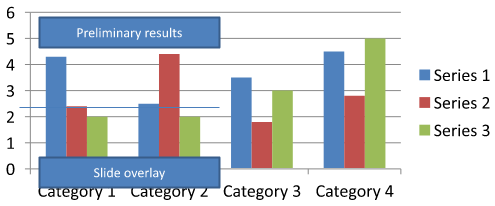
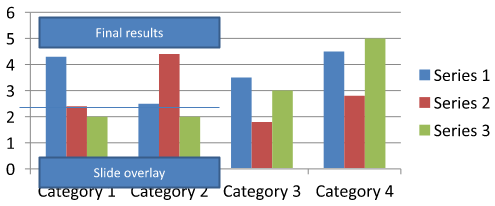
下载 chart-annotations.pptx 并将其放入应用程序的工作目录。其第一张幻灯片包含一个带有未分组批注“Preliminary results”、图表拥有的线条以及普通幻灯片文本框“Slide overlay”的图表。示例在该幻灯片上找到第一张图表,并在报告准备发布时将批注改为 “Final results”。它会检查集合是否为空,并仅编辑通过 getTextFrame 返回非空文本框并符合预期文本的 IAutoShape。
import com.aspose.slides.*;

Presentation presentation = new Presentation("chart-annotations.pptx");
try {
    ISlide slide = presentation.getSlides().get_Item(0);

    IChart chart = null;
    for (IShape shape : slide.getShapes()) {
        if (shape instanceof IChart) {
            chart = (IChart) shape;
            break;
        }
    }

    if (chart == null || chart.getUserShapes().getShapes().size() == 0) {
        System.out.println("No chart or chart-owned shapes found.");
        return;
    }

    boolean updated = false;
    for (IShape shape : chart.getUserShapes().getShapes()) {
        if (shape instanceof IAutoShape) {
            IAutoShape annotation = (IAutoShape) shape;
            if (annotation.getTextFrame() != null && "Preliminary results".equals(annotation.getTextFrame().getText())) {
                annotation.getTextFrame().setText("Final results");
                updated = true;
                break;
            }
        }
    }

    if (updated) {
        presentation.save("chart-annotations-updated.pptx", SaveFormat.Pptx);
    } else {
        System.out.println("No matching text annotation found.");
    }
} finally {
    presentation.dispose();
}
线条和幻灯片文本框保持不变。以下图片展示了输入以及保存后重新打开的结果:
| 编辑前 | 编辑后 |
|---|---|
 |
 |
Note
示例仅检查顶层的图表拥有的形状。如果批注位于 IGroupShape 内部,需要检查该组的 getShapes 集合。对嵌套组递归执行相同的检查,将相同的文本判定应用于其子形状。组本身是容器,不要将其视为文本框。常见问题
我可以为柱形/区域设置半透明填充,同时保持边框不透明吗?
是的。填充透明度和轮廓是分开配置的。这有助于在密集的可视化中提升网格和数据的可读性。
当数据标签重叠时,我该怎么办?
可以缩小字体大小,关闭非必要的标签组件(例如类别),调整标签位置,必要时仅为选定点显示标签,或改用 “值 + 图例” 的格式。
我可以对系列应用渐变或图案填充吗?
可以。系列支持实体、渐变和图案填充。实际使用时应适度使用渐变,避免与网格和文本的对比度下降。