
Quản lý Zoom cho Bài thuyết trình trong Java
Giới thiệu
Zoom trong PowerPoint cho phép bạn chuyển đến và quay lại các slide, phần, và đoạn cụ thể của một bài thuyết trình. Khi đang trình bày, khả năng di chuyển nhanh qua nội dung này có thể rất hữu ích.
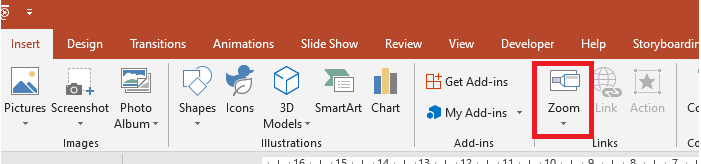
- Để tóm tắt toàn bộ bài thuyết trình trên một slide duy nhất, sử dụng Summary Zoom.
- Để hiển thị chỉ các slide được chọn, sử dụng Slide Zoom.
- Để hiển thị chỉ một phần duy nhất, sử dụng Section Zoom.
Slide Zoom
Slide zoom có thể làm cho bài thuyết trình của bạn năng động hơn, cho phép bạn tự do di chuyển giữa các slide theo bất kỳ thứ tự nào mà không làm gián đoạn luồng trình bày. Slide zoom rất thích hợp cho các bài thuyết trình ngắn không có nhiều phần, nhưng bạn vẫn có thể sử dụng chúng trong các kịch bản thuyết trình khác nhau.
Slide zoom giúp bạn khám phá nhiều thông tin đồng thời mà vẫn cảm thấy như đang ở trên một canvas duy nhất.
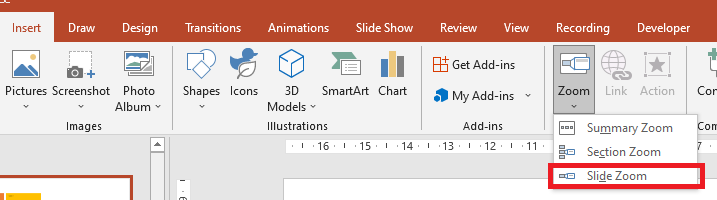
Đối với các đối tượng slide zoom, Aspose.Slides cung cấp enum ZoomImageType, interface IZoomFrame, và một số phương thức trong interface IShapeCollection.
Tạo Zoom Frame
Bạn có thể thêm một zoom frame vào slide theo cách sau:
- Tạo một thể hiện của lớp Presentation.
- Tạo các slide mới mà bạn dự định liên kết với zoom frame.
- Thêm văn bản nhận dạng và nền cho các slide vừa tạo.
- Thêm zoom frame (chứa tham chiếu đến các slide đã tạo) vào slide đầu tiên.
- Ghi bài thuyết trình đã sửa dưới dạng tệp PPTX.
Đoạn mã Java này cho bạn thấy cách tạo một zoom frame trên slide:
Presentation pres = new Presentation();
try {
    // Thêm các slide mới vào bài thuyết trình
    ISlide slide2 = pres.getSlides().addEmptySlide(pres.getSlides().get_Item(0).getLayoutSlide());
    ISlide slide3 = pres.getSlides().addEmptySlide(pres.getSlides().get_Item(0).getLayoutSlide());

    // Tạo nền cho slide thứ hai
    slide2.getBackground().setType(BackgroundType.OwnBackground);
    slide2.getBackground().getFillFormat().setFillType(FillType.Solid);
    slide2.getBackground().getFillFormat().getSolidFillColor().setColor(Color.cyan);

    // Tạo hộp văn bản cho slide thứ hai
    IAutoShape autoshape = slide2.getShapes().addAutoShape(ShapeType.Rectangle, 100, 200, 500, 200);
    autoshape.getTextFrame().setText("Second Slide");

    // Tạo nền cho slide thứ ba
    slide3.getBackground().setType(BackgroundType.OwnBackground);
    slide3.getBackground().getFillFormat().setFillType(FillType.Solid);
    slide3.getBackground().getFillFormat().getSolidFillColor().setColor(Color.darkGray);

    // Tạo hộp văn bản cho slide thứ ba
    autoshape = slide3.getShapes().addAutoShape(ShapeType.Rectangle, 100, 200, 500, 200);
    autoshape.getTextFrame().setText("Trird Slide");

    // Thêm các đối tượng ZoomFrame
    pres.getSlides().get_Item(0).getShapes().addZoomFrame(20, 20, 250, 200, slide2);
    pres.getSlides().get_Item(0).getShapes().addZoomFrame(200, 250, 250, 200, slide3);

    // Lưu bài thuyết trình
    pres.save("presentation.pptx", SaveFormat.Pptx);
} finally {
    if (pres != null) pres.dispose();
}
Tạo Zoom Frame với Hình ảnh Tùy chỉnh
Với Aspose.Slides for Java, bạn có thể tạo một zoom frame với hình ảnh xem trước slide khác nhau theo cách sau:
- Tạo một thể hiện của lớp Presentation.
- Tạo một slide mới mà bạn dự định liên kết với zoom frame.
- Thêm văn bản nhận dạng và nền cho slide.
- Tạo một đối tượng IPPImage bằng cách thêm hình ảnh vào bộ sưu tập Images của đối tượng Presentation sẽ được dùng để lấp đầy frame.
- Thêm zoom frame (chứa tham chiếu tới slide đã tạo) vào slide đầu tiên.
- Ghi bài thuyết trình đã sửa dưới dạng tệp PPTX.
Đoạn mã Java này cho bạn thấy cách tạo một zoom frame với hình ảnh khác:
Presentation pres = new Presentation();
try {
    // Thêm một slide mới vào bài thuyết trình
    ISlide slide = pres.getSlides().addEmptySlide(pres.getSlides().get_Item(0).getLayoutSlide());

    // Tạo nền cho slide thứ hai
    slide.getBackground().setType(BackgroundType.OwnBackground);
    slide.getBackground().getFillFormat().setFillType(FillType.Solid);
    slide.getBackground().getFillFormat().getSolidFillColor().setColor(Color.cyan);

    // Tạo hộp văn bản cho slide thứ ba
    IAutoShape autoshape = slide.getShapes().addAutoShape(ShapeType.Rectangle, 100, 200, 500, 200);
    autoshape.getTextFrame().setText("Second Slide");

    // Tạo ảnh mới cho đối tượng zoom
    IPPImage picture;
        IImage image = Images.fromFile("image.png");
        try {
            picture = pres.getImages().addImage(image);
        } finally {
            if (image != null) image.dispose();
        }
    // Thêm đối tượng ZoomFrame
    pres.getSlides().get_Item(0).getShapes().addZoomFrame(20, 20, 300, 200, slide, picture);

    // Lưu bài thuyết trình
    pres.save("presentation.pptx", SaveFormat.Pptx);
} catch(IOException e) {
} finally {
    if (pres != null) pres.dispose();
}
Định dạng Zoom Frame
Trong các phần trước, chúng tôi đã chỉ cho bạn cách tạo các zoom frame đơn giản. Để tạo các zoom frame phức tạp hơn, bạn cần thay đổi định dạng của một frame đơn. Có một số tùy chọn định dạng mà bạn có thể áp dụng cho một zoom frame.
Bạn có thể kiểm soát định dạng của zoom frame trên slide theo cách sau:
- Tạo một thể hiện của lớp Presentation.
- Tạo các slide mới để liên kết tới mà bạn dự định liên kết zoom frame.
- Thêm một số văn bản nhận dạng và nền cho các slide đã tạo.
- Thêm zoom frame (chứa tham chiếu đến các slide đã tạo) vào slide đầu tiên.
- Tạo một đối tượng IPPImage bằng cách thêm hình ảnh vào bộ sưu tập Images của đối tượng Presentation sẽ được dùng để lấp đầy frame.
- Đặt hình ảnh tùy chỉnh cho đối tượng zoom frame đầu tiên.
- Thay đổi định dạng đường viền cho đối tượng zoom frame thứ hai.
- Loại bỏ nền khỏi hình ảnh của đối tượng zoom frame thứ hai.
- Ghi bài thuyết trình đã sửa dưới dạng tệp PPTX.
Đoạn mã Java này cho bạn thấy cách thay đổi định dạng của zoom frame trên slide:
Presentation pres = new Presentation();
try {
    //Thêm các slide mới vào bài thuyết trình
    ISlide slide2 = pres.getSlides().addEmptySlide(pres.getSlides().get_Item(0).getLayoutSlide());
    ISlide slide3 = pres.getSlides().addEmptySlide(pres.getSlides().get_Item(0).getLayoutSlide());

    // Tạo nền cho slide thứ hai
    slide2.getBackground().setType(BackgroundType.OwnBackground);
    slide2.getBackground().getFillFormat().setFillType(FillType.Solid);
    slide2.getBackground().getFillFormat().getSolidFillColor().setColor(Color.cyan);

    // Tạo hộp văn bản cho slide thứ hai
    IAutoShape autoshape = slide2.getShapes().addAutoShape(ShapeType.Rectangle, 100, 200, 500, 200);
    autoshape.getTextFrame().setText("Second Slide");

    // Tạo nền cho slide thứ ba
    slide3.getBackground().setType(BackgroundType.OwnBackground);
    slide3.getBackground().getFillFormat().setFillType(FillType.Solid);
    slide3.getBackground().getFillFormat().getSolidFillColor().setColor(Color.darkGray);

    // Tạo hộp văn bản cho slide thứ ba
    autoshape = slide3.getShapes().addAutoShape(ShapeType.Rectangle, 100, 200, 500, 200);
    autoshape.getTextFrame().setText("Trird Slide");

    //Thêm các đối tượng ZoomFrame
    IZoomFrame zoomFrame1 = pres.getSlides().get_Item(0).getShapes().addZoomFrame(20, 20, 250, 200, slide2);
    IZoomFrame zoomFrame2 = pres.getSlides().get_Item(0).getShapes().addZoomFrame(200, 250, 250, 200, slide3);

    // Tạo ảnh mới cho đối tượng zoom
    IPPImage picture;
        IImage image = Images.fromFile("image.png");
        try {
            picture = pres.getImages().addImage(image);
        } finally {
            if (image != null) image.dispose();
        }
    // Đặt hình ảnh tùy chỉnh cho đối tượng zoomFrame1
    zoomFrame1.setImage(picture);

    // Đặt định dạng khung zoom cho đối tượng zoomFrame2
    zoomFrame2.getLineFormat().setWidth(5);
    zoomFrame2.getLineFormat().getFillFormat().setFillType(FillType.Solid);
    zoomFrame2.getLineFormat().getFillFormat().getSolidFillColor().setColor(Color.pink);
    zoomFrame2.getLineFormat().setDashStyle(LineDashStyle.DashDot);

    // Cài đặt để không hiển thị nền cho đối tượng zoomFrame2
    zoomFrame2.setShowBackground(false);

    // Lưu bài thuyết trình
    pres.save("presentation.pptx", SaveFormat.Pptx);
} catch(IOException e) {
} finally {
    if (pres != null) pres.dispose();
}
Section Zoom
Section zoom là một liên kết tới một phần trong bài thuyết trình của bạn. Bạn có thể sử dụng section zoom để quay lại các phần mà bạn muốn nhấn mạnh thực sự. Hoặc bạn có thể dùng chúng để làm nổi bật cách các phần khác nhau của bài thuyết trình liên kết với nhau.
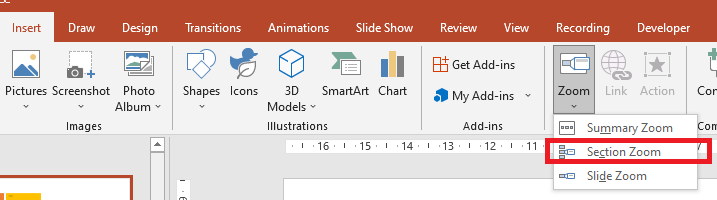
Đối với các đối tượng section zoom, Aspose.Slides cung cấp interface ISectionZoomFrame và một số phương thức trong interface IShapeCollection.
Tạo Section Zoom Frame
Bạn có thể thêm một section zoom frame vào slide theo cách sau:
- Tạo một thể hiện của lớp Presentation.
- Tạo một slide mới.
- Thêm nền nhận dạng cho slide vừa tạo.
- Tạo một phần mới mà bạn dự định liên kết với zoom frame.
- Thêm một section zoom frame (chứa tham chiếu đến phần đã tạo) vào slide đầu tiên.
- Ghi bài thuyết trình đã sửa dưới dạng tệp PPTX.
Đoạn mã Java này cho bạn thấy cách tạo một zoom frame trên slide:
Presentation pres = new Presentation();
try {
    // Thêm một slide mới vào bài thuyết trình
    ISlide slide = pres.getSlides().addEmptySlide(pres.getSlides().get_Item(0).getLayoutSlide());
    slide.getBackground().getFillFormat().setFillType(FillType.Solid);
    slide.getBackground().getFillFormat().getSolidFillColor().setColor(Color.yellow);
    slide.getBackground().setType(BackgroundType.OwnBackground);

    // Thêm một Section mới vào bài thuyết trình
    pres.getSections().addSection("Section 1", slide);

    // Thêm một đối tượng SectionZoomFrame
    ISectionZoomFrame sectionZoomFrame = pres.getSlides().get_Item(0).getShapes().addSectionZoomFrame(20, 20, 300, 200, pres.getSections().get_Item(1));

    // Lưu bài thuyết trình
    pres.save("presentation.pptx", SaveFormat.Pptx);
} finally {
    if (pres != null) pres.dispose();
}
Tạo Section Zoom Frame với Hình ảnh Tùy chỉnh
Sử dụng Aspose.Slides for Java, bạn có thể tạo một section zoom frame với hình ảnh xem trước slide khác nhau theo cách sau:
- Tạo một thể hiện của lớp Presentation.
- Tạo một slide mới.
- Thêm nền nhận dạng cho slide đã tạo.
- Tạo một phần mới mà bạn dự định liên kết với zoom frame.
- Tạo một đối tượng IPPImage bằng cách thêm hình ảnh vào bộ sưu tập Images của đối tượng Presentation sẽ được dùng để lấp đầy frame.
- Thêm một section zoom frame (chứa tham chiếu tới phần đã tạo) vào slide đầu tiên.
- Ghi bài thuyết trình đã sửa dưới dạng tệp PPTX.
Đoạn mã Java này cho bạn thấy cách tạo một zoom frame với hình ảnh khác:
Presentation pres = new Presentation();
try {
    // Thêm slide mới vào bài thuyết trình
    ISlide slide = pres.getSlides().addEmptySlide(pres.getSlides().get_Item(0).getLayoutSlide());
    slide.getBackground().getFillFormat().setFillType(FillType.Solid);
    slide.getBackground().getFillFormat().getSolidFillColor().setColor(Color.yellow);
    slide.getBackground().setType(BackgroundType.OwnBackground);

    // Thêm Section mới vào bài thuyết trình
    pres.getSections().addSection("Section 1", slide);

    // Tạo ảnh mới cho đối tượng zoom
    IPPImage picture;
    IImage image = Images.fromFile("image.png");
    try {
        picture = pres.getImages().addImage(image);
    } finally {
        if (image != null) image.dispose();
    }

    // Thêm đối tượng SectionZoomFrame
    ISectionZoomFrame sectionZoomFrame = pres.getSlides().get_Item(0).getShapes().addSectionZoomFrame(20, 20, 300, 200, pres.getSections().get_Item(1), picture);

    // Lưu bài thuyết trình
    pres.save("presentation.pptx", SaveFormat.Pptx);
} catch(IOException e) {
} finally {
    if (pres != null) pres.dispose();
}
Định dạng Section Zoom Frame
Để tạo các section zoom frame phức tạp hơn, bạn cần thay đổi định dạng của một frame đơn. Có một số tùy chọn định dạng mà bạn có thể áp dụng cho một section zoom frame.
Bạn có thể kiểm soát định dạng của section zoom frame trên slide theo cách sau:
- Tạo một thể hiện của lớp Presentation.
- Tạo một slide mới.
- Thêm nền nhận dạng cho slide đã tạo.
- Tạo một phần mới mà bạn dự định liên kết với zoom frame.
- Thêm một section zoom frame (chứa tham chiếu đến phần đã tạo) vào slide đầu tiên.
- Thay đổi kích thước và vị trí cho đối tượng section zoom đã tạo.
- Tạo một đối tượng IPPImage bằng cách thêm hình ảnh vào bộ sưu tập Images của đối tượng Presentation sẽ được dùng để lấp đầy frame.
- Đặt hình ảnh tùy chỉnh cho đối tượng section zoom frame đã tạo.
- Thiết lập khả năng quay lại slide gốc từ phần đã liên kết.
- Loại bỏ nền khỏi hình ảnh của đối tượng section zoom frame.
- Thay đổi định dạng đường viền cho đối tượng zoom frame thứ hai.
- Thay đổi thời lượng chuyển đổi.
- Ghi bài thuyết trình đã sửa dưới dạng tệp PPTX.
Đoạn mã Java này cho bạn thấy cách thay đổi định dạng của section zoom frame:
Presentation pres = new Presentation();
try {
    //Thêm một slide mới vào bài thuyết trình
    ISlide slide = pres.getSlides().addEmptySlide(pres.getSlides().get_Item(0).getLayoutSlide());
    slide.getBackground().getFillFormat().setFillType(FillType.Solid);
    slide.getBackground().getFillFormat().getSolidFillColor().setColor(Color.yellow);
    slide.getBackground().setType(BackgroundType.OwnBackground);

    // Thêm một Section mới vào bài thuyết trình
    pres.getSections().addSection("Section 1", slide);

    // Thêm đối tượng SectionZoomFrame
    ISectionZoomFrame sectionZoomFrame = pres.getSlides().get_Item(0).getShapes().addSectionZoomFrame(20, 20, 300, 200, pres.getSections().get_Item(1));

    // Định dạng cho SectionZoomFrame
    sectionZoomFrame.setX(100);
    sectionZoomFrame.setY(300);
    sectionZoomFrame.setWidth(100);
    sectionZoomFrame.setHeight(75);

    IPPImage picture;
    IImage image = Images.fromFile("image.png");
    try {
         picture = pres.getImages().addImage(image);
     } finally {
        if (image != null) image.dispose();
     }
    sectionZoomFrame.setImage(picture);

    sectionZoomFrame.setReturnToParent(true);
    sectionZoomFrame.setShowBackground(false);

    sectionZoomFrame.getLineFormat().getFillFormat().setFillType(FillType.Solid);
    sectionZoomFrame.getLineFormat().getFillFormat().getSolidFillColor().setColor(Color.gray);
    sectionZoomFrame.getLineFormat().setDashStyle(LineDashStyle.DashDot);
    sectionZoomFrame.getLineFormat().setWidth(2.5f);

    sectionZoomFrame.setTransitionDuration(1.5f);

    // Lưu bài thuyết trình
    pres.save("presentation.pptx", SaveFormat.Pptx);
} catch(IOException e) {
} finally {
    if (pres != null) pres.dispose();
}
Summary Zoom
Summary zoom giống như một trang đích nơi tất cả các phần của bài thuyết trình được hiển thị đồng thời. Khi bạn đang trình bày, bạn có thể dùng zoom để chuyển từ một vị trí nào đó trong bài thuyết trình sang vị trí khác theo bất kỳ thứ tự nào bạn muốn. Bạn có thể sáng tạo, bỏ qua một phần, hoặc quay lại các đoạn của slideshow mà không làm gián đoạn luồng trình bày.
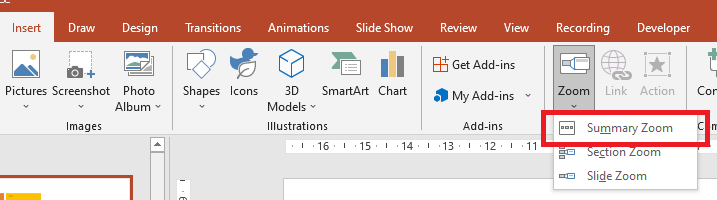
Đối với các đối tượng summary zoom, Aspose.Slides cung cấp các interface ISummaryZoomFrame, ISummaryZoomSection, và ISummaryZoomSectionCollection cùng một số phương thức trong interface IShapeCollection.
Tạo Summary Zoom
Bạn có thể thêm một summary zoom frame vào slide theo cách sau:
- Tạo một thể hiện của lớp Presentation.
- Tạo các slide mới với nền nhận dạng và các phần mới cho các slide đã tạo.
- Thêm summary zoom frame vào slide đầu tiên.
- Ghi bài thuyết trình đã sửa dưới dạng tệp PPTX.
Đoạn mã Java này cho bạn thấy cách tạo một summary zoom frame trên slide:
Presentation pres = new Presentation();
try {
    //Thêm slide mới vào bài thuyết trình
    ISlide slide = pres.getSlides().addEmptySlide(pres.getSlides().get_Item(0).getLayoutSlide());
    slide.getBackground().getFillFormat().setFillType(FillType.Solid);
    slide.getBackground().getFillFormat().getSolidFillColor().setColor(Color.gray);
    slide.getBackground().setType(BackgroundType.OwnBackground);

    //Thêm section mới vào bài thuyết trình
    pres.getSections().addSection("Section 1", slide);

    //Thêm slide mới vào bài thuyết trình
    slide = pres.getSlides().addEmptySlide(pres.getSlides().get_Item(0).getLayoutSlide());
    slide.getBackground().getFillFormat().setFillType(FillType.Solid);
    slide.getBackground().getFillFormat().getSolidFillColor().setColor(Color.cyan);
    slide.getBackground().setType(BackgroundType.OwnBackground);

    //Thêm section mới vào bài thuyết trình
    pres.getSections().addSection("Section 2", slide);

    //Thêm slide mới vào bài thuyết trình
    slide = pres.getSlides().addEmptySlide(pres.getSlides().get_Item(0).getLayoutSlide());
    slide.getBackground().getFillFormat().setFillType(FillType.Solid);
    slide.getBackground().getFillFormat().getSolidFillColor().setColor(Color.magenta);
    slide.getBackground().setType(BackgroundType.OwnBackground);

    //Thêm section mới vào bài thuyết trình
    pres.getSections().addSection("Section 3", slide);

    //Thêm slide mới vào bài thuyết trình
    slide = pres.getSlides().addEmptySlide(pres.getSlides().get_Item(0).getLayoutSlide());
    slide.getBackground().getFillFormat().setFillType(FillType.Solid);
    slide.getBackground().getFillFormat().getSolidFillColor().setColor(Color.green);
    slide.getBackground().setType(BackgroundType.OwnBackground);

    //Thêm section mới vào bài thuyết trình
    pres.getSections().addSection("Section 4", slide);

    //Thêm đối tượng SummaryZoomFrame
    ISummaryZoomFrame summaryZoomFrame = pres.getSlides().get_Item(0).getShapes().addSummaryZoomFrame(150, 50, 300, 200);

    //Lưu bài thuyết trình
    pres.save("presentation.pptx", SaveFormat.Pptx);
} finally {
    if (pres != null) pres.dispose();
}
Thêm và Xóa Section trong Summary Zoom
Tất cả các phần trong một summary zoom frame được biểu diễn bằng các đối tượng ISummaryZoomSection, được lưu trong đối tượng ISummaryZoomSectionCollection. Bạn có thể thêm hoặc xóa một đối tượng summary zoom section thông qua interface ISummaryZoomSectionCollection theo cách sau:
- Tạo một thể hiện của lớp Presentation.
- Tạo các slide mới với nền nhận dạng và các phần mới cho các slide đã tạo.
- Thêm một summary zoom frame vào slide đầu tiên.
- Thêm một slide và một phần mới vào bài thuyết trình.
- Thêm phần đã tạo vào summary zoom frame.
- Xóa phần đầu tiên khỏi summary zoom frame.
- Ghi bài thuyết trình đã sửa dưới dạng tệp PPTX.
Đoạn mã Java này cho bạn thấy cách thêm và xóa các phần trong một summary zoom frame:
Presentation pres = new Presentation();
try {
    //Thêm slide mới vào bài thuyết trình
    ISlide slide = pres.getSlides().addEmptySlide(pres.getSlides().get_Item(0).getLayoutSlide());
    slide.getBackground().getFillFormat().setFillType(FillType.Solid);
    slide.getBackground().getFillFormat().getSolidFillColor().setColor(Color.gray);
    slide.getBackground().setType(BackgroundType.OwnBackground);

    // Thêm section mới vào bài thuyết trình
    pres.getSections().addSection("Section 1", slide);

    //Thêm slide mới vào bài thuyết trình
    slide = pres.getSlides().addEmptySlide(pres.getSlides().get_Item(0).getLayoutSlide());
    slide.getBackground().getFillFormat().setFillType(FillType.Solid);
    slide.getBackground().getFillFormat().getSolidFillColor().setColor(Color.cyan);
    slide.getBackground().setType(BackgroundType.OwnBackground);

    // Thêm section mới vào bài thuyết trình
    pres.getSections().addSection("Section 2", slide);

    // Thêm đối tượng SummaryZoomFrame
    ISummaryZoomFrame summaryZoomFrame = pres.getSlides().get_Item(0).getShapes().addSummaryZoomFrame(150, 50, 300, 200);

    //Thêm slide mới vào bài thuyết trình
    slide = pres.getSlides().addEmptySlide(pres.getSlides().get_Item(0).getLayoutSlide());
    slide.getBackground().getFillFormat().setFillType(FillType.Solid);
    slide.getBackground().getFillFormat().getSolidFillColor().setColor(Color.magenta);
    slide.getBackground().setType(BackgroundType.OwnBackground);

    // Thêm section mới vào bài thuyết trình
    ISection section3 = pres.getSections().addSection("Section 3", slide);

    // Thêm một section vào Summary Zoom
    summaryZoomFrame.getSummaryZoomCollection().addSummaryZoomSection(section3);

    // Xóa section khỏi Summary Zoom
    summaryZoomFrame.getSummaryZoomCollection().removeSummaryZoomSection(pres.getSections().get_Item(1));

    // Lưu bài thuyết trình
    pres.save("presentation.pptx", SaveFormat.Pptx);
} finally {
    if (pres != null) pres.dispose();
}
Định dạng Section trong Summary Zoom
Để tạo các đối tượng summary zoom section phức tạp hơn, bạn cần thay đổi định dạng của một frame đơn. Có một số tùy chọn định dạng mà bạn có thể áp dụng cho một summary zoom section.
Bạn có thể kiểm soát định dạng của một summary zoom section trong summary zoom frame theo cách sau:
- Tạo một thể hiện của lớp Presentation.
- Tạo các slide mới với nền nhận dạng và các phần mới cho các slide đã tạo.
- Thêm một summary zoom frame vào slide đầu tiên.
- Lấy một đối tượng summary zoom section cho đối tượng đầu tiên từ
ISummaryZoomSectionCollection. - Tạo một đối tượng IPPImage bằng cách thêm hình ảnh vào bộ sưu tập images của đối tượng Presentation sẽ được dùng để lấp đầy frame.
- Đặt hình ảnh tùy chỉnh cho đối tượng section zoom đã tạo.
- Thiết lập khả năng quay lại slide gốc từ phần đã liên kết.
- Thay đổi định dạng đường viền cho đối tượng zoom frame thứ hai.
- Thay đổi thời lượng chuyển đổi.
- Ghi bài thuyết trình đã sửa dưới dạng tệp PPTX.
Đoạn mã Java này cho bạn thấy cách thay đổi định dạng cho một summary zoom section object:
Presentation pres = new Presentation();
try {
    //Thêm slide mới vào bài thuyết trình
    ISlide slide = pres.getSlides().addEmptySlide(pres.getSlides().get_Item(0).getLayoutSlide());
    slide.getBackground().getFillFormat().setFillType(FillType.Solid);
    slide.getBackground().getFillFormat().getSolidFillColor().setColor(Color.gray);
    slide.getBackground().setType(BackgroundType.OwnBackground);

    // Thêm section mới vào bài thuyết trình
    pres.getSections().addSection("Section 1", slide);

    //Thêm slide mới vào bài thuyết trình
    slide = pres.getSlides().addEmptySlide(pres.getSlides().get_Item(0).getLayoutSlide());
    slide.getBackground().getFillFormat().setFillType(FillType.Solid);
    slide.getBackground().getFillFormat().getSolidFillColor().setColor(Color.cyan);
    slide.getBackground().setType(BackgroundType.OwnBackground);

    // Thêm section mới vào bài thuyết trình
    pres.getSections().addSection("Section 2", slide);

    // Thêm đối tượng SummaryZoomFrame
    ISummaryZoomFrame summaryZoomFrame = pres.getSlides().get_Item(0).getShapes().addSummaryZoomFrame(150, 50, 300, 200);

    // Lấy đối tượng SummaryZoomSection đầu tiên
    ISummaryZoomSection summarySection = summaryZoomFrame.getSummaryZoomCollection().get_Item(0);

    // Định dạng cho đối tượng SummaryZoomSection
    IPPImage picture;
    IImage image = Images.fromFile("image.png");
    try {
    picture = pres.getImages().addImage(picture);
    } finally {
          if (image != null) image.dispose();
    }
    summarySection.setImage(picture);

    summarySection.setReturnToParent(false);

    summarySection.getLineFormat().getFillFormat().setFillType(FillType.Solid);
    summarySection.getLineFormat().getFillFormat().getSolidFillColor().setColor(Color.black);
    summarySection.getLineFormat().setDashStyle(LineDashStyle.DashDot);
    summarySection.getLineFormat().setWidth(1.5f);

    summarySection.setTransitionDuration(1.5f);

    // Lưu bài thuyết trình
    pres.save("presentation.pptx", SaveFormat.Pptx);
} catch(IOException e) {
} finally {
    if (pres != null) pres.dispose();
}
FAQ
Tôi có thể kiểm soát việc quay lại slide “cha” sau khi hiển thị mục tiêu không?
Có. Zoom frame[https://reference.aspose.com/slides/vi/java/com.aspose.slides/zoomframe/] hoặc section[https://reference.aspose.com/slides/vi/java/com.aspose.slides/sectionzoomframe/] có thuộc tính ReturnToParent; khi bật, nó sẽ đưa người xem trở lại slide gốc sau khi họ truy cập nội dung mục tiêu.
Tôi có thể điều chỉnh “tốc độ” hoặc thời lượng của hiệu ứng chuyển đổi Zoom không?
Có. Zoom hỗ trợ thiết lập TransitionDuration để bạn kiểm soát thời gian của hoạt ảnh chuyển đổi.
Có giới hạn về số lượng đối tượng Zoom mà một bài thuyết trình có thể chứa không?
Hiện không có giới hạn API cứng nào được tài liệu hóa. Giới hạn thực tế phụ thuộc vào độ phức tạp tổng thể của bài thuyết trình và hiệu năng của trình xem. Bạn có thể thêm nhiều Zoom frame, nhưng nên cân nhắc kích thước tệp và thời gian render.