
在 Java 中管理簡報縮放
簡介
PowerPoint 中的縮放功能讓您可以在簡報的特定投影片、節或部份之間跳轉。當您在簡報時,這種快速瀏覽內容的能力可能非常有用。
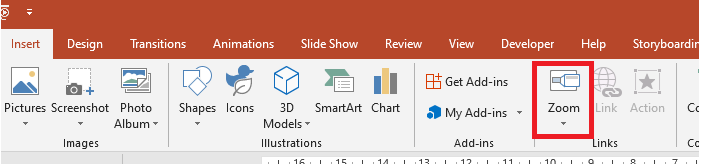
投影片縮放
投影片縮放可以讓您的簡報更具動態性,允許您自由在任意順序的投影片之間切換,而不打斷簡報的流程。投影片縮放非常適合節數不多的短篇簡報,但在其他簡報情境中亦可使用。
投影片縮放協助您深入多項資訊,同時彷彿仍置於同一畫布上。

對於投影片縮放物件,Aspose.Slides 提供 ZoomImageType 列舉、IZoomFrame 介面,以及 IShapeCollection 介面下的某些方法。
建立縮放框架
您可以這樣在投影片上加入縮放框架:
- 建立 Presentation 類別的實例。
- 建立您打算連結縮放框架的新投影片。
- 為已建立的投影片加入辨識文字與背景。
- 將縮放框架(包含對已建立投影片的參考)新增至第一張投影片。
- 將修改後的簡報寫入為 PPTX 檔案。
Presentation pres = new Presentation();
try {
    //將新投影片加入簡報
    ISlide slide2 = pres.getSlides().addEmptySlide(pres.getSlides().get_Item(0).getLayoutSlide());
    ISlide slide3 = pres.getSlides().addEmptySlide(pres.getSlides().get_Item(0).getLayoutSlide());

    // 為第二張投影片建立背景
    slide2.getBackground().setType(BackgroundType.OwnBackground);
    slide2.getBackground().getFillFormat().setFillType(FillType.Solid);
    slide2.getBackground().getFillFormat().getSolidFillColor().setColor(Color.cyan);

    // 為第二張投影片建立文字方塊
    IAutoShape autoshape = slide2.getShapes().addAutoShape(ShapeType.Rectangle, 100, 200, 500, 200);
    autoshape.getTextFrame().setText("Second Slide");

    // 為第三張投影片建立背景
    slide3.getBackground().setType(BackgroundType.OwnBackground);
    slide3.getBackground().getFillFormat().setFillType(FillType.Solid);
    slide3.getBackground().getFillFormat().getSolidFillColor().setColor(Color.darkGray);

    // 為第三張投影片建立文字方塊
    autoshape = slide3.getShapes().addAutoShape(ShapeType.Rectangle, 100, 200, 500, 200);
    autoshape.getTextFrame().setText("Trird Slide");

    //加入 ZoomFrame 物件
    pres.getSlides().get_Item(0).getShapes().addZoomFrame(20, 20, 250, 200, slide2);
    pres.getSlides().get_Item(0).getShapes().addZoomFrame(200, 250, 250, 200, slide3);

    // 儲存簡報
    pres.save("presentation.pptx", SaveFormat.Pptx);
} finally {
    if (pres != null) pres.dispose();
}
使用自訂圖像建立縮放框架
使用 Aspose.Slides for Java,您可以這樣以不同的投影片預覽圖建立縮放框架:
- 建立 Presentation 類別的實例。
- 建立您打算連結縮放框架的新投影片。
- 為該投影片加入辨識文字與背景。
- 透過將圖像加入與 Presentation 物件相關聯的 Images 集合,建立一個 IPPImage 物件,以作為框架的填充圖像。
- 將縮放框架(包含對已建立投影片的參考)新增至第一張投影片。
- 將修改後的簡報寫入為 PPTX 檔案。
Presentation pres = new Presentation();
try {
    //將新投影片加入簡報
    ISlide slide = pres.getSlides().addEmptySlide(pres.getSlides().get_Item(0).getLayoutSlide());

    // 為第二張投影片建立背景
    slide.getBackground().setType(BackgroundType.OwnBackground);
    slide.getBackground().getFillFormat().setFillType(FillType.Solid);
    slide.getBackground().getFillFormat().getSolidFillColor().setColor(Color.cyan);

    // 為第三張投影片建立文字方塊
    IAutoShape autoshape = slide.getShapes().addAutoShape(ShapeType.Rectangle, 100, 200, 500, 200);
    autoshape.getTextFrame().setText("Second Slide");

    // 為縮放物件建立新圖像
    IPPImage picture;
        IImage image = Images.fromFile("image.png");
        try {
            picture = pres.getImages().addImage(image);
        } finally {
            if (image != null) image.dispose();
        }
    //加入 ZoomFrame 物件
    pres.getSlides().get_Item(0).getShapes().addZoomFrame(20, 20, 300, 200, slide, picture);

    // 儲存簡報
    pres.save("presentation.pptx", SaveFormat.Pptx);
} catch(IOException e) {
} finally {
    if (pres != null) pres.dispose();
}
格式化縮放框架
在前面的章節中,我們示範了如何建立簡單的縮放框架。若要建立更複雜的縮放框架,必須變更簡易框架的格式。您可以對縮放框架套用多種格式選項。
您可以這樣在投影片上控制縮放框架的格式:
- 建立 Presentation 類別的實例。
- 建立您打算連結縮放框架的新投影片。
- 為已建立的投影片加入辨識文字與背景。
- 將縮放框架(包含對已建立投影片的參考)新增至第一張投影片。
- 透過將圖像加入與 Presentation 物件相關聯的 Images 集合,建立一個 IPPImage 物件,以作為框架的填充圖像。
- 為第一個縮放框架物件設定自訂圖像。
- 變更第二個縮放框架物件的線條格式。
- 移除第二個縮放框架物件圖像的背景。
- 將修改後的簡報寫入為 PPTX 檔案。
Presentation pres = new Presentation();
try {
    //將新投影片加入簡報
    ISlide slide2 = pres.getSlides().addEmptySlide(pres.getSlides().get_Item(0).getLayoutSlide());
    ISlide slide3 = pres.getSlides().addEmptySlide(pres.getSlides().get_Item(0).getLayoutSlide());

    // 為第二張投影片建立背景
    slide2.getBackground().setType(BackgroundType.OwnBackground);
    slide2.getBackground().getFillFormat().setFillType(FillType.Solid);
    slide2.getBackground().getFillFormat().getSolidFillColor().setColor(Color.cyan);

    // 為第二張投影片建立文字方塊
    IAutoShape autoshape = slide2.getShapes().addAutoShape(ShapeType.Rectangle, 100, 200, 500, 200);
    autoshape.getTextFrame().setText("Second Slide");

    // 為第三張投影片建立背景
    slide3.getBackground().setType(BackgroundType.OwnBackground);
    slide3.getBackground().getFillFormat().setFillType(FillType.Solid);
    slide3.getBackground().getFillFormat().getSolidFillColor().setColor(Color.darkGray);

    // 為第三張投影片建立文字方塊
    autoshape = slide3.getShapes().addAutoShape(ShapeType.Rectangle, 100, 200, 500, 200);
    autoshape.getTextFrame().setText("Trird Slide");

    //加入 ZoomFrame 物件
    IZoomFrame zoomFrame1 = pres.getSlides().get_Item(0).getShapes().addZoomFrame(20, 20, 250, 200, slide2);
    IZoomFrame zoomFrame2 = pres.getSlides().get_Item(0).getShapes().addZoomFrame(200, 250, 250, 200, slide3);

    // 為縮放物件建立新圖像
    IPPImage picture;
        IImage image = Images.fromFile("image.png");
        try {
            picture = pres.getImages().addImage(image);
        } finally {
            if (image != null) image.dispose();
        }
    // 為 zoomFrame1 物件設定自訂圖像
    zoomFrame1.setImage(picture);

    // 為 zoomFrame2 物件設定縮放框架格式
    zoomFrame2.getLineFormat().setWidth(5);
    zoomFrame2.getLineFormat().getFillFormat().setFillType(FillType.Solid);
    zoomFrame2.getLineFormat().getFillFormat().getSolidFillColor().setColor(Color.pink);
    zoomFrame2.getLineFormat().setDashStyle(LineDashStyle.DashDot);

    // 設定 zoomFrame2 物件不顯示背景
    zoomFrame2.setShowBackground(false);

    // 儲存簡報
    pres.save("presentation.pptx", SaveFormat.Pptx);
} catch(IOException e) {
} finally {
    if (pres != null) pres.dispose();
}
節縮放
節縮放是指向簡報中某個節的連結。您可以使用節縮放返回想特別強調的節,或用來突顯簡報各部分之間的關聯。
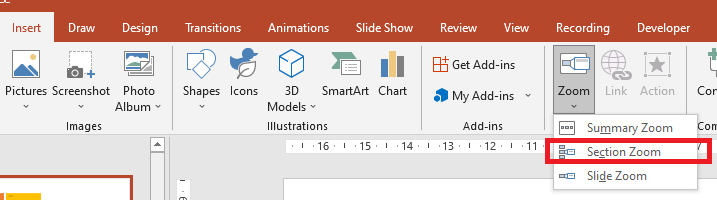
對於節縮放物件,Aspose.Slides 提供 ISectionZoomFrame 介面,以及 IShapeCollection 介面下的某些方法。
建立節縮放框架
您可以這樣在投影片上加入節縮放框架:
- 建立 Presentation 類別的實例。
- 建立新投影片。
- 為已建立的投影片加入辨識背景。
- 建立您打算連結縮放框架的新節。
- 將節縮放框架(包含對已建立節的參考)新增至第一張投影片。
- 將修改後的簡報寫入為 PPTX 檔案。
Presentation pres = new Presentation();
try {
    //將新投影片加入簡報
    ISlide slide = pres.getSlides().addEmptySlide(pres.getSlides().get_Item(0).getLayoutSlide());
    slide.getBackground().getFillFormat().setFillType(FillType.Solid);
    slide.getBackground().getFillFormat().getSolidFillColor().setColor(Color.yellow);
    slide.getBackground().setType(BackgroundType.OwnBackground);

    // 新增一個節至簡報
    pres.getSections().addSection("Section 1", slide);

    // 新增 SectionZoomFrame 物件
    ISectionZoomFrame sectionZoomFrame = pres.getSlides().get_Item(0).getShapes().addSectionZoomFrame(20, 20, 300, 200, pres.getSections().get_Item(1));

    // 儲存簡報
    pres.save("presentation.pptx", SaveFormat.Pptx);
} finally {
    if (pres != null) pres.dispose();
}
使用自訂圖像建立節縮放框架
使用 Aspose.Slides for Java,您可以這樣以不同的投影片預覽圖建立節縮放框架:
- 建立 Presentation 類別的實例。
- 建立新投影片。
- 為已建立的投影片加入辨識背景。
- 建立您打算連結縮放框架的新節。
- 透過將圖像加入與 Presentation 物件相關聯的 Images 集合,建立一個 IPPImage 物件,以作為框架的填充圖像。
- 將節縮放框架(包含對已建立節的參考)新增至第一張投影片。
- 將修改後的簡報寫入為 PPTX 檔案。
Presentation pres = new Presentation();
try {
    //將新投影片加入簡報
    ISlide slide = pres.getSlides().addEmptySlide(pres.getSlides().get_Item(0).getLayoutSlide());
    slide.getBackground().getFillFormat().setFillType(FillType.Solid);
    slide.getBackground().getFillFormat().getSolidFillColor().setColor(Color.yellow);
    slide.getBackground().setType(BackgroundType.OwnBackground);

    // 新增一個節至簡報
    pres.getSections().addSection("Section 1", slide);

    // 為縮放物件建立新圖像
    IPPImage picture;
    IImage image = Images.fromFile("image.png");
    try {
        picture = pres.getImages().addImage(image);
    } finally {
        if (image != null) image.dispose();
    }

    // 新增 SectionZoomFrame 物件
    ISectionZoomFrame sectionZoomFrame = pres.getSlides().get_Item(0).getShapes().addSectionZoomFrame(20, 20, 300, 200, pres.getSections().get_Item(1), picture);

    // 儲存簡報
    pres.save("presentation.pptx", SaveFormat.Pptx);
} catch(IOException e) {
} finally {
    if (pres != null) pres.dispose();
}
格式化節縮放框架
若要建立更複雜的節縮放框架,必須變更簡易框架的格式。您可以對節縮放框架套用多種格式選項。
您可以這樣在投影片上控制節縮放框架的格式:
- 建立 Presentation 類別的實例。
- 建立新投影片。
- 為已建立的投影片加入辨識背景。
- 建立您打算連結縮放框架的新節。
- 將節縮放框架(包含對已建立節的參考)新增至第一張投影片。
- 變更已建立的節縮放物件的大小與位置。
- 透過將圖像加入與 Presentation 物件相關聯的 Images 集合,建立一個 IPPImage 物件,以作為框架的填充圖像。
- 為已建立的節縮放框架物件設定自訂圖像。
- 設定 返回連結節的原始投影片 的功能。
- 移除節縮放框架物件圖像的背景。
- 變更第二個縮放框架物件的線條格式。
- 變更過渡持續時間。
- 將修改後的簡報寫入為 PPTX 檔案。
Presentation pres = new Presentation();
try {
    //將新投影片加入簡報
    ISlide slide = pres.getSlides().addEmptySlide(pres.getSlides().get_Item(0).getLayoutSlide());
    slide.getBackground().getFillFormat().setFillType(FillType.Solid);
    slide.getBackground().getFillFormat().getSolidFillColor().setColor(Color.yellow);
    slide.getBackground().setType(BackgroundType.OwnBackground);

    // 新增一個節至簡報
    pres.getSections().addSection("Section 1", slide);

    // 新增 SectionZoomFrame 物件
    ISectionZoomFrame sectionZoomFrame = pres.getSlides().get_Item(0).getShapes().addSectionZoomFrame(20, 20, 300, 200, pres.getSections().get_Item(1));

    // SectionZoomFrame 的格式設定
    sectionZoomFrame.setX(100);
    sectionZoomFrame.setY(300);
    sectionZoomFrame.setWidth(100);
    sectionZoomFrame.setHeight(75);

    IPPImage picture;
    IImage image = Images.fromFile("image.png");
    try {
         picture = pres.getImages().addImage(image);
     } finally {
        if (image != null) image.dispose();
     }
    sectionZoomFrame.setImage(picture);

    sectionZoomFrame.setReturnToParent(true);
    sectionZoomFrame.setShowBackground(false);

    sectionZoomFrame.getLineFormat().getFillFormat().setFillType(FillType.Solid);
    sectionZoomFrame.getLineFormat().getFillFormat().getSolidFillColor().setColor(Color.gray);
    sectionZoomFrame.getLineFormat().setDashStyle(LineDashStyle.DashDot);
    sectionZoomFrame.getLineFormat().setWidth(2.5f);

    sectionZoomFrame.setTransitionDuration(1.5f);

    // 儲存簡報
    pres.save("presentation.pptx", SaveFormat.Pptx);
} catch(IOException e) {
} finally {
    if (pres != null) pres.dispose();
}
摘要縮放
摘要縮放就像一個登陸頁面,會一次顯示簡報的所有片段。簡報時,您可以使用縮放在簡報的任意位置之間跳轉,順序隨意。您可以發揮創意,快轉或重新檢視投影片,而不會中斷簡報的流程。
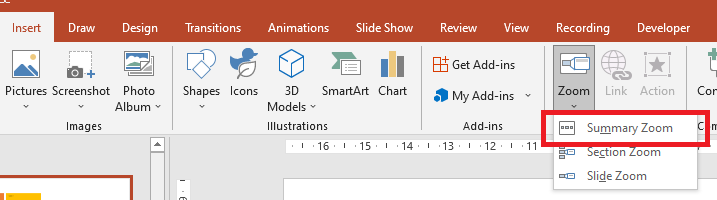
對於摘要縮放物件,Aspose.Slides 提供 ISummaryZoomFrame、ISummaryZoomSection 以及 ISummaryZoomSectionCollection 介面,並在 IShapeCollection 介面下提供相關方法。
建立摘要縮放
您可以這樣在投影片上加入摘要縮放框架:
- 建立 Presentation 類別的實例。
- 建立帶有辨識背景及新節的多張投影片。
- 將摘要縮放框架加入第一張投影片。
- 將修改後的簡報寫入為 PPTX 檔案。
Presentation pres = new Presentation();
try {
    //將新投影片加入簡報
    ISlide slide = pres.getSlides().addEmptySlide(pres.getSlides().get_Item(0).getLayoutSlide());
    slide.getBackground().getFillFormat().setFillType(FillType.Solid);
    slide.getBackground().getFillFormat().getSolidFillColor().setColor(Color.gray);
    slide.getBackground().setType(BackgroundType.OwnBackground);

    // 新增一個節至簡報
    pres.getSections().addSection("Section 1", slide);

    //將新投影片加入簡報
    slide = pres.getSlides().addEmptySlide(pres.getSlides().get_Item(0).getLayoutSlide());
    slide.getBackground().getFillFormat().setFillType(FillType.Solid);
    slide.getBackground().getFillFormat().getSolidFillColor().setColor(Color.cyan);
    slide.getBackground().setType(BackgroundType.OwnBackground);

    // 新增一個節至簡報
    pres.getSections().addSection("Section 2", slide);

    //將新投影片加入簡報
    slide = pres.getSlides().addEmptySlide(pres.getSlides().get_Item(0).getLayoutSlide());
    slide.getBackground().getFillFormat().setFillType(FillType.Solid);
    slide.getBackground().getFillFormat().getSolidFillColor().setColor(Color.magenta);
    slide.getBackground().setType(BackgroundType.OwnBackground);

    // 新增一個節至簡報
    pres.getSections().addSection("Section 3", slide);

    //將新投影片加入簡報
    slide = pres.getSlides().addEmptySlide(pres.getSlides().get_Item(0).getLayoutSlide());
    slide.getBackground().getFillFormat().setFillType(FillType.Solid);
    slide.getBackground().getFillFormat().getSolidFillColor().setColor(Color.green);
    slide.getBackground().setType(BackgroundType.OwnBackground);

    // 新增一個節至簡報
    pres.getSections().addSection("Section 4", slide);

    // 新增 SummaryZoomFrame 物件
    ISummaryZoomFrame summaryZoomFrame = pres.getSlides().get_Item(0).getShapes().addSummaryZoomFrame(150, 50, 300, 200);

    // 儲存簡報
    pres.save("presentation.pptx", SaveFormat.Pptx);
} finally {
    if (pres != null) pres.dispose();
}
新增與移除摘要縮放節
所有摘要縮放框架中的節都是由 ISummaryZoomSection 物件表示,這些物件儲存在 ISummaryZoomSectionCollection 物件中。您可以透過 ISummaryZoomSectionCollection 介面這樣新增或移除摘要縮放節物件:
- 建立 Presentation 類別的實例。
- 建立帶有辨識背景及新節的多張投影片。
- 將摘要縮放框架加入第一張投影片。
- 在簡報中加入新投影片與新節。
- 將建立的節加入摘要縮放框架。
- 從摘要縮放框架中移除第一個節。
- 將修改後的簡報寫入為 PPTX 檔案。
Presentation pres = new Presentation();
try {
    //將新投影片加入簡報
    ISlide slide = pres.getSlides().addEmptySlide(pres.getSlides().get_Item(0).getLayoutSlide());
    slide.getBackground().getFillFormat().setFillType(FillType.Solid);
    slide.getBackground().getFillFormat().getSolidFillColor().setColor(Color.gray);
    slide.getBackground().setType(BackgroundType.OwnBackground);

    // 新增一個節至簡報
    pres.getSections().addSection("Section 1", slide);

    //將新投影片加入簡報
    slide = pres.getSlides().addEmptySlide(pres.getSlides().get_Item(0).getLayoutSlide());
    slide.getBackground().getFillFormat().setFillType(FillType.Solid);
    slide.getBackground().getFillFormat().getSolidFillColor().setColor(Color.cyan);
    slide.getBackground().setType(BackgroundType.OwnBackground);

    // 新增一個節至簡報
    pres.getSections().addSection("Section 2", slide);

    // 新增 SummaryZoomFrame 物件
    ISummaryZoomFrame summaryZoomFrame = pres.getSlides().get_Item(0).getShapes().addSummaryZoomFrame(150, 50, 300, 200);

    //將新投影片加入簡報
    slide = pres.getSlides().addEmptySlide(pres.getSlides().get_Item(0).getLayoutSlide());
    slide.getBackground().getFillFormat().setFillType(FillType.Solid);
    slide.getBackground().getFillFormat().getSolidFillColor().setColor(Color.magenta);
    slide.getBackground().setType(BackgroundType.OwnBackground);

    // 新增一個節至簡報
    ISection section3 = pres.getSections().addSection("Section 3", slide);

    // 新增節至 Summary Zoom
    summaryZoomFrame.getSummaryZoomCollection().addSummaryZoomSection(section3);

    // 從 Summary Zoom 移除節
    summaryZoomFrame.getSummaryZoomCollection().removeSummaryZoomSection(pres.getSections().get_Item(1));

    // 儲存簡報
    pres.save("presentation.pptx", SaveFormat.Pptx);
} finally {
    if (pres != null) pres.dispose();
}
格式化摘要縮放節
若要建立更複雜的摘要縮放節物件,必須變更簡易框架的格式。您可以對摘要縮放節物件套用多種格式選項。
您可以這樣在摘要縮放框架中控制摘要縮放節物件的格式:
- 建立 Presentation 類別的實例。
- 建立帶有辨識背景及新節的多張投影片。
- 將摘要縮放框架加入第一張投影片。
- 從
ISummaryZoomSectionCollection取得第一個摘要縮放節物件。 - 透過將圖像加入與 Presentation 物件相關聯的 images 集合,建立一個 IPPImage 物件,以作為框架的填充圖像。
- 為建立的節縮放框架物件設定自訂圖像。
- 設定 返回連結節的原始投影片 的功能。
- 變更第二個縮放框架物件的線條格式。
- 變更過渡持續時間。
- 將修改後的簡報寫入為 PPTX 檔案。
Presentation pres = new Presentation();
try {
    //將新投影片加入簡報
    ISlide slide = pres.getSlides().addEmptySlide(pres.getSlides().get_Item(0).getLayoutSlide());
    slide.getBackground().getFillFormat().setFillType(FillType.Solid);
    slide.getBackground().getFillFormat().getSolidFillColor().setColor(Color.gray);
    slide.getBackground().setType(BackgroundType.OwnBackground);

    // 新增一個節至簡報
    pres.getSections().addSection("Section 1", slide);

    //將新投影片加入簡報
    slide = pres.getSlides().addEmptySlide(pres.getSlides().get_Item(0).getLayoutSlide());
    slide.getBackground().getFillFormat().setFillType(FillType.Solid);
    slide.getBackground().getFillFormat().getSolidFillColor().setColor(Color.cyan);
    slide.getBackground().setType(BackgroundType.OwnBackground);

    // 新增一個節至簡報
    pres.getSections().addSection("Section 2", slide);

    // 新增 SummaryZoomFrame 物件
    ISummaryZoomFrame summaryZoomFrame = pres.getSlides().get_Item(0).getShapes().addSummaryZoomFrame(150, 50, 300, 200);

    // 取得第一個 SummaryZoomSection 物件
    ISummaryZoomSection summarySection = summaryZoomFrame.getSummaryZoomCollection().get_Item(0);

    // SummaryZoomSection 物件的格式設定
    IPPImage picture;
    IImage image = Images.fromFile("image.png");
    try {
    picture = pres.getImages().addImage(picture);
    } finally {
          if (image != null) image.dispose();
    }
    summarySection.setImage(picture);

    summarySection.setReturnToParent(false);

    summarySection.getLineFormat().getFillFormat().setFillType(FillType.Solid);
    summarySection.getLineFormat().getFillFormat().getSolidFillColor().setColor(Color.black);
    summarySection.getLineFormat().setDashStyle(LineDashStyle.DashDot);
    summarySection.getLineFormat().setWidth(1.5f);

    summarySection.setTransitionDuration(1.5f);

    // 儲存簡報
    pres.save("presentation.pptx", SaveFormat.Pptx);
} catch(IOException e) {
} finally {
    if (pres != null) pres.dispose();
}
常見問題
顯示目標後,我能控制返回「父」投影片嗎?
是的。 Zoom frame 或 section 具備 ReturnToParent 行為,啟用後會在觀看者瀏覽完目標內容後返回原始投影片。
我可以調整縮放過渡的「速度」或持續時間嗎?
是的。Zoom 支援設定 TransitionDuration,讓您控制跳轉動畫的長度。
一個簡報能包含多少個縮放物件有上限嗎?
官方文件未列出硬性 API 限制。實際上限取決於簡報的整體複雜度與觀賞者的效能。您可以加入許多縮放框架,但仍需考量檔案大小與渲染時間。