
Quản lý Slide Master trong bài thuyết trình PHP
Tổng quan
Một slide master xác định các cài đặt thiết kế chung cho một nhóm slide. Nó có thể chứa các hình dạng chung, logo, nền, kiểu văn bản, cài đặt giao diện và cài đặt chân trang. Trong PowerPoint, chỉnh sửa slide master là cách thông thường để giữ cho bài thuyết trình nhất quán mà không phải lặp lại cùng một định dạng trên mỗi slide.
Aspose.Slides for PHP via Java hỗ trợ cùng mô hình. Một bài thuyết trình có thể chứa một hoặc nhiều master slide, và mỗi master slide có thể chứa một số layout slide. Các slide bình thường thường không tham chiếu trực tiếp tới master slide. Thay vào đó, một slide bình thường sử dụng một layout slide, và layout slide đó thuộc về một master slide.
Cấu trúc là:
- Slide master - xác định thiết kế và giao diện chung.
- Layout slide - xác định bố trí cụ thể của các placeholder và định dạng cấp layout.
- Normal slide - chứa nội dung thực tế của bài thuyết trình và sử dụng một layout slide.
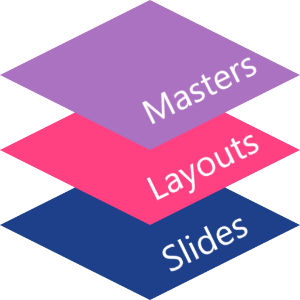
Trong Aspose.Slides, một slide master được biểu diễn bằng lớp MasterSlide . Tất cả các master slide trong một bài thuyết trình có thể truy cập thông qua phương thức Presentation.getMasters , phương thức này trả về một đối tượng MasterSlideCollection .
Inheritance
Khi cùng một thuộc tính được định nghĩa ở nhiều mức độ, mức độ cụ thể hơn sẽ thắng. Ví dụ, nếu một master slide và một layout slide đều định nghĩa nền, các slide dựa trên layout đó sẽ sử dụng nền của layout. Để biết thêm thông tin về layout slide, xem Áp dụng hoặc Thay đổi Layout Slide .Truy cập Slide Masters
Trong PowerPoint, bạn có thể mở chế độ xem Slide Master từ View > Slide Master.
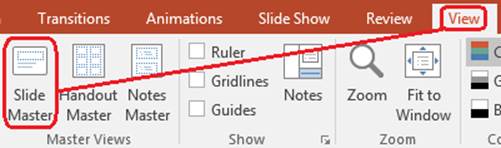
Trong Aspose.Slides, sử dụng phương thức getMasters để truy cập master slide:
$presentation = new Presentation("presentation.pptx");
try {
    $firstMasterSlide = $presentation->getMasters()->get_Item(0);
    $masterSlideCount = $presentation->getMasters()->size();
    $firstMasterLayoutSlideCount = $firstMasterSlide->getLayoutSlides()->size();

    echo "Master slides: " . $masterSlideCount . PHP_EOL;
    echo "Layouts in the first master: " . $firstMasterLayoutSlideCount . PHP_EOL;
} finally {
    $presentation->dispose();
}
Bạn cũng có thể lấy master slide được sử dụng bởi một slide bình thường thông qua layout của nó:
$presentation = new Presentation("presentation.pptx");
try {
    $slide = $presentation->getSlides()->get_Item(0);
    $layoutSlide = $slide->getLayoutSlide();
    $masterSlide = $layoutSlide->getMasterSlide();
    $masterSlideName = $masterSlide->getName();

    echo $masterSlideName . PHP_EOL;
} finally {
    $presentation->dispose();
}
Nội dung của Slide Master
Một master slide là một đối tượng giống slide. Nó kế thừa từ BaseSlide , vì vậy nó cung cấp nhiều thuộc tính slide giống như slide bình thường và layout. Các thành viên đặc thù của master được liệt kê trên trang API MasterSlide .
Các thành viên master slide thường được sử dụng bao gồm:
| Thành viên | Mục đích |
|---|---|
getBackground |
Đặt nền slide ở mức master. |
getShapes |
Lưu trữ các hình dạng đặt trên master, chẳng hạn như logo, khung ảnh và văn bản chung. |
getLayoutSlides |
Lưu trữ các layout slide thuộc về master. |
getThemeManager |
Cung cấp quyền truy cập vào các API chủ đề master. |
getHeaderFooterManager |
Kiểm soát đầu trang, chân trang, ngày và số slide cho master và các layout con. |
getDependingSlides |
Trả về các slide bình thường phụ thuộc vào master thông qua layout của chúng. |
Thêm Hình Ảnh vào Slide Master
Khi bạn thêm một hình ảnh vào master slide, nó sẽ xuất hiện trên các slide sử dụng layout từ master đó. Điều này hữu ích cho logo, watermark, dải trang trí và các yếu tố hình ảnh lặp lại khác.
Ví dụ sau thêm một logo vào master slide đầu tiên:
$presentation = new Presentation("presentation.pptx");
try {
    $masterSlide = $presentation->getMasters()->get_Item(0);
    $logoImage = Images::fromFile("logo.png");
    try {
        $presentationImage = $presentation->getImages()->addImage($logoImage);
    } finally {
        $logoImage->dispose();
    }

    $masterSlide->getShapes()->addPictureFrame(
        ShapeType::Rectangle,
        20,
        20,
        80,
        80,
        $presentationImage
    );

    $presentation->save("presentation-with-logo.pptx", SaveFormat::Pptx);
} finally {
    $presentation->dispose();
}
Để biết thêm thông tin về khung ảnh, xem Khung Hình .
Kiểm Soát Khả Năng Hiển Thị của Đồ Họa Master
Sử dụng BaseSlide::setShowMasterShapes để ẩn đồ họa master kế thừa, chẳng hạn như logo hoặc hình dạng trang trí, mà không xóa chúng khỏi master. Truyền false tới Slide::setShowMasterShapes trên slide cần bỏ qua các đồ họa đó và giữ true trên các slide cần hiển thị chúng.
Ví dụ tự chứa sau tạo một dải trang trí màu xanh trên master và hai slide dùng cùng một layout trống. Dải này hiển thị trên slide đầu tiên và ẩn trên slide thứ hai. Không cần bất kỳ file bài thuyết trình hay hình ảnh đầu vào nào.
use aspose\slides\FillType;
use aspose\slides\Presentation;
use aspose\slides\SaveFormat;
use aspose\slides\ShapeType;
use aspose\slides\SlideLayoutType;

$presentation = new Presentation();
try {
    $masterSlide = $presentation->getMasters()->get_Item(0);
    $layoutSlide = $masterSlide->getLayoutSlides()->getByType(SlideLayoutType::Blank);
    $layoutSlide->setShowMasterShapes(true);

    $slideHeight = java_values($presentation->getSlideSize()->getSize()->getHeight());
    $band = $masterSlide->getShapes()->addAutoShape(ShapeType::Rectangle, 0, 0, 60, $slideHeight);
    $bandColor = new Java("java.awt.Color", 70, 130, 180);
    $band->getFillFormat()->setFillType(FillType::Solid);
    $band->getFillFormat()->getSolidFillColor()->setColor($bandColor);
    $band->getLineFormat()->getFillFormat()->setFillType(FillType::NoFill);

    $visibleSlide = $presentation->getSlides()->get_Item(0);
    $visibleSlide->setLayoutSlide($layoutSlide);
    $visibleSlide->getShapes()->clear();

    $hiddenSlide = $presentation->getSlides()->addEmptySlide($layoutSlide);

    $visibleSlide->setShowMasterShapes(true);
    $hiddenSlide->setShowMasterShapes(false);

    $presentation->save("master-graphics.pptx", SaveFormat::Pptx);
} finally {
    $presentation->dispose();
}
Ví dụ sử dụng layout Blank được cung cấp với một bài thuyết trình mới và loại bỏ các placeholder của slide ban đầu.
Chọn phạm vi của cài đặt
Một slide bình thường sử dụng master của nó thông qua Slide::getLayoutSlide và LayoutSlide::getMasterSlide . Đặt thuộc tính trên một slide riêng chỉ ảnh hưởng tới slide đó. Truyền false tới LayoutSlide::setShowMasterShapes sẽ ẩn đồ họa master cho các slide dùng layout chung đó, ngay cả khi cài đặt riêng của chúng là true. Để ẩn đồ họa chỉ trên một slide, thay đổi thuộc tính của slide và giữ nguyên layout chung.
Cài đặt này không được hỗ trợ như một điều khiển hiển thị trên chính master slide. Trên master, getShowMasterShapes luôn trả về false, và truyền true tới setShowMasterShapes sẽ gây ra ngoại lệ. Hãy áp dụng nó cho slide bình thường hoặc layout thay vì master.
Phân biệt đồ họa với nền
| Thao tác | Hiệu quả |
|---|---|
| Ẩn đồ họa master | Kiểm soát việc hiển thị các shape master kế thừa mà không xóa chúng hoặc thay đổi các shape của slide. |
| Thay đổi màu nền slide | Thay đổi màu, gradient hoặc hình ảnh nền. Đồ họa master là các shape riêng biệt và có thể vẫn hiển thị trên nền đó. Xem Nền Bài Thuyết Trình . |
| Xóa một shape khỏi master | Xóa shape nguồn chia sẻ, do đó không còn khả dụng cho bất kỳ slide nào sử dụng master đó. |
Làm việc với Placeholder
Placeholder thường được định nghĩa trên layout slide. Master slide cung cấp kiểu và giao diện chung mà các layout kế thừa, trong khi mỗi layout quyết định placeholder nào có sẵn và chúng được đặt ở đâu.
Trong PowerPoint, các lệnh placeholder có sẵn trong chế độ Slide Master view.
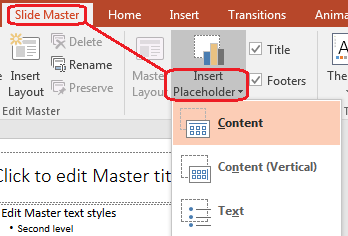
Để thêm placeholder mới với Aspose.Slides, làm việc với layout slide thuộc về master:
$presentation = new Presentation("presentation.pptx");
try {
    $masterSlide = $presentation->getMasters()->get_Item(0);
    $blankLayoutSlideName = "Custom Blank";
    $blankLayoutSlide = $masterSlide->getLayoutSlides()->add(
        SlideLayoutType::Blank,
        $blankLayoutSlideName
    );

    $blankLayoutSlide->getPlaceholderManager()->addTextPlaceholder(
        60,
        120,
        600,
        80
    );

    $presentation->getSlides()->addEmptySlide($blankLayoutSlide);
    $presentation->save("presentation-with-placeholder.pptx", SaveFormat::Pptx);
} finally {
    $presentation->dispose();
}
Bạn cũng có thể định dạng các shape placeholder đã tồn tại trên master slide. Ví dụ sau tìm placeholder tiêu đề và áp dụng màu gradient tuyến tính:
$presentation = new Presentation("presentation.pptx");
try {
    $masterSlide = $presentation->getMasters()->get_Item(0);
    $titlePlaceholder = findPlaceholder($masterSlide, PlaceholderType::Title);

    if (!java_is_null($titlePlaceholder)) {
        $redGradientColor = java("java.awt.Color")->RED;
        $purpleGradientColor = new Java("java.awt.Color", 128, 0, 128);

        $fillFormat = $titlePlaceholder->getFillFormat();
        $fillFormat->setFillType(FillType::Gradient);
        $gradientFormat = $fillFormat->getGradientFormat();
        $gradientFormat->setGradientShape(GradientShape::Linear);
        $gradientStops = $gradientFormat->getGradientStops();
        $gradientStops->add(0, $redGradientColor);
        $gradientStops->add(255, $purpleGradientColor);
    }

    $presentation->save("presentation-title-style.pptx", SaveFormat::Pptx);
} finally {
    $presentation->dispose();
}

function findPlaceholder($masterSlide, $placeholderType)
{
    $shapesCount = java_values($masterSlide->getShapes()->size());
    for ($shapeIndex = 0; $shapeIndex < $shapesCount; $shapeIndex++) {
        $shape = $masterSlide->getShapes()->get_Item($shapeIndex);
        $placeholder = $shape->getPlaceholder();

        if (!java_is_null($placeholder) && java_values($placeholder->getType()) == $placeholderType) {
            return $shape;
        }
    }

    return null;
}
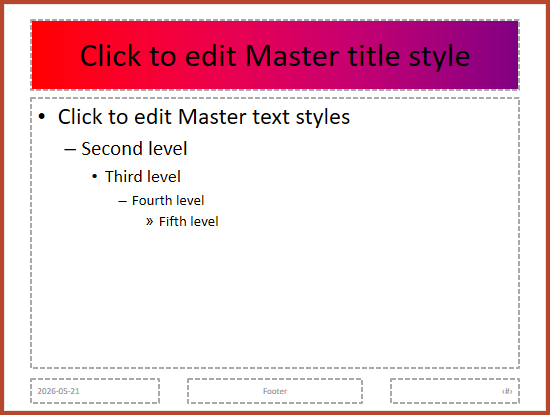
Để biết thêm các tùy chọn định dạng placeholder và văn bản, xem Đặt Văn bản Gợi ý trong Placeholder và Định dạng Văn bản .
Thay Đổi Nền Slide Master
Nền master được kế thừa bởi các layout và slide không ghi đè nó. Ví dụ sau đặt màu nền đặc cho master slide đầu tiên:
$presentation = new Presentation("presentation.pptx");
try {
    $masterSlide = $presentation->getMasters()->get_Item(0);
    $forestGreenColor = new Java("java.awt.Color", 34, 139, 34);

    $background = $masterSlide->getBackground();
    $background->setType(BackgroundType::OwnBackground);
    $fillFormat = $background->getFillFormat();
    $fillFormat->setFillType(FillType::Solid);
    $fillFormat->getSolidFillColor()->setColor($forestGreenColor);

    $presentation->save("presentation-master-background.pptx", SaveFormat::Pptx);
} finally {
    $presentation->dispose();
}
Để tham khảo các chủ đề liên quan, xem Nền Bài Thuyết Trình và Giao diện Bài Thuyết Trình .
Sao chép Slide Master sang Bài Thuyết Trình Khác
Sử dụng addClone từ MasterSlideCollection để sao chép một master slide vào một bài thuyết trình khác. Master được sao chép sau đó có thể được sử dụng bởi các layout và slide trong bài thuyết trình đích.
$sourcePresentation = new Presentation("source.pptx");
$destinationPresentation = new Presentation("destination.pptx");
try {
    $sourceMasterSlide = $sourcePresentation->getMasters()->get_Item(0);
    $clonedMasterSlide = $destinationPresentation->getMasters()->addClone($sourceMasterSlide);

    $destinationPresentation->save("destination-with-master.pptx", SaveFormat::Pptx);
} finally {
    $destinationPresentation->dispose();
    $sourcePresentation->dispose();
}
Nếu bạn cần sao chép các slide bình thường cùng với master của chúng, xem Sao chép Slide .
Thêm Nhiều Slide Masters
Một bài thuyết trình có thể chứa nhiều master slide. Điều này hữu ích khi các phần khác nhau yêu cầu thương hiệu, cấu trúc trang hoặc cài đặt giao diện khác nhau.
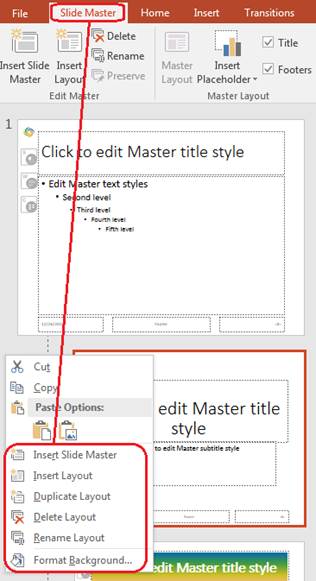
Ví dụ sau sao chép master mặc định, cho bản sao một nền khác, tạo một layout dưới master đã sao chép và thêm một slide mới dựa trên layout đó:
$presentation = new Presentation("presentation.pptx");
try {
    $defaultMasterSlide = $presentation->getMasters()->get_Item(0);
    $sectionMasterSlide = $presentation->getMasters()->addClone($defaultMasterSlide);
    $lightSteelBlueColor = new Java("java.awt.Color", 176, 196, 222);

    $background = $sectionMasterSlide->getBackground();
    $background->setType(BackgroundType::OwnBackground);
    $fillFormat = $background->getFillFormat();
    $fillFormat->setFillType(FillType::Solid);
    $fillFormat->getSolidFillColor()->setColor($lightSteelBlueColor);

    $sourceBlankLayout = $defaultMasterSlide->getLayoutSlides()->get_Item(0);
    $sectionBlankLayout = $sectionMasterSlide->getLayoutSlides()->addClone($sourceBlankLayout);

    $presentation->getSlides()->addEmptySlide($sectionBlankLayout);
    $presentation->save("presentation-with-multiple-masters.pptx", SaveFormat::Pptx);
} finally {
    $presentation->dispose();
}
So sánh Slide Masters
Slide master có thể được so sánh bằng phương thức equals kế thừa từ BaseSlide . So sánh kiểm tra cấu trúc và nội dung tĩnh, chẳng hạn như shape, văn bản, định dạng, hoạt ảnh và các cài đặt slide khác. Nó không so sánh các định danh duy nhất như ID slide, hoặc các giá trị placeholder động như ngày hiện tại.
$firstPresentation = new Presentation("first.pptx");
$secondPresentation = new Presentation("second.pptx");
try {
    $firstPresentationMasterCount = java_values($firstPresentation->getMasters()->size());
    $secondPresentationMasterCount = java_values($secondPresentation->getMasters()->size());

    for ($firstMasterIndex = 0; $firstMasterIndex < $firstPresentationMasterCount; $firstMasterIndex++) {
        for ($secondMasterIndex = 0; $secondMasterIndex < $secondPresentationMasterCount; $secondMasterIndex++) {
            $firstMasterSlide = $firstPresentation->getMasters()->get_Item($firstMasterIndex);
            $secondMasterSlide = $secondPresentation->getMasters()->get_Item($secondMasterIndex);
            $areMasterSlidesEqual = $firstMasterSlide->equals($secondMasterSlide);

            if ($areMasterSlidesEqual) {
                echo "first.pptx master #" . $firstMasterIndex .
                    " equals second.pptx master #" . $secondMasterIndex . PHP_EOL;
            }
        }
    }
} finally {
    $secondPresentation->dispose();
    $firstPresentation->dispose();
}
Để biết thêm thông tin, xem So sánh Slide Bài Thuyết Trình .
Đặt Slide Master View làm chế độ xem mặc định
Sử dụng phương thức setLastView trên ViewProperties để điều khiển chế độ xem mà PowerPoint mở đầu tiên. Ví dụ sau mở bài thuyết trình ở chế độ Slide Master view:
$presentation = new Presentation("presentation.pptx");
try {
    $presentation->getViewProperties()->setLastView(ViewType::SlideMasterView);
    $presentation->save("presentation-master-view.pptx", SaveFormat::Pptx);
} finally {
    $presentation->dispose();
}
Đối với các cài đặt hiển thị khác, xem Lưu Bài Thuyết Trình .
Xóa các Master Slide Không được Sử dụng
Các bài thuyết trình đôi khi chứa các master slide không còn được bất kỳ slide bình thường nào sử dụng. Xóa các master không sử dụng có thể giảm kích thước file và đơn giản hoá việc bảo trì mẫu.
Sử dụng removeUnused từ MasterSlideCollection để xóa các master không sử dụng khỏi bộ sưu tập getMasters :
$presentation = new Presentation("presentation.pptx");
try {
    $presentation->getMasters()->removeUnused(true);
    $presentation->save("presentation-clean.pptx", SaveFormat::Pptx);
} finally {
    $presentation->dispose();
}
Bạn cũng có thể dùng phương thức low-code removeUnusedMasterSlides từ lớp Compress :
$presentation = new Presentation("presentation.pptx");
try {
    Compress::removeUnusedMasterSlides($presentation);
    $presentation->save("presentation-clean.pptx", SaveFormat::Pptx);
} finally {
    $presentation->dispose();
}
Câu hỏi thường gặp
Sự khác nhau giữa slide master và layout slide là gì?
Slide master xác định các cài đặt thiết kế chung như giao diện, nền, hình dạng chung và kiểu chữ. Layout slide thuộc về một master slide và xác định một bố trí cụ thể của các placeholder. Slide bình thường sử dụng một layout slide, vì vậy nó kế thừa từ cả layout và master.
Một bài thuyết trình có thể chứa nhiều slide master không?
Có. Một bài thuyết trình có thể chứa nhiều slide master. Sử dụng nhiều master khi các phần khác nhau cần các hệ thống hình ảnh hoặc thương hiệu khác nhau.
Tôi nên thêm placeholder vào slide master hay layout slide?
Trong hầu hết các trường hợp, hãy thêm placeholder vào layout slide. Đặt các yếu tố hình ảnh chung và định dạng chung trên slide master, sau đó đặt các placeholder nội dung trên các layout mà slide bình thường sẽ sử dụng.
Tôi có thể xóa một slide master đang được sử dụng không?
Không. Một slide master có các slide phụ thuộc không thể bị xóa trực tiếp một cách an toàn. Đầu tiên chuyển những slide đó sang các layout dưới một master khác, hoặc sử dụng phương pháp dọn dẹp master không dùng để chỉ xóa các master không có trong sử dụng.