
Thêm Watermark vào Bản Trình Chiếu trong Python
Giới thiệu
Một watermark trong một bản trình chiếu là một dấu văn bản hoặc hình ảnh được sử dụng trên một slide hoặc trên toàn bộ các slide của bản trình chiếu. Thông thường, watermark được dùng để chỉ ra rằng bản trình chiếu là bản nháp (ví dụ, watermark “Draft”), rằng nó chứa thông tin mật (ví dụ, watermark “Confidential”), để chỉ định công ty nào sở hữu (ví dụ, watermark “Company Name”), để xác định tác giả của bản trình chiếu, v.v. Watermark giúp ngăn ngừa vi phạm bản quyền bằng cách chỉ ra rằng bản trình chiếu không nên được sao chép. Watermark được sử dụng trong cả định dạng trình chiếu PowerPoint và OpenOffice. Trong Aspose.Slides, bạn có thể thêm watermark vào các định dạng tệp PowerPoint PPT, PPTX và OpenOffice ODP.
In Aspose.Slides, there are various ways you can create watermarks in PowerPoint or OpenOffice documents and modify their design and behavior. The common aspect is that to add text watermarks, you should use the TextFrame class, and to add image watermarks, use the PictureFrame class or fill a watermark shape with an image. PictureFrame inherits from the Shape class, allowing you to use all the flexible settings of the shape object. Since TextFrame is not a shape and its settings are limited, it is wrapped in a Shape object.
Có hai cách để áp dụng watermark: vào một slide duy nhất hoặc vào tất cả các slide của bản trình chiếu. Slide Master được dùng để áp dụng watermark cho tất cả các slide — watermark được thêm vào Slide Master, thiết kế hoàn chỉnh ở đó, và được áp dụng cho mọi slide mà không ảnh hưởng đến quyền chỉnh sửa watermark trên các slide riêng lẻ.
Watermark thường được coi là không thể chỉnh sửa bởi người dùng khác. Để ngăn watermark (hoặc đúng hơn là shape cha của watermark) bị chỉnh sửa, Aspose.Slides cung cấp chức năng khóa shape. Một shape cụ thể có thể được khóa trên slide thường hoặc trên Slide Master. Khi shape watermark được khóa trên Slide Master, nó sẽ bị khóa trên tất cả các slide của bản trình chiếu.
Bạn có thể đặt tên cho watermark để trong tương lai, nếu muốn xóa nó, bạn có thể tìm thấy nó trong các shape của slide bằng tên.
Bạn có thể thiết kế watermark theo bất kỳ cách nào; tuy nhiên, thường có những đặc điểm chung trong watermark, như căn giữa, xoay, vị trí phía trước, v.v. Chúng tôi sẽ xem cách sử dụng chúng trong các ví dụ dưới đây.
Watermark Văn bản
Thêm Watermark Văn bản vào một Slide
Để thêm watermark dạng văn bản vào PPT, PPTX hoặc ODP, bạn có thể đầu tiên thêm một shape vào slide, sau đó thêm một text frame vào shape này. Text frame được biểu diễn bằng lớp TextFrame. Loại này không kế thừa từ Shape, lớp này có một bộ thuộc tính rộng để định vị watermark một cách linh hoạt. Do đó, đối tượng TextFrame được bọc trong một đối tượng AutoShape. Để thêm văn bản watermark vào shape, sử dụng phương thức addTextFrame như dưới đây.
import jpype
import asposeslides

if not jpype.isJVMStarted():
    jpype.startJVM()

from asposeslides.api import Presentation, ShapeType

watermark_text = "CONFIDENTIAL"
presentation = Presentation()
try:
    slide = presentation.getSlides().get_Item(0)
    watermark_shape = slide.getShapes().addAutoShape(ShapeType.Rectangle, 100, 100, 400, 40)
    watermark_frame = watermark_shape.addTextFrame(watermark_text)
finally:
    presentation.dispose()
Thêm Watermark Văn bản vào Bản Trình Chiếu
Nếu bạn muốn thêm watermark dạng văn bản vào toàn bộ bản trình chiếu (tức là tất cả các slide một lúc), hãy thêm nó vào MasterSlide. Phần còn lại của logic giống như khi thêm watermark vào một slide duy nhất — tạo một đối tượng AutoShape và sau đó thêm watermark vào nó bằng phương thức addTextFrame.
import jpype
import asposeslides

if not jpype.isJVMStarted():
    jpype.startJVM()

from asposeslides.api import Presentation, ShapeType

watermark_text = "CONFIDENTIAL"
presentation = Presentation()
try:
    master_slide = presentation.getMasters().get_Item(0)
    watermark_shape = master_slide.getShapes().addAutoShape(ShapeType.Rectangle, 100, 100, 400, 40)
    watermark_frame = watermark_shape.addTextFrame(watermark_text)
finally:
    presentation.dispose()
Đặt Độ Trong Suất Shape Watermark
Mặc định, hình chữ nhật được định dạng với màu nền và màu viền. Các dòng mã sau làm cho shape trong suốt.
import jpype
import asposeslides

if not jpype.isJVMStarted():
    jpype.startJVM()

from asposeslides.api import Presentation, ShapeType, FillType

presentation = Presentation()
try:
    slide = presentation.getSlides().get_Item(0)
    watermark_shape = slide.getShapes().addAutoShape(ShapeType.Rectangle, 100, 100, 400, 40)
    watermark_shape.getFillFormat().setFillType(FillType.NoFill)
    watermark_shape.getLineFormat().getFillFormat().setFillType(FillType.NoFill)
finally:
    presentation.dispose()
Đặt Phông Chữ cho Watermark Văn bản
Bạn có thể thay đổi phông chữ của watermark dạng văn bản như dưới đây.
import jpype
import asposeslides

if not jpype.isJVMStarted():
    jpype.startJVM()

from asposeslides.api import Presentation, ShapeType, FontData

presentation = Presentation()
try:
    slide = presentation.getSlides().get_Item(0)
    watermark_shape = slide.getShapes().addAutoShape(ShapeType.Rectangle, 100, 100, 400, 40)
    watermark_frame = watermark_shape.addTextFrame("CONFIDENTIAL")
    text_format = watermark_frame.getParagraphs().get_Item(0).getParagraphFormat().getDefaultPortionFormat()
    font = FontData("Arial")
    text_format.setLatinFont(font)
    text_format.setFontHeight(50)
finally:
    presentation.dispose()
Đặt Màu Văn Bản Watermark
Để đặt màu cho văn bản watermark, sử dụng đoạn mã này:
import jpype
import asposeslides

if not jpype.isJVMStarted():
    jpype.startJVM()

from asposeslides.api import Presentation, ShapeType, FillType
from java.awt import Color

presentation = Presentation()
try:
    slide = presentation.getSlides().get_Item(0)
    watermark_shape = slide.getShapes().addAutoShape(ShapeType.Rectangle, 100, 100, 400, 40)
    watermark_frame = watermark_shape.addTextFrame("CONFIDENTIAL")
    alpha, red, green, blue = 150, 200, 200, 200
    fill_format = watermark_frame.getParagraphs().get_Item(0).getParagraphFormat().getDefaultPortionFormat().getFillFormat()
    fill_format.setFillType(FillType.Solid)
    color = Color(red, green, blue, alpha)
    fill_format.getSolidFillColor().setColor(color)
finally:
    presentation.dispose()
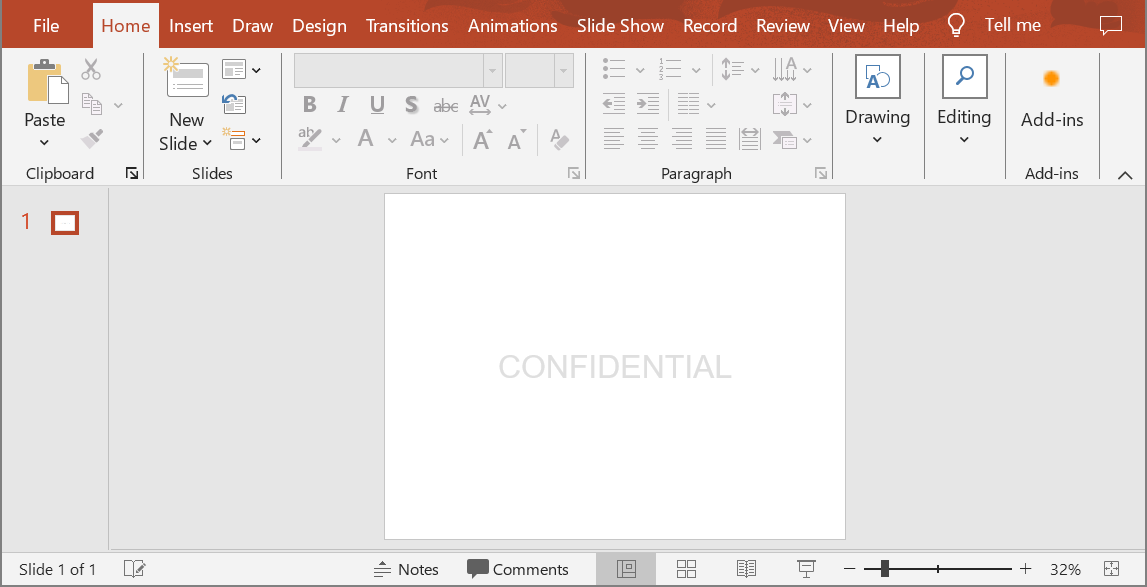
Căn Giữa Watermark Văn bản
Có thể căn giữa watermark trên một slide, và để làm điều đó, bạn có thể thực hiện như sau:
import jpype
import asposeslides

if not jpype.isJVMStarted():
    jpype.startJVM()

from asposeslides.api import Presentation, ShapeType

watermark_text = "CONFIDENTIAL"
presentation = Presentation()
try:
    slide = presentation.getSlides().get_Item(0)
    slide_size = presentation.getSlideSize().getSize()
    watermark_width = 400
    watermark_height = 40
    watermark_x = (slide_size.getWidth() - watermark_width) / 2
    watermark_y = (slide_size.getHeight() - watermark_height) / 2
    watermark_shape = slide.getShapes().addAutoShape(ShapeType.Rectangle, watermark_x, watermark_y, watermark_width, watermark_height)
    watermark_frame = watermark_shape.addTextFrame(watermark_text)
finally:
    presentation.dispose()
Hình ảnh dưới đây hiển thị kết quả cuối cùng.
Watermark Hình ảnh
Thêm Watermark Hình ảnh vào Bản Trình Chiếu
Để thêm watermark hình ảnh vào một slide của bản trình chiếu, bạn có thể thực hiện như sau:
import jpype
import asposeslides
from pathlib import Path

if not jpype.isJVMStarted():
    jpype.startJVM()

from asposeslides.api import Presentation, ShapeType, FillType, PictureFillMode

presentation = Presentation()
try:
    slide = presentation.getSlides().get_Item(0)
    watermark_shape = slide.getShapes().addAutoShape(ShapeType.Rectangle, 100, 100, 400, 40)
    image_data = Path("watermark.png").read_bytes()
    image = presentation.getImages().addImage(jpype.JArray(jpype.JByte)(image_data))
    watermark_shape.getFillFormat().setFillType(FillType.Picture)
    watermark_shape.getFillFormat().getPictureFillFormat().getPicture().setImage(image)
    watermark_shape.getFillFormat().getPictureFillFormat().setPictureFillMode(PictureFillMode.Stretch)
finally:
    presentation.dispose()
Khóa Watermark để Không Thể Chỉnh Sửa
Nếu cần ngăn watermark bị chỉnh sửa, hãy sử dụng phương thức AutoShape.getAutoShapeLock trên shape. Với thuộc tính này, bạn có thể bảo vệ shape khỏi việc được chọn, thay đổi kích thước, di chuyển, nhóm với các phần tử khác, khóa văn bản không cho chỉnh sửa, và nhiều hơn nữa:
import jpype
import asposeslides

if not jpype.isJVMStarted():
    jpype.startJVM()

from asposeslides.api import Presentation, ShapeType

presentation = Presentation()
try:
    slide = presentation.getSlides().get_Item(0)
    watermark_shape = slide.getShapes().addAutoShape(ShapeType.Rectangle, 100, 100, 400, 40)
    # Khóa shape watermark để không thể chỉnh sửa.
    watermark_shape.getAutoShapeLock().setSelectLocked(True)
    watermark_shape.getAutoShapeLock().setSizeLocked(True)
    watermark_shape.getAutoShapeLock().setTextLocked(True)
    watermark_shape.getAutoShapeLock().setPositionLocked(True)
    watermark_shape.getAutoShapeLock().setGroupingLocked(True)
finally:
    presentation.dispose()
Đưa Watermark lên Trước
Trong Aspose.Slides, thứ tự Z của các shape có thể được đặt qua phương thức ShapeCollection.reorder. Để làm điều này, bạn cần gọi phương thức này từ bộ sưu tập shape của slide và truyền tham chiếu shape cùng số thứ tự vào phương thức. Nhờ đó, có thể đưa một shape lên phía trước hoặc gửi nó về phía sau của slide. Tính năng này đặc biệt hữu ích nếu bạn cần đặt watermark phía trước bản trình chiếu:
import jpype
import asposeslides

if not jpype.isJVMStarted():
    jpype.startJVM()

from asposeslides.api import Presentation, ShapeType

presentation = Presentation()
try:
    slide = presentation.getSlides().get_Item(0)
    watermark_shape = slide.getShapes().addAutoShape(ShapeType.Rectangle, 100, 100, 400, 40)
    shape_count = slide.getShapes().size()
    slide.getShapes().reorder(shape_count - 1, watermark_shape)
finally:
    presentation.dispose()
Đặt Xoay Watermark
Dưới đây là ví dụ mã cách điều chỉnh góc xoay của watermark để nó nằm chéo qua slide:
import jpype
import asposeslides
import math

if not jpype.isJVMStarted():
    jpype.startJVM()

from asposeslides.api import Presentation, ShapeType

presentation = Presentation()
try:
    slide = presentation.getSlides().get_Item(0)
    watermark_shape = slide.getShapes().addAutoShape(ShapeType.Rectangle, 100, 100, 400, 40)
    slide_size = presentation.getSlideSize().getSize()
    diagonal_angle = math.atan((slide_size.getHeight() / slide_size.getWidth())) * 180 / math.pi
    watermark_shape.setRotation(diagonal_angle)
finally:
    presentation.dispose()
Đặt Tên cho Watermark
Aspose.Slides cho phép bạn đặt tên cho một shape. Bằng cách sử dụng tên shape, bạn có thể truy cập nó trong tương lai để chỉnh sửa hoặc xóa. Để đặt tên cho shape watermark, truyền nó vào phương thức Shape.setName:
import jpype
import asposeslides

if not jpype.isJVMStarted():
    jpype.startJVM()

from asposeslides.api import Presentation, ShapeType

presentation = Presentation()
try:
    slide = presentation.getSlides().get_Item(0)
    watermark_shape = slide.getShapes().addAutoShape(ShapeType.Rectangle, 100, 100, 400, 40)
    watermark_shape.setName("watermark")
finally:
    presentation.dispose()
Xóa Watermark
Để xóa shape watermark, sử dụng phương thức Shape.getName để tìm nó trong các shape của slide. Sau đó, truyền shape watermark vào phương thức ShapeCollection.remove:
import jpype
import asposeslides

if not jpype.isJVMStarted():
    jpype.startJVM()

from asposeslides.api import Presentation

presentation = Presentation("presentation.pptx")
try:
    slide = presentation.getSlides().get_Item(0)
    slide_shapes = slide.getShapes().toArray()
    for shape in slide_shapes:
        if shape.getName() == "watermark":
            slide.getShapes().remove(shape)
finally:
    presentation.dispose()
Câu Hỏi Thường Gặp
Watermark là gì và tại sao tôi nên dùng nó?
Watermark là một lớp chồng văn bản hoặc hình ảnh được áp dụng lên các slide để bảo vệ sở hữu trí tuệ, tăng nhận diện thương hiệu, hoặc ngăn việc sử dụng trái phép bản trình chiếu.
Có thể thêm watermark vào tất cả các slide trong một bản trình chiếu không?
Có, Aspose.Slides cho phép bạn chương trìnhmatically thêm watermark vào mọi slide của một bản trình chiếu. Bạn có thể duyệt qua tất cả các slide và áp dụng cài đặt watermark cho từng slide.
Làm sao tôi có thể điều chỉnh độ trong suốt của watermark?
Bạn có thể điều chỉnh độ trong suốt của watermark bằng cách thay đổi cài đặt fill (getFillFormat) của shape. Điều này giúp watermark nhẹ nhàng và không làm mất tập trung vào nội dung slide.
Các định dạng hình ảnh nào được hỗ trợ cho watermark?
Aspose.Slides hỗ trợ nhiều định dạng hình ảnh như PNG, JPEG, GIF, BMP, SVG và các định dạng khác.
Có thể tùy chỉnh phông chữ và kiểu dáng của watermark văn bản không?
Có, bạn có thể chọn bất kỳ phông chữ, kích thước và kiểu dáng nào để phù hợp với thiết kế bản trình chiếu và duy trì sự nhất quán thương hiệu.
Làm sao tôi thay đổi vị trí hoặc hướng của watermark?
Bạn có thể điều chỉnh vị trí và hướng của watermark bằng cách thay đổi các tọa độ, kích thước và thuộc tính xoay của shape thông qua mã.