
Python でプレゼンテーションに透かしを追加する
Introduction
透かしは、スライド上またはプレゼンテーション全体のスライドに使用されるテキストまたは画像のスタンプです。通常、透かしはプレゼンテーションがドラフトであること(例:「Draft」透かし)や機密情報を含むこと(例:「Confidential」透かし)を示したり、どの会社に属するか(例:「Company Name」透かし)を指定したり、プレゼンテーションの作成者を識別したりするために使用されます。透かしは、プレゼンテーションがコピーされるべきでないことを示すことで著作権侵害を防止するのに役立ちます。透かしは PowerPoint と OpenOffice のプレゼンテーション形式の両方で使用されます。Aspose.Slides では、PowerPoint の PPT、PPTX、OpenOffice の ODP ファイル形式に透かしを追加できます。
In Aspose.Slides, there are various ways you can create watermarks in PowerPoint or OpenOffice documents and modify their design and behavior. The common aspect is that to add text watermarks, you should use the TextFrame class, and to add image watermarks, use the PictureFrame class or fill a watermark shape with an image. PictureFrame inherits from the Shape class, allowing you to use all the flexible settings of the shape object. Since TextFrame is not a shape and its settings are limited, it is wrapped in a Shape object.
透かしの適用方法は 2 通りあります。単一のスライドに適用するか、すべてのプレゼンテーション スライドに適用するかです。スライド マスターは、すべてのスライドに透かしを適用するために使用されます。透かしはスライド マスターに追加され、そこで完全にデザインされ、個々のスライドでの透かしの編集権限に影響を与えることなくすべてのスライドに適用されます。
透かしは通常、他のユーザーが編集できないと見なされます。透かし(正確には透かしの親シェイプ)の編集を防止するために、Aspose.Slides はシェイプ ロック機能を提供します。特定のシェイプは通常のスライドまたはスライド マスター上でロックできます。スライド マスター上で透かしシェイプがロックされている場合、すべてのプレゼンテーション スライドでロックされます。
将来的に透かしを削除したい場合に備えて、スライドのシェイプ名で透かしに名前を付けておくことができます。
透かしは任意の方法でデザインできますが、一般的には中央揃え、回転、前面配置などの共通の特徴があります。以下の例でこれらの使用方法を検討します。
Text Watermark
Add a Text Watermark to a Slide
To add a text watermark in PPT, PPTX, or ODP, you can first add a shape to the slide, then add a text frame to this shape. The text frame is represented by the TextFrame class. This type does not inherit from Shape, which has a wide set of properties for positioning the watermark in a flexible way. Therefore, the TextFrame object is wrapped in an AutoShape object. To add watermark text to the shape, use the addTextFrame method as shown below.
import jpype
import asposeslides

if not jpype.isJVMStarted():
    jpype.startJVM()

from asposeslides.api import Presentation, ShapeType

watermark_text = "CONFIDENTIAL"
presentation = Presentation()
try:
    slide = presentation.getSlides().get_Item(0)
    watermark_shape = slide.getShapes().addAutoShape(ShapeType.Rectangle, 100, 100, 400, 40)
    watermark_frame = watermark_shape.addTextFrame(watermark_text)
finally:
    presentation.dispose()
Note
Add a Text Watermark to a Presentation
If you want to add a text watermark to the entire presentation (i.e., all slides at once), add it to the MasterSlide. The rest of the logic is the same as when adding a watermark to a single slide — create an AutoShape object and then add the watermark to it using the addTextFrame method.
import jpype
import asposeslides

if not jpype.isJVMStarted():
    jpype.startJVM()

from asposeslides.api import Presentation, ShapeType

watermark_text = "CONFIDENTIAL"
presentation = Presentation()
try:
    master_slide = presentation.getMasters().get_Item(0)
    watermark_shape = master_slide.getShapes().addAutoShape(ShapeType.Rectangle, 100, 100, 400, 40)
    watermark_frame = watermark_shape.addTextFrame(watermark_text)
finally:
    presentation.dispose()
Note
Set Watermark Shape Transparency
By default, the rectangle shape is styled with fill and line colors. The following lines of code make the shape transparent.
import jpype
import asposeslides

if not jpype.isJVMStarted():
    jpype.startJVM()

from asposeslides.api import Presentation, ShapeType, FillType

presentation = Presentation()
try:
    slide = presentation.getSlides().get_Item(0)
    watermark_shape = slide.getShapes().addAutoShape(ShapeType.Rectangle, 100, 100, 400, 40)
    watermark_shape.getFillFormat().setFillType(FillType.NoFill)
    watermark_shape.getLineFormat().getFillFormat().setFillType(FillType.NoFill)
finally:
    presentation.dispose()
Set the Font for a Text Watermark
You can change the font of the text watermark as shown below.
import jpype
import asposeslides

if not jpype.isJVMStarted():
    jpype.startJVM()

from asposeslides.api import Presentation, ShapeType, FontData

presentation = Presentation()
try:
    slide = presentation.getSlides().get_Item(0)
    watermark_shape = slide.getShapes().addAutoShape(ShapeType.Rectangle, 100, 100, 400, 40)
    watermark_frame = watermark_shape.addTextFrame("CONFIDENTIAL")
    text_format = watermark_frame.getParagraphs().get_Item(0).getParagraphFormat().getDefaultPortionFormat()
    font = FontData("Arial")
    text_format.setLatinFont(font)
    text_format.setFontHeight(50)
finally:
    presentation.dispose()
Set the Watermark Text Color
To set the color of the watermark text, use this code:
import jpype
import asposeslides

if not jpype.isJVMStarted():
    jpype.startJVM()

from asposeslides.api import Presentation, ShapeType, FillType
from java.awt import Color

presentation = Presentation()
try:
    slide = presentation.getSlides().get_Item(0)
    watermark_shape = slide.getShapes().addAutoShape(ShapeType.Rectangle, 100, 100, 400, 40)
    watermark_frame = watermark_shape.addTextFrame("CONFIDENTIAL")
    alpha, red, green, blue = 150, 200, 200, 200
    fill_format = watermark_frame.getParagraphs().get_Item(0).getParagraphFormat().getDefaultPortionFormat().getFillFormat()
    fill_format.setFillType(FillType.Solid)
    color = Color(red, green, blue, alpha)
    fill_format.getSolidFillColor().setColor(color)
finally:
    presentation.dispose()
Center a Text Watermark
It is possible to center the watermark on a slide, and for that, you can do the following:
import jpype
import asposeslides

if not jpype.isJVMStarted():
    jpype.startJVM()

from asposeslides.api import Presentation, ShapeType

watermark_text = "CONFIDENTIAL"
presentation = Presentation()
try:
    slide = presentation.getSlides().get_Item(0)
    slide_size = presentation.getSlideSize().getSize()
    watermark_width = 400
    watermark_height = 40
    watermark_x = (slide_size.getWidth() - watermark_width) / 2
    watermark_y = (slide_size.getHeight() - watermark_height) / 2
    watermark_shape = slide.getShapes().addAutoShape(ShapeType.Rectangle, watermark_x, watermark_y, watermark_width, watermark_height)
    watermark_frame = watermark_shape.addTextFrame(watermark_text)
finally:
    presentation.dispose()
The image below shows the final result.
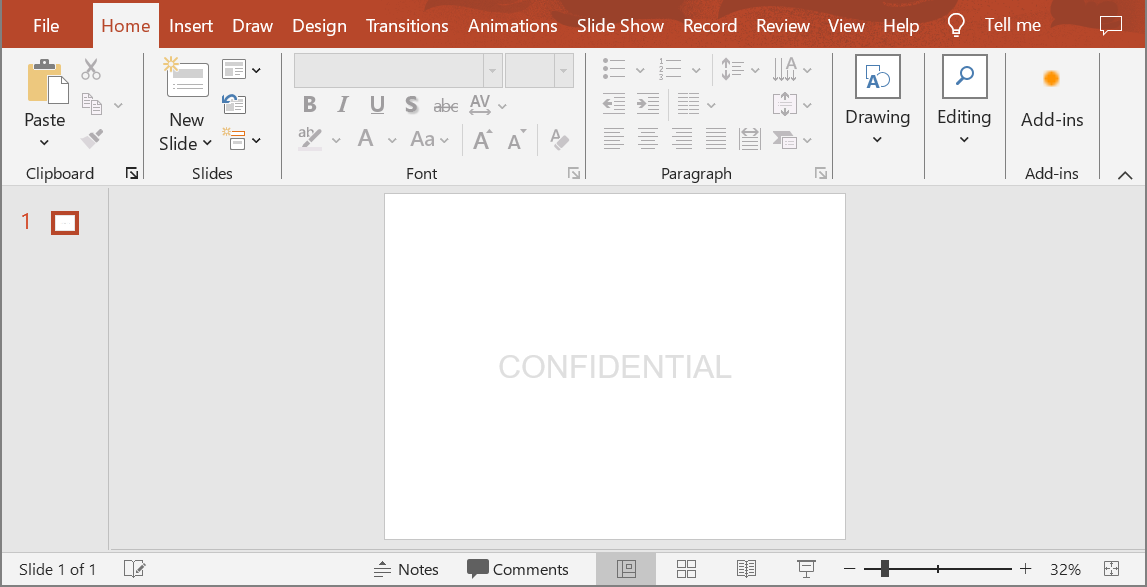
Image Watermark
Add an Image Watermark to a Presentation
To add an image watermark to a presentation slide, you can do the following:
import jpype
import asposeslides
from pathlib import Path

if not jpype.isJVMStarted():
    jpype.startJVM()

from asposeslides.api import Presentation, ShapeType, FillType, PictureFillMode

presentation = Presentation()
try:
    slide = presentation.getSlides().get_Item(0)
    watermark_shape = slide.getShapes().addAutoShape(ShapeType.Rectangle, 100, 100, 400, 40)
    image_data = Path("watermark.png").read_bytes()
    image = presentation.getImages().addImage(jpype.JArray(jpype.JByte)(image_data))
    watermark_shape.getFillFormat().setFillType(FillType.Picture)
    watermark_shape.getFillFormat().getPictureFillFormat().getPicture().setImage(image)
    watermark_shape.getFillFormat().getPictureFillFormat().setPictureFillMode(PictureFillMode.Stretch)
finally:
    presentation.dispose()
Lock a Watermark from Editing
If it is necessary to prevent a watermark from being edited, use the AutoShape.getAutoShapeLock method on the shape. With this property, you can protect the shape from being selected, resized, repositioned, grouped with other elements, lock its text from editing, and much more:
import jpype
import asposeslides

if not jpype.isJVMStarted():
    jpype.startJVM()

from asposeslides.api import Presentation, ShapeType

presentation = Presentation()
try:
    slide = presentation.getSlides().get_Item(0)
    watermark_shape = slide.getShapes().addAutoShape(ShapeType.Rectangle, 100, 100, 400, 40)
    # 透かしシェイプを変更からロックします。
    watermark_shape.getAutoShapeLock().setSelectLocked(True)
    watermark_shape.getAutoShapeLock().setSizeLocked(True)
    watermark_shape.getAutoShapeLock().setTextLocked(True)
    watermark_shape.getAutoShapeLock().setPositionLocked(True)
    watermark_shape.getAutoShapeLock().setGroupingLocked(True)
finally:
    presentation.dispose()
Bring a Watermark to Front
In Aspose.Slides, the Z-order of shapes can be set via the ShapeCollection.reorder method. To do this, you need to call this method from the slide’s shape collection and pass the shape reference and its order number into the method. This way, it is possible to bring a shape to the front or send it to the back of the slide. This feature is especially useful if you need to place a watermark in front of the presentation:
import jpype
import asposeslides

if not jpype.isJVMStarted():
    jpype.startJVM()

from asposeslides.api import Presentation, ShapeType

presentation = Presentation()
try:
    slide = presentation.getSlides().get_Item(0)
    watermark_shape = slide.getShapes().addAutoShape(ShapeType.Rectangle, 100, 100, 400, 40)
    shape_count = slide.getShapes().size()
    slide.getShapes().reorder(shape_count - 1, watermark_shape)
finally:
    presentation.dispose()
Set Watermark Rotation
Here is a code example of how to adjust the rotation of the watermark so that it is positioned diagonally across the slide:
import jpype
import asposeslides
import math

if not jpype.isJVMStarted():
    jpype.startJVM()

from asposeslides.api import Presentation, ShapeType

presentation = Presentation()
try:
    slide = presentation.getSlides().get_Item(0)
    watermark_shape = slide.getShapes().addAutoShape(ShapeType.Rectangle, 100, 100, 400, 40)
    slide_size = presentation.getSlideSize().getSize()
    diagonal_angle = math.atan((slide_size.getHeight() / slide_size.getWidth())) * 180 / math.pi
    watermark_shape.setRotation(diagonal_angle)
finally:
    presentation.dispose()
Set a Name for a Watermark
Aspose.Slides allows you to set the name of a shape. By using the shape name, you can access it in the future to modify or delete it. To set the name of the watermark shape, pass it to the Shape.setName method:
import jpype
import asposeslides

if not jpype.isJVMStarted():
    jpype.startJVM()

from asposeslides.api import Presentation, ShapeType

presentation = Presentation()
try:
    slide = presentation.getSlides().get_Item(0)
    watermark_shape = slide.getShapes().addAutoShape(ShapeType.Rectangle, 100, 100, 400, 40)
    watermark_shape.setName("watermark")
finally:
    presentation.dispose()
Remove a Watermark
To remove the watermark shape, use the Shape.getName method to find it in the slide shapes. Then, pass the watermark shape into the ShapeCollection.remove method:
import jpype
import asposeslides

if not jpype.isJVMStarted():
    jpype.startJVM()

from asposeslides.api import Presentation

presentation = Presentation("presentation.pptx")
try:
    slide = presentation.getSlides().get_Item(0)
    slide_shapes = slide.getShapes().toArray()
    for shape in slide_shapes:
        if shape.getName() == "watermark":
            slide.getShapes().remove(shape)
finally:
    presentation.dispose()
FAQ
What is a watermark and why should I use it?
A watermark is a text or image overlay applied to slides that helps protect intellectual property, enhance brand recognition, or prevent unauthorized use of presentations.
Can I add a watermark to all slides in a presentation?
Yes, Aspose.Slides allows you to programmatically add a watermark to every slide in a presentation. You can iterate through all the slides and apply the watermark settings individually.
How can I adjust the transparency of the watermark?
You can adjust the transparency of the watermark by modifying the fill settings (getFillFormat) of the shape. This ensures that the watermark is subtle and does not distract from the slide content.
What image formats are supported for watermarks?
Aspose.Slides supports various image formats such as PNG, JPEG, GIF, BMP, SVG, and more.
Can I customize the font and style of a text watermark?
Yes, you can choose any font, size, and style to match the design of your presentation and maintain brand consistency.
How do I change the position or orientation of a watermark?
You can adjust the position and orientation of the watermark programmatically by modifying the shape’s coordinates, size, and rotation properties.