
在 Android 上為簡報圖表新增趨勢線
概觀
本文說明如何使用 Aspose.Slides 在簡報圖表中加入趨勢線。它示範了如何建立圖表、將趨勢線加入圖表系列,並處理多種趨勢線類型,包括指數、線性、對數、移動平均、多項式與指數(power)趨勢線。
此外,還說明了如何透過插入線形圖案的方式為圖表加入自訂線,並提供一段簡短的 FAQ,說明 forward 與 backward 趨勢線投射值的意義,以及趨勢線在匯出為 PDF、SVG 或將投影片渲染為影像時是否會被保留。
新增趨勢線
使用ITrendlineCollection.add將趨勢線加入圖表系列,並使用TrendlineType選擇其類型。範例建立一個預設資料的叢集直條圖,並為其三個系列各加入兩條趨勢線。
指數趨勢線透過setDisplayEquation與setDisplayRSquaredValue隱藏方程式與 R 平方值;線性趨勢線則設定為紅色。對數趨勢線使用addTextFrameForOverriding添加自訂標籤。移動平均則設定setPeriod為三個資料點,並使用自訂的setTrendlineName。
多項式趨勢線的setOrder為三,並透過setForward向前延伸一個類別。指數(power)趨勢線則透過setBackward向後延伸一個類別。
import com.aspose.slides.*;
import android.graphics.Color;

Presentation presentation = new Presentation();
try {
    ISlide slide = presentation.getSlides().get_Item(0);

    IChart chart = slide.getShapes().addChart(ChartType.ClusteredColumn, 20, 20, 500, 400);

    IChartSeries firstSeries = chart.getChartData().getSeries().get_Item(0);

    ITrendline exponentialTrendline = firstSeries.getTrendLines().add(TrendlineType.Exponential);
    exponentialTrendline.setDisplayEquation(false);
    exponentialTrendline.setDisplayRSquaredValue(false);

    ITrendline linearTrendline = firstSeries.getTrendLines().add(TrendlineType.Linear);
    linearTrendline.getFormat().getLine().getFillFormat().setFillType(FillType.Solid);
    linearTrendline.getFormat().getLine().getFillFormat().getSolidFillColor().setColor(Color.RED);

    IChartSeries secondSeries = chart.getChartData().getSeries().get_Item(1);

    ITrendline logarithmicTrendline = secondSeries.getTrendLines().add(TrendlineType.Logarithmic);
    logarithmicTrendline.addTextFrameForOverriding("New log trend line");

    ITrendline movingAverageTrendline = secondSeries.getTrendLines().add(TrendlineType.MovingAverage);
    movingAverageTrendline.setPeriod((byte) 3);
    movingAverageTrendline.setTrendlineName("New TrendLine Name");

    IChartSeries thirdSeries = chart.getChartData().getSeries().get_Item(2);

    ITrendline polynomialTrendline = thirdSeries.getTrendLines().add(TrendlineType.Polynomial);
    polynomialTrendline.setForward(1);
    polynomialTrendline.setOrder((byte) 3);

    ITrendline powerTrendline = thirdSeries.getTrendLines().add(TrendlineType.Power);
    powerTrendline.setBackward(1);

    presentation.save("ChartTrendLines.pptx", SaveFormat.Pptx);
} finally {
    presentation.dispose();
}
設定趨勢線截距
使用setIntercept可將趨勢線在 X = 0 時的 Y 值固定。此設定支援線性、指數與多項式趨勢線。
舉例而言,生產成本模型可能需要在已知的固定成本 100 處開始,即使在非零產量的測量值顯示不同的基線。對於線性趨勢線,固定截距會使方程式 y = ax + b 受限為 b = 100;斜率則在此限制下對資料進行擬合。此操作不會僅僅將已擬合的線平移。坐標軸交叉設定控制圖表坐標軸的交點位置,而非擬合趨勢線的係數。
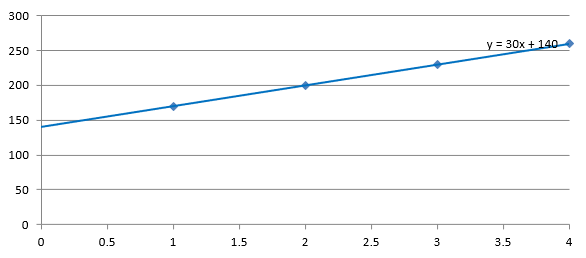
以下範例建立一個散佈(XY)圖,產量從 1 到 4,成本分別為 170、200、230 與 260。它先以預設自動截距儲存圖表,然後將截距設為 100 後再儲存第二個 PPTX。兩個檔案唯一的差異在於截距設定。趨勢線會顯示其方程式,且延伸至 X = 0。
import com.aspose.slides.*;

Presentation presentation = new Presentation();
try {
    ISlide slide = presentation.getSlides().get_Item(0);

    IChart chart = slide.getShapes().addChart(ChartType.ScatterWithMarkers, 20, 20, 480, 210);
    chart.setLegend(false);

    chart.getChartData().getSeries().clear();
    chart.getChartData().getCategories().clear();

    IChartDataWorkbook workbook = chart.getChartData().getChartDataWorkbook();
    workbook.clear(0);

    IChartDataCell nameCell = workbook.getCell(0, 0, 1, "Production cost");
    IChartSeries series = chart.getChartData().getSeries().add(nameCell, ChartType.ScatterWithMarkers);
    double[] costs = { 170, 200, 230, 260 };

    for (int i = 0; i < costs.length; i++) {
        IChartDataCell xCell = workbook.getCell(0, i + 1, 0, i + 1);
        IChartDataCell yCell = workbook.getCell(0, i + 1, 1, costs[i]);
        series.getDataPoints().addDataPointForScatterSeries(xCell, yCell);
    }

    ITrendline trendline = series.getTrendLines().add(TrendlineType.Linear);
    trendline.setDisplayEquation(true);
    trendline.setBackward(1);

    presentation.save("AutomaticIntercept.pptx", SaveFormat.Pptx);

    trendline.setIntercept(100);
    presentation.save("FixedIntercept.pptx", SaveFormat.Pptx);
} finally {
    presentation.dispose();
}
在自動計算下,這組資料產生 y = 30x + 140。將截距改為 100 後,約會得到 y = 43.33x + 100:零點的擬合值符合已知的基線,而線條不再通過每個資料點。
| 自動截距 | 截距固定為 100 |
|---|---|
 |
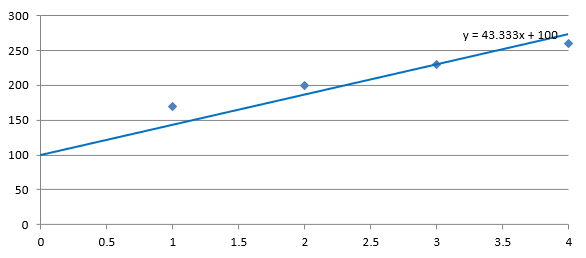 |
兩張圖片使用相同的資料與坐標軸比例。趨勢線皆延伸回 X = 0 以顯示其截距。
預設情況下,getIntercept 會回傳 Double.NaN,代表截距未指定,而非零。此時截距會依據資料自動計算。
新增自訂線
自訂線是一個繪製於圖表之上的圖形,而非由系列資料計算出的趨勢線。本範例使用IShapeCollection.addAutoShape在投影片上方的圖表上加入一條水平線。線條位置以投影片座標(點數)指定,從圖表左邊緣開始,位於圖表高度的中間。其寬度與圖表寬度相同。使用getLineFormat 可將線條設定為實心紅色。
import com.aspose.slides.*;
import android.graphics.Color;

Presentation presentation = new Presentation();
try {
    ISlide slide = presentation.getSlides().get_Item(0);

    IChart chart = slide.getShapes().addChart(ChartType.ClusteredColumn, 100, 100, 500, 400);

    IAutoShape line = slide.getShapes().addAutoShape(ShapeType.Line, chart.getX(), chart.getY() + chart.getHeight() / 2, chart.getWidth(), 0);
    line.getLineFormat().getFillFormat().setFillType(FillType.Solid);
    line.getLineFormat().getFillFormat().getSolidFillColor().setColor(Color.RED);

    presentation.save("AddCustomLines.pptx", SaveFormat.Pptx);
} finally {
    presentation.dispose();
}
常見問題
「forward」與「backward」對於趨勢線有何意義?
它們表示趨勢線向前或向後投射的長度:對於散佈(XY)圖而言以坐標軸單位計算;對於非散佈圖則以類別數計算。僅允許非負值。
在將簡報匯出為 PDF、SVG,或將投影片渲染為影像時,趨勢線會被保留嗎?
會。Aspose.Slides 可將簡報轉換為PDF或SVG,並將圖表渲染為影像;趨勢線作為圖表的一部份,在這些操作中會被保留。另外,也提供將圖表本身匯出為影像的方法。