
使用 Python 優化簡報中的影像管理
簡介
Aspose.Slides for Python via Java 提供多種處理影像的方式,每種方式都有不同的用途。您可以將影像儲存在簡報中、在圖片框中顯示、作為投影片背景使用、連結到外部影像、取代共享的影像資源,或將 SVG 內容轉換為可編輯的圖形。
本文聚焦於影像資源以及它們在簡報中的使用方式。若要了解套用於單一圖片框的裁切、透明度、效果、伸展及其他格式設定,請參閱圖片框。
了解影像模型
以下 API 概念密切相關,但不可互換:
- 簡報影像集合 儲存簡報使用的影像資源。使用ImageCollection.addImage 以加入影像資料並取得PPImage 資源。
- 圖片框 是在投影片、版面配置或母片上顯示影像的形狀。使用ShapeCollection.addPictureFrame 於投影片上放置影像資源。
- 投影片背景使用影像作為投影片填充的一部份,而非形狀。因此其行為不同於圖片框。
- PPImage.replaceImage 取代影像資源。如果多個簡報元素使用該資源,它們都會使用此取代後的資源。
- 將 SVG 轉換為圖形會產生可編輯的投影片圖形。轉換後,內容不再被視為單一圖片資源來管理。
因此,典型的工作流程為:將影像資料加入影像集合,取得PPImage,然後在一個或多個圖片框或填充中使用該資源。
新增嵌入式影像
若要插入本機影像,載入檔案、將其加入影像集合,並建立使用返迴的PPImage的圖片框。
import jpype
import asposeslides

if not jpype.isJVMStarted():
    jpype.startJVM()

from asposeslides.api import Images, Presentation, SaveFormat, ShapeType

presentation = Presentation()
try:
    source_image = Images.fromFile("photo.png")
    try:
        image = presentation.getImages().addImage(source_image)
    finally:
        source_image.dispose()

    slide = presentation.getSlides().get_Item(0)
    slide.getShapes().addPictureFrame(ShapeType.Rectangle, 20, 20, 320, 180, image)

    presentation.save("presentation.pptx", SaveFormat.Pptx)
finally:
    presentation.dispose()
以此方式加入的影像會嵌入於簡報中,因而產生的檔案不依賴原始影像檔仍然可用。
從網路新增影像
當影像可透過 HTTP 或 HTTPS 取得時,下載其位元組,將其加入簡報影像集合,並以與本機影像相同的方式使用返迴的影像資源。
import jpype
import asposeslides

if not jpype.isJVMStarted():
    jpype.startJVM()

from urllib.request import urlopen
from asposeslides.api import Presentation, SaveFormat, ShapeType

presentation = Presentation()
try:
    with urlopen("https://example.com/image.png", timeout=10) as response:
        image_data = response.read()

    image_bytes = jpype.JArray(jpype.JByte)(image_data)
    image = presentation.getImages().addImage(image_bytes)
    slide = presentation.getSlides().get_Item(0)
    slide.getShapes().addPictureFrame(ShapeType.Rectangle, 20, 20, 320, 180, image)

    presentation.save("presentation-from-web.pptx", SaveFormat.Pptx)
finally:
    presentation.dispose()
在長時間執行的應用程式中,應重複使用符合應用需求的 HTTP 用戶端或連線管理策略,而非不斷建立不必要的網路基礎設施。當來源不受信任時,亦需驗證遠端 URL、回應大小與內容類型。
在多張投影片間重複使用影像
如果需要多次使用相同的影像,請僅將其加入簡報一次,並在建立其他圖片框時重複使用返迴的PPImage。此做法可避免重複載入相同來源資料,並明確呈現共享影像資源與其使用之間的關係。
對於應自動顯示於多張投影片的圖形,例如公司標誌,建議將圖片框放置於投影片母片或版面配置上,而非在每張投影片中新增等效的形狀。
將影像作為投影片背景使用
背景影像是指派給投影片填充,而非以圖片框形狀加入。當圖片需要覆蓋整個投影片背景且不應被當作一般投影片物件操作時,此方式相當有用。
import jpype
import asposeslides

if not jpype.isJVMStarted():
    jpype.startJVM()

from asposeslides.api import BackgroundType, FillType, Images, PictureFillMode, Presentation, SaveFormat

presentation = Presentation()
try:
    slide = presentation.getSlides().get_Item(0)

    source_image = Images.fromFile("background.jpg")
    try:
        image = presentation.getImages().addImage(source_image)
    finally:
        source_image.dispose()

    slide.getBackground().setType(BackgroundType.OwnBackground)
    slide.getBackground().getFillFormat().setFillType(FillType.Picture)
    slide.getBackground().getFillFormat().getPictureFillFormat().setPictureFillMode(PictureFillMode.Stretch)
    slide.getBackground().getFillFormat().getPictureFillFormat().getPicture().setImage(image)

    presentation.save("background-image.pptx", SaveFormat.Pptx)
finally:
    presentation.dispose()
欲了解更多背景選項,包括母片與版面配置背景,請參閱簡報背景。
嵌入式影像與連結影像
嵌入式影像與連結影像在可移植性與檔案大小上有不同的權衡:
- 嵌入式影像:影像資料存於簡報內。簡報為自包含,但檔案大小會包含影像資料。
- 連結影像:簡報僅儲存外部影像的路徑或 URL。此方式可減小簡報大小,但在開啟或轉譯簡報時,必須能存取該外部資源。
可透過Picture.setLinkPathLong 指定外部路徑或 URL 來建立連結圖片,而非嵌入影像資料。
import jpype
import asposeslides

if not jpype.isJVMStarted():
    jpype.startJVM()

from asposeslides.api import Presentation, SaveFormat, ShapeType

presentation = Presentation()
try:
    slide = presentation.getSlides().get_Item(0)
    picture_frame = slide.getShapes().addPictureFrame(ShapeType.Rectangle, 20, 20, 320, 180, None)
    picture_frame.getPictureFormat().getPicture().setLinkPathLong("https://example.com/image.png")

    presentation.save("linked-image.pptx", SaveFormat.Pptx)
finally:
    presentation.dispose()
僅在部署環境能可靠存取外部資源時才使用連結影像。若簡報必須離線使用或在不同系統間移動,嵌入式影像通常較安全。
處理 SVG 影像
SVG 為向量格式,適用於圖示、圖表及其他需在放大縮小時保持細節的圖形。Aspose.Slides 同時支援將 SVG 作為影像資源以及可編輯投影片圖形的來源。
將 SVG 作為影像新增
建立SvgImage,將其加入影像集合,並將產生的影像資源放入圖片框中。
import jpype
import asposeslides

if not jpype.isJVMStarted():
    jpype.startJVM()

from pathlib import Path
from asposeslides.api import Presentation, SaveFormat, ShapeType, SvgImage

presentation = Presentation()
try:
    svg_content = Path("icon.svg").read_text(encoding="utf-8")
    svg_image = SvgImage(svg_content)

    image = presentation.getImages().addImage(svg_image)
    slide = presentation.getSlides().get_Item(0)
    slide.getShapes().addPictureFrame(ShapeType.Rectangle, 20, 20, 200, 200, image)

    presentation.save("svg-image.pptx", SaveFormat.Pptx)
finally:
    presentation.dispose()
具有外部資源的 SVG 檔案
SVG 可參照外部影像、樣式表或字型。針對此類情況,SvgImage 提供接受ExternalResourceResolver 與基礎 URI 的建構函式。解析器可將相對 URI 對映為允許的絕對 URI,並回傳請求資源的串流。
解析器於 Aspose.Slides 處理 SVG 時提供外部資源,但不會將 SVG 重新寫入為自包含文件。若 SVG 必須保持可移植性,請將所需資源嵌入 SVG 本身,例如使用 data: URI 來連結影像。
當 SVG 檔案來自不受信任的來源時,應限制解析器可存取的協定、檔案位置與主機。網路解析器亦應套用逾時、回應大小限制與內容驗證。
將 SVG 轉換為可編輯圖形
Aspose.Slides 能將 SVG 轉換為一組可編輯的投影片圖形,類似 PowerPoint 對應的指令。
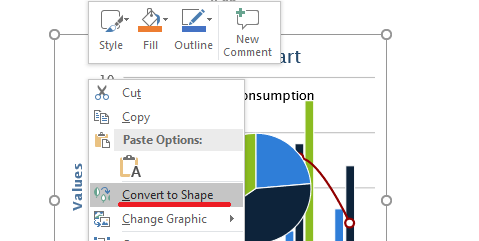
使用接受SvgImage的ShapeCollection.addGroupShape 重載來執行轉換。
import jpype
import asposeslides

if not jpype.isJVMStarted():
    jpype.startJVM()

from pathlib import Path
from asposeslides.api import Presentation, SaveFormat, SvgImage

presentation = Presentation()
try:
    svg_content = Path("diagram.svg").read_text(encoding="utf-8")
    svg_image = SvgImage(svg_content)

    slide_size = presentation.getSlideSize().getSize()
    slide = presentation.getSlides().get_Item(0)
    slide_width = jpype.JFloat(slide_size.getWidth())
    slide_height = jpype.JFloat(slide_size.getHeight())
    slide.getShapes().addGroupShape(svg_image, 0, 0, slide_width, slide_height)

    presentation.save("editable-svg-shapes.pptx", SaveFormat.Pptx)
finally:
    presentation.dispose()
當需要將各個向量元素編輯為 PowerPoint 圖形時,請使用 SVG 轉圖形的轉換。若 SVG 僅需顯示,保留為影像較為簡單,且可避免產生大量分離的圖形。
取代現有影像資源
當您想取代現有的影像資源時,使用PPImage.replaceImage。此功能對於共享圖形(例如標誌)特別有用。
import jpype
import asposeslides

if not jpype.isJVMStarted():
    jpype.startJVM()

from asposeslides.api import Images, Presentation, SaveFormat

presentation = Presentation("input.pptx")
try:
    image_to_replace = presentation.getImages().get_Item(0)

    replacement_image = Images.fromFile("new-logo.png")
    try:
        image_to_replace.replaceImage(replacement_image)
    finally:
        replacement_image.dispose()

    presentation.save("output.pptx", SaveFormat.Pptx)
finally:
    presentation.dispose()
若多個圖片框、背景、母片或版面配置使用相同的影像資源,取代該資源會同時更新所有使用處。若僅需變更單一圖片框,請為該框指定不同的影像,而非取代共享資源。
PPImage.replaceImage 亦提供接受位元組陣列或其他PPImage的重載。
實用影像管理指引
控制簡報大小
大型點陣圖會使簡報變得過大。請使用符合預定顯示尺寸的來源影像,盡可能重複使用共享影像資源,並避免嵌入同一全解析度圖形的重複副本。
對於已放入圖片框的點陣圖,PictureFillFormat.compressImage 可根據所選的解析度與裁切設定減少影像資料。這屬於圖片框處理而非影像集合管理,相關的格式化操作請參閱圖片框。
在嵌入與連結內容之間做選擇
嵌入式會使簡報具可移植性,因為所有必需的影像資料隨檔案一起攜帶。連結可減小檔案大小,但會產生外部相依性。僅在該相依性可接受且穩定時才使用連結。
重複使用共享品牌資源
對於重複使用的標誌、浮水印或裝飾圖形,請使用單一影像資源並重複使用。若圖形屬於簡報設計而非投影片內容,請將其放置於母片或版面配置上,以讓相應的投影片繼承。
保持 SVG 資源可移植
自包含的 SVG 較易於搬移且能一致渲染,勝過依賴外部檔案或網路資源的 SVG。盡可能在匯入 SVG 前將所需資源嵌入。僅在需要編輯個別向量元素時才將 SVG 轉換為圖形。
使用現代跨平台影像 API
針對新的 Python via Java 程式碼,請使用 Aspose.Slides 跨平台影像物件與Images API,取代基於 java.awt.image.BufferedImage 的舊版公共 API。遷移指引請參閱現代 API。
WMF 與 EMF 需要特別考量。當這些格式透過跨平台影像物件傳遞時,ImageCollection.addImage 會在插入前將中繼檔轉換為點陣 PNG 表示。若需保留中繼檔資料,請改用基於串流的[ImageCollection.addImage]重載。從試算表或其他產品產生 EMF 內容屬於另行整合流程,超出本篇文章範圍。
常見問題
圖像集合與圖片框有何不同?
圖像集合儲存可重複使用的影像資源。圖片框是一種投影片形狀,用於顯示其中一個資源,並提供如裁切與效果等圖片專屬的格式設定。
如何在所有位置取代相同的標誌?
若標誌已作為單一影像資源共享,請使用PPImage.replaceImage 取代該資源。若要在整份簡報中統一品牌標示,也可將標誌放置於母片或版面配置,減少投影片內容的重複。
為何連結影像在另一台電腦上會消失?
連結圖片依賴其外部檔案或 URL。若在另一台電腦無法存取該資源,連結影像就會不可用。當簡報必須自包含時,請嵌入影像。
插入的 SVG 能夠編輯為 PowerPoint 圖形嗎?
可以。使用ShapeCollection.addGroupShape 轉換 SVG;產生的群組會包含可編輯的投影片圖形,而非單一 SVG 圖片。
如何讓包含大量影像的簡報保持較小的體積?
重複使用共享影像資源、避免使用不必要的大尺寸點陣來源、在適當時壓縮符合條件的點陣圖、將重複的品牌圖放在母片或版面配置上,並僅在外部相依性可接受時才使用連結影像。