
在 Python 中透過 Java 管理簡報背景
簡介
實色、漸層和圖像通常用於投影片背景。您可以為 普通投影片(單一投影片)或 母版投影片(同時套用多張投影片)設定背景。
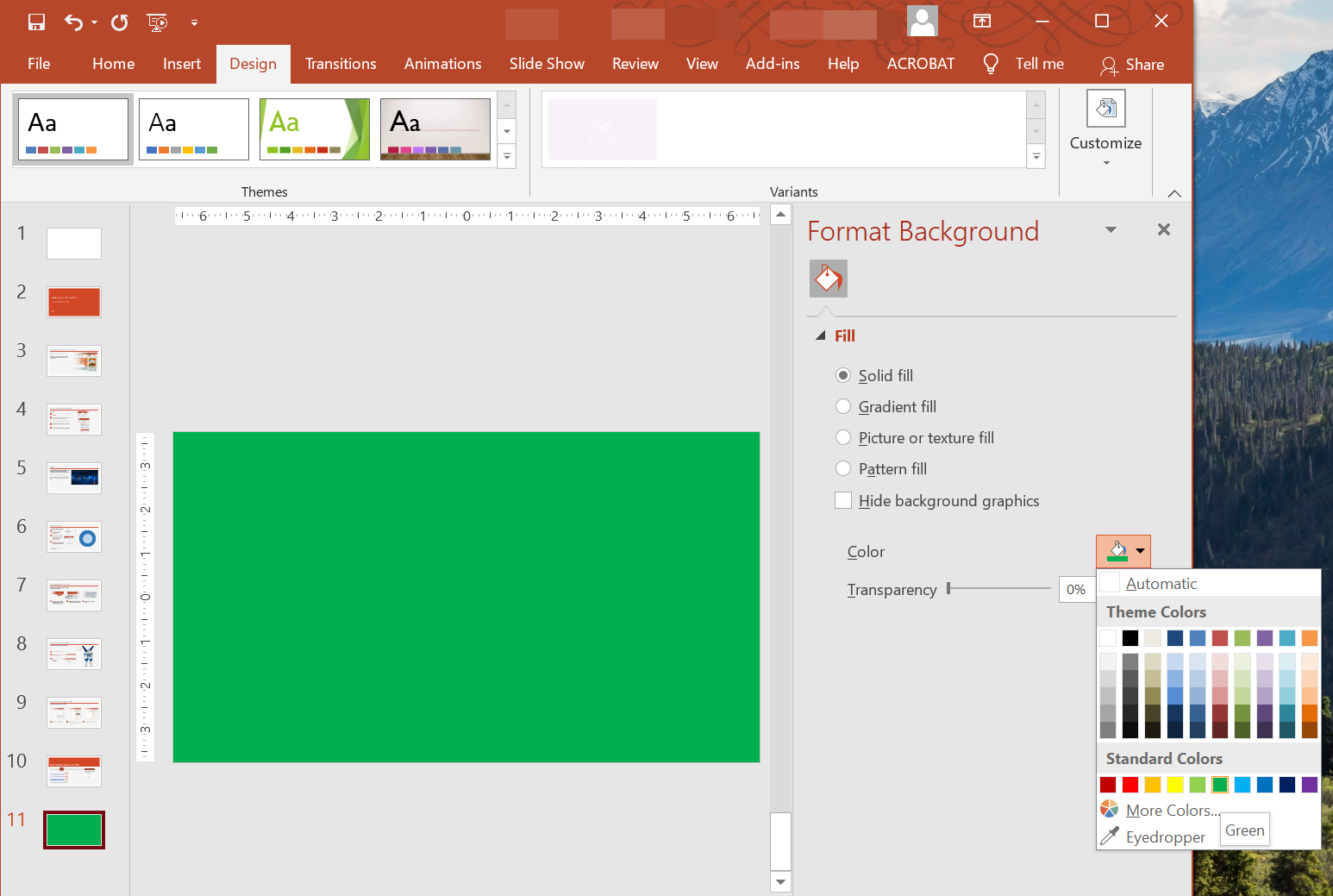
設定普通投影片的實色背景
Aspose.Slides 允許您為簡報中的特定投影片設定實色作為背景——即使簡報使用了母版投影片。此變更僅套用於所選投影片。
- 建立 Presentation 類別的實例。
- 將投影片的 BackgroundType 設為
OwnBackground。 - 將投影片背景的 FillType 設為
Solid。 - 在 FillFormat 上使用 getSolidFillColor 方法指定實色背景顏色。
- 儲存已修改的簡報。
以下 Python 範例說明如何將藍色實色設定為普通投影片的背景:
import jpype
import asposeslides

if not jpype.isJVMStarted():
    jpype.startJVM()

from asposeslides.api import BackgroundType, FillType, Presentation, SaveFormat
from java.awt import Color

# 建立 Presentation 類別的實例。
presentation = Presentation()
try:
    slide = presentation.getSlides().get_Item(0)

    # 設定投影片的背景顏色為藍色。
    slide.getBackground().setType(BackgroundType.OwnBackground)
    slide.getBackground().getFillFormat().setFillType(FillType.Solid)
    slide.getBackground().getFillFormat().getSolidFillColor().setColor(Color.BLUE)

    # 將簡報儲存至磁碟。
    presentation.save("SolidColorBackground.pptx", SaveFormat.Pptx)
finally:
    presentation.dispose()
設定母版投影片的實色背景
Aspose.Slides 允許您為簡報的母版投影片設定實色背景。母版投影片作為範本,控制所有投影片的格式,因此當您為母版投影片的背景選擇實色時,會套用至每一張投影片。
- 建立 Presentation 類別的實例。
- 透過 getMasters 取得母版投影片,將其 BackgroundType 設為
OwnBackground。 - 將母版投影片背景的 FillType 設為
Solid。 - 使用 getSolidFillColor 方法指定實色背景顏色。
- 儲存已修改的簡報。
以下 Python 範例說明如何將綠色實色設定為母版投影片的背景:
import jpype
import asposeslides

if not jpype.isJVMStarted():
    jpype.startJVM()

from asposeslides.api import BackgroundType, FillType, Presentation, SaveFormat
from java.awt import Color

# 建立 Presentation 類別的實例。
presentation = Presentation()
try:
    master_slide = presentation.getMasters().get_Item(0)

    # 設定母版投影片的背景顏色為綠色。
    master_slide.getBackground().setType(BackgroundType.OwnBackground)
    master_slide.getBackground().getFillFormat().setFillType(FillType.Solid)
    master_slide.getBackground().getFillFormat().getSolidFillColor().setColor(Color.GREEN)

    # 將簡報儲存至磁碟。
    presentation.save("MasterSlideBackground.pptx", SaveFormat.Pptx)
finally:
    presentation.dispose()
設定投影片的漸層背景
漸層是透過顏色逐漸變化所產生的圖形效果。作為投影片背景時,漸層可讓簡報看起來更具藝術感與專業感。Aspose.Slides 允許您為投影片設定漸層色作為背景。
- 建立 Presentation 類別的實例。
- 將投影片的 BackgroundType 設為
OwnBackground。 - 將投影片背景的 FillType 設為
Gradient。 - 在 FillFormat 上使用 getGradientFormat 方法配置您偏好的漸層設定。
- 儲存已修改的簡報。
以下 Python 範例說明如何將漸層色設定為投影片的背景:
import jpype
import asposeslides

if not jpype.isJVMStarted():
    jpype.startJVM()

from asposeslides.api import BackgroundType, FillType, Presentation, SaveFormat, TileFlip
from java.awt import Color

# 建立 Presentation 類別的實例。
presentation = Presentation()
try:
    slide = presentation.getSlides().get_Item(0)

    # 套用漸層效果至背景。
    slide.getBackground().setType(BackgroundType.OwnBackground)
    slide.getBackground().getFillFormat().setFillType(FillType.Gradient)

    gradient_format = slide.getBackground().getFillFormat().getGradientFormat()
    gradient_format.setTileFlip(TileFlip.FlipBoth)

    # 添加漸層顏色。若未設定漸層停靠點,背景會退回預設的黑白漸層。
    gradient_format.getGradientStops().add(0.0, Color.CYAN)
    gradient_format.getGradientStops().add(1.0, Color.BLUE)

    # 將簡報儲存至磁碟。
    presentation.save("GradientBackground.pptx", SaveFormat.Pptx)
finally:
    presentation.dispose()
設定圖像為投影片背景
除了實色與漸層填充外,Aspose.Slides 亦允許您使用圖像作為投影片背景。
- 建立 Presentation 類別的實例。
- 將投影片的 BackgroundType 設為
OwnBackground。 - 將投影片背景的 FillType 設為
Picture。 - 載入要作為投影片背景的圖像。
- 將圖像加入簡報的圖像集合。
- 在 FillFormat 上使用 getPictureFillFormat 方法指派圖像為背景。
- 儲存已修改的簡報。
以下 Python 範例說明如何將圖像設定為投影片的背景:
import jpype
import asposeslides

if not jpype.isJVMStarted():
    jpype.startJVM()

from asposeslides.api import BackgroundType, FillType, Images, PictureFillMode, Presentation, SaveFormat

# 建立 Presentation 類別的實例。
presentation = Presentation()
try:
    slide = presentation.getSlides().get_Item(0)

    # 設定背景圖像屬性。
    slide.getBackground().setType(BackgroundType.OwnBackground)
    slide.getBackground().getFillFormat().setFillType(FillType.Picture)
    slide.getBackground().getFillFormat().getPictureFillFormat().setPictureFillMode(PictureFillMode.Stretch)

    # 載入圖像。
    image = Images.fromFile("Tulips.jpg")
    # 將圖像加入簡報的圖像集合。
    presentation_image = presentation.getImages().addImage(image)
    image.dispose()

    slide.getBackground().getFillFormat().getPictureFillFormat().getPicture().setImage(presentation_image)

    # 將簡報儲存至磁碟。
    presentation.save("ImageAsBackground.pptx", SaveFormat.Pptx)
finally:
    presentation.dispose()
以下程式碼範例說明如何將背景填充類型設定為平鋪圖案並修改平鋪屬性:
import jpype
import asposeslides

if not jpype.isJVMStarted():
    jpype.startJVM()

from asposeslides.api import BackgroundType, FillType, Images, PictureFillMode, Presentation, RectangleAlignment, SaveFormat, TileFlip

presentation = Presentation()
try:
    first_slide = presentation.getSlides().get_Item(0)

    background = first_slide.getBackground()

    background.setType(BackgroundType.OwnBackground)
    background.getFillFormat().setFillType(FillType.Picture)

    new_image = Images.fromFile("image.png")
    presentation_image = presentation.getImages().addImage(new_image)
    new_image.dispose()

    # 設定用於背景填充的圖像。
    background_picture_fill_format = background.getFillFormat().getPictureFillFormat()
    background_picture_fill_format.getPicture().setImage(presentation_image)

    # 設定圖片填充模式為平鋪並調整平鋪屬性。
    background_picture_fill_format.setPictureFillMode(PictureFillMode.Tile)
    background_picture_fill_format.setTileOffsetX(15.0)
    background_picture_fill_format.setTileOffsetY(15.0)
    background_picture_fill_format.setTileScaleX(46.0)
    background_picture_fill_format.setTileScaleY(87.0)
    background_picture_fill_format.setTileAlignment(RectangleAlignment.Center)
    background_picture_fill_format.setTileFlip(TileFlip.FlipY)

    presentation.save("TileBackground.pptx", SaveFormat.Pptx)
finally:
    presentation.dispose()
Note
閱讀更多:Tile Picture as Texture。變更背景圖像透明度
您可能想調整投影片背景圖像的透明度,以突顯投影片內容。以下 Python 程式碼說明如何變更投影片背景圖像的透明度:
import jpype
import asposeslides

if not jpype.isJVMStarted():
    jpype.startJVM()

from asposeslides.api import AlphaModulateFixed, Presentation, SaveFormat

transparency_value = 30  # 例如。

presentation = Presentation("sample.pptx")
try:
    slide = presentation.getSlides().get_Item(0)

    # 取得圖片變換操作的集合。
    image_transform = slide.getBackground().getFillFormat().getPictureFillFormat().getPicture().getImageTransform()

    # 尋找已存在的固定百分比透明度效果。
    transparency_operation = None
    for operation in image_transform:
        if isinstance(operation, AlphaModulateFixed):
            transparency_operation = operation
            break

    # 設定新的透明度值。
    if transparency_operation is None:
        image_transform.addAlphaModulateFixedEffect(100 - transparency_value)
    else:
        transparency_operation.setAmount(100 - transparency_value)

    presentation.save("output.pptx", SaveFormat.Pptx)
finally:
    presentation.dispose()
取得投影片背景值
Aspose.Slides 允許您使用 Background 上的 getEffective 方法,取得投影片的有效背景值。回傳的資料會揭露有效的填充與效果格式。
使用 BaseSlide 類別的 getBackground 方法,即可取得投影片的背景。
以下 Python 範例說明如何取得投影片的有效背景值:
import jpype
import asposeslides

if not jpype.isJVMStarted():
    jpype.startJVM()

from asposeslides.api import FillType, Presentation

# 建立 Presentation 類別的實例。
presentation = Presentation("Sample.pptx")
try:
    slide = presentation.getSlides().get_Item(0)

    # 取得有效的背景,考慮母版、版面配置與主題。
    effective_background = slide.getBackground().getEffective()

    if effective_background.getFillFormat().getFillType() == FillType.Solid:
        print("Fill color:", effective_background.getFillFormat().getSolidFillColor())
    else:
        print("Fill type:", effective_background.getFillFormat().getFillType())
finally:
    presentation.dispose()
常見問題
我可以重設自訂背景並恢復佈景主題/版面配置背景嗎?
可以。移除投影片的自訂填充後,背景會再次從相應的 layout/master 投影片(即 theme background)繼承。
如果之後更改簡報的主題,背景會怎樣?
如果投影片具有自己的填充,則保持不變。若背景是從 layout/master 繼承的,則會更新為符合新的 new theme。