
在演示文稿中使用 JavaScript 管理文本框
简介
在 Aspose.Slides for Node.js via Java 中,幻灯片文本存储在属于形状的文本框中。The AutoShape class represents the most common text-bearing shape and exposes its text through the AutoShape.getTextFrame method.
在幻灯片上创建文本框
要创建文本框,向幻灯片添加自动形状,为其文本框添加文本,然后保存演示文稿。以下示例创建了一个矩形文本框:
const aspose = { slides: require("aspose.slides.via.java") };

const presentation = new aspose.slides.Presentation();
try {
    const slide = presentation.getSlides().get_Item(0);
    const textBox = slide.getShapes().addAutoShape(aspose.slides.ShapeType.Rectangle, 150, 75, 300, 50);
    textBox.addTextFrame("Aspose TextBox");

    presentation.save("TextBox.pptx", aspose.slides.SaveFormat.Pptx);
} finally {
    presentation.dispose();
}
传递给 ShapeCollection.addAutoShape 的坐标和尺寸以点为单位。AutoShape.addTextFrame 使用提供的文本初始化文本框。
检查文本框形状
使用 AutoShape.isTextBox 方法确定自动形状是否被视为文本框。当演示文稿同时包含承载文本的自动形状和纯图形自动形状时,此方法很有用。
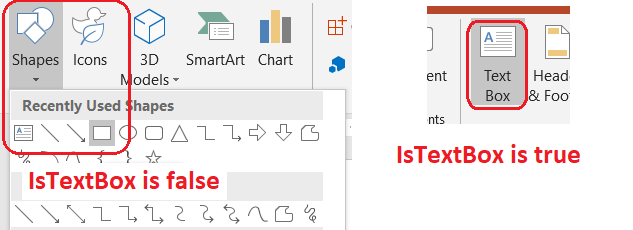
以下示例检查演示文稿中的每个自动形状:
const aspose = { slides: require("aspose.slides.via.java") };
const java = require("java");

const presentation = new aspose.slides.Presentation();
try {
    const slide = presentation.getSlides().get_Item(0);
    const textBox = slide.getShapes().addAutoShape(aspose.slides.ShapeType.Rectangle, 10, 10, 120, 40);
    textBox.addTextFrame("Text box");
    slide.getShapes().addAutoShape(aspose.slides.ShapeType.Ellipse, 150, 10, 40, 40);

    for (let slideIndex = 0; slideIndex < presentation.getSlides().size(); slideIndex++) {
        const currentSlide = presentation.getSlides().get_Item(slideIndex);
        for (let shapeIndex = 0; shapeIndex < currentSlide.getShapes().size(); shapeIndex++) {
            const shape = currentSlide.getShapes().get_Item(shapeIndex);
            if (java.instanceOf(shape, "com.aspose.slides.AutoShape")) {
                console.log(shape.isTextBox() ? "The shape is a text box." : "The shape is not a text box.");
            }
        }
    }
} finally {
    presentation.dispose();
}
新添加的自动形状在包含非空文本之前不被视为文本框。您可以通过 AutoShape.addTextFrame 或 TextFrame.setText 提供该文本。添加或分配空字符串会导致 AutoShape.isTextBox 返回 false:
const aspose = { slides: require("aspose.slides.via.java") };

const presentation = new aspose.slides.Presentation();
try {
    const slide = presentation.getSlides().get_Item(0);

    const shape1 = slide.getShapes().addAutoShape(aspose.slides.ShapeType.Rectangle, 10, 10, 100, 40);
    shape1.addTextFrame("Shape 1");
    console.log(shape1.isTextBox());

    const shape2 = slide.getShapes().addAutoShape(aspose.slides.ShapeType.Rectangle, 10, 70, 100, 40);
    shape2.getTextFrame().setText("Shape 2");
    console.log(shape2.isTextBox());

    const shape3 = slide.getShapes().addAutoShape(aspose.slides.ShapeType.Rectangle, 10, 130, 100, 40);
    shape3.addTextFrame("");
    console.log(shape3.isTextBox());

    const shape4 = slide.getShapes().addAutoShape(aspose.slides.ShapeType.Rectangle, 10, 190, 100, 40);
    shape4.getTextFrame().setText("");
    console.log(shape4.isTextBox());
} finally {
    presentation.dispose();
}
前两次调用输出 true;后两次输出 false。
查找拥有文本框的形状
通用的文本处理代码可能会收到一个 TextFrame,却不知道它所属的演示文稿对象。使用只读的 TextFrame.getParentShape 方法返回其所属的 Shape。
如果文本框属于自动形状或其他承载文本的形状,TextFrame.getParentShape 返回所有者,而 TextFrame.getParentCell 返回 null。在访问之前请检查返回值。要识别形状和表格单元格所有者(包括与 SmartArt 节点关联的形状),请参阅 搜索和替换文本。
向文本框添加列
TextFrameFormat.setColumnCount 方法将文本框划分为多列,而 TextFrameFormat.setColumnSpacing 设置列间距(单位为点)。这两个设置属于 TextFrameFormat,可以通过现有文本框的文本框进行更改。文本在同一形状内部的列之间重新流动;不会继续进入其他形状。
下面的示例创建了一个三列文本框,列间距为 10 点,保存演示文稿,并从输出文件读取已存储的设置:
const aspose = { slides: require("aspose.slides.via.java") };

const presentation = new aspose.slides.Presentation();
try {
    const slide = presentation.getSlides().get_Item(0);
    const textBox = slide.getShapes().addAutoShape(aspose.slides.ShapeType.Rectangle, 100, 100, 300, 200);
    textBox.addTextFrame("This text is distributed automatically across all columns in the text box.");

    const textFrameFormat = textBox.getTextFrame().getTextFrameFormat();
    textFrameFormat.setColumnCount(3);
    textFrameFormat.setColumnSpacing(10);

    presentation.save("TextBoxColumns.pptx", aspose.slides.SaveFormat.Pptx);

    const savedPresentation = new aspose.slides.Presentation("TextBoxColumns.pptx");
    try {
        const savedTextBox = savedPresentation.getSlides().get_Item(0).getShapes().get_Item(0);
        const savedFormat = savedTextBox.getTextFrame().getTextFrameFormat();
        console.log("Columns: " + savedFormat.getColumnCount() + "; spacing: " + savedFormat.getColumnSpacing() + " points");
    } finally {
        savedPresentation.dispose();
    }
} finally {
    presentation.dispose();
}
从各列提取文本
使用 TextFrame.splitTextByColumns 检索现有文本框中每个可视列分配的文本。该方法按列的阅读顺序为每列返回一个字符串。单列文本框返回仅包含一个元素的数组,空列则表现为空字符串。返回的字符串仅包含纯文本;不保留段落级别的格式。
在需要以下操作时此功能很有用:
- 在保持列阅读顺序的同时提取文本。
- 对多列幻灯片的内容进行索引或比较。
- 将每列导出到单独的文件、数据库字段或其他目的地。
- 检查在使用 TextFrameFormat.setColumnCount 更改列数、使用 TextFrameFormat.setColumnSpacing 调整间距、修改字体或文本框大小后,文本如何重新分配。
该方法报告当前 TextFrame 内分布的文本;不会自动在不同形状或文本框之间流动。列的分布可能受可用字体和其他文本布局设置的影响,因此在结果需要一致时请确保所需字体已可用。
下面的示例加载演示文稿,找到第一个具有多列文本框的自动形状,读取其配置的列数,并将每列的文本写入单独的文件。未提供文本框的形状将被跳过。
const aspose = { slides: require("aspose.slides.via.java") };
const java = require("java");
const fs = require("fs");

const presentation = new aspose.slides.Presentation("MultiColumnText.pptx");
try {
    const slide = presentation.getSlides().get_Item(0);
    let textBox = null;
    for (let shapeIndex = 0; shapeIndex < slide.getShapes().size(); shapeIndex++) {
        const shape = slide.getShapes().get_Item(shapeIndex);
        if (java.instanceOf(shape, "com.aspose.slides.AutoShape")) {
            const textFrame = shape.getTextFrame();
            if (textFrame != null) {
                const columnCount = textFrame.getTextFrameFormat().getColumnCount();
                if (columnCount > 1) {
                    textBox = shape;
                    break;
                }
            }
        }
    }

    if (textBox == null) {
        console.log("No multi-column text frame was found.");
    } else {
        const textFrame = textBox.getTextFrame();
        const configuredColumnCount = textFrame.getTextFrameFormat().getColumnCount();
        const columnTexts = textFrame.splitTextByColumns();

        console.log("Configured columns: " + configuredColumnCount);

        for (let columnIndex = 0; columnIndex < columnTexts.length; columnIndex++) {
            const columnNumber = columnIndex + 1;
            const columnText = columnTexts[columnIndex];
            console.log("Column " + columnNumber + ": " + columnText);
            const outputPath = "Column-" + columnNumber + ".txt";
            try {
                fs.writeFileSync(outputPath, columnText, "utf8");
            } catch (error) {
                console.log("Could not write column " + columnNumber + ": " + error.message);
            }
        }
    }
} finally {
    presentation.dispose();
}
更新文本
要在整个演示文稿中更新文本,遍历幻灯片和形状,选择自动形状,然后编辑其文本段落。在段落级别工作可同时更改文本和字符格式。
下面的示例将自动形状文本中所有出现的 years 替换为 months,并将受影响的段落加粗:
const aspose = { slides: require("aspose.slides.via.java") };
const java = require("java");

const fontBold = java.newByte(aspose.slides.NullableBool.True);
const presentation = new aspose.slides.Presentation("Text.pptx");
try {
    for (let slideIndex = 0; slideIndex < presentation.getSlides().size(); slideIndex++) {
        const slide = presentation.getSlides().get_Item(slideIndex);
        for (let shapeIndex = 0; shapeIndex < slide.getShapes().size(); shapeIndex++) {
            const shape = slide.getShapes().get_Item(shapeIndex);
            if (!java.instanceOf(shape, "com.aspose.slides.AutoShape")) {
                continue;
            }

            const textFrame = shape.getTextFrame();
            if (textFrame == null) {
                continue;
            }

            for (let paragraphIndex = 0; paragraphIndex < textFrame.getParagraphs().getCount(); paragraphIndex++) {
                const paragraph = textFrame.getParagraphs().get_Item(paragraphIndex);
                for (let portionIndex = 0; portionIndex < paragraph.getPortions().getCount(); portionIndex++) {
                    const portion = paragraph.getPortions().get_Item(portionIndex);
                    const text = portion.getText();
                    if (text != null && text.includes("years")) {
                        portion.setText(text.replace(/years/g, "months"));
                        portion.getPortionFormat().setFontBold(fontBold);
                    }
                }
            }
        }
    }

    presentation.save("TextChanged.pptx", aspose.slides.SaveFormat.Pptx);
} finally {
    presentation.dispose();
}
此遍历仅更新自动形状中的文本。存储在表格、图表、SmartArt 或组合形状中的文本需要遍历这些对象各自的集合。
添加带超链接的文本框
可以为特定文本段落分配超链接,这样只有该段落的文字可点击。使用 HyperlinkManager.setExternalHyperlinkClick 将段落与外部 URL 关联。
下面的示例创建了带链接的文本并将其保存到演示文稿:
const aspose = { slides: require("aspose.slides.via.java") };

const presentation = new aspose.slides.Presentation();
try {
    const slide = presentation.getSlides().get_Item(0);
    const textBox = slide.getShapes().addAutoShape(aspose.slides.ShapeType.Rectangle, 150, 150, 200, 50);
    textBox.addTextFrame("Aspose.Slides");

    const textPortion = textBox.getTextFrame().getParagraphs().get_Item(0).getPortions().get_Item(0);
    textPortion.getPortionFormat().getHyperlinkManager().setExternalHyperlinkClick("https://www.aspose.com/");

    presentation.save("Hyperlink.pptx", aspose.slides.SaveFormat.Pptx);
} finally {
    presentation.dispose();
}
常见问题
文本框和母版或布局幻灯片上的文本占位符有什么区别?
占位符 可以从 母版幻灯片 或 布局幻灯片 继承位置和格式。普通文本框是创建所在幻灯片上的独立形状,布局更改时不会获得占位符行为。
如何在不更改图表、表格或 SmartArt 中的文本的情况下替换文本?
如在“更新文本”示例中所示,将遍历限制为 AutoShape 实例。图表、表格和 SmartArt 将文本存储在各自的对象模型中,因此不会被该循环修改。