


Analyzing your prompt, please hold on...
An error occurred while retrieving the results. Please refresh the page and try again.
Aspose.SVG for .NET edits SVG as a structured vector document. Load an SVG file into an
SVGDocument, find or create SVG elements through DOM APIs, change their geometry, attributes, text, styles, or path data, and save the edited file without rasterizing it.
A typical SVG editing workflow is:
SVGDocument.CreateElementNS().Save().The following example loads an SVG file, adds a blue circle to its root <svg> element, and saves the modified document:
 1using System.IO;
 2using Aspose.Svg;
 3
 4string inputPath = Path.Combine(DataDir, "shapes.svg");
 5string outputPath = Path.Combine(OutputDir, "shapes-with-circle.svg");
 6const string SvgNamespace = "http://www.w3.org/2000/svg";
 7
 8using (SVGDocument document = new SVGDocument(inputPath))
 9{
10    // Access the root <svg> element, which is present in an SVG document.
11    SVGSVGElement svgElement = document.RootElement;
12
13    // Create a circle and define its geometry and appearance.
14    SVGCircleElement circle = (SVGCircleElement)document.CreateElementNS(SvgNamespace, "circle");
15    circle.Cx.BaseVal.Value = 50;
16    circle.Cy.BaseVal.Value = 50;
17    circle.R.BaseVal.Value = 40;
18    circle.SetAttribute("fill", "#3A86FF");
19
20    // Add the circle to the document tree and save the edited SVG file.
21    svgElement.AppendChild(circle);
22    document.Save(outputPath);
23}
If the location of the element to edit is not yet known, see Inspect and Navigate SVG for CSS selector and XPath examples. For document loading options, see Create and Load SVG Documents.
The
RootElement property returns the root <svg> element. New SVG elements must be created in the SVG namespace; you can then append them to a container or insert them at a chosen position in the document tree.
This fragment creates a <g> element and inserts it as the first child of the root element:
 1const string SvgNamespace = "http://www.w3.org/2000/svg";
 2
 3SVGSVGElement svgElement = document.RootElement;
 4SVGGElement groupElement = (SVGGElement)document.CreateElementNS(SvgNamespace, "g");
 5
 6// Apply common styles to every graphic element later added to the group.
 7groupElement.SetAttribute("fill", "#8A8D8F");
 8groupElement.SetAttribute("stroke", "magenta");
 9groupElement.SetAttribute("stroke-width", "4");
10
11svgElement.InsertBefore(groupElement, svgElement.FirstChild);
Use
SetAttribute() to set or update SVG attributes such as fill, stroke, transform, class, or d on created or existing elements.
You can specify element attributes and their values using the
SetAttribute(name, value),
GetAttribute(name),
HasAttribute(name),
RemoveAttribute(name) methods of the
Element class.
Aspose.SVG for .NET provides typed DOM classes for standard SVG shapes, including
SVGCircleElement,
SVGEllipseElement,
SVGRectElement,
SVGLineElement,
SVGPolylineElement,
SVGPolygonElement, and
SVGPathElement. Their typed properties let code edit geometry directly – for example, Cx.BaseVal.Value, Cy.BaseVal.Value, and R.BaseVal.Value define a circle – while the content remains editable vector graphics.
A circle is controlled by the Cx, Cy, and R values represented by its typed properties. The following complete example adds a circle to an existing SVG document:
1using Aspose.Svg;
2using System.IO;
3using Aspose.Svg.Dom; 1// Add a circle element to an existing SVG document in C#
2
3// Set the SVG namespace URI
4string SvgNamespace = "http://www.w3.org/2000/svg";
5
6// Load an SVG document from a file
7using (SVGDocument document = new SVGDocument(Path.Combine(DataDir, "basic-shapes.svg")))
8{
9 // Get the root <svg> element of the document
10 SVGSVGElement svgElement = document.RootElement;
11
12 // Create a <circle> element
13 SVGCircleElement circleElement = (SVGCircleElement)document.CreateElementNS(SvgNamespace, "circle");
14 circleElement.Cx.BaseVal.Value = 100F;
15 circleElement.Cy.BaseVal.Value = 100F;
16 circleElement.R.BaseVal.Value = 50F;
17 circleElement.SetAttribute("fill", "Salmon");
18
19 // Add the <circle> element as the first child to <svg> element
20 svgElement.InsertBefore(circleElement, svgElement.FirstChild);
21
22 // Work with the document here...
23 // Add a polyline and change stroke attributes for all circle and ellipse elements (see later)
24
25 // Save the document
26 document.Save(Path.Combine(OutputDir, "basic-shapes_add-circle.svg"));
27}The ellipse (Cx, Cy, Rx, Ry), the rectangle (X, Y, Width, Height, Rx, Ry) and the line (X1, Y1, X2, Y2) have their own attributes that may be set similarly.
The SVG <polyline> element stores its vertex coordinates in the points attribute. In Aspose.SVG, the SVGPolylineElement.Points list provides typed access to these coordinates. With
CreateSVGPoint(), you can add points without composing the attribute string manually:
 1const string SvgNamespace = "http://www.w3.org/2000/svg";
 2
 3SVGSVGElement svgElement = document.RootElement;
 4SVGPolylineElement polylineElement = (SVGPolylineElement)document.CreateElementNS(SvgNamespace, "polyline");
 5
 6SVGPoint point1 = svgElement.CreateSVGPoint();
 7point1.X = 270;
 8point1.Y = 240;
 9SVGPoint point2 = svgElement.CreateSVGPoint();
10point2.X = 290;
11point2.Y = 220;
12SVGPoint point3 = svgElement.CreateSVGPoint();
13point3.X = 310;
14point3.Y = 240;
15
16polylineElement.Points.AppendItem(point1);
17polylineElement.Points.AppendItem(point2);
18polylineElement.Points.AppendItem(point3);
19polylineElement.SetAttribute("stroke", "grey");
20polylineElement.SetAttribute("stroke-width", "5");
21polylineElement.SetAttribute("fill", "none");
22
23// Add the new polyline to the SVG root element
24svgElement.AppendChild(polylineElement);
25
26// Update strokes of circle and ellipse elements already in the SVG document
27foreach (Element element in svgElement.Children)
28{
29    if (element is SVGCircleElement || element is SVGEllipseElement)
30    {
31        element.SetAttribute("stroke-width", "6");
32        element.SetAttribute("stroke", "#C8102E");
33    }
34}
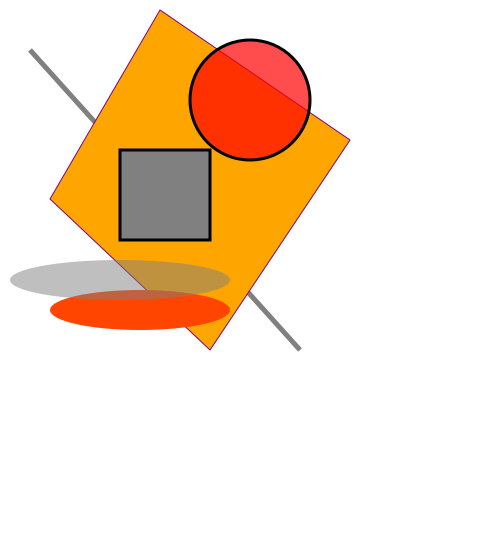
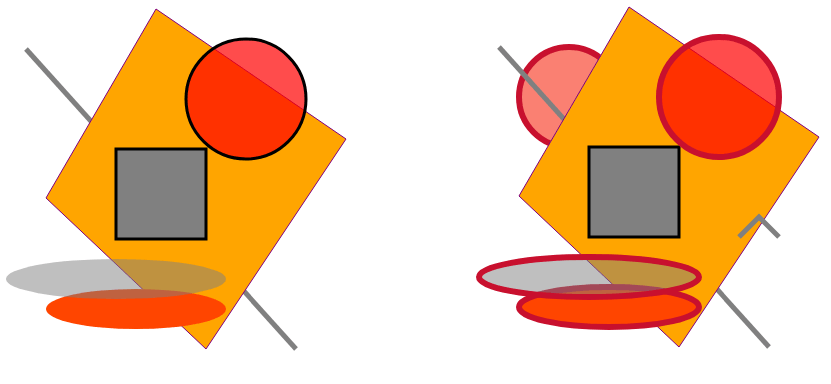
The image below shows the original basic-shapes.svg and the result after adding shapes and changing stroke attributes.
The geometry of a <path> element is stored in its d attribute. Create a typed
SVGPathElement, update its path data, and add it to the SVG document like any other element:
 1const string SvgNamespace = "http://www.w3.org/2000/svg";
 2
 3SVGPathElement pathElement =
 4    (SVGPathElement)document.CreateElementNS(SvgNamespace, "path");
 5
 6// Set the path geometry and its visible style.
 7pathElement.SetAttribute("d", "M 10 200 Q 25 210 180 200 T 300 250 T 420 250 T 490 150");
 8pathElement.SetAttribute("stroke", "magenta");
 9pathElement.SetAttribute("fill", "none");
10pathElement.SetAttribute("stroke-width", "4");
11
12document.RootElement.InsertBefore(pathElement, document.RootElement.FirstChild);
If your code builds or adjusts path commands one segment at a time, SVGPathElement also exposes path segment operations. The following example creates a path and changes selected command coordinates in an existing SVG file:
1using Aspose.Svg;
2using System.IO;
3using Aspose.Svg.Paths; 1// Edit SVG path data programmatically in C#
2
3// Set the SVG namespace URI
4string SvgNamespace = "http://www.w3.org/2000/svg";
5
6using (SVGDocument document = new SVGDocument())
7{
8 SVGSVGElement svgElement = document.RootElement;
9
10 // Create a <path> element
11 SVGPathElement pathElement = (SVGPathElement)document.CreateElementNS(SvgNamespace, "path");
12
13 // Set d attribute parameters – SVG path data
14 pathElement.SetAttribute("d", "M 10 200 Q 25 110 180 200 T 300 250 T 420 250 T 490 150");
15
16 // Edit SVG path
17 foreach (SVGPathSeg pathSeg in pathElement.PathSegList)
18 {
19 // Editing T commands parameters
20 if (pathSeg is SVGPathSegCurvetoQuadraticSmoothAbs)
21 {
22 SVGPathSegCurvetoQuadraticSmoothAbs pathSegCurvetoQuadraticSmoothAbs = pathSeg as SVGPathSegCurvetoQuadraticSmoothAbs;
23
24 pathSegCurvetoQuadraticSmoothAbs.X -= 60;
25 pathSegCurvetoQuadraticSmoothAbs.Y -= 65;
26 }
27
28 // Editing M command parameters
29 if (pathSeg is SVGPathSegMovetoAbs)
30 {
31 SVGPathSegMovetoAbs pathSegMovetoAbs = pathSeg as SVGPathSegMovetoAbs;
32
33 pathSegMovetoAbs.X = 200;
34 pathSegMovetoAbs.Y = 100;
35 }
36 }
37 // Set fill and stroke attributes
38 pathElement.SetAttribute("stroke", "red");
39 pathElement.SetAttribute("fill", "none");
40 pathElement.SetAttribute("stroke-width", "4");
41
42 // Add the <path> element as the first child to the <svg> element
43 svgElement.InsertBefore(pathElement, svgElement.FirstChild);
44
45 // Save the document
46 document.Save(Path.Combine(OutputDir, "edit-svg-path-data.svg"));
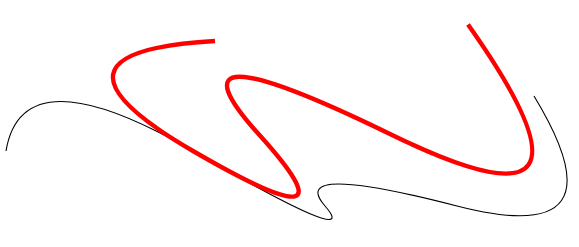
47}The figure compares the original black path and the edited red path. You can also open the edited sample file: edit-svg-path-data.svg.
For path command syntax and drawing behavior, see SVG Path Data.
An SVG document can reference a raster image with an <image> element and place editable vector text or shapes above it. This does not alter the bitmap pixels; the background image and SVG overlay remain separate parts of the vector document.
This technique is useful when a photo, scan, or other raster asset needs labels, markers, badges, or decorative graphics that can still be edited as SVG. In SVG, painting order follows element order: when the <image> element is appended first and text or shapes are appended after it, those vector elements appear over the bitmap background.
1<svg xmlns="http://www.w3.org/2000/svg">
2    <image href="/svg/images/api/seaside.jpg" height="480" width="640" x="20" y="20"/>
3    <text style="font-size: 1.4em;" x="420" y="280" fill="gold">The beach is beautiful...</text>
4    <circle cx="520" cy="120" r="60" stroke="gold" stroke-width="70" fill="none" stroke-dasharray="2,14"/>
5</svg>
To create this composition with Aspose.SVG for .NET:
SVGDocument and access its root <svg> element through
RootElement.SVGImageElement with
CreateElementNS(), set the image reference and its position and size, and append it to the root element as the background.SVGTextElement, specify the displayed text, position, font style, and fill color, and append it after the image.SVGCircleElement, define its position, radius, and stroke attributes, and append it after the background image. In this example, a thick dashed stroke produces a sun-like decorative effect.Save() to write the SVG document. The saved file retains the referenced bitmap and the added text and circle as editable SVG elements.The following example performs these steps and saves the SVG output:
1using Aspose.Svg;
2using System.IO;
3using Aspose.Svg.Paths; 1// Draw SVG shapes and text on an existing bitmap in C#
2
3// Set the SVG namespace URI
4string SvgNamespace = "http://www.w3.org/2000/svg";
5
6using (SVGDocument document = new SVGDocument())
7{
8 SVGSVGElement svgElement = document.RootElement;
9
10 // Create an <image> element and add it into svgElement
11 SVGImageElement imageElement = (SVGImageElement)document.CreateElementNS(SvgNamespace, "image");
12 imageElement.Href.BaseVal = "http://docs.aspose.com/svg/images/api/seaside.jpg";
13 imageElement.Height.BaseVal.ConvertToSpecifiedUnits(SVGLength.SVG_LENGTHTYPE_PX);
14 imageElement.Width.BaseVal.ConvertToSpecifiedUnits(SVGLength.SVG_LENGTHTYPE_PX);
15 imageElement.Height.BaseVal.Value = 480;
16 imageElement.Width.BaseVal.Value = 640;
17 imageElement.X.BaseVal.Value = 20;
18 imageElement.Y.BaseVal.Value = 20;
19 svgElement.AppendChild(imageElement);
20
21 // Create a <text> element, set its attributes, and add it to the <svg> element
22 SVGTextElement textElement = (SVGTextElement)document.CreateElementNS(SvgNamespace, "text");
23 textElement.Style.FontSize = "1.4em";
24 textElement.SetAttribute("x", "420px");
25 textElement.SetAttribute("fill", "gold");
26 textElement.SetAttribute("y", "280px");
27 textElement.TextContent = "The beach is beautiful...";
28 svgElement.AppendChild(textElement);
29
30 // Create a <circle> element, set its attributes, and add it to the <svg> element
31 SVGCircleElement circleElement = (SVGCircleElement)document.CreateElementNS(SvgNamespace, "circle");
32 circleElement.Cx.BaseVal.Value = 520;
33 circleElement.Cy.BaseVal.Value = 120;
34 circleElement.R.BaseVal.Value = 60;
35 circleElement.SetAttribute("stroke", "gold");
36 circleElement.SetAttribute("stroke-width", "70");
37 circleElement.SetAttribute("fill", "none");
38 circleElement.SetAttribute("stroke-dasharray", "2,14");
39 svgElement.AppendChild(circleElement);
40
41 // Save the document
42 document.Save(Path.Combine(OutputDir, "svg-drawing-on-bitmap.svg"));
43}For more on stroke width, dash patterns, and other SVG appearance attributes, see Fills and Strokes in SVG.

1. Does editing an SVG file with Aspose.SVG convert it to a bitmap?
No. Editing through SVGDocument changes SVG elements, attributes, and path data while the document remains vector content. Raster output is produced only when you explicitly convert or render SVG to an image format such as PNG, JPEG, or WebP.
2. How do I edit one existing SVG element instead of adding a new one?
Locate the required element with a CSS selector or XPath query, then change its attributes or typed SVG properties. For example, after selecting a <circle>, code can update its radius, position, fill, or stroke. See
Inspect and Navigate SVG for element selection techniques and
How to Change SVG Color for color editing examples.
3. Can I edit an SVG document and convert the changed result in the same workflow?
Yes. Load the source into SVGDocument, make the required changes, create save options for the target format, and call Converter.ConvertSVG(document, options, outputPath). For example, use PdfSaveOptions for PDF output or ImageSaveOptions for PNG, JPEG, TIFF, GIF, BMP, or WebP output. See
Convert SVG Files in C# for complete conversion examples.
4. Can I replace an existing SVG shape with a different element?
Yes. Find the existing element with a selector or XPath query, create the replacement with CreateElementNS(), insert the new element into the same parent, and remove the old node. For example, code can replace circle markers with rectangles while preserving the rest of the SVG document. See
Inspect and Navigate SVG for an example that replaces SVG elements selected from an existing document.

Analyzing your prompt, please hold on...
An error occurred while retrieving the results. Please refresh the page and try again.