Add Line Shapes to PDF in Python
Contents
[
Hide
]
Add Line object
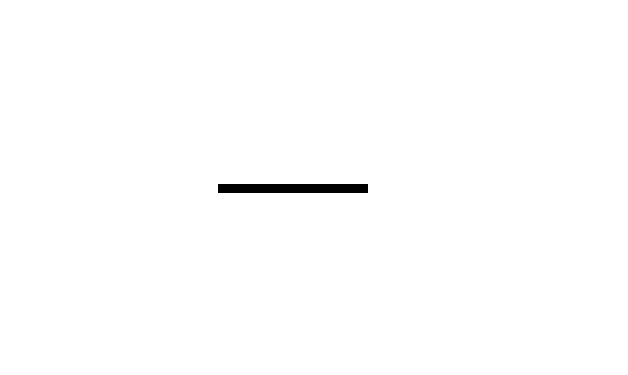
Aspose.PDF for Python via .NET lets you add Line shapes to PDF pages using the Graph class. You can control line color, dash pattern, and placement.
Follow the steps below:
- Create Document instance.
- Create a Graph Object
- Add Graph object to paragraphs collection of page.
- Create and Configure the Line
- Add the Line to the Graph
- Save our PDF file.
import aspose.pdf as ap
import aspose.pdf.drawing as drawing


def add_line(outfile: str):
    document = ap.Document()
    page = document.pages.add()
    graph = drawing.Graph(100, 400)
    page.paragraphs.add(graph)

    line = drawing.Line([100, 100, 200, 100])
    line.graph_info.dash_array = [0, 1, 0]
    line.graph_info.dash_phase = 1
    graph.shapes.add(line)

    document.save(outfile)
How to add Dotted Dashed Line to your PDF document
import aspose.pdf as ap
import aspose.pdf.drawing as drawing

def add_dotted_dashed_line(outfile: str):
    document = ap.Document()
    page = document.pages.add()
    graph = drawing.Graph(100, 400)
    page.paragraphs.add(graph)

    line = drawing.Line([100, 100, 200, 100])
    line.graph_info.color = ap.Color.red
    line.graph_info.dash_array = [0, 1, 0]
    line.graph_info.dash_phase = 1
    graph.shapes.add(line)

    document.save(outfile)
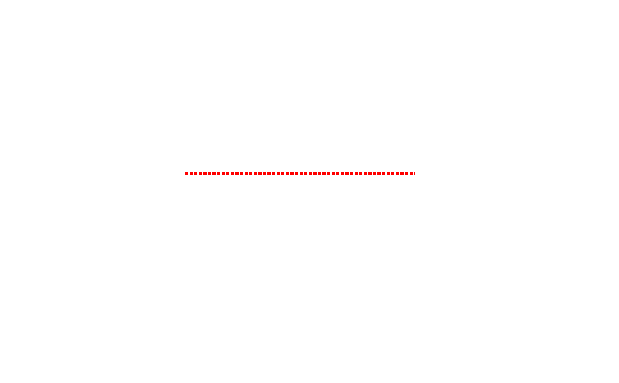
Result of adding a dotted dashed line:
Draw Line Across the Page
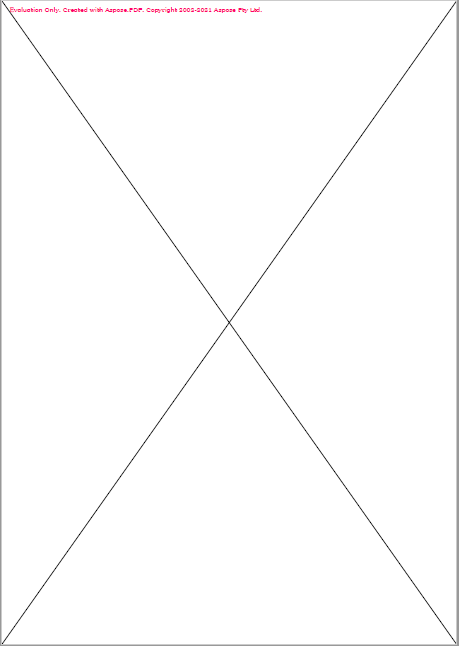
You can also draw lines across the page to form a cross.
import aspose.pdf as ap
import aspose.pdf.drawing as drawing

def draw_line_across_page(outfile: str):
    document = ap.Document()
    page = document.pages.add()
    page.page_info.margin.left = 0
    page.page_info.margin.right = 0
    page.page_info.margin.bottom = 0
    page.page_info.margin.top = 0

    graph = drawing.Graph(page.page_info.width, page.page_info.height)
    line = drawing.Line([page.rect.llx, 0, page.page_info.width, page.rect.ury])
    graph.shapes.add(line)
    line2 = drawing.Line([0, page.rect.ury, page.page_info.width, page.rect.llx])
    graph.shapes.add(line2)
    page.paragraphs.add(graph)

    document.save(outfile)