
إدارة الموصلات في العروض التقديمية على Android
نظرة عامة
الموصل هو خط يمكن أن يبقى مرتبطًا بشكلين عندما يتحرك أي من الشكلين. نهايته تُرفق بمواقع الاتصال، التي تُظهر كدوائر خضراء في PowerPoint. بعض الموصلات المنحنية والمنحرفة تعرض أيضًا نقاط تعديل، تُظهر كنقاط برتقالية، تتحكم في موضع قطاعات الموصل الفردية.
يمثل Aspose.Slides الموصلات عبر واجهة IConnector. يمكنك إنشاءها، ربط نهاياتها بالأشكال، اختيار مواقع الاتصال، إعادة توجيهها، وتعديل هندسة الموصلات التي تحتوي على نقاط تعديل.
أنواع الموصلات
تتضمن الفئة ShapeType قوالب موصل مستقيم، منحني، ومنحنى. يوضح الجدول التالي الهندسات المتاحة للموصل وعدد نقاط التعديل المحددة في كل قالب.
| الموصل | الصورة | عدد نقاط التعديل |
|---|---|---|
ShapeType.Line |
 |
0 |
ShapeType.StraightConnector1 |
 |
0 |
ShapeType.BentConnector2 |
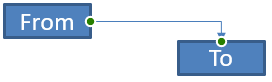 |
0 |
ShapeType.BentConnector3 |
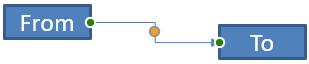 |
1 |
ShapeType.BentConnector4 |
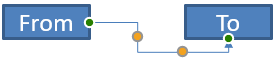 |
2 |
ShapeType.BentConnector5 |
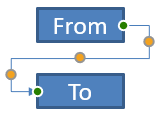 |
3 |
ShapeType.CurvedConnector2 |
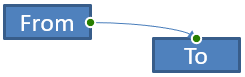 |
0 |
ShapeType.CurvedConnector3 |
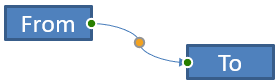 |
1 |
ShapeType.CurvedConnector4 |
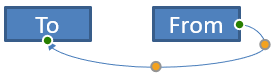 |
2 |
ShapeType.CurvedConnector5 |
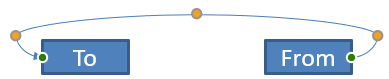 |
3 |
عدد ومعنى نقاط التعديل جزء من القالب المختار للموصل. لا تفترض أن نوعي موصل مختلفين يقدمان نفس تخطيط المجموعة.
ربط شكلين
استخدم IShapeCollection.addConnector لإضافة موصل، واستخدم IConnector.setStartShapeConnectedTo وIConnector.setEndShapeConnectedTo لربط نهايتيه. بعد ربط النهايتين، تقوم IConnector.reroute باختيار مسار قصير بين الشكلين.
المثال التالي يربط بيضاويًا ومستطيلًا بموصل منحني:
import com.aspose.slides.*;

Presentation presentation = new Presentation();
try {
    ISlide slide = presentation.getSlides().get_Item(0);

    IAutoShape ellipse = slide.getShapes().addAutoShape(ShapeType.Ellipse, 40, 80, 120, 80);
    IAutoShape rectangle = slide.getShapes().addAutoShape(ShapeType.Rectangle, 320, 240, 140, 80);
    IConnector connector = slide.getShapes().addConnector(ShapeType.BentConnector2, 0, 0, 10, 10);

    connector.setStartShapeConnectedTo(ellipse);
    connector.setEndShapeConnectedTo(rectangle);
    connector.reroute();

    presentation.save("connected-shapes.pptx", SaveFormat.Pptx);
} finally {
    presentation.dispose();
}
تحذير
استدعاءreroute قد يغيّر قيمتي setStartShapeConnectionSiteIndex وsetEndShapeConnectionSiteIndex. عيّن مواقع الاتصال المحددة بعد إعادة التوجيه إذا كان من الضروري أن تظل تلك المواقع ثابتة.
اختيار موقع الاتصال
كل شكل قابل للاتصال يُقّر عدد المواقع المتاحة عبر IShape.getConnectionSiteCount. تحقق من فهرس الموقع الصفري‑الأساسي المفضل قبل ربطه بنهاية الموصل؛ عدد المواقع يختلف حسب هندسة الشكل.
المثال التالي يرفق الموصل بموقع معين على البيضاوي إذا كان ذلك الموقع موجودًا:
import com.aspose.slides.*;

Presentation presentation = new Presentation();
try {
    ISlide slide = presentation.getSlides().get_Item(0);

    IAutoShape ellipse = slide.getShapes().addAutoShape(ShapeType.Ellipse, 40, 80, 120, 80);
    IAutoShape rectangle = slide.getShapes().addAutoShape(ShapeType.Rectangle, 320, 240, 140, 80);
    IConnector connector = slide.getShapes().addConnector(ShapeType.BentConnector3, 0, 0, 10, 10);

    connector.setStartShapeConnectedTo(ellipse);
    connector.setEndShapeConnectedTo(rectangle);

    long preferredSiteIndex = 2;
    if (preferredSiteIndex < ellipse.getConnectionSiteCount()) {
        connector.setStartShapeConnectionSiteIndex(preferredSiteIndex);
    } else {
        System.out.println("The ellipse has only " + ellipse.getConnectionSiteCount() + " connection sites.");
    }

    presentation.save("specific-connection-site.pptx", SaveFormat.Pptx);
} finally {
    presentation.dispose();
}
تعديل نقطة موصل
الموصلات التي تحتوي على نقاط تعديل تُظهرها عبر IGeometryShape.getAdjustments. افحص كل IAdjustValue وتحقق من قيمة getType قبل تغييرها باستخدام setRawValue. القواعد العامة لتحديد تعديلات الشكل المسبقة موضحة في Shape Manipulation.
عدد، ترتيب، معنى، والنطاق القابل للقيمة لتعديلات الموصل يعتمد على قالب الموصل. نوع التعديل للقراءة فقط، بينما قيمة التعديل قابلة للكتابة. طريقة القراءة فقط getName توفر تعريفًا إضافيًا عندما يحتوي الموصل على أكثر من تعديل من نفس النوع الدلالي.
تجاوز عائق
في التوزيع التالي، موصل BentConnector5 بين شكلين يمر عبر شكل ثالث:
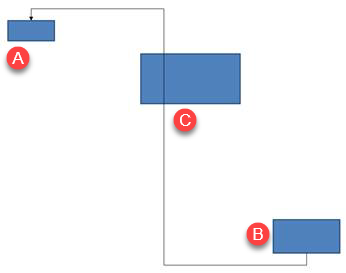
هذا الكود يُنشئ الموصل المعترض:
import com.aspose.slides.*;
import android.graphics.Color;

Presentation presentation = new Presentation();
try {
    ISlide slide = presentation.getSlides().get_Item(0);

    slide.getShapes().addAutoShape(ShapeType.Rectangle, 300, 150, 150, 75);
    IAutoShape sourceShape = slide.getShapes().addAutoShape(ShapeType.Rectangle, 500, 400, 100, 50);
    IAutoShape targetShape = slide.getShapes().addAutoShape(ShapeType.Rectangle, 100, 100, 70, 30);
    IConnector connector = slide.getShapes().addConnector(ShapeType.BentConnector5, 20, 20, 400, 300);

    connector.getLineFormat().setEndArrowheadStyle(LineArrowheadStyle.Triangle);
    connector.getLineFormat().getFillFormat().setFillType(FillType.Solid);
    connector.getLineFormat().getFillFormat().getSolidFillColor().setColor(Color.BLACK);
    connector.setStartShapeConnectedTo(sourceShape);
    connector.setEndShapeConnectedTo(targetShape);
    connector.setStartShapeConnectionSiteIndex(2);

    presentation.save("connector-obstruction.pptx", SaveFormat.Pptx);
} finally {
    presentation.dispose();
}
تحريك الانحناء العمودي يغيّر المسار بحيث يتجاوز الموصل العائق:
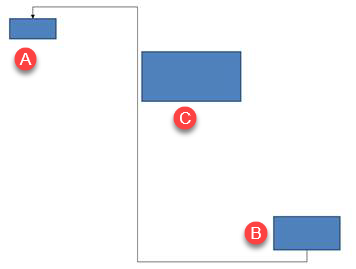
بدلاً من افتراض أن فهرس المجموعة 1 يمثل دائمًا الانحناء العمودي، يبحث هذا المثال عن ConnectorBendPositionY ويغيّره فقط عندما يكون النوع الدلالي المتوقع موجودًا:
import com.aspose.slides.*;
import android.graphics.Color;

Presentation presentation = new Presentation();
try {
    ISlide slide = presentation.getSlides().get_Item(0);

    slide.getShapes().addAutoShape(ShapeType.Rectangle, 300, 150, 150, 75);
    IAutoShape sourceShape = slide.getShapes().addAutoShape(ShapeType.Rectangle, 500, 400, 100, 50);
    IAutoShape targetShape = slide.getShapes().addAutoShape(ShapeType.Rectangle, 100, 100, 70, 30);
    IConnector connector = slide.getShapes().addConnector(ShapeType.BentConnector5, 20, 20, 400, 300);

    connector.getLineFormat().setEndArrowheadStyle(LineArrowheadStyle.Triangle);
    connector.getLineFormat().getFillFormat().setFillType(FillType.Solid);
    connector.getLineFormat().getFillFormat().getSolidFillColor().setColor(Color.BLACK);
    connector.setStartShapeConnectedTo(sourceShape);
    connector.setEndShapeConnectedTo(targetShape);
    connector.setStartShapeConnectionSiteIndex(2);

    IAdjustValue verticalBend = null;
    for (int adjustmentIndex = 0; adjustmentIndex < connector.getAdjustments().size(); adjustmentIndex++) {
        IAdjustValue adjustment = connector.getAdjustments().get_Item(adjustmentIndex);
        System.out.println(adjustment.getName() + ": " + adjustment.getType() + ", raw value = " + adjustment.getRawValue());
        if (adjustment.getType() == ShapeAdjustmentType.ConnectorBendPositionY) {
            verticalBend = adjustment;
            break;
        }
    }

    if (verticalBend == null) {
        System.out.println("The connector does not expose a vertical bend adjustment.");
    } else {
        verticalBend.setRawValue(60000);
        presentation.save("connector-obstruction-fixed.pptx", SaveFormat.Pptx);
    }
} finally {
    presentation.dispose();
}
يحتوي BentConnector5 على تعديلين ConnectorBendPositionX وتعديل واحد ConnectorBendPositionY. إذا ظهر النوع الذي تحتاجه أكثر من مرة، افحص getName والهندسة المعروفة لهذا القالب قبل اختيار أحدهما. إذا أبلغ تعديل عن ShapeAdjustmentType.Custom، فاعتبر معناه ونطاقه خاصًا بالقالب ولا تغيّره حتى تُعرف هذه الشروط.
ربط قيم التعديل بهندسة الموصل
بالنسبة للموصلات المنحنية، يمكن استخدام قيم التعديل لتقدير مواضع القطاعات الفردية. هذه الحسابات خاصة بقالب الموصل:
- عادةً ما يكشف
BentConnector4عن تعديل واحدConnectorBendPositionXوتعديل واحدConnectorBendPositionY. - لهذه المواقع، قسمة القيمة التي تُرجعها
getRawValueعلى100000fينتج الجزء من عرض أو ارتفاع إطار الموصل المستخدم في الأمثلة أدناه. - قد يتم تدوير أو قلب إطار الموصل، لذا يجب تحويل إحداثيات الإطار قبل مقارنتها بإحداثيات الشريحة.
الأمثلة التالية تستخدم getType لتحديد التعديلات أولاً. لا تتعامل مع فهارس المجموعة كمعرفات قابلة للنقل.
موصل غير مدور
التوزيع الأولي يحتوي على شكلين نصيين متصلين بـ BentConnector4:
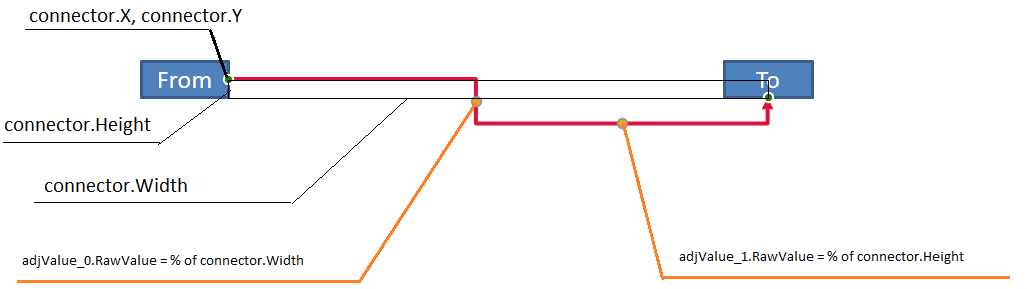
هذا المثال يفحص الموصل ويحصل على تعديلات الانحناء الأفقي والعمودي:
import com.aspose.slides.*;
import android.graphics.Color;

Presentation presentation = new Presentation();
try {
    ISlide slide = presentation.getSlides().get_Item(0);

    IAutoShape sourceShape = slide.getShapes().addAutoShape(ShapeType.Rectangle, 100, 100, 60, 25);
    sourceShape.getTextFrame().setText("From");
    IAutoShape targetShape = slide.getShapes().addAutoShape(ShapeType.Rectangle, 500, 100, 60, 25);
    targetShape.getTextFrame().setText("To");
    IConnector connector = slide.getShapes().addConnector(ShapeType.BentConnector4, 20, 20, 400, 300);

    connector.getLineFormat().setEndArrowheadStyle(LineArrowheadStyle.Triangle);
    connector.getLineFormat().getFillFormat().setFillType(FillType.Solid);
    connector.getLineFormat().getFillFormat().getSolidFillColor().setColor(Color.RED);
    connector.getLineFormat().setWidth(3);
    connector.setStartShapeConnectedTo(sourceShape);
    connector.setStartShapeConnectionSiteIndex(3);
    connector.setEndShapeConnectedTo(targetShape);
    connector.setEndShapeConnectionSiteIndex(2);

    for (int adjustmentIndex = 0; adjustmentIndex < connector.getAdjustments().size(); adjustmentIndex++) {
        IAdjustValue adjustment = connector.getAdjustments().get_Item(adjustmentIndex);
        System.out.println(adjustment.getName() + ": " + adjustment.getType() + ", raw value = " + adjustment.getRawValue());
    }
} finally {
    presentation.dispose();
}
لتغيير كلا الانحنائين، ابحث عن كل نوع متوقع وعدل القيم فقط بعد العثور على كلاهما:
import com.aspose.slides.*;

Presentation presentation = new Presentation();
try {
    ISlide slide = presentation.getSlides().get_Item(0);

    IAutoShape sourceShape = slide.getShapes().addAutoShape(ShapeType.Rectangle, 100, 100, 60, 25);
    IAutoShape targetShape = slide.getShapes().addAutoShape(ShapeType.Rectangle, 500, 100, 60, 25);
    IConnector connector = slide.getShapes().addConnector(ShapeType.BentConnector4, 20, 20, 400, 300);
    connector.setStartShapeConnectedTo(sourceShape);
    connector.setStartShapeConnectionSiteIndex(3);
    connector.setEndShapeConnectedTo(targetShape);
    connector.setEndShapeConnectionSiteIndex(2);

    IAdjustValue horizontalBend = null;
    IAdjustValue verticalBend = null;
    for (int adjustmentIndex = 0; adjustmentIndex < connector.getAdjustments().size(); adjustmentIndex++) {
        IAdjustValue adjustment = connector.getAdjustments().get_Item(adjustmentIndex);
        if (adjustment.getType() == ShapeAdjustmentType.ConnectorBendPositionX) {
            horizontalBend = adjustment;
        } else if (adjustment.getType() == ShapeAdjustmentType.ConnectorBendPositionY) {
            verticalBend = adjustment;
        }
    }

    if (horizontalBend == null || verticalBend == null) {
        System.out.println("The connector does not expose the expected bend adjustments.");
    } else {
        horizontalBend.setRawValue(horizontalBend.getRawValue() + 20000);
        verticalBend.setRawValue(verticalBend.getRawValue() + 200000);
        presentation.save("connector-adjusted.pptx", SaveFormat.Pptx);
    }
} finally {
    presentation.dispose();
}
النتيجة موصل تحركت قطعه الأفقية والعمودية:

بمجرد معرفة الأنواع الدلالية، يمكن تحويل قيمها إلى إحداثيات إطار الموصل. هذا المثال يرسم مستطيلًا رفيعًا فوق القطاع العمودي المتحكم بهما:
import com.aspose.slides.*;

Presentation presentation = new Presentation();
try {
    ISlide slide = presentation.getSlides().get_Item(0);

    IAutoShape sourceShape = slide.getShapes().addAutoShape(ShapeType.Rectangle, 100, 100, 60, 25);
    IAutoShape targetShape = slide.getShapes().addAutoShape(ShapeType.Rectangle, 500, 100, 60, 25);
    IConnector connector = slide.getShapes().addConnector(ShapeType.BentConnector4, 20, 20, 400, 300);
    connector.setStartShapeConnectedTo(sourceShape);
    connector.setStartShapeConnectionSiteIndex(3);
    connector.setEndShapeConnectedTo(targetShape);
    connector.setEndShapeConnectionSiteIndex(2);

    IAdjustValue horizontalBend = null;
    IAdjustValue verticalBend = null;
    for (int adjustmentIndex = 0; adjustmentIndex < connector.getAdjustments().size(); adjustmentIndex++) {
        IAdjustValue adjustment = connector.getAdjustments().get_Item(adjustmentIndex);
        if (adjustment.getType() == ShapeAdjustmentType.ConnectorBendPositionX) {
            horizontalBend = adjustment;
        } else if (adjustment.getType() == ShapeAdjustmentType.ConnectorBendPositionY) {
            verticalBend = adjustment;
        }
    }

    if (horizontalBend == null || verticalBend == null) {
        System.out.println("The connector does not expose the expected bend adjustments.");
    } else {
        float x = connector.getX() + connector.getWidth() * horizontalBend.getRawValue() / 100000f;
        float y = connector.getY();
        float height = connector.getHeight() * verticalBend.getRawValue() / 100000f;
        slide.getShapes().addAutoShape(ShapeType.Rectangle, x, y, 1, height);
        presentation.save("connector-segment-guide.pptx", SaveFormat.Pptx);
    }
} finally {
    presentation.dispose();
}
شكل الدليل يوضح القطعة المحسوبة:

موصل مدور أو مقلوب
عند توجيه نفس هندسة الموصل عموديًا، تؤثر القيم الخاصة بـ IShape.getFrame، ShapeFrame.getFlipH، وShapeFrame.getFlipV على التحويل من إحداثيات إطار الموصل إلى إحداثيات الشريحة.
هذا المثال يُنشئ ويُعدّل الموصل الموجه عموديًا:
import com.aspose.slides.*;
import android.graphics.Color;

Presentation presentation = new Presentation();
try {
    ISlide slide = presentation.getSlides().get_Item(0);

    IAutoShape sourceShape = slide.getShapes().addAutoShape(ShapeType.Rectangle, 100, 100, 60, 25);
    sourceShape.getTextFrame().setText("From");
    IAutoShape targetShape = slide.getShapes().addAutoShape(ShapeType.Rectangle, 100, 400, 60, 25);
    targetShape.getTextFrame().setText("To 1");
    IConnector connector = slide.getShapes().addConnector(ShapeType.BentConnector4, 20, 20, 400, 300);

    connector.getLineFormat().setEndArrowheadStyle(LineArrowheadStyle.Triangle);
    connector.getLineFormat().getFillFormat().setFillType(FillType.Solid);
    int connectorColor = Color.rgb(102, 205, 170);
    connector.getLineFormat().getFillFormat().getSolidFillColor().setColor(connectorColor);
    connector.getLineFormat().setWidth(3);
    connector.setStartShapeConnectedTo(sourceShape);
    connector.setStartShapeConnectionSiteIndex(2);
    connector.setEndShapeConnectedTo(targetShape);
    connector.setEndShapeConnectionSiteIndex(3);

    for (int adjustmentIndex = 0; adjustmentIndex < connector.getAdjustments().size(); adjustmentIndex++) {
        IAdjustValue adjustment = connector.getAdjustments().get_Item(adjustmentIndex);
        if (adjustment.getType() == ShapeAdjustmentType.ConnectorBendPositionX) {
            adjustment.setRawValue(adjustment.getRawValue() + 20000);
        } else if (adjustment.getType() == ShapeAdjustmentType.ConnectorBendPositionY) {
            adjustment.setRawValue(adjustment.getRawValue() + 200000);
        }
    }

    presentation.save("vertical-connector-adjusted.pptx", SaveFormat.Pptx);
} finally {
    presentation.dispose();
}
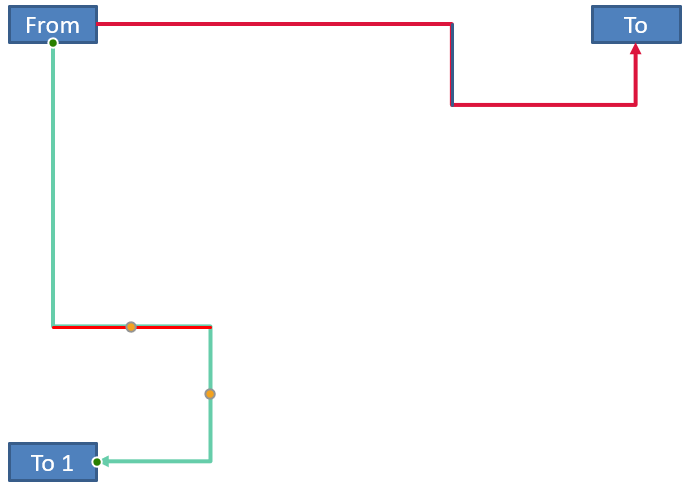
الموصل المُعدَّل يظهر عموديًا بين الشكلين:
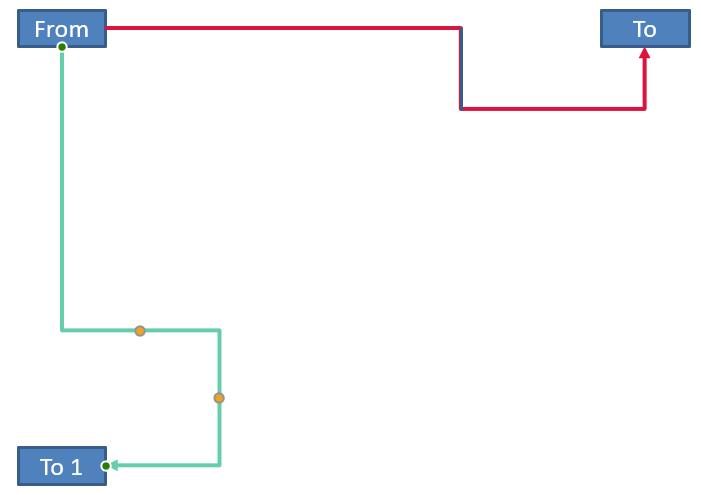
لزاوية دوران عشوائية alpha، دوّر نقطة إطار الموصل (x, y) حول مركز الإطار (x0, y0):
X = (x - x0) * cos(alpha) - (y - y0) * sin(alpha) + x0
Y = (x - x0) * sin(alpha) + (y - y0) * cos(alpha) + y0
الكود التالي يعالج التوجيه بزاوية 90 درجة المستخدم في هذا المثال ويرسم دليلًا أحمر فوق القطاع المقابل للموصل:
import com.aspose.slides.*;
import android.graphics.Color;

Presentation presentation = new Presentation();
try {
    ISlide slide = presentation.getSlides().get_Item(0);

    IAutoShape sourceShape = slide.getShapes().addAutoShape(ShapeType.Rectangle, 100, 100, 60, 25);
    IAutoShape targetShape = slide.getShapes().addAutoShape(ShapeType.Rectangle, 100, 400, 60, 25);
    IConnector connector = slide.getShapes().addConnector(ShapeType.BentConnector4, 20, 20, 400, 300);
    connector.setStartShapeConnectedTo(sourceShape);
    connector.setStartShapeConnectionSiteIndex(2);
    connector.setEndShapeConnectedTo(targetShape);
    connector.setEndShapeConnectionSiteIndex(3);

    IAdjustValue horizontalBend = null;
    IAdjustValue verticalBend = null;
    for (int adjustmentIndex = 0; adjustmentIndex < connector.getAdjustments().size(); adjustmentIndex++) {
        IAdjustValue adjustment = connector.getAdjustments().get_Item(adjustmentIndex);
        if (adjustment.getType() == ShapeAdjustmentType.ConnectorBendPositionX) {
            horizontalBend = adjustment;
        } else if (adjustment.getType() == ShapeAdjustmentType.ConnectorBendPositionY) {
            verticalBend = adjustment;
        }
    }

    if (horizontalBend == null || verticalBend == null) {
        System.out.println("The connector does not expose the expected bend adjustments.");
    } else {
        horizontalBend.setRawValue(horizontalBend.getRawValue() + 20000);
        verticalBend.setRawValue(verticalBend.getRawValue() + 200000);

        float x = connector.getX();
        float y = connector.getY();
        if (connector.getFrame().getFlipH() == NullableBool.True) {
            x += connector.getWidth();
        }
        if (connector.getFrame().getFlipV() == NullableBool.True) {
            y += connector.getHeight();
        }

        x += connector.getWidth() * horizontalBend.getRawValue() / 100000f;
        float rotatedX = connector.getFrame().getCenterX() - y + connector.getFrame().getCenterY();
        float rotatedY = x - connector.getFrame().getCenterX() + connector.getFrame().getCenterY();
        float segmentWidth = connector.getHeight() * verticalBend.getRawValue() / 100000f;
        IAutoShape guide = slide.getShapes().addAutoShape(ShapeType.Rectangle, rotatedX, rotatedY, segmentWidth, 1);
        guide.getLineFormat().getFillFormat().setFillType(FillType.Solid);
        guide.getLineFormat().getFillFormat().getSolidFillColor().setColor(Color.RED);

        presentation.save("rotated-connector-segment-guide.pptx", SaveFormat.Pptx);
    }
} finally {
    presentation.dispose();
}
الدليل الأحمر يحدد القطعة المحسوبة بعد تحويل الإحداثيات:
هذه الصيغ تصف القوالب المستخدمة في الأمثلة، ليست نموذجًا عالميًا للموصلات. تحقق من أنواع التعديلات، توجيه الإطار، ونطاق القيم قبل تطبيق نفس الحساب على قالب مختلف.
إيجاد زاوية اتجاه الموصل
يمكن حساب اتجاه الموصل المستقيم من عرضه وارتفاعه، مع مراعاة القلب الأفقي والعمودي. المثال التالي يُظهر الزاوية بالاتجاه عقرب الساعة من المحور الأفقي الإيجابي في إحداثيات الشريحة:
import com.aspose.slides.*;

Presentation presentation = new Presentation();
try {
    ISlide slide = presentation.getSlides().get_Item(0);
    IConnector connector = slide.getShapes().addConnector(ShapeType.StraightConnector1, 100, 100, 200, 100);

    boolean flipH = connector.getFrame().getFlipH() == NullableBool.True;
    boolean flipV = connector.getFrame().getFlipV() == NullableBool.True;
    float deltaX = connector.getWidth() * (flipH ? -1 : 1);
    float deltaY = connector.getHeight() * (flipV ? -1 : 1);
    double angle = Math.atan2(deltaY, deltaX) * 180.0 / Math.PI;

    if (angle < 0) {
        angle += 360;
    }

    System.out.printf("Connector direction: %.2f degrees%n", angle);
} finally {
    presentation.dispose();
}
الأسئلة الشائعة
كيف يمكنني معرفة ما إذا كان الموصل يمكن أن يربط بشكل؟
تحقق من قيمة getConnectionSiteCount الخاصة بالشكل. عدد إيجابي يعني أن الشكل يكشف عن مواقع اتصال. تحقق من فهرس الموقع المختار قبل ربطه بأي من نهايتي الموصل.
هل يمكنني التعرف على تعديل موصل عبر فهرس مجموعته؟
الفهرس ذو معنى فقط لقالب موصل معروف وتخطيط مجموعه. تحقق من IAdjustValue.getType قبل تعديل قيمة، واستخدم IAdjustValue.getName كمعلومات إضافية عندما يتكرر نفس النوع الدلالي أكثر من مرة.
ماذا يحدث عندما يُحذف الشكل المتصل؟
تصبح نهاية الموصل المرتبطة بهذا الشكل منفصلة. يبقى الموصل على الشريحة ويمكن حذفه، وضعه كخط حر، أو ربطه بشكل آخر.
هل يتم الحفاظ على ربط الموصلات عند نسخ الشريحة؟
عادةً ما تُحافظ الروابط عند نسخ الأشكال المتصلة مع الشريحة. إذا تم نسخ موصل دون أحد الأشكال المستهدفة، يجب ربط النهاية المتأثرة مرة أخرى.